
Feature available for : 🟨 Administrators / Space creators with an ORGANIZATION license

3 roles on Glowbl
When a user enters a space, he or she can be :
Participant
Facilitator
Administrator
Changing a participant's role…
You can appoint a facilitator or administrator either when creating the space, or at any other time before or during your session.
...who is not present in the space:
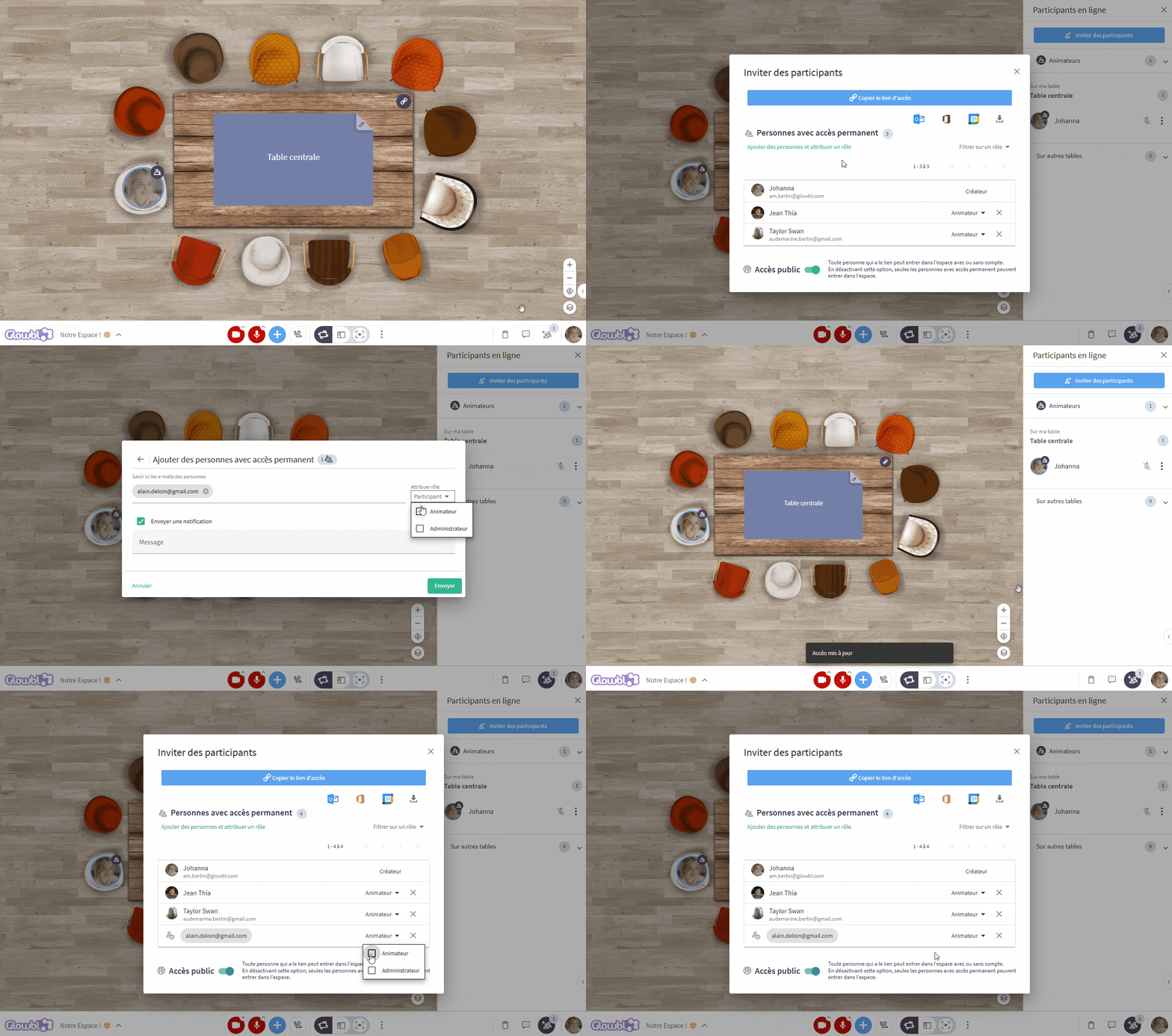
Click on the icon at the bottom right of your screen to open the Participants pane ➜ click on the blue Invite button ➜ click on Add people with permanent access ➜ enter the new facilitator's e-mail and assign his/her role. You have the option of sending him an email notification.
If he is already present in the list of people with permanent access you can modify his role opposite his email.

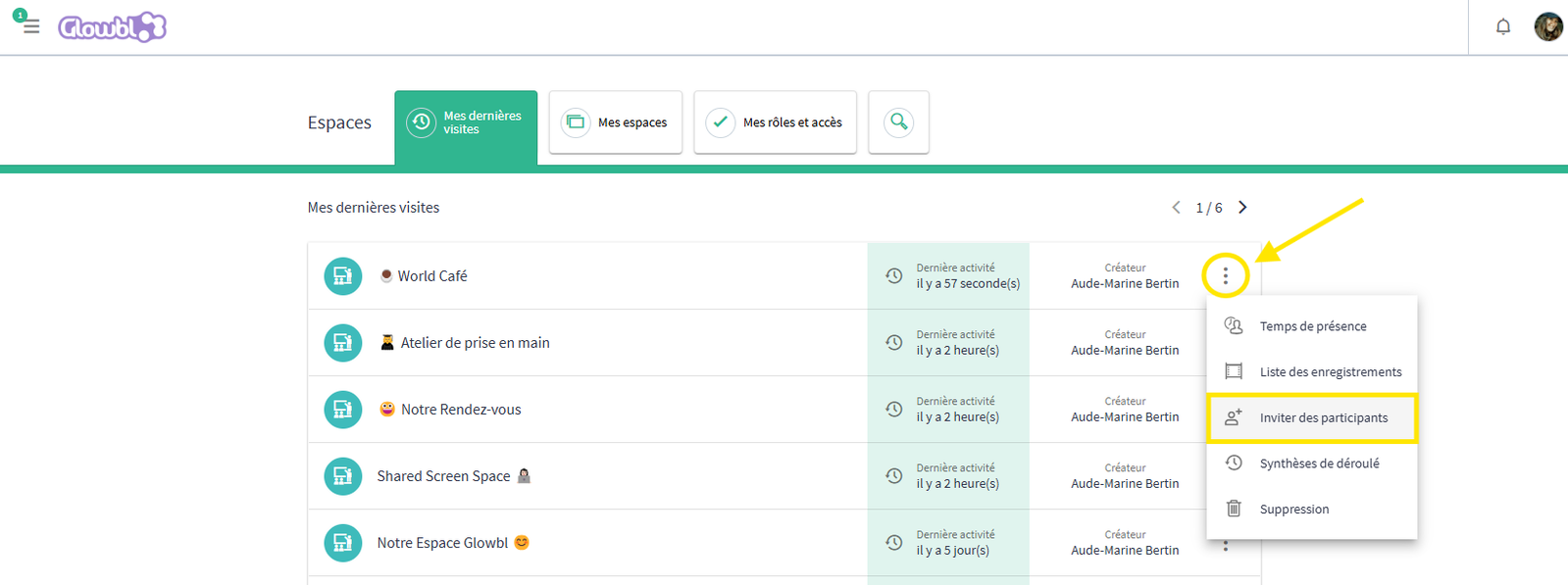
The Invite menu is also accessible from the Dashboard by clicking on the 3 dots of the space concerned.
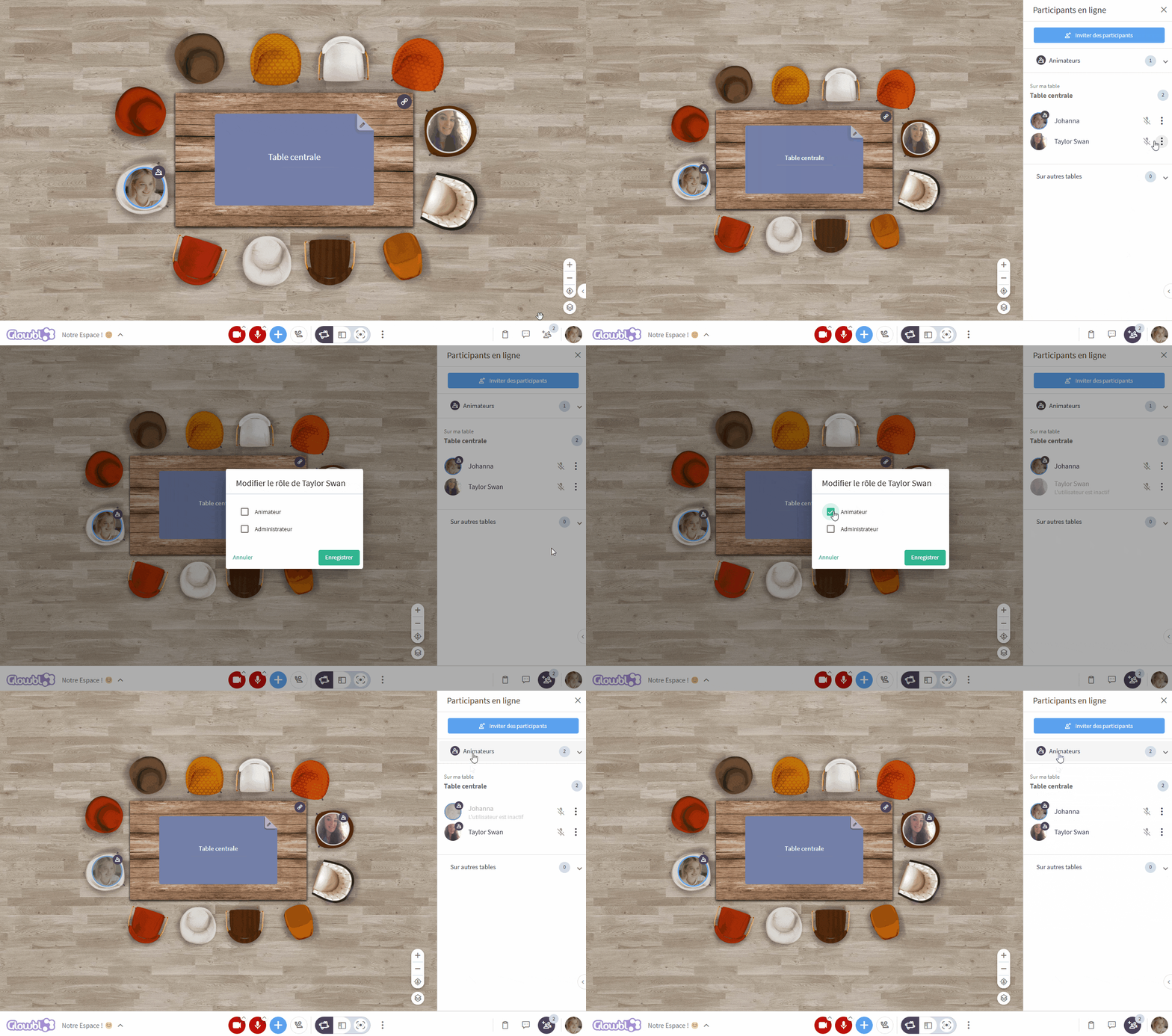
...who is present in the space:
Open the Participants pane ➜ click the 3 dots in front of the name of the participant concerned ➜ click on Change role ➜ then choose between Facilitator or Administrator.

These pages may be of interest to you:
 Invite participantsRestrict access to the space
 Configure camera/microphone