Feature available for: 🟢 Participants 🔷 Facilitators 🟨 Administrators

Choosing your camera and microphone
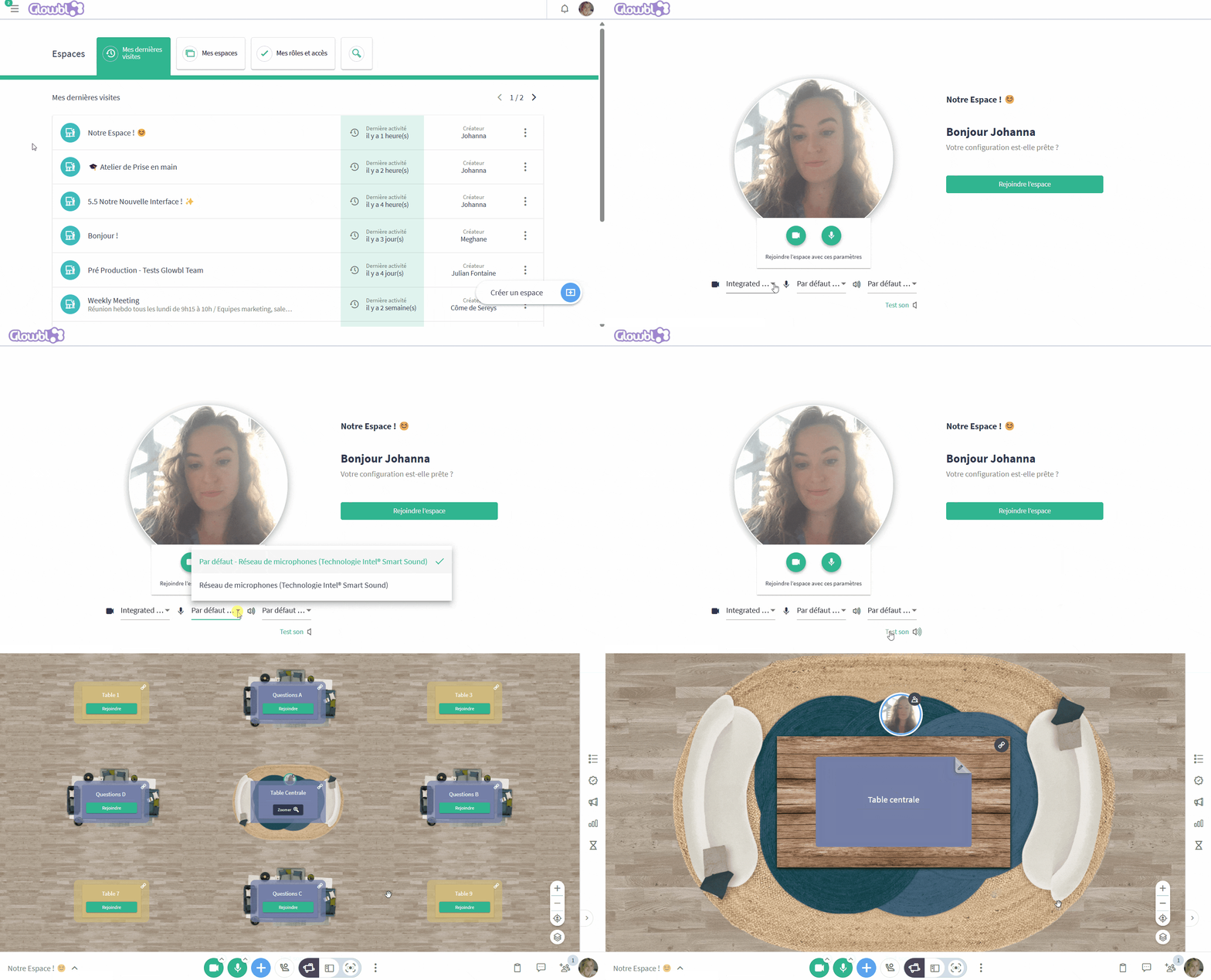
Whenever you click on a link to a space, a screen allows you to check your equipment and tidy your hair before entering. Here, you can change the input and output settings for your microphone and camera. Please do not hesitate to run a sound test.
Your microphone and camera will therefore be switched on when you arrive in the space. To disable them, click on the two buttons 
 at the bottom of your screen.
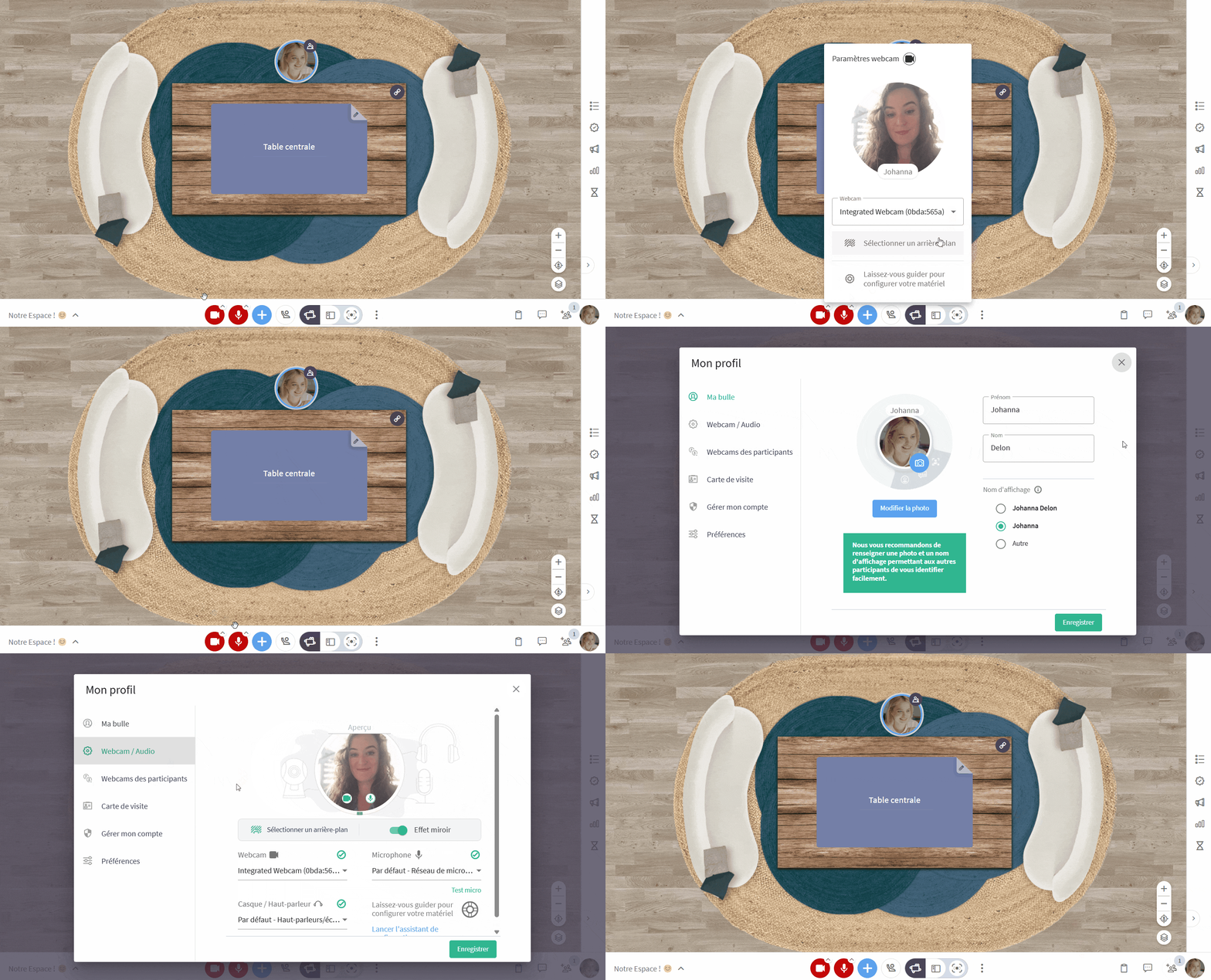
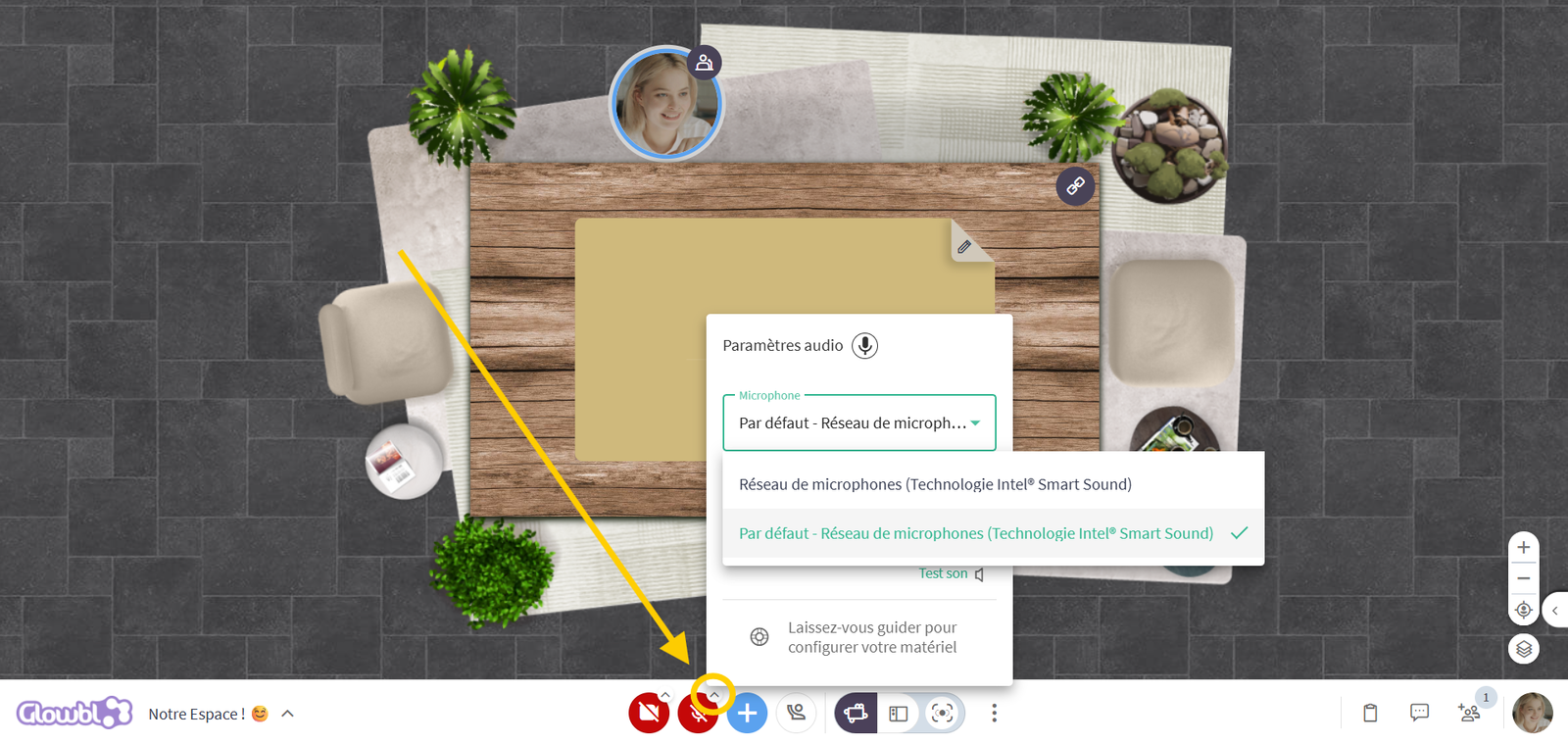
You can access these settings at any time from :
- the chevrons on the microphone and camera buttons
- OR your profile picture ➜ Preferences and profile ➜ Webcam / Audio configuration.

This window lets you blur or select a background. Disable this option, however, if you notice a slowdown in your internet performance.

This feature is covered in the video tutorial :
🎧 What to do if you have sound or camera problems?
You've selected what you think is the right camera and microphone, yet you're experiencing problems? The first things to test are :
🔄️ Reload the page: 90% of sound and video problems are solved simply by reloading the page in your browser.
🔍 Test inputs and outputs: your microphone, headset or camera may not have been automatically recognized by the platform. Click on the microphone and camera button options, then test all the inputs and outputs proposed in the list.
✔️ Check your browser: Glowbl is optimised to run on desktop computers using the most up-to-date versions of Chrome and Edge. If you experience any issues, start by updating your browser. If you have no choice but to use a tablet or mobile phone, please note that the experience will be diminished compared to using a desktop computer.
🙋♂️ Check the rights assigned to participants: if there are no microphone or camera buttons at the bottom of your screen, this means that participants' rights are set to Raise your hand  . Notify the facilitator in Live Chat
 .
💤 Check that your camera is not already being used by another application: simultaneously opening another videoconferencing application can interfere with the recognition of your hardware. Make sure these applications are closed then reload the page. In some cases, it may be necessary to restart the computer.
🌐 Check your internet connection / computer performance: some sound or camera issues may occur temporarily when your internet speed is low or if your computer's performance slows down. Restart your computer.
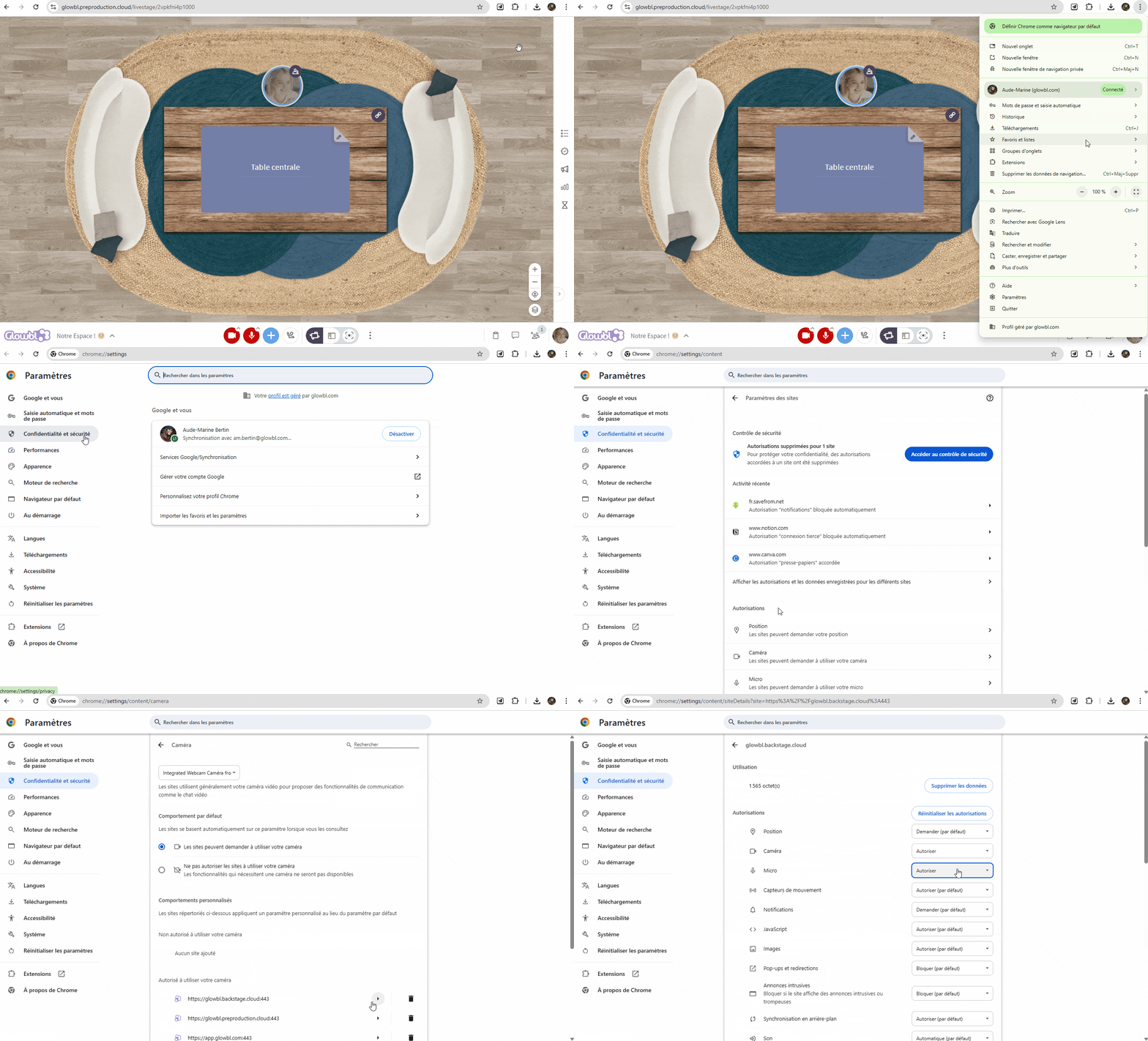
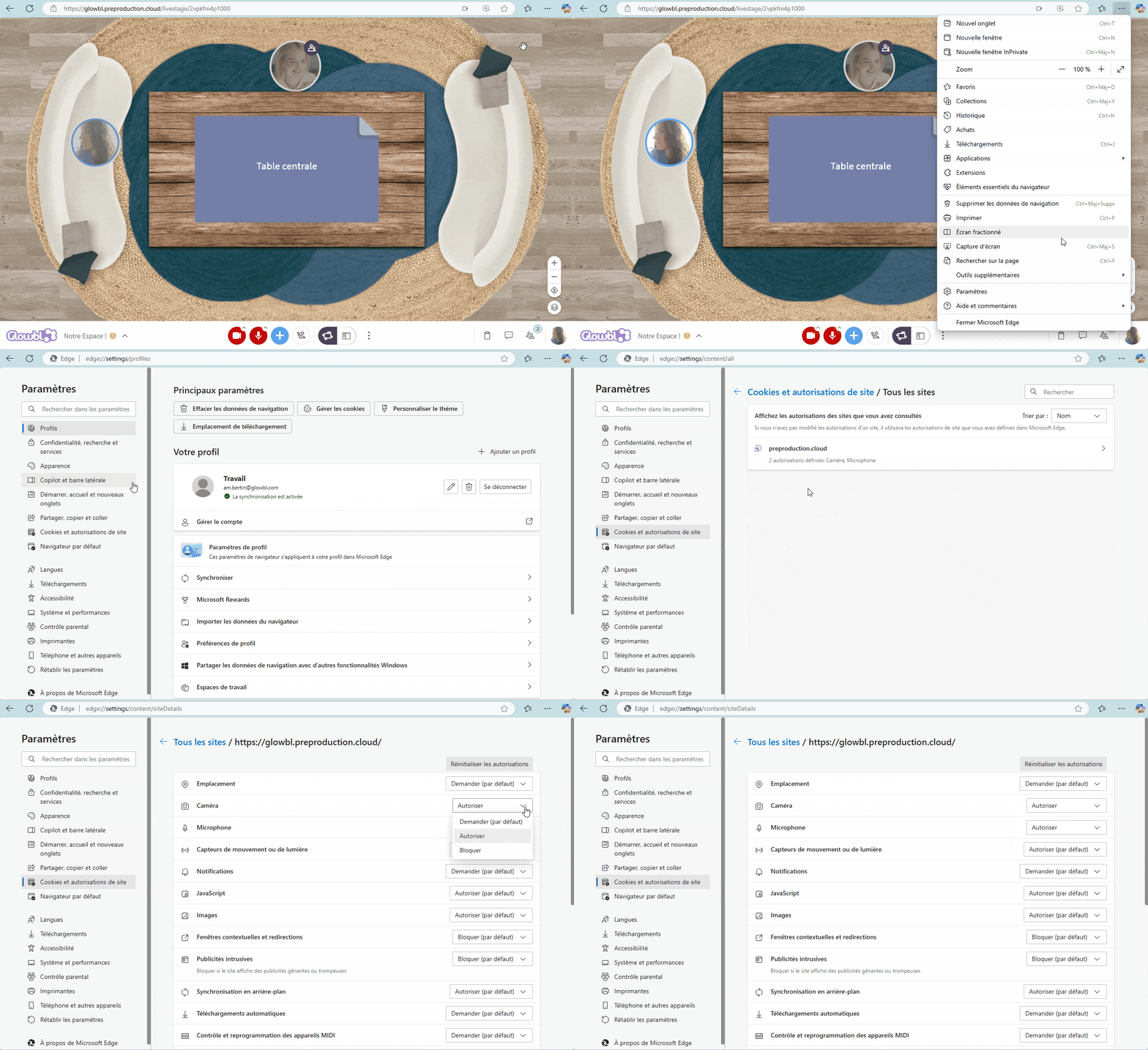
⚙️ Check that your browser authorizes access to your microphone and camera:
⌚ Check your computer's time: unbelievable but true, a stopped or shifted clock can cause disruptions in the use of certain sites including Glowbl!

None of the suggested solutions work in your case? Contact us !