Feature available for: 🟢 Participants with specific rights 🔷 Facilitators 🟨 Administrators

Contents
- Project new content
- From the blue plus at the bottom of the screen
- From the table's blue plus
- ⚓ Navigate between table content
- ❌ Deleting content from the Table Library versus stopping its broadcast
- Access projected content throughout the space (💡Restitute an activity)
- Debriefing an activity using Collaborative Notes (merge)
- 🙁 A participant doesn't see the content in the table
Project new content
You can project different types of content in the tables, from a PDF document, to a video, to your screen or a collaborative note as well as our partners' tools.
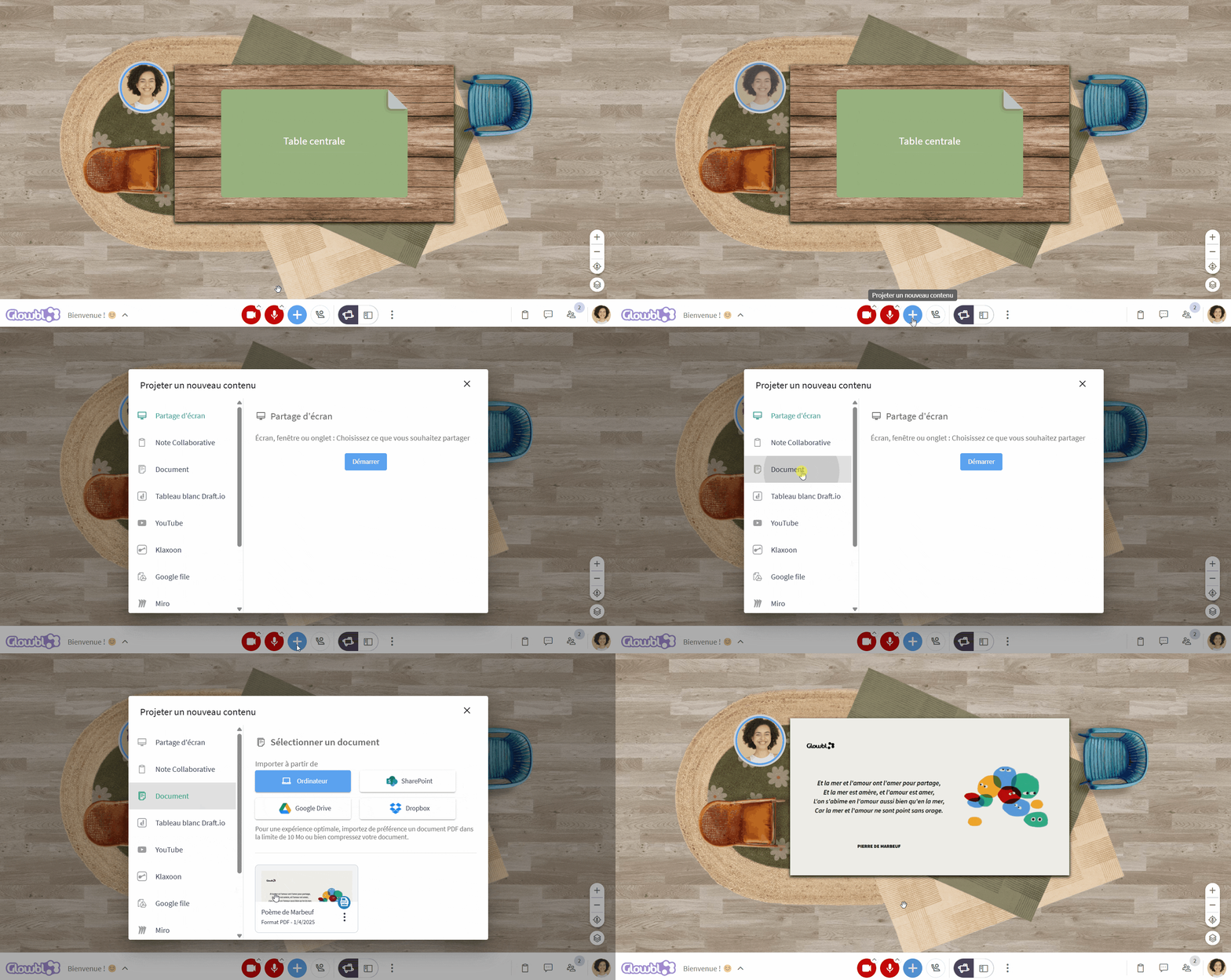
From the blue plus at the bottom of the screen
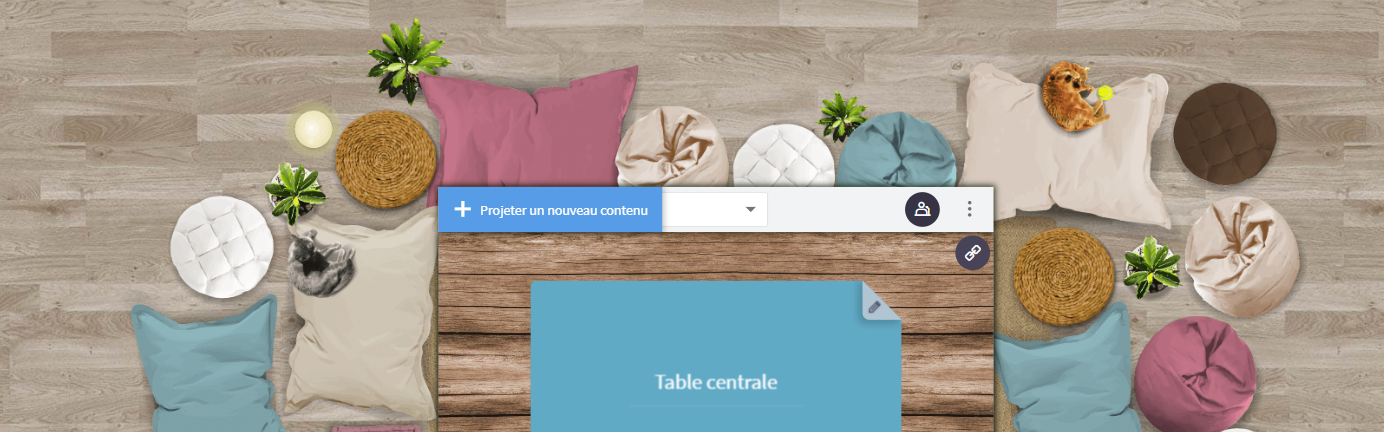
Regardless of the display mode, click on the blue plus at the bottom of your screen ➜ select the type of content you want.
The content is projected onto the table around which you are "sitting".
From the table's blue plus
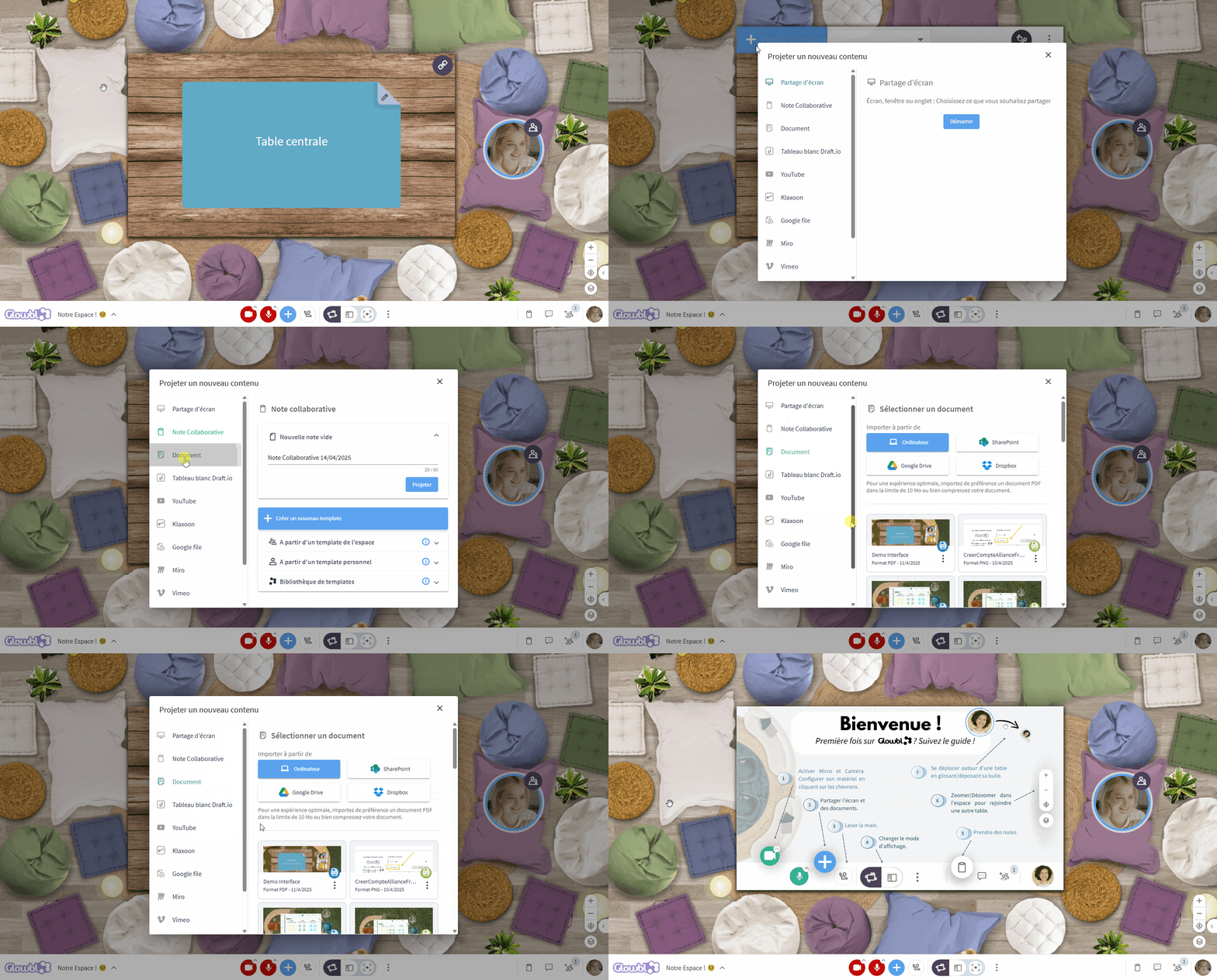
To integrate other tools or a website, paste the url or iframe code after selecting External application in the list of content types.
🚨 Always check that your documents are synchronized with those of your participants. For example: PDFs and videos are synchronized with participants, so everyone sees the same thing at the same time. A website or Genially, on the other hand, is followed independently and at its own pace by each participant. If synchronization is necessary, project the content via Screen Sharing.

You can prepare your space in advance by adding and leaving your content in the different tables. But try going one step further by creating a sequence: you can set up your entire session in advance and run it as many times as you like.
⚓ Navigate between table content
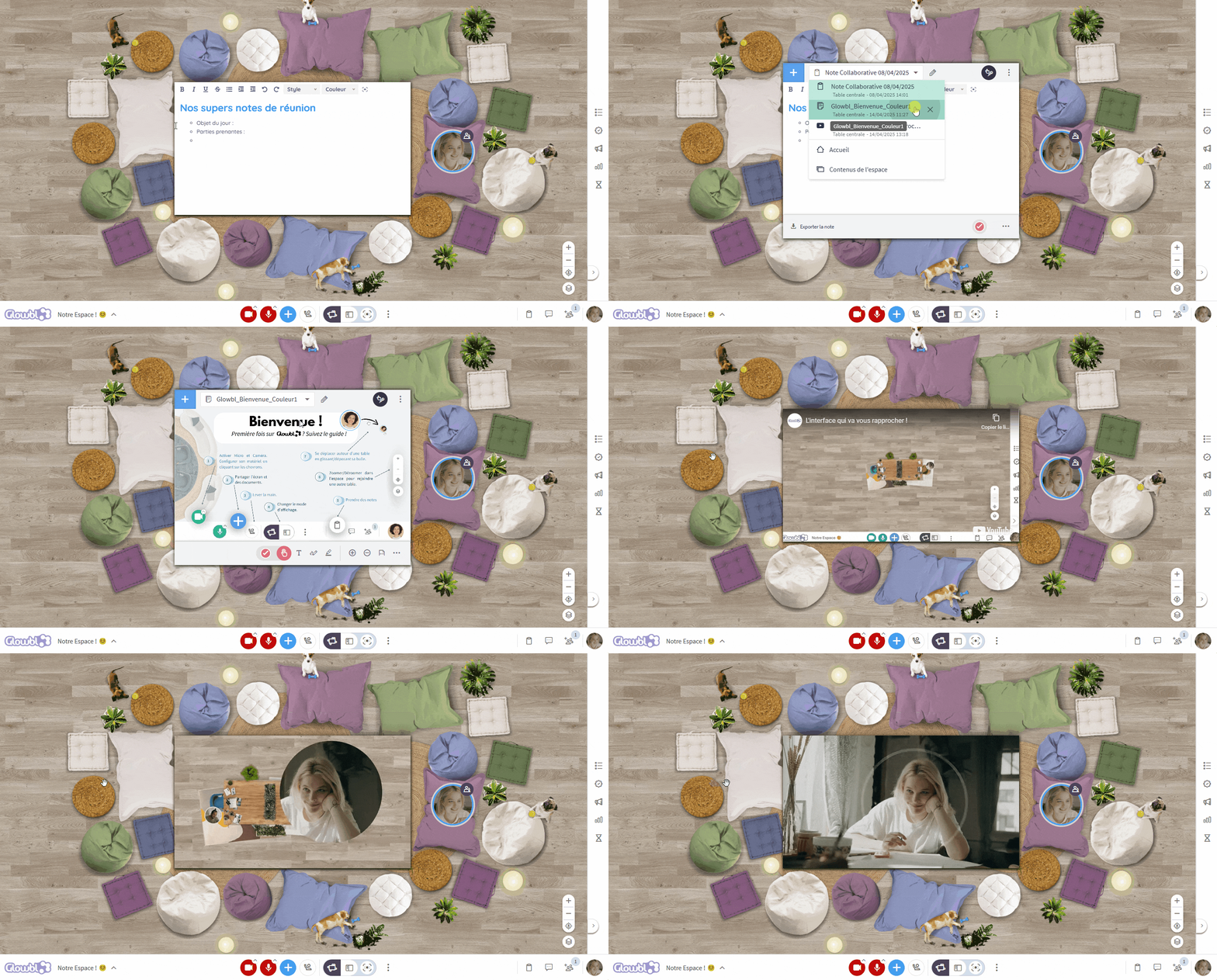
Once content has been projected into the table, it remains inside. And if you're projecting multiple content you can switch between them easily using the Table Library .
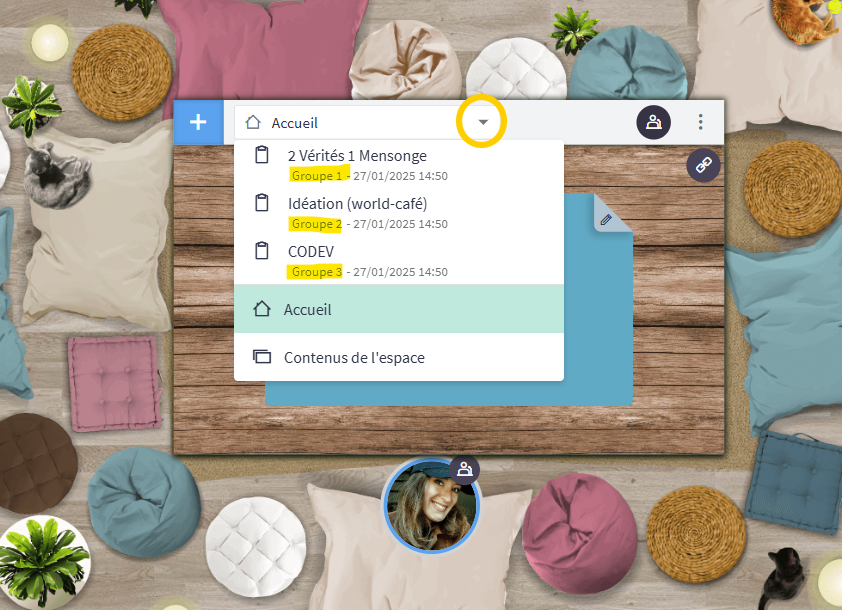
Hover your mouse over the table ➜ click to the right of the blue plus on the white rectangle displaying the title of your content ➜ this opens a drop-down menu, this is the Table Library , click on the content you wish to show again.
❌ Deleting content from the Table Library versus stopping its broadcast
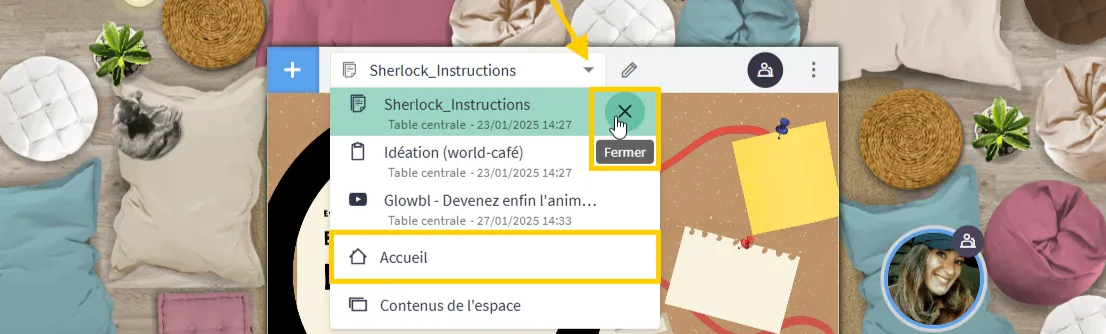
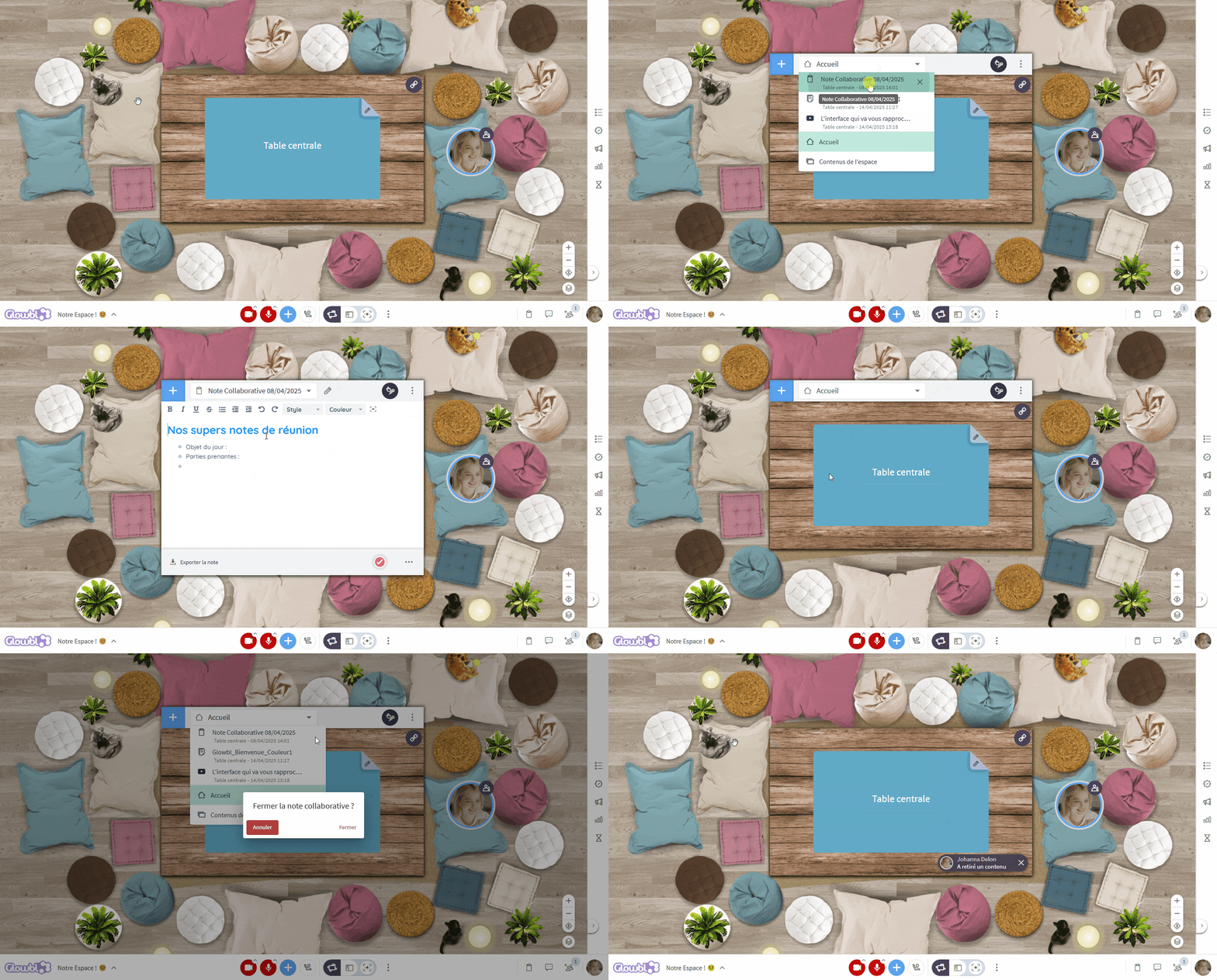
To remove content from the Table Library, simply open it and click on the cross in front of the title of the content to be removed. 🚨 Don't forget to download the content beforehand if it contains any modifications.
But if you just want to temporarily stop broadcasting something, select Home in the Table Library.
Access projected content throughout the space (💡Restitute an activity)
Feature available for: 🔷 Facilitators 🟨 Administrators

Let's imagine you've put participants in sub-groups on different tables for an activity, and you'd like them all to return to the main table to organize the restitution of their work. You can access the documents projected on all tables in the Content folder.

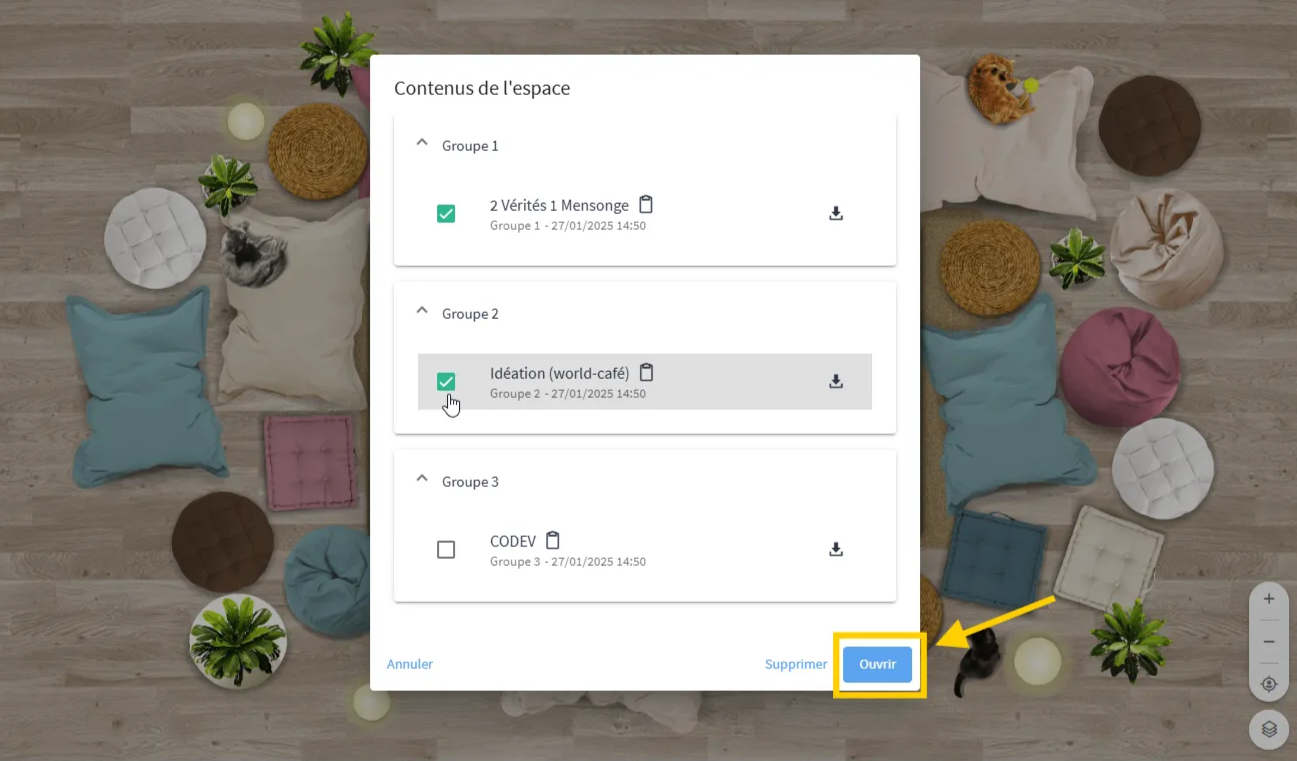
Note that from this folder you can also quickly delete all your content or download collaborative notes.
Hover your mouse over the table you are on ➜ click on the Table Library ➜ click on the Space Content folder ➜ select one or more documents projected on the different tables ➜ click on Open to broadcast this content on your table.

Open the Table Library again to navigate between the various content. Note that under each content name is indicated the name of the table on which it was originally created. We therefore advise you to rename your tables (by theme or by group name: Group 1, Group 2...) to facilitate your restitutions.
Debriefing an activity using Collaborative Notes (merge)
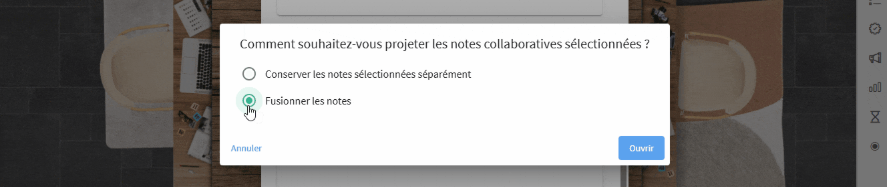
Is your sub-group activity all about collaborative notes? Even better! The space's Content folder automatically detects that you want to display several collaborative notes and suggests that you merge them into a single document. No need to juggle multiple types of content! Each note retains the reference to the original table, so you can easily reconstruct everyone's contributions. You can then modify this single document, integrating your feedback, grouping ideas or completing responses...
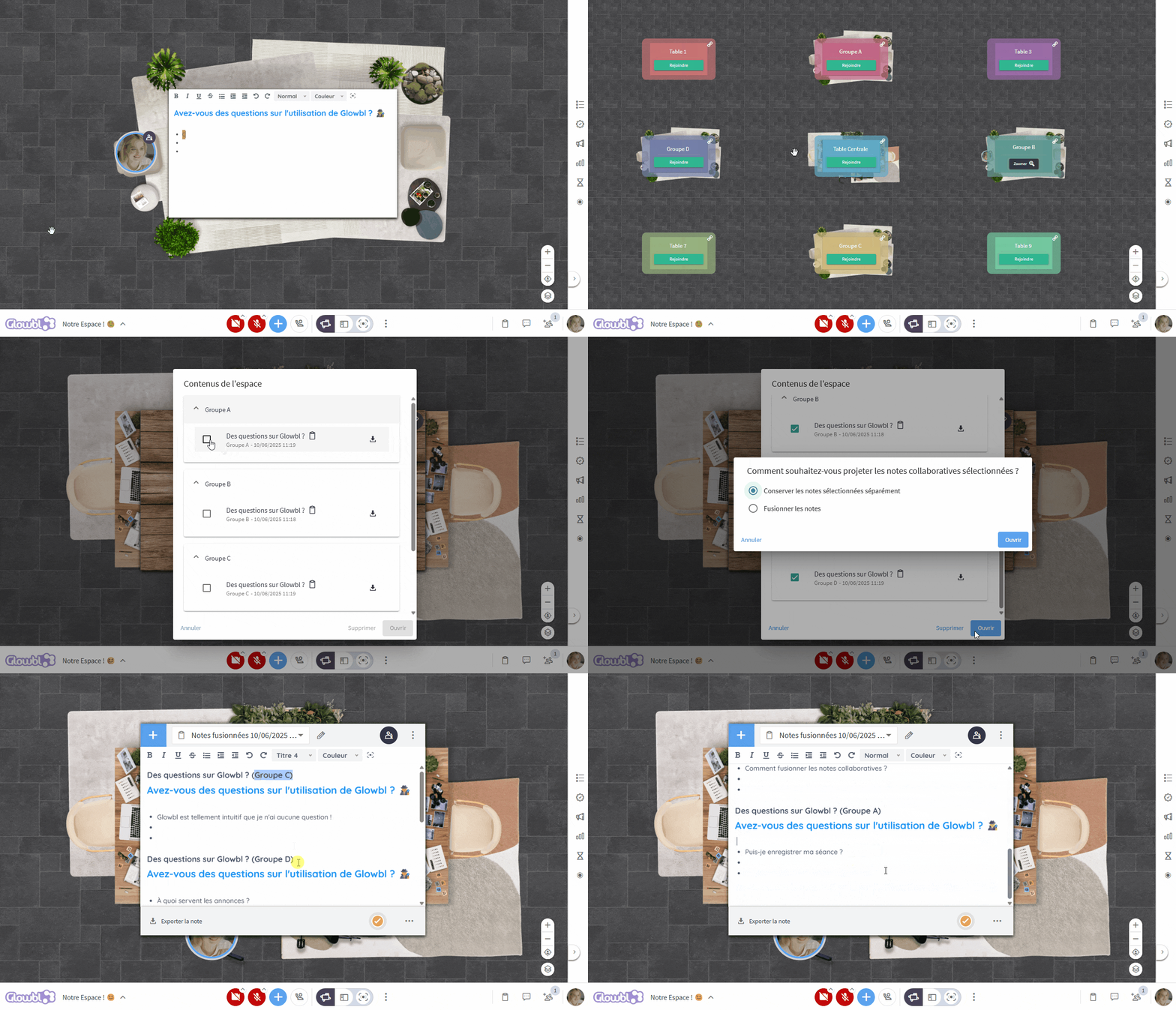
You can also organize this feedback in Synchronized Tables mode. Participants remain at their sub-group tables, and you project their work in turn across the entire space.
🙁 A participant doesn't see the content in the table
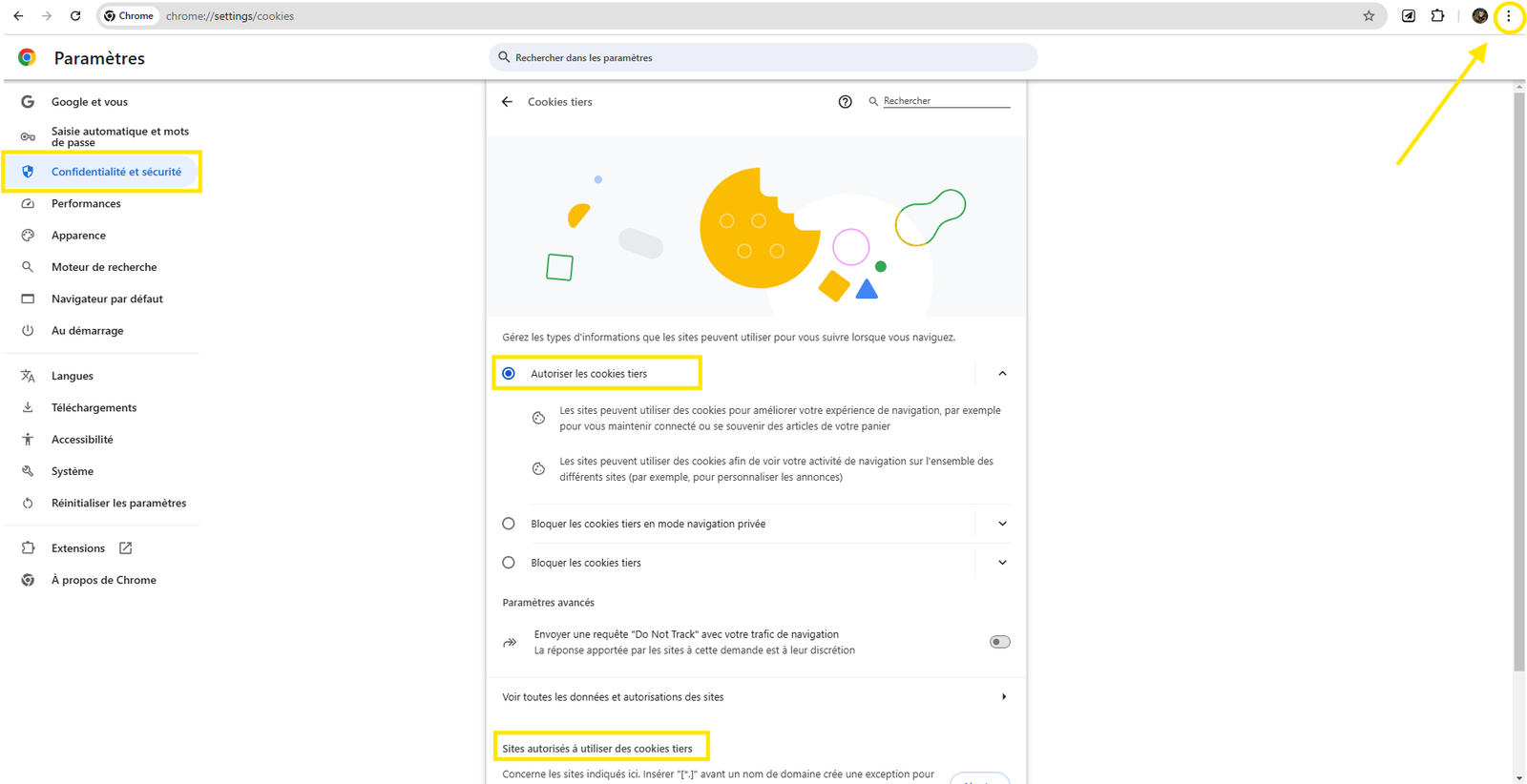
A participant informs you that he can't see the projected content? Make sure he's not too "far away" and ask him to zoom in slightly on the table. If his view is well adjusted and the content still invisible, it's because his browser is blocking third-party cookies and he needs to authorize them again.
For example, on Chrome you need to :
Click on the 3 dots at top right ➜ Settings ➜ Privacy and security ➜ Site settings ➜ Third-party cookies: either allow them for all sites, or allow them only for Glowbl.
Or transmit the address in the Live Chat: chrome://settings/cookies