
Feature available for : 🔷 Facilitators 🟨 Administrators

🔗 Find the space link
To invite participants, simply share by e-mail the URL of the space in which your event will take place.
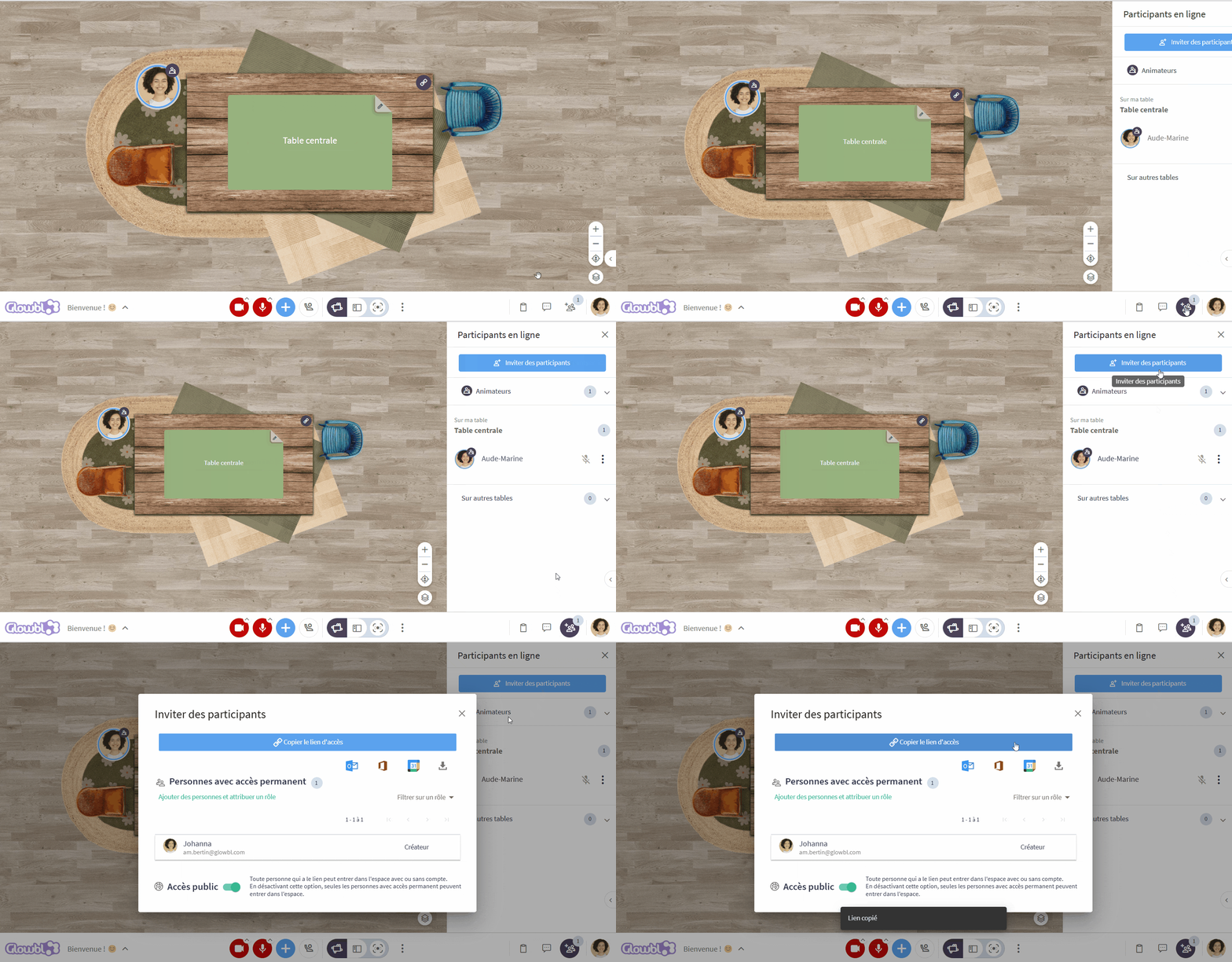
- Click on the icon at the bottom right of the screen to open the Participants
 pane
- click on the blue Invite
 button
- select Copy access link
- paste the link into your e-mail invitation.

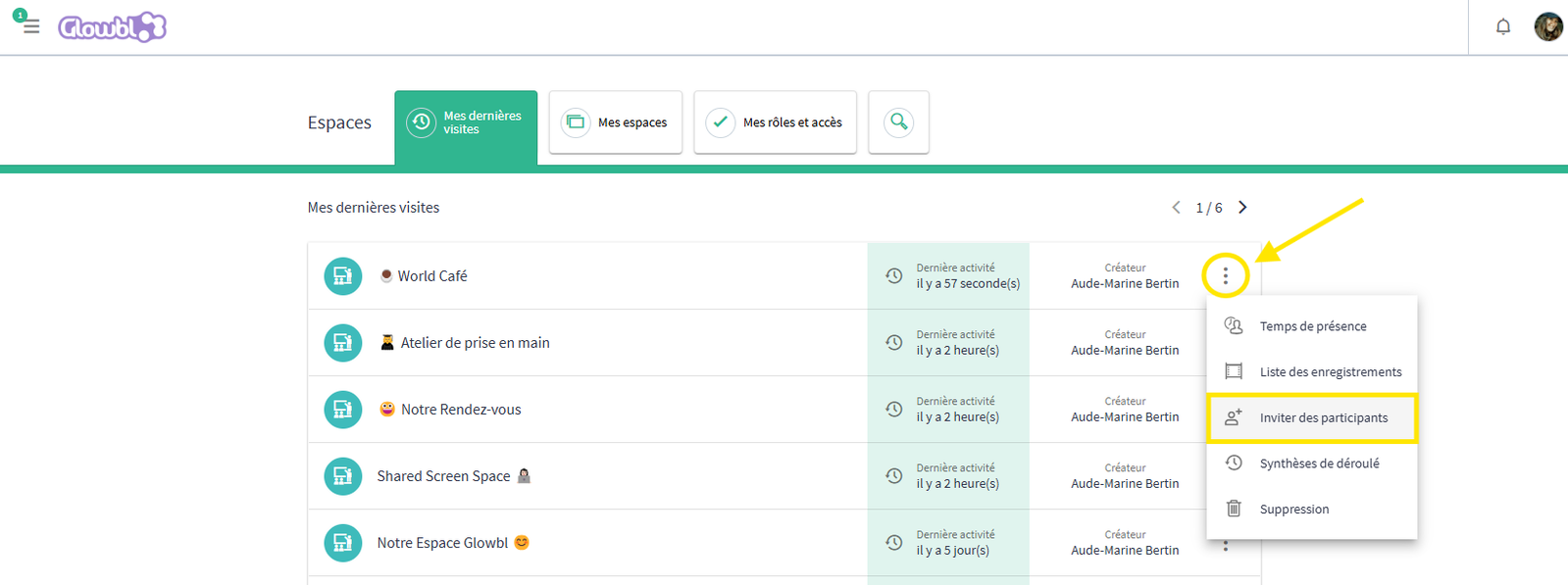
This Invite button is also accessible from the dashboard.
🔐 Restrict access to space
⚠️ By default, anyone with the link to your space can enter whenever they like. To restrict access, see this Restrict access to the space page.
On this page, you will also find out how to move a participant who is having difficulties or how to remove a participant who was admitted by mistake or is being disruptive.
Share a specific table link
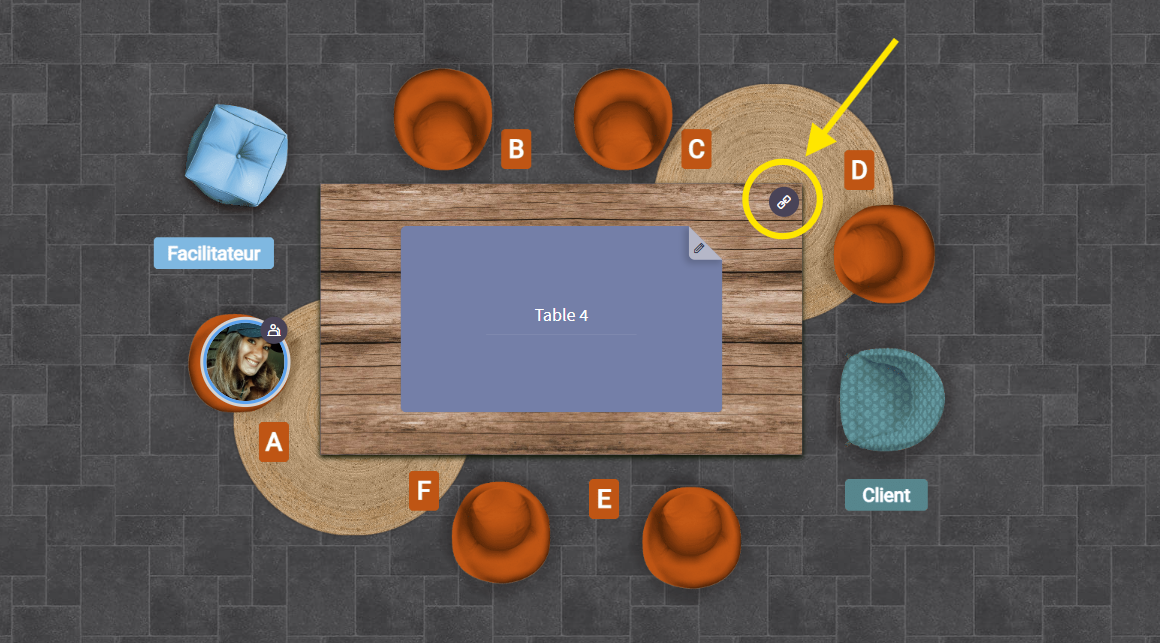
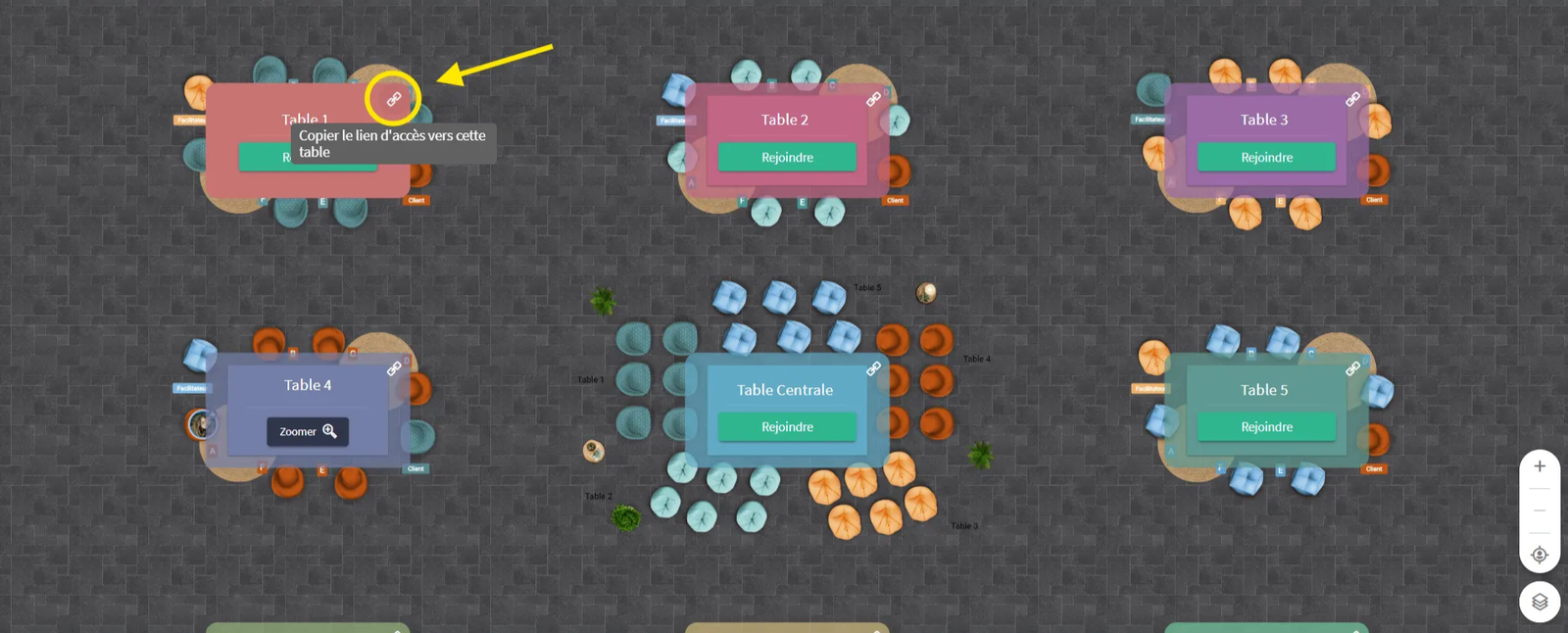
Clicking on the space link will take all participants to the main table. If you've created groups in advance of your session and you'd like to distribute them among the different tables as soon as your session starts, you can send each group the link to their table by e-mail. Simply click on the link symbol 🔗 in the corner of each table.
💡Recommendations & Resources
Is this the first time your attendees will be joining your space? Share with them the I'm a Participant which summarizes how they should log in/create an account and contains a 3 min tutorial video for them to get to grips with the basics of Glowbl.
💌 Examples of invitation emails
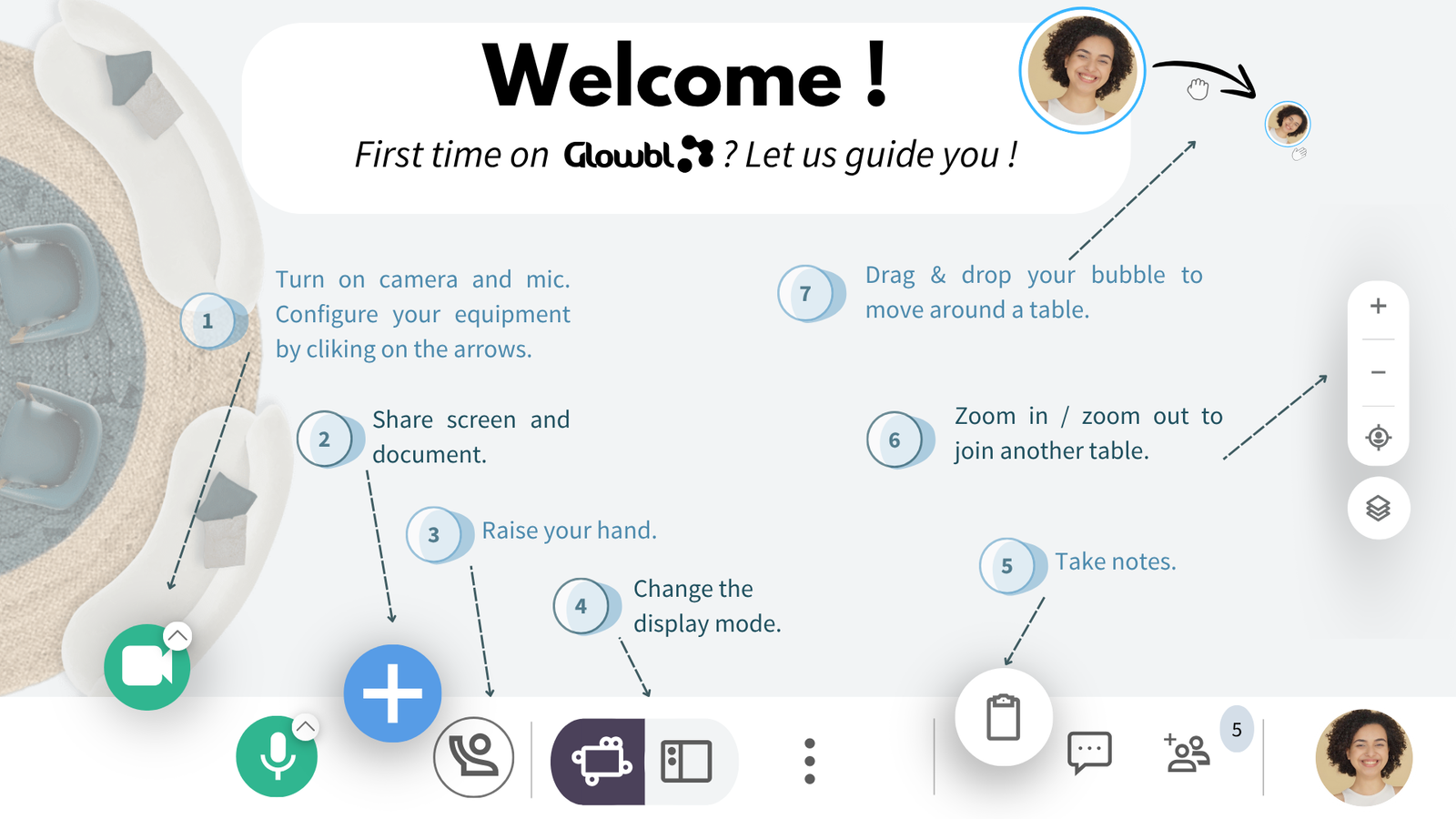
It's likely that your participants won't watch our tutorial before your first session. 😥 To help you walk them through the basic functionality at the start of the session, here's a PDF to project onto the table during your event welcome.
Downloadable welcome PDF:

These pages may be of interest to you:
Restrict access to the space Appoint moderators
 Configure camera/microphone