Feature available to: 🔷 Facilitator 🟨 Administrators
By default, anyone with the link to your space can enter freely.
However, you can restrict access to a specific list of people or simply close it to everyone while you prepare. You will then be notified whenever someone wishes to enter.
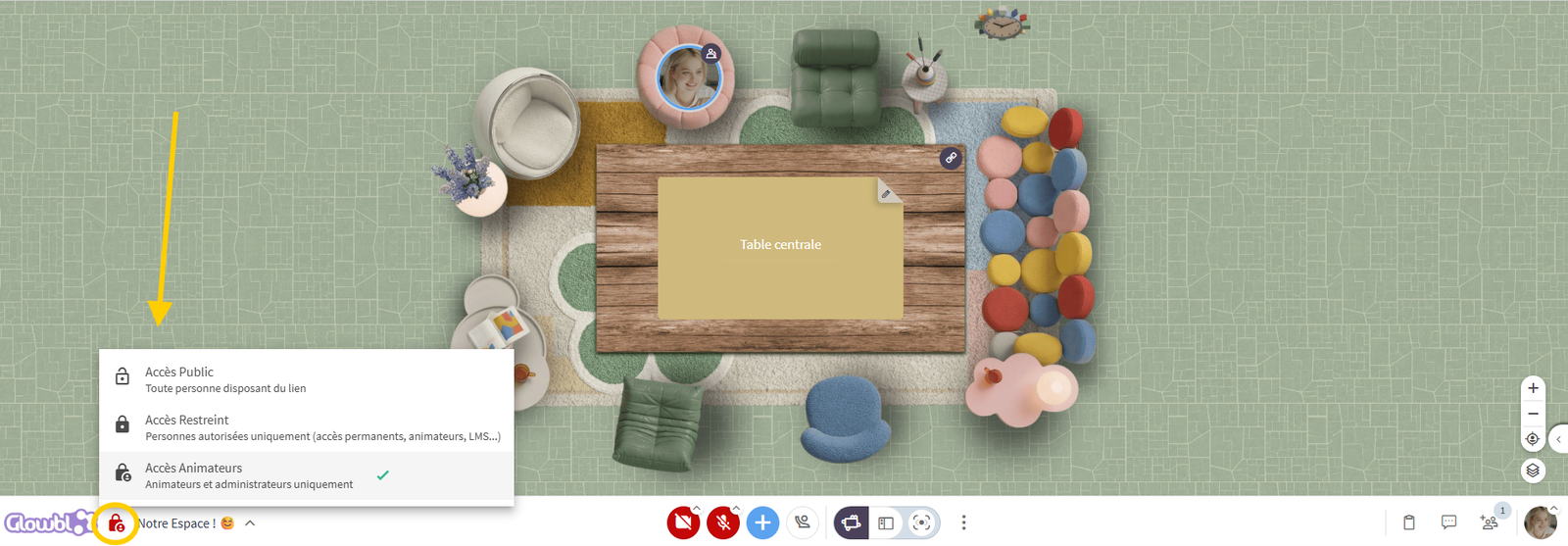
There are 3 available access levels:
- 🔓 Public Access: Anyone with the link to your space can enter whenever they like.
- 🔒 Restricted Access: Only authorised individuals (those added to the Permanent Access list or joining via your LMS) can enter at any time. Others are sent to a waiting room, where you can choose whether or not to grant them entry.
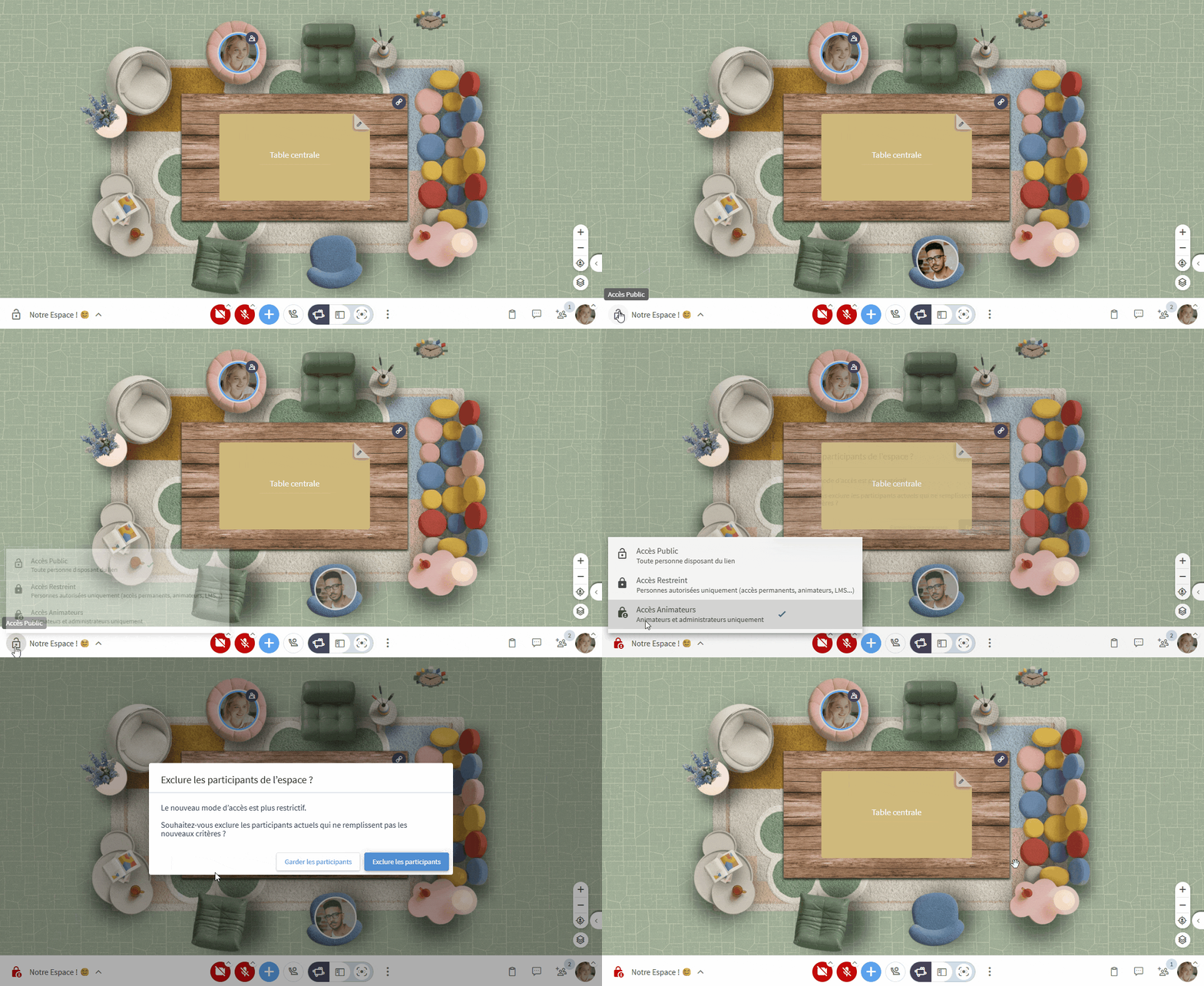
- 👨💼 Facilitator Only: Only Facilitators and Administrators of your space can enter freely. Everyone else is sent to a waiting room to await your validation.

Changing the access level of your space
You can change the access level at any time—whether you're creating your space or in the middle of a session!
⚙️ Two ways to access:
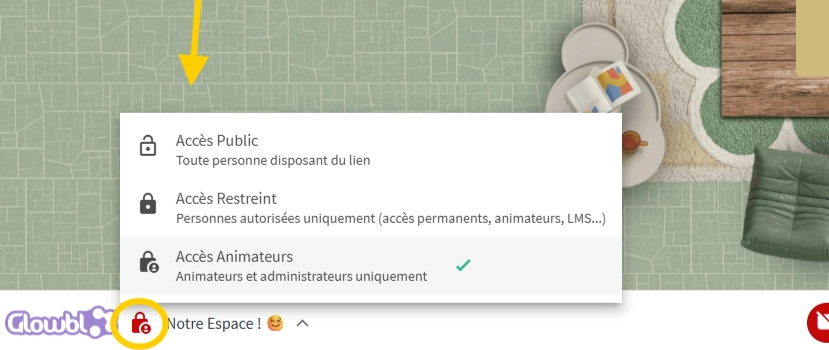
- Click the padlock icon 🔒 at the bottom left, next to your space's name.
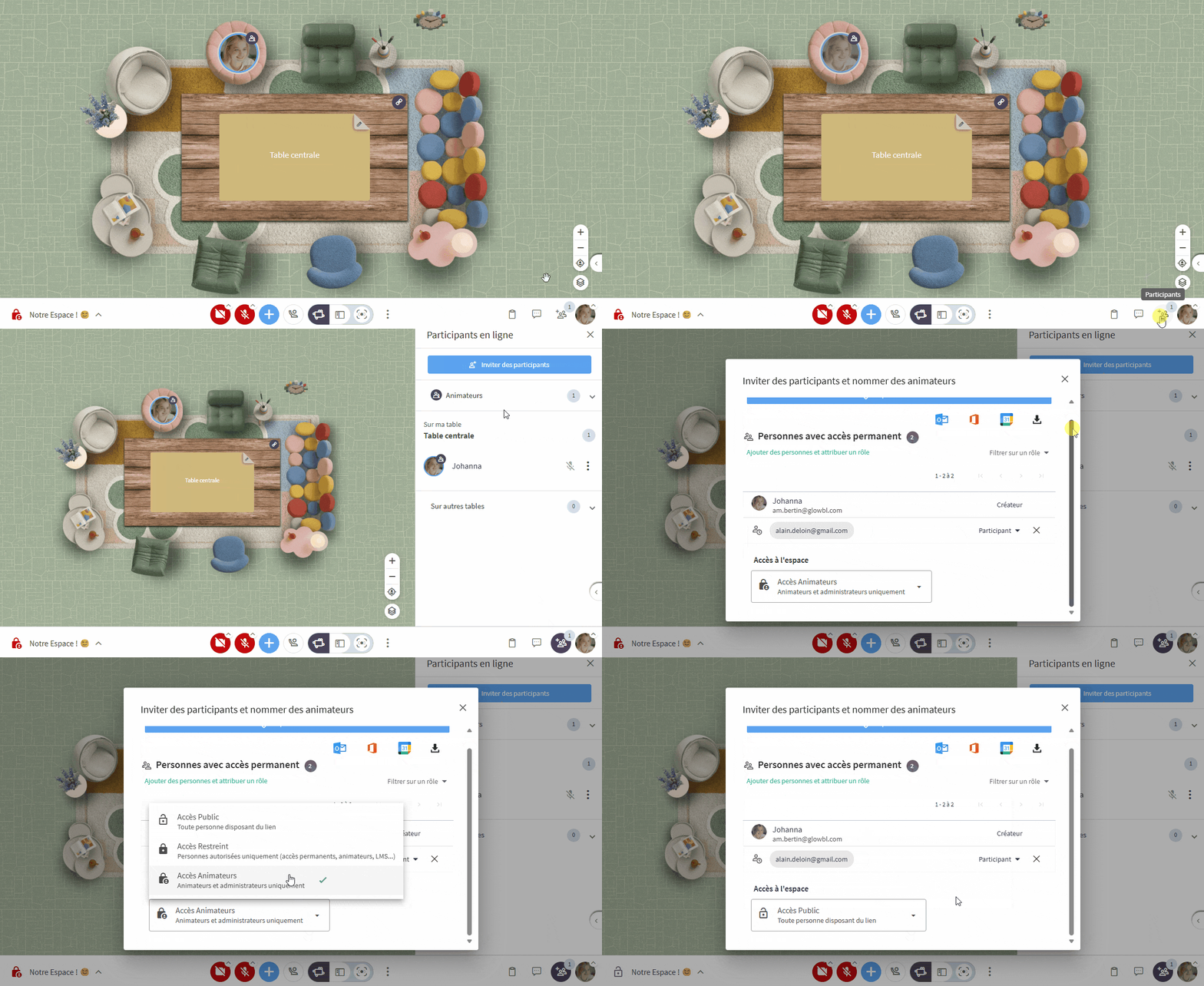
- Click the Participants tab
 > Invite Participants.
Granting permanent access to a list of people
In Restricted Access, only people connecting via your LMS or a specific list chosen within Glowbl can enter your space.
To add people to this list, follow the same path as for  Appoint moderators
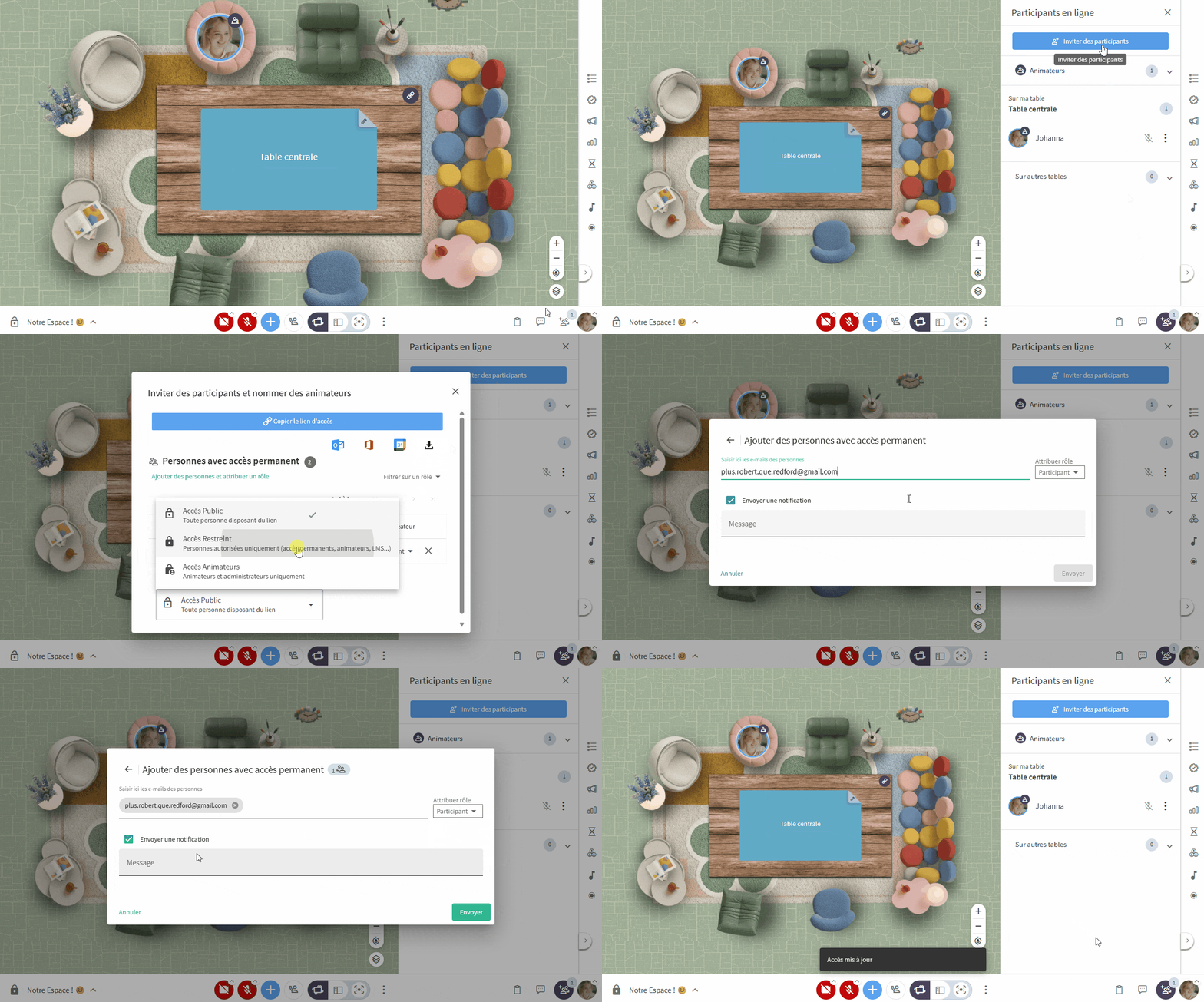
- Click the Participants tab at the bottom right of your screen.
- Select Invite participants.
- Click Invite people and assign a role.
- Enter email addresses one by one or paste a column from a spreadsheet.
You can choose to send a notification email to your guests.
Admitting or declining entry
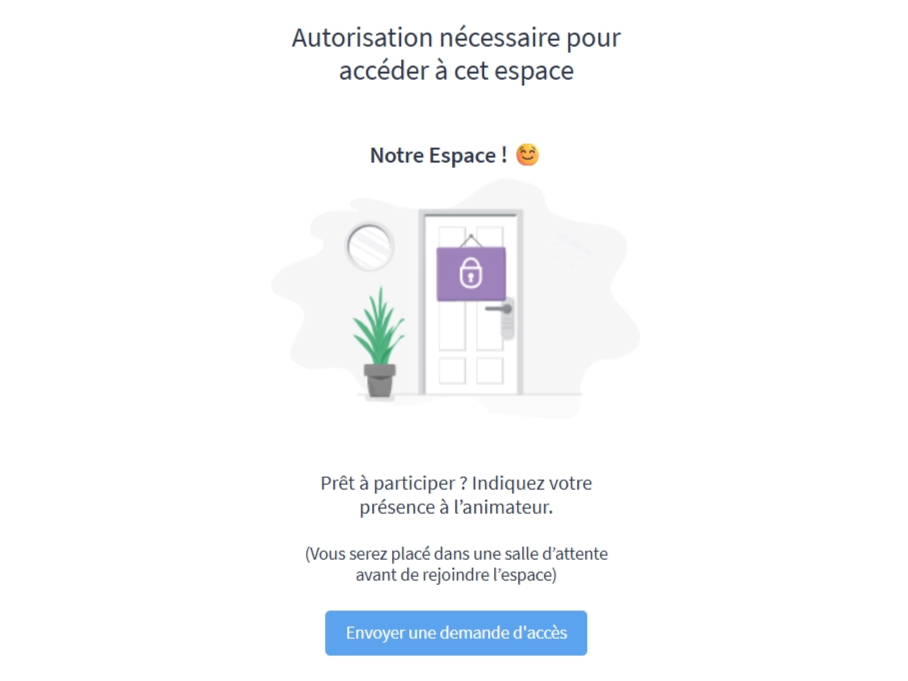
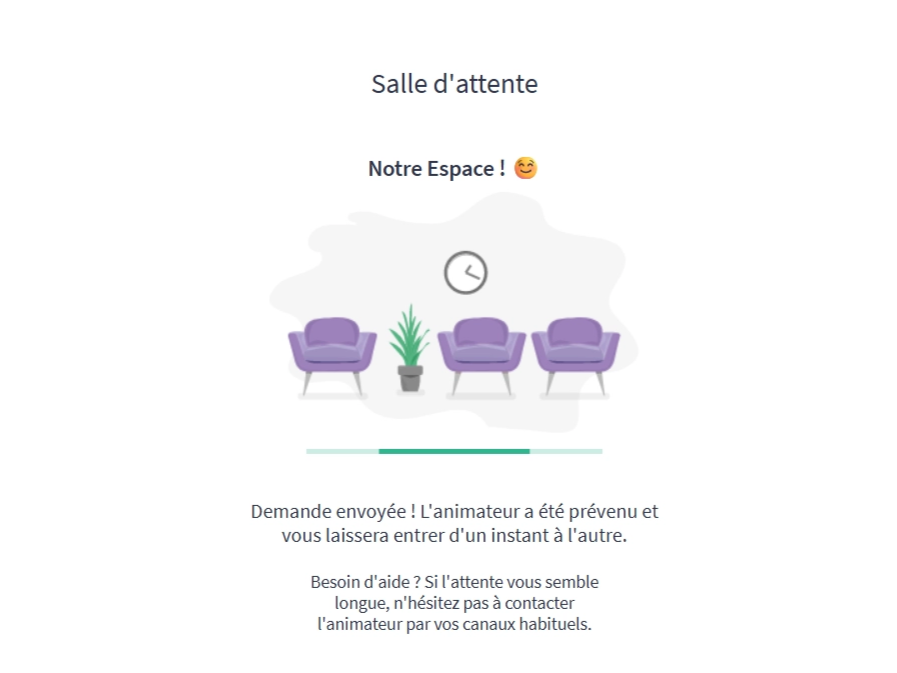
If someone tries to join a space set to Restricted or Facilitator Access, they are sent to a waiting room and can "knock on the door".


A notification will alert you when someone wants to enter the space. You can approve participants individually or all at once.
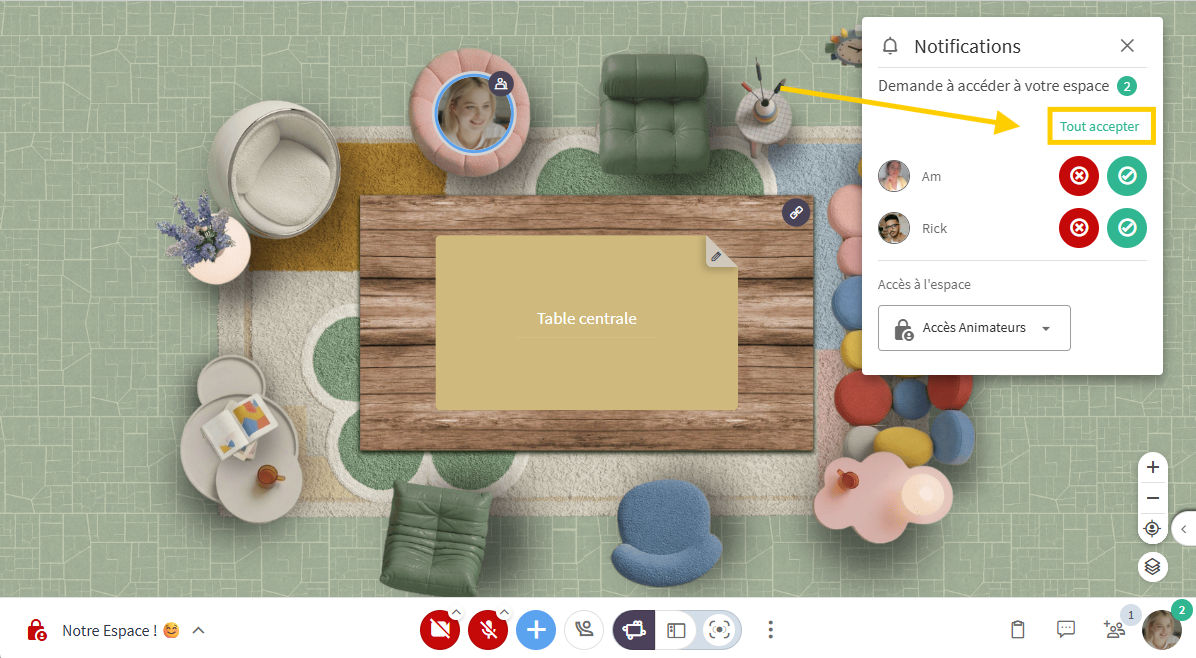

You have the option to switch the space back to Public directly from this notification to stop managing access requests. If you prefer to keep control over late arrivals, leave the settings as they are.
❌Removing one or more participants from the space
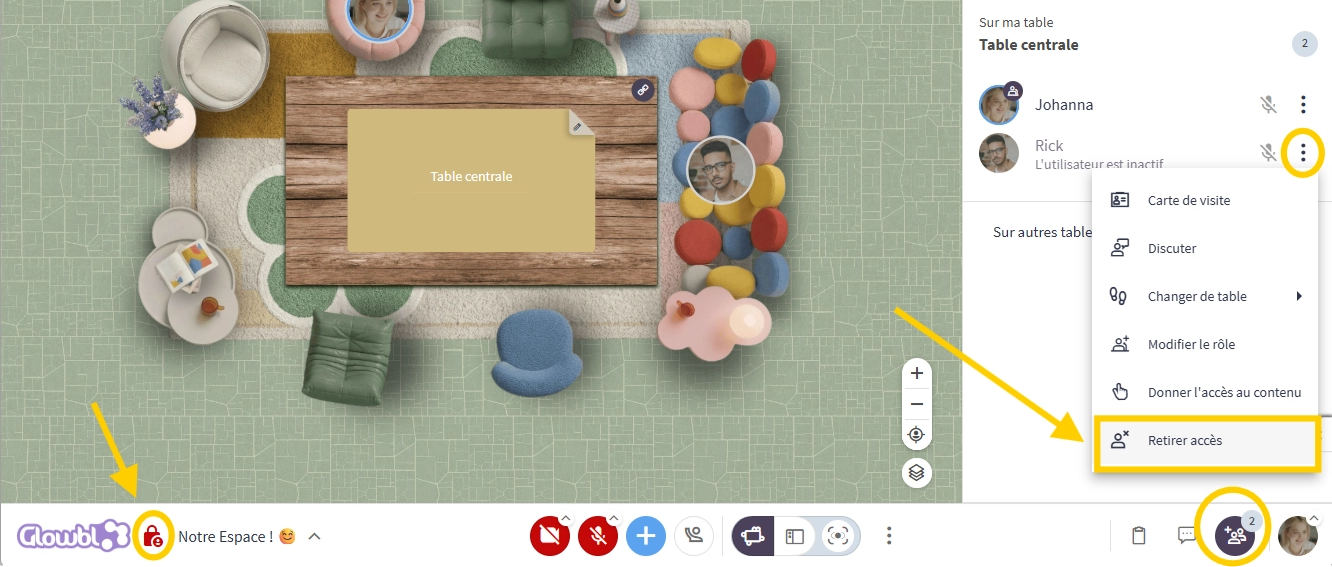
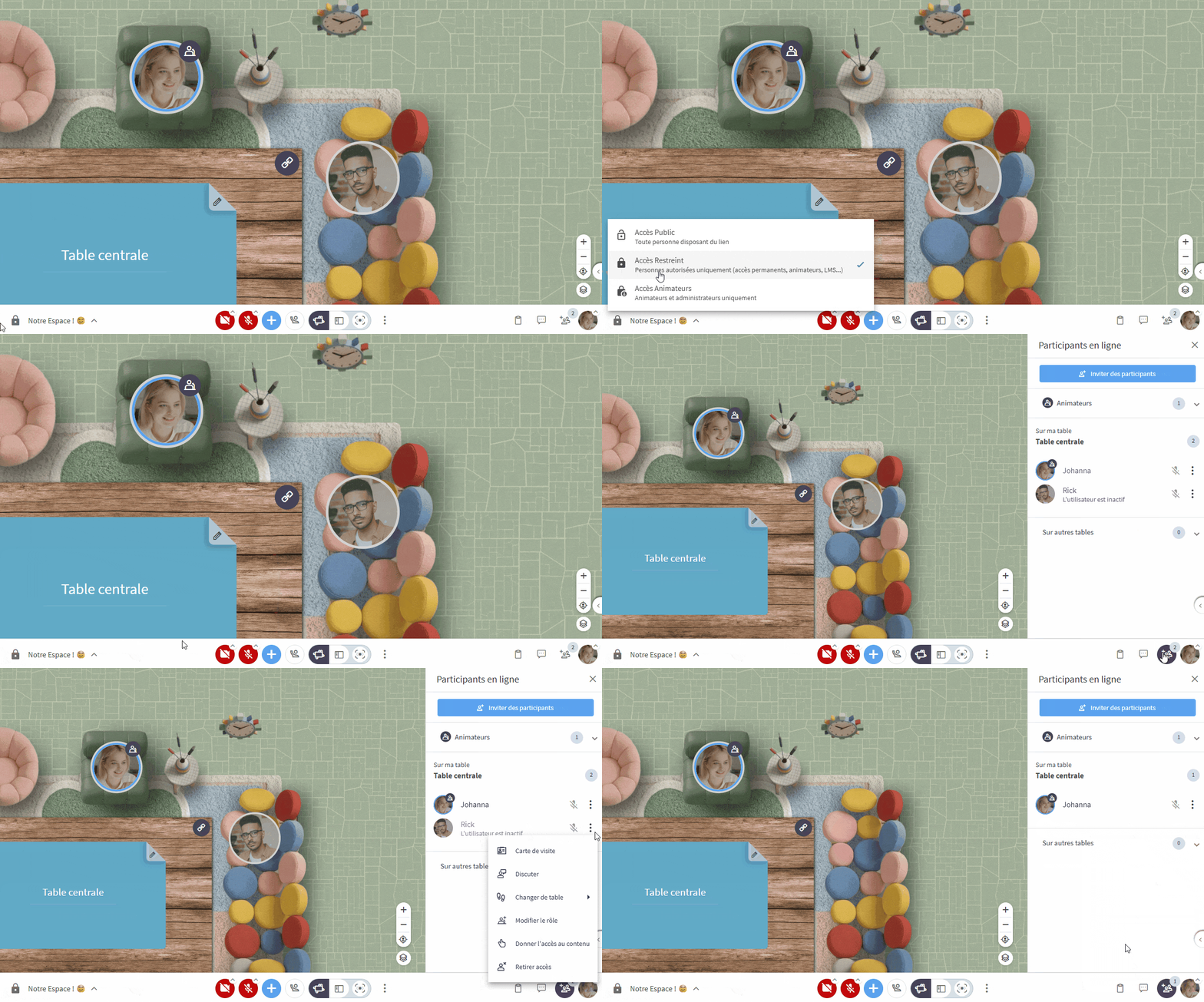
When access is limited, you are permitted to remove a participant who was accepted by mistake or who is being disruptive.
- Open the Participants tab .
- Click the three dots
 next to the person you wish to remove.
- Click Remove access.
Occasionally, participants may "forget" their bubble in your space at the end of a session. If this happens, switch to Facilitator Access to force everyone to leave.
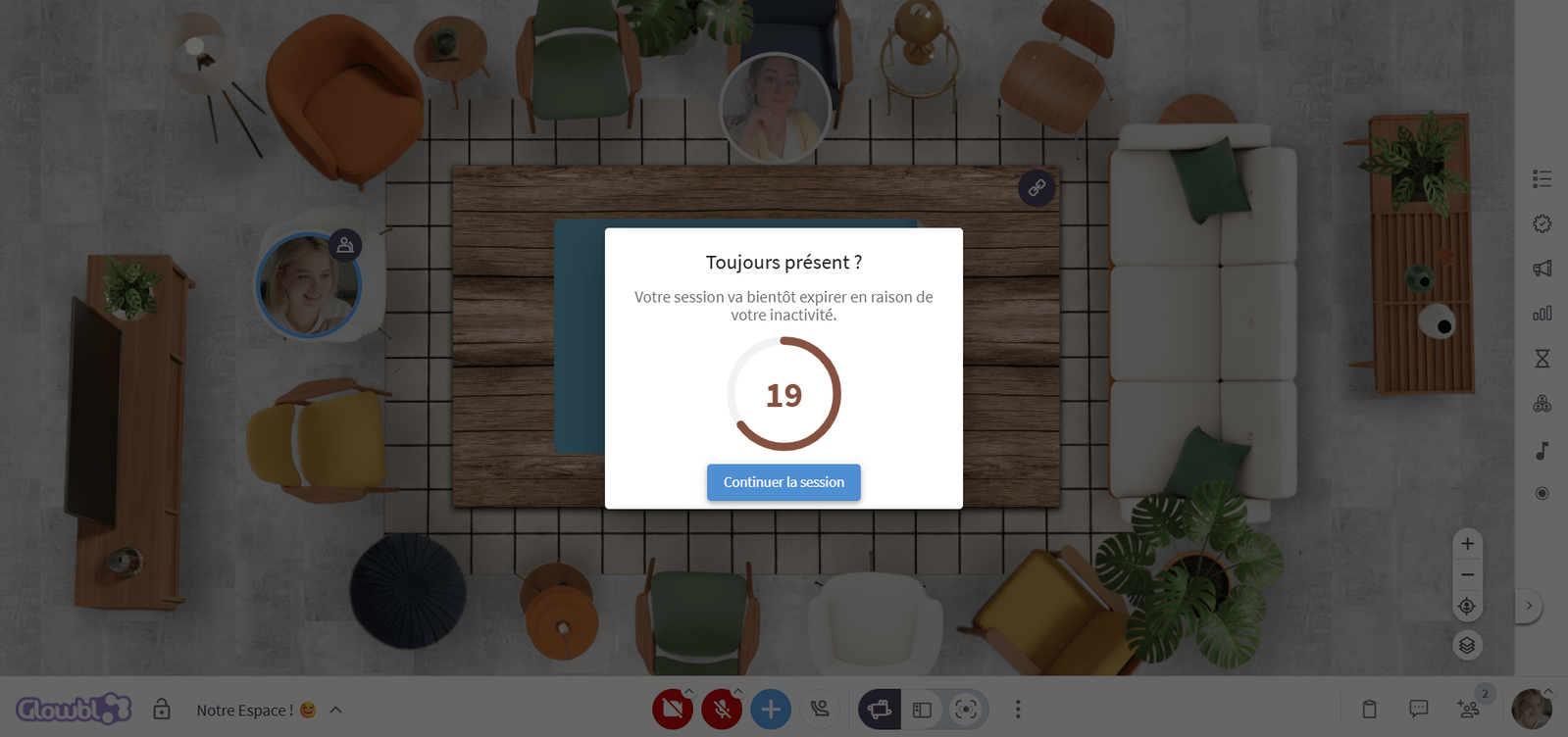
By default, we ensure your participants don't fall asleep in your spaces. 😴 After one hour of total inactivity, an announcement warns them that they will be automatically removed from the space.

You may also be interested in: