
Feature available for : 🔷 Facilitators 🟨 Administrators

Glowbl's sequence is designed as a personal assistant that enables you to:
- Prepare the scenario of your sessions directly in your space.
- Focussing on your participants while facilitating your animation. Everything is set up beforehand!
- Evaluate your sessions and easily retrieve your participants' work. It's our sequence summary.
- Reuse and share scenarios with your colleagues and even beyond, for totally scalable sessions!
Within a single training or meeting session, several steps may be needed: presentation, activity, restitution... For each of these steps, you can use the Sequence and set:
- table layouts (common or different)
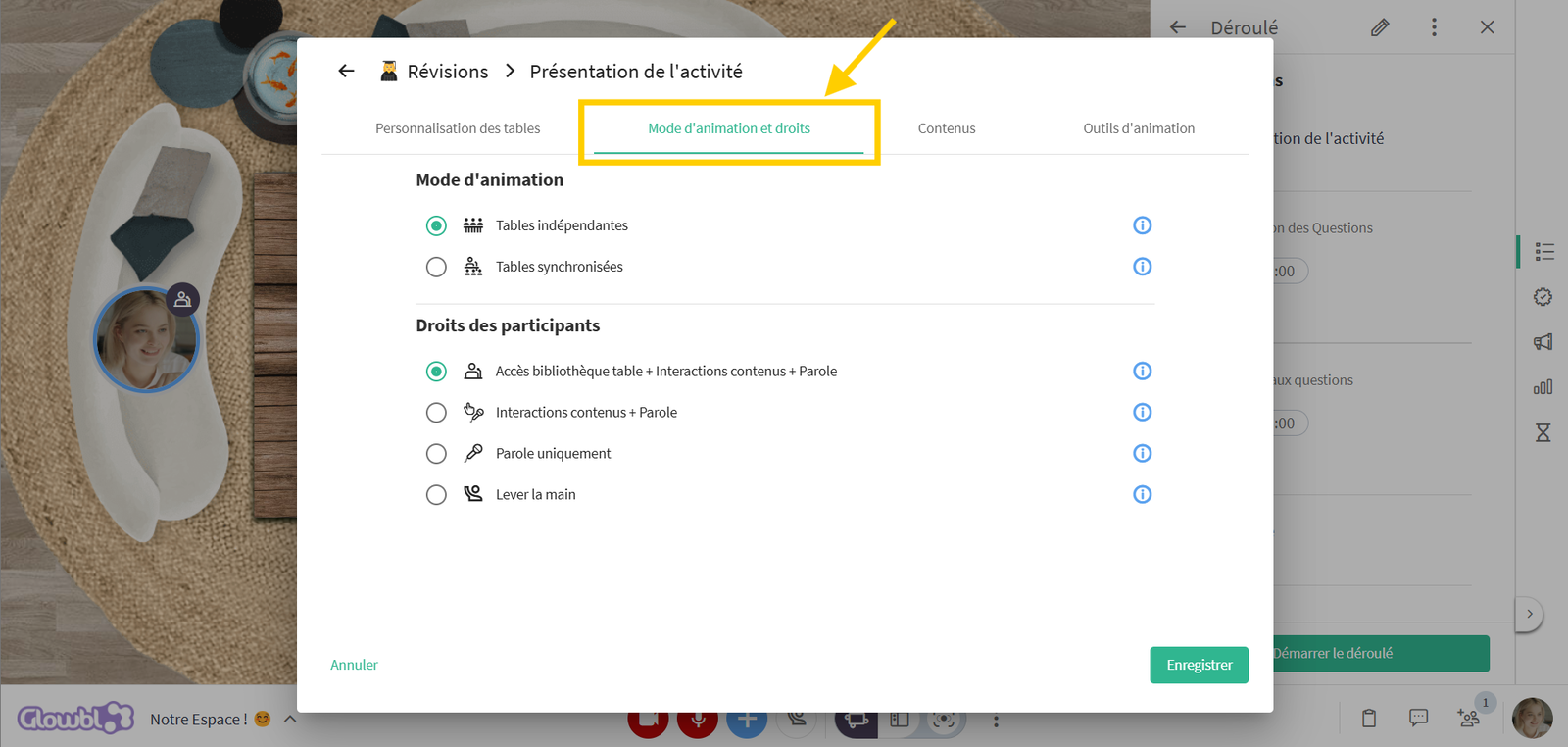
- rights for participants (should they be able to scroll through slides, access the table's library, etc.)
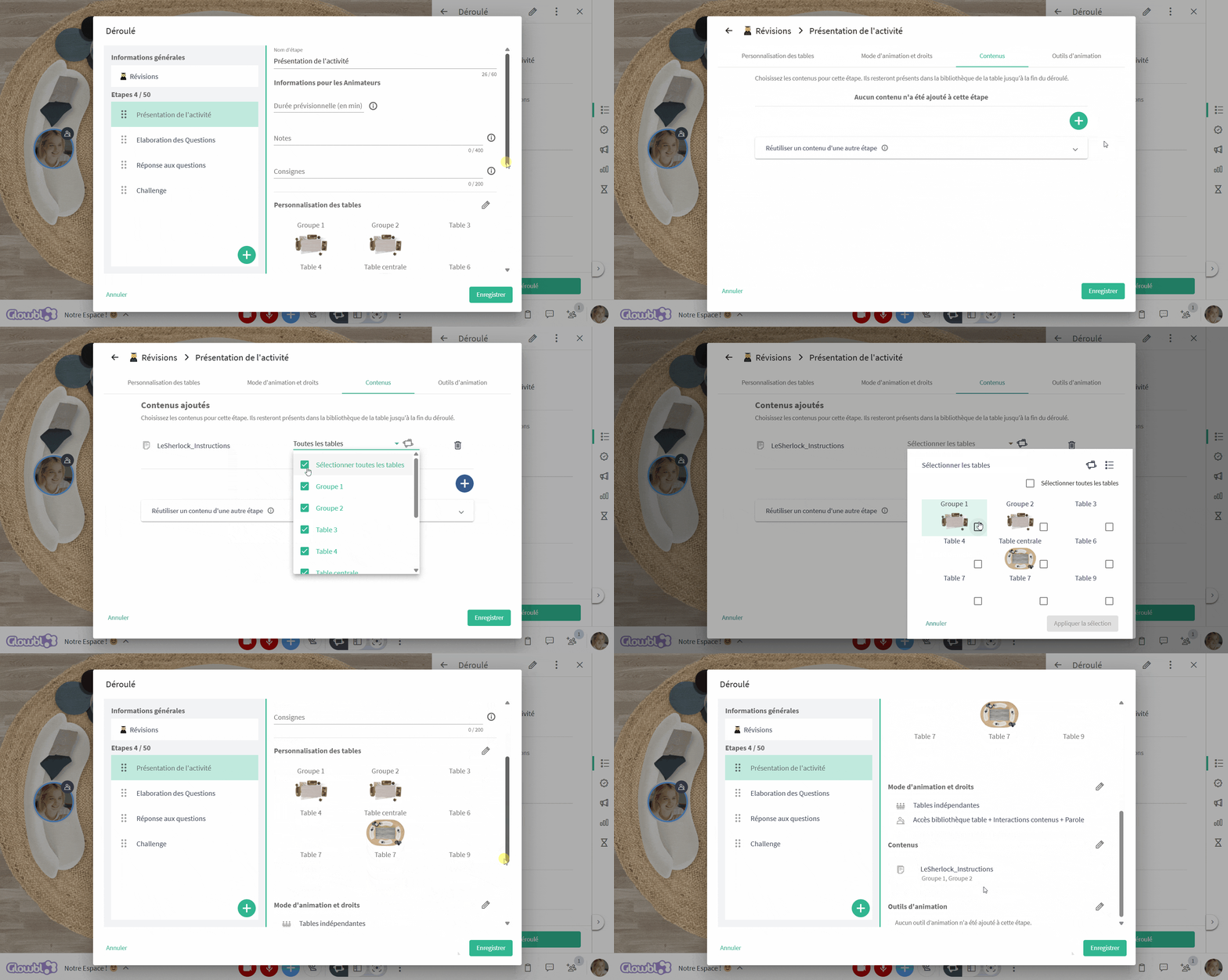
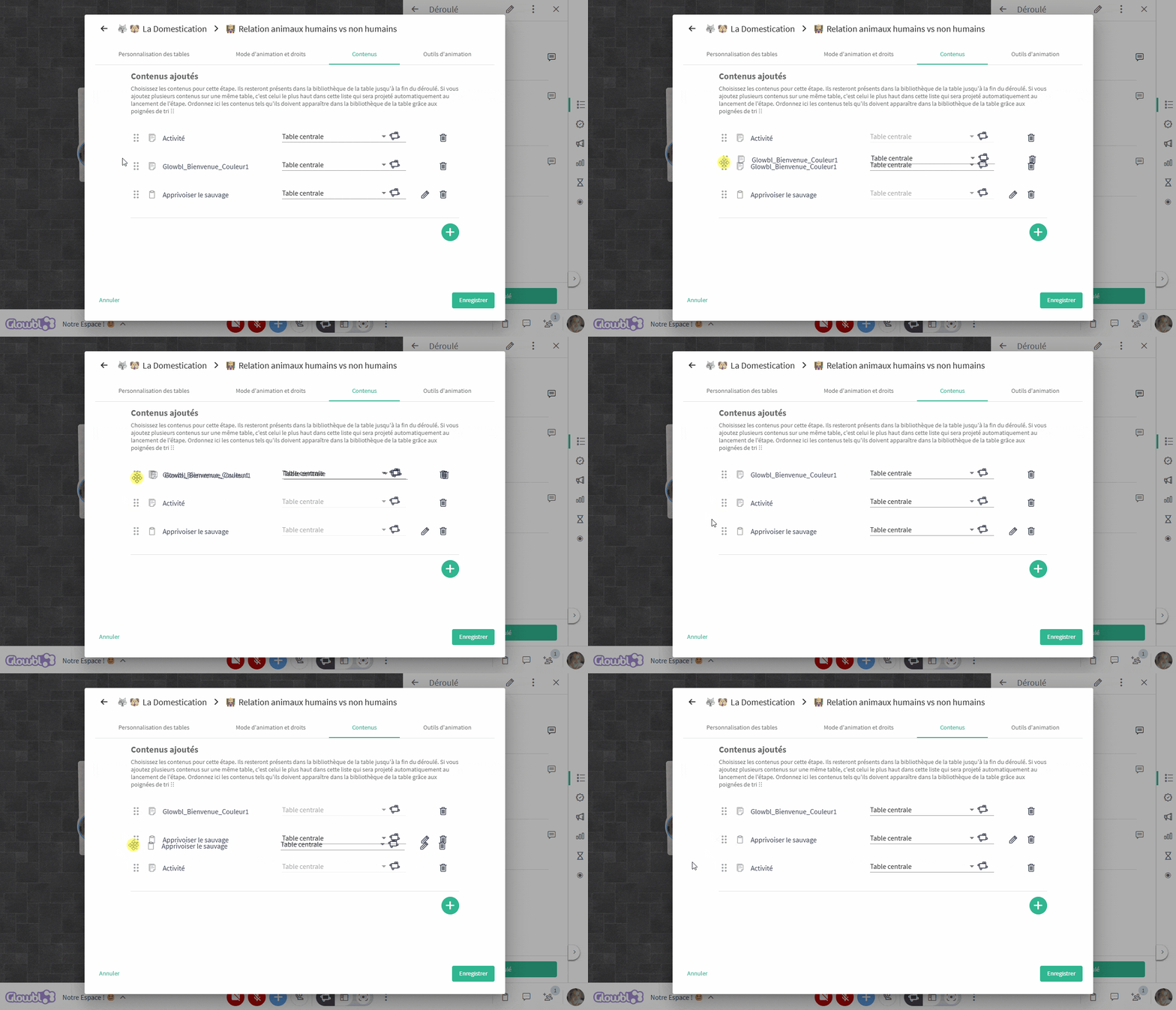
- different types of content (on all tables or just some)
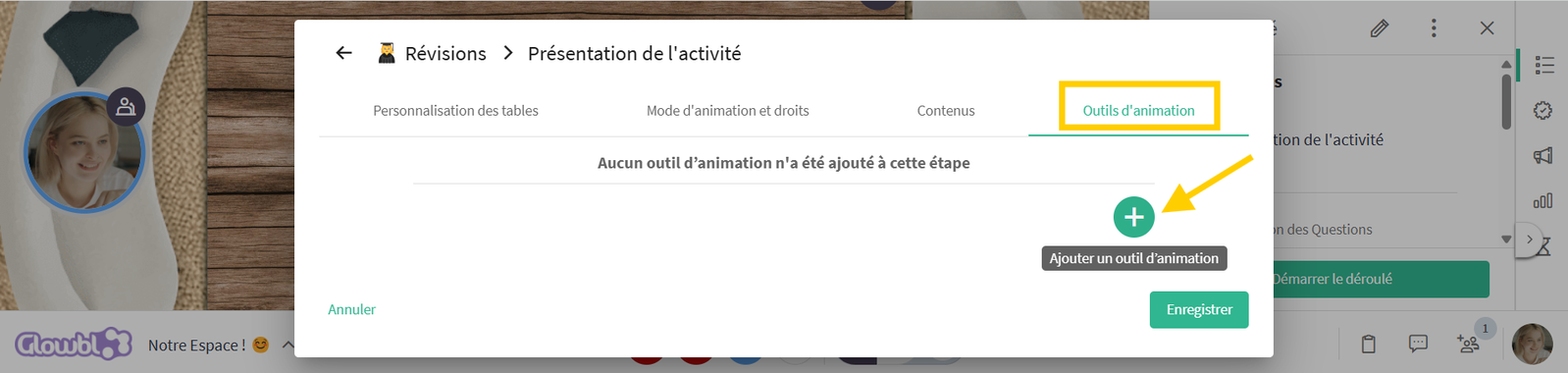
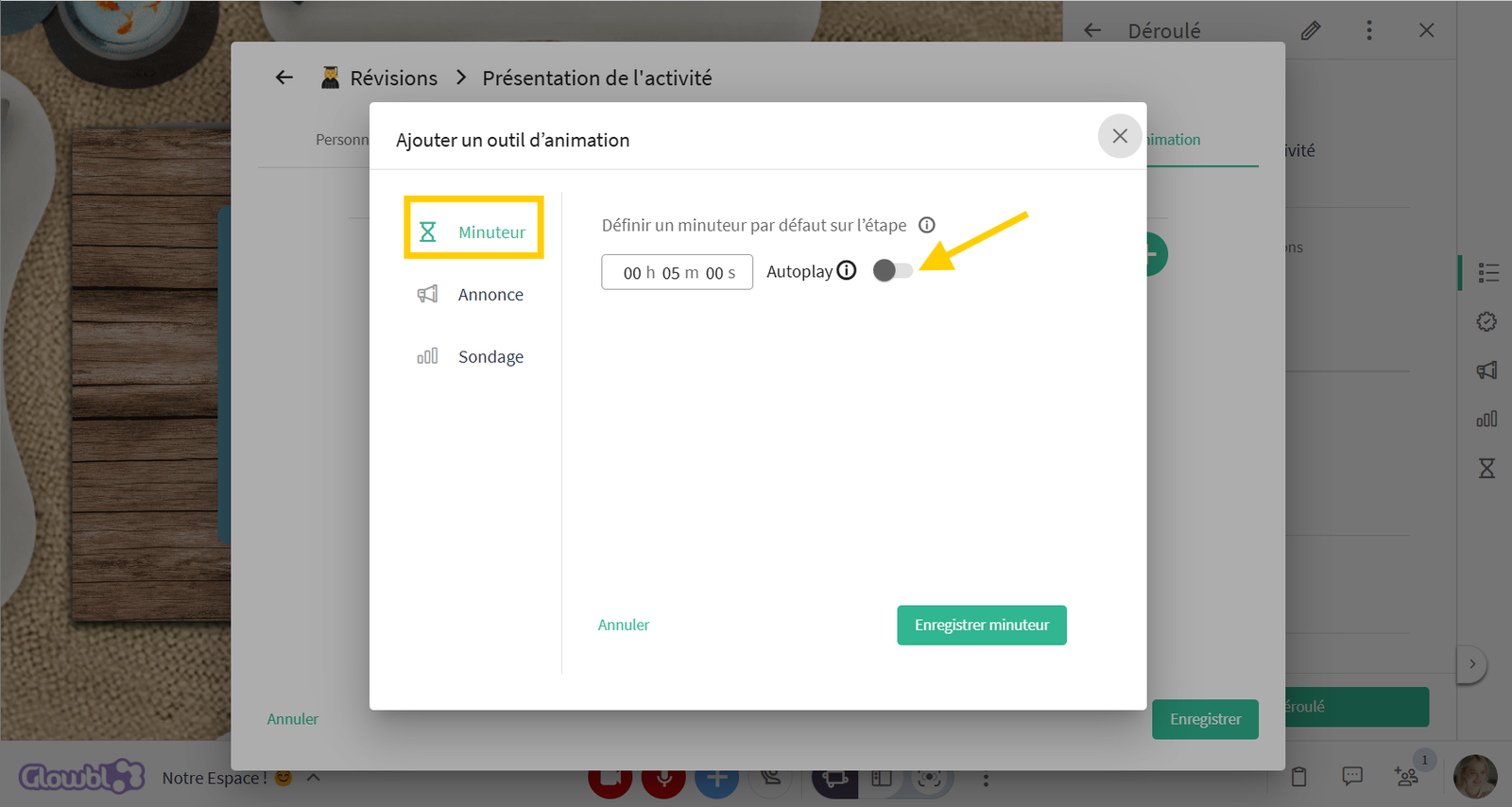
- a timer (automatic or manual launch, replayable)
- facilitator's notes (what will you and your participants have to do at this step?)
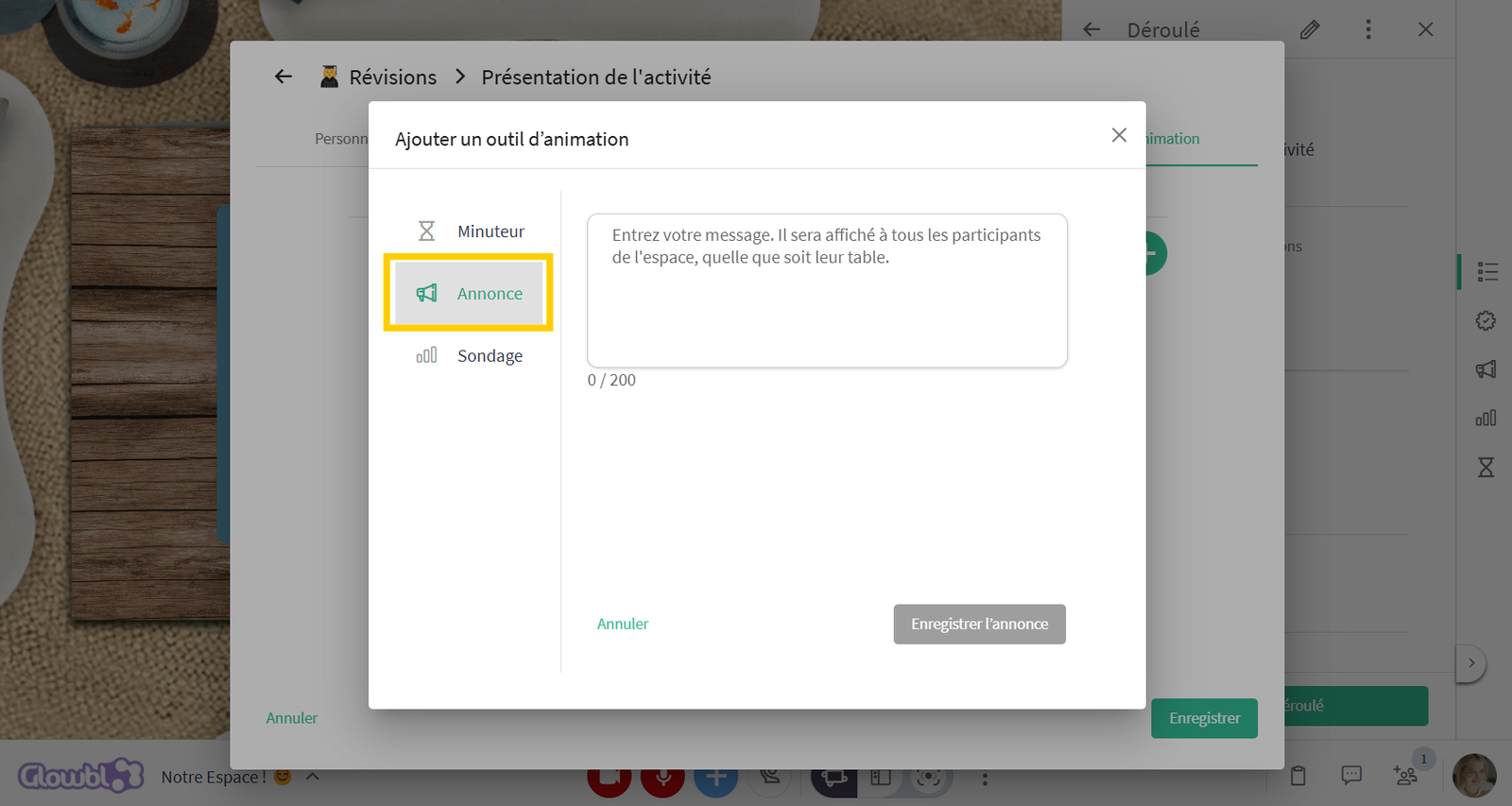
- announcements (on all tables, replayable)
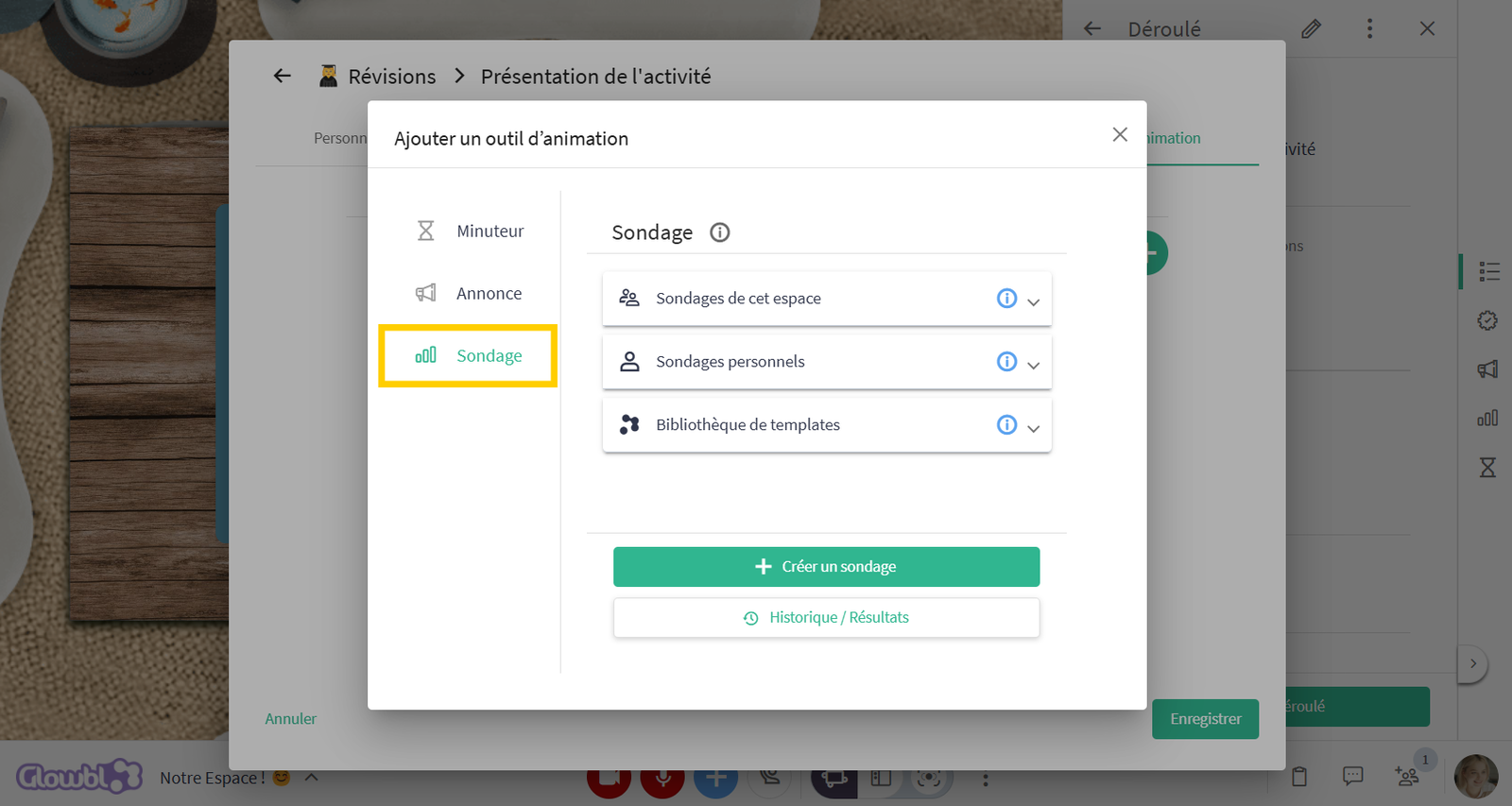
- polls (on all tables, replayable)

Unlike your instructional flow, our sequence is more about the logistics of your session. We advise you to create a new step when you need to change participants' rights or modify layouts. For example, your instructional flow may contain 10 steps, whereas the Glowbl sequence may contain only 3.
Create a new sequence
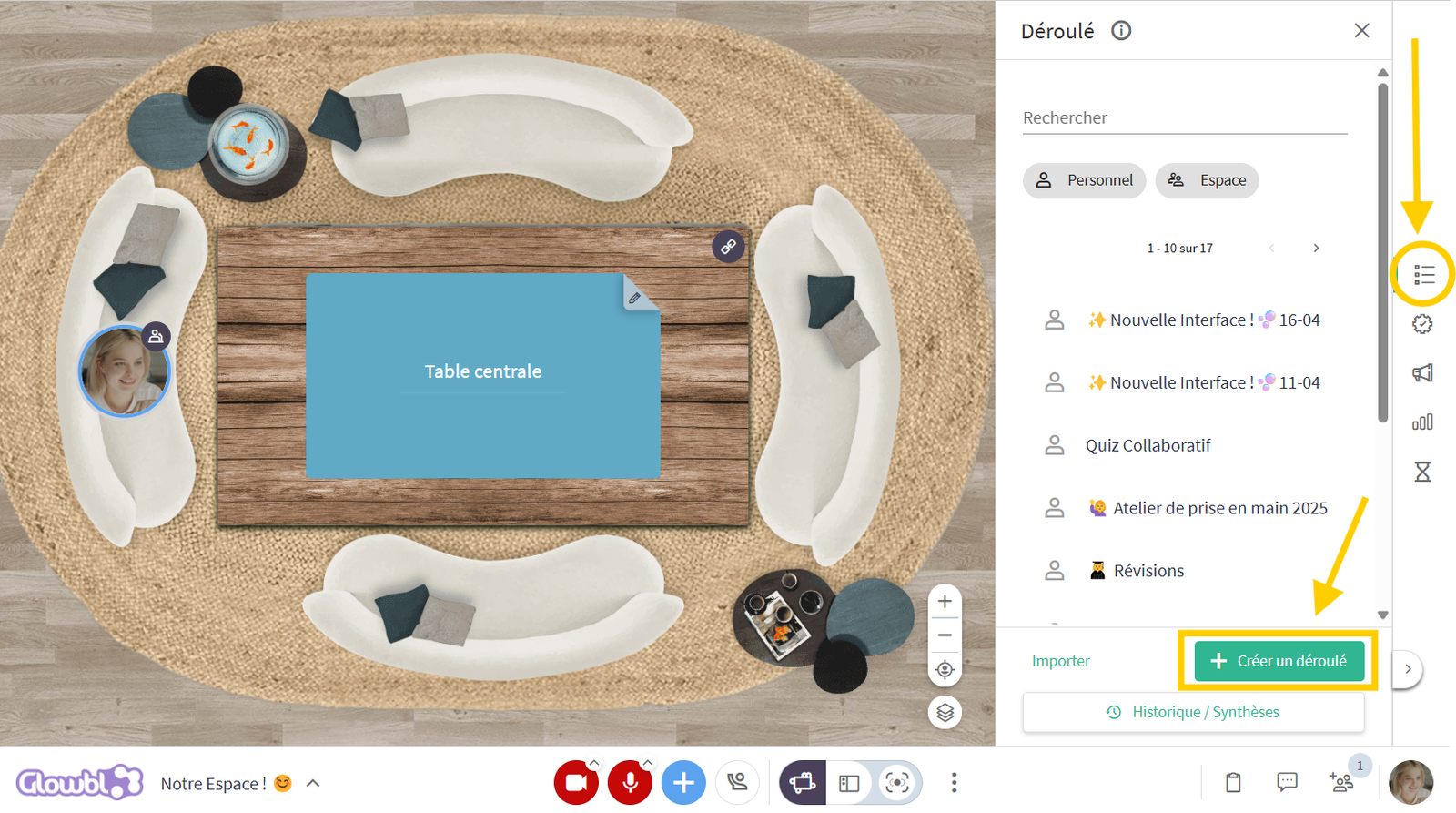
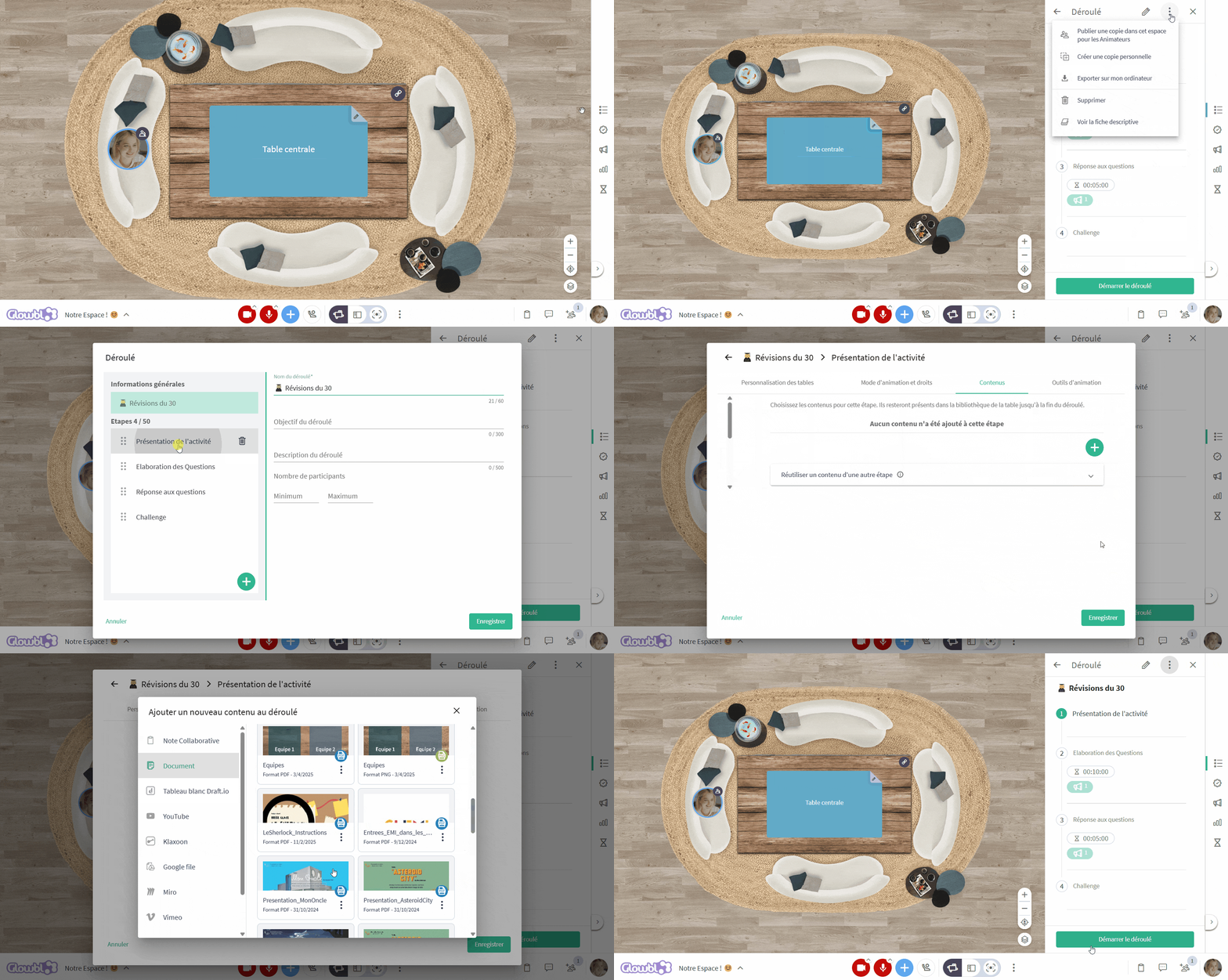
Click on the list icon in the right-hand sidebar ➜ click on the green Create a sequence button .
Fill in general information (optional)
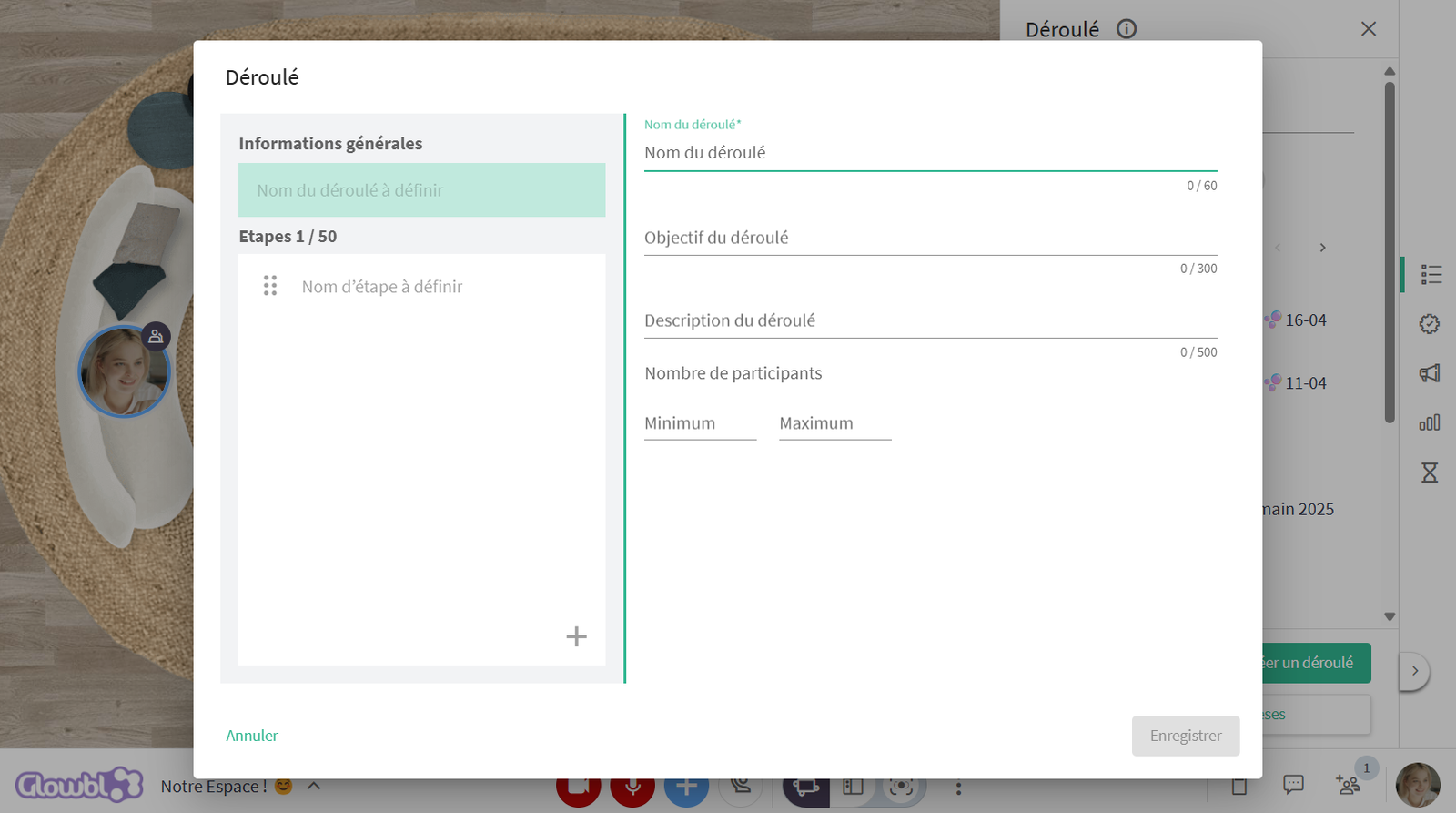
Start by giving your sequence a name. Then, if you wish, complete the fields that will make up the Description Sheet. This will be particularly useful if you need to share your creation with a third party (see:  Import/Share a Sequence).
These fields include :
- Sequence objective (300 characters)
- Sequence description (500 characters)
- Minimum & maximum number of participants
Set up the first step
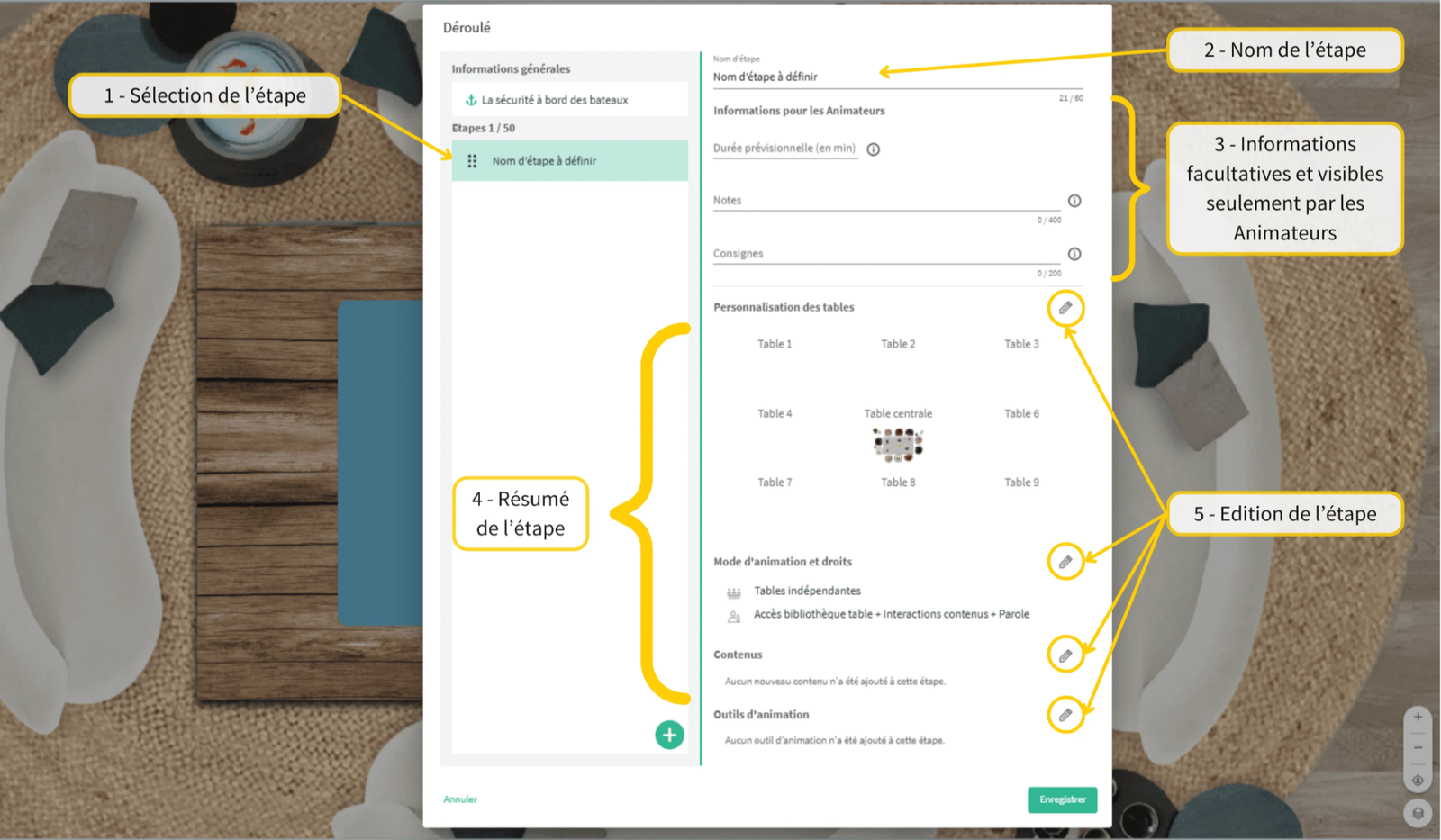
Give this first step a name, then fill in information that will only be visible to the facilitators:
- the estimated duration of the step in minutes
- notes (400 characters): a reminder to not forget anything, your prompter.
- instructions (200 characters): clear, concise instructions to share with your participants.
Just below these fields, you'll find the step summary:
- how many tables will be set up?
- what rights will participants have, and how will they be moderated?
- what content will automatically appear in the tables?
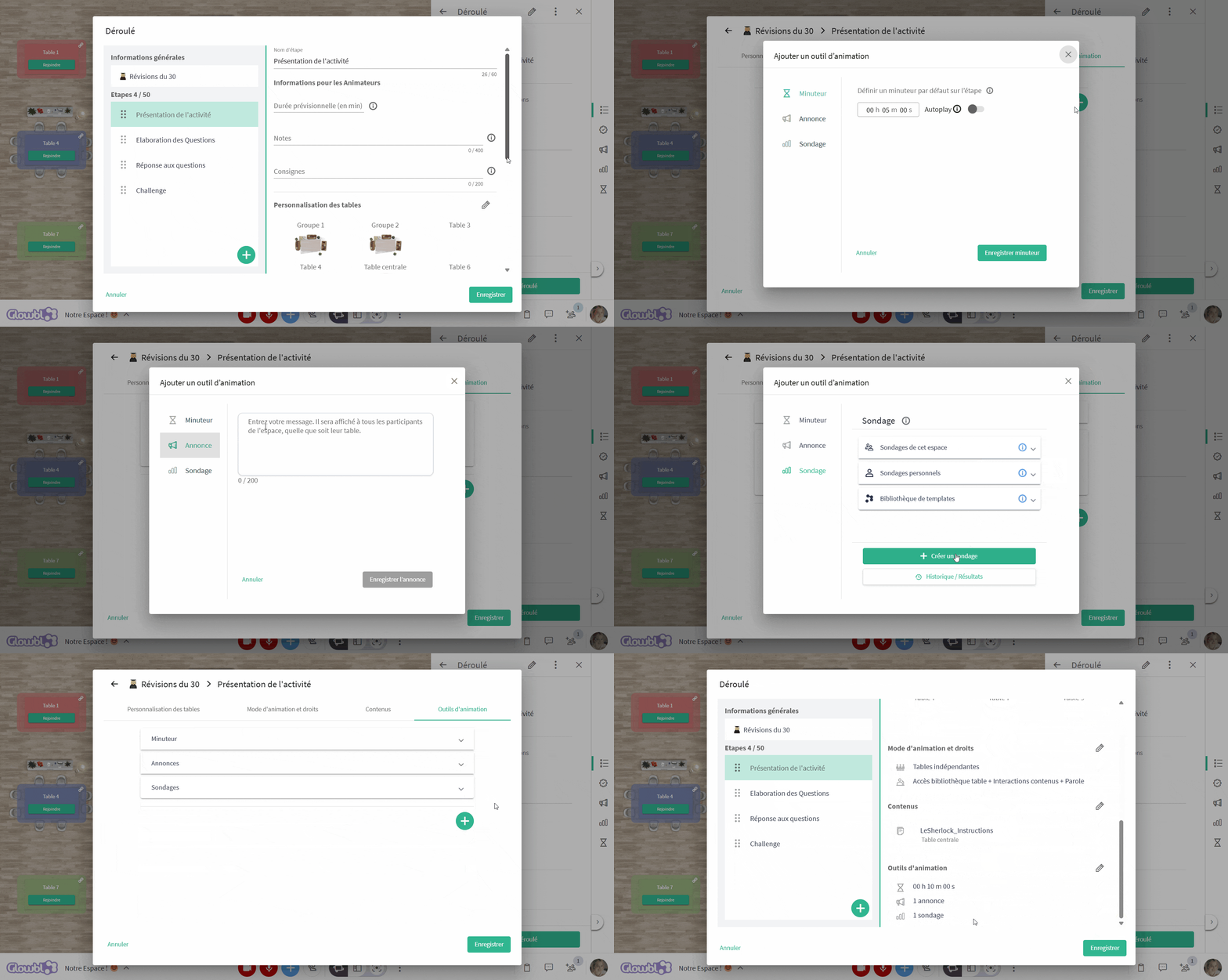
- what facilitation tools can be launched (timer, polls, announcements)?
To modify a step, click on one of the pencil icons to the right of a parameter.
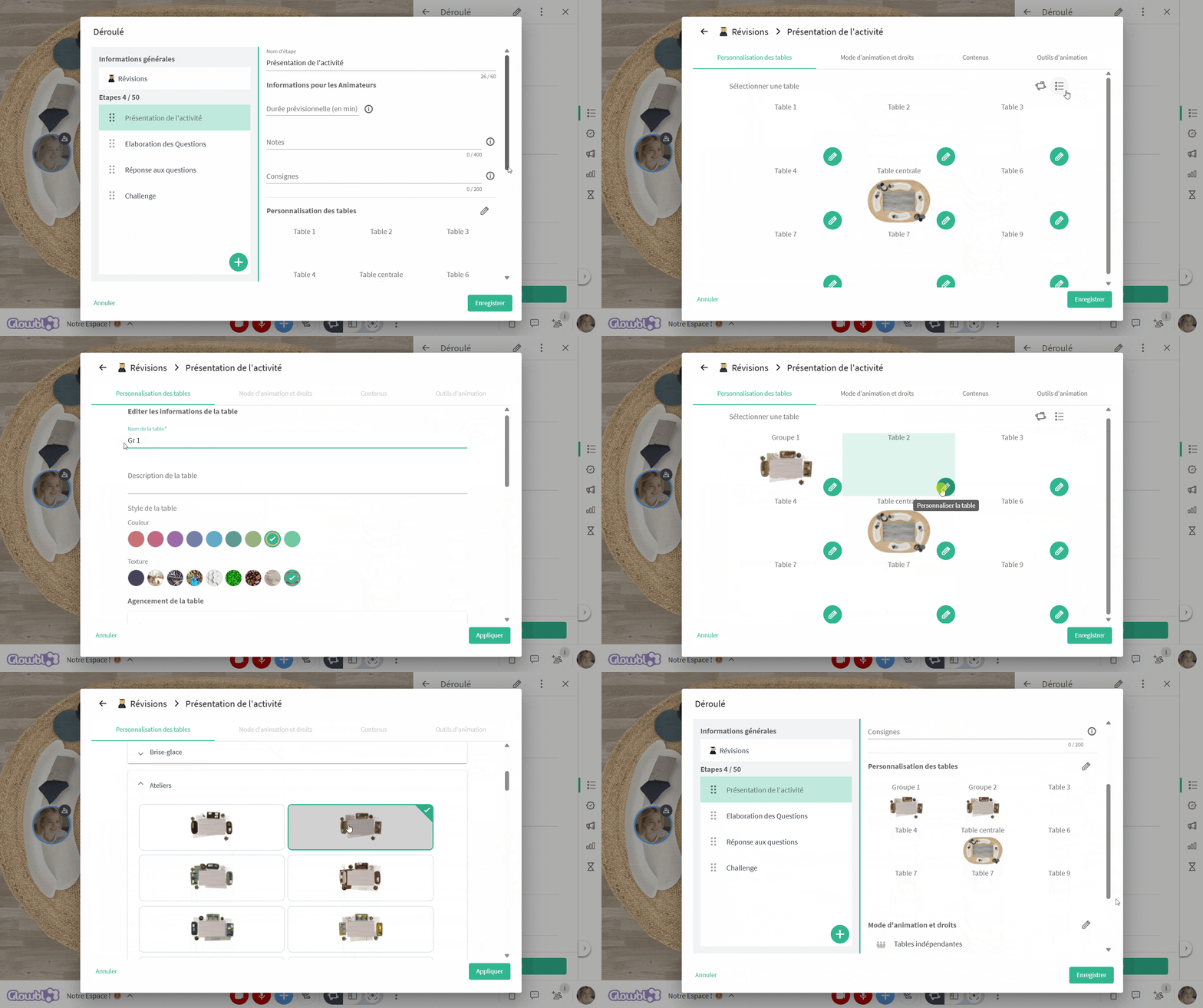
🛋️ Choose table layouts
🎤 Assign participant rights / facilitation mode


📁 Add content

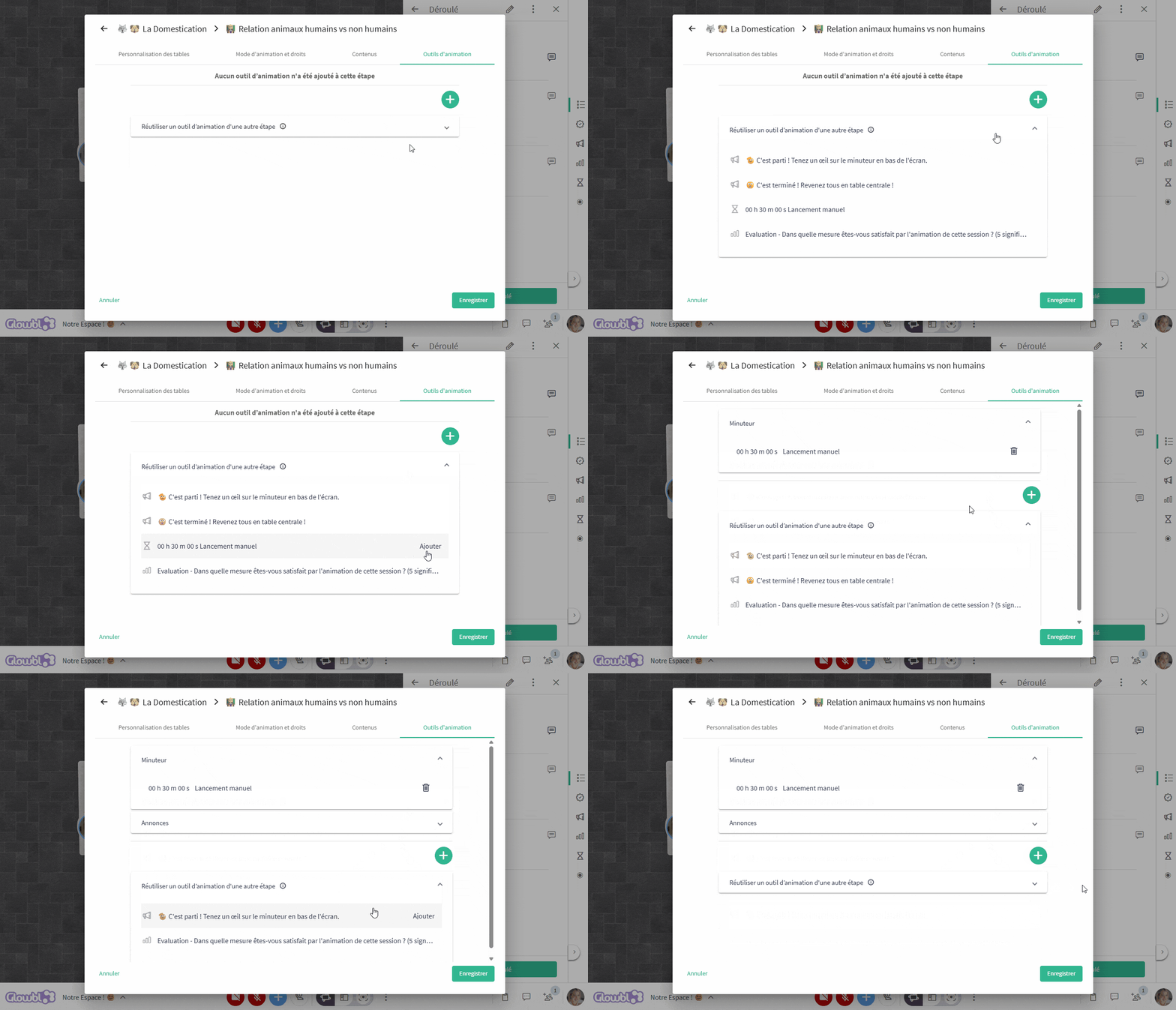
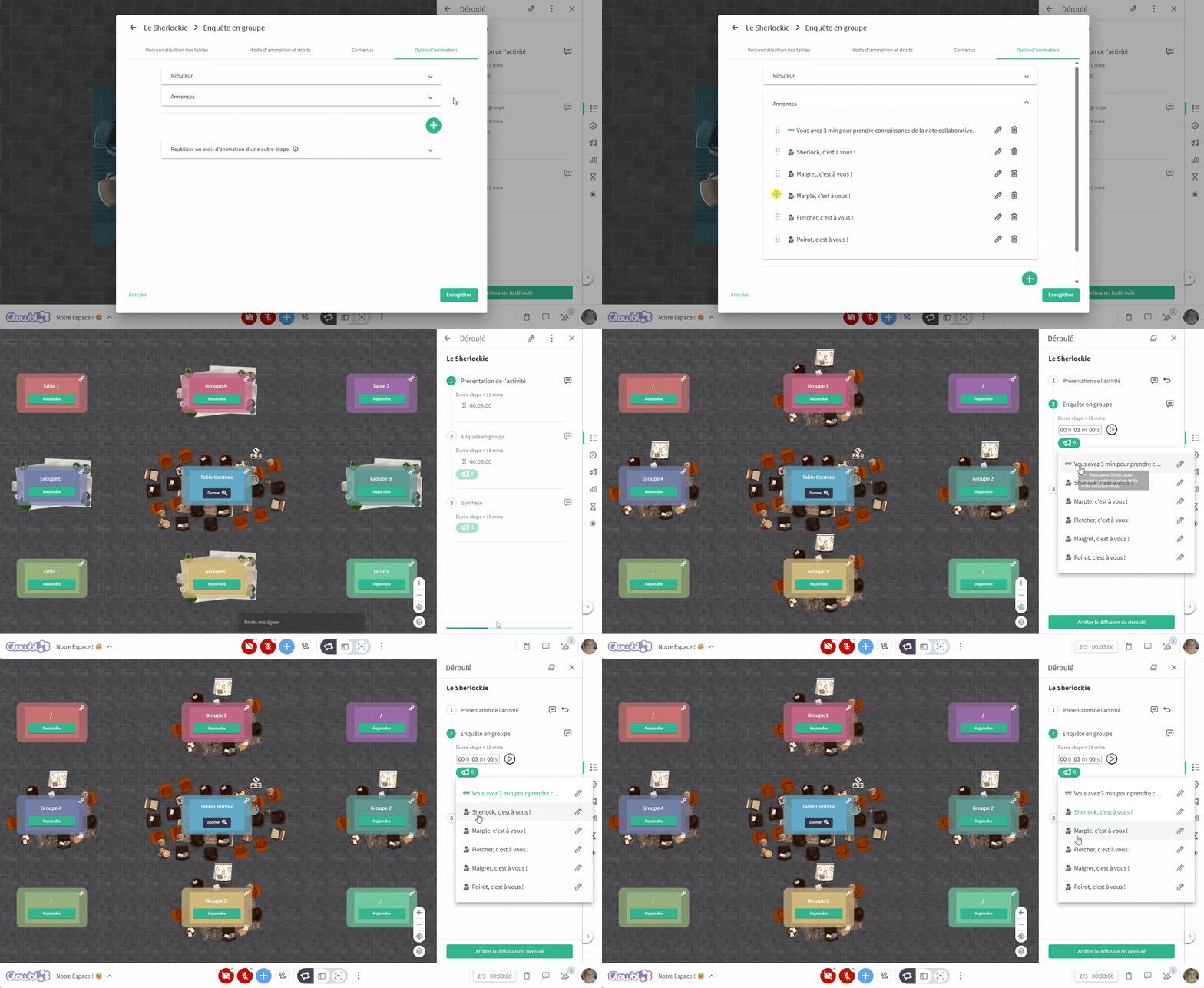
⏳ Set facilitation tools

➕ Add a step
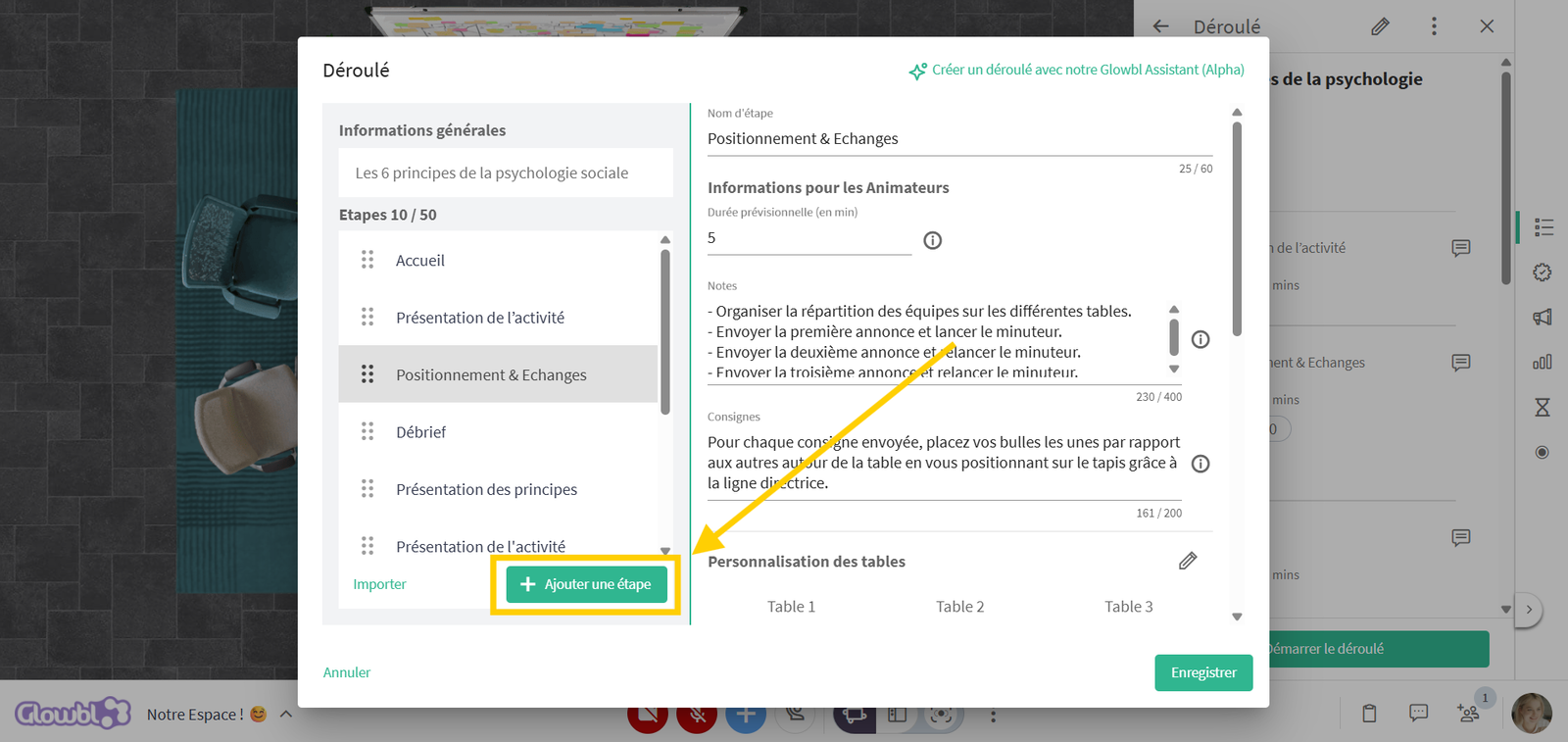
To add a step (up to 50!), click on the "Add a step" button at the bottom of the steps column. Layouts and participant rights from the previous step are duplicated. Steps can be reordered by drag and drop.
You can also import steps from other sequence by clicking on Import to the left of the Import step button. To find out more about importing steps and sequences, see Import/Share a Sequence page.

Modify a sequence
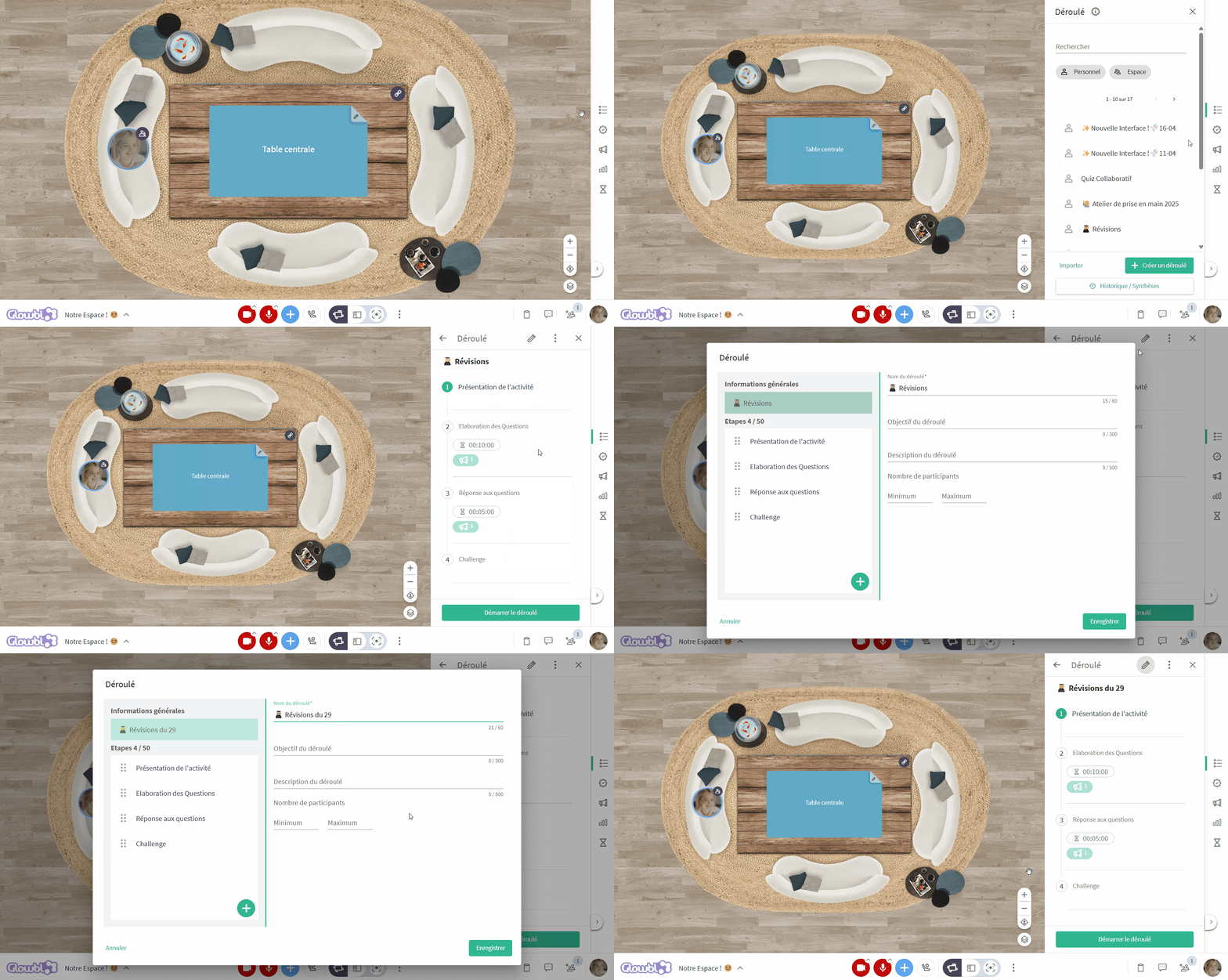
In the sequence tab on the right-hand sidebar, click on the name of the sequence you wish to modify ➜ click on the icon to the right ➜ modify and click Save.
Duplicating a sequence
Are you happy with the structure of your workshop sequence and want to reuse it for another course? You can create a copy of your sequence and simply change the content, for example.
In the sequence tab on the right-hand sidebar, click on the name of the sequence you wish to modify ➜ click on the 3 dots ➜ select Create a personal copy ➜ the copy edition opens automatically.
To go further

- To find out how to facilitate with a sequence, see the page: Launch a sequence
- Want to extract data and content at the end of a session? Discover the page: Recover the Sequence Report
- To share/import sequences, see the page:
Import/Share a Sequence