Feature available for : 🔷 Facilitators 🟨 Administrators
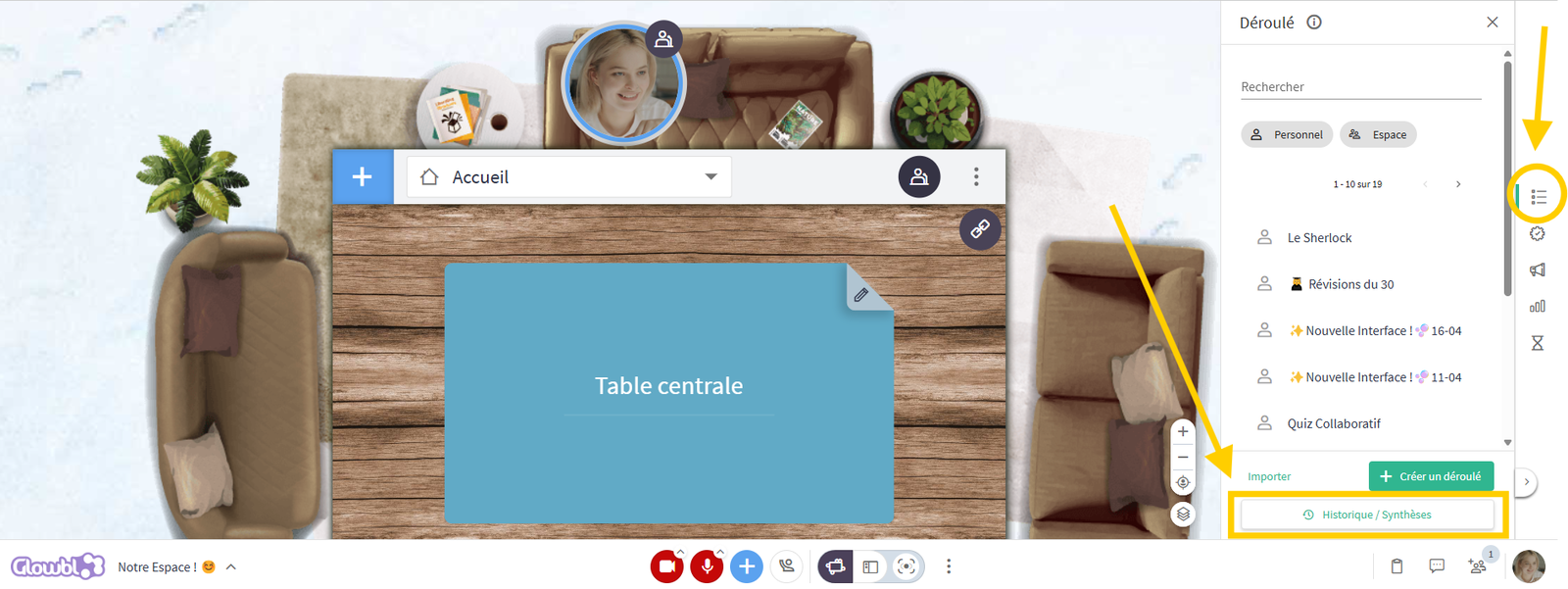
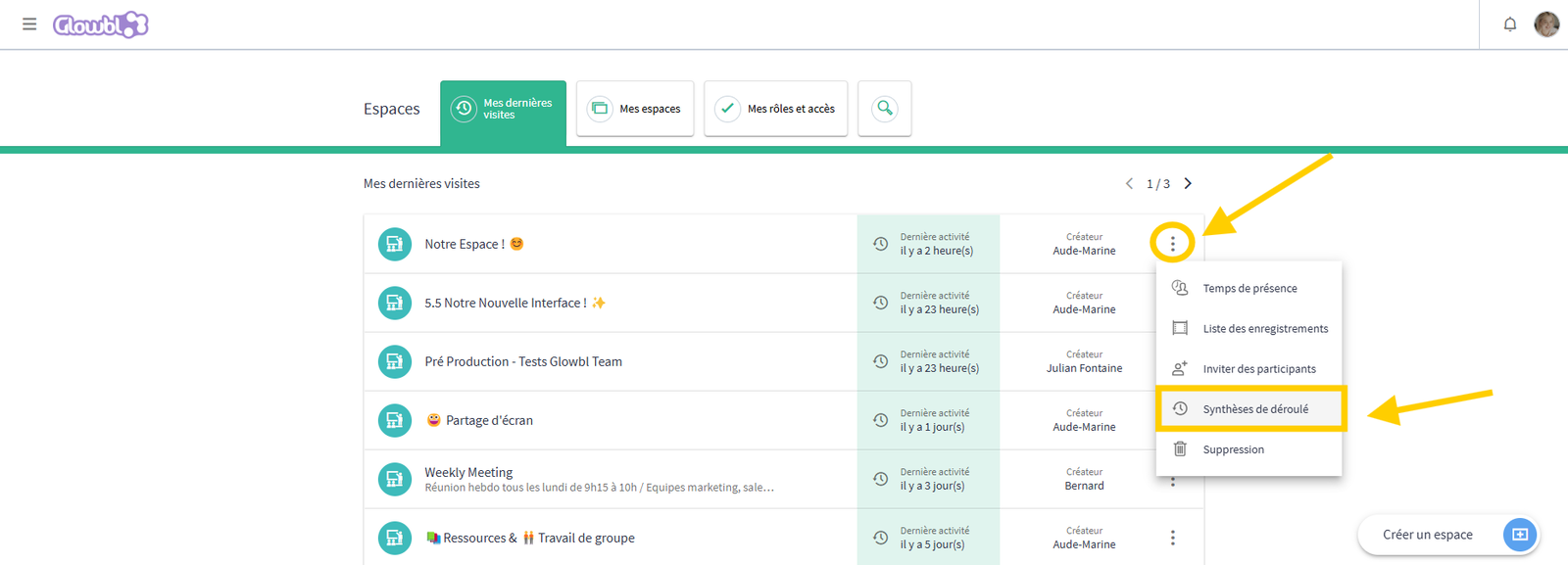
The history of all sequences launched in a space can be found in the Sequence Report. You can access it:

Content of the Report
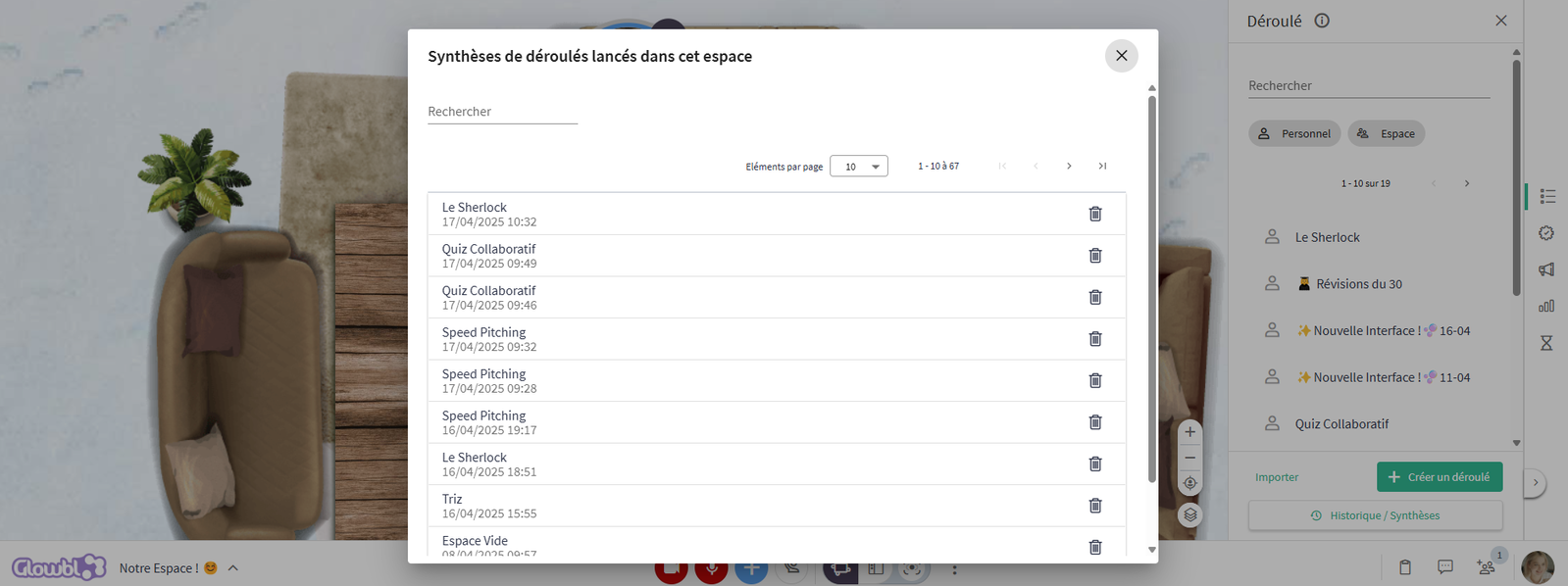
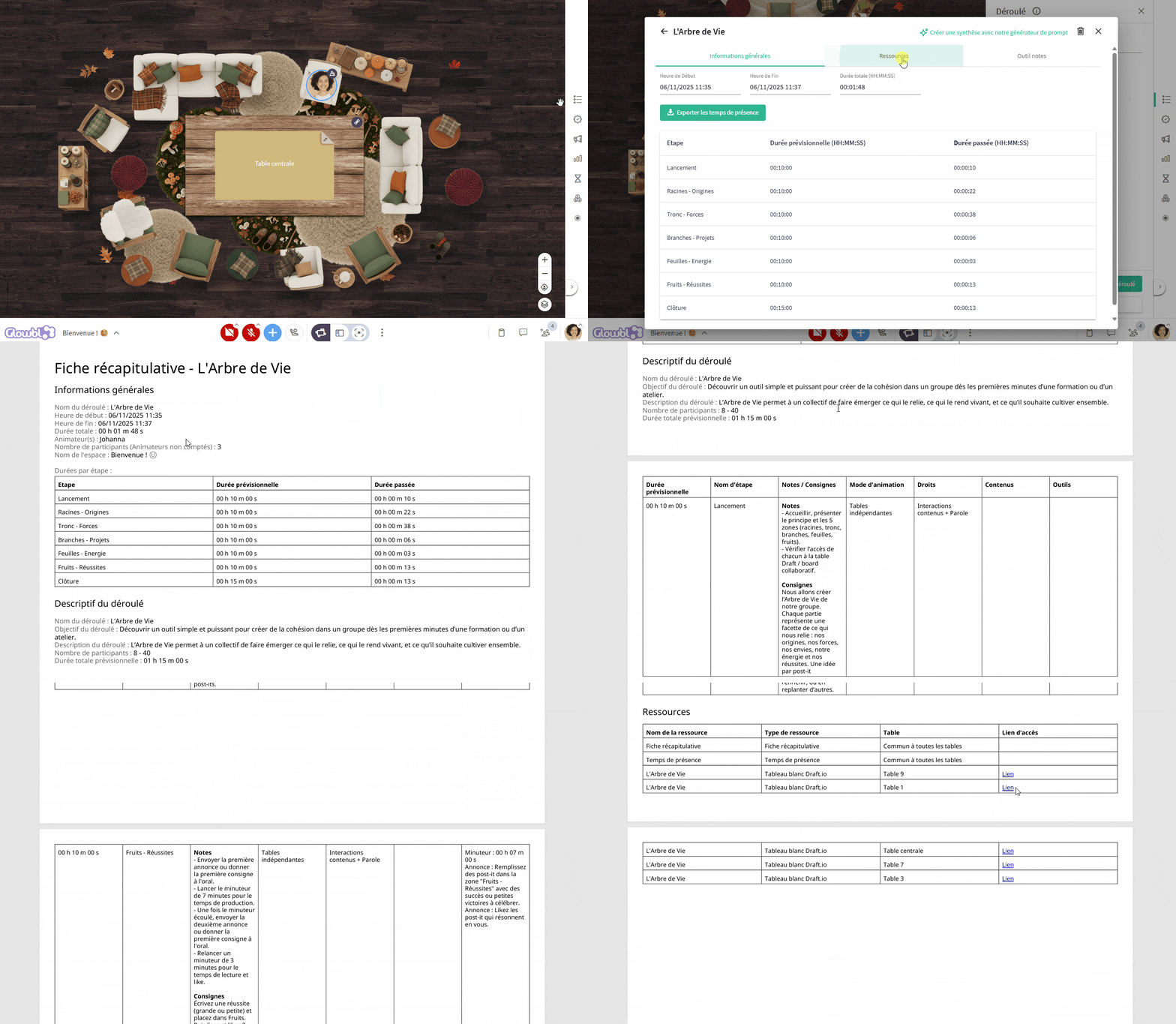
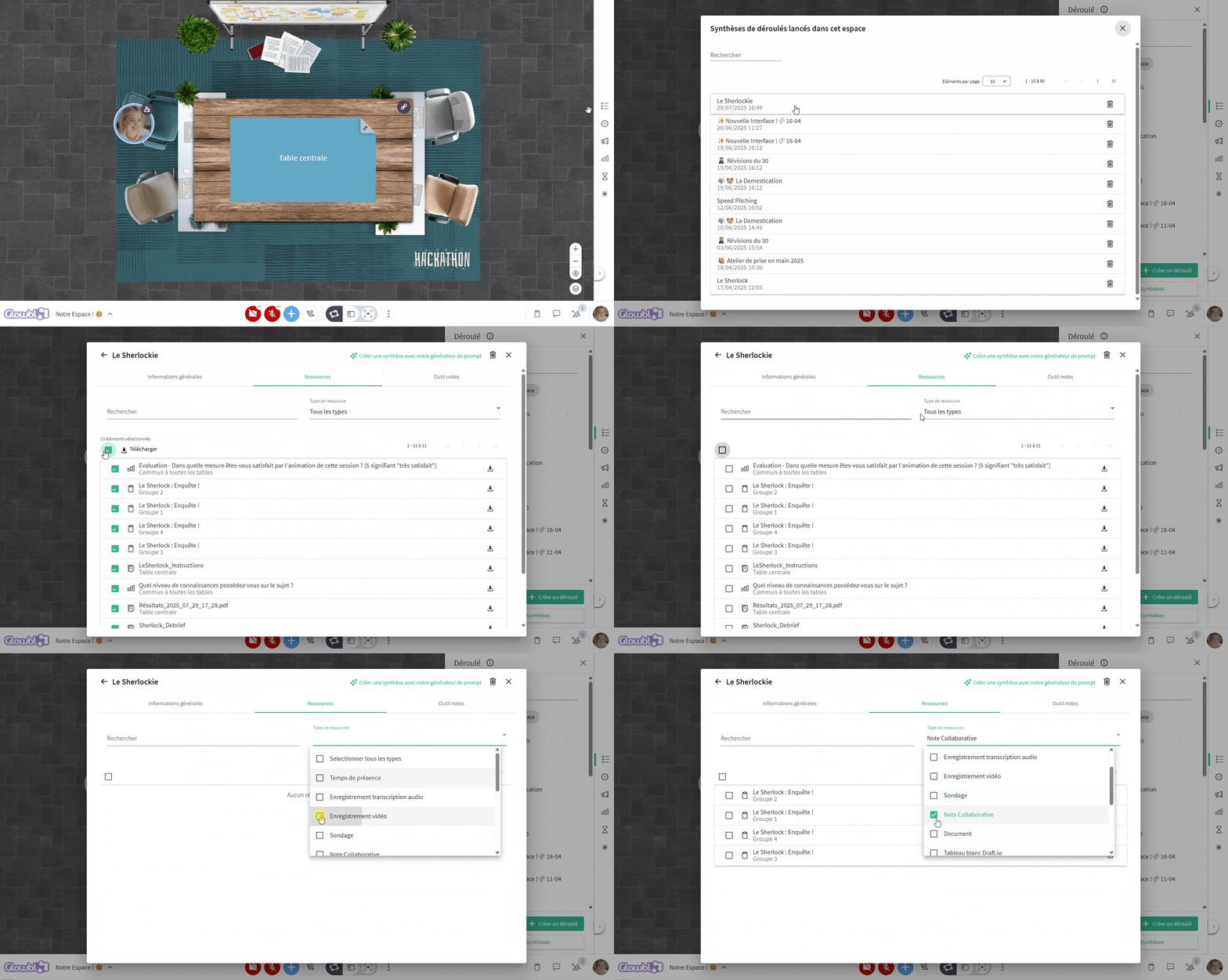
The history of launched sequences is shown, with the name of the sequence and the date and time it was started. Click on one to access different data in three sections:
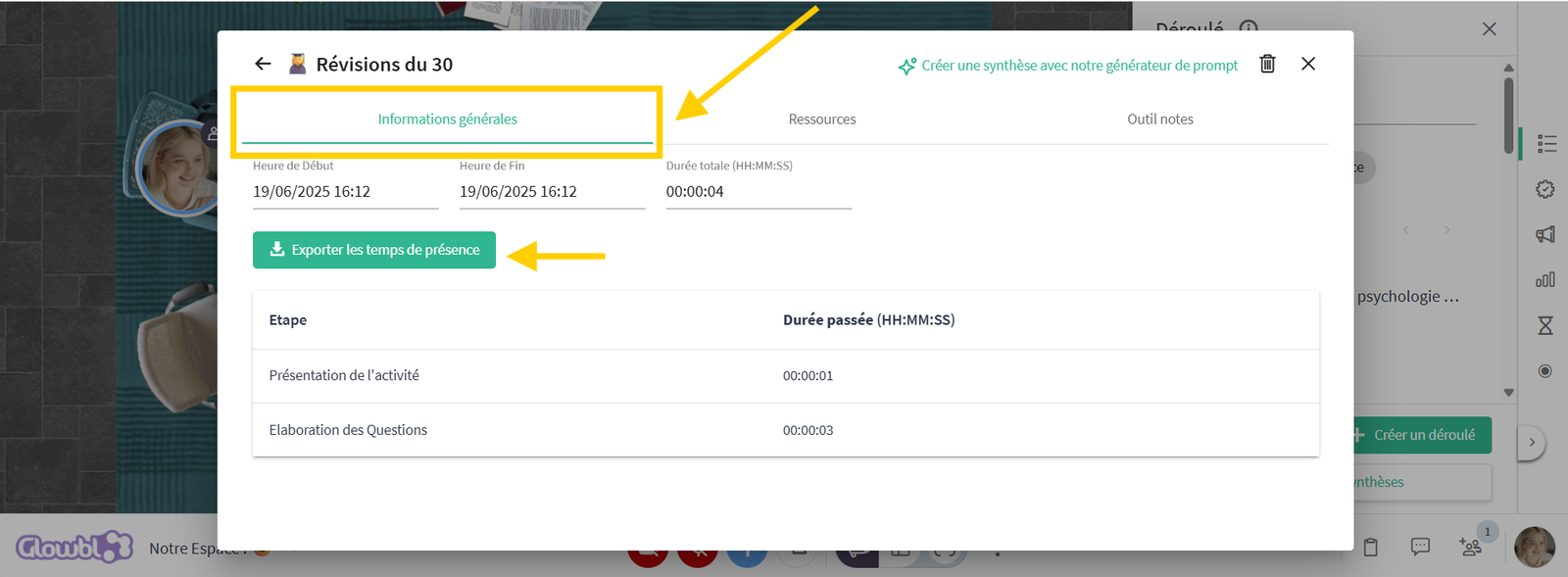
General Information (Time & Attendance)
This pane gives you general information about the sequence launched during your session, including start time, end time and total duration. To help you improve your time management, a table compares the planned duration of each of its steps with the actual time spent. Last but not least, it's here that you can download your attendance times in csv format: who was in your space during the facilitation of this sequence? NB: Attendance times can also be downloaded from the Resources tab.
Resources
Here you'll find all the content projected during the session. Select all content, or by type of content to download as a zip file that can easily be e-mailed to your participants.
In addition to PDFs, Collaborative Notes (+ merged notes) and whiteboards, you'll also find :
- A Summary sheet of the session in PDF: designed to be a strategic asset for your quality procedures, this document centralizes all essential information (date, times, durations, facilitators' names, number of participants, space name, etc.). It also includes the sequence description sheet as well as the list of documents projected during the session, the relevant table or team, and the associated link (video, whiteboard, external application, etc.).
- attendance times in CSV
- polls: all poll results can be downloaded here, whether or not you projected them during the sequence.
- video recordings and audio transcripts: if you record your session during the facilitation of a sequence, you can also find the recordings in the summary, download them or create a viewing link for your participants. Note that stopping the sequence does not stop the recording. It will stop automatically at the programmed time, or manually.
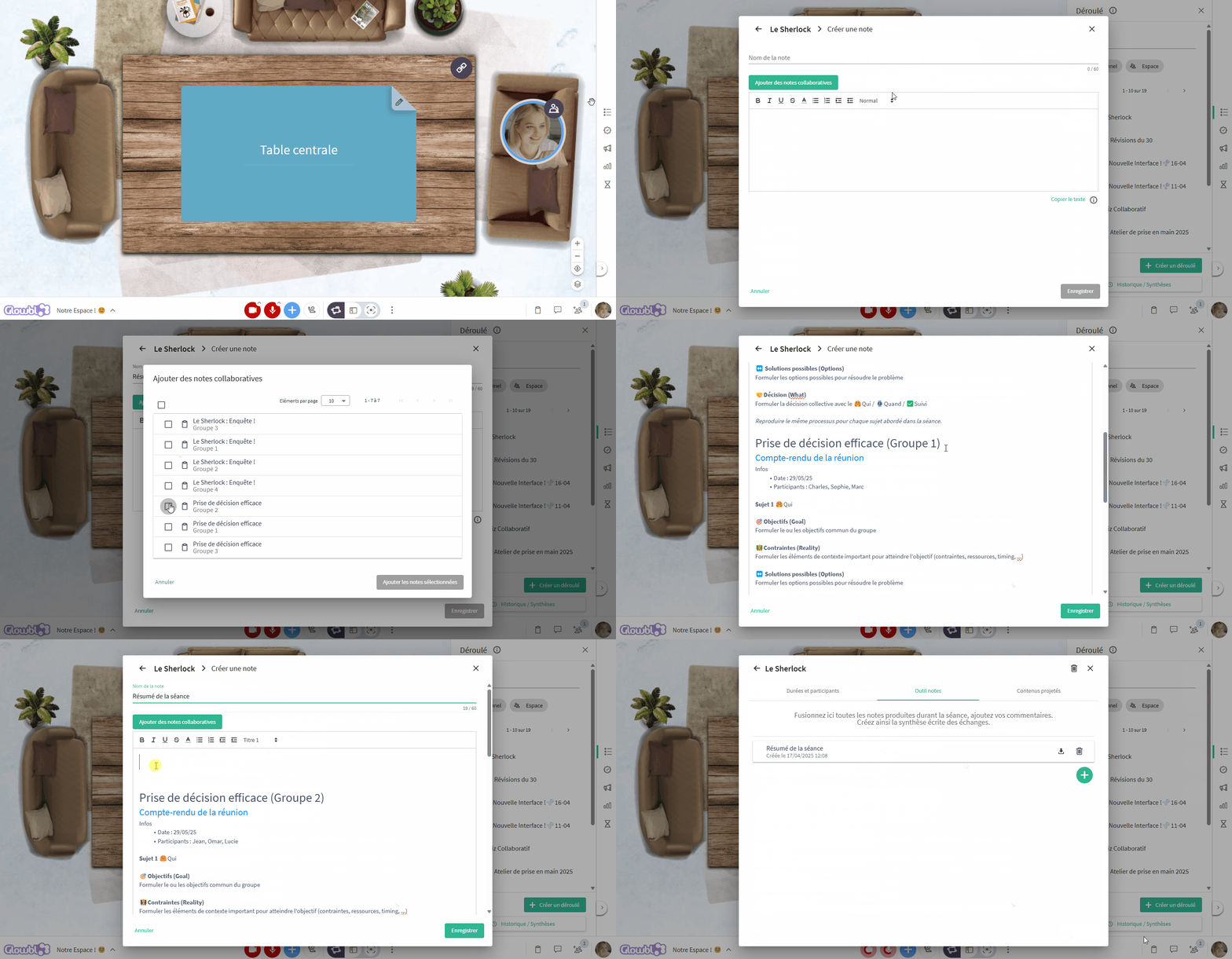
Notes tool (Session summaries)
With the Notes tool, you can merge some or all of the collaborative notes projected during your sequence, edit them and add comments. The resulting summary can then be downloaded. Create several written summaries of your exchanges depending, for example, on who you intend them for: your participants, your co-hosts, or yourself.
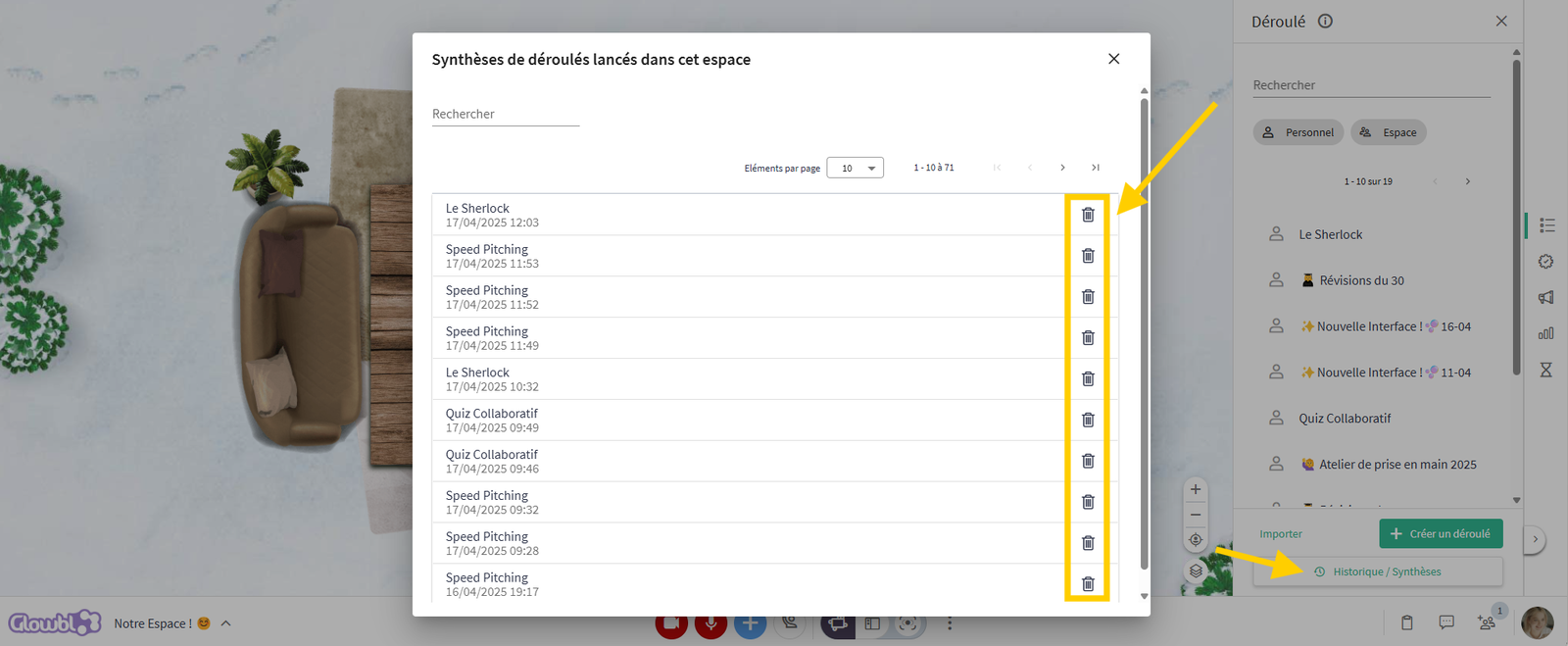
❌ Delete a Report
As long as a summary is not deleted, it remains available in your space with no time limit. Which means you don't need to export your data right after your session. But if you'd like to clean up a bit, click on the trash icon to delete any summaries which data you've already exported.

You may also be interested in these pages: