Feature available to: 🔷 Facilitator 🟨 Administrators
Whether you want to check your participants' understanding, gather their feedback and feelings, or spark a discussion, polls offer a wealth of possibilities with total simplicity.


On Glowbl, you can create three types of reusable items: Collaborative Note Templates  , Polls
 , and Sequences
 .
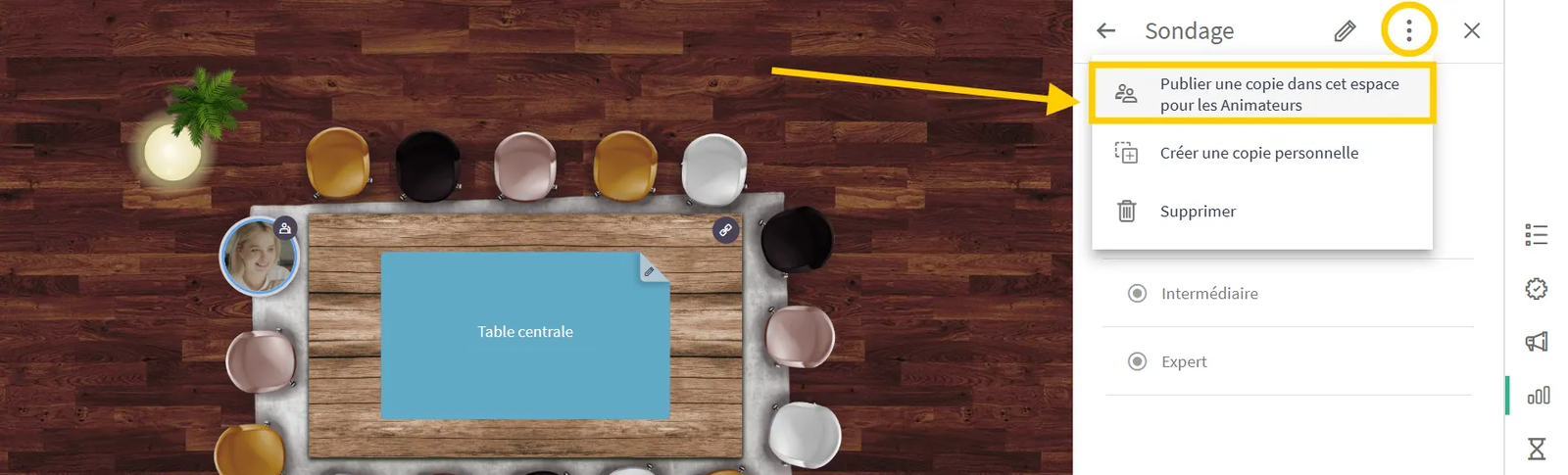
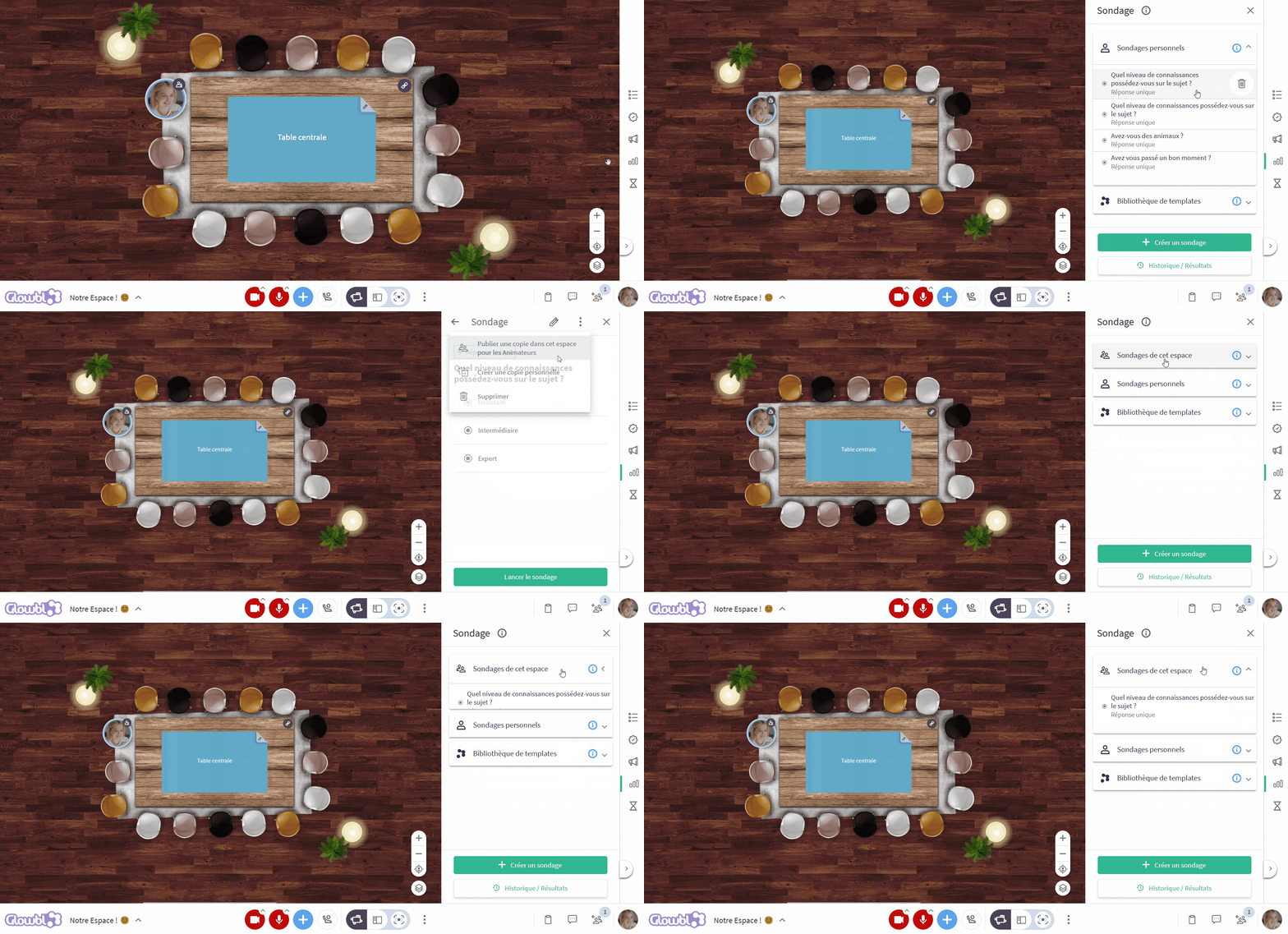
Each item you create is automatically saved as Personal, meaning you can prepare it in advance and use it freely across all your spaces as many times as you like. If you want your colleagues (space’s Facilitators) to have access too, simply publish a copy to your chosen space. This allows them to use it in turn. See below for more details.

This feature is reviewed in the video tutorial:
Preparing a poll
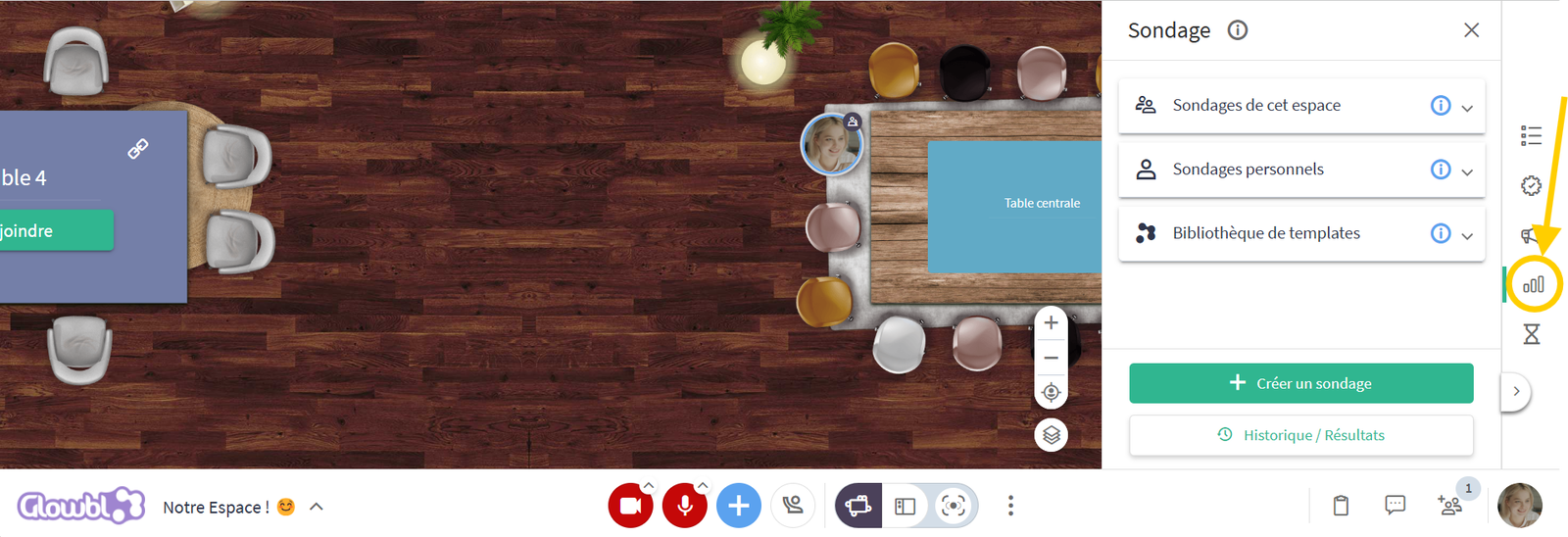
- Click the Poll icon in the right-hand sidebar.
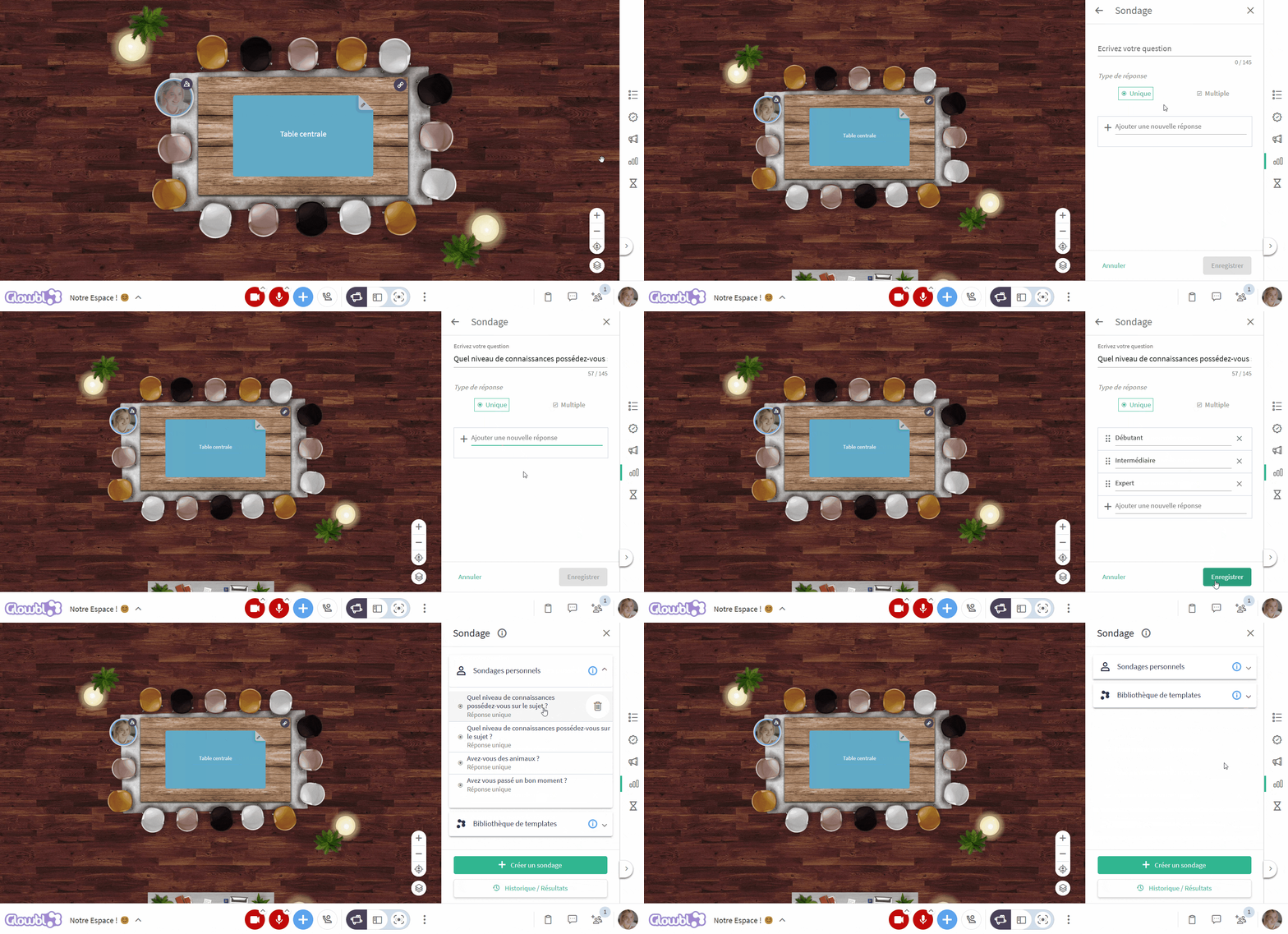
- Click the green Create a new poll button.
- Enter your question.
- Select the desired poll type:
- Provide at least two response options.
- Click Save.
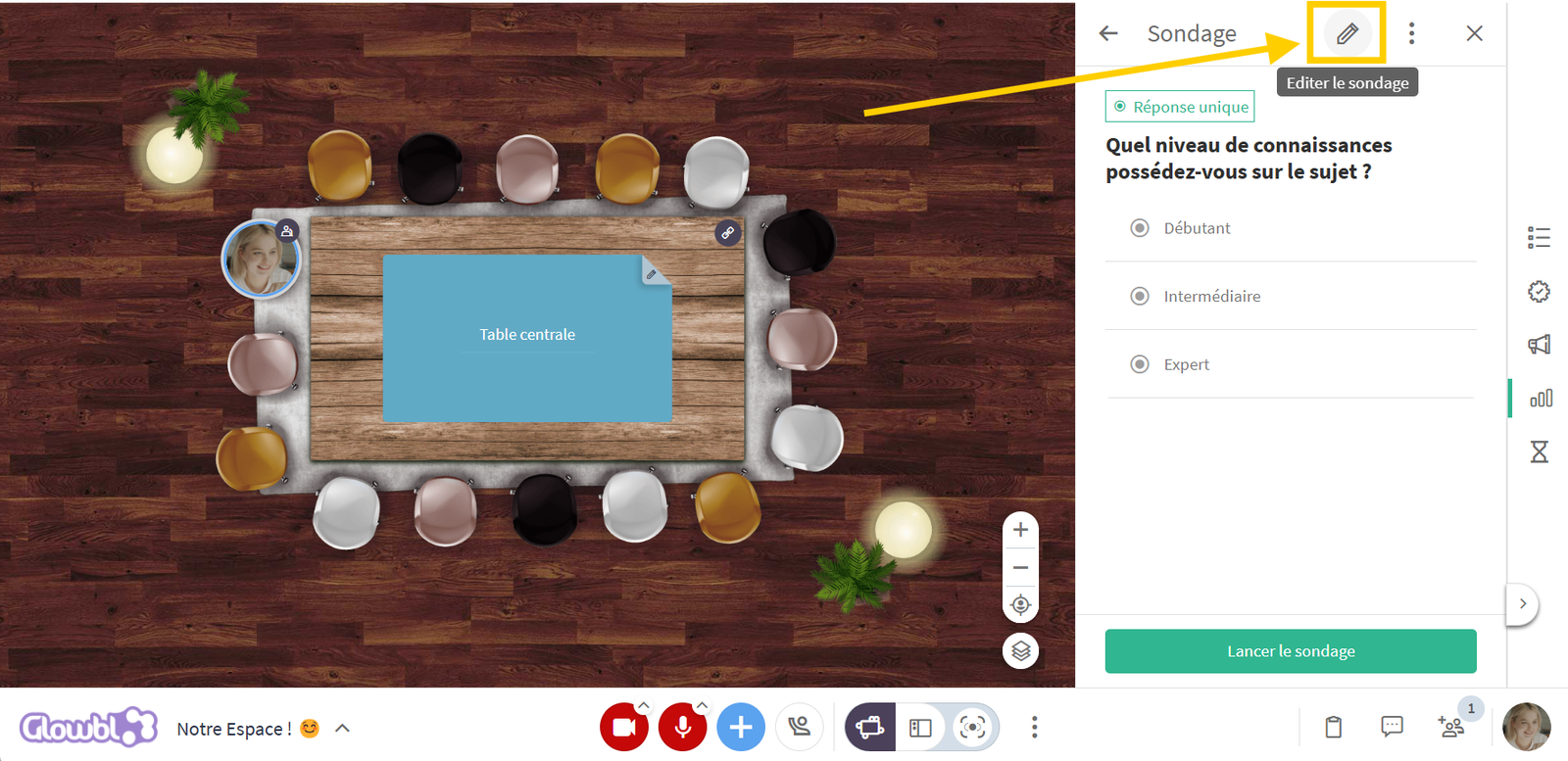
You can launch the poll immediately or save it for later.
You can prepare and link several polls to each step of a Sequence. Check the  Create a sequence page.
▶️ Launching a poll / Sharing results
- Click the Poll icon in the right-hand sidebar.
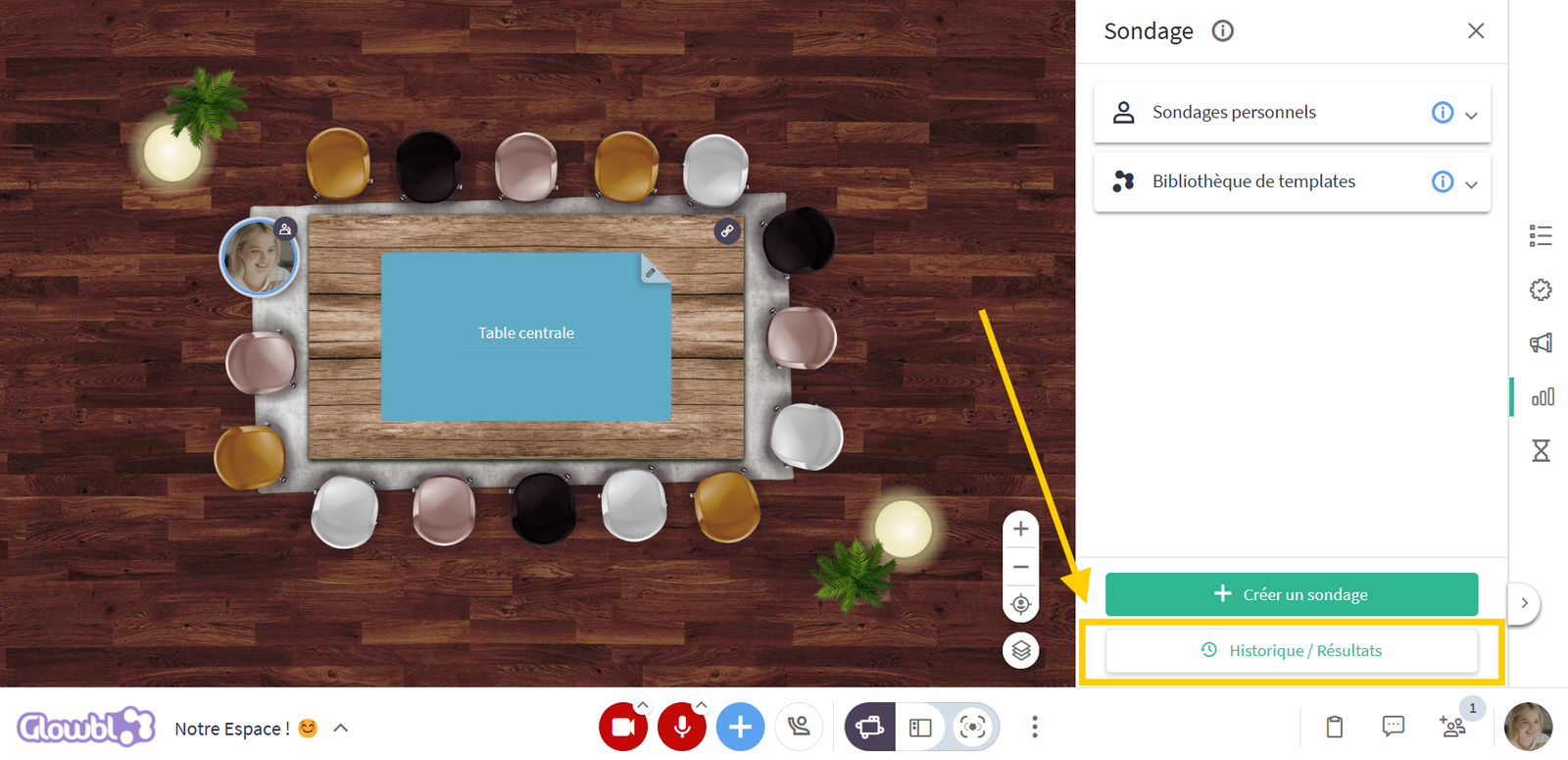
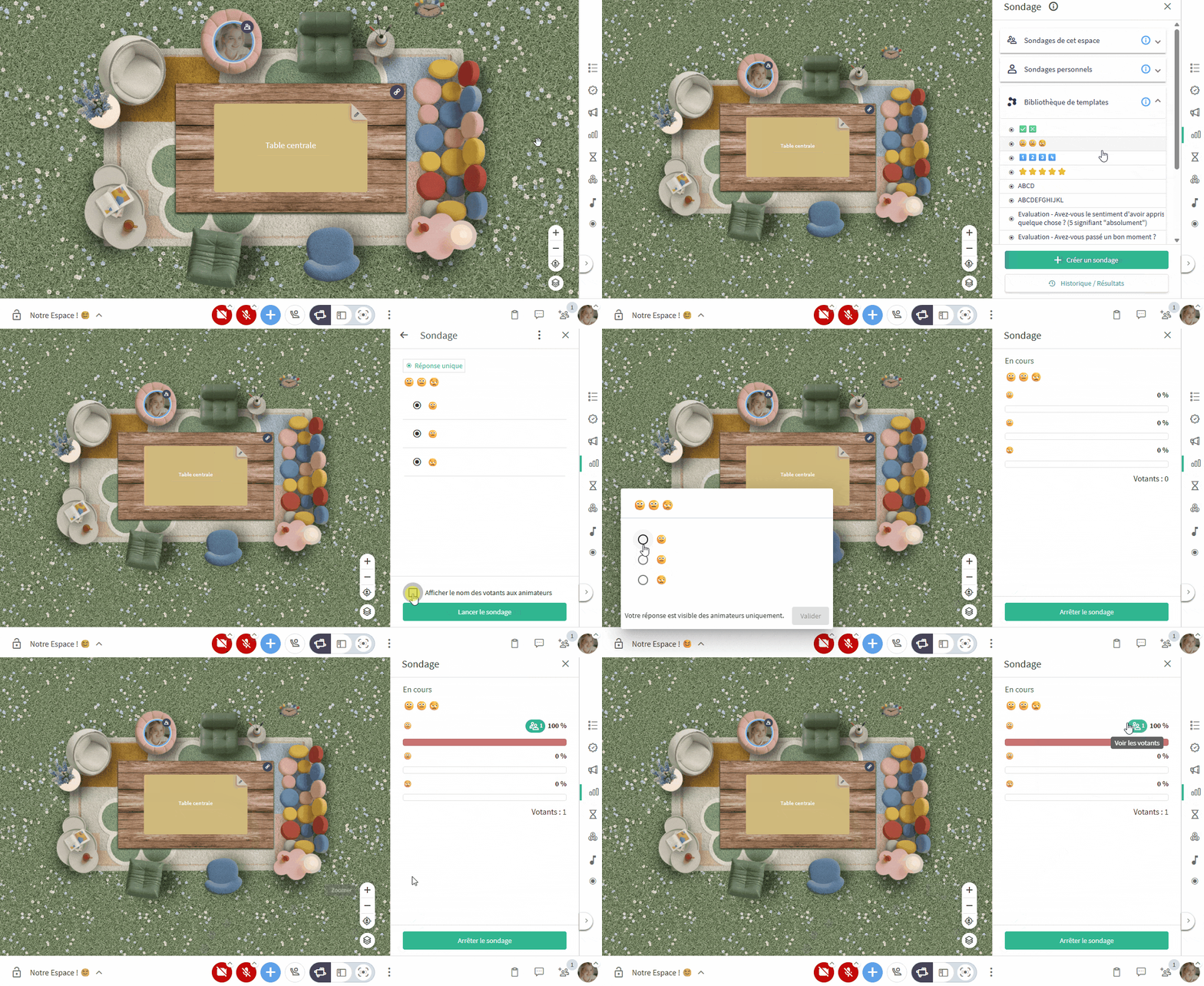
- Click the Personal Polls sub-folder to launch one of your own polls, or Space Polls to open a poll shared by another facilitator.
- Click the name of the desired poll, then click Launch Poll.

Please note :
- Polls are broadcast to everyone throughout the entire space.
- You can choose whether or not to make voter names visible.
- Live poll results are only visible to facilitators in the Poll pane.
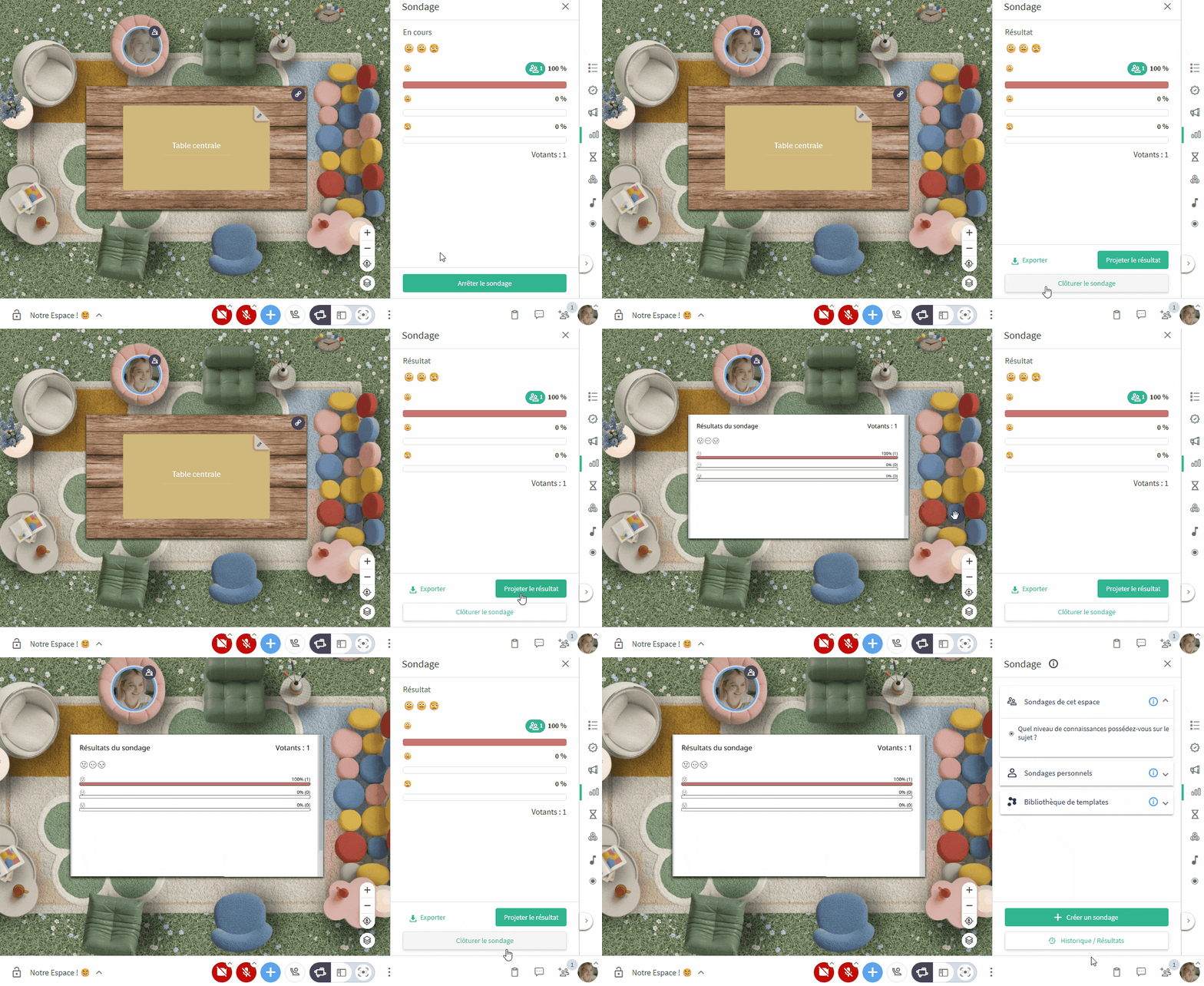
Once all participants have voted:
- Stop the poll.
- Click Display results on table (these are always anonymous).
- Close the poll to launch another one.
You need to facilitate with a Sequence ? Visit the Launch a sequence page to find out how to launch your polls with just one click.