Feature available for : 🔷 Facilitators 🟨 Administrators

🎤 What rights should be assigned to participants?
To avoid unpleasant surprises such as a participant scrolling through your slides, remember to assign appropriate rights to your participants. Note that these rights apply to the entire space.
We have four rights on Glowbl, from the most restrictive at the bottom to the most lax at the top:
 Library access table +
 +
 Content interactions + Speech only
 Raising hand

This feature is covered in this video tutorial :
Changing participant rights
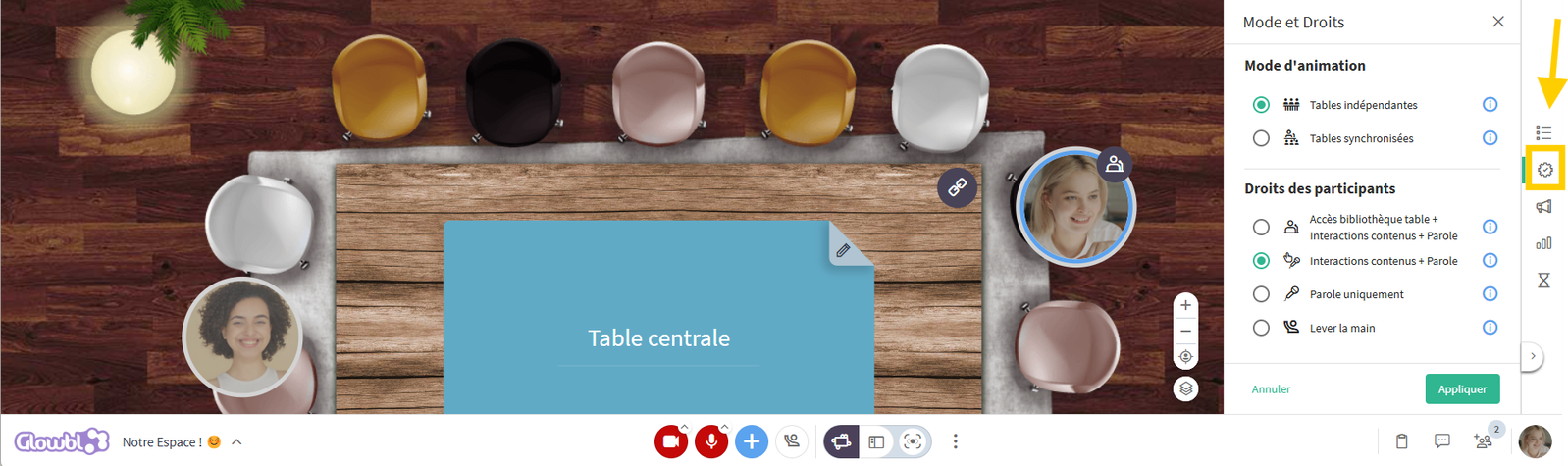
As we've seen, different phases of your session may require different rights. To change them at any time :
Click on the gear-like icon (Mode and Rights) in the right-hand sidebar ➜ select the desired right ➜ click Apply.
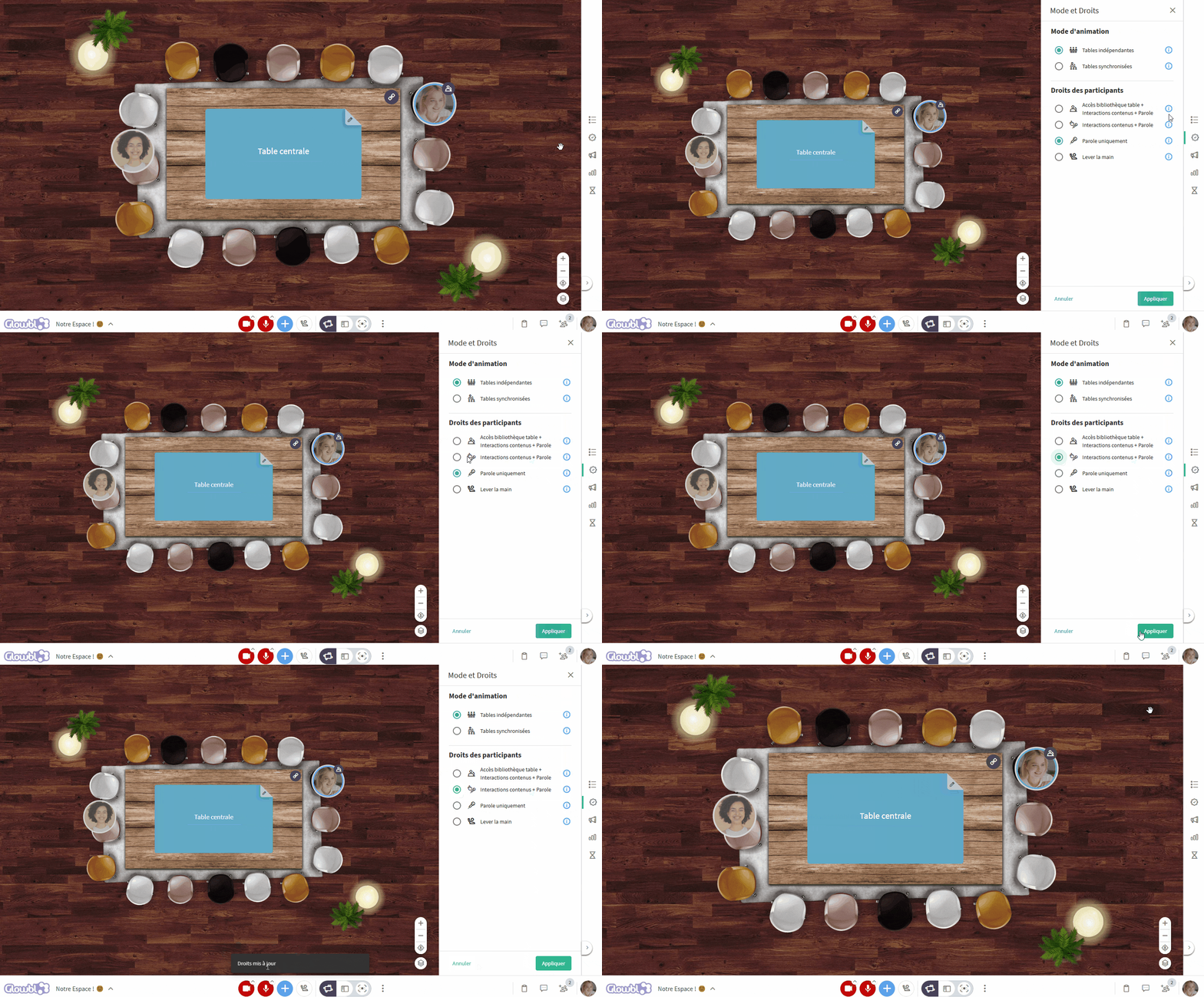

When creating a sequence, you can set up different rights in advance for each stage of your session.
Give additional rights to a participant
From Bubbles
If you restrict rights to all participants in Raise hand or Speech only, it is possible to temporarily give the rights to interact with the content to one participant. This feature is useful if, for example, you wish to give a speaker the right to scroll through the slides of his or her presentation.
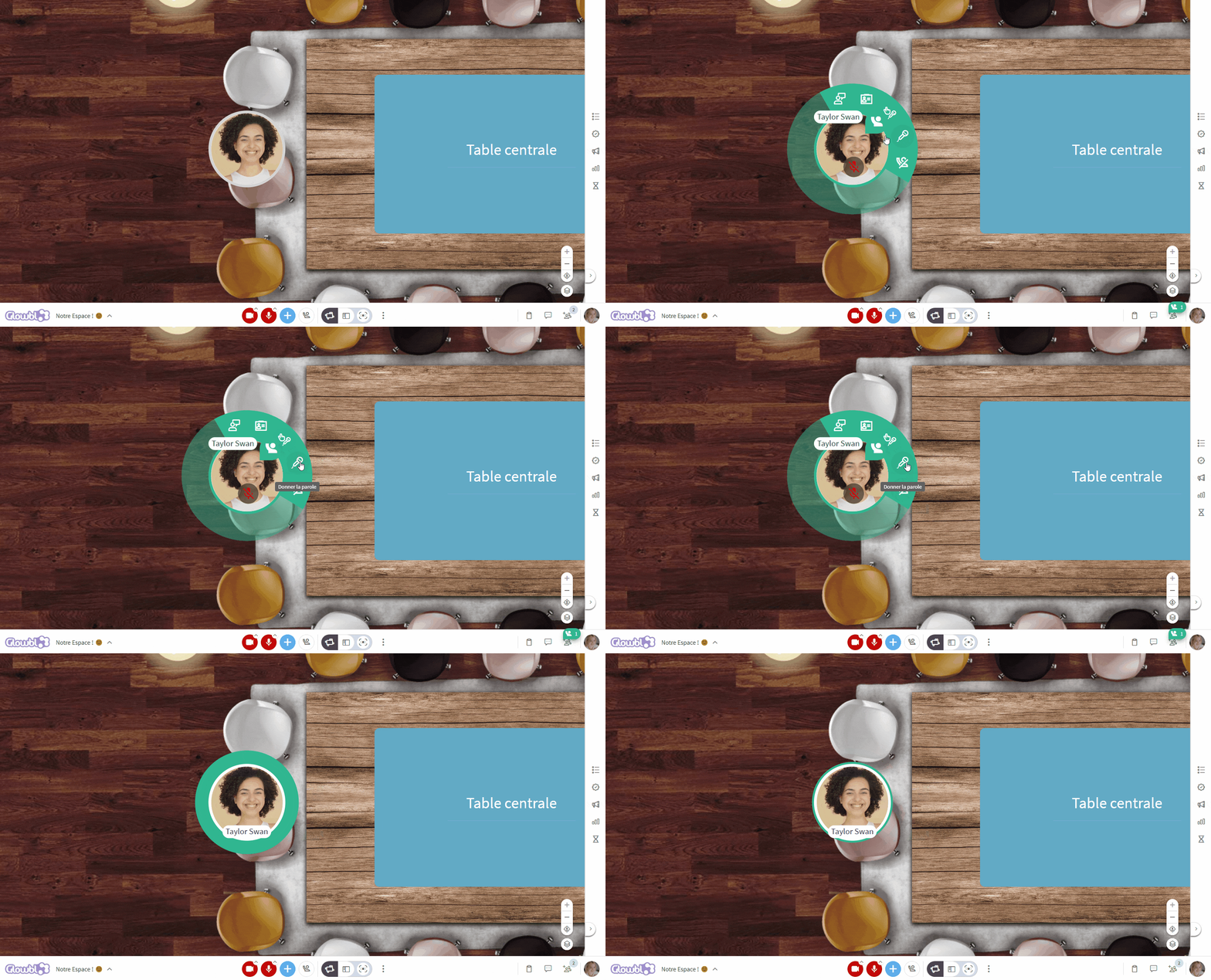
Hover your mouse over the bubble of the participant in question ➜ click on the Give access to content icon.
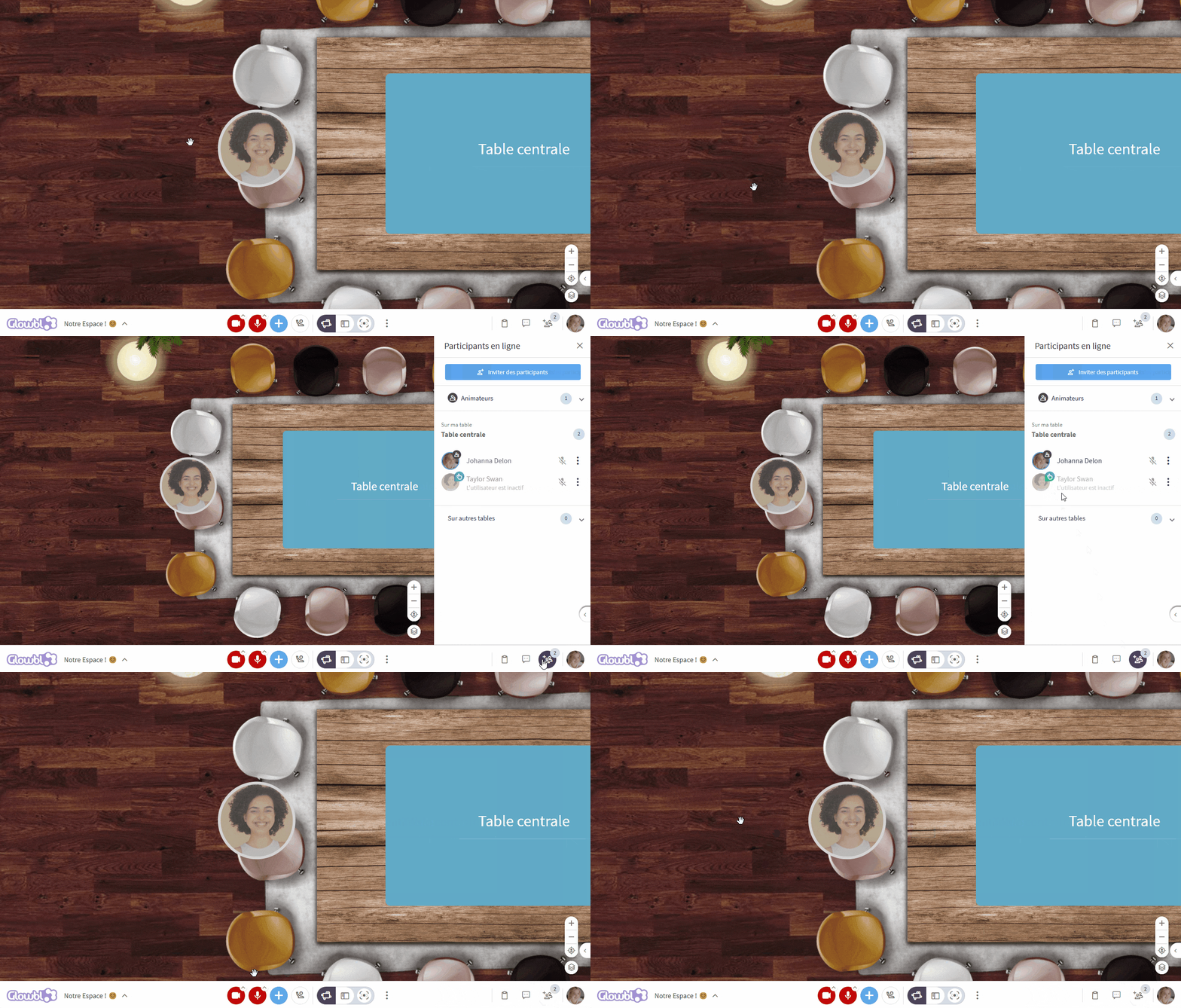

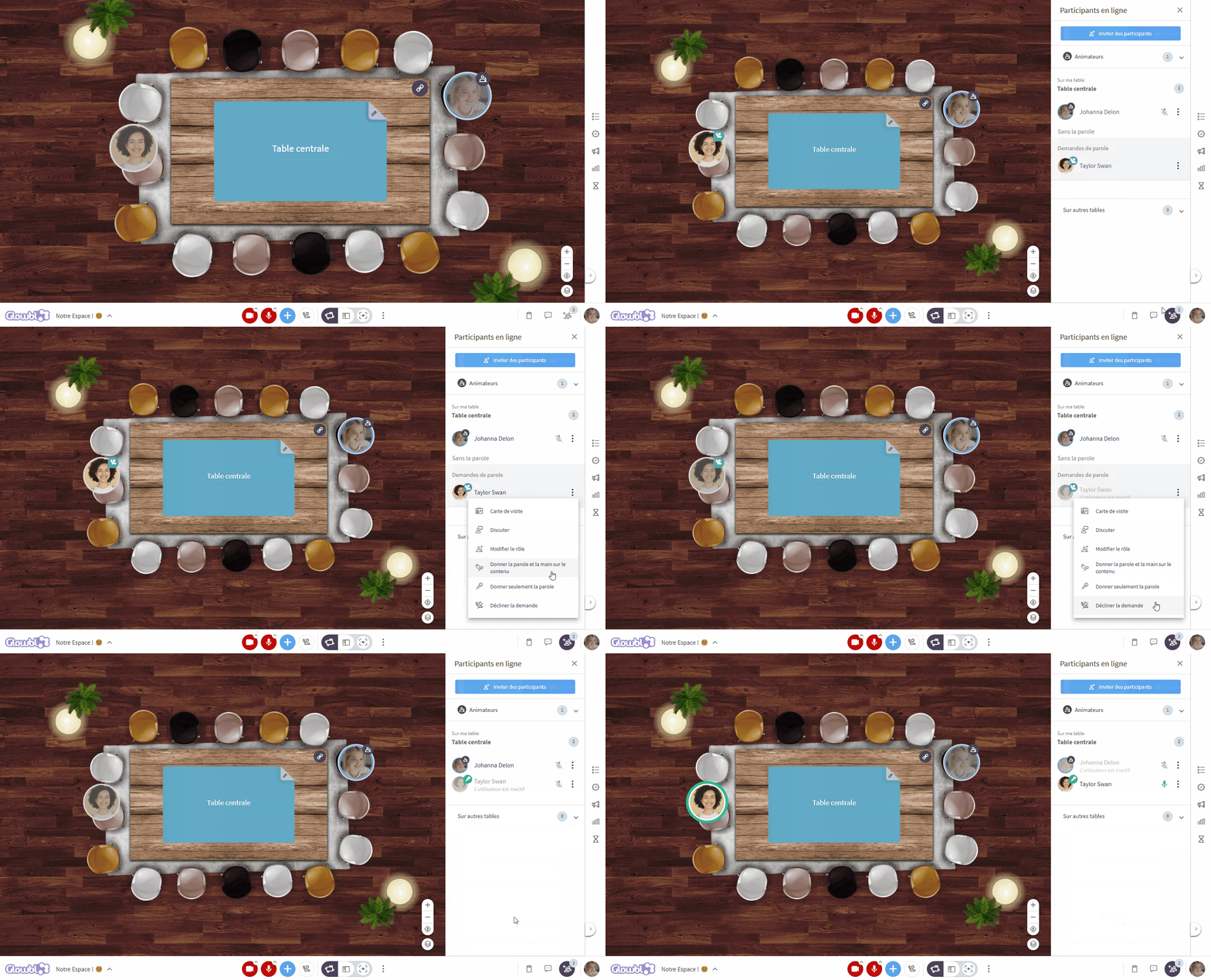
With the rights to Raise hand you will be obliged to give access to the microphone and camera buttons to any participant who wishes to speak. Again, you can do this from the participant's bubble or from the Participants pane.
Need to add another facilitator to your space?
Go to the  Appoint moderators page.
🚨 This feature is only available to 🟨 Administrators / Space creators with an ORGANIZATION license.
🤫 Mute a participant's microphone
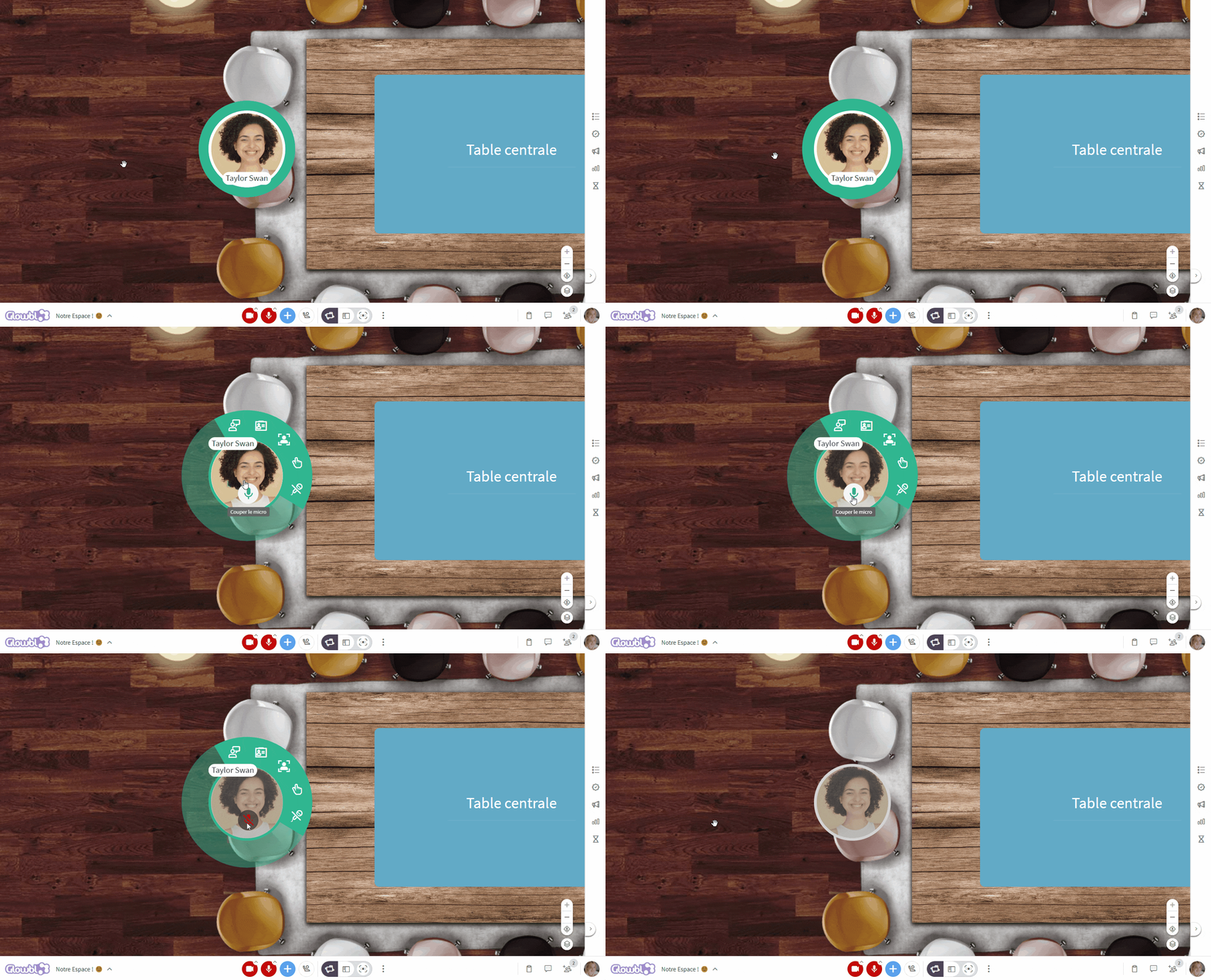
From Bubbles
Some participants' microphones can generate unwanted noise. To avoid disrupting the flow of the session, it may be a good idea to discreetly deactivate their microphone. They can, however, reactivate it at any time to intervene.
Hover your mouse over the bubble of the participant in question ➜ click on the green microphone icon in the center of their photo.
From the Participants tab
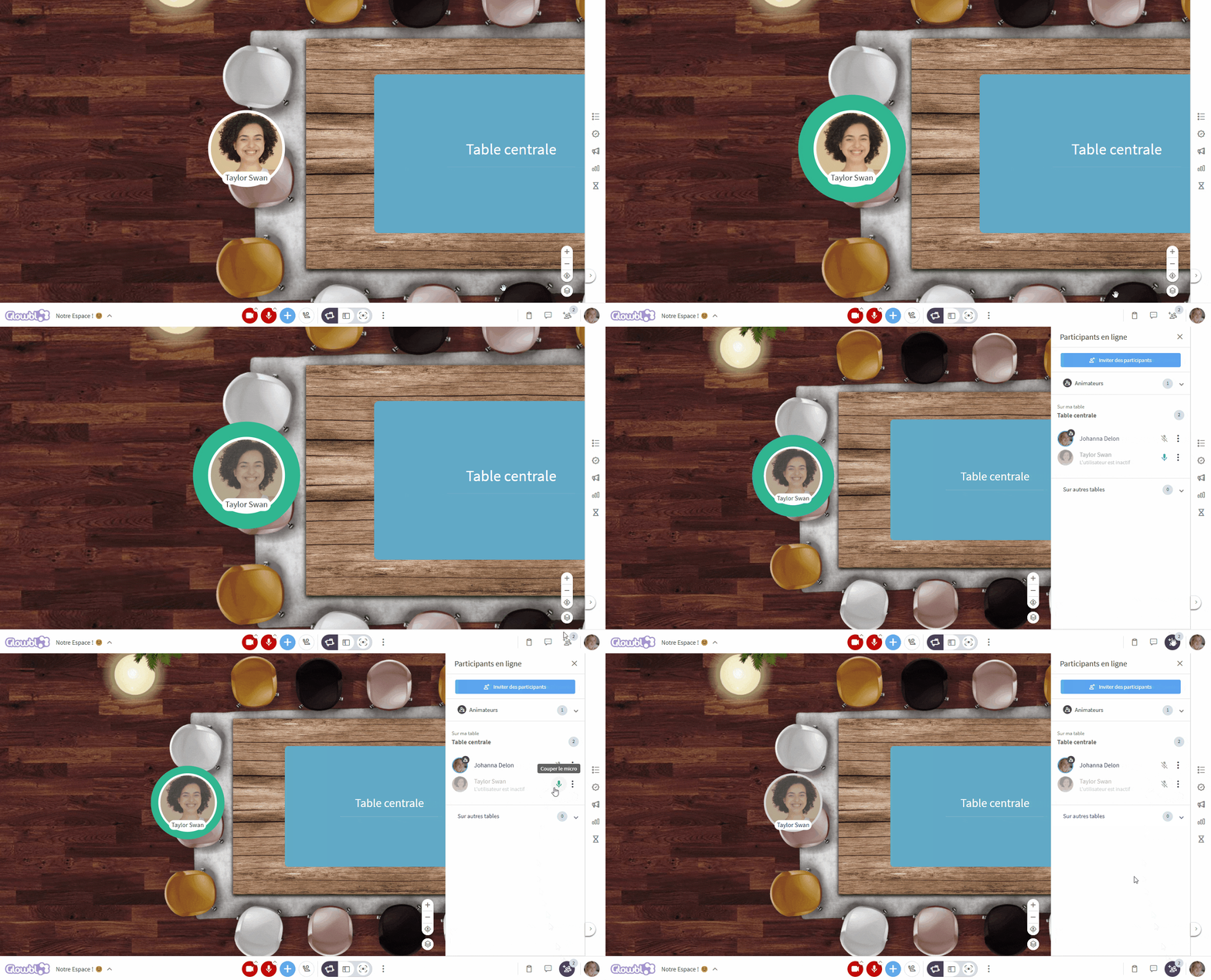
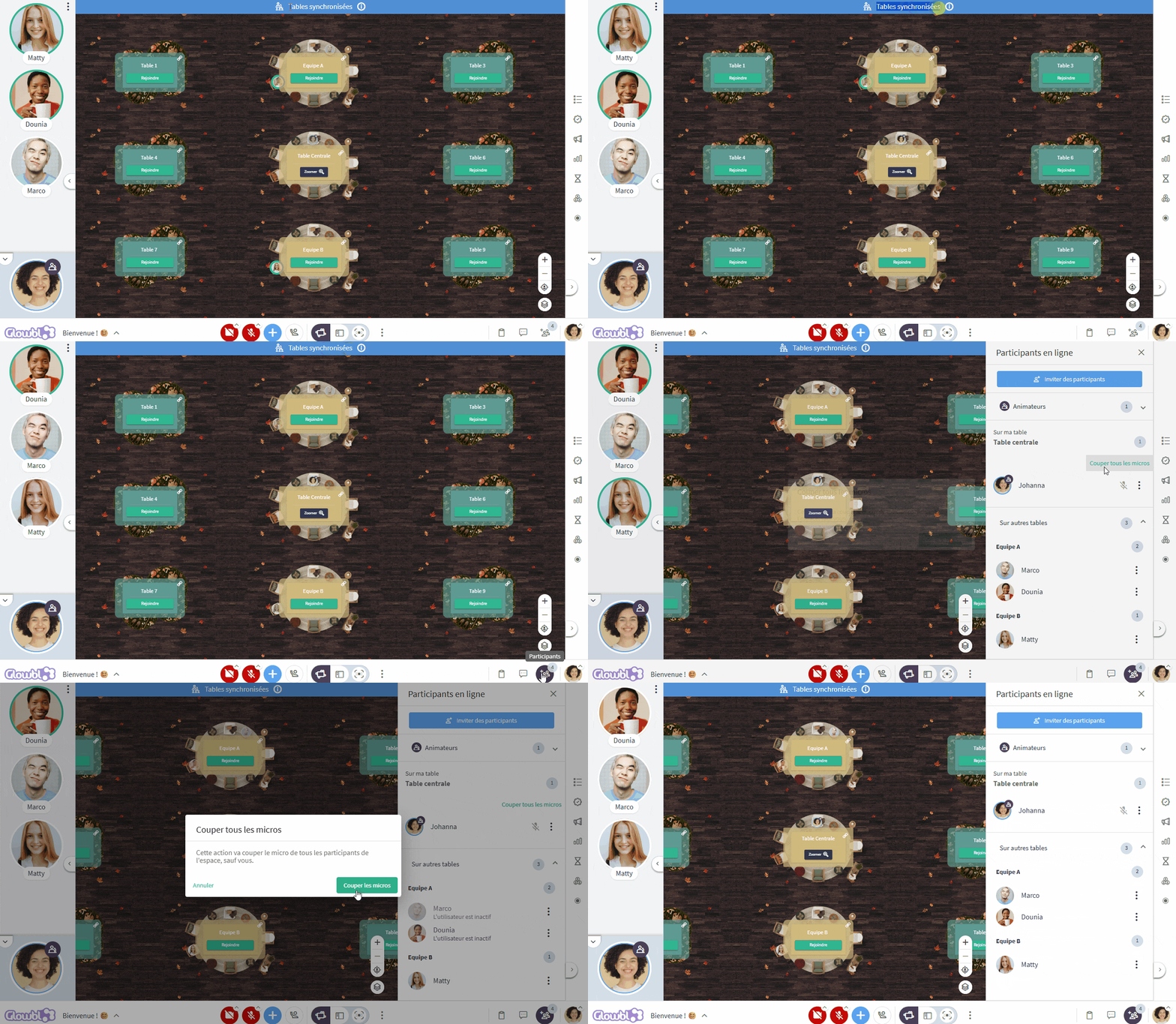
You can also quickly mute several people's microphones from the Participants  tab.
You can even mute all participants at once (except for your own mic), especially if you are in Synchronized Tables
 , as background noise is more frequent in this mode.

You may also be interested in this page:
❌ Exclude a participant from the space
 Alternate facilitation modes