Feature available for: 🔷 Facilitators 🟨 Administrators
By default, conversations between the 9 tables in the space are separated to allow you to organize separate activities on each table. However, it may sometimes be useful to address the whole space, which is what our two facilitation modes allow:
 Independent tables : conversations and documents are specific to each table.
 Synchronized tables : the whole space can exchange as a single group, and documents are broadcasted simultaneously to all tables.
Synchronized Tables offers several advantages, depending on the size of your group:
- For a large cohort (over 40 people): a Glowbl space can accommodate up to 300 participants, but each table is limited to 40 people. The 41st person will automatically be moved to another table. If you wish to continue exchanging with this person, you'll need to switch to Synchronized Tables mode.
- For a small cohort: we advise you to remain in Independent Tables mode and use the main table for your plenary and feedback moments. However, you can switch to Synchronized Tables mode in the following situations:
- If you want to give instructions that is too long to be transmitted via an Announcement, or if you notice that a group has misunderstood the instructions and you wish to ensure that this does not affect everyone.
- If you've got the participants on the move and returning to the main table becomes redundant, you can use Synchronized Tables mode to organize the restitution of the previous activity, especially if the participants are then to remain in their respective tables and groups for the next activity.

This feature is covered in this video tutorial :
Change facilitation mode
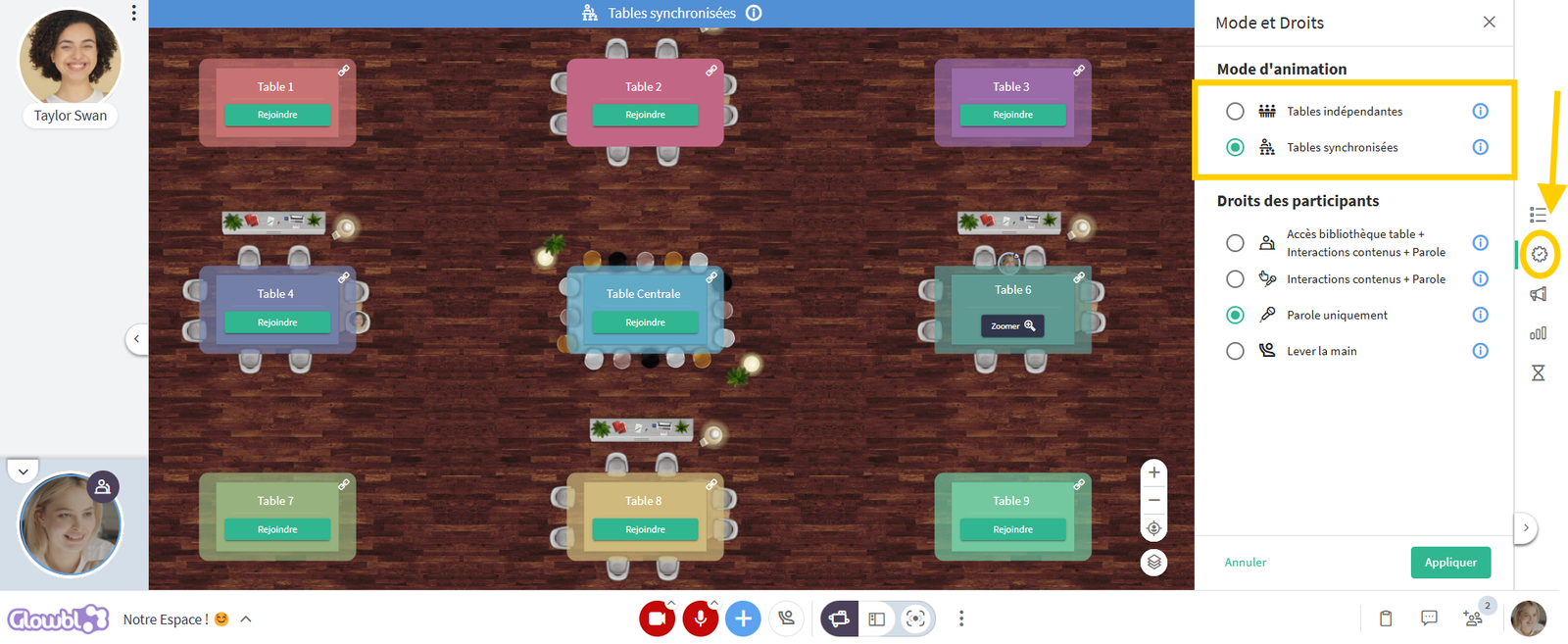
To change the animation mode at any time :
Click on the gear-like icon  (Mode and Rights) in the right-hand sidebar ➜ select the desired mode ➜ click Apply.
An Announcement  will be sent to all participants to notify them of the mode change .

In Synchronized Tables mode, a tab similar to the Enlarge Content  display mode lets you see all participants on the side and interact with them.
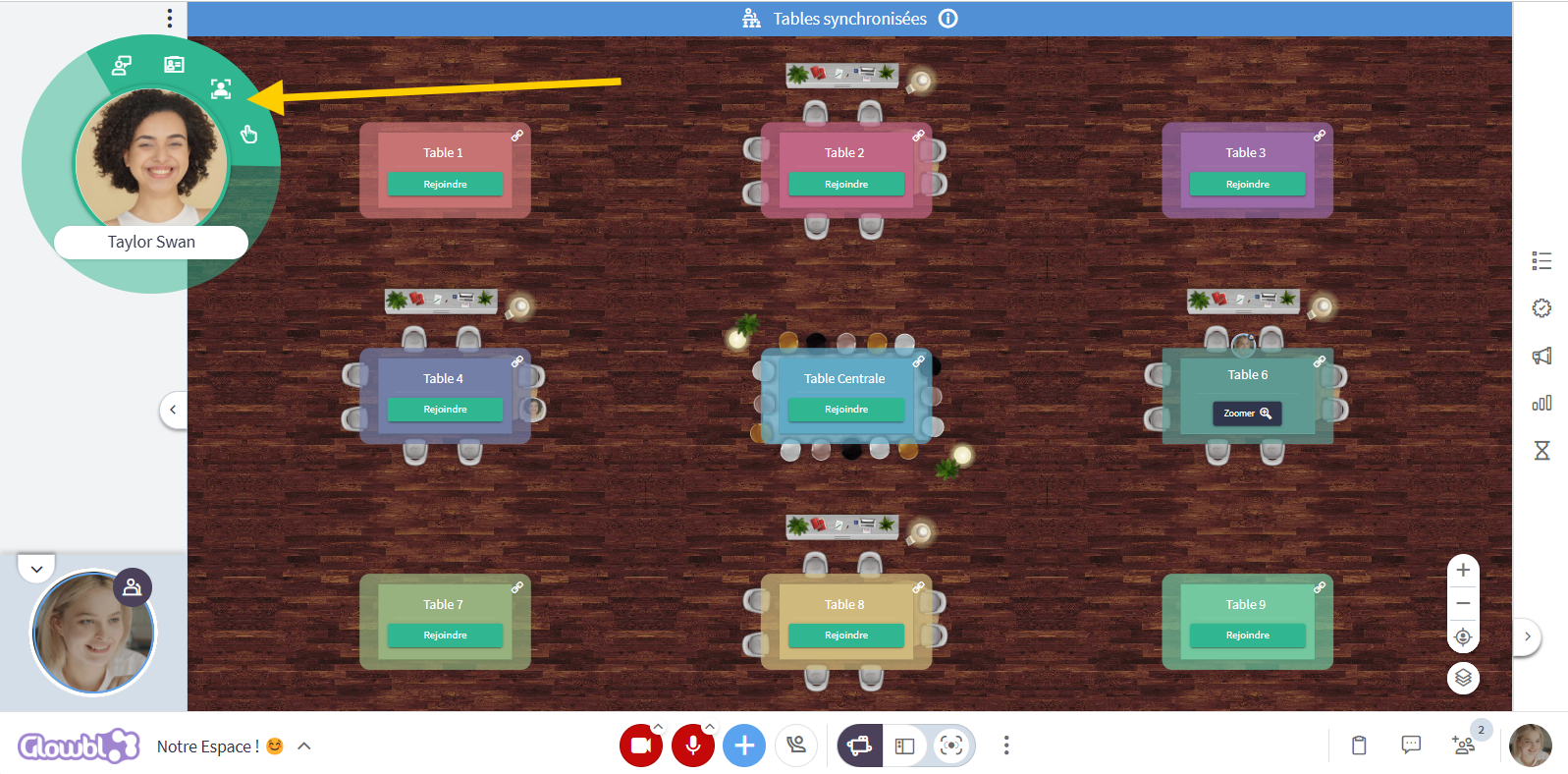
If switching to this mode causes too much noise, remember to mute all microphones at once by using the Participants  tab located at the bottom right of your screen.

When creating a sequence  , you can set different rights in advance for each step of your sequence.

These pages may be of interest to you:
 Assign rights to participants
 Change display mode
 Send an announcement