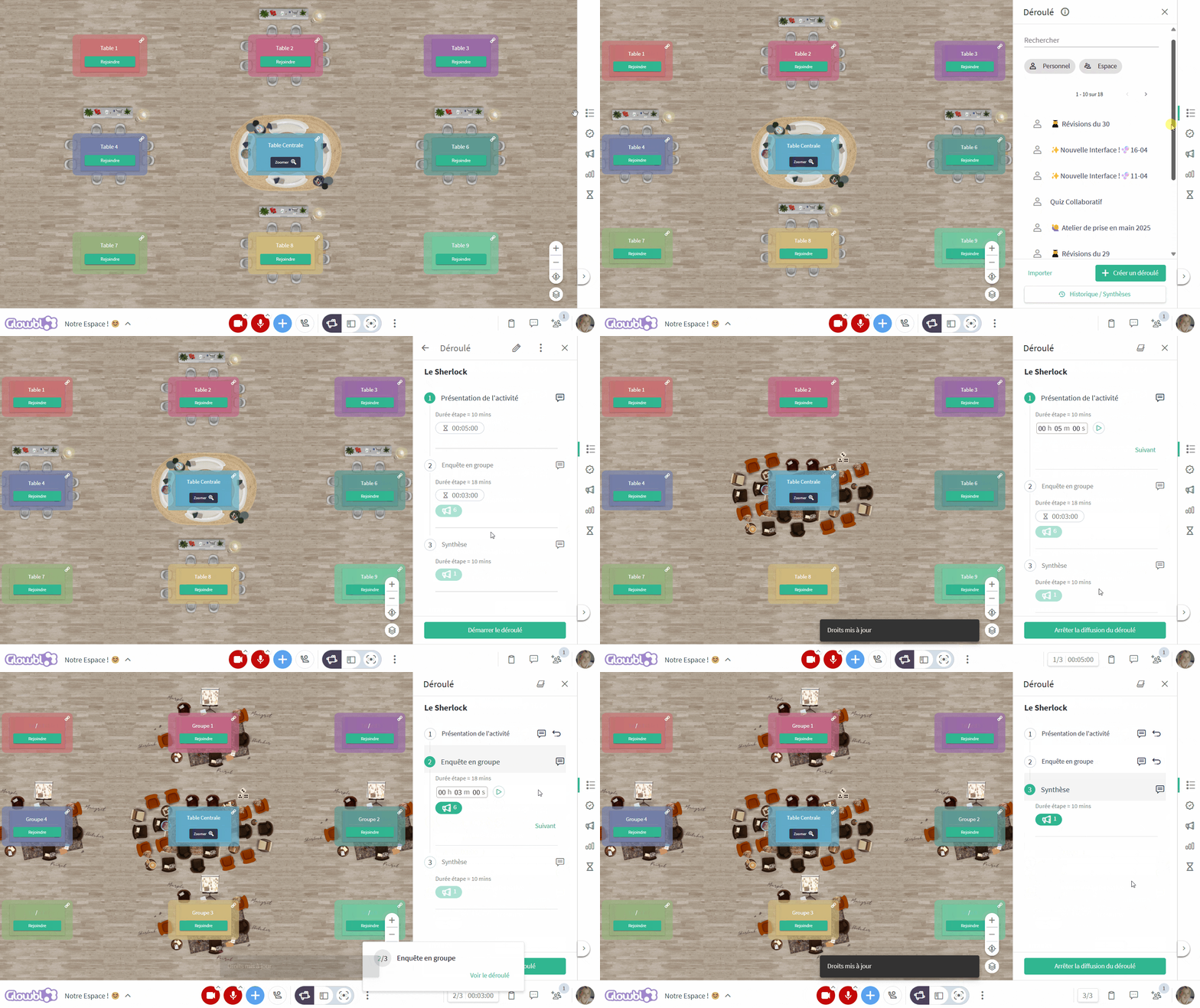
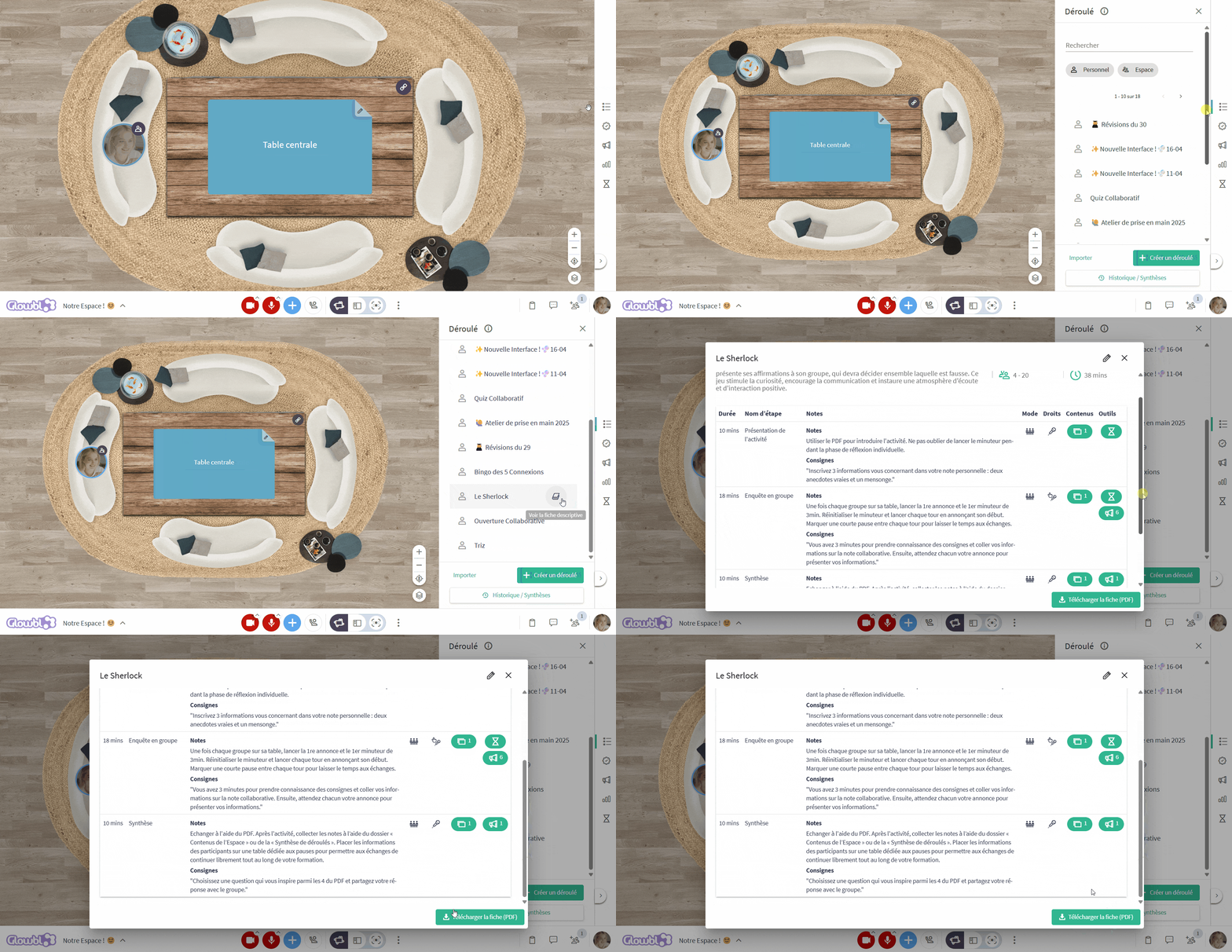
Click on the sequence icon in the right-hand sidebar ➜ browse the list of your sequences ➜ by hovering over the titles, a book icon appears. Click on it to bring up the sequences Descriptive Sheet .
‣
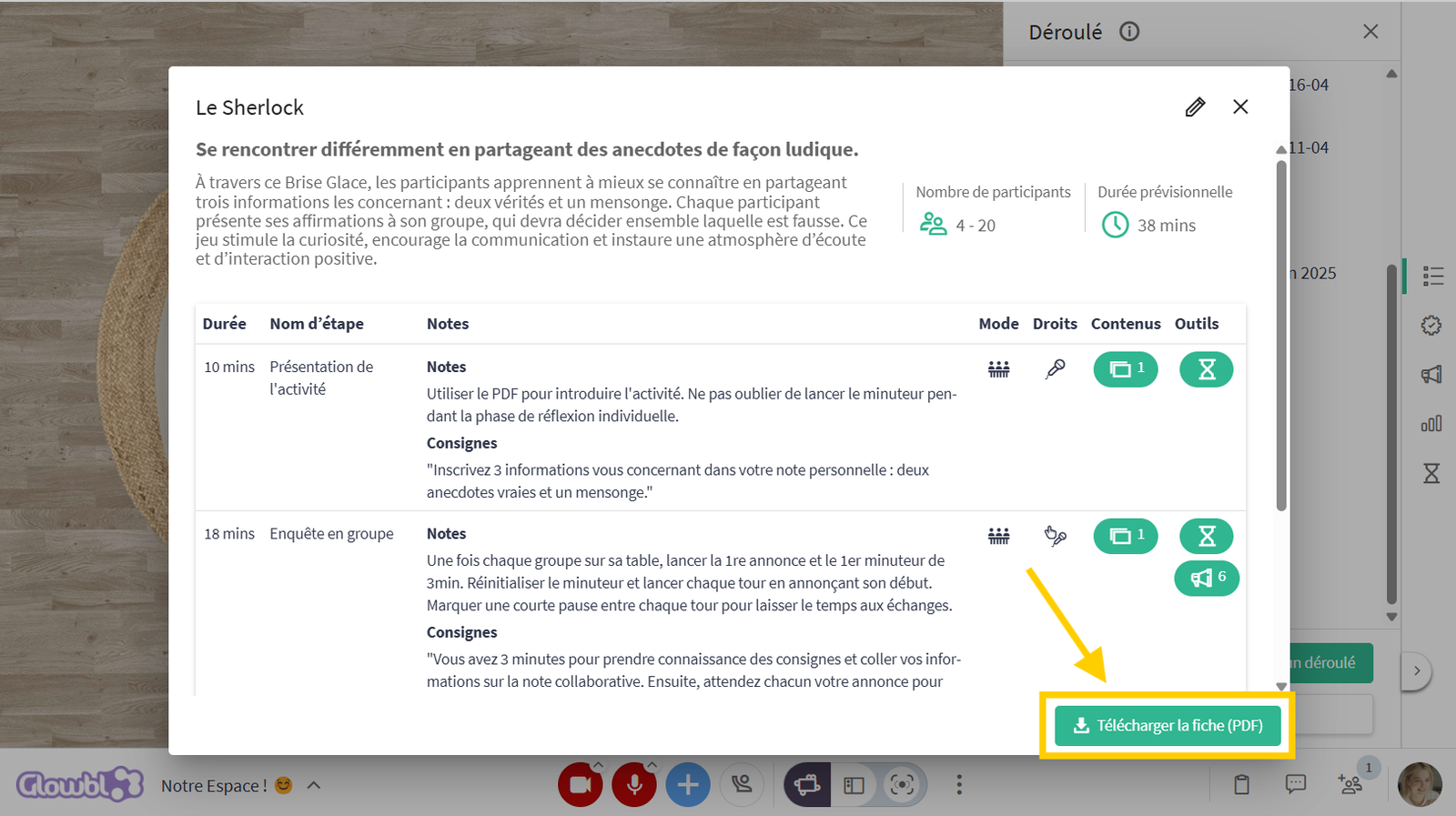
This sheet gives you more information about the sequence...
its purpose
a short description
minimum and maximum number of participants
total estimated duration
‣
...and the details of each step
estimated duration
name
facilitator's notes
selected facilitation mode and participant rights
added content
associated announcements, polls and timers
You can also download and keep it on hand uring your event.
Example of a description sheet for an ice-breaker.
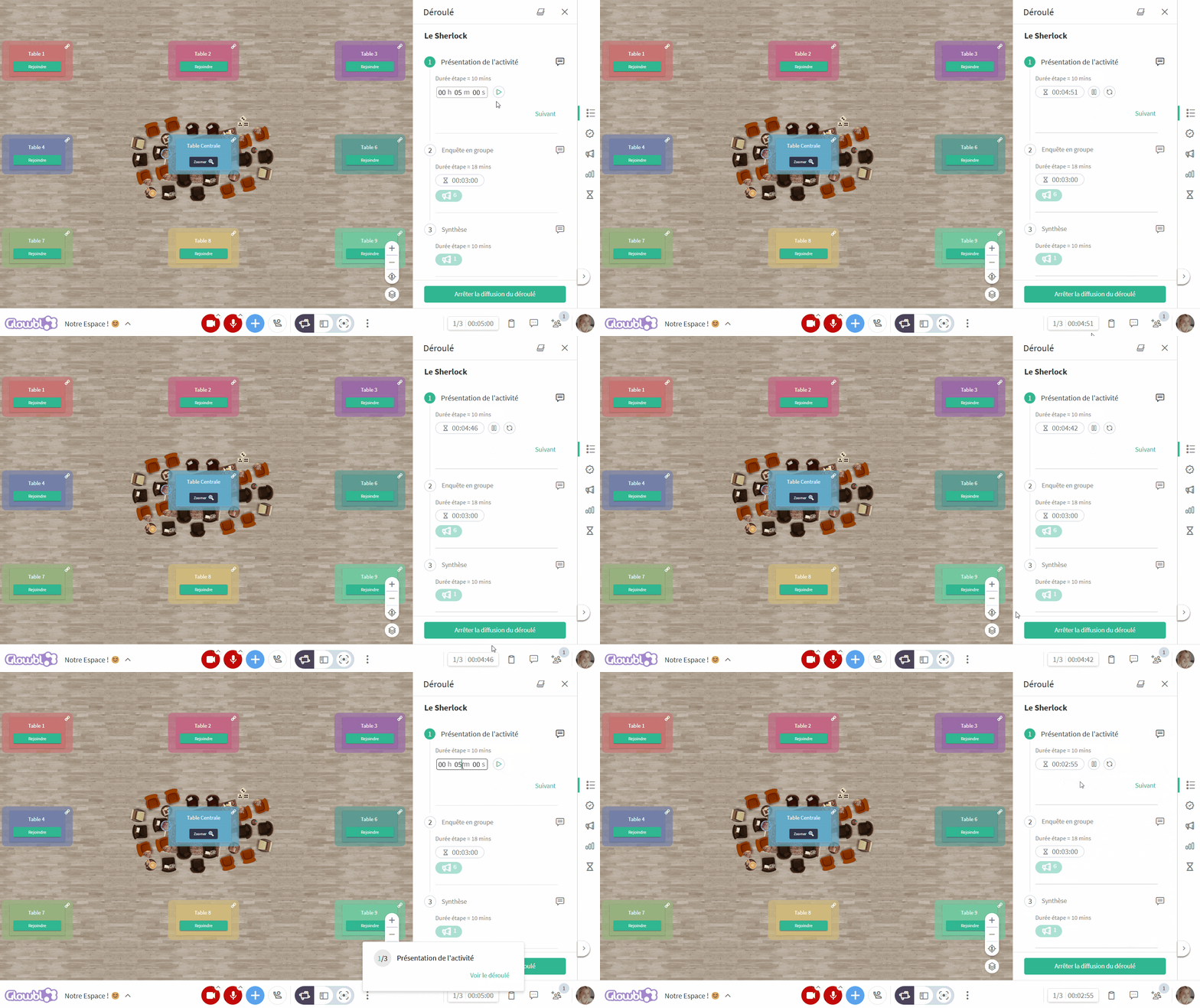
Click on the sequence of your choice ➜ click on the Start sequence button ➜ the first step of the sequence launches with its layouts, content, participant rights, and facilitation tools.
To move on to the next step, simply click on Next.
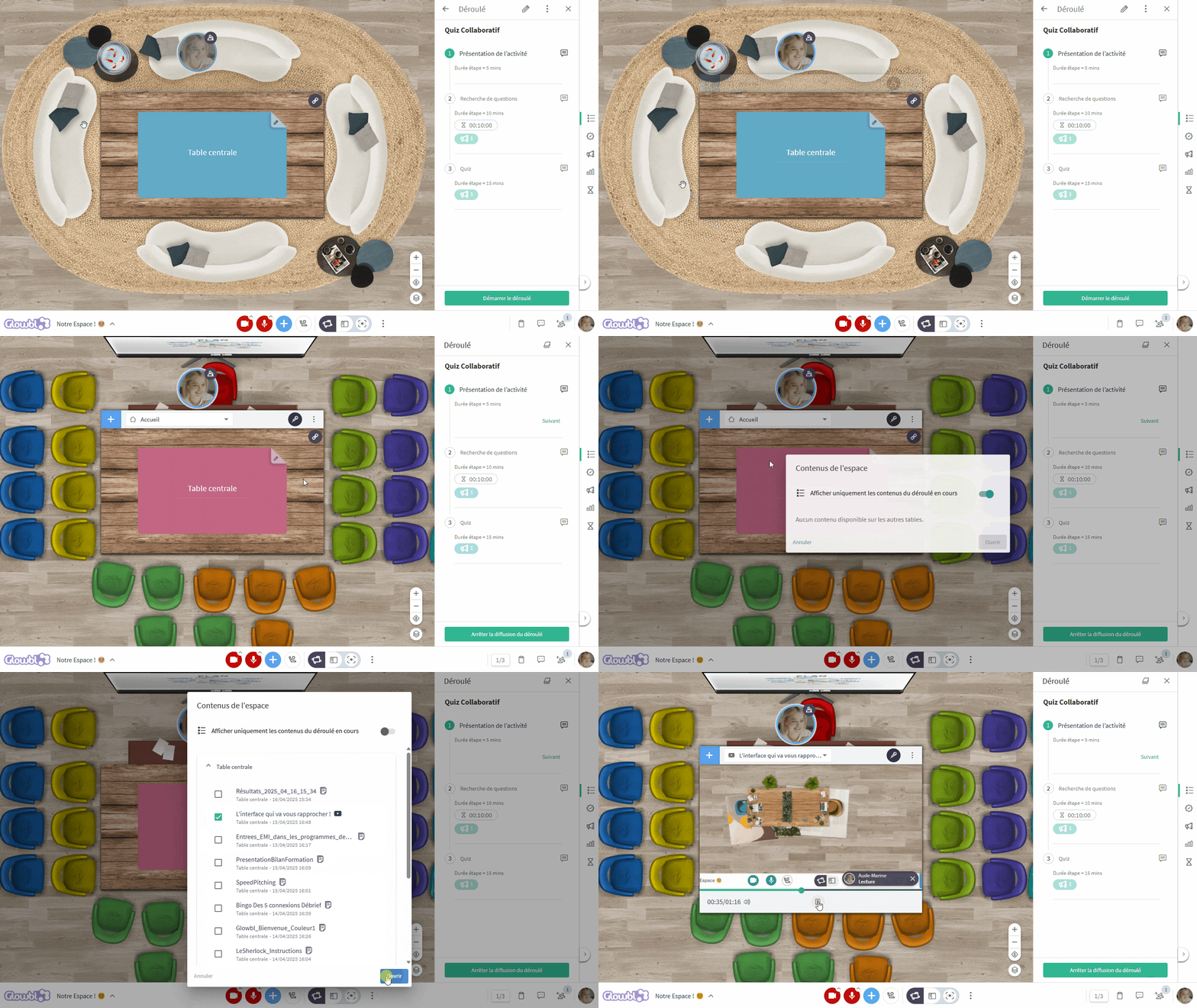
Although everything has been set up in advance in the Sequence, you remain free during the animation to project new content, change layouts, participant rights, write a new announcement, or create a new poll.
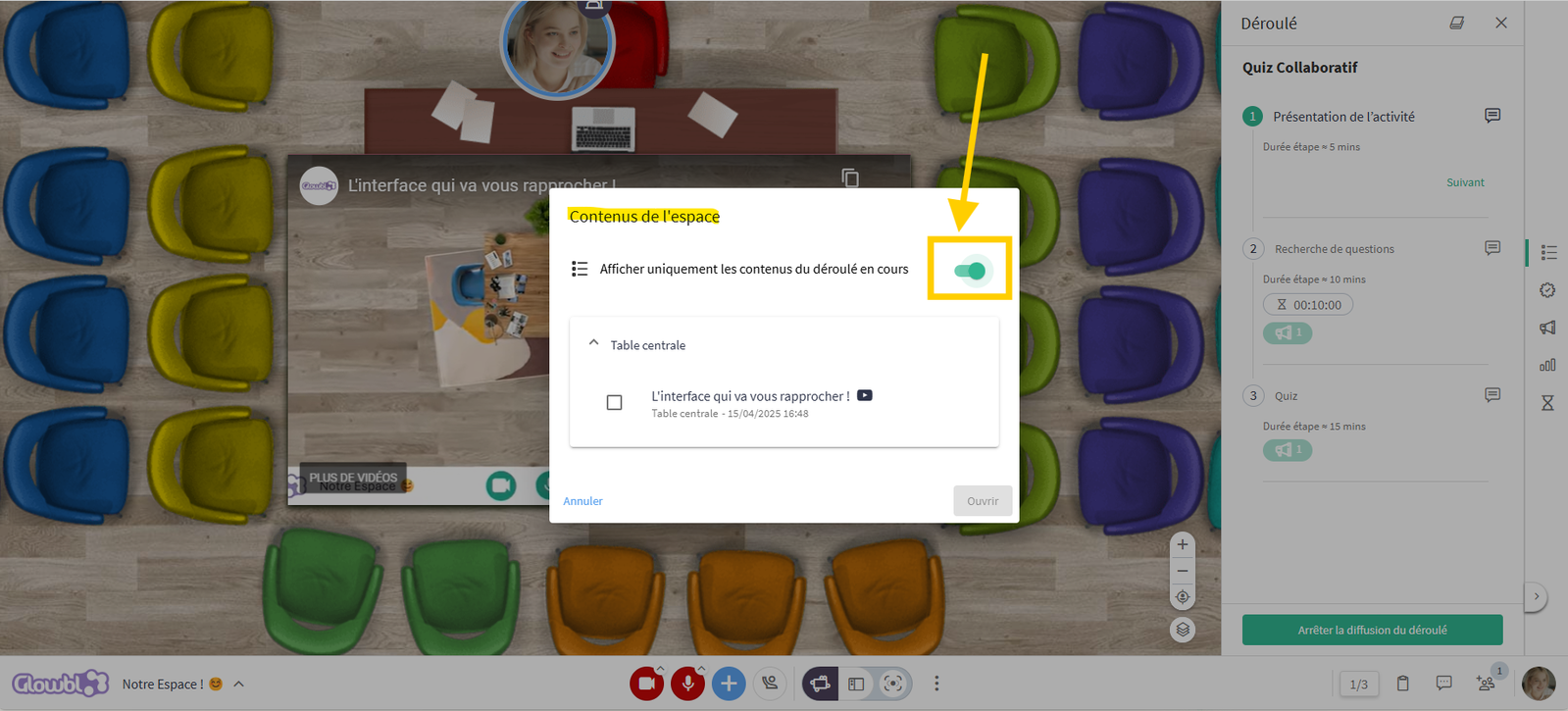
To enable you to concentrate only on the content you need during your event, we hide the content already present in the tables. You can, however, "unmask" them by accessing theSpace contentfolder.
‣
🔎 Overview
‣
🗨️ Accessing notes for the Facilitator
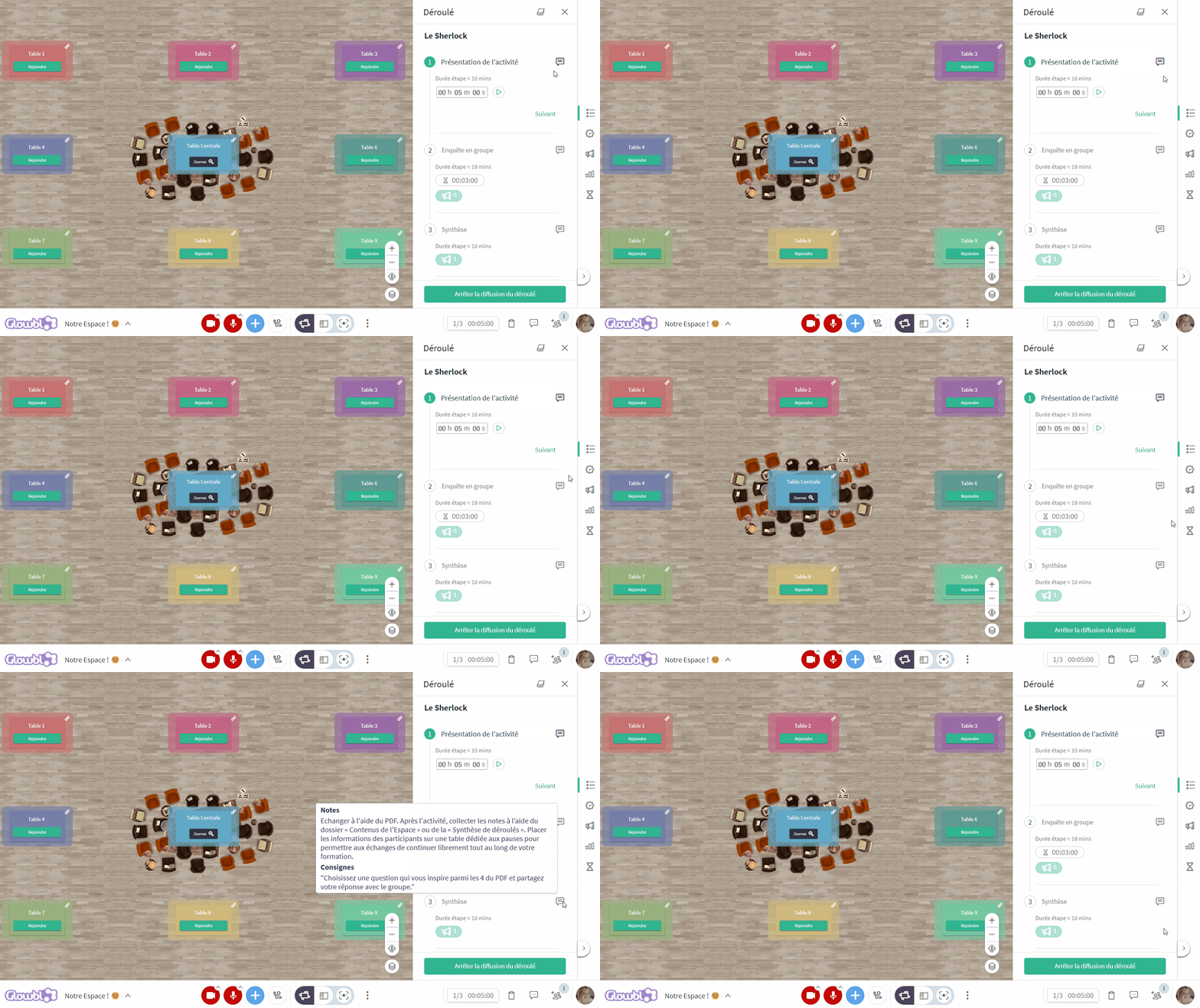
By hovering over the message icon, you can access information about the step:
notes (400 characters): a reminder so that you don't forget anything, your prompter.
instructions (200 characters): clear, concise instructions to share with your participants.
‣
⌛ Launch facilitation tools
Each step can incorporate a timer announcements and several polls.
You can only launch these tools when on the step for which they have been set up.
The timer is launched by clicking on the play button. You can pause it, reset it, change the duration by clicking directly on it, and launch it as many times as you like. The countdown is visible to participants at the bottom right-hand corner of their screen. A light "gong" rings at the end of the set time, the timer turns red, but nothing else happens. It's up to you to manually move on to the next step.
‣
🔎 Overview
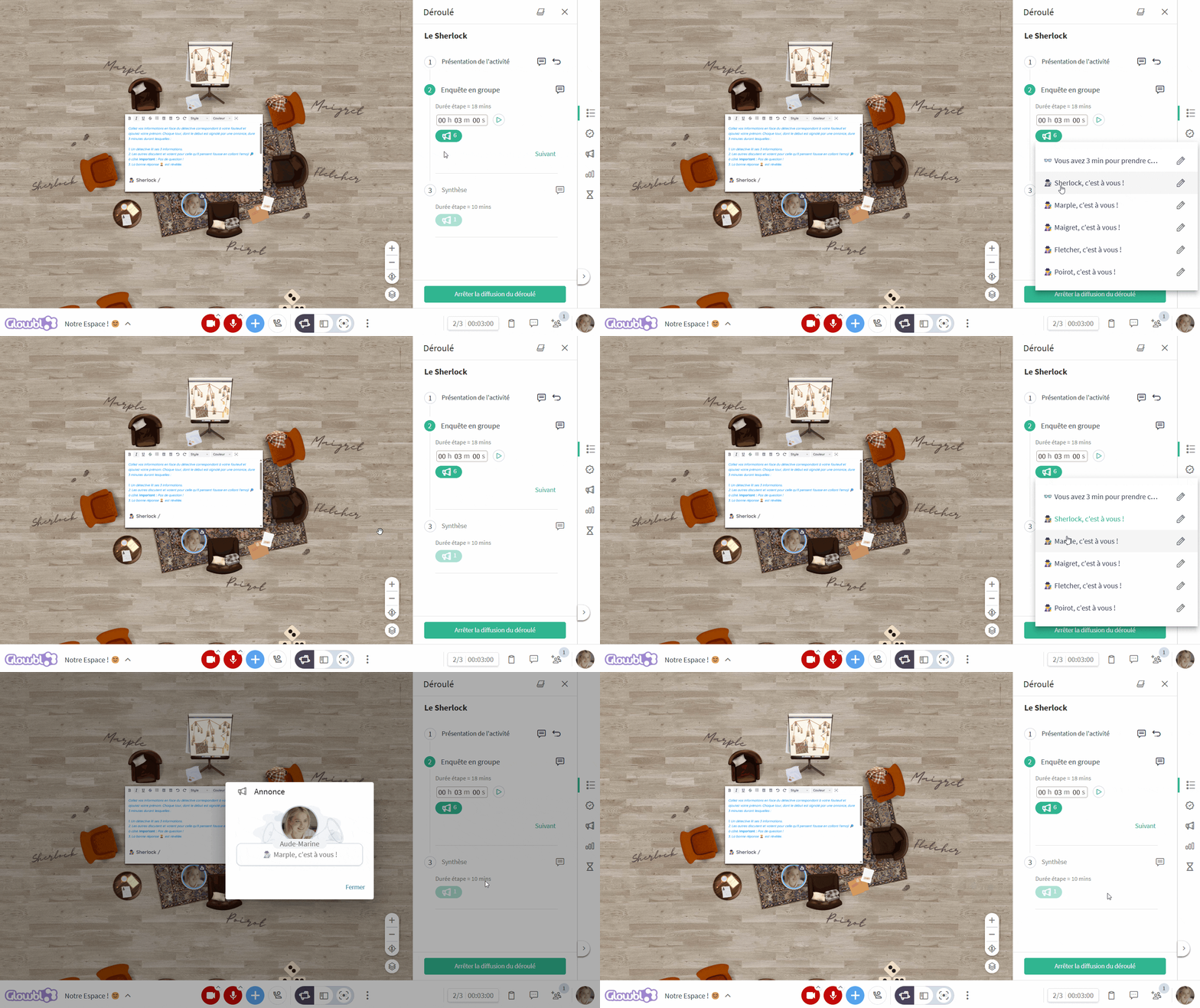
Announcements can be launched several times during a single step. Click on the green icon indicating the number of announcements available to open the list:
Click on the desired announcement to automatically send it to all participants, in the entire space. To modify the announcement before sending it, click on the pencil icon.
‣
🔎 Preview
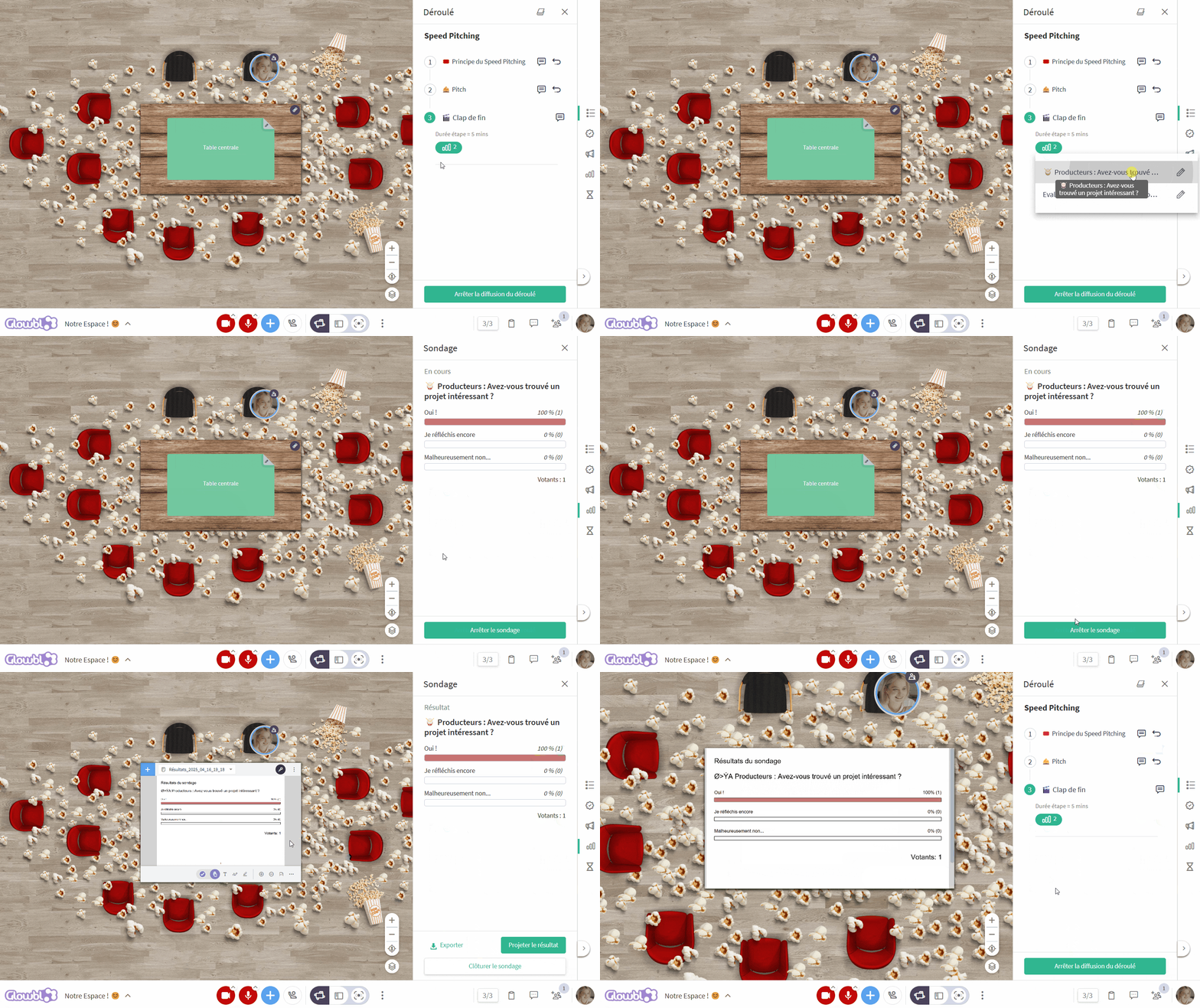
Polls can also be launched several times in a step. Click on the green icon indicating the number of polls available to open the list:
Click on the desired poll to automatically send it to all participants, throughout the space. To modify the poll before launching it, click on the pencil icon . You can follow the results live in the tab, and once the number of voters is satisfactory, you can stop the poll. The button then changes to Broadcast results on table to share with participants. Close the poll to return automatically to the sequence pane.
‣
🔎 Preview
‣
️ Relaunch a step
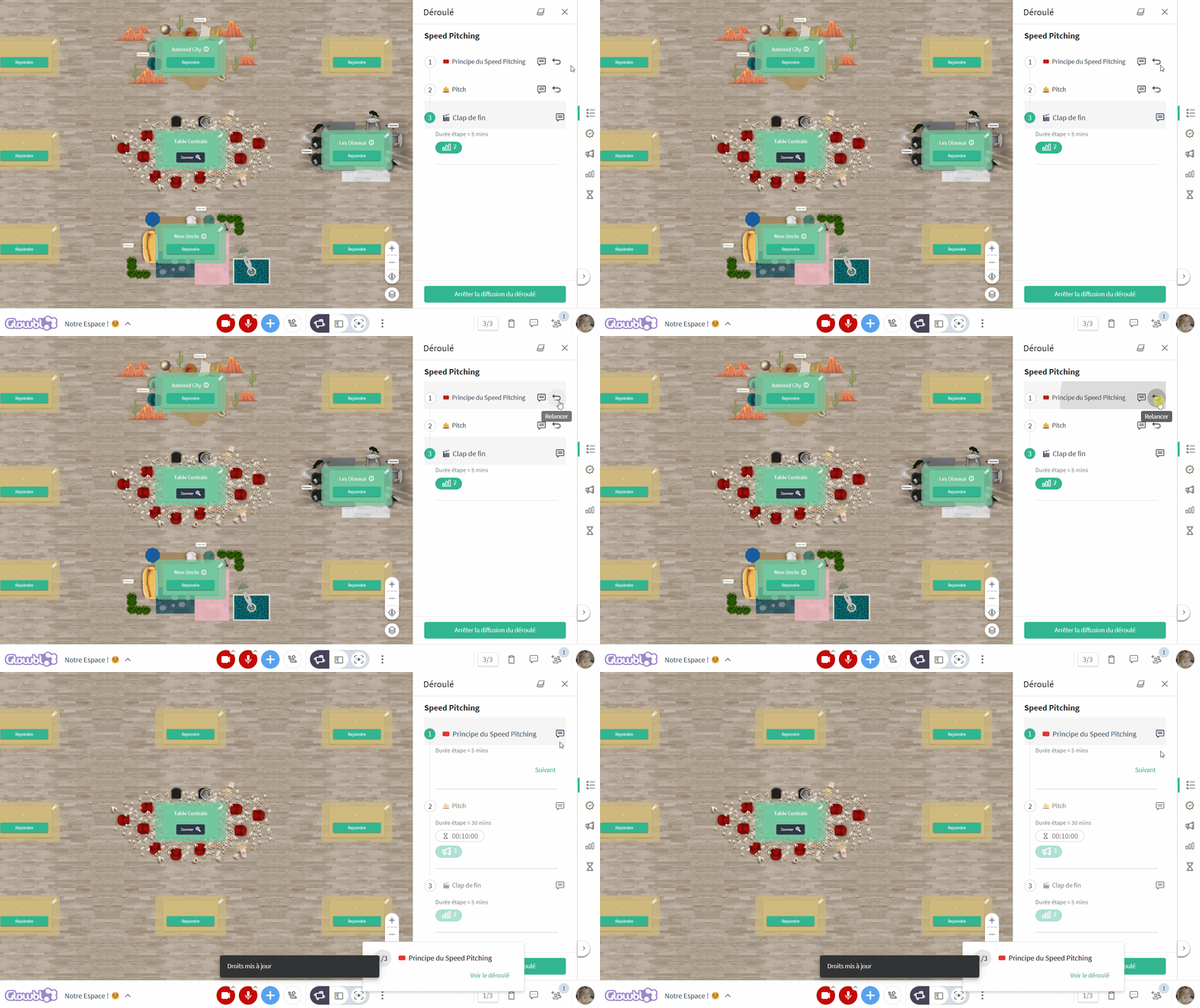
Did you click Next too quickly? You can restart any step by clicking on the arrow icon .
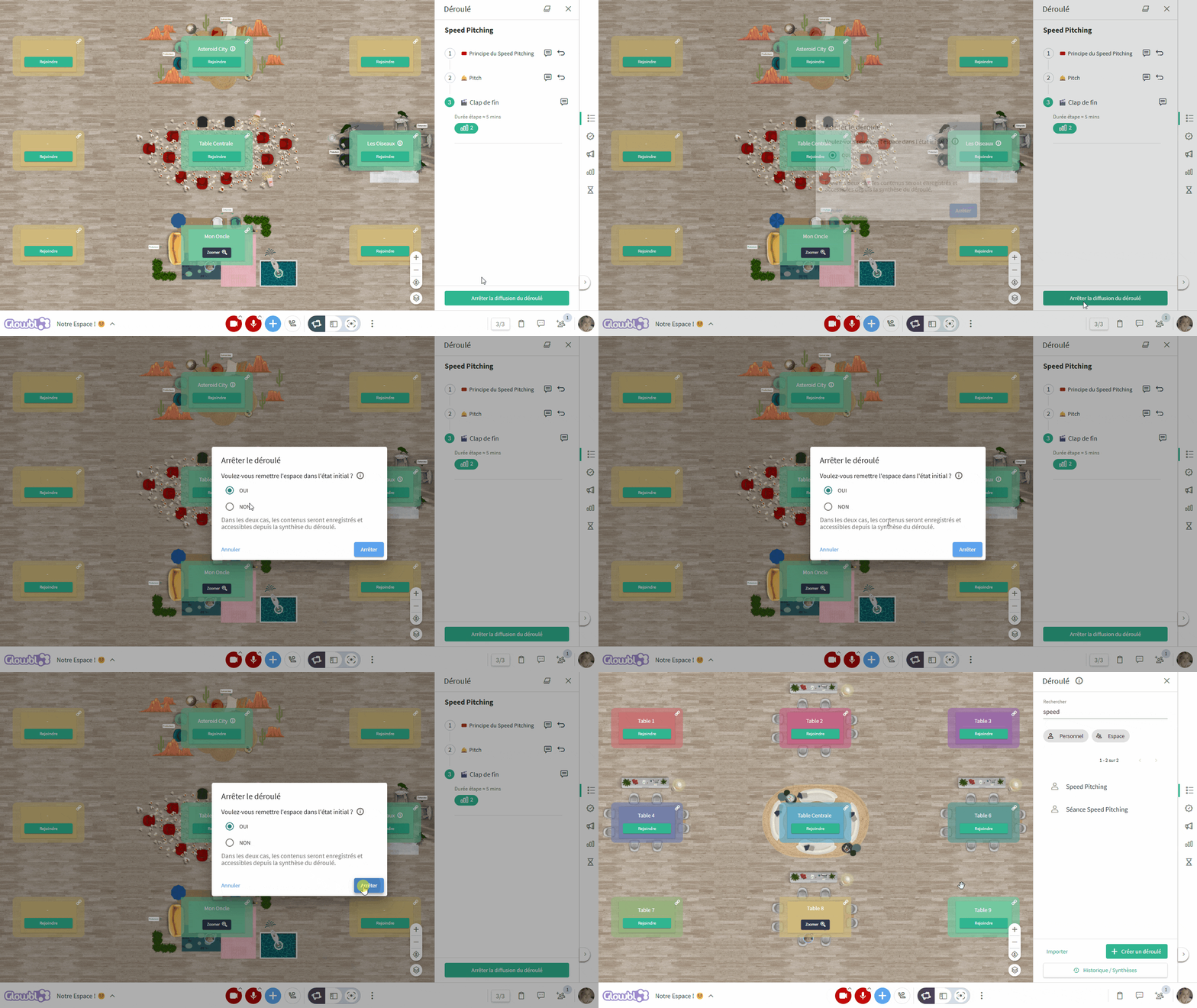
Stop a sequence
At the end of your session, click on the Stop sequence button. A window opens, offering you the option to go back to the space’s initial state, by removing the table layouts and content broadcasted during the sequence. This feature enables you to quickly clean up the space at the end of your session, so you can continue with the next one. We also recommend that you use it when sharing a space between several facilitators.
If you didn't save your documents during your session, you can always find them in the Sequence summary, which also lets you download attendance times.


 Gallery: Sequence Templates.