
Feature available for: 🟢 Participants with specific rights 🔷 Facilitators 🟨 Administrators

To understand how to share and navigate between different types of content using the Table Library, first consult the  Projecting and managing content page.
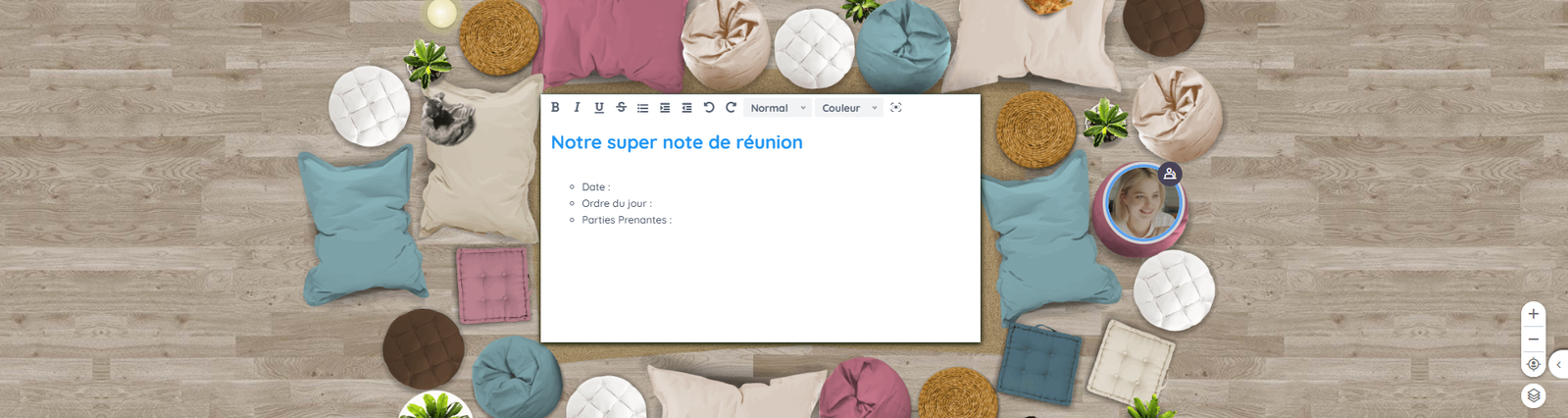
The Collaborative Note is a tool that allows several participants to write simultaneously on the same document. Unlike traditional tools where only one person is responsible for writing, the Collaborative Note not only simplifies the organization of shared information, but also encourages the interaction and involvement of all participants.
Two types of note can be distributed on our tables:
- An empty note
- A note template
Ideal when you want to collect comments, record ideas or summarize a meeting or activity. You can also use it for methods such as the flipped classroom: in this case, it's the participants who, through a question/answer exchange, will co-construct with the teacher the document that will become their memo sheet.
The collaborative note template lets you create structured models that you can reuse for different activities, meetings or training courses. For example, you can integrate instructions or questions that participants can answer directly below, or create a specific template to facilitate the management of your meetings, such as brainstorming sessions. Whenever you want to use this template, it loads directly as a ready-to-use document, a bit like printing out a handout. It's a real time-saver when it comes to preparing your events.

Project an empty note
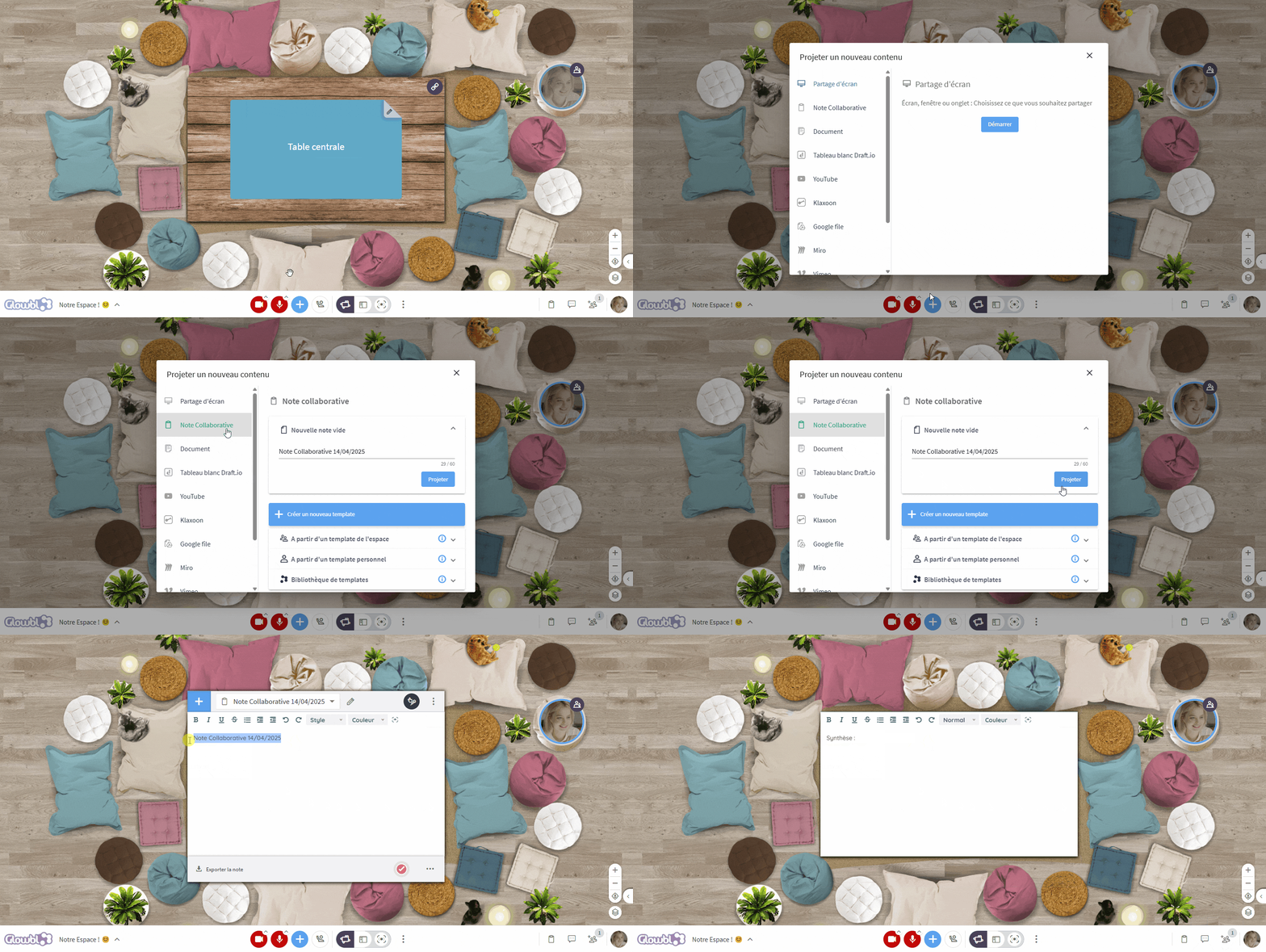
Click on the blue plus at the bottom of your screen ➜ select Collaborative Note ➜ click on the blue Project button ➜ the blank note loads into the table.
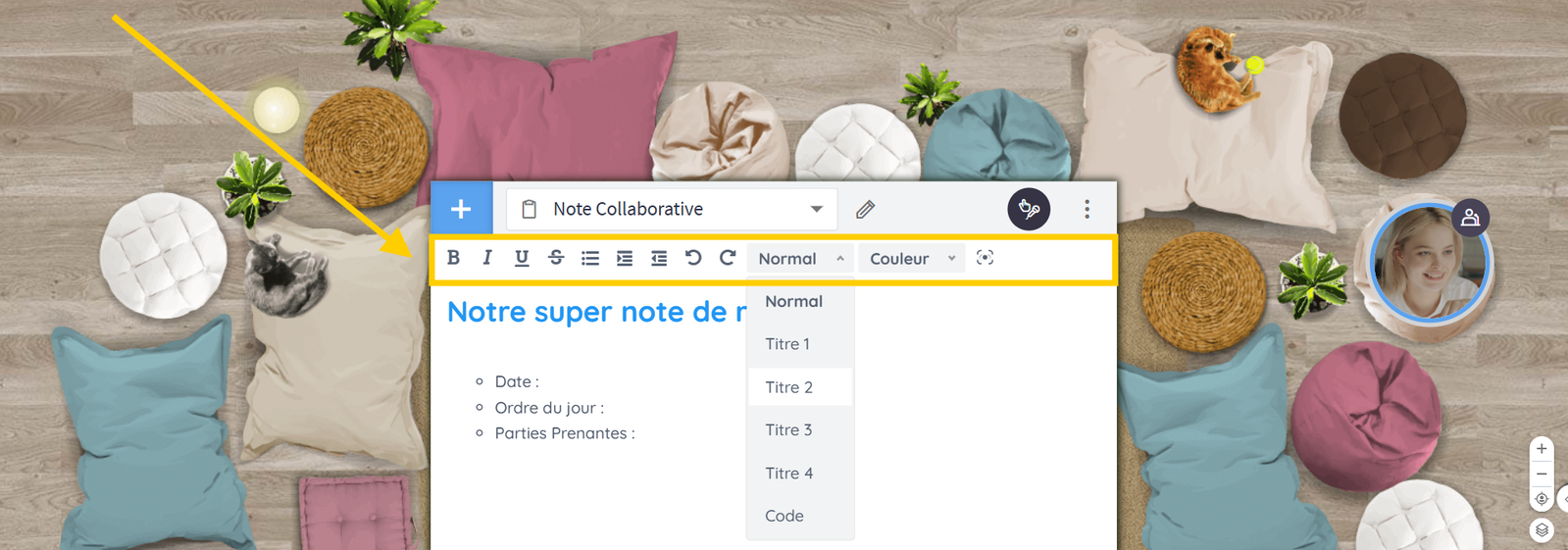
✏️ Edit note
👀 Align participants' view
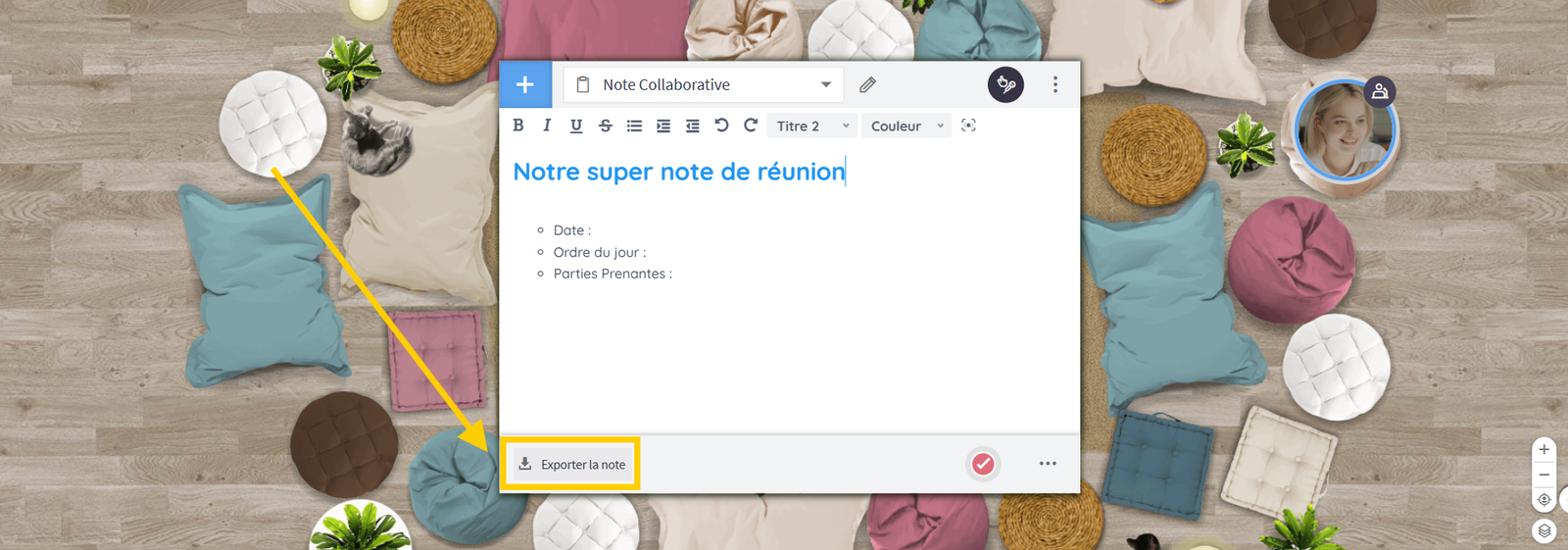
📤 Export the note
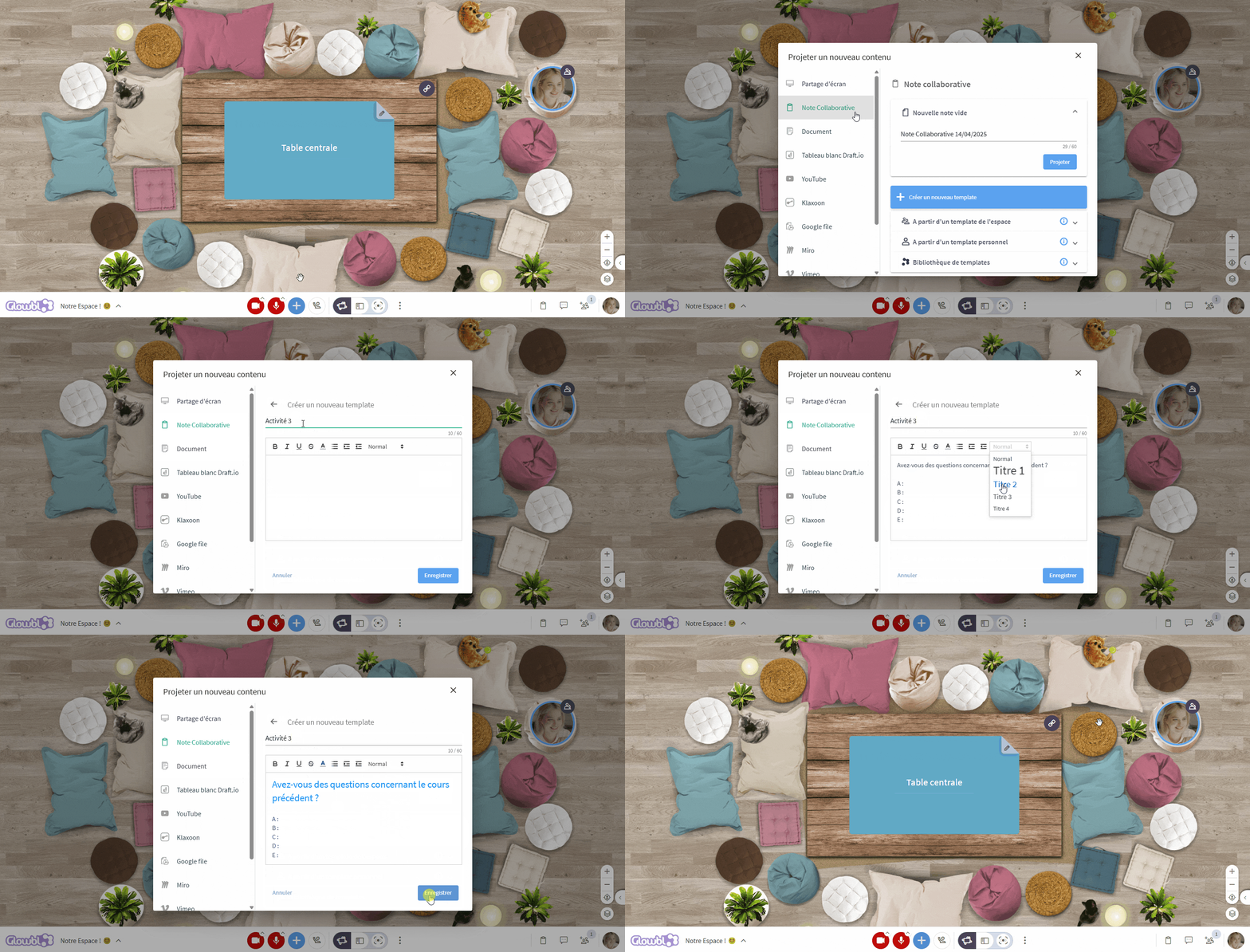
Create a collaborative note template
Click on the blue plus at the bottom of your screen ➜ select Collaborative Note ➜ click on the blue Create a new template button ➜ a window opens, give your template a title then write it without skipping formatting ➜ click on Save.
You can then choose to project the template directly into the table, modify it, or close the window.
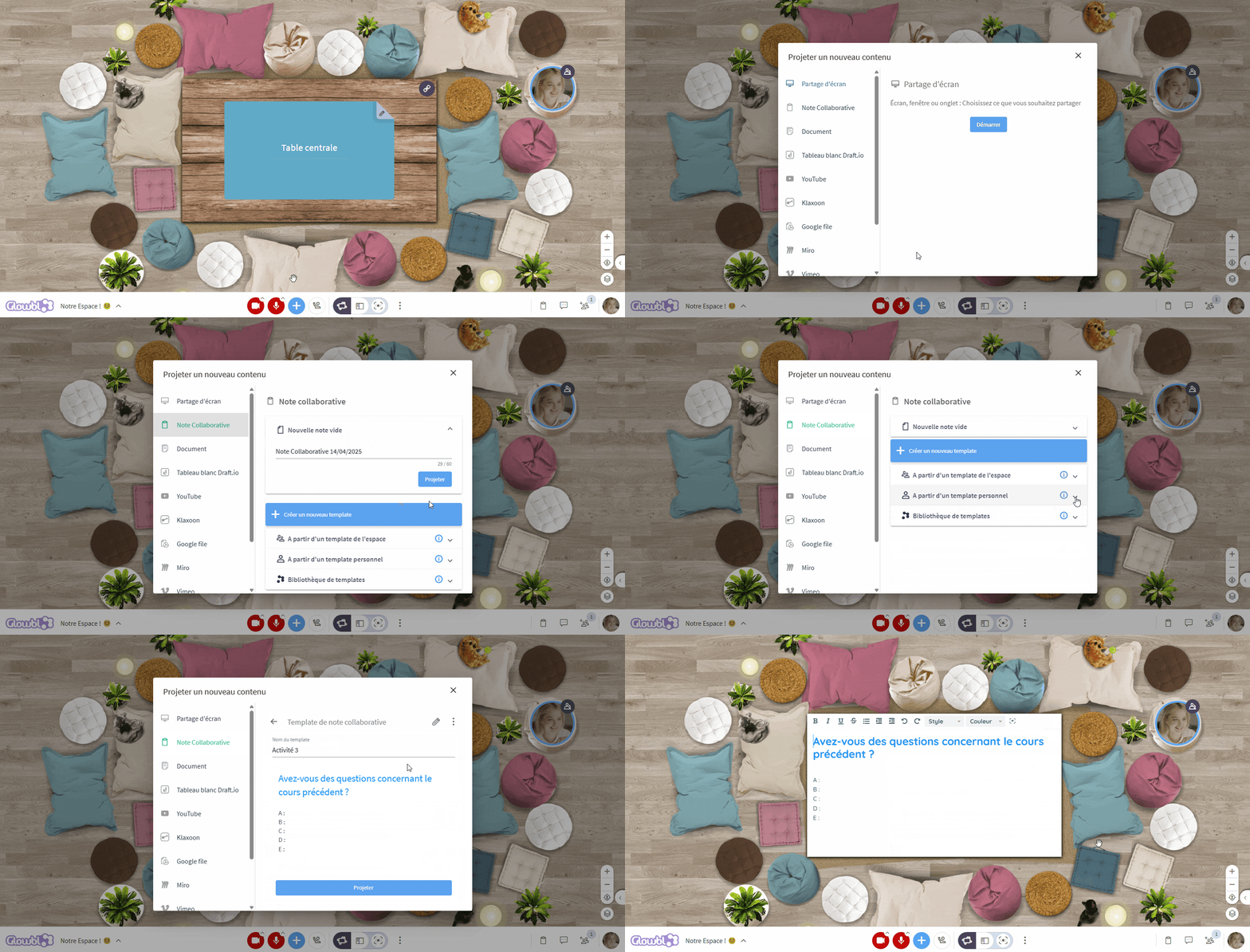
Projecting a template
Click on the blue plus at the base of your screen ➜ select Collaborative Note ➜ click From a Personal template or From a Space template (only available to Facilitators, see next chapter) ➜ select your template ➜ edit the template by clicking on the pencil or click Project.

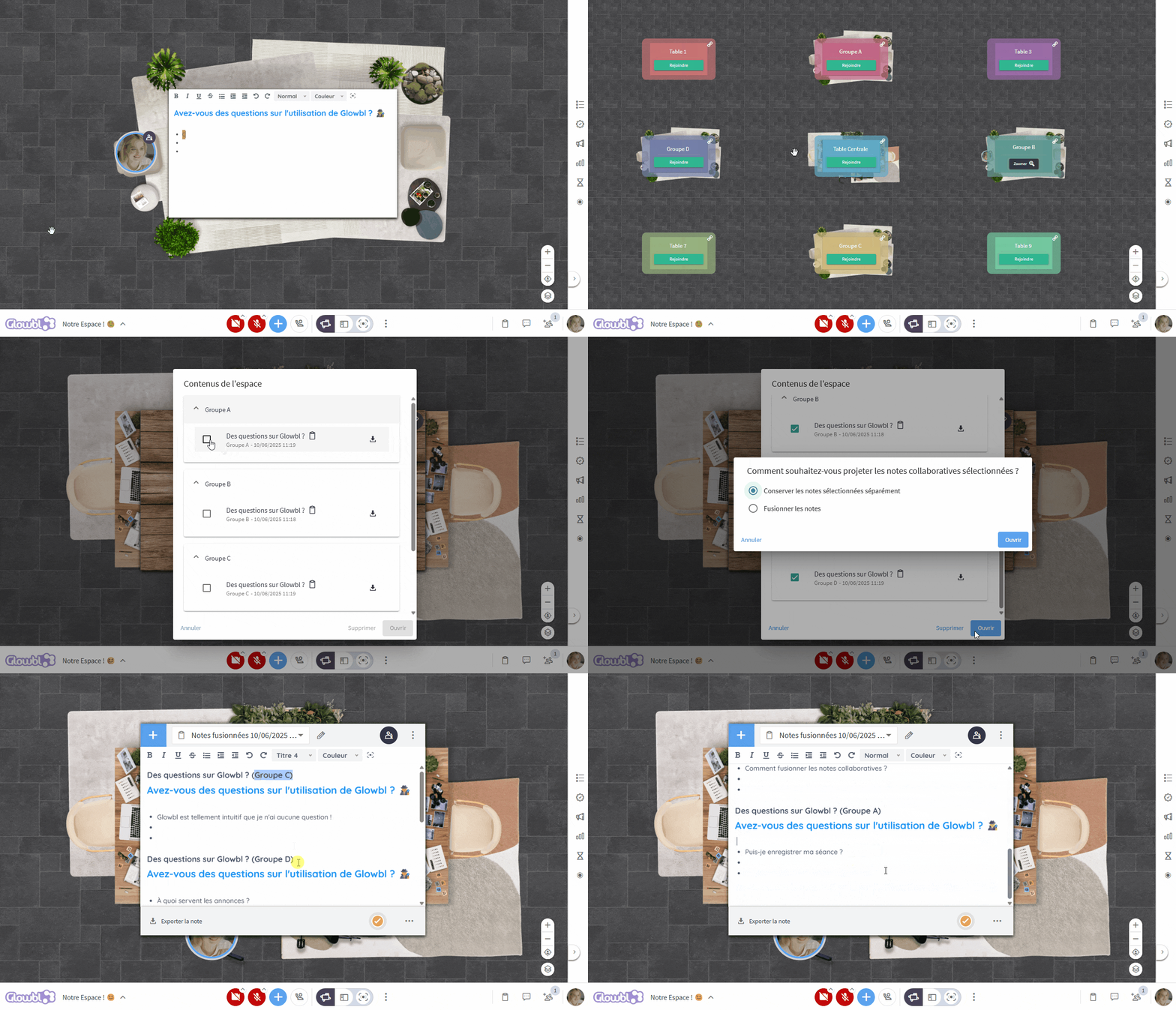
As mentioned in the introduction, using Collaborative Note templates will enable you to carry out subgroup activities very simply. After an activity, it's time for a presentation. Here too, using Collaborative Notes has its advantages, as you can merge all sub-group notes into a single note. Find out more on this page: Projecting and managing content
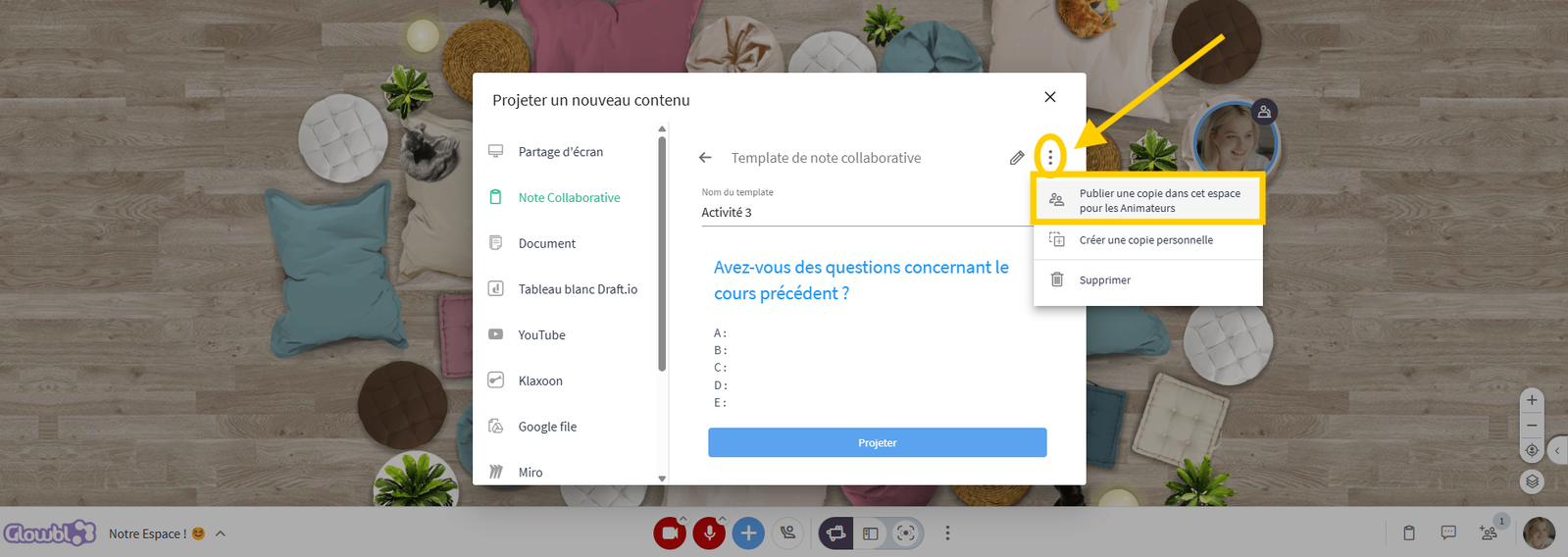
Sharing a template
On Glowbl you can create three kinds of reusable elements: Collaborative Note Templates, Polls and Sequences.
Every element you create is automatically saved as Personal, which means you can create it in advance and use it freely in all your spaces, as many times as you like. If you want your collaborators (space facilitators ) to have access too, simply publish a copy in the space of your choice, enabling them to use it in turn.
Click on the blue plus at the bottom of your screen ➜ select Collaborative Note ➜ click on From a Personal template ➜ select your template ➜ click on the 3 dots at the top right: Publish a copy in this space for facilitators .
Whenever a facilitator is in this space, they will find your template in the From a template folder in the space (see previous chapter).
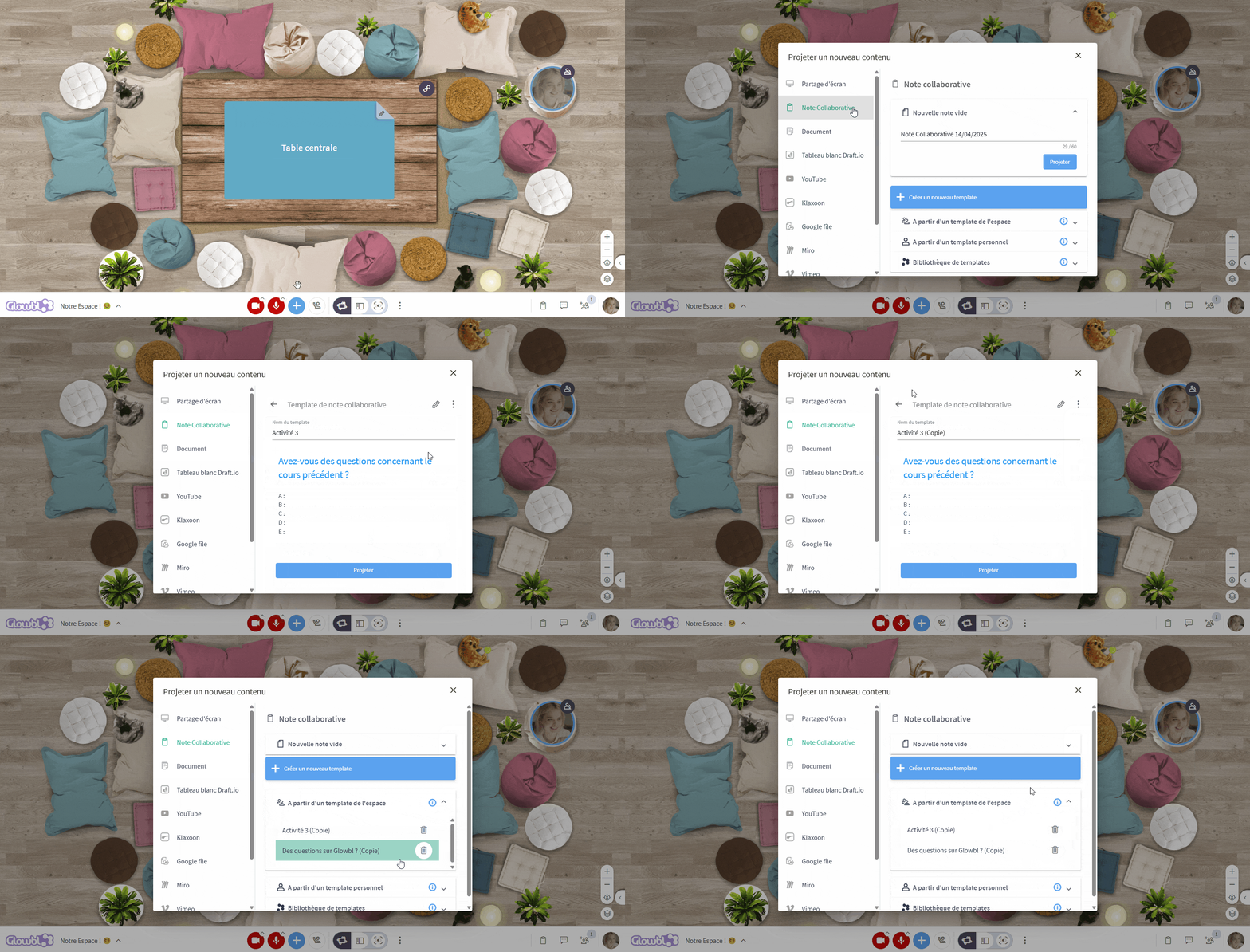
Note that this copy is independent of the original, so a modification made to one will not affect the other.
Creating and associating notes in a sequence
Feature available for : 🔷 Facilitators 🟨 Administrators
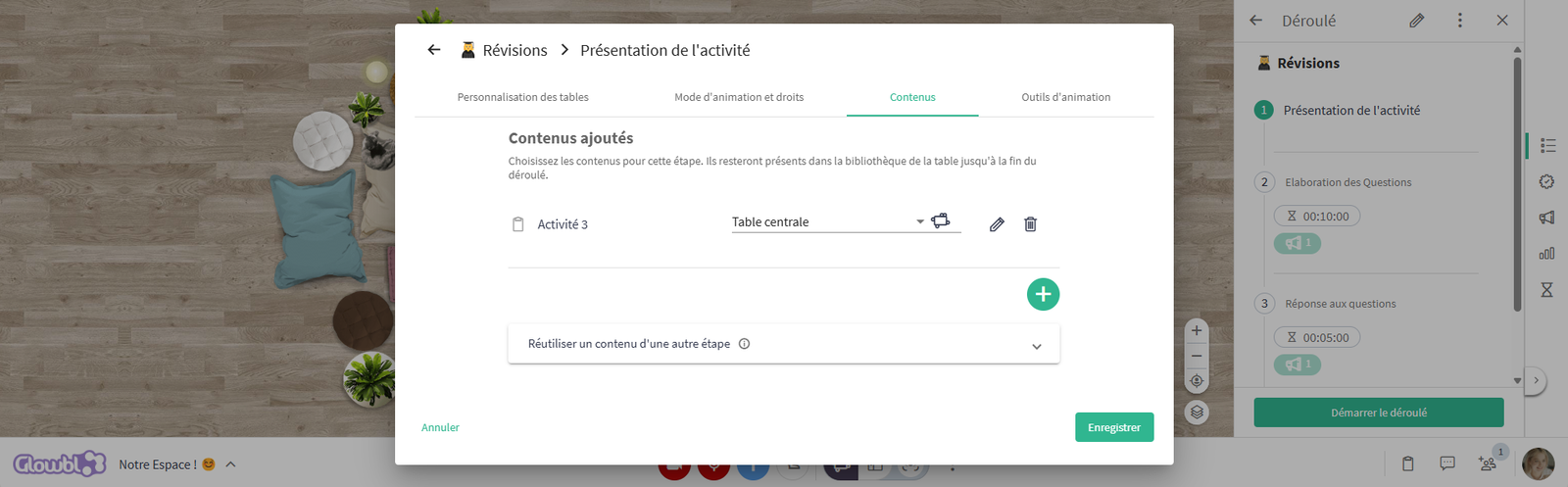
You can prepare your space in advance by adding and leaving your Collaborative Notes on the various tables. But to go even further, create a sequence! This allows you to pre-configure the content that will be projected automatically at the start of each stage of your session, and much more besides.
From the sequence, you can add a blank note, insert an existing template or even create a new collaborative note.
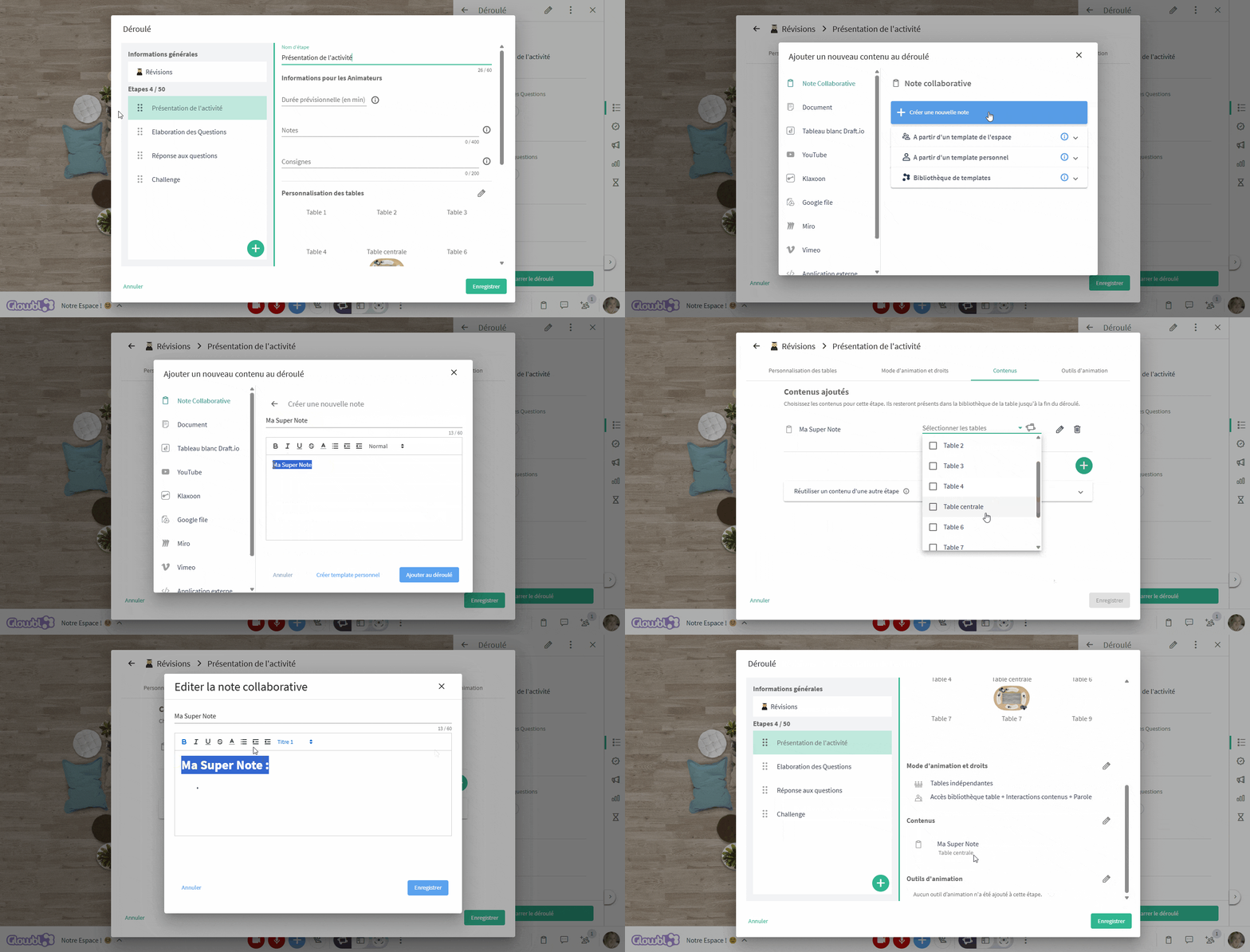
Add a Collaborative Note to a step in the sequence :
From the step summary, click on the pencil icon to the right of the Content parameter ➜ click on the green plus and select Collaborative Note ➜ choose an existing template or click on Create a new note:
- Give it a name and click on Add to sequence to insert a blank note.
- Or write the content directly before adding it.
If you like your note, you can click on Create personal template to save it as a reusable template before adding it to the sequence.
Then select which table(s) the note will be projected onto at the start of the step. Use the spatial view to facilitate table selection.
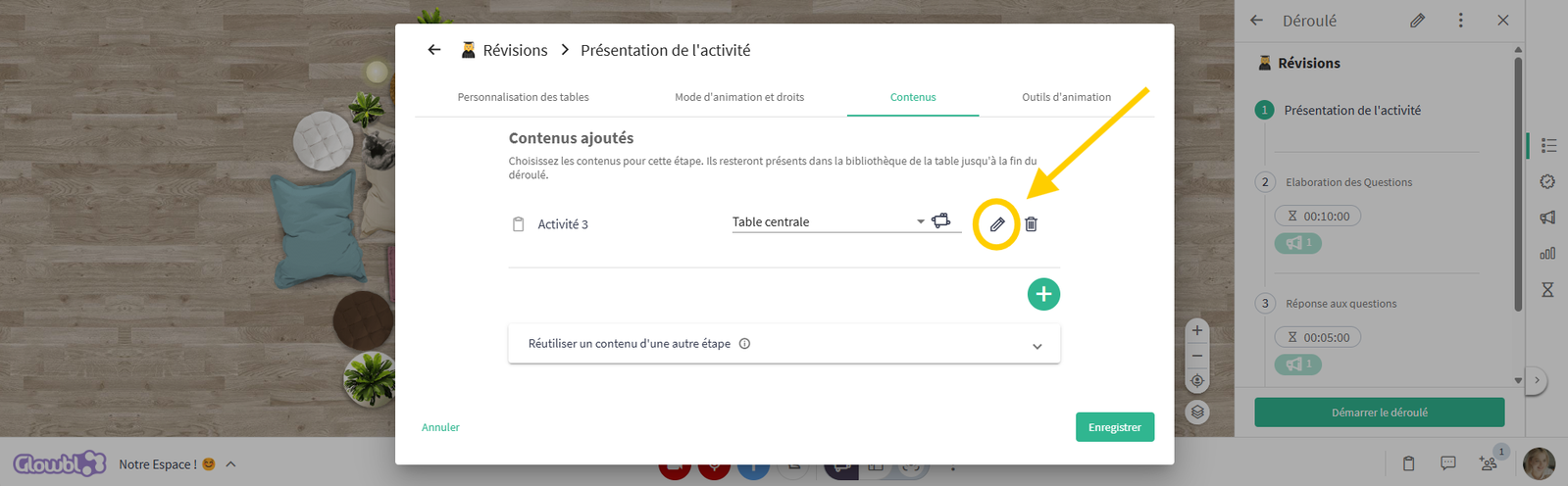
Finally, if required, you can edit your notes at any time from the sequence by clicking on the pencil icon.

To find out more about collaborative note uses in your sessions :
Projecting and managing contentRecover the Sequence ReportChange table layout