Feature available for: 🟢 Participants with specific rights 🔷 Facilitators 🟨 Administrators

To understand how to share and navigate between different types of content using the Table Library, first consult the  Projecting and managing content page.

Start screen sharing
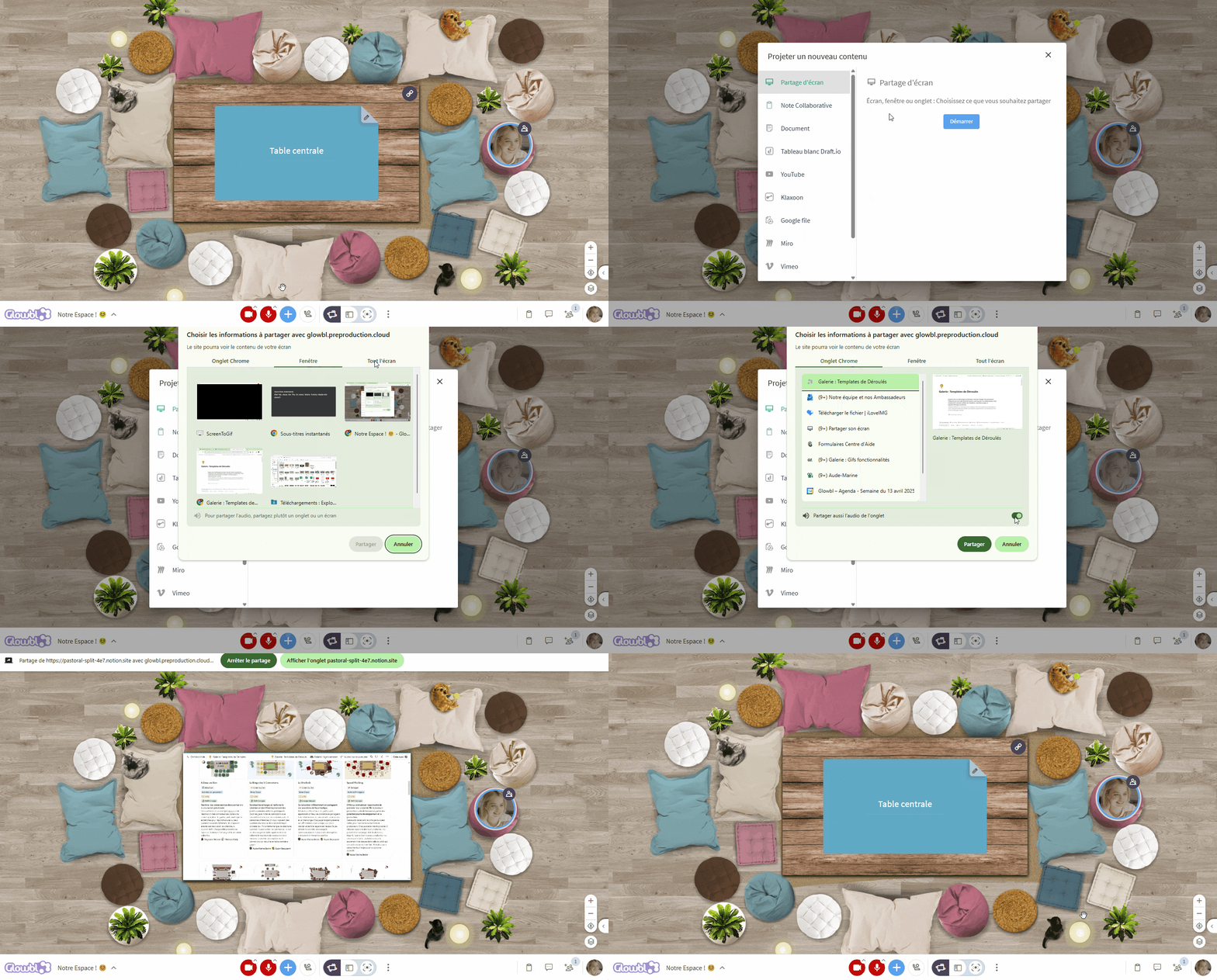
Click on the blue plus at the bottom of your screen ➜ the window opens to Screen sharing click on Start ➜ Choose from the sharing options specific to your browsers.
🔎 Example on Chrome :

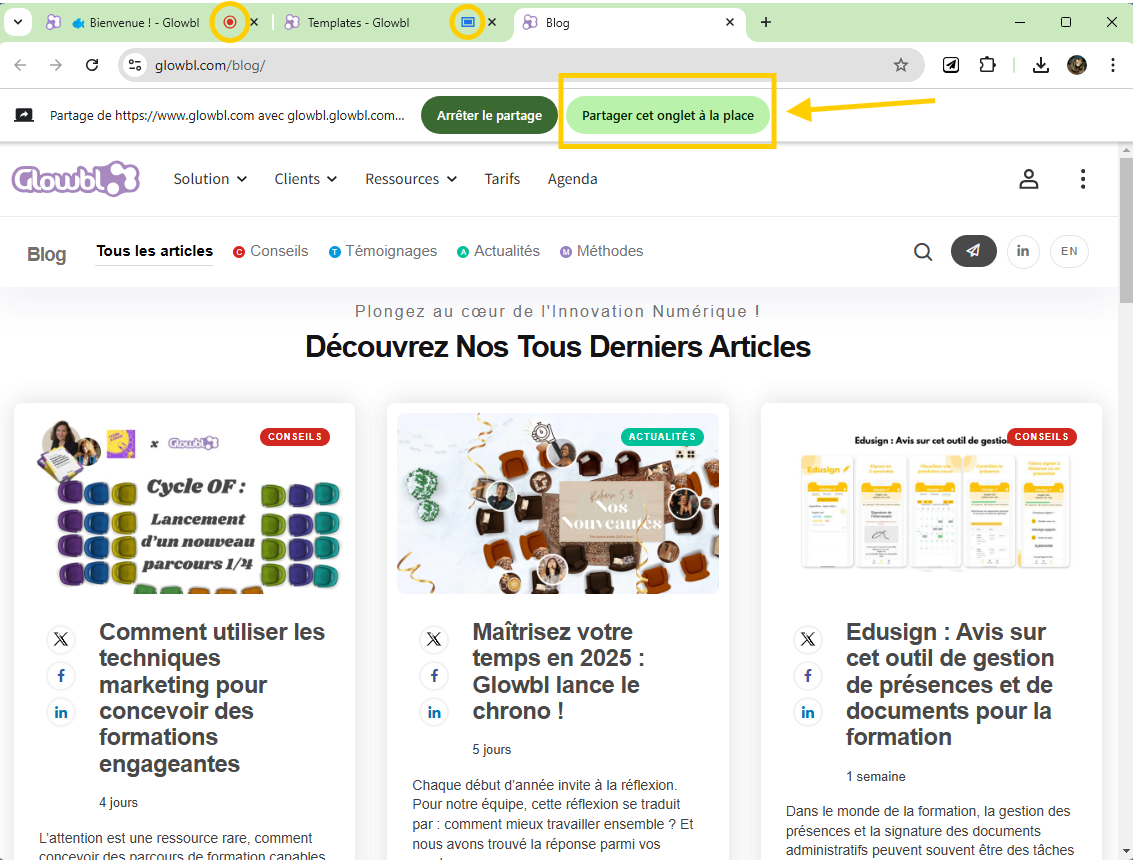
Depending on your browser you can quickly change the tab to share without having to stop and restart sharing.
And if you're projecting content from a variety of sources, we recommend choosing the All screen option and checking or unchecking the 🔊 audio sharing option.
👀 Keep an eye on participants
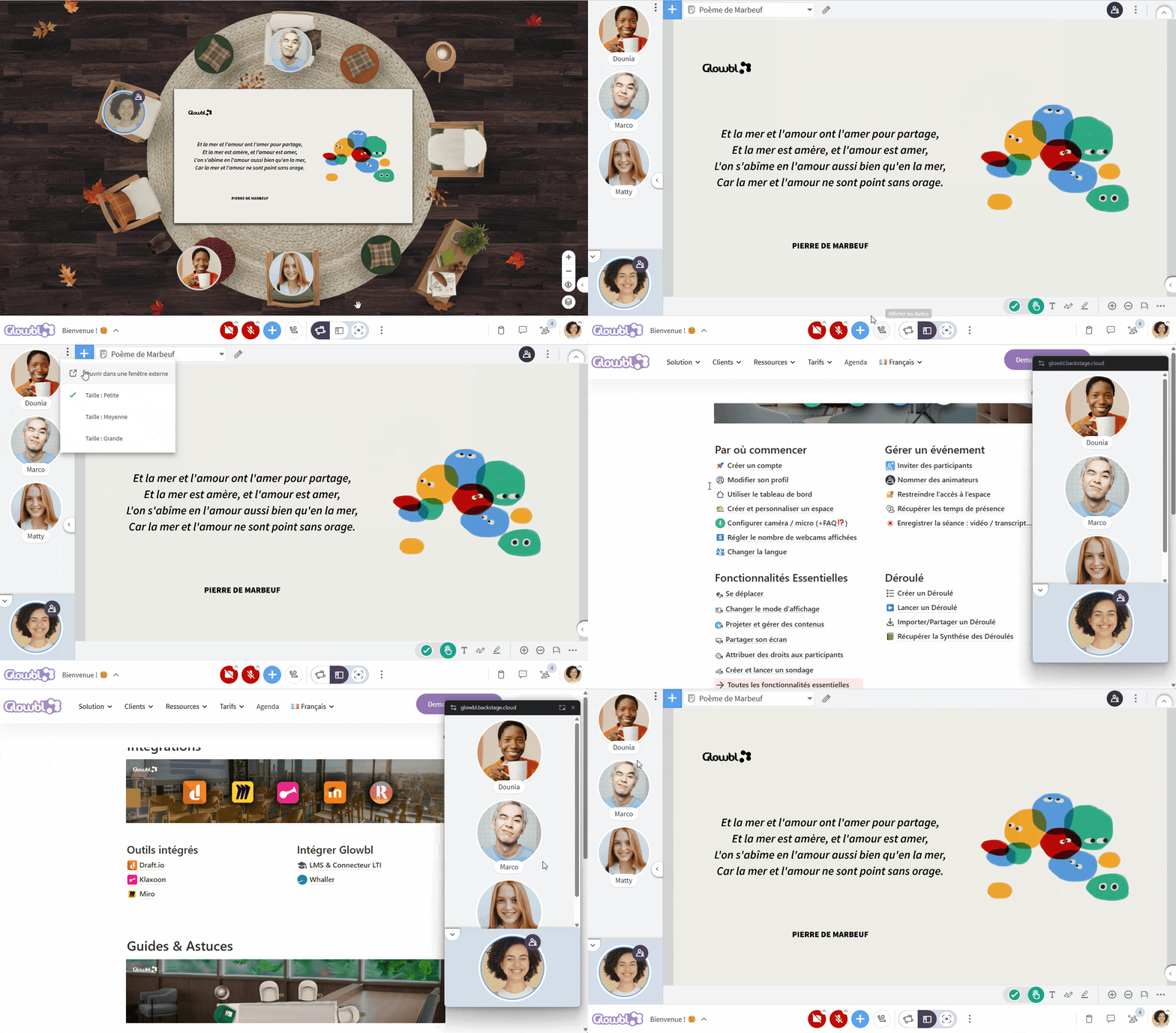
If you only have one screen, you can place the participants' bubbles in a floating window (picture in picture) so you don't lose sight of them during your screen share.
Switch to Enlarge content  display mode ➜ click on the 3 dots at the top of the speaking tab ➜ click on Open in external window then place the window wherever you wish.
Stop sharing
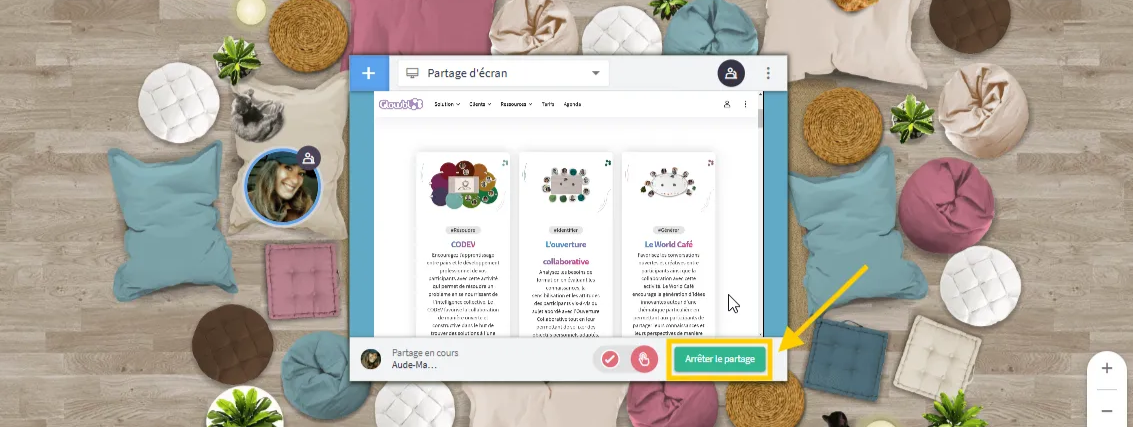
To stop sharing your screen move your mouse over the table ➜ click on Stop Sharing in the bottom bar.