Feature available for: 🟢 Participants with specific rights 🔷 Facilitators 🟨Administrators

To understand how to share and navigate between different types of content using the Table Library, first consult the  Projecting and managing content page.

Importing or creating your materials
Click the blue plus button  (Project New Content) at the bottom of your screen, then select Document & Whiteboard
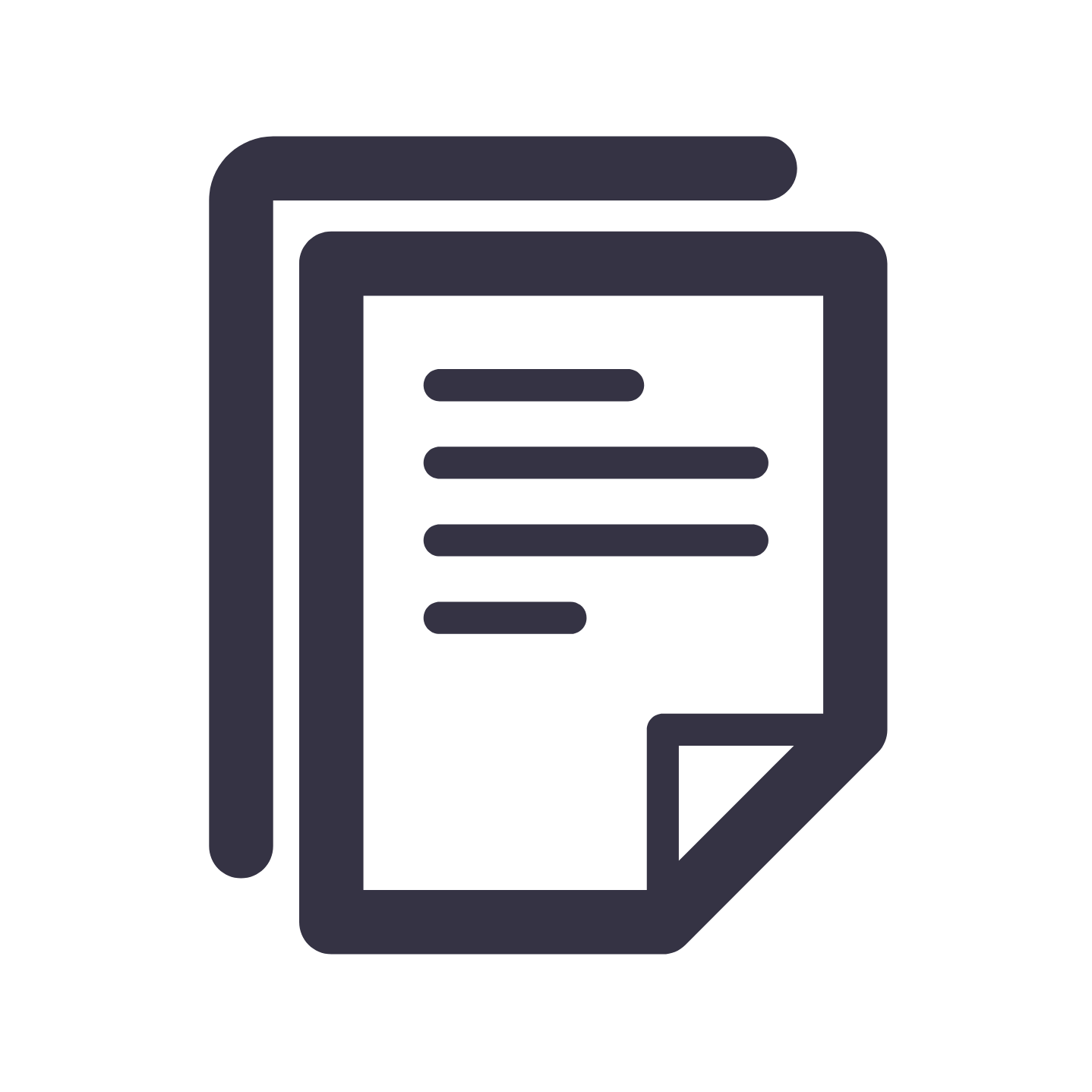 . You have three options:
- Import a file: Browse for your standard presentation (PDF) from your computer or a cloud drive. You can then annotate it or attach audio files.
- Start from a Blank Page: This is our built-in whiteboard! Ideal for impromptu brainstorming or drawing sessions. The 16:9 format ensures exports are perfectly usable after the session.
- Library: Relaunch a previously used document or template.

🔷 Facilitators and 🟨 Administrators, by creating a sequence  , you can set the content in advance, including Document & Whiteboard, that will be projected automatically at the start of each step of your sequence. No more searching for files during your session!
Annotating a document
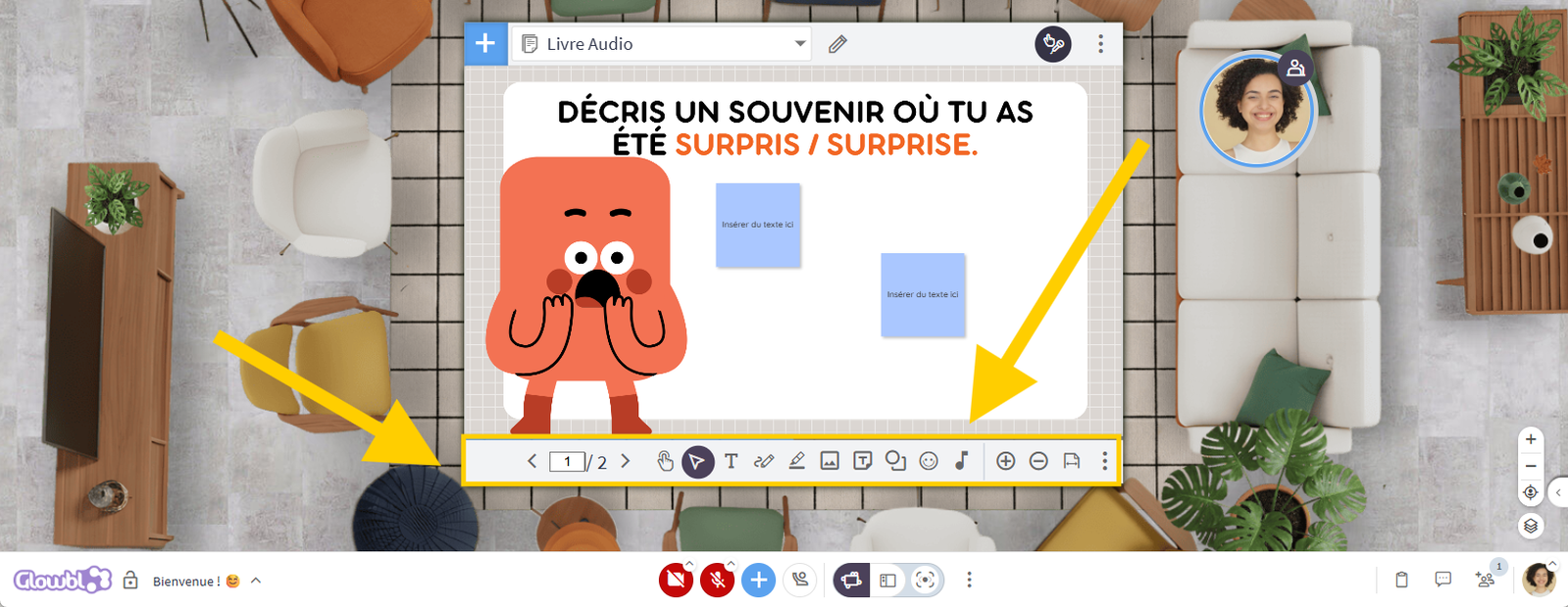
Once the document is displayed, hover over the table to reveal the slide navigation and annotation toolbar. This isn't just for doodling; it's designed for engagement:
- Text and Sticky Notes: To gather ideas, answer questions, or complete "fill-in-the-blank" exercises.
- Shapes, Lines, and Highlighters: Useful for connecting concepts, circling errors, or creating live diagrams.
- Glowmojis 😉: Allow participants to vote, express an emotion, position themselves on a specific area of the document, or indicate whether an answer is correct or incorrect.
- Images: Add supporting visual elements on the fly.
- Audio: Link MP3s to one or more slides to provide pronunciation examples, create an atmosphere, or play testimonials.
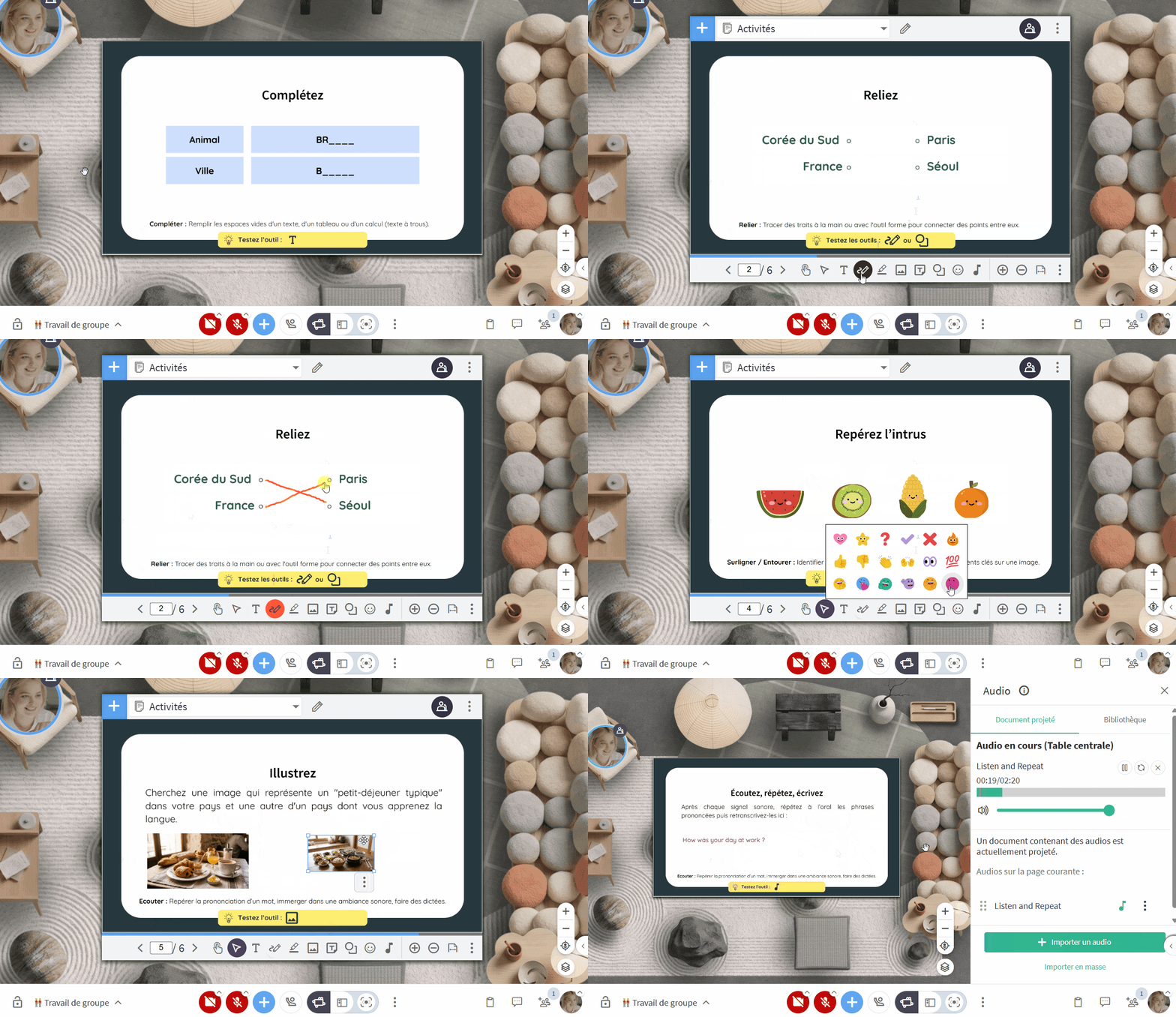

🔷 Facilitators and 🟨 Administrators, each tool mentioned above can be used by participants. If this is not what you want (if you don’t want them to scroll through the slides) consider assigning them Speech only  rights.
Adding blank pages (Whiteboard)
As mentioned, you can open a native collaborative whiteboard for brainstorming or mind mapping by selecting Start from a blank page. However, you can also add new pages to your existing presentations:
- Hover over your document.
- Click the three dots
 in the annotation toolbar.
- Choose whether to add a page before or after the current page.
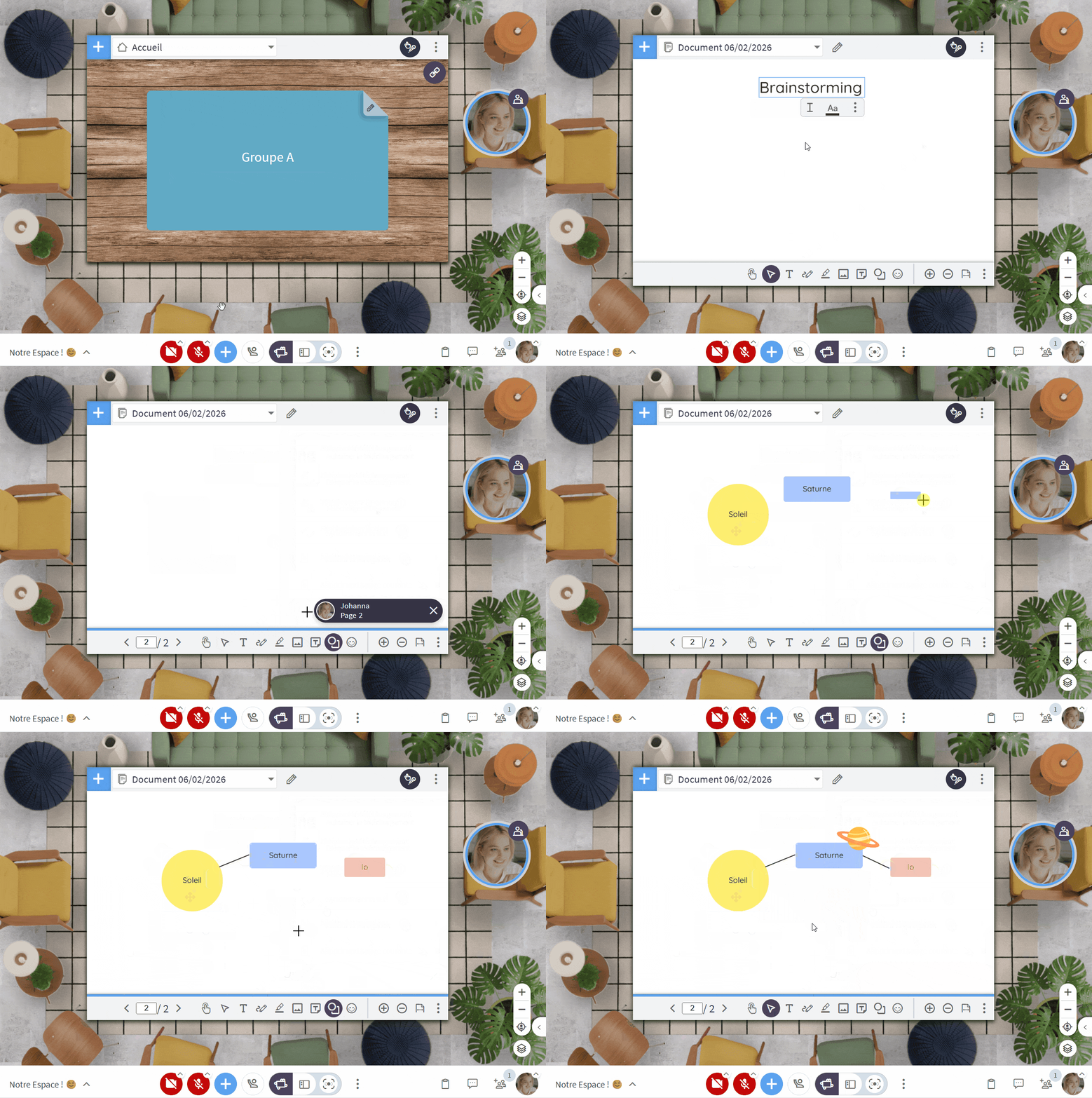
Use this option to have participants produce a collective deliverable: a poster, a visual summary (sketchnoting), or a mini-presentation.
🫨 Creating interactive and sound-based activities
Feature available to: 🔷 Facilitators 🟨 Administrators
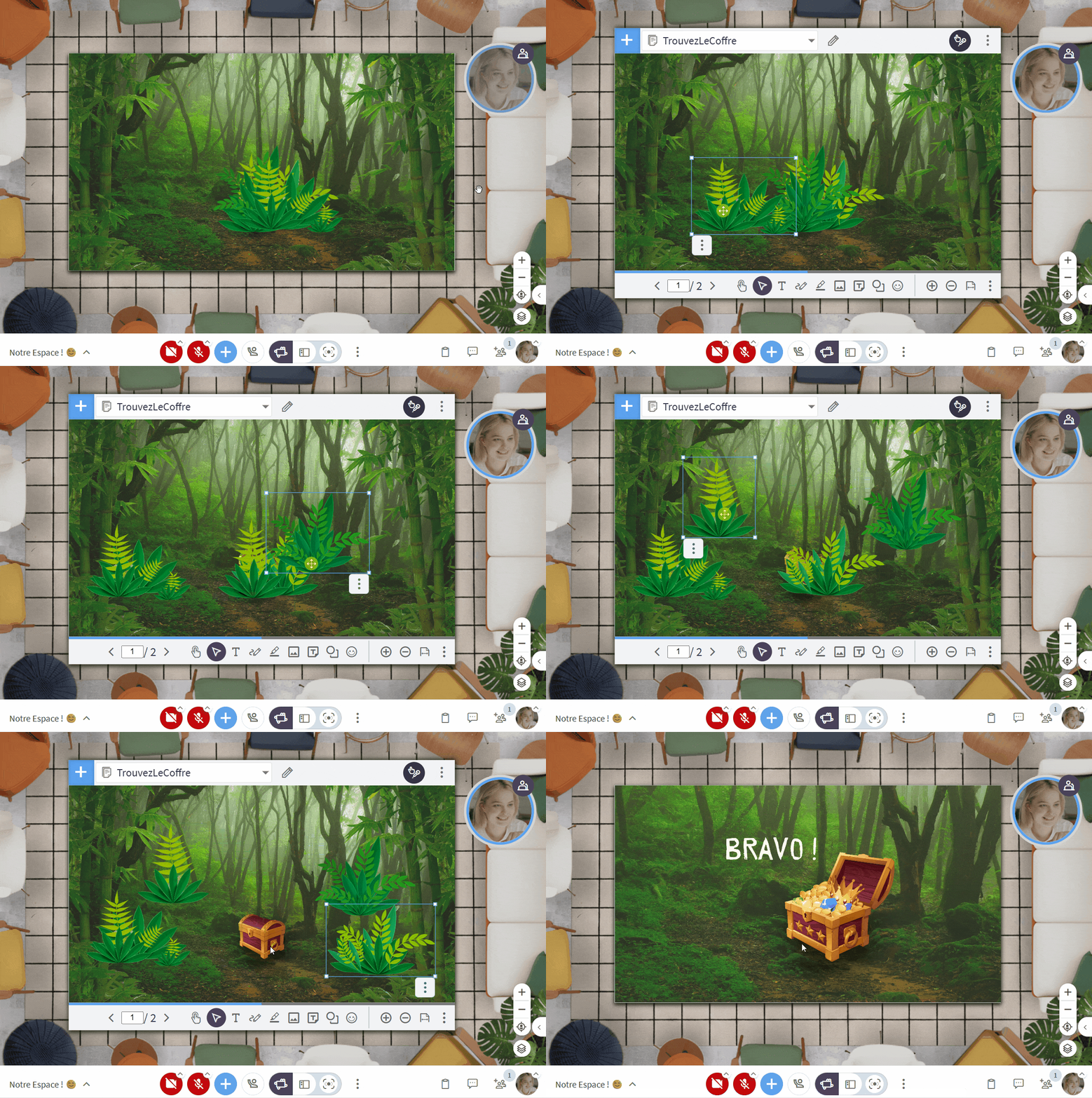
This is where the magic happens! You can turn a simple document into an activity that requires manipulation and Drag & Drop:
- Prepare your page: Place shapes, images, text, and even audio on your document.
- Save as Template: Click the 3 dots on the annotation bar and select Save as Template.
- In practice: Glowbl remembers the position of your objects. Your participants can now move them to sort, categorise, or rank elements and trigger audio files!
These templates are saved in your library and can be reused with different groups or integrated directly into your sequences.
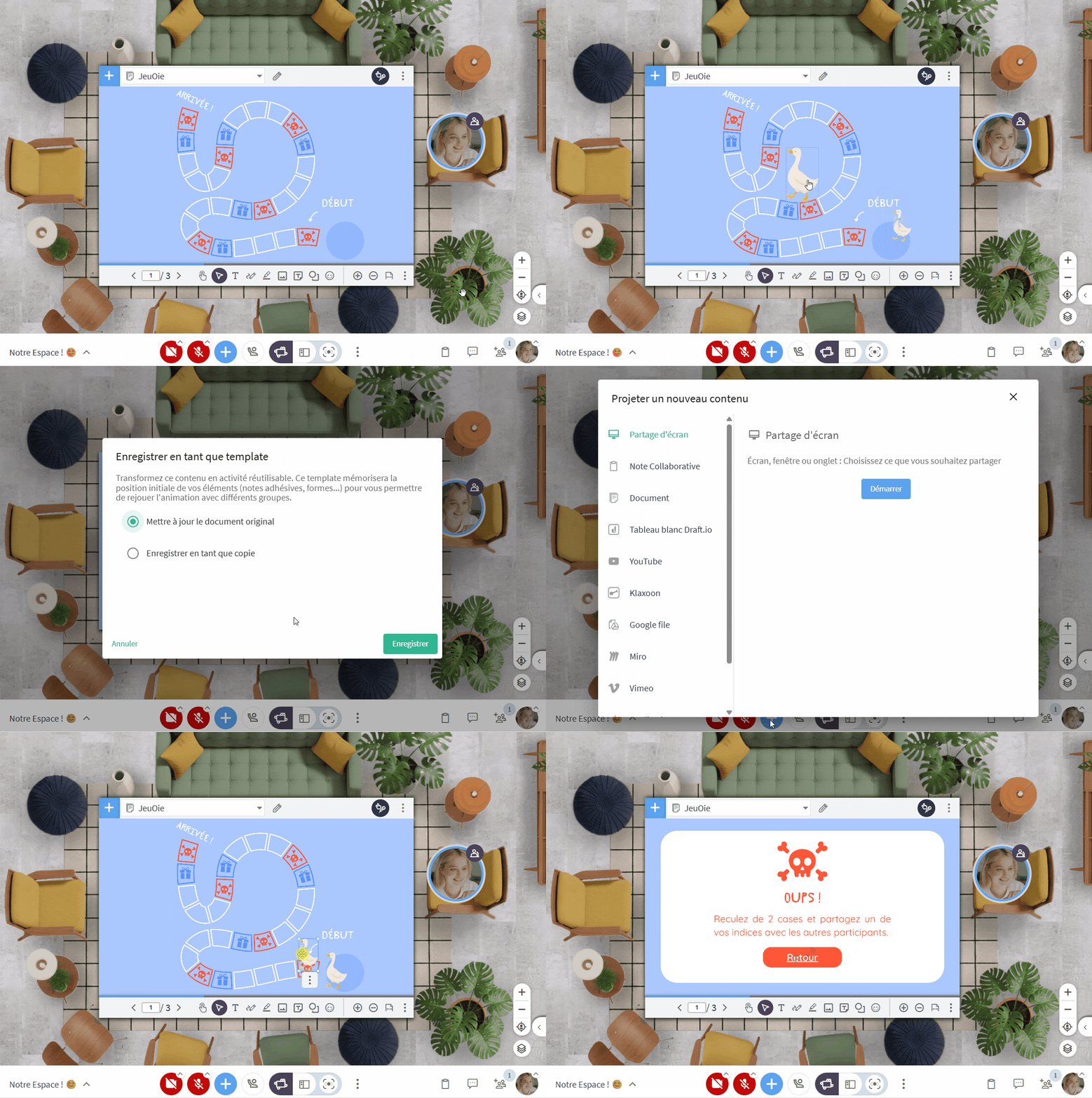
These activities open up the world of educational gaming: board games, branching paths*, collaborative challenges, and more.
If you design your presentations in Canva or PowerPoint, you can link objects not just to external websites, but to other pages within the presentation. This allows you to create interactive "snakes and ladders" style games, where every tile is clickable and directs the user to a different page in the journey.
Importing an audio textbook
Feature available to: 🔷 Facilitators 🟨 Administrators
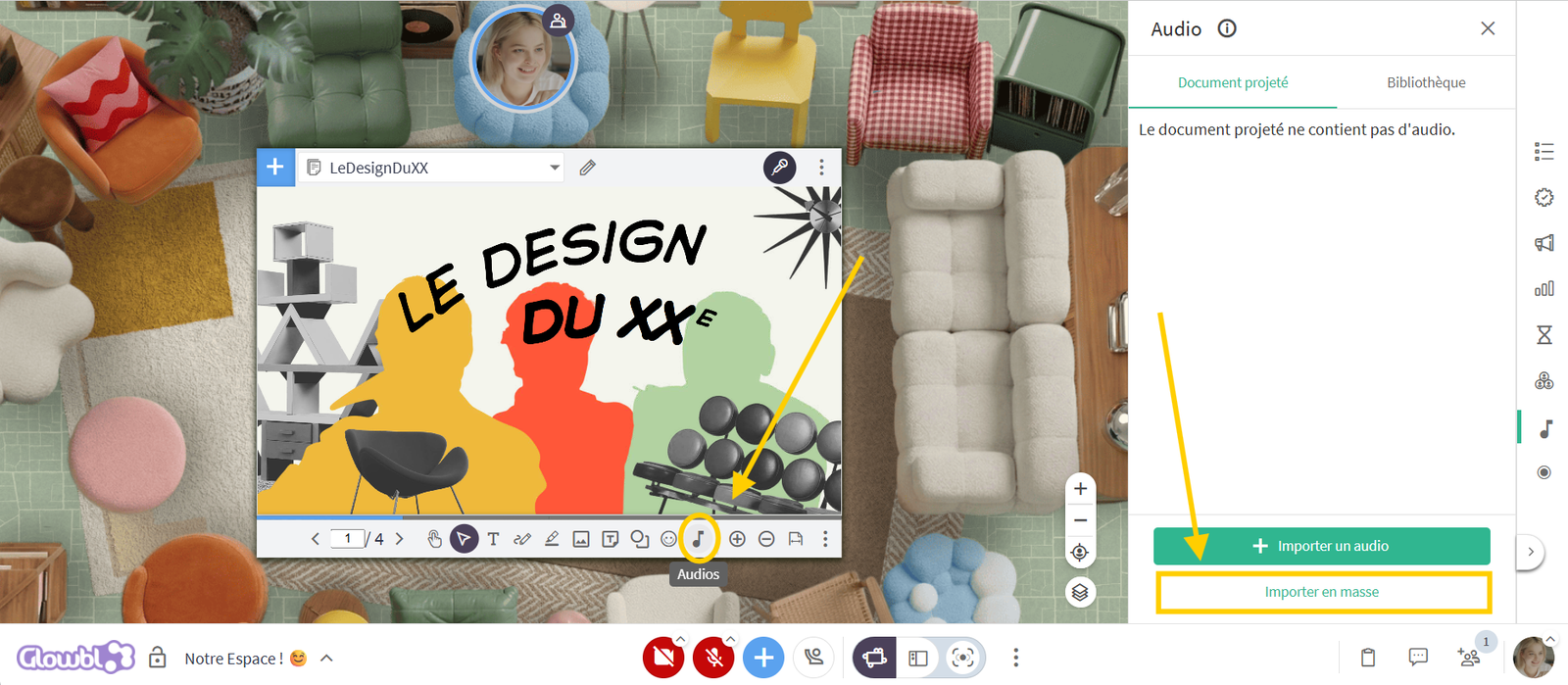
Do you use textbooks containing many audio tracks? You can import all sounds at once and save your audio textbook to your library.

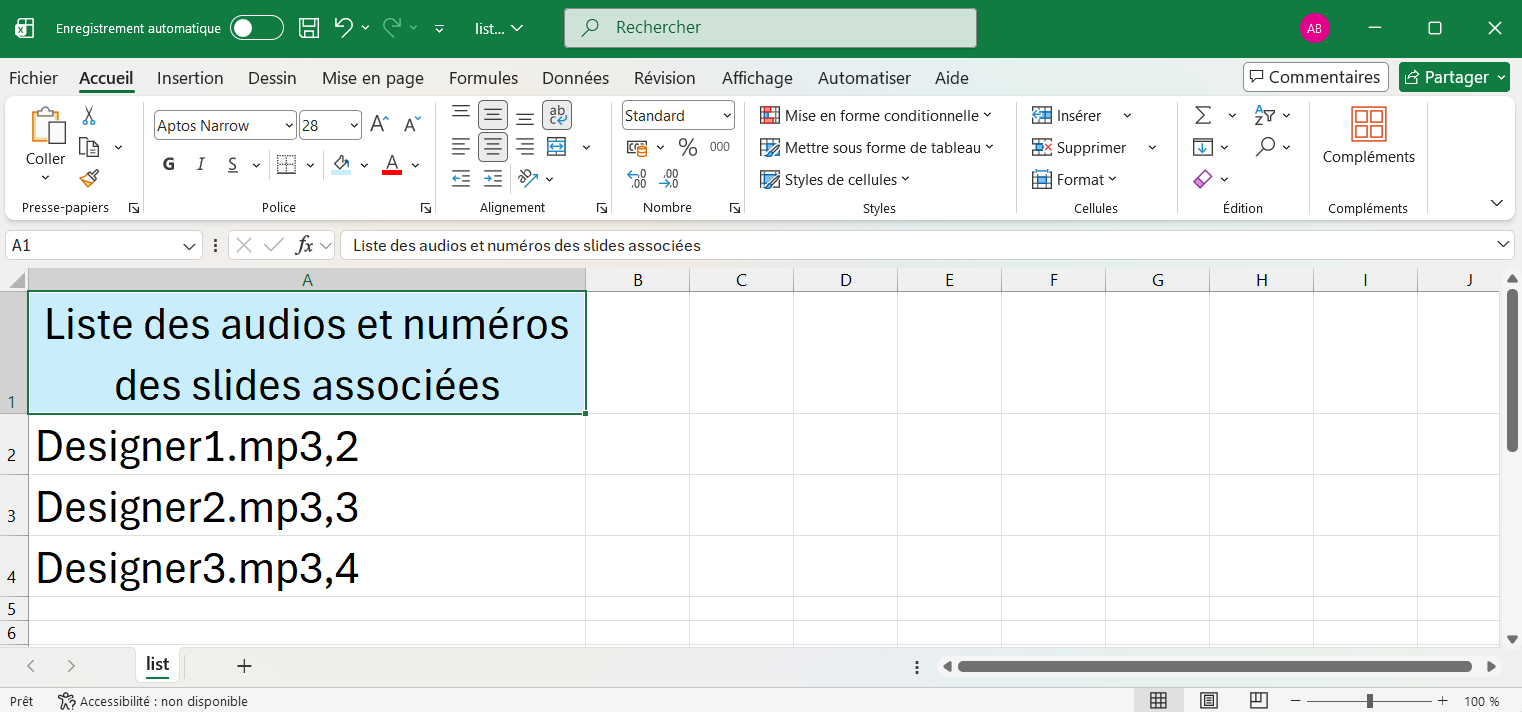

Theses audio textbooks can be share across the entire organisation. See below
Manage navigation: Synchronised or Free?
By default, when you change pages, everyone follows you. However, effective teaching sometimes requires letting go:
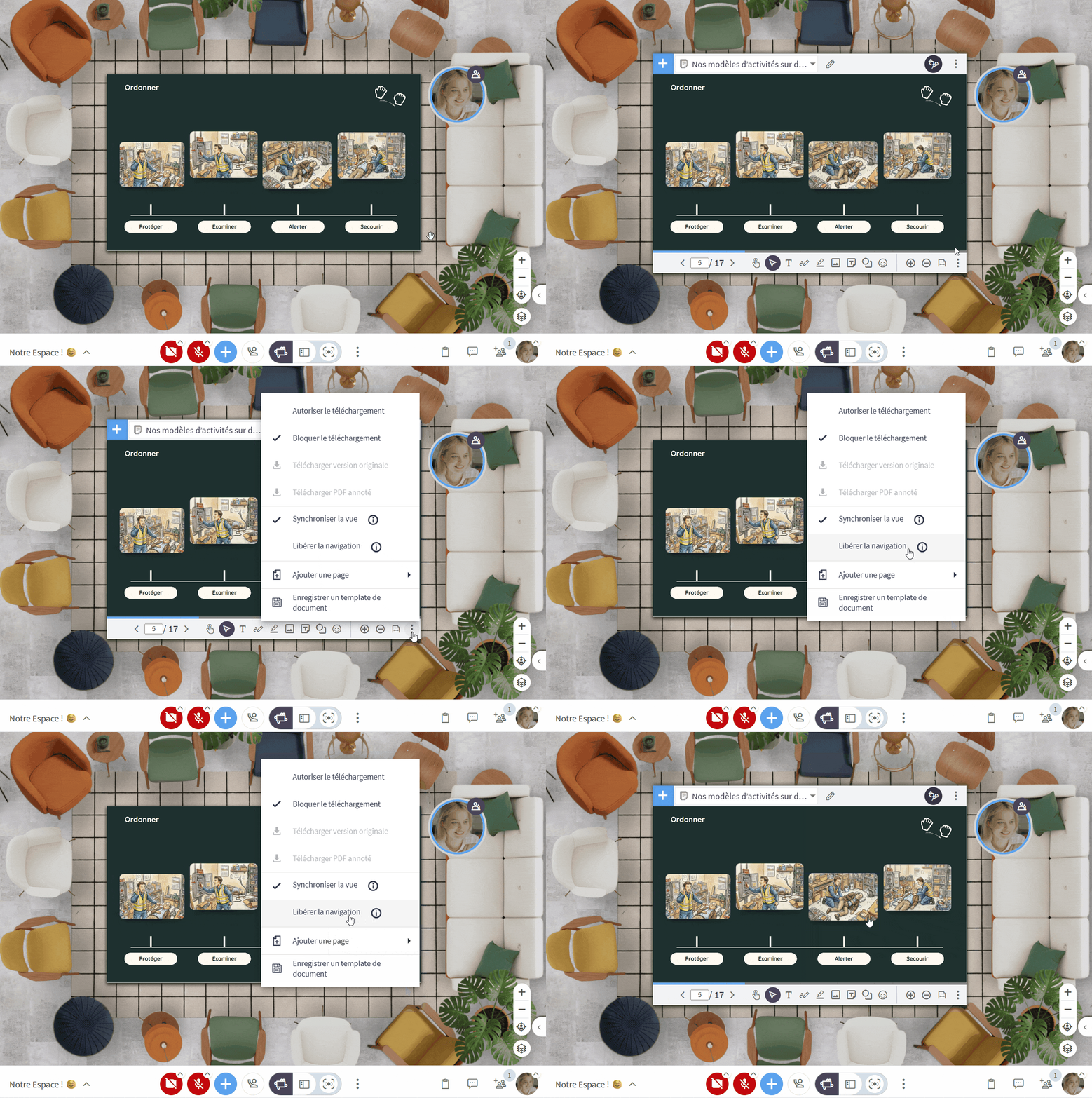
- Unsync navigation: Via the 3 dots in the toolbar, you can allow participants to browse the document at their own pace.
- Why use this? It's useful for letting individuals consult resources, complete a self-guided path, or refer back to instructions without interrupting the rest of the group.
Download a document
Download—or allow others to download—the documents presented during the session, choosing between the annotated version or the original version. Simply click the 3 dots and select your preferred version.
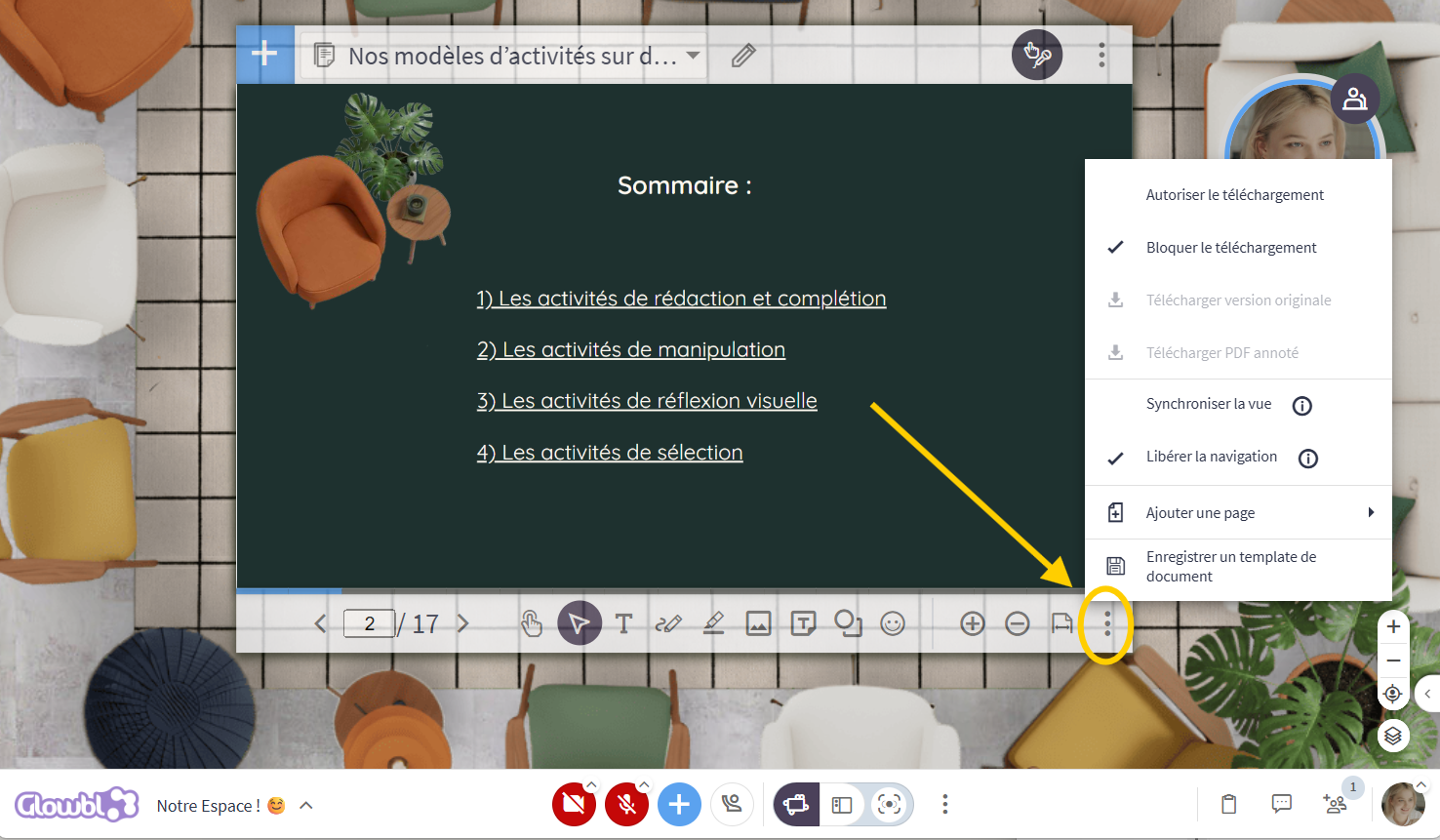
By default, downloading is disabled for participants. 🔷 Facilitators or 🟨 Administrators must enable this by clicking the 3 dots , then Allow download.
Publish a document to the Organisation
Feature available for: 🟠 Super-admins and Org Managers
You can share activity templates or audiobooks across the entire organisation. Facilitators will find them directly in their Document & Whiteboard library under the Organisation tab and can launch them in any space.