Feature available for: 🟢 Participants 🔷 Facilitators 🟨 Administrators
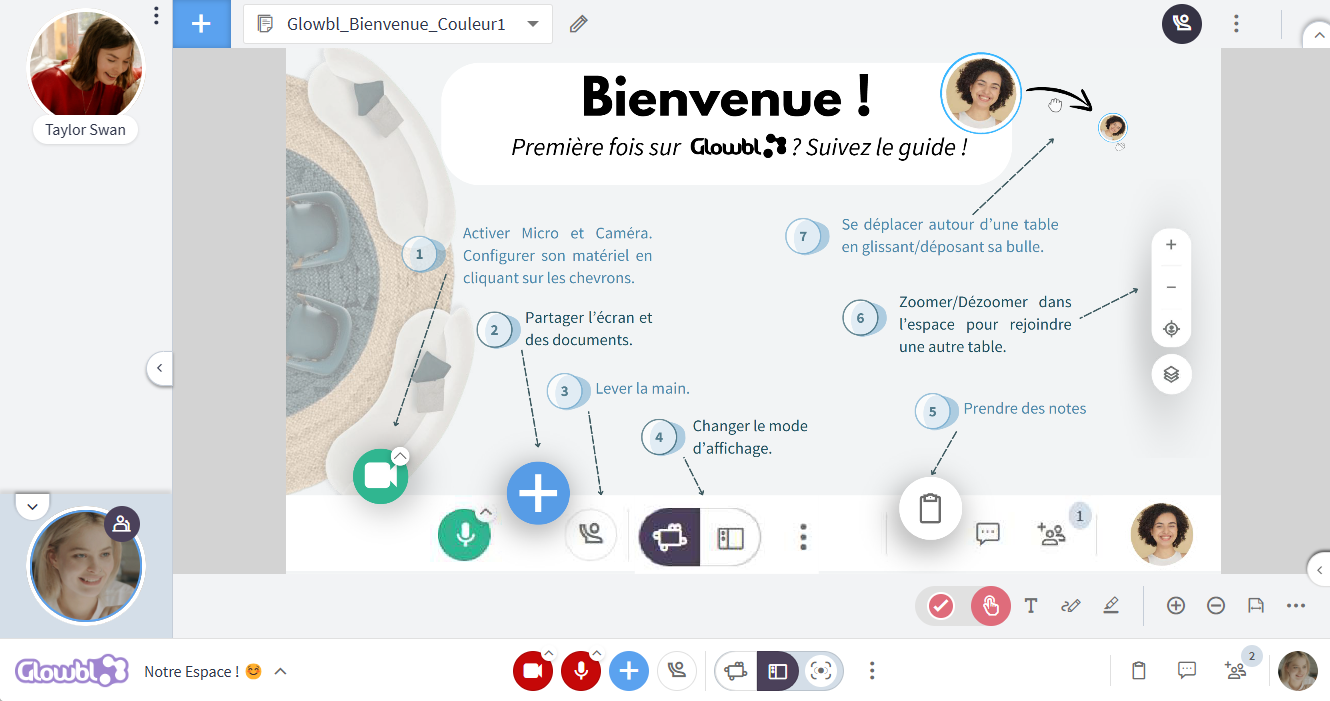

Two display modes
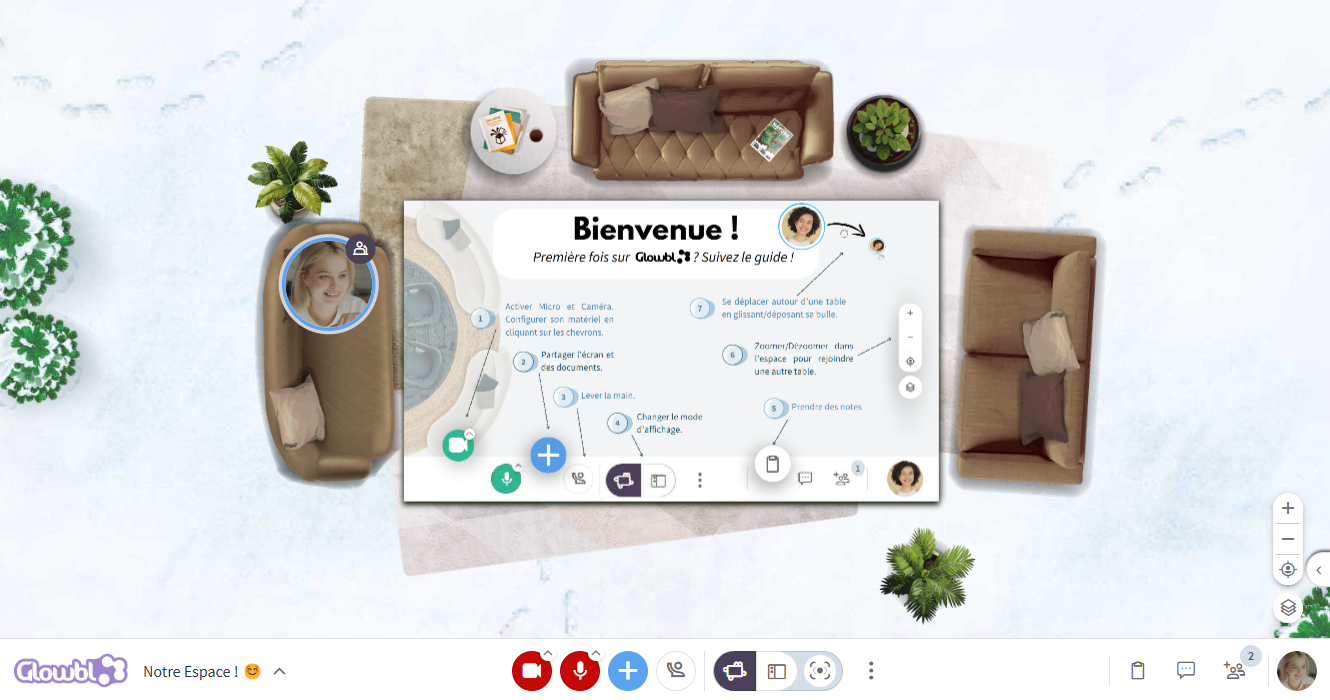
We have two display modes, one Display Bubbles  which favors exchanges, the other Enlarge Content
 which focuses on what's being projected.
Simply click on the icons / at the bottom of your screen to switch from one mode to the other. This switch is personal and does not affect the view of other participants.
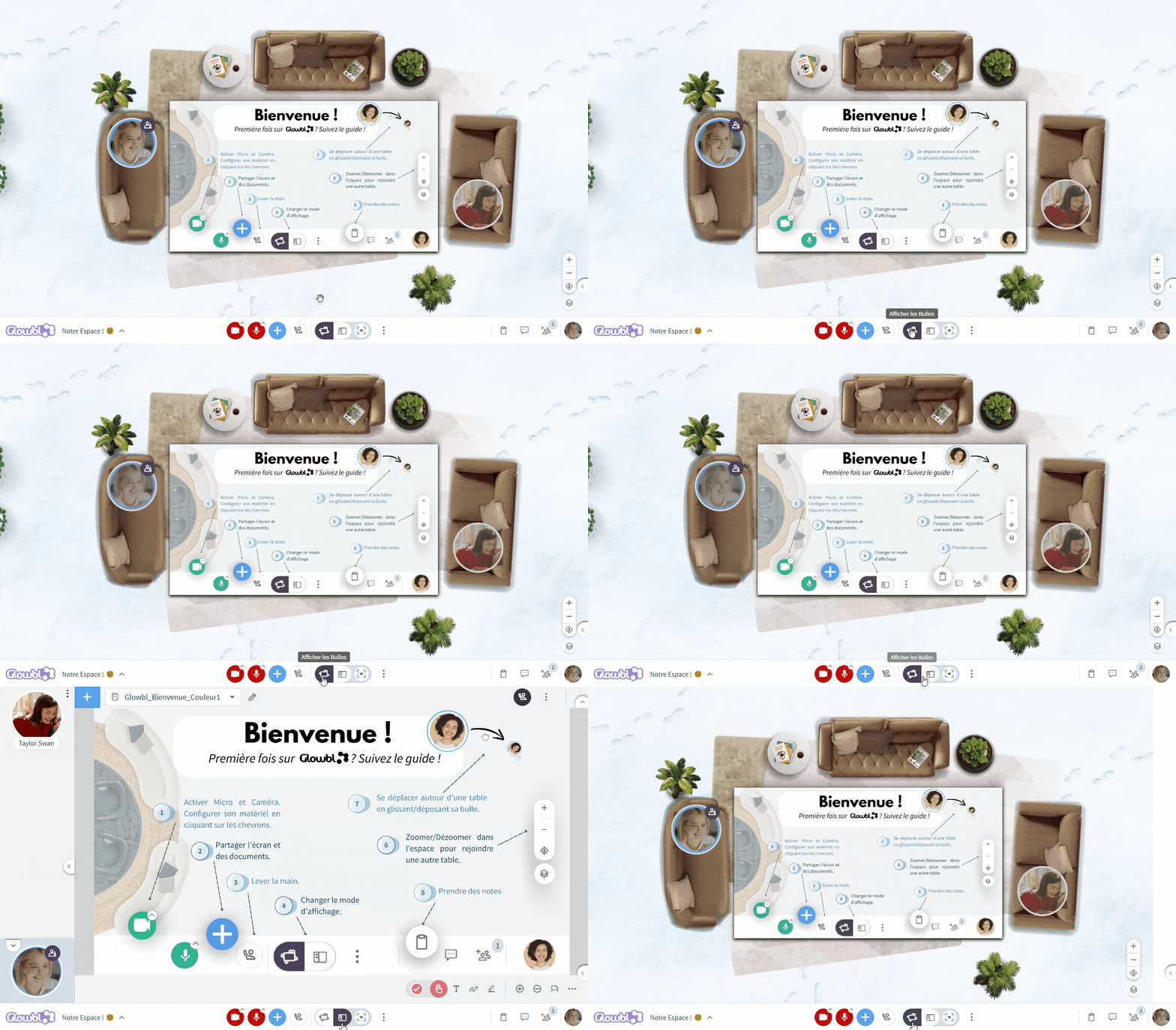

Don't forget to switch back to Display Bubbles when you need to join another table.
In Enlarge Content mode, you can:
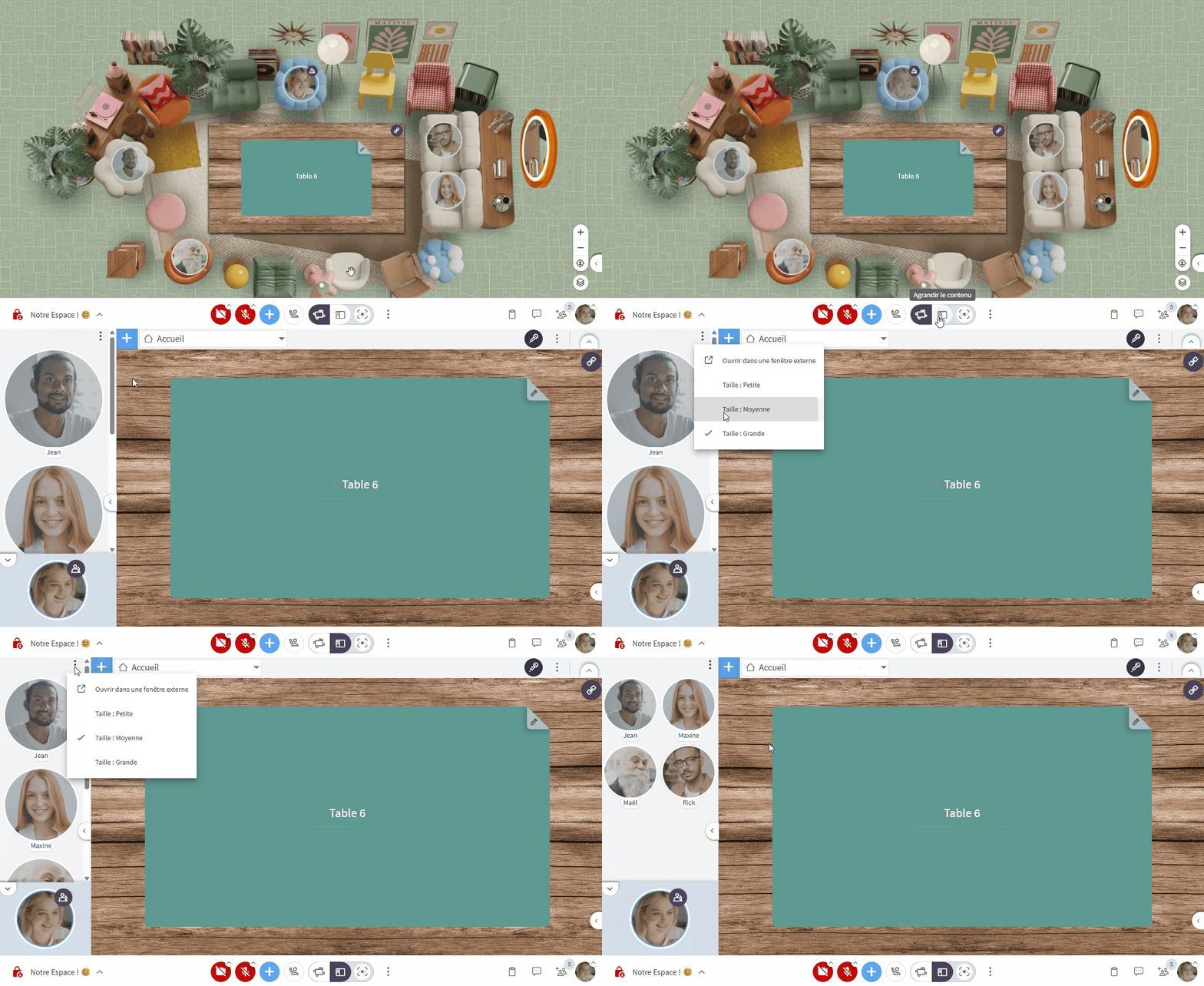
- Adjust bubble size by clicking the three dots
 in the speaker pane. The "Small" setting allows you to see 8 to 10 participants at a glance.
- Use floating windows, which is very useful for
 Sharing your screen
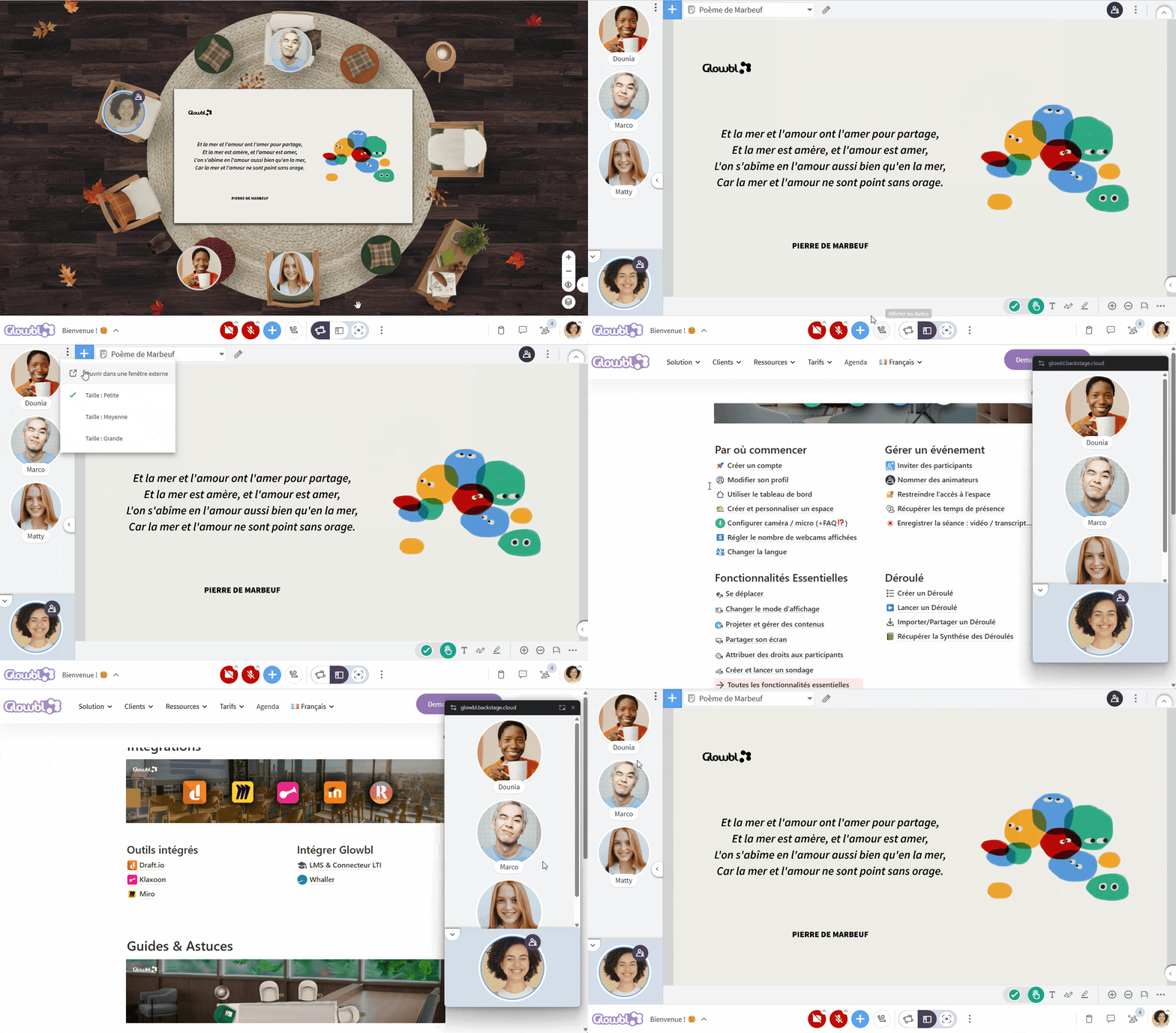
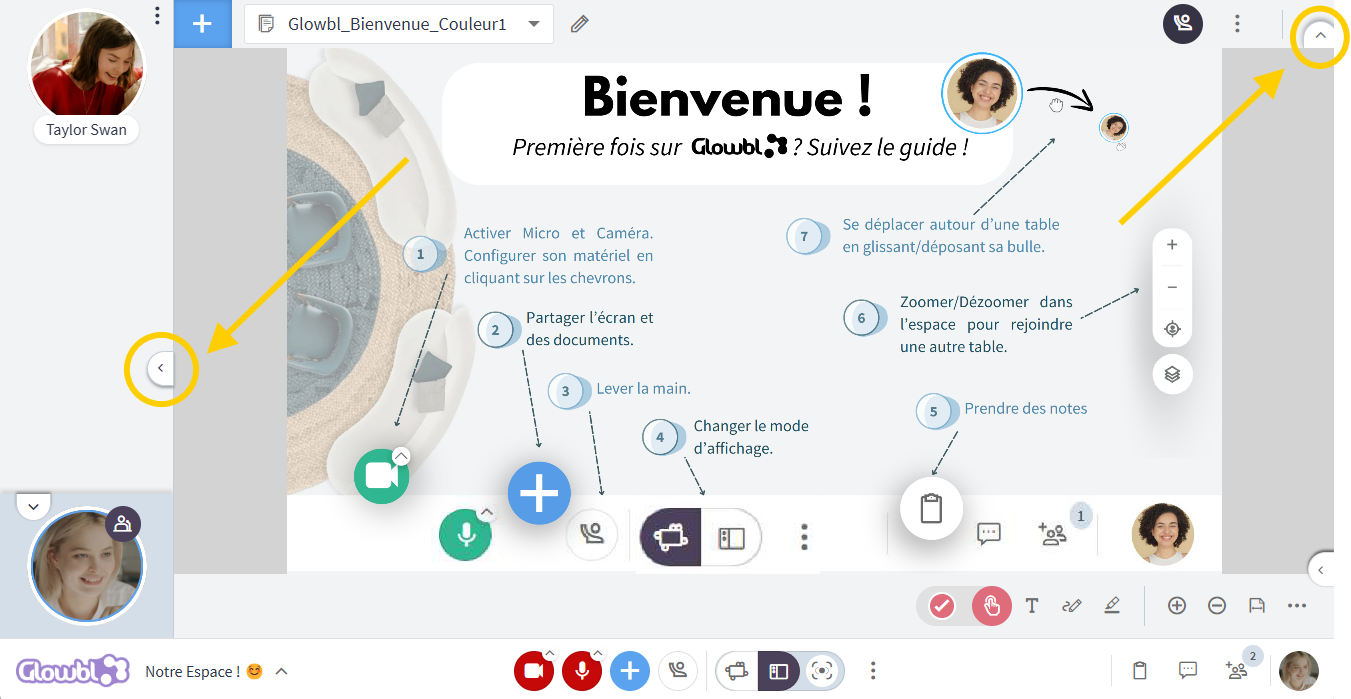
- Gain even more display space by reducing the content toolbars as well as the Speakers panel.

This feature is covered in this video tutorial :
Synchronize your display mode with all participants
Feature available for : 🔷 Facilitators 🟨 Administrators
Whether you want to help participants to make sure they're in Display bubbles before moving on, or simply energize your session, you can synchronize the display mode with everyone at a moment's notice.
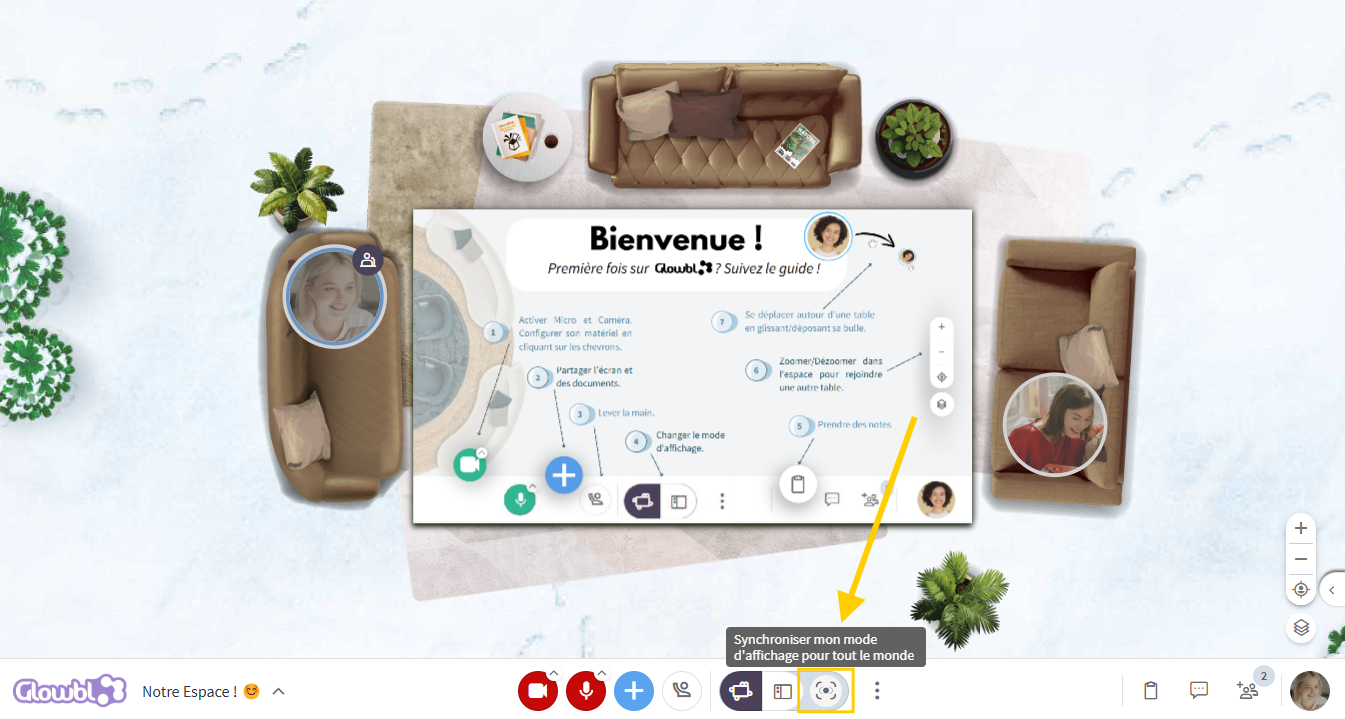
Click on the desired display mode , then on the button represented by a framed eye  Synchronize my display mode for everyone. Repeat the process if you wish to change modes again.