Functionality available for: 🔷 Animators 🟨 Administrators
To simplify the creation of sub-groups and the distribution of participants to tables, or even gamify your sessions, you can generate up to 9 random teams. The tool gives you the power to:

This feature is covered in this video tutorial :
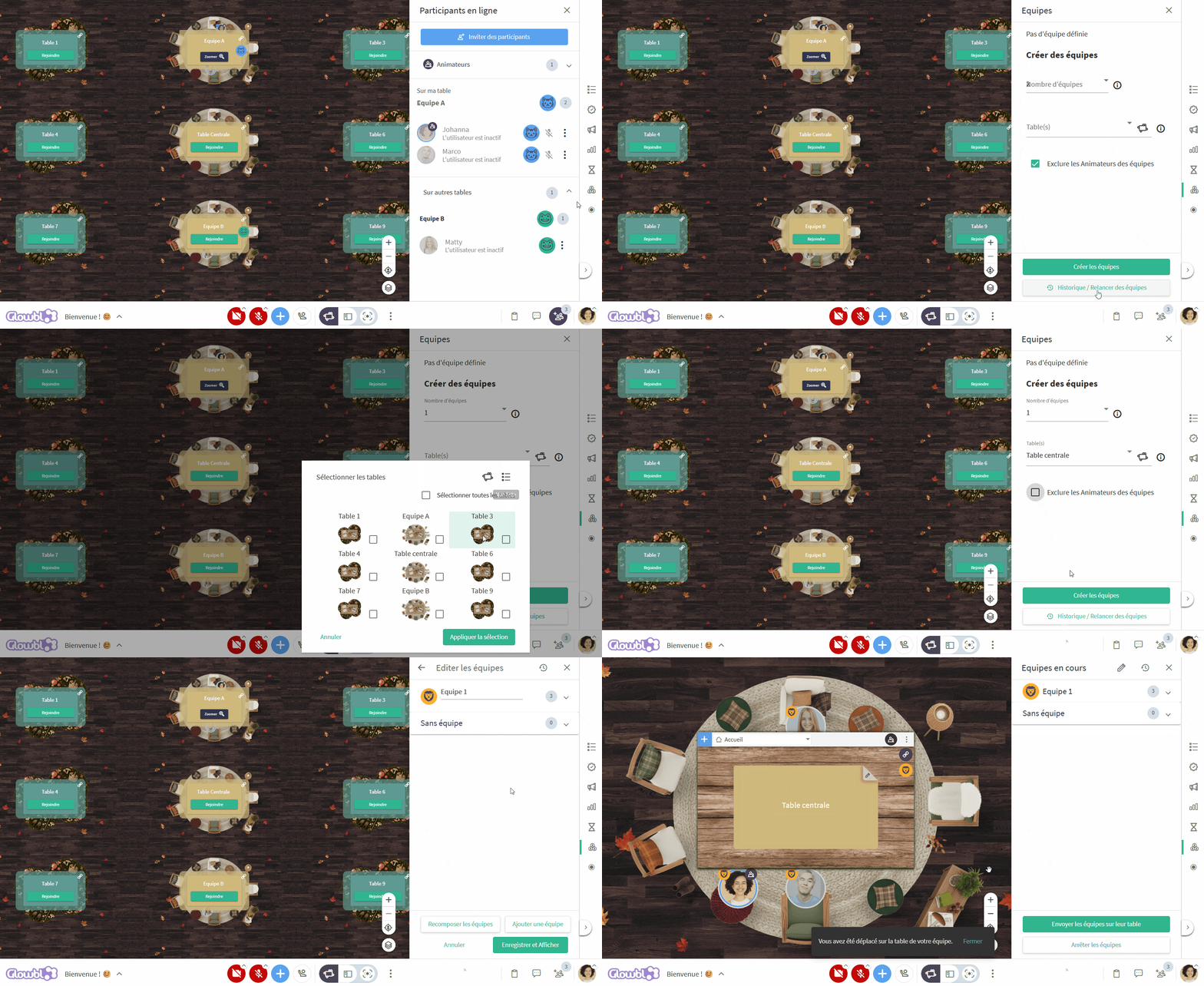
Create teams and allocate them to tables
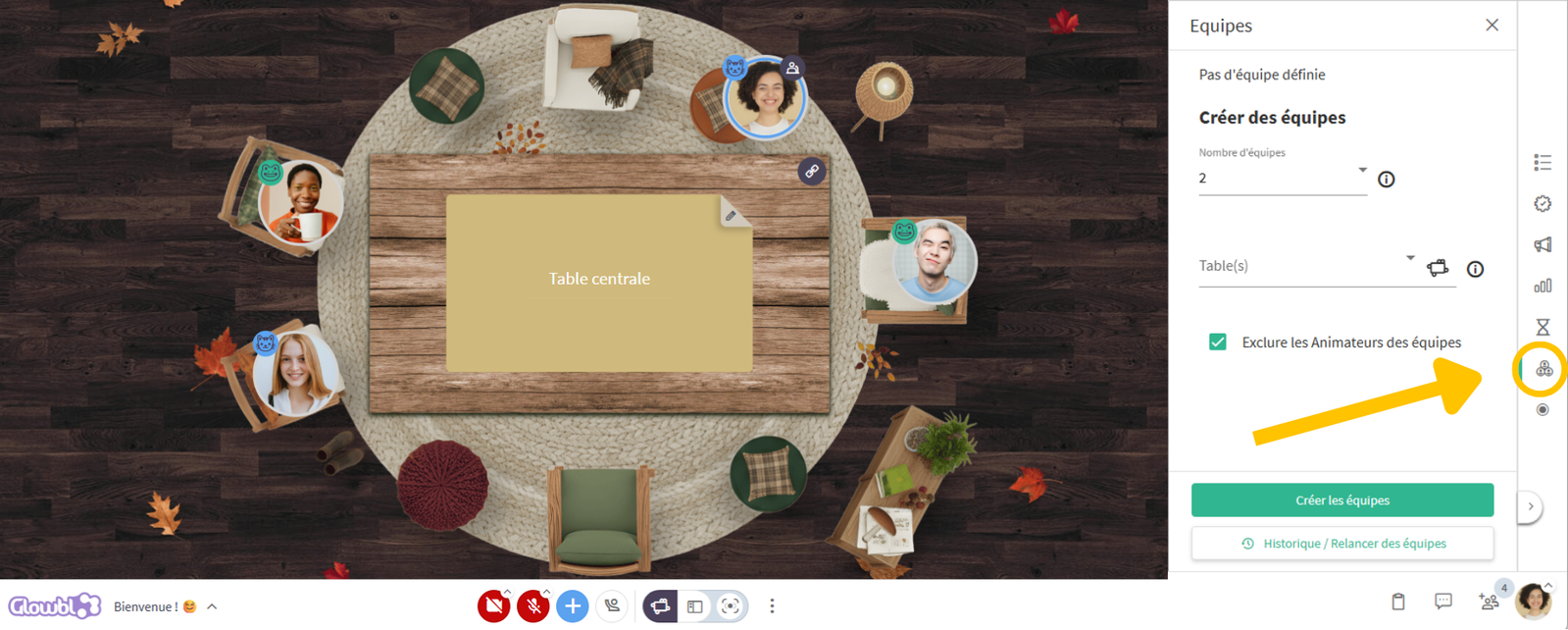
Select the Teams  tool located just below the timer
 in the right-hand facilitation toolbar, then :
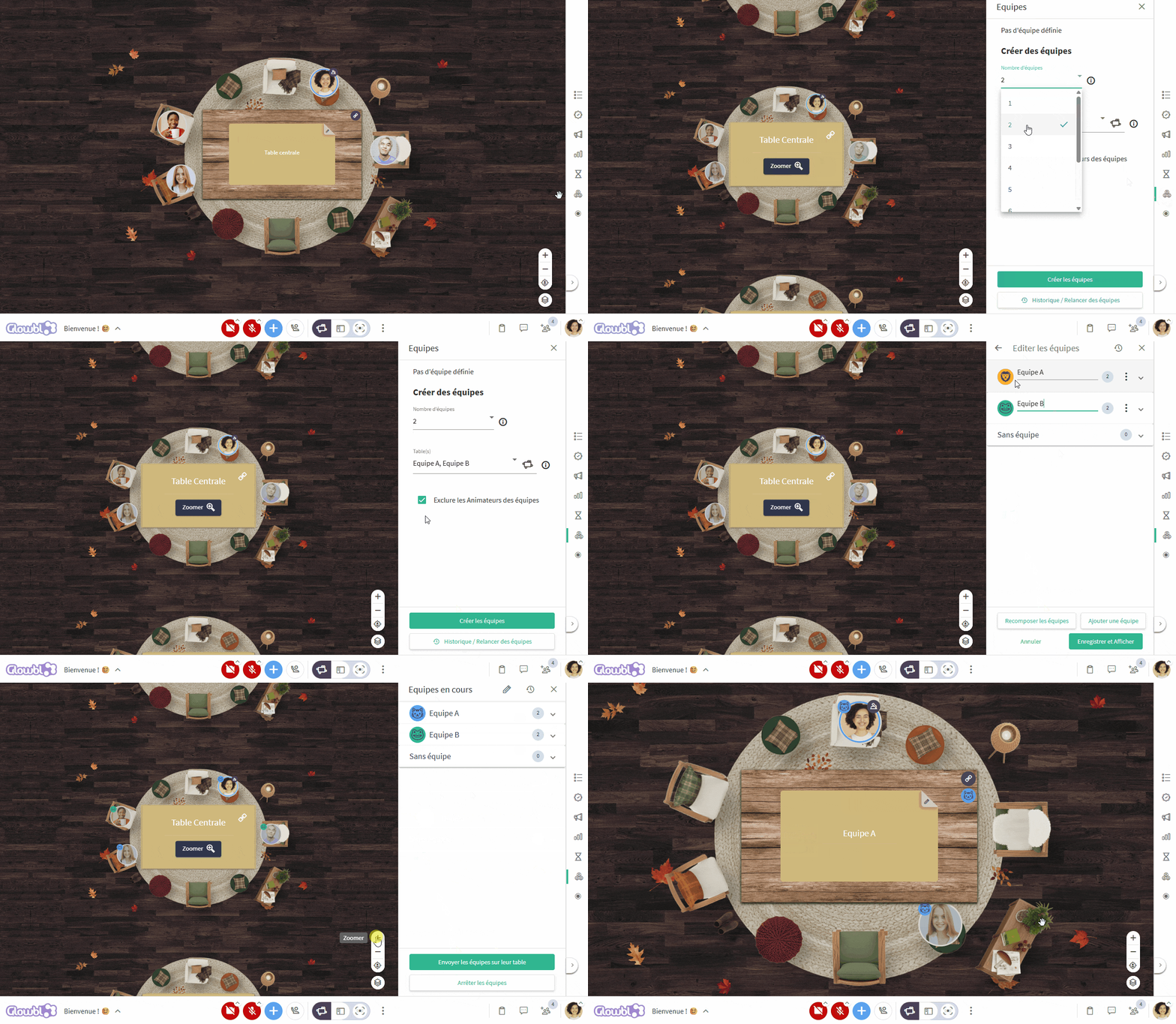
- Choose the number of teams (from 1 to 9).
- Select whether or not to assign tables to teams using the list view or spatial view.
- Check or uncheck the box to exclude facilitators from the team set-up.
- Click on Create teams. The tool generates a random distribution that you can modify (see Adjust composition).
- Once you've made your adjustments, click on Save and Display. Badges (icon + color) appear instantly on participants' bubbles, but no one has yet been moved.
- To physically move all participants to their respective tables with a single click, click on Send teams to their tables.
- When you're ready to finish working as a team, click on Stop teams. The badges disappear and this composition is saved in your History (see below).

What about returning to the main table? This first version of the Teams Tool does not include automatic return to the central table. In the meantime, a possible trick is to stop your teams at the end of an activity (don't worry, your current team composition is automatically saved in the History) and then create a new, single team made up of all your participants, assigning them the main table.
Adjust team composition
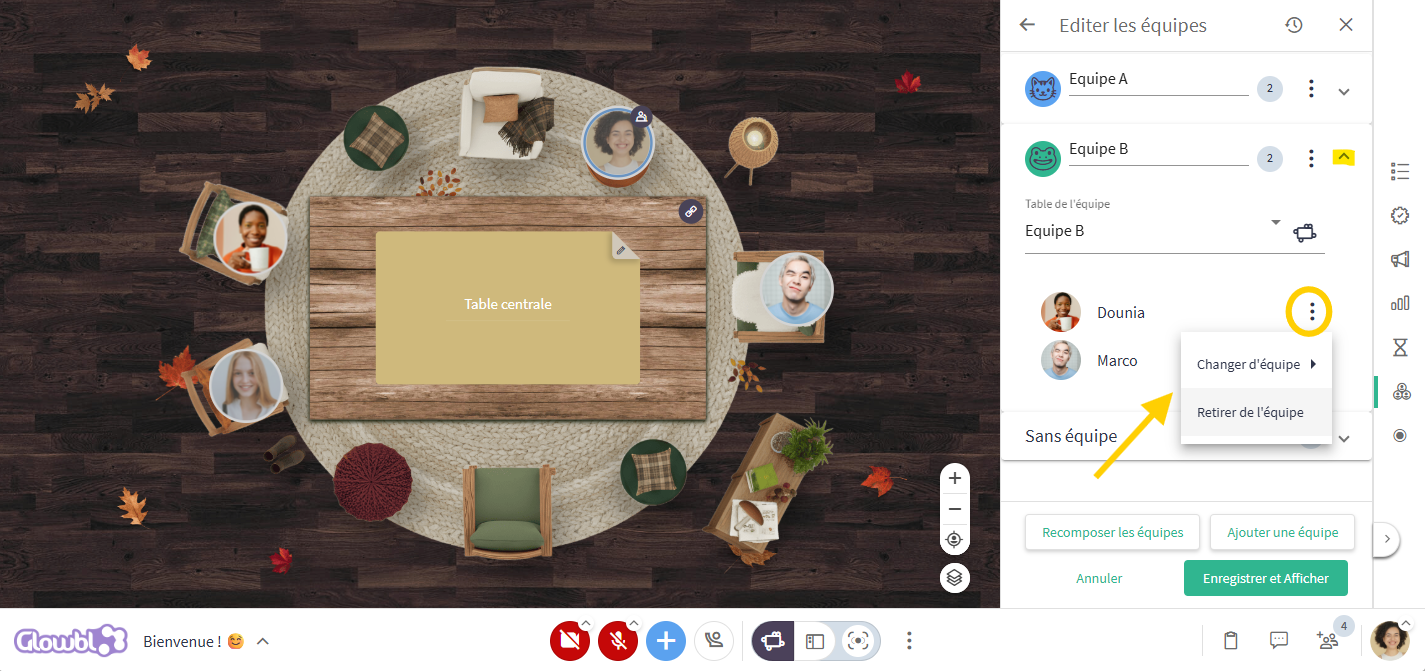
Once you've clicked on Create teams, the system will propose a random distribution of participants, and you can :
- Modify each team's badge (color and icon) by clicking on it.
- Edit team names
- Change team table
- Change a team participant by unfolding the composition using the small downward-pointing arrow to the right of the group name. Then click on the 3 dots
 of the person you wish to move.
- If you remove a participant from any team, he or she will land in the "Without team" folder in the same way as Facilitators when they are excluded from the team composition. It is always possible to move these people again.
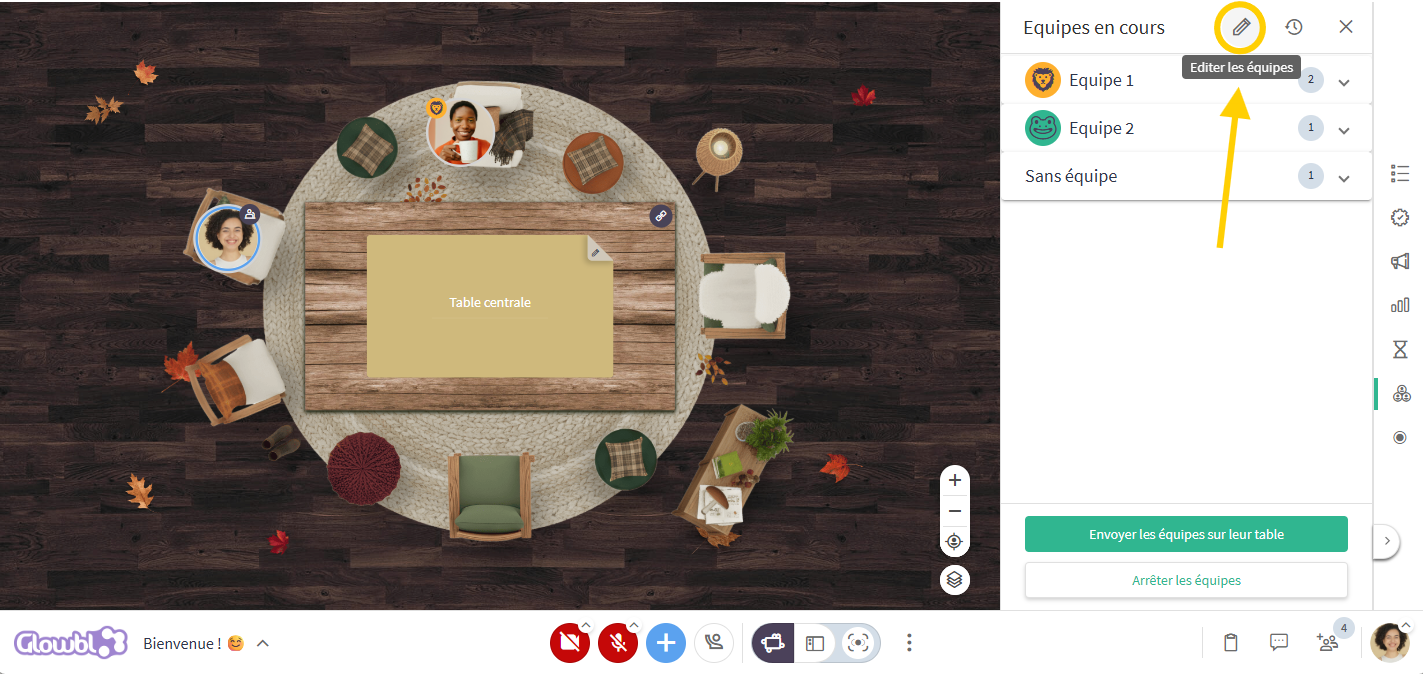
Modifying teams in progress: Even if teams have already been displayed or sent to tables, you can return to this adjustment screen. Simply open the Teams tool and click on the Edit Teams (pencil icon  ) at the top of the tab to make your changes live.
Add / Remove a team
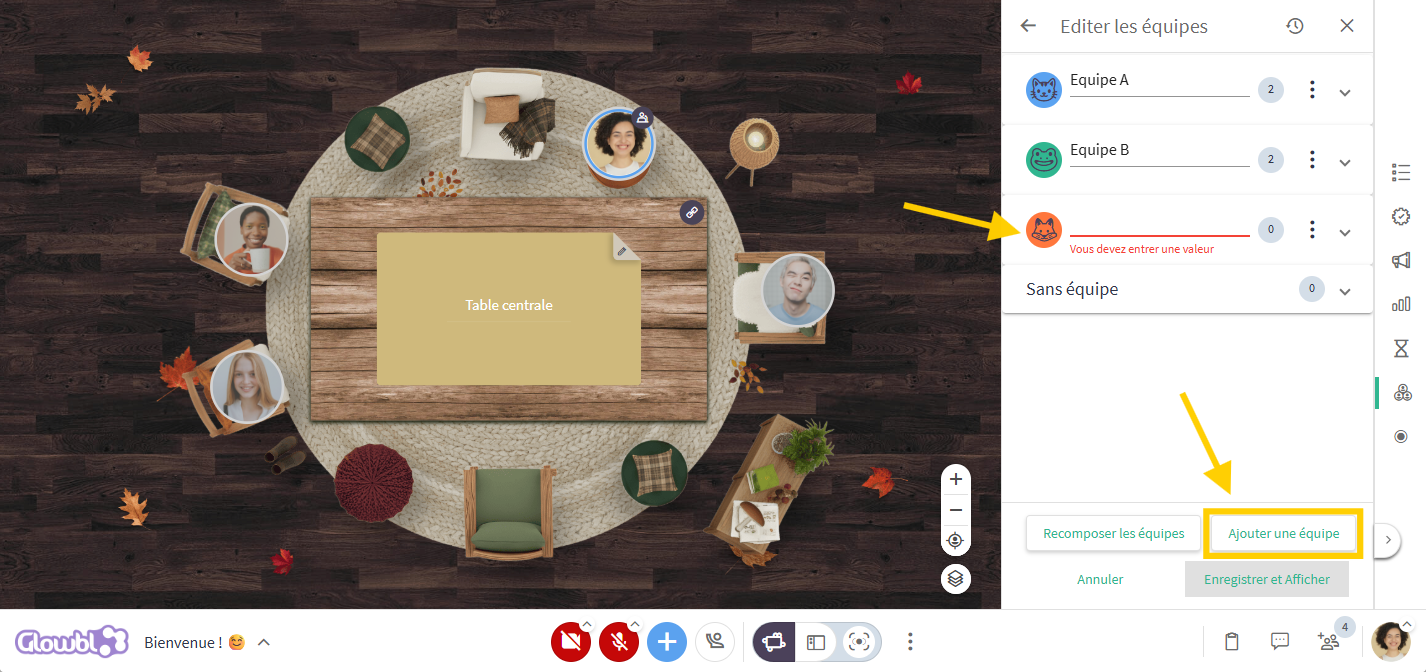
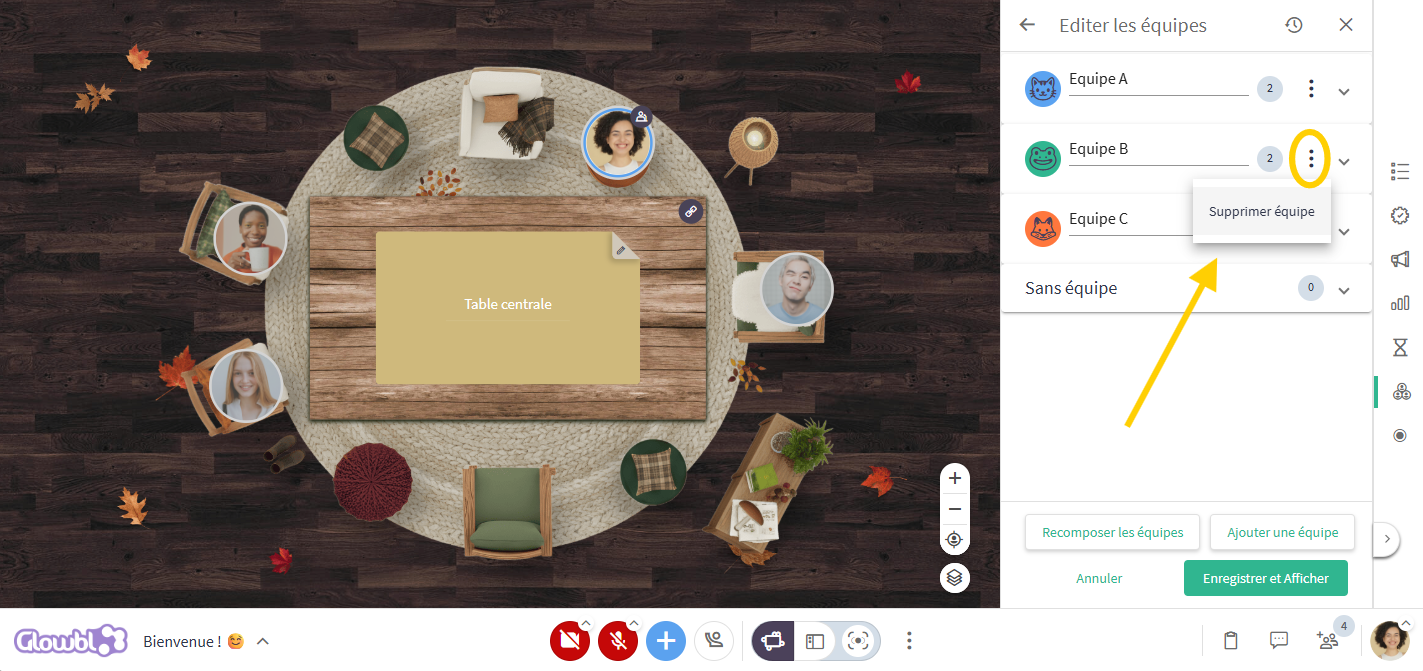
If you find that your groups are too big or too small, you can add an extra team by clicking on the button at the bottom of the tab. Or delete an existing team by clicking on the 3 dots to the right of its name.
Recompose teams completely
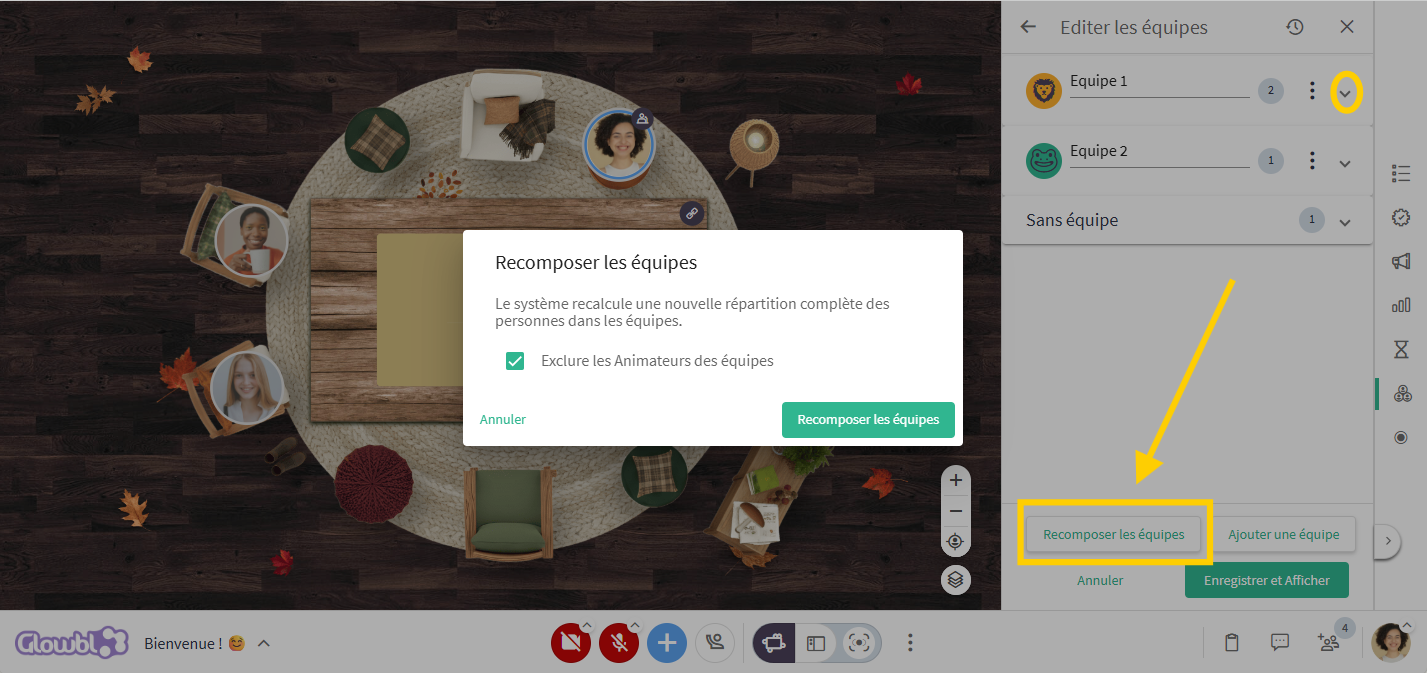
You can check the composition of each team by clicking on the small downward-pointing arrow to the right of each team name. You don't like any of the teams and don't want to move them one by one? Click on the Recompose teams button and the system will recalculate a new, complete distribution of participants.
A visual identity for easy identification
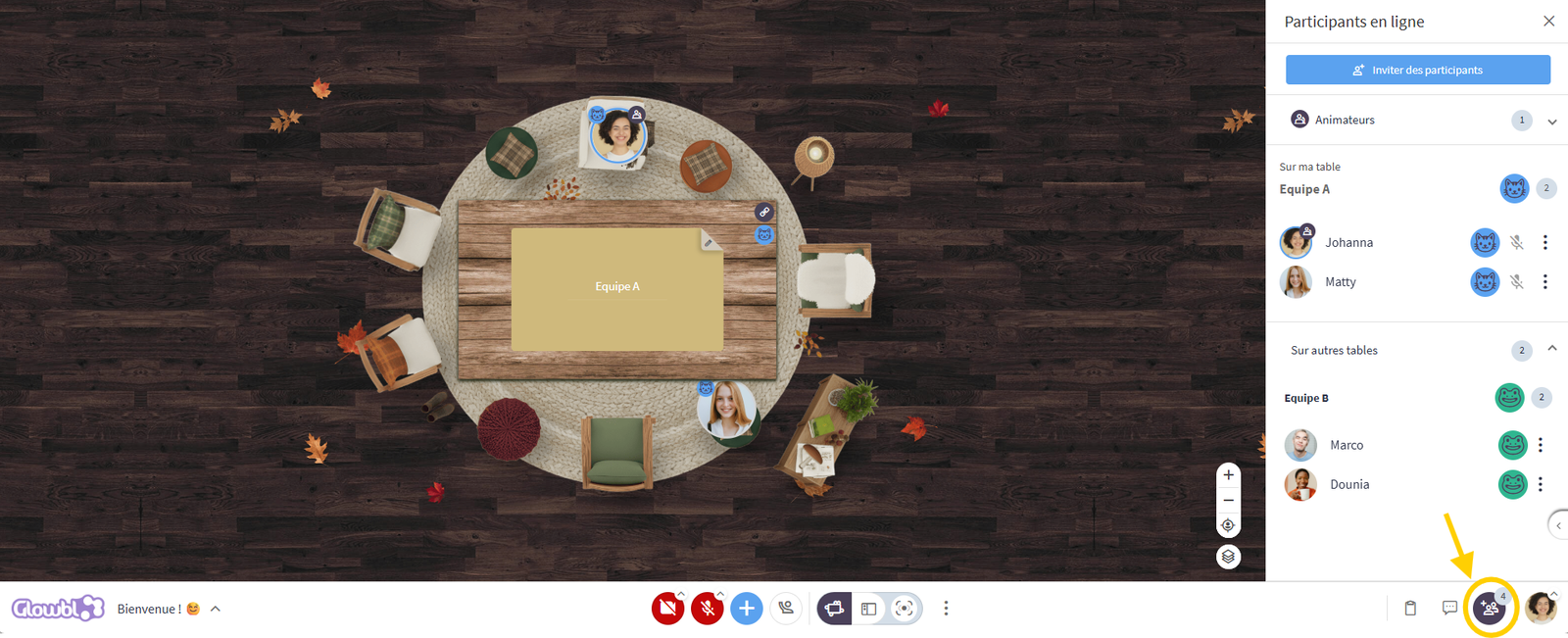
For immediate identification, each team is given a name and an icon (an animal + a color). This identity is visible in the form of a badge :
- on the bubbles (in all display and animation modes!)
- on the table associated with the group;
- in the Participants tab.
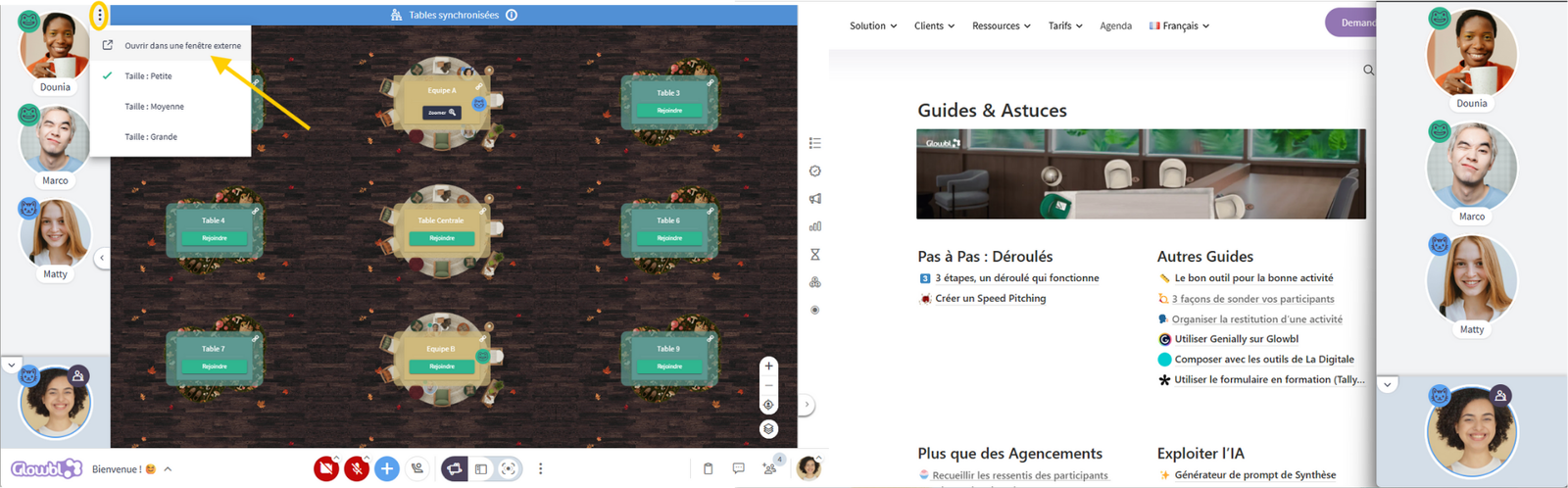
This visual identity, combined with the fact that even after being divided up, participants remain free to move around, opens up new pedagogical possibilities:
- Mix the members: "Now, each group must be made up of two mice 🐭 and two frogs 🐸!"
- Facilitate feedback: When returning to the central table, you can keep the team display. This is perfect for spotting which group each speaker belongs to, for example during a Collaborative Quiz.
Relaunch teams (History)
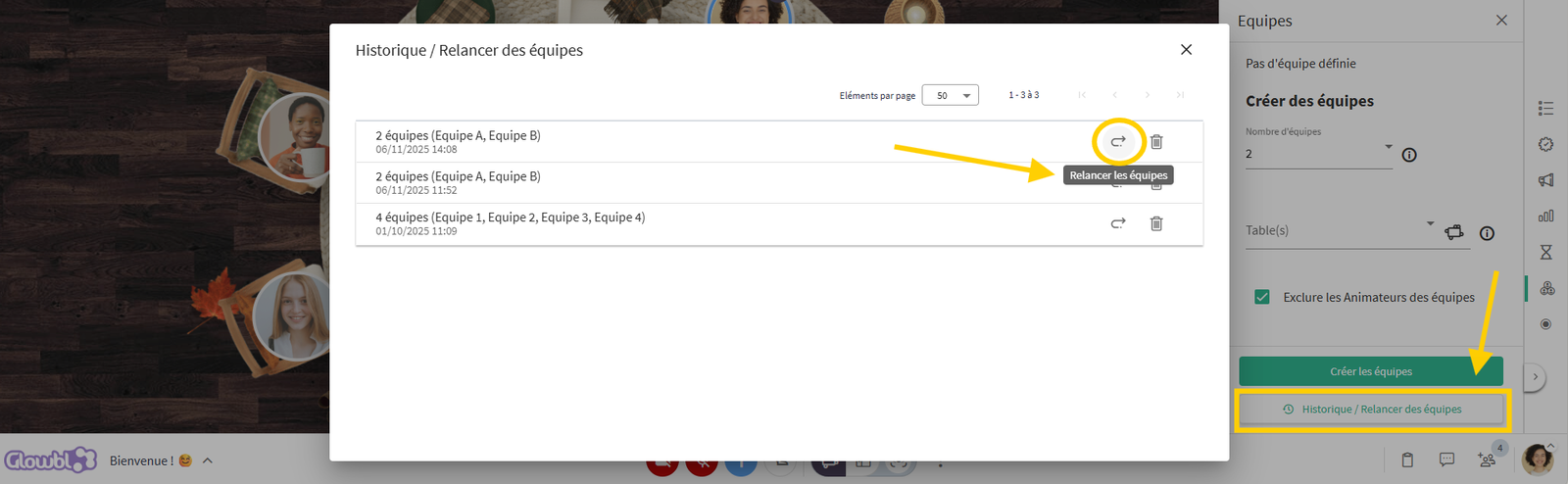
When you click on Stop teams, their display disappears, but the composition is automatically saved.
To use it again, click on the History button at the bottom of the tab:
- You'll find a list of your previous line-ups.
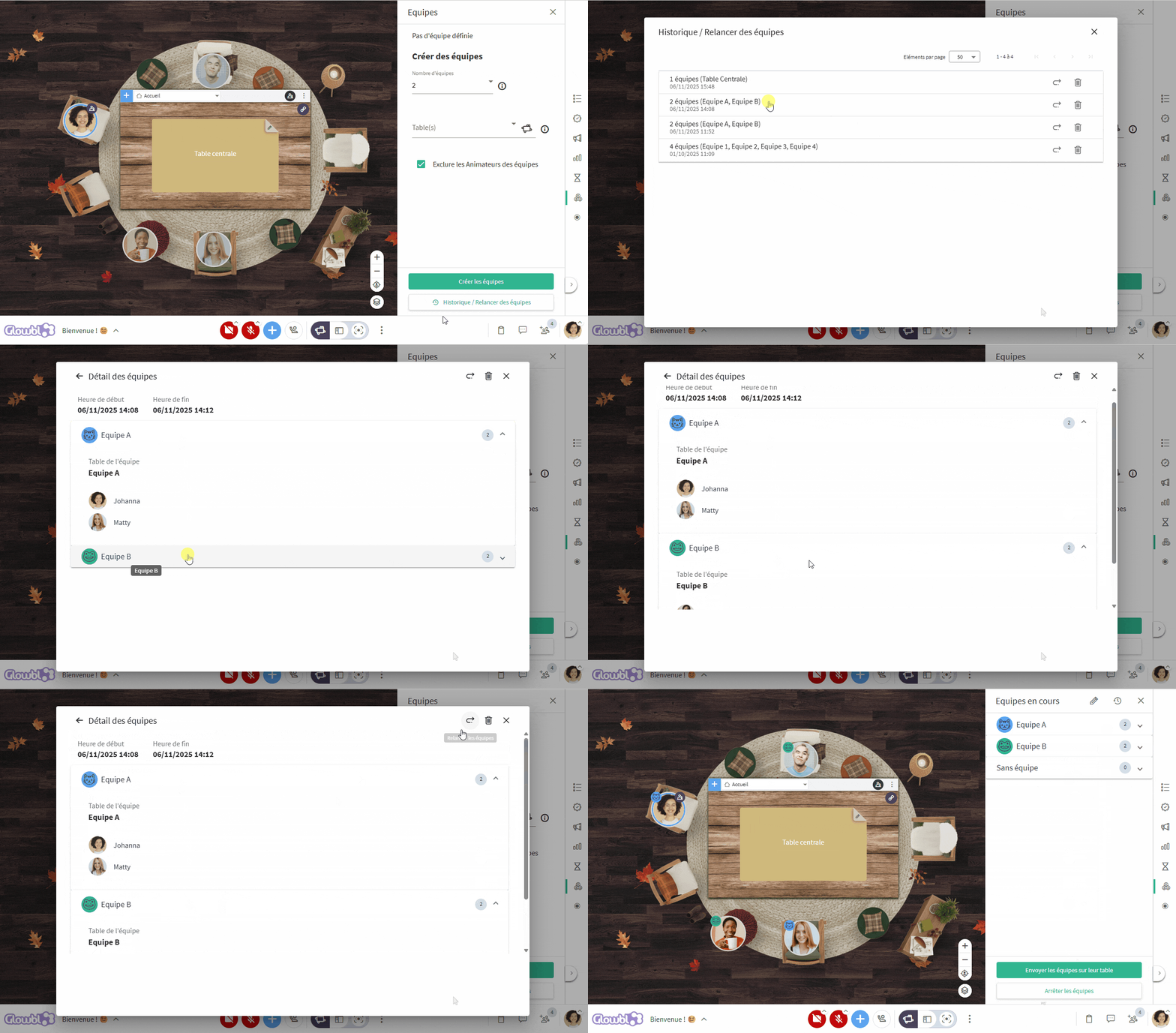
- Click on a composition to check it, or on the Relaunch teams icon (arrow icon ) to reactivate it immediately.
This allows you to do two things:
- Within the same session: You can easily alternate between plenary work and your groups, by relaunching the same composition with a single click.
- Between different sessions: You can find teams from a previous session, even several days later (this works if your participants log in with their Glowbl account).
Our vision: a balance between automation and autonomy
As you may have noticed, we chose the term "Teams" rather than "Groups". After some debate, we decided on the word "Teams" because it conveys a dynamism and ebullience that we want to encourage. We hope it will inspire you to develop your own serious (or less serious) games!
Pedagogical note: While this feature is extremely practical, we'd like to remind you that one of Glowbl's great strengths is to make your participants actors of their own learning.
So keep teaching them to move around on their own. Encouraging participants to make the space their own develops their autonomy and their desire to find their way around. And we're not going to teach you this: we're always more productive and attentive in a space where we feel good.

You may also be interested in:
 Moving around