October 2026 — Release 6.1
Full details on our blog.

FEATURES
✨Ask the Glowbl Assistant for Help (Beta)
Need help adjusting your microphone or camera, or finding a feature? The Glowbl Assistant answers your questions and guides you through resolving technical issues. Available to all users, it helps participants become more self-sufficient and allows hosts to focus on their session.
⚙️ Access: Click the star icon ✨ in the lower-right corner of your screen.

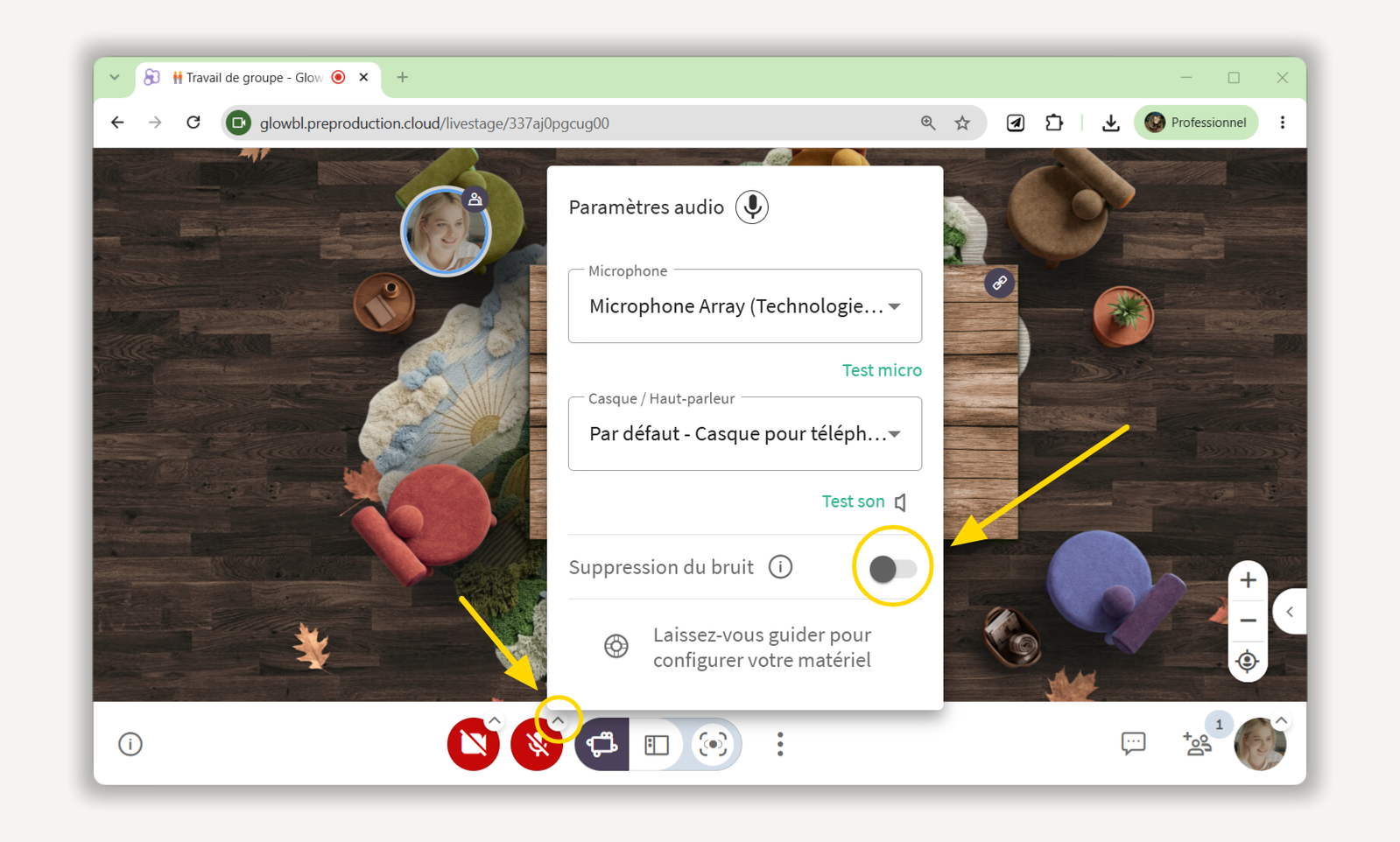
🎧 Reduce background noise
Enable ambient noise suppression to limit unwanted sounds picked up by your microphone (work noises, background noise, etc.). This is especially useful if you’re not using headphones or an external microphone! Your preference is saved in your browser.
⚙️ How to access: Click the “^” chevron icon on the Microphone button, then enable ambient noise reduction.
💬 Communicate with other facilitators

A new private chat channel brings together all the facilitators in the same space, away from participants’ view. Coordinate your contributions, share instructions, or report an unexpected issue without leaving Glowbl. No need to use an external app to communicate behind the scenes!
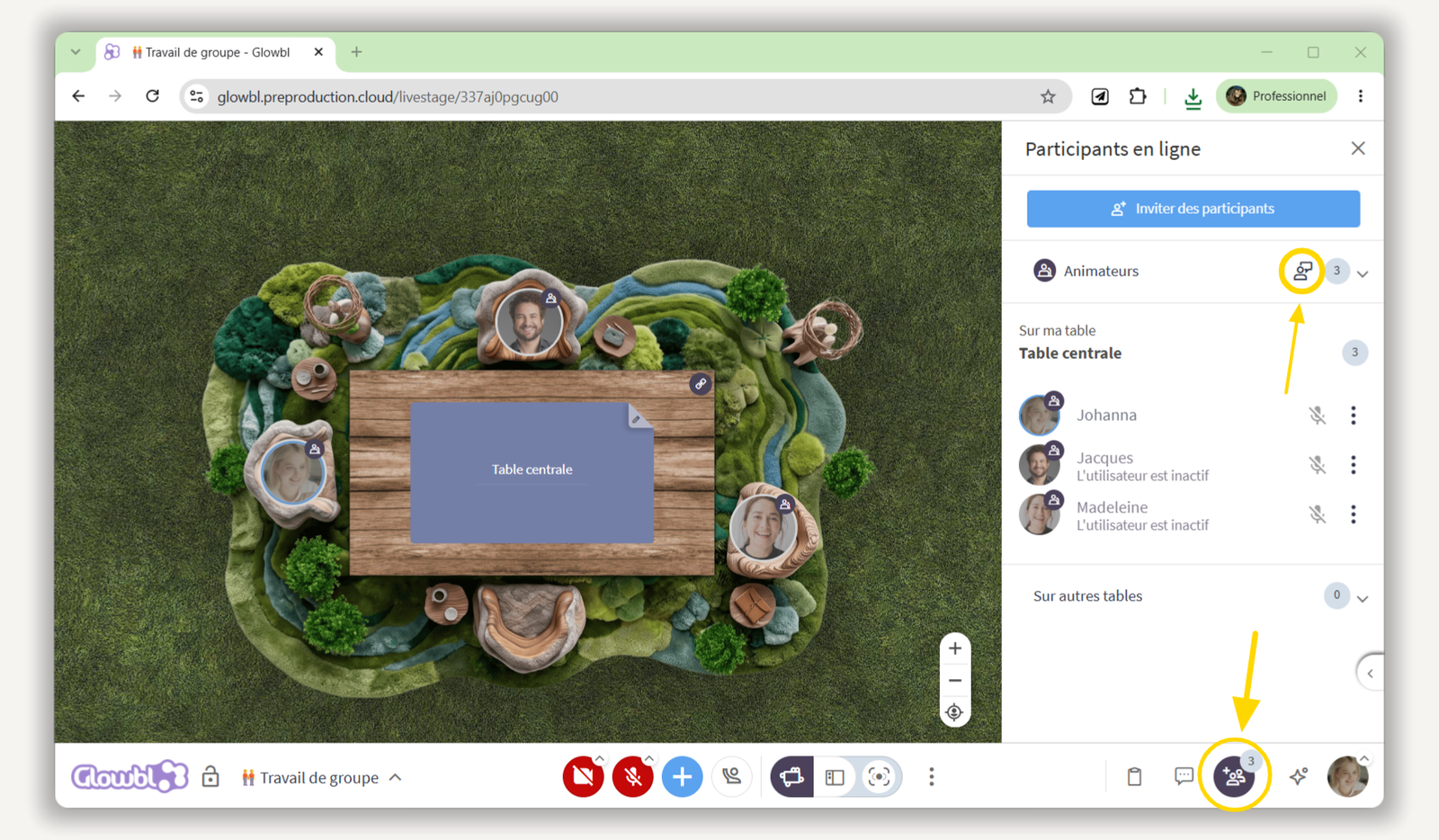
⚙️ Access: The host chat is always open in the Private tab of Live Chat. For even faster access, open the Participants tab , then click the icon showing a person and a speech bubble at the top of the Facilitators list .
🛋️ Create Your Personal Layout Library

Find the layouts you’ve created or imported directly in your layout library. Organize them into personal folders and also access layouts shared by your organization. This makes it easy to reuse your favorite layouts across all your spaces, without having to store them on your computer.
⚙️ Access: hover over a table > three vertical dots > Customize Table > green pencil > Personal tab . Import your images and organize them into your folders.

🎬 Import MP4 videos directly into Glowbl (Early Access)
You can now import your MP4 video files directly from your computer, up to 250 MB per video. Playback is synchronized for all participants, except for the volume, which remains individual. Save your videos to your personal library or your organization’s library, then reuse them in your spaces and sequences.
💡 Tip: Use “Speech Only” permissions to prevent participants from pausing the video.
⚙️ Access: Click the blue + (Project New Content) > Video Player > Import a File.

👥 See how many people are online before entering
You can now see how many people are in a space without having to enter it. From your dashboard, hover over the new icon showing two people to view the number of users currently online. This is handy for checking if your participants have arrived or if a previous session has ended!

🗺️ Create interactive maps to navigate between tables

Turn your PDF documents into real navigation maps in Glowbl! Embed links to different tables in a floor plan, board game, or treasure map. Participants can then go directly to the corresponding table by clicking on an element in the document, without having to reload their tab.
Links to external sites and to other slides (see below) within the PDF are also supported.

⚙️ How to do it
- Copy the link for each table by hovering over it and then clicking the Link icon.
- In your presentation editor, link these URLs to the shapes or images on your map.
- Export your presentation as a PDF.
- Import it into Glowbl via the Blue + > Document & Whiteboard > Import a File.
Your map is ready to be explored.

IMPROVEMENTS
🪟 Automatically open the floating webcam window

Keep an eye on your participants, even when you’re sharing your screen or switching tabs! The floating webcam window can now open automatically based on your preferences.
Four modes are available:
- Never open automatically.
- Only when screen sharing.
- Only when switching tabs.
- In both situations.
⚙️ Access preferences: profile photo > Profile & Preferences > Preferences > webcam behavior when opening in a new window.

🧹 Clear all content from your workspace with one click
No need to delete documents shared in your space one by one! A new checkbox lets you select all content at once to delete or open it in a single step.
This is handy for preparing a new session or resetting a shared space.
⚙️ Access: Hover over the table and open the drop-down menu for table content > Space Content > select all content.

🛜 Display 10 webcams by default
The number of webcams displayed simultaneously has increased from 5 to 10 by default, to better represent participants who have enabled their cameras and enhance the group’s visual presence.
You can still adjust this setting individually based on your preferences and the quality of your internet connection.
⚙️ Access: three vertical dots in the center of the bottom white bar > Set the number of webcams displayed.

🏢 Further customize your organization
Available only to organizations / settings depend on your license rights and configuration.
New customization options allow you to tailor Glowbl to your organization’s needs:
- Custom roles: Assign specific permissions to certain employees (creating spaces, publishing resources into the organization library, moderating all spaces, etc.). The permissions associated with each role are now described in Organization Management.
- Custom waiting rooms: Display a message tailored to your situation or contact information for someone to reach.
- Seats Reserved for Facilitators: Adjust the number of reserved seats to ensure your facilitators have access, even when the space reaches maximum capacity. 💡 Reminder: By default, two seats are reserved for facilitators on Organization licenses, and one seat on Individual and Discovery licenses.

Contact your account manager to adjust these settings to meet your needs.
STABILITY
🫧 Fixed the display of options when hovering over participant bubbles
The issue that sometimes prevented information and options from appearing when facilitators hovered over certain participant bubbles has been fixed. You can now access all available actions (change tables, chat privately, spotlight a participant, modify their permissions, or mute their microphone) without having to reload the page!

🎤 Audio device memory
Did you used to switch headsets or microphones between sessions and sometimes have to reconfigure your audio devices? That’s been fixed! By selecting the “Default” option in your audio settings, Glowbl now automatically recognizes the device set by your computer, even after a hardware change.

July 2026 — Release 6.0
Full details on our blog.
FEATURES
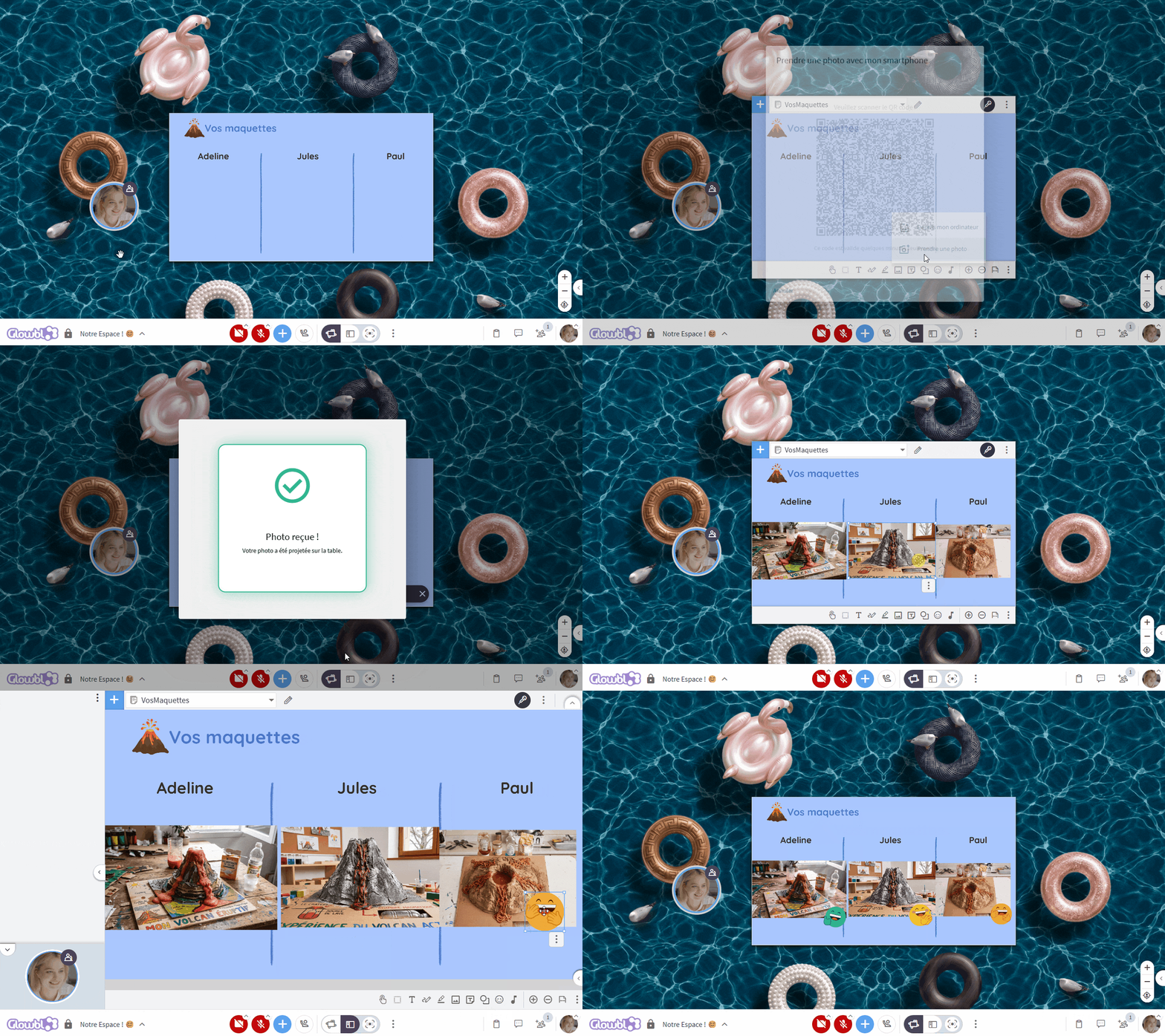
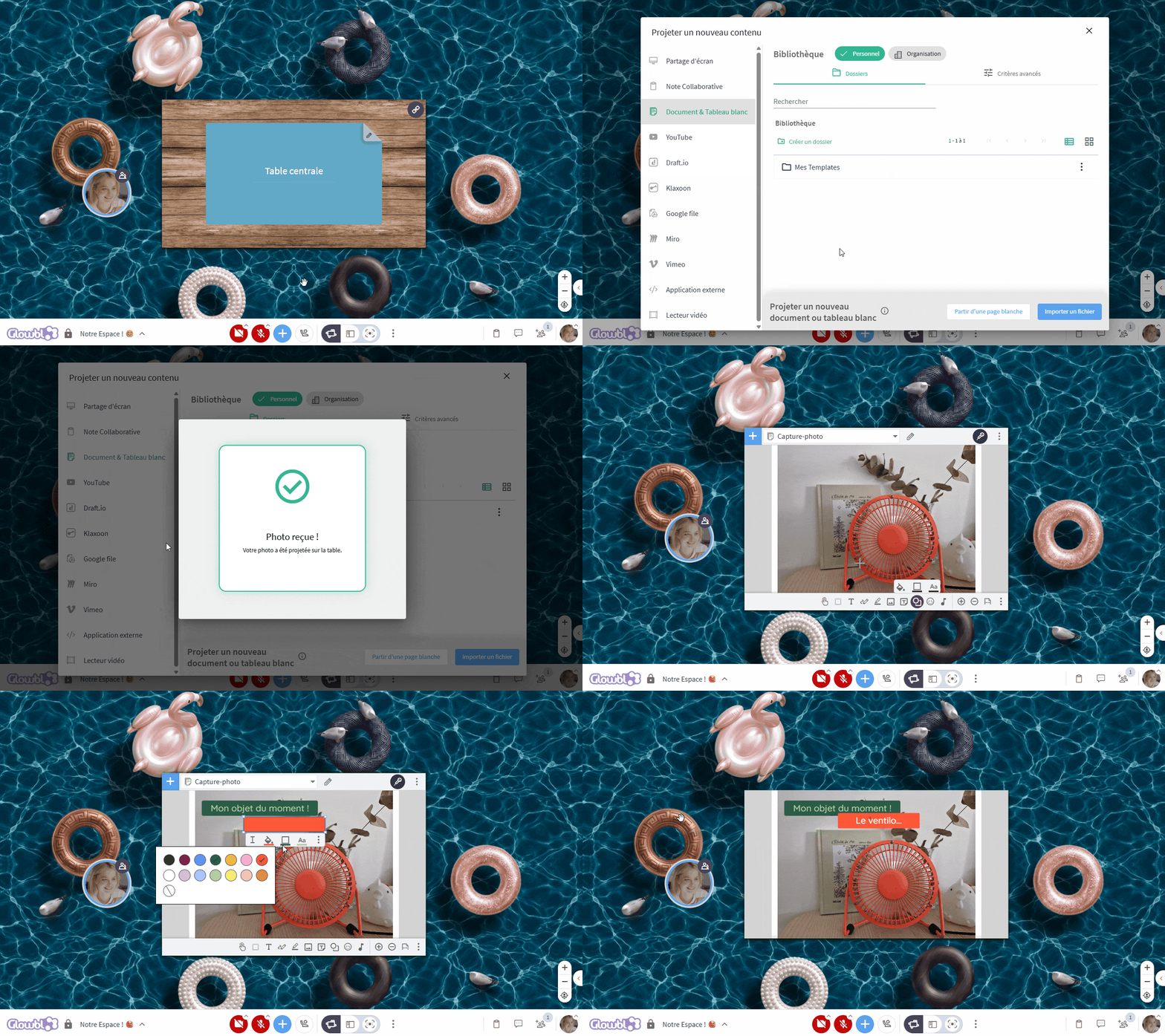
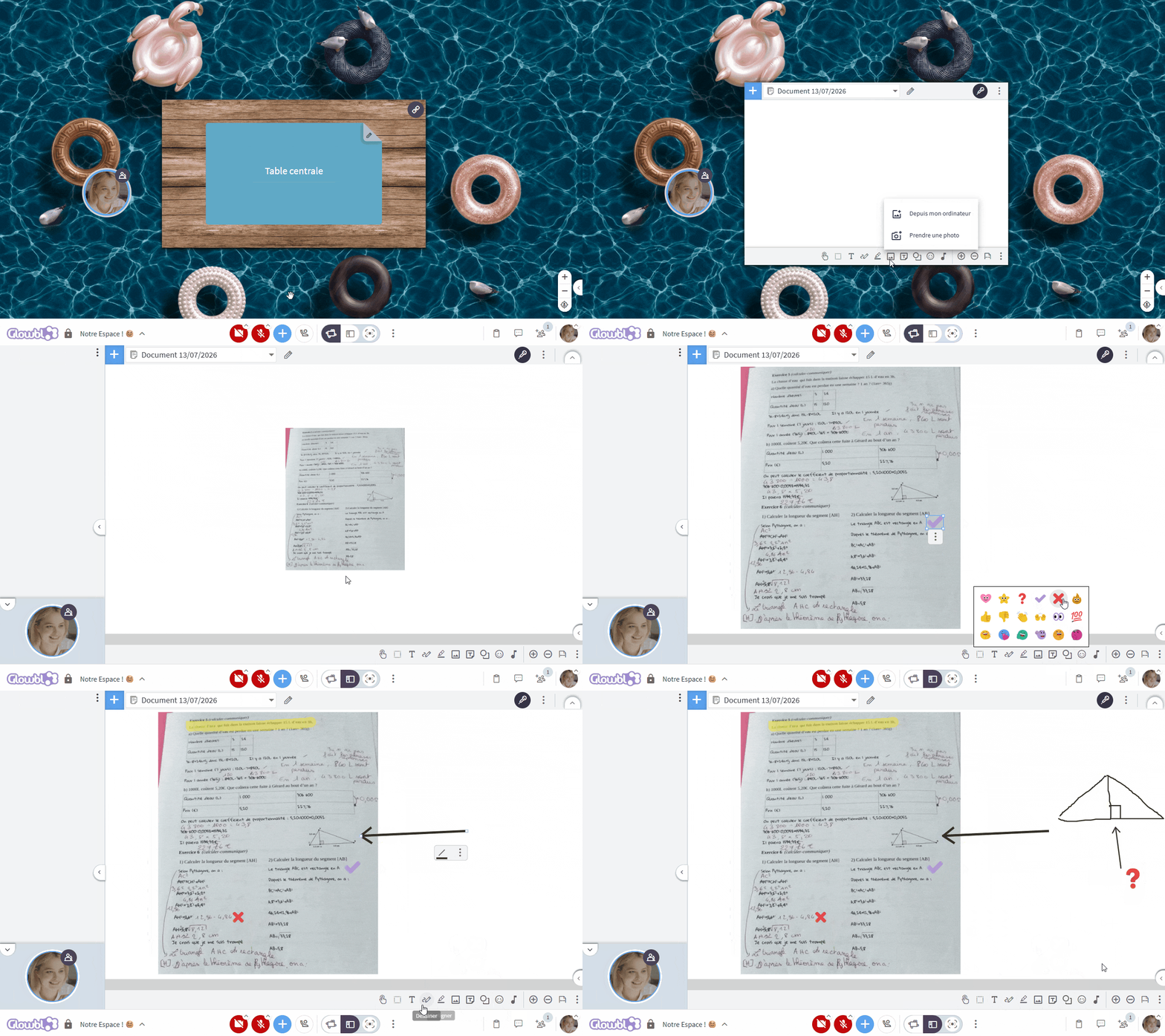
🤳Project and annotate photos from a smartphone
Import images directly from a smartphone onto the screen or embed them into a document currently being projected (PDF / Whiteboard) by simply scanning a QR code, with access to annotation tools. This puts real pens back in your participants’ hands: have them draw, sketch, and calculate—then grade their work! This feature is also great for icebreakers or team-building activities centered around your photos.
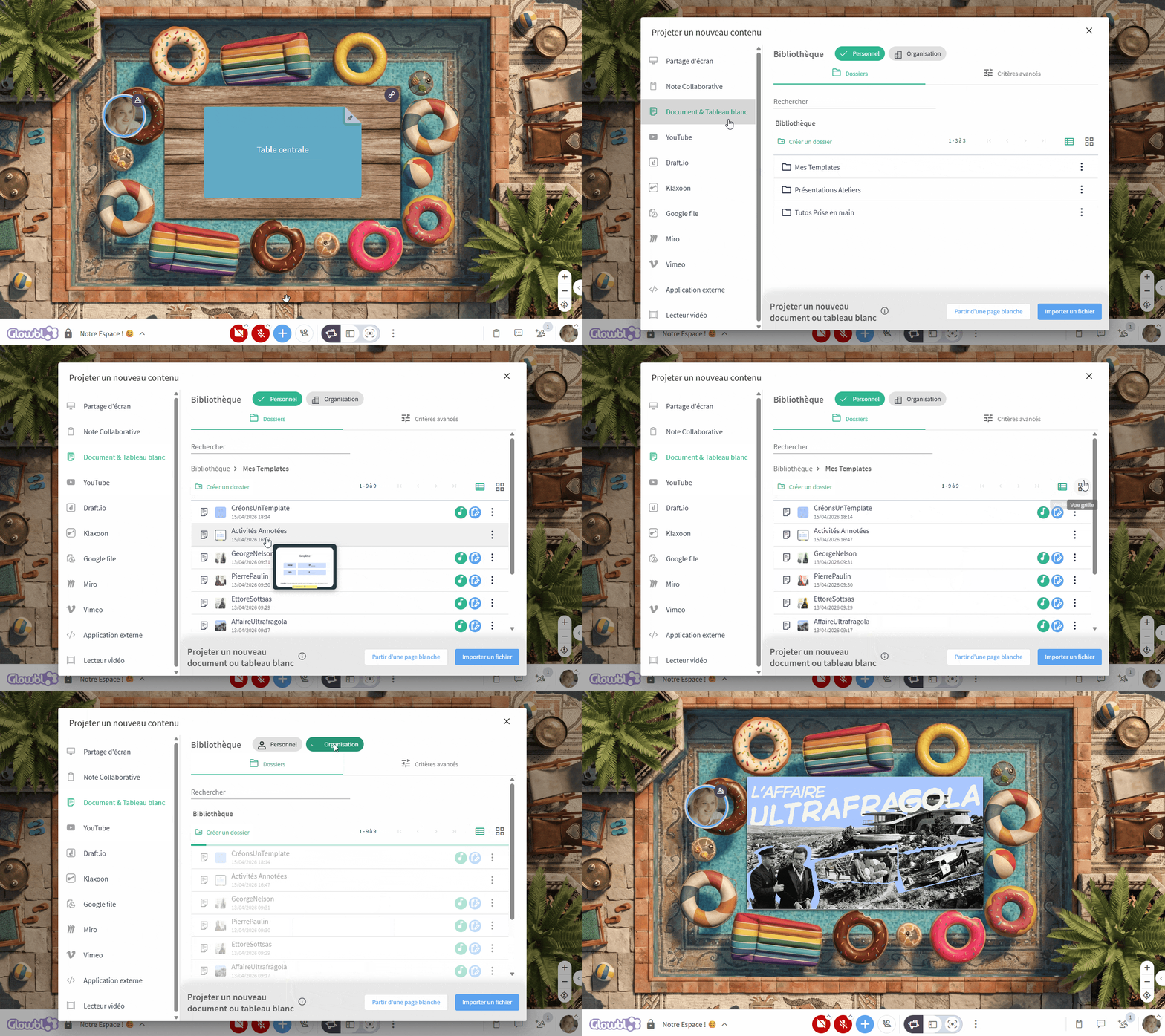
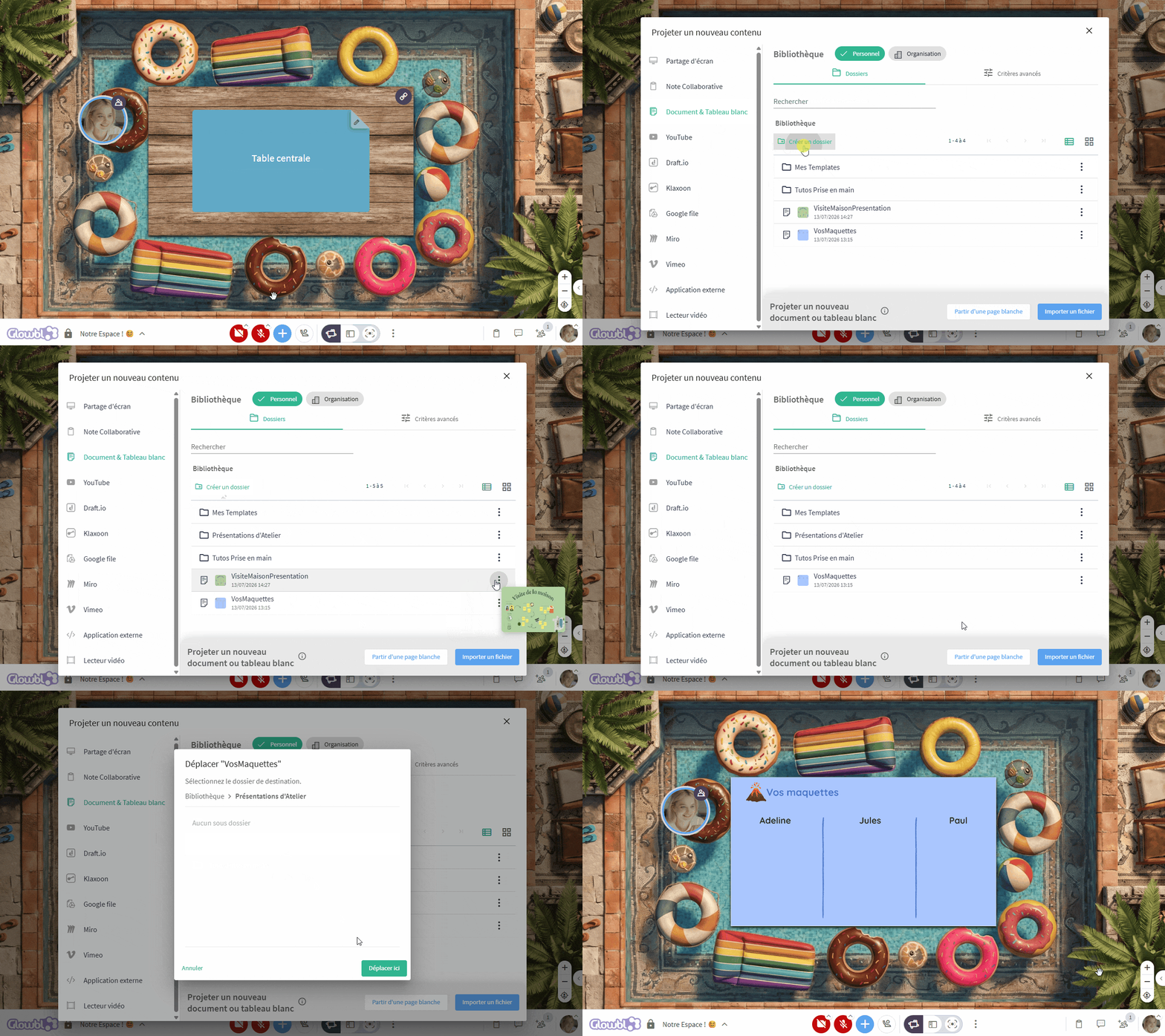
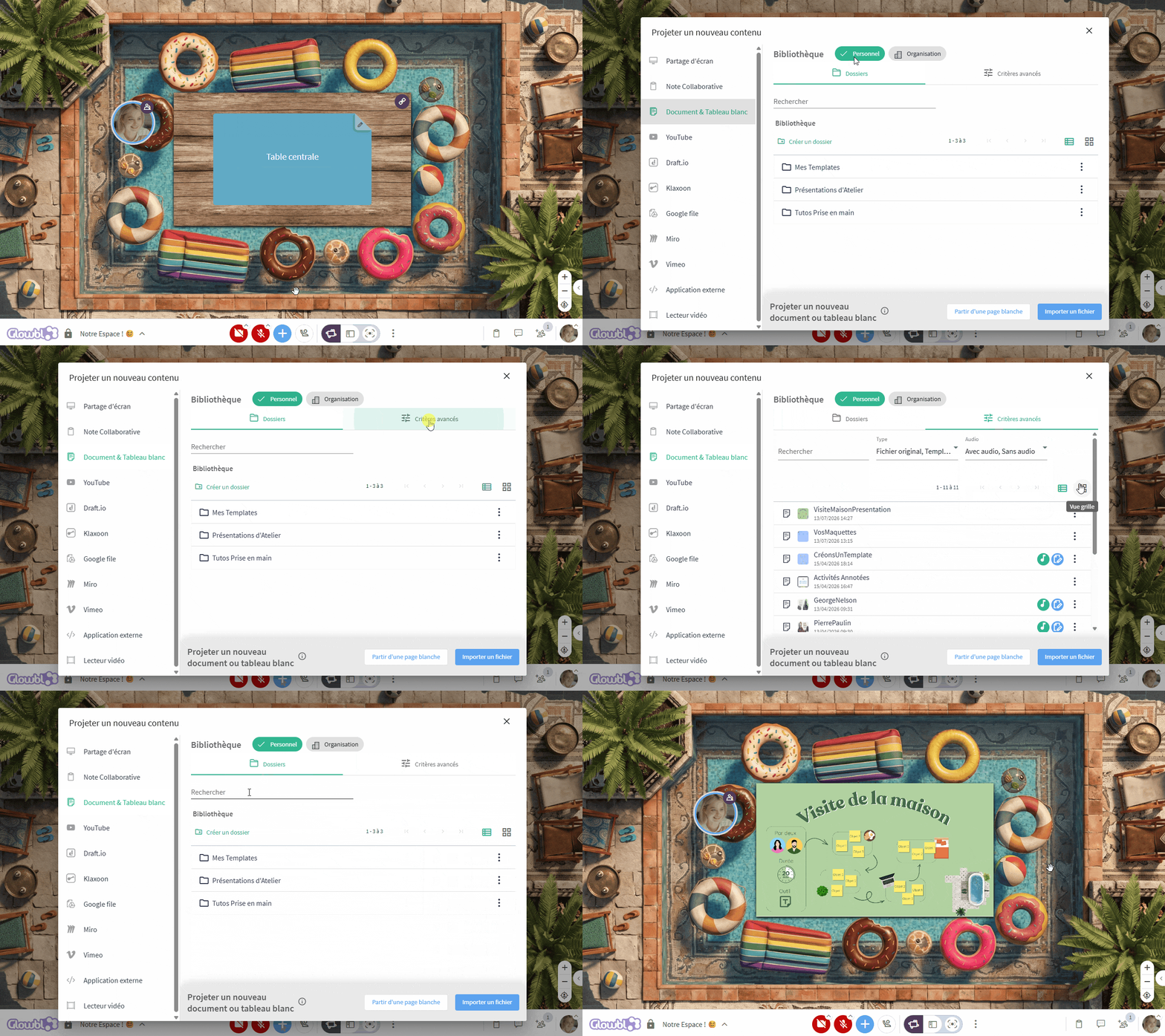
🗃️Create folders in the document library (Organisation/Personal)
The interface for importing PDFs and whiteboards has been redesigned and now includes folder tree management. You can organize your documents and templates across two levels: the personal library (for your own use) and the organisation library (to share up-to-date versions with all facilitators).
💡Reminder about permissions: Only super administrators can publish content to the Organisation library (via the three dots on a document > Access Management). Contact us to create a dedicated instructional designer role.
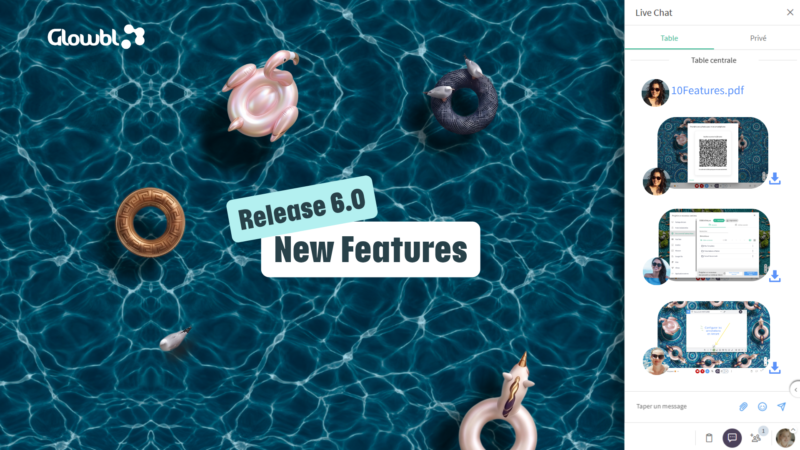
🖇️ Share attachments in Live Chat
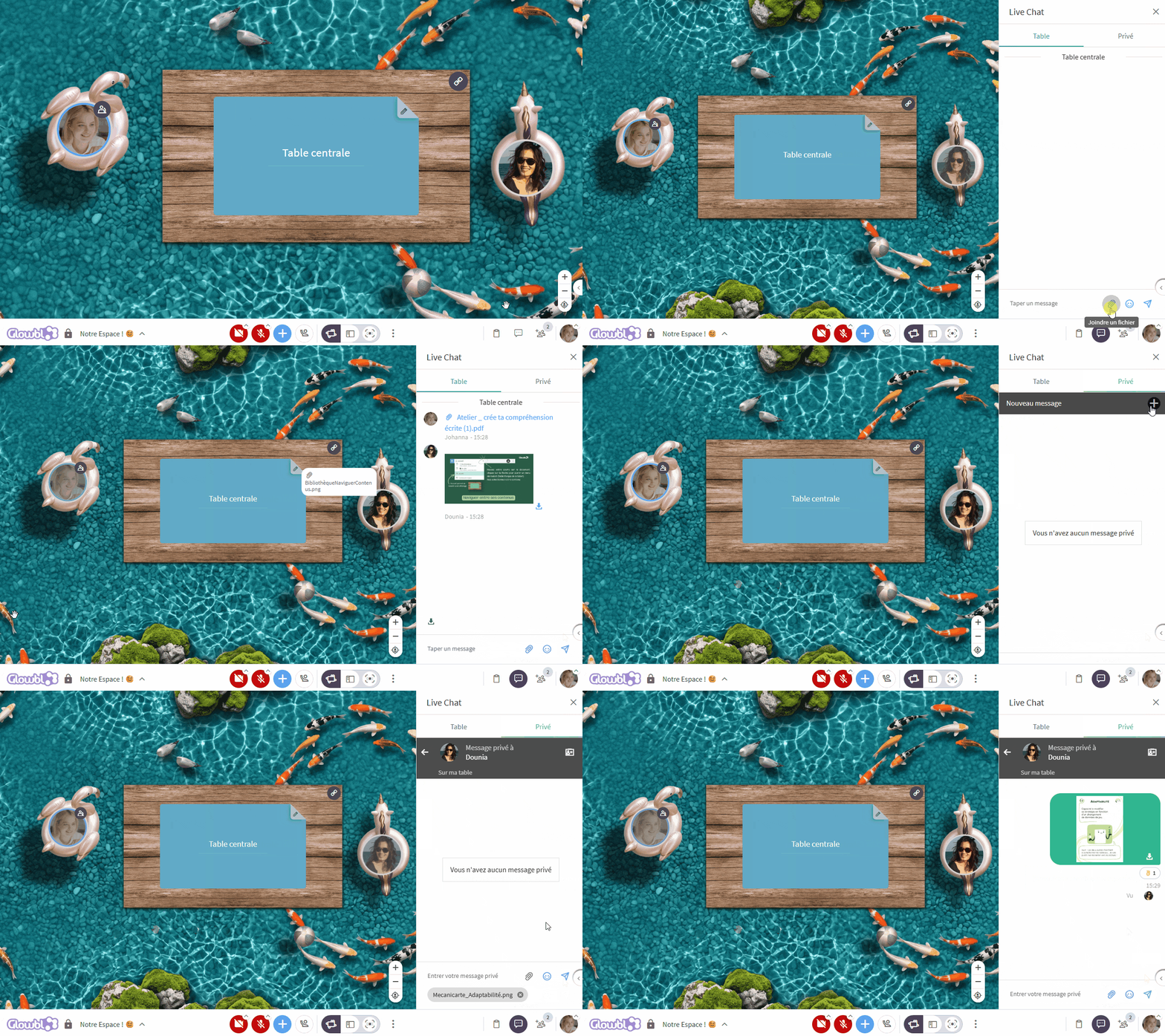
You can send files (images with previews, PDFs, ZIP files) directly in the public chat or in a private chat by dragging and dropping them or by clicking the paper clip icon .
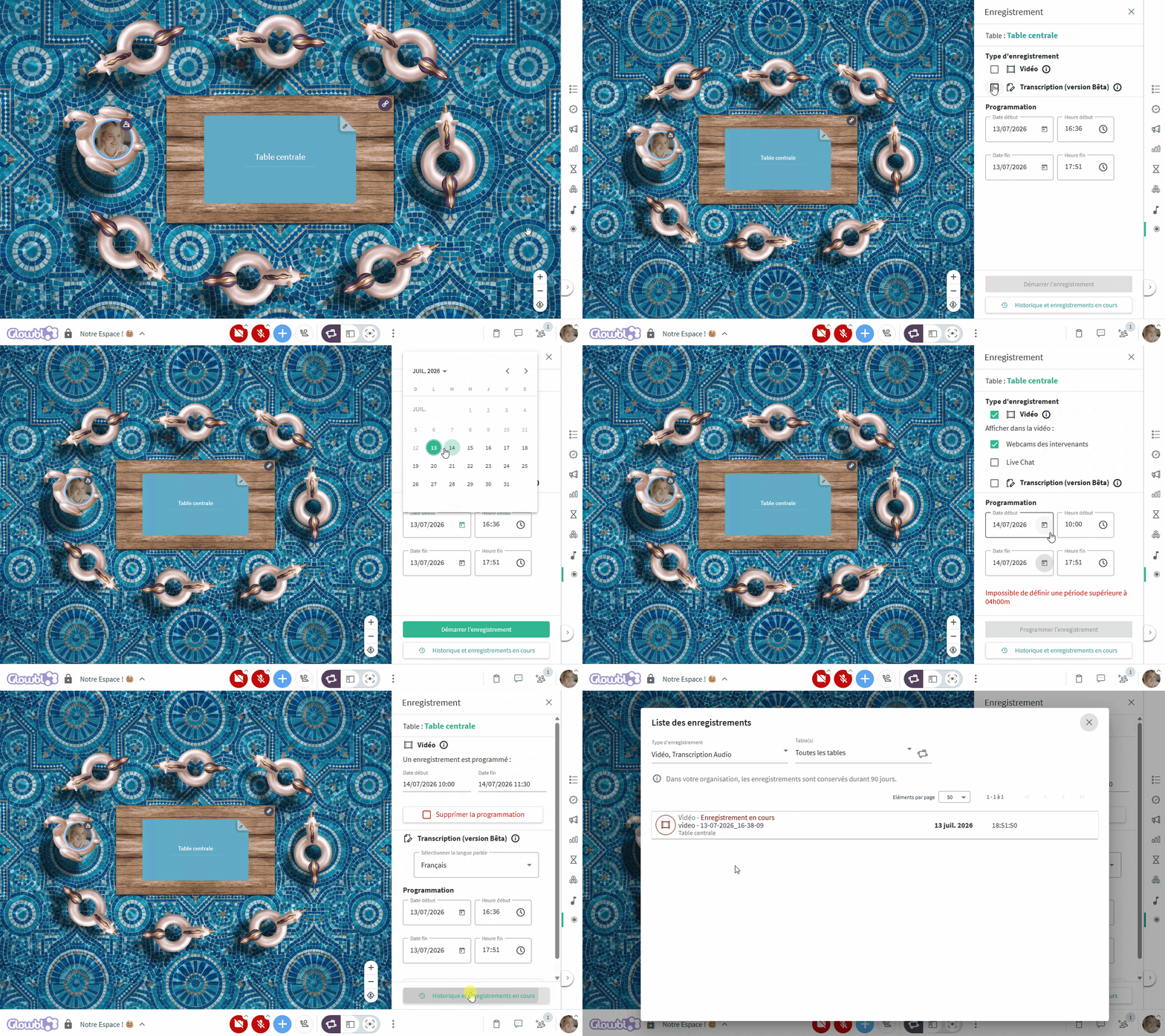
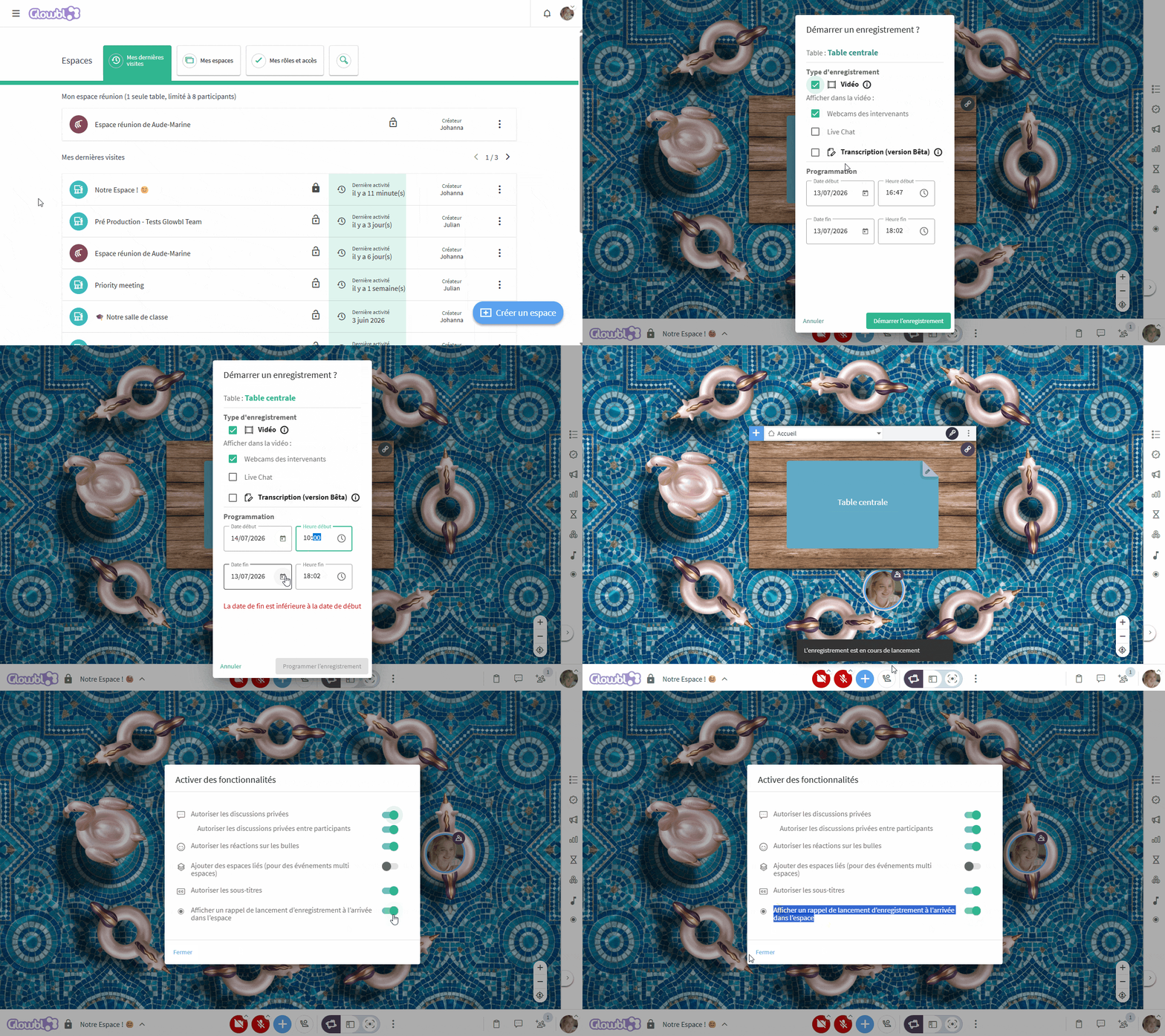
⏺️Schedule a video recording / transcript
Schedule the automatic start and stop of a video recording or text transcription in advance so you never forget to record your session! An option available in the space’s settings allows you to display a reminder message prompting moderators to start recording when they log in.
📊 Organisation Management :Export Ready-to-Use Attendance Records
(Available only to Organisation Managers and Super Administrators)
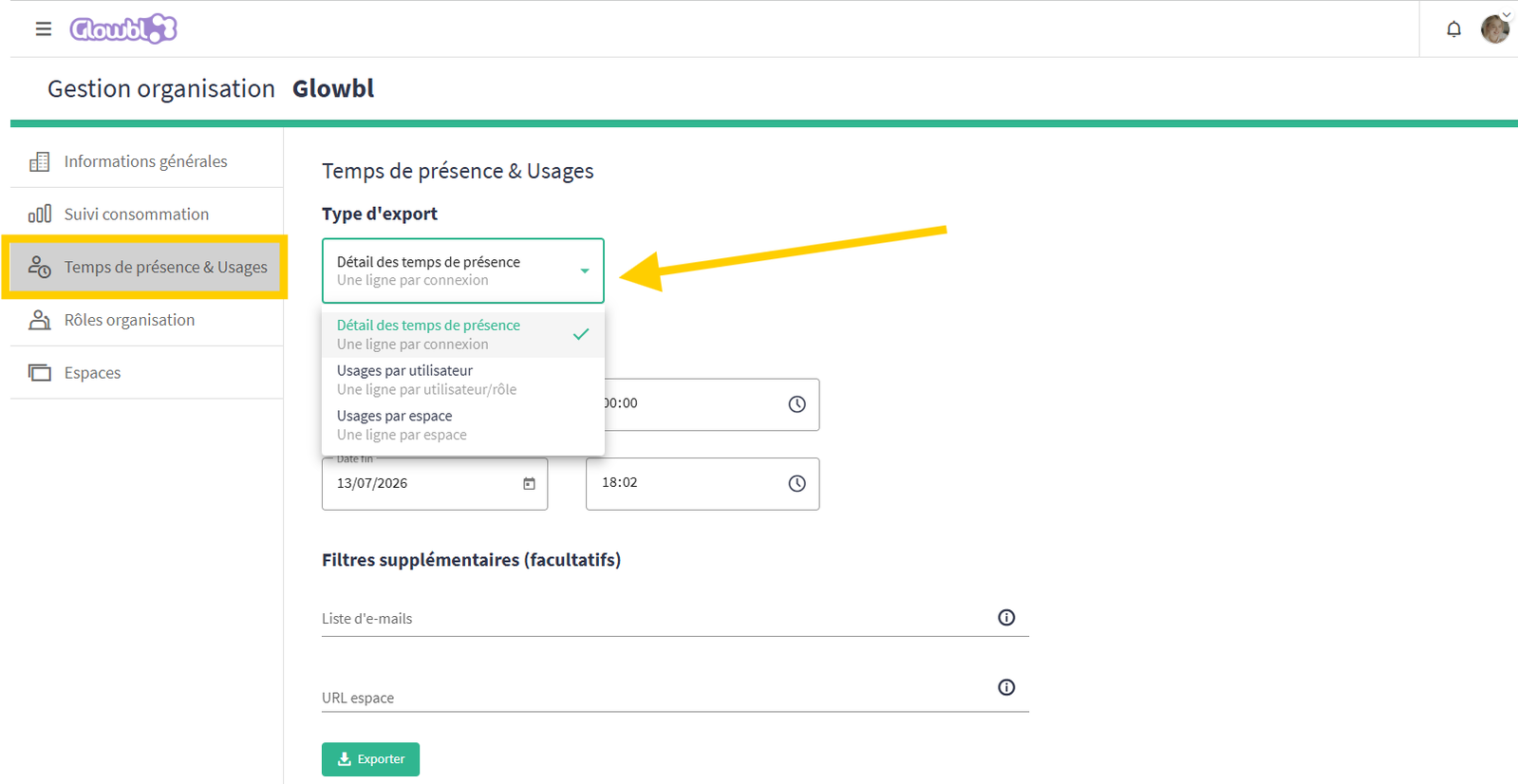
Three CSV/Excel data export formats are available to eliminate the need for manual data processing:
- Attendance Details: Generates one row per login (standard format).
- Usage by User: Automatically consolidates each user’s activity, showing the number of sessions, total duration, and average session duration (only sessions > 30 seconds) per user, broken down by role (Host vs. Participant).
- Usage by space: Generates one row per space, compiling the total number of sessions, the number of associated moderators, and the number of unique visitors.
IMPROVEMENTS
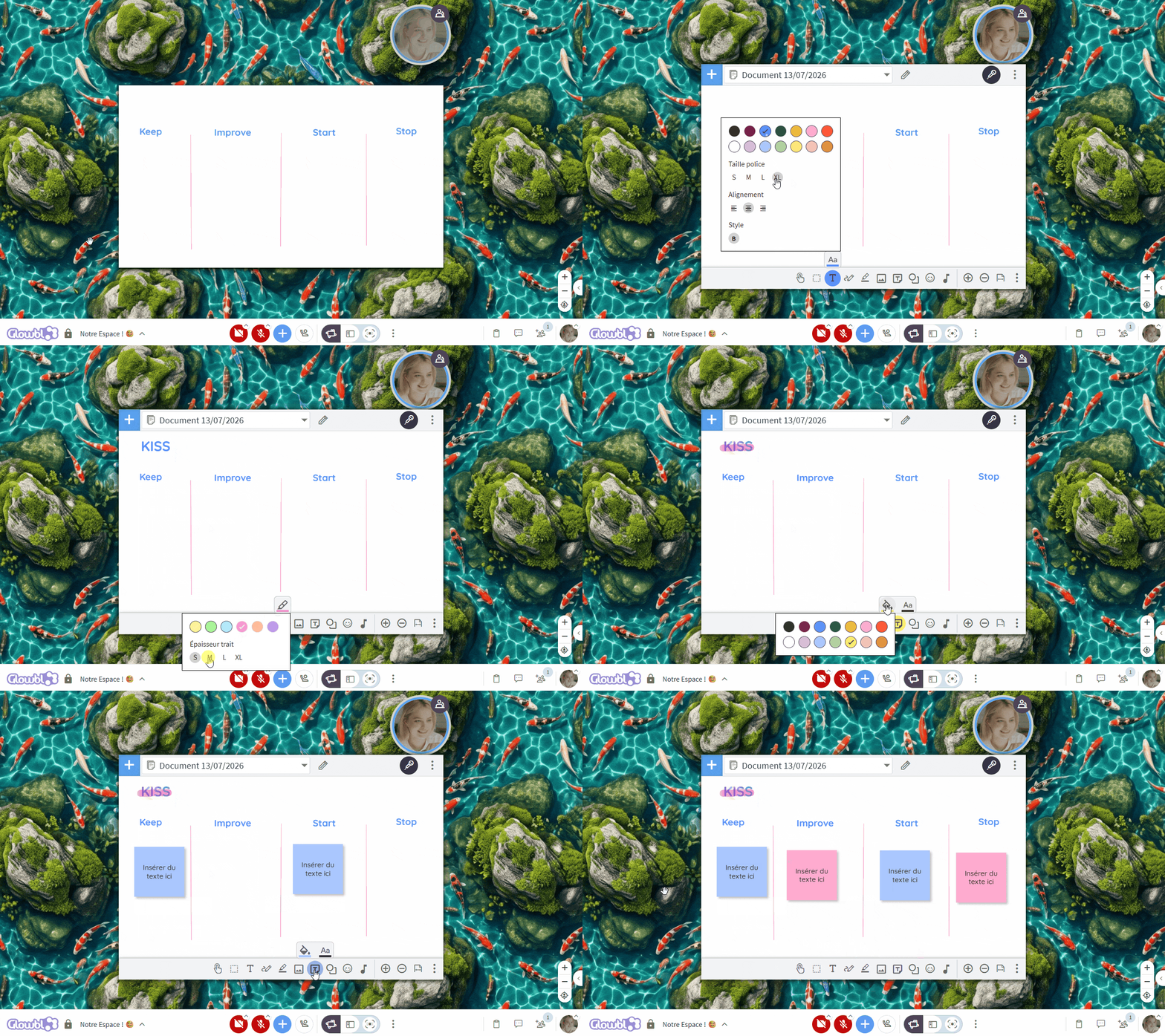
🎨 Annotations: Configure style beforehand
You can now set the color and thickness of a line or shape, as well as the font size, before creating it. Click on the desired tool to display its options above it, draw or sketch, then click the tool again to deselect it.
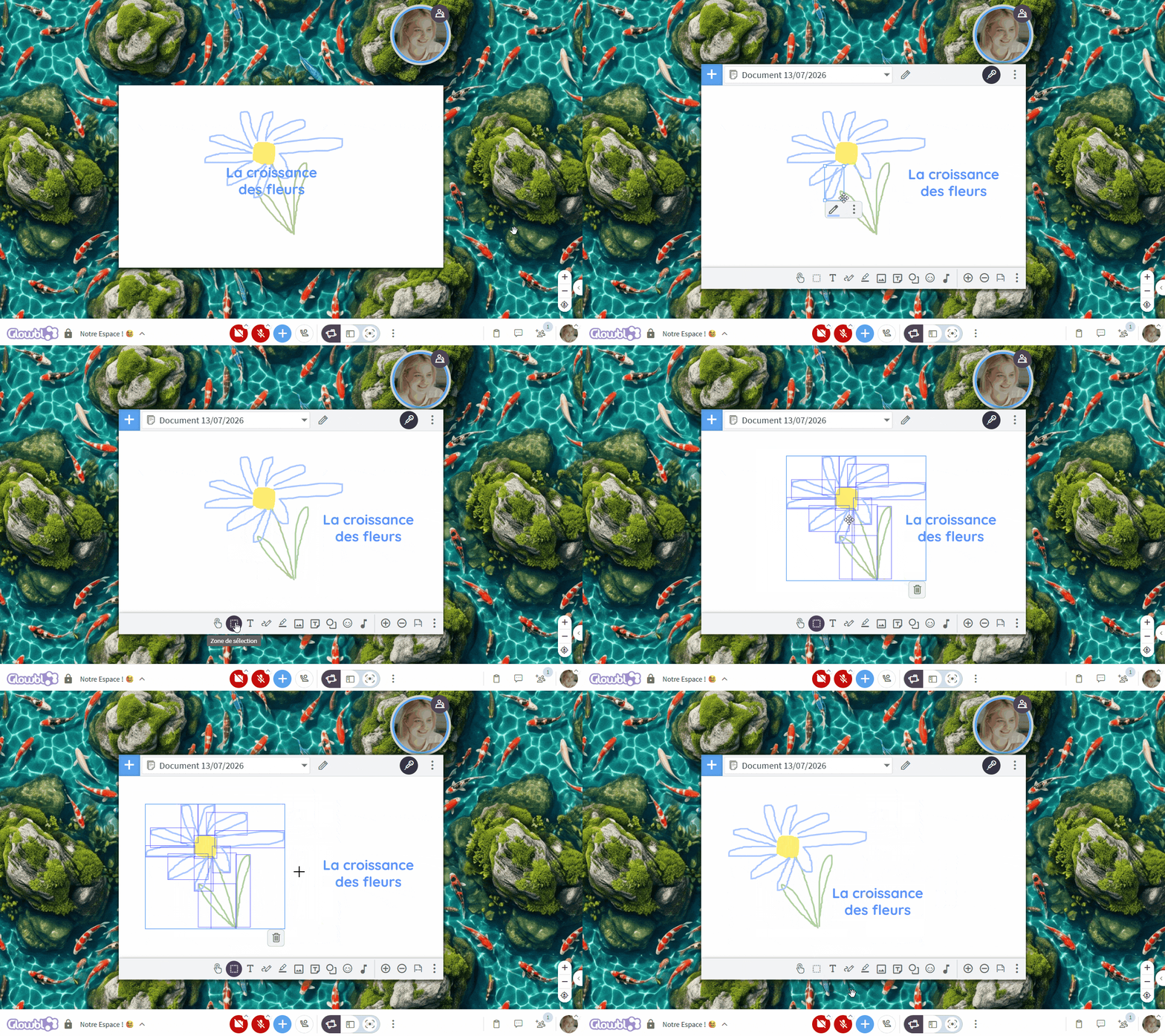
🖱️Annotations: Select Multiple Elements
When you project a PDF or a whiteboard, a new tool lets you draw a box to select, move, or delete multiple annotation elements at once.
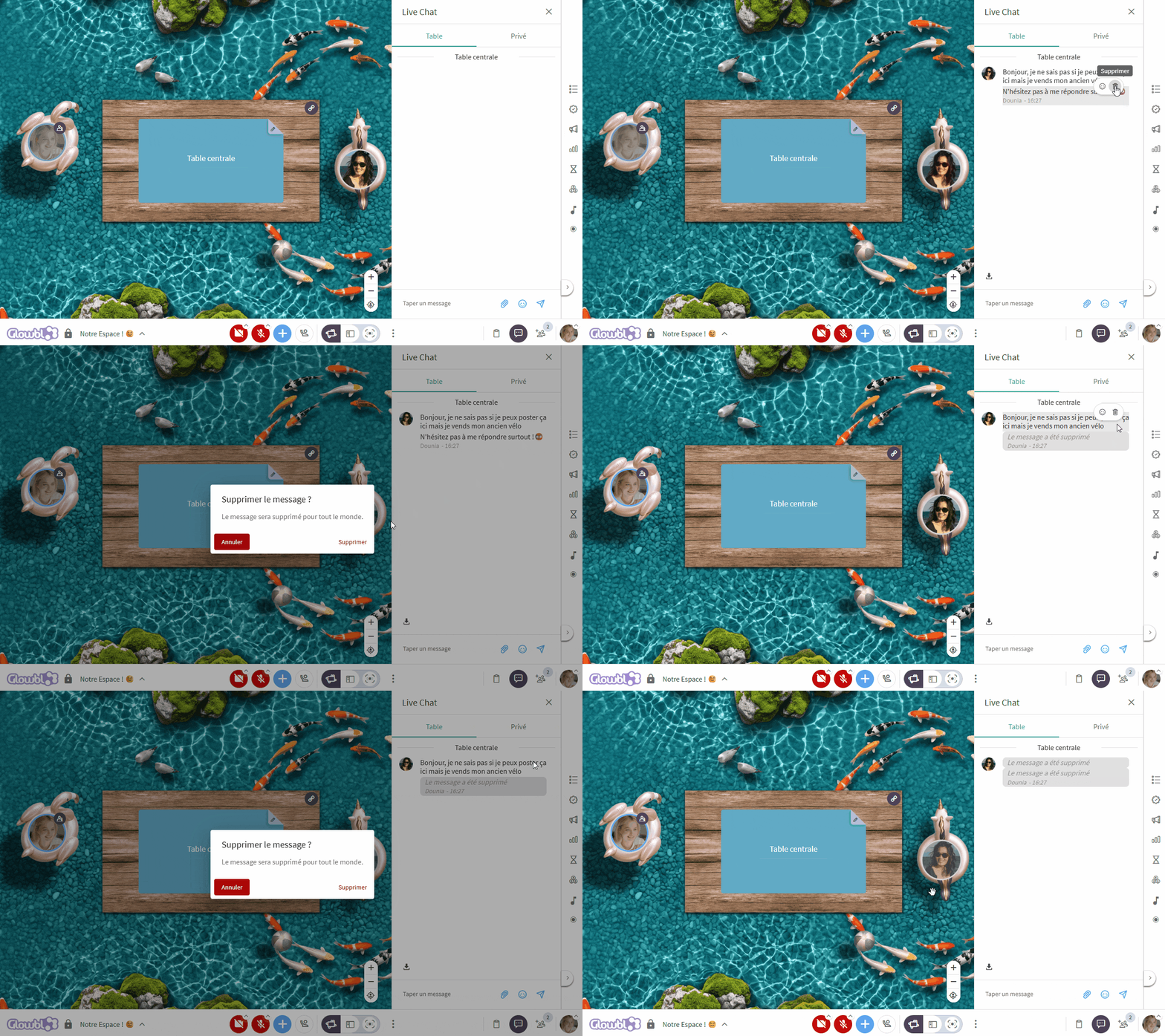
🗑️Delete messages in Live Chat
Participants can delete their own messages. Moderators, on the other hand, have moderation rights that allow them to delete any message in the chat by hovering over it and clicking the trash can icon .
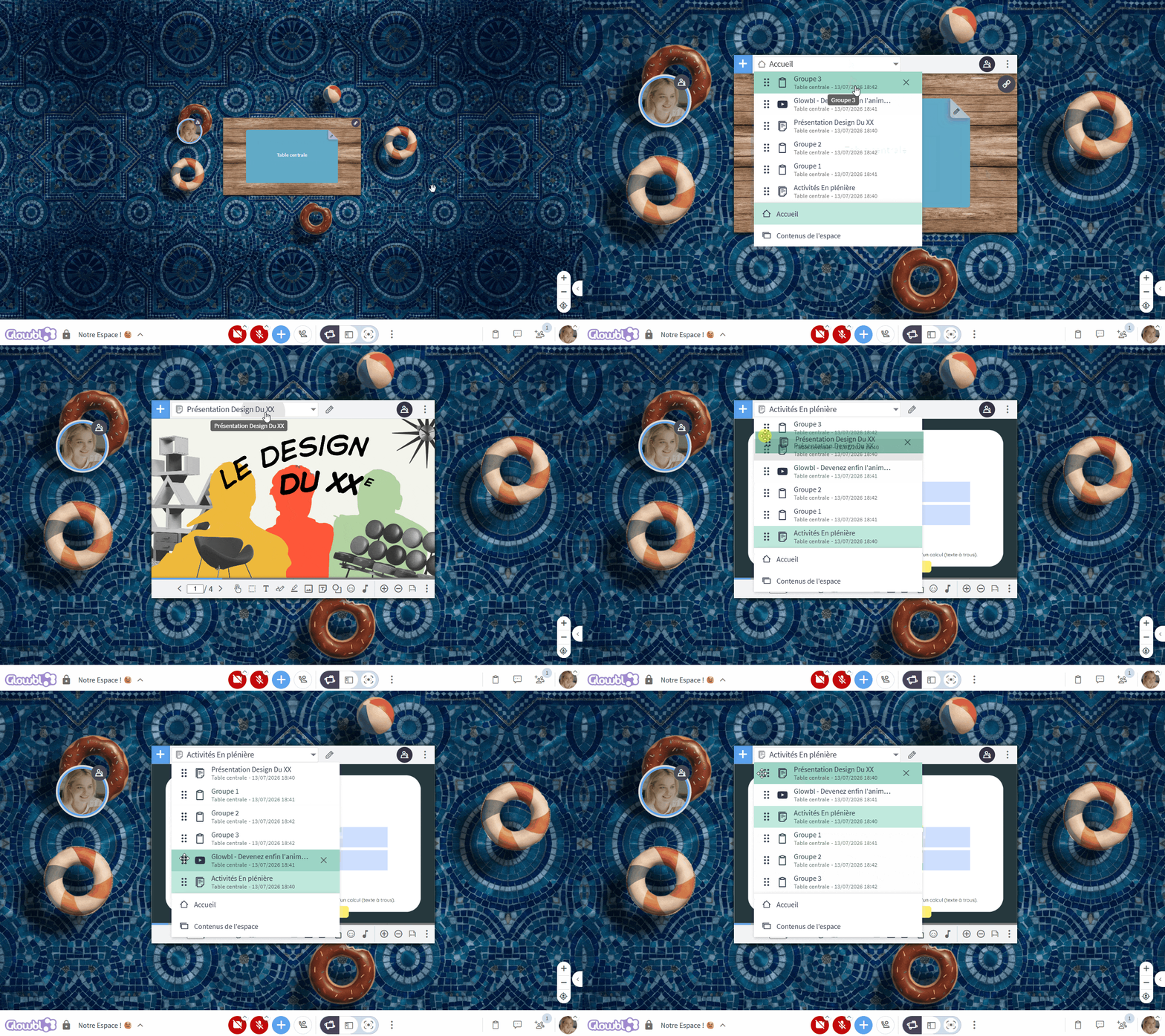
⬆️ / ⬇️ Reorder items in the table library
The drop-down menu at the top of the workspace, which lists all projected documents, includes drag handles. These allow you to reorder the display of documents using simple drag-and-drop.
⌨️ Use keyboard shortcuts on PDFs and whiteboards
Keyboard navigation within projected documents has been improved. Click inside the document, then:
- Slide navigation:
Left/Right arrows - Document zoom:
+/- - Select all on the slide:
Ctrl + A - Copy / Paste:
Ctrl + C/Ctrl + V - Delete selection:
DeleteorBackspace
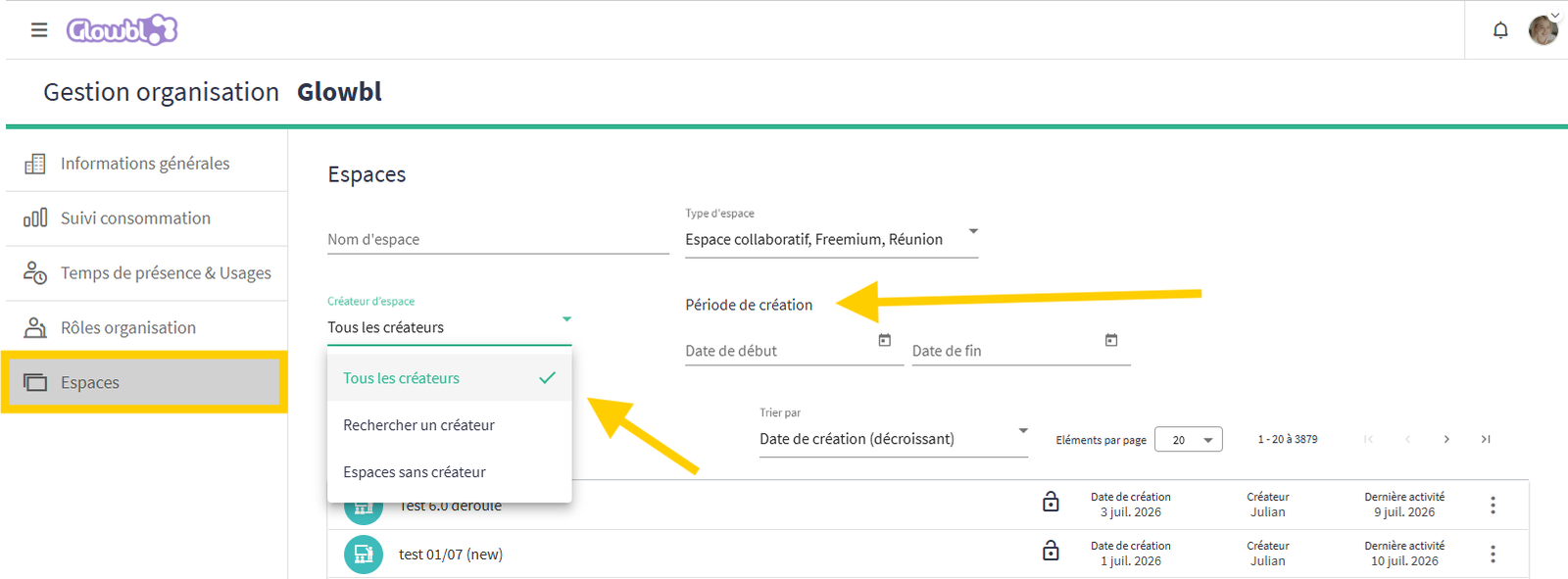
🔎 Organisational Management: Simplify Searching for Spaces
(For Organisation Managers and Super Administrators Only)
Searching for spaces within the organization now includes two new search filters:
- By creator (search by email address).
- By creation date.
🔤Turn captions on/off
(Available only to the space creator and administrators)
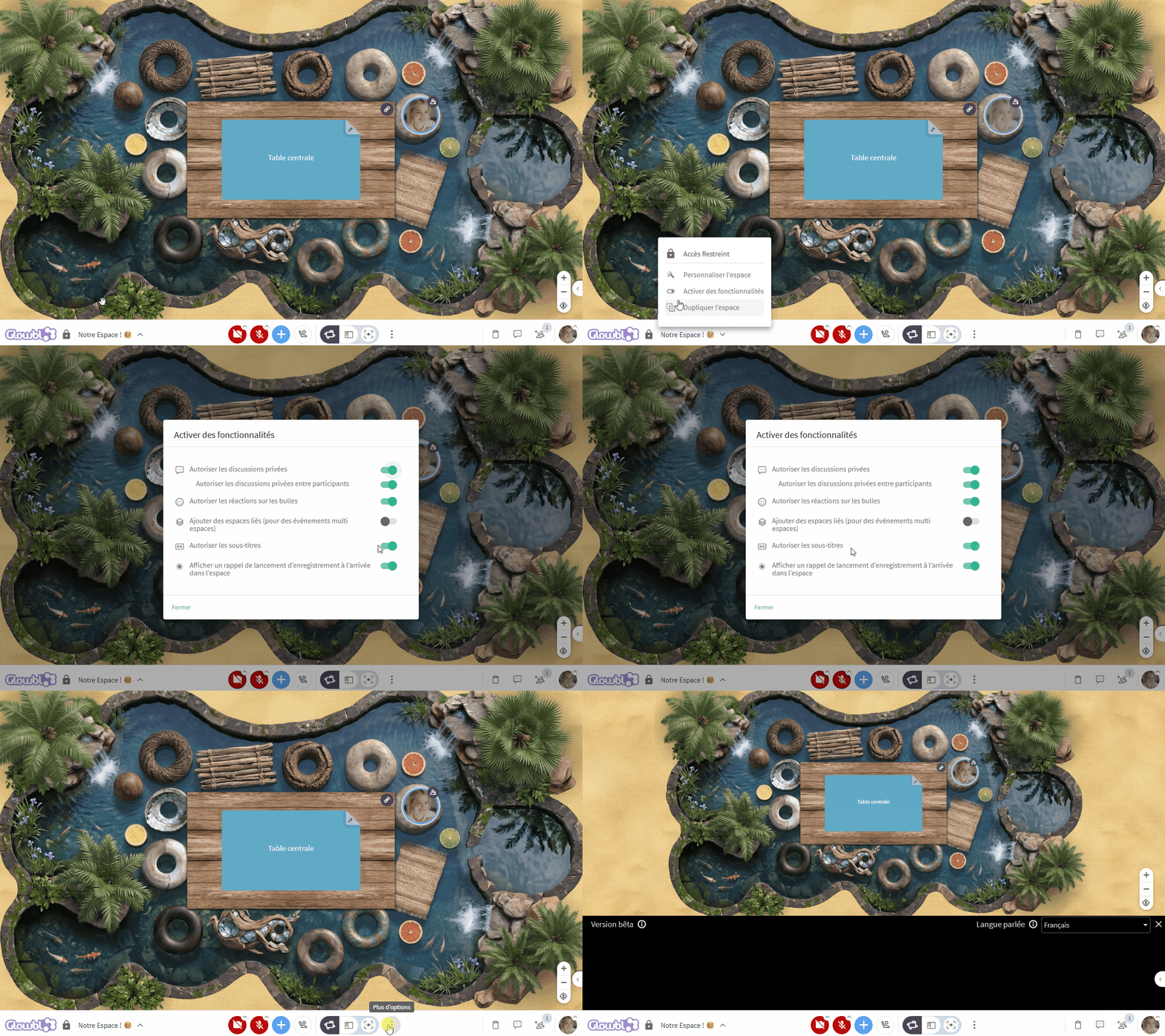
By default, captions are enabled in all your spaces and are helpful for people who are deaf or hard of hearing. But you can now disable them, for example, in a French as a Foreign Language (FLE) course.
⚙️ Access: hover over the space title > Enable features > uncheck “Allow subtitles”
💬Enable/disable private chats between students only
(Available only to the space creator and administrators)
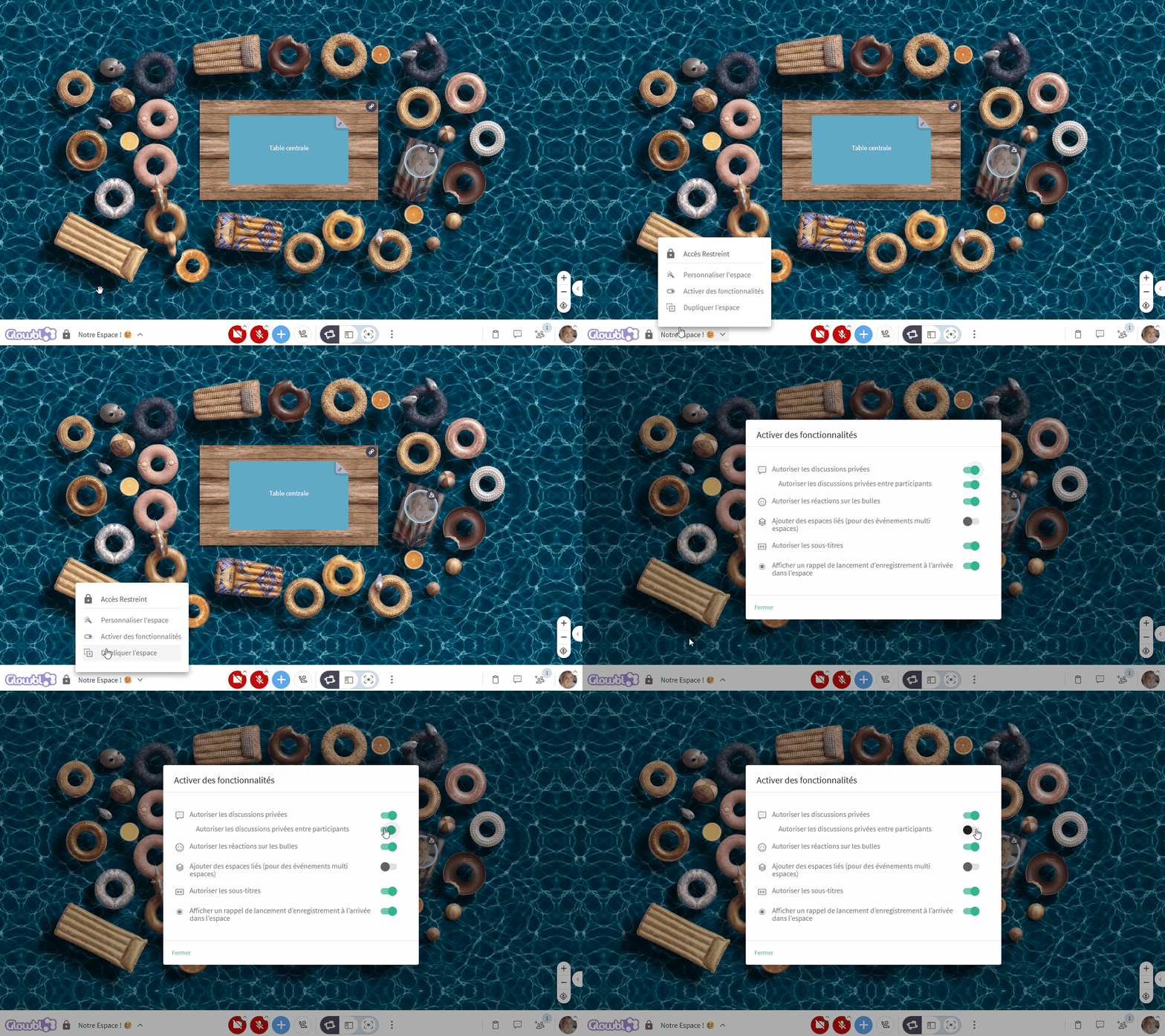
To prevent potential disruptions or cheating, you can disable private chats between participants while still allowing them to contact the facilitator privately.
⚙️ Access: hover over the space title > Enable features > uncheck Allow private chats between participants
ROBUSTNESS
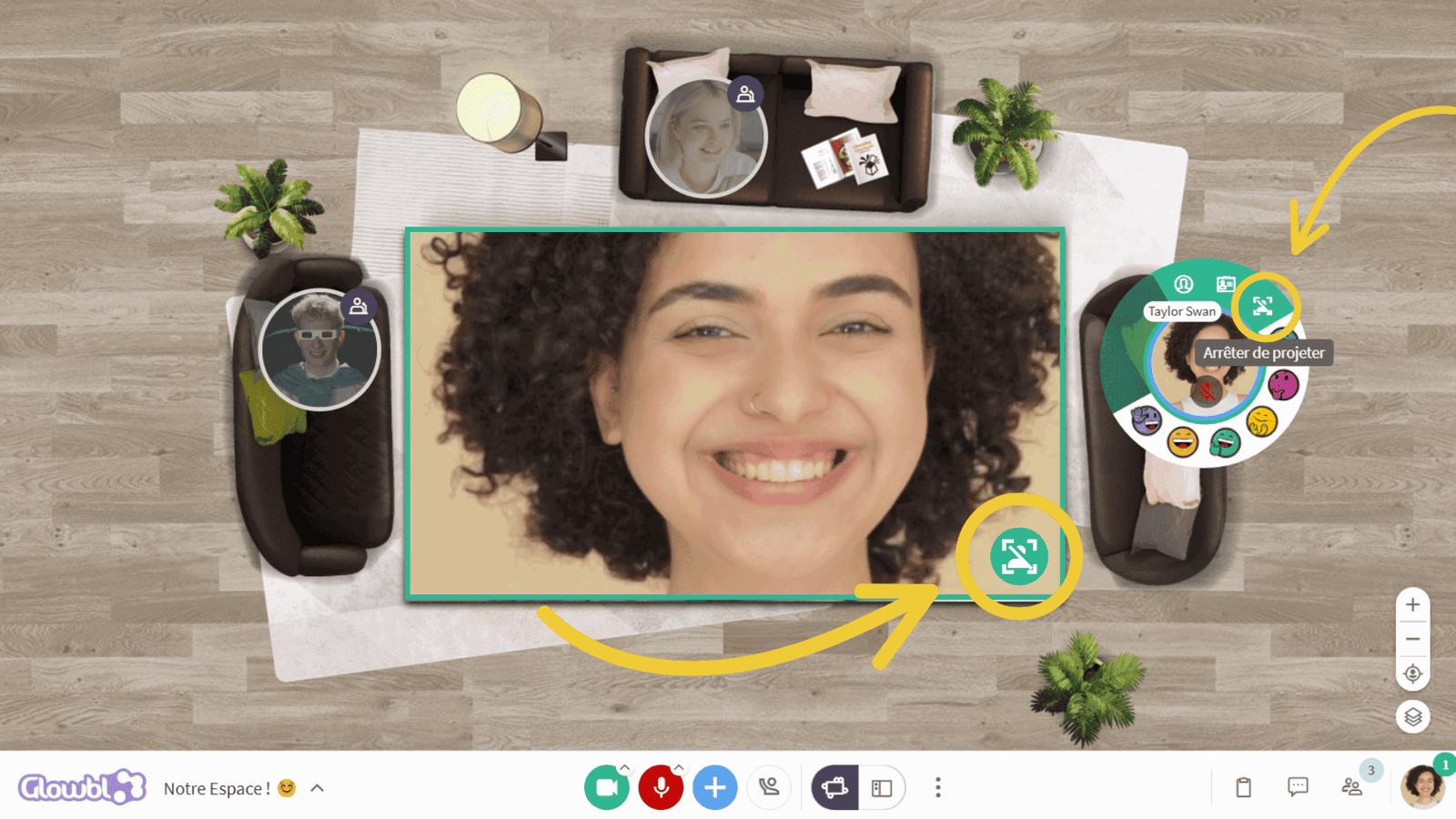
🪞 Improved image quality when projecting yourself onto the table
The display resolution for a person’s avatar in the table has been increased from 180px to 360px so that whether you’re alone or with others, you’ll look your best!
⏯️ Fixed YouTube video synchronization
The issue that prevented YouTube videos from playing simultaneously for all participants has been fixed. Video playback synchronization has now been restored!
💡 Configuration reminder: To prevent participants from pausing the video for the entire table, be sure to restrict permissions to “Speach Only.”
🔡 Fixed display of Vimeo video titles
When playing a video from the Vimeo platform, the actual video title now displays correctly in the table library’s drop-down menu, replacing the generic label “Vimeo Video.” This fix makes it easier to identify and navigate more precisely among the various video clips being played.
April 2026 — Release 5.10
Full details on our blog.
FEATURES
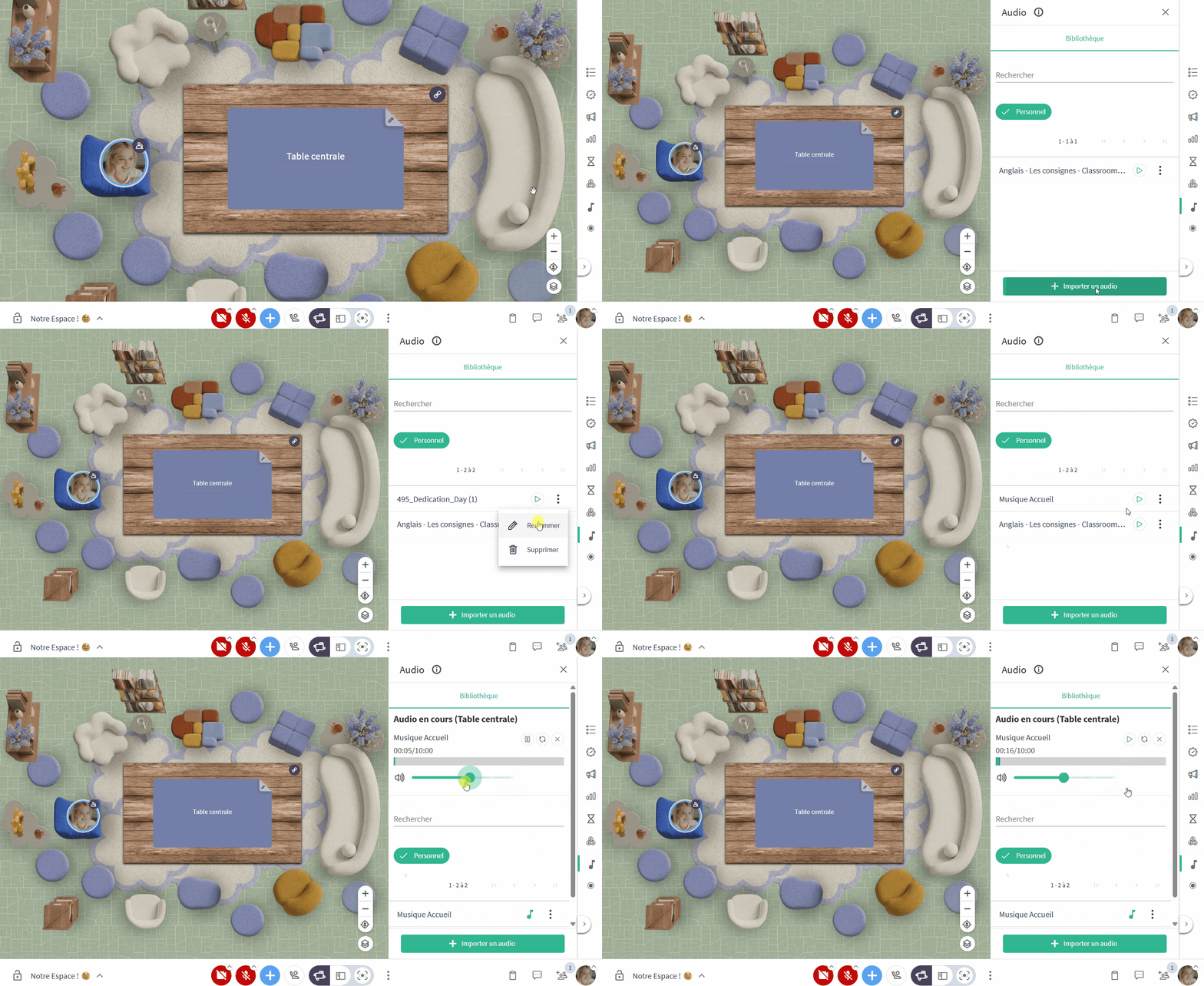
🎧 New facilitation tool: set the atmosphere !
Add background music, archives, interviews, podcasts, or readings independently of any other content. Create your own music or sound library that follows you across all your spaces! Please note, audio is launched per table (in "Independent Tables" mode).
⚙️ Access: Music note icon ♪ in the facilitation tools (on the right of your screen).
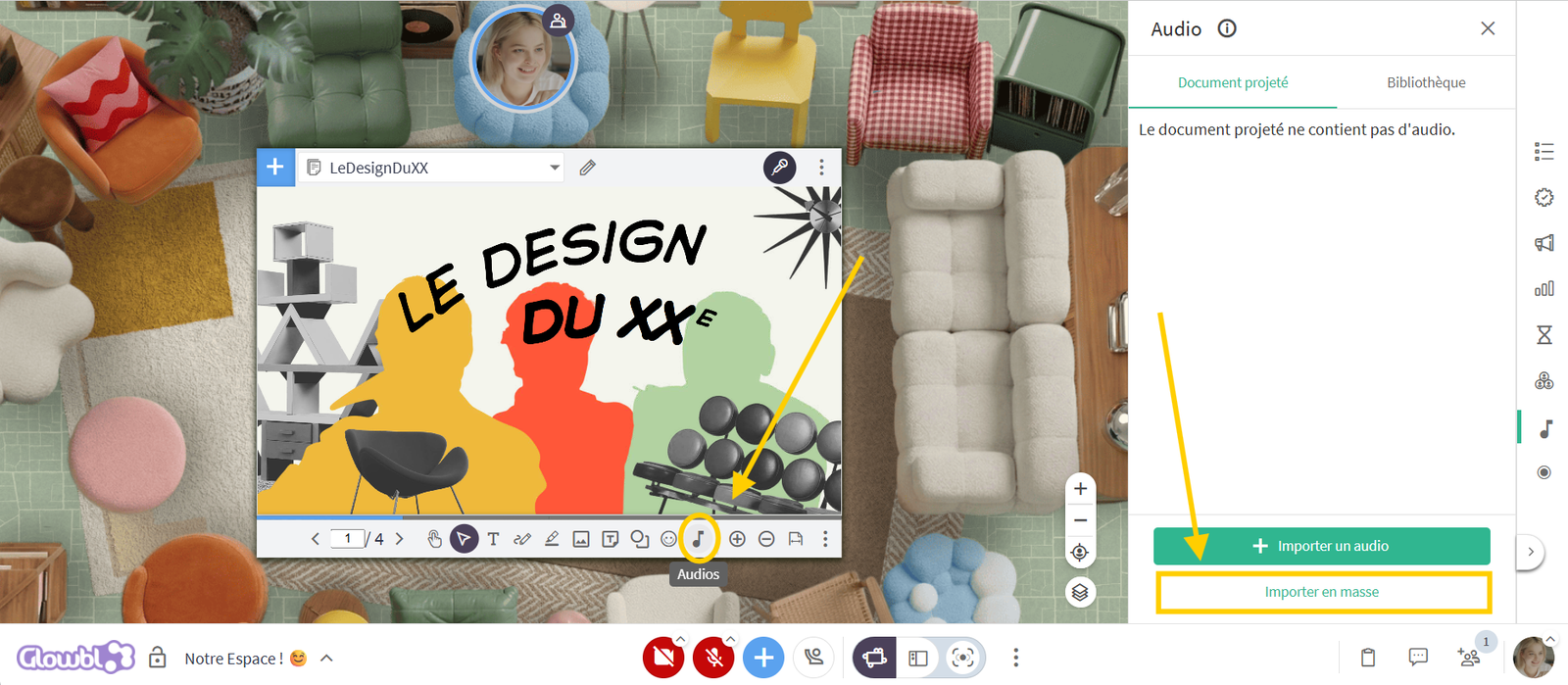
👆 🎶 Adding audio to content (PDF / Whiteboard)
For your plenaries or breakout groups, you can link one or more audio files to your PDF slides and our Blank Pages (Whiteboards). Participants can trigger the audio themselves (if they have interaction rights) directly from the annotation tools.
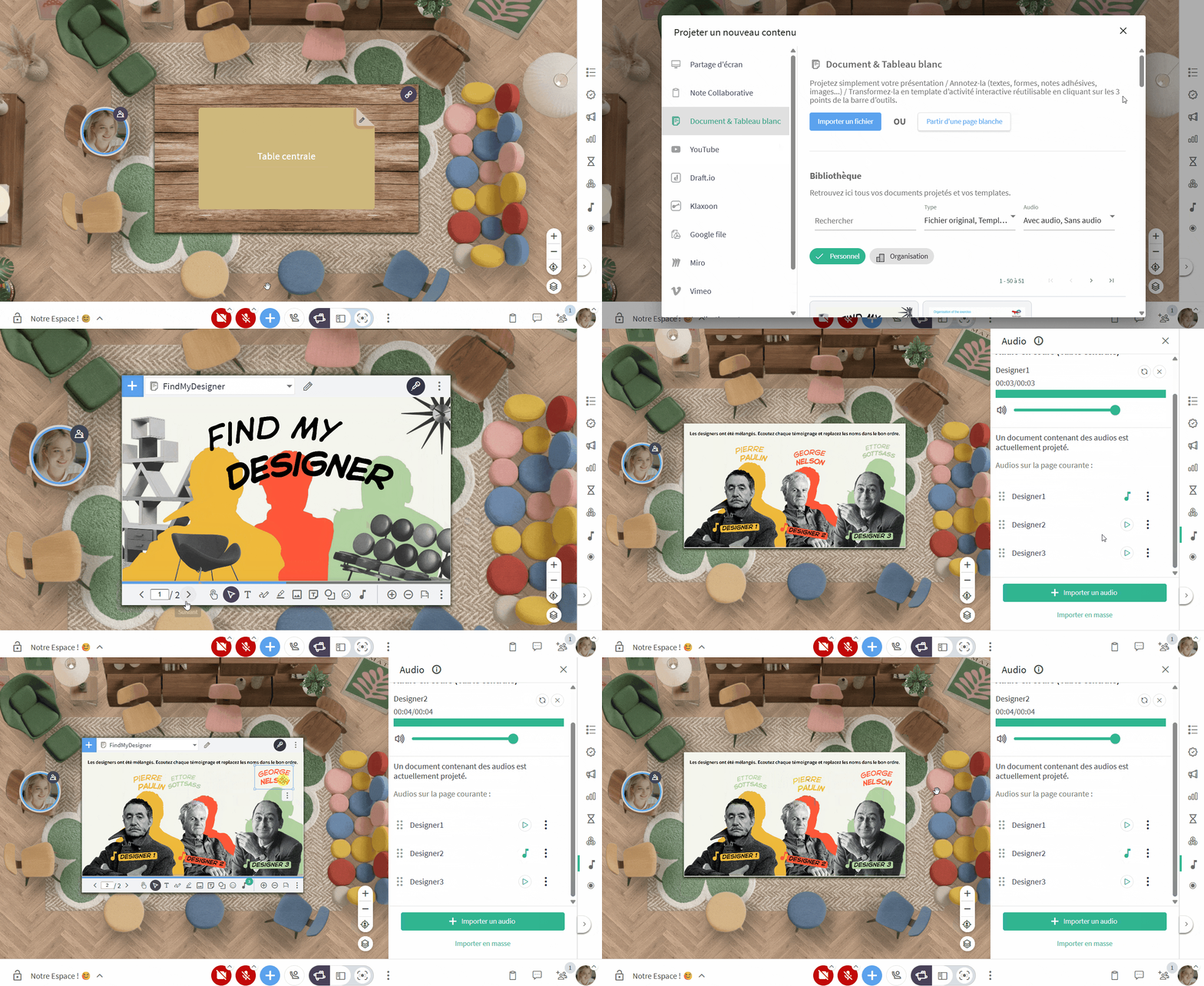

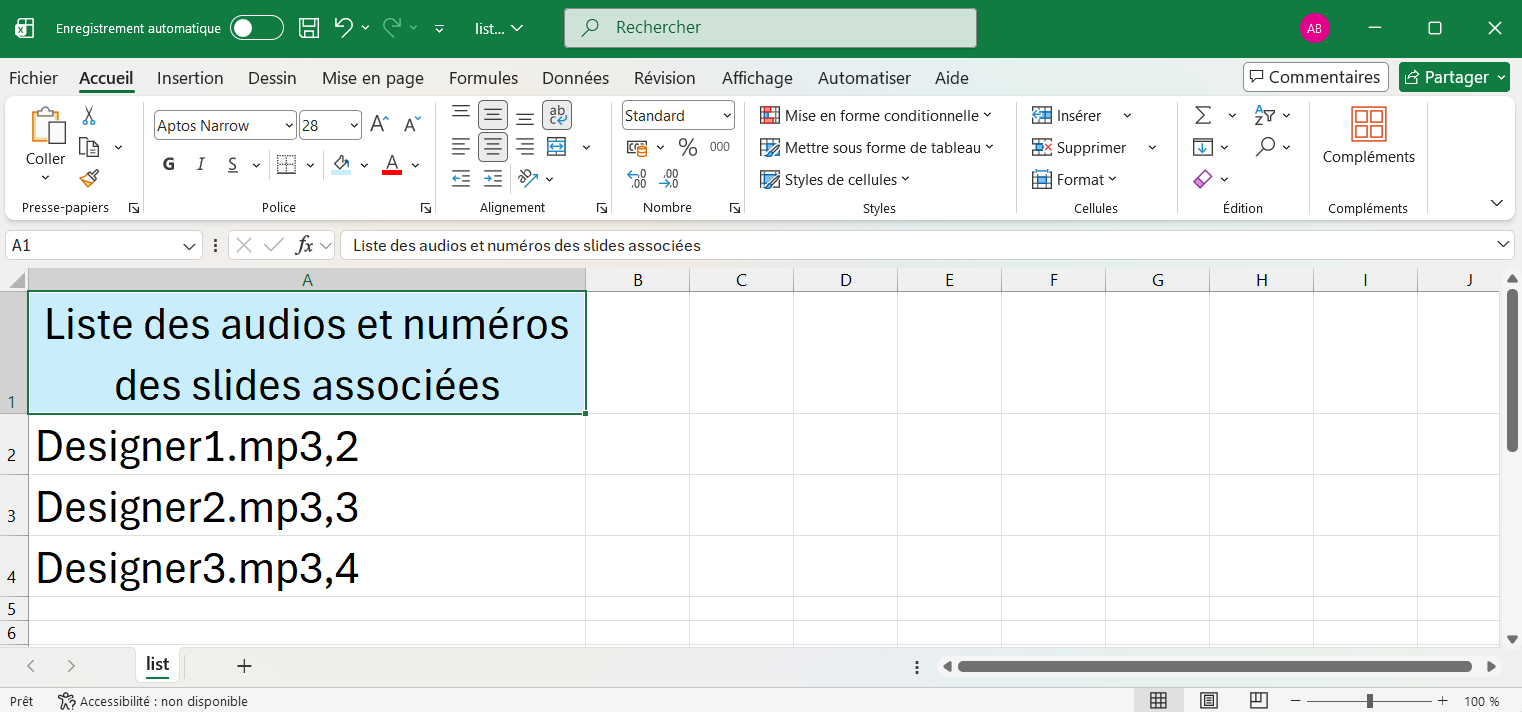
📙 🔊 Importing audiobooks
If your content includes a lot of audio files, you can import them all at once! No more screen sharing your audiobooks—import them directly into Glowbl. Play each audio clip yourself or finally give your participants control.(💡 Once saved, your audiobooks can be shared with your entire organization by Super Admins)

🚪Holding participants in the lobby
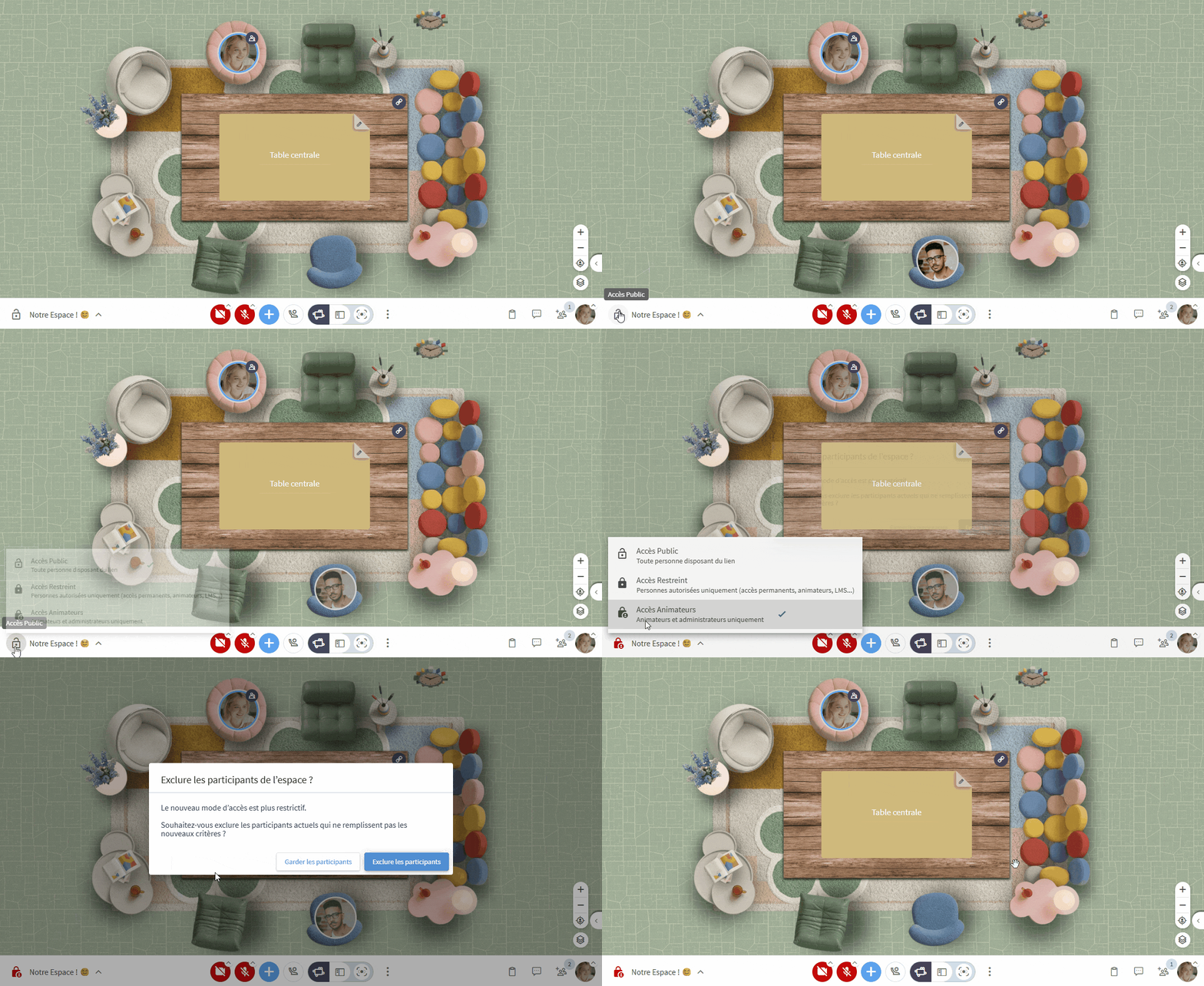
Welcoming your groups becomes more flexible thanks to three access levels:
- 🔓Public Access: anyone with the link to your space can enter whenever they wish.
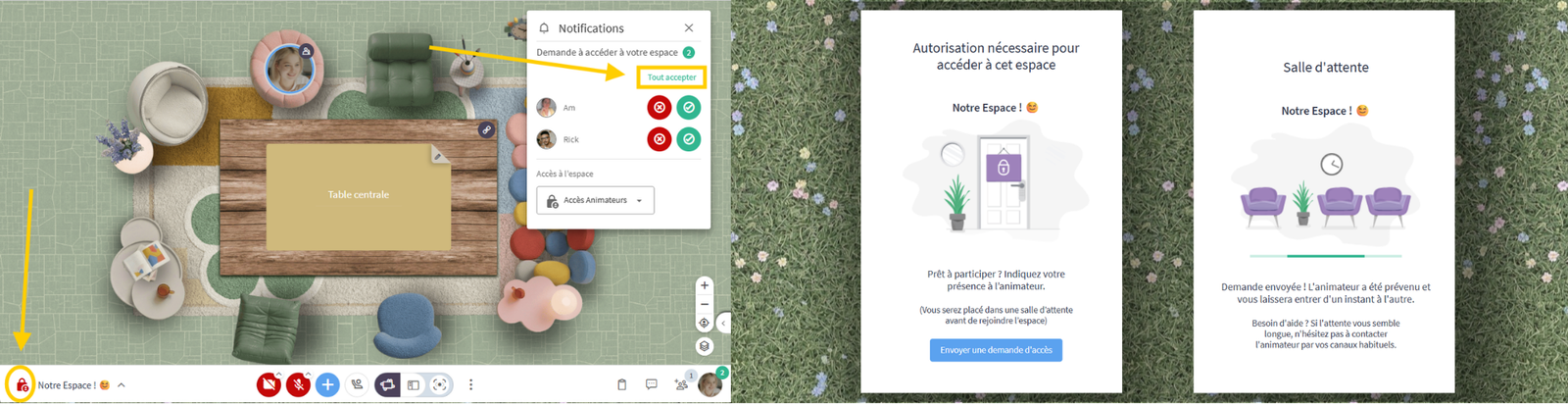
- 🔒Restricted Access : Only authorised people (added to the Permanent Access list or via your LMS) can enter at any time. Others go to a waiting room, and you can grant or deny entry.
- 👨💼 Facilitator Access: Only Facilitators and Administrators can enter freely. Others wait in the waiting room for your validation.
⚙️ You can change the access mode at any time by clicking the padlock icon 🔒 next to your space’s name OR via the Participants tab > Invite Participants.
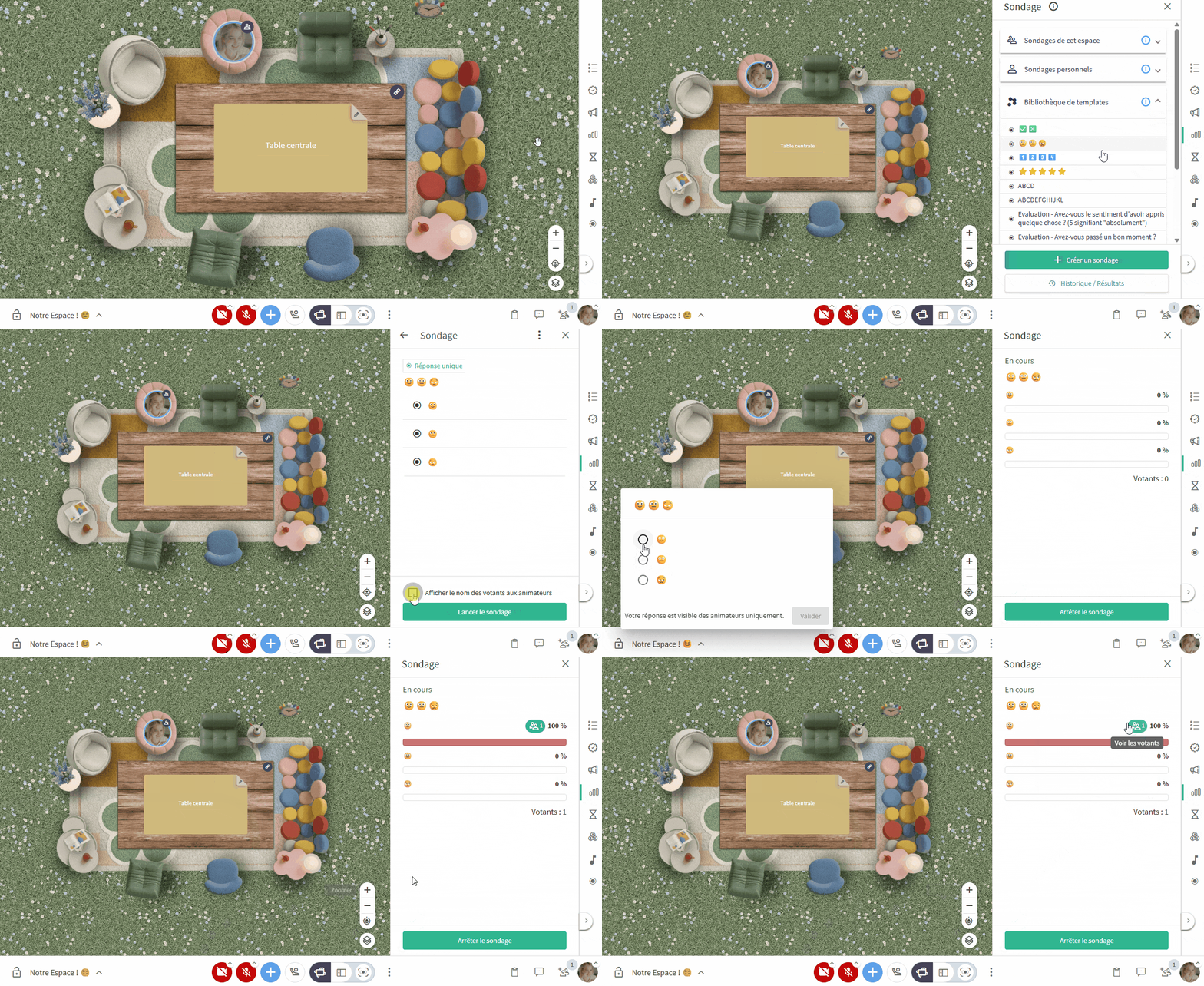
🫸Less Anonymous Polls
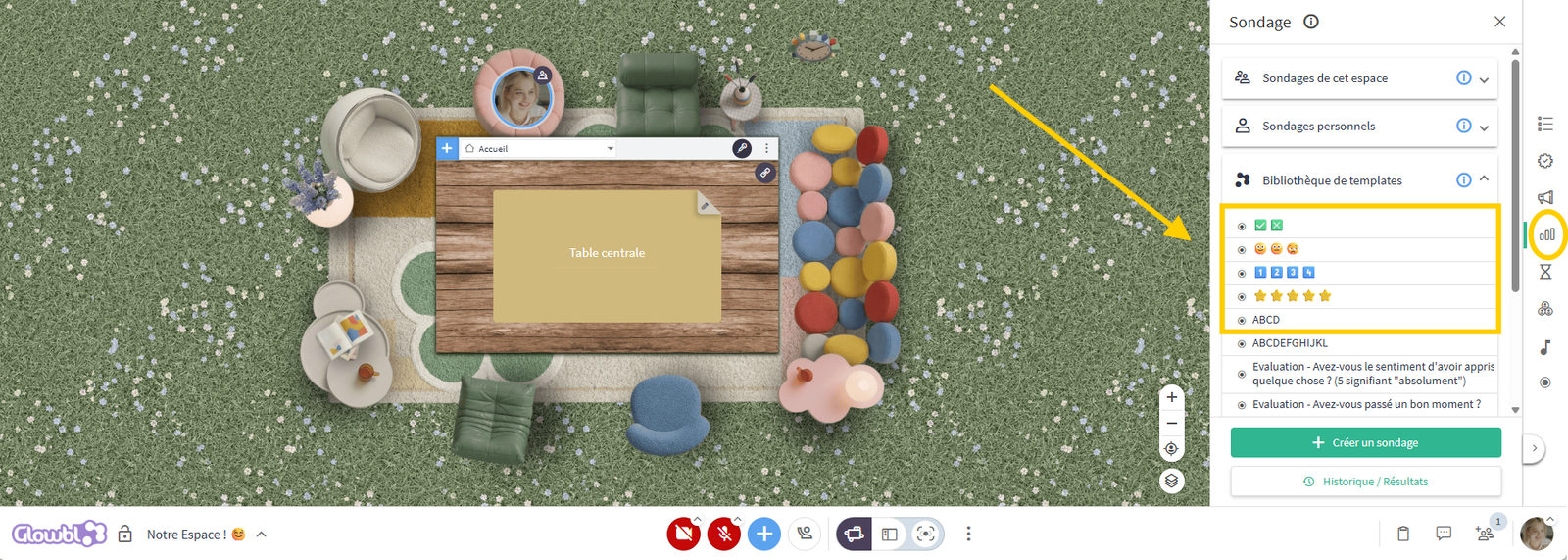
Facilitators can now see the identity of voters! Simply tick "Show voters' names to hosts" before launching the poll. This preference is then saved in the system. (🎁 + 5 new quick and visual poll templates!)
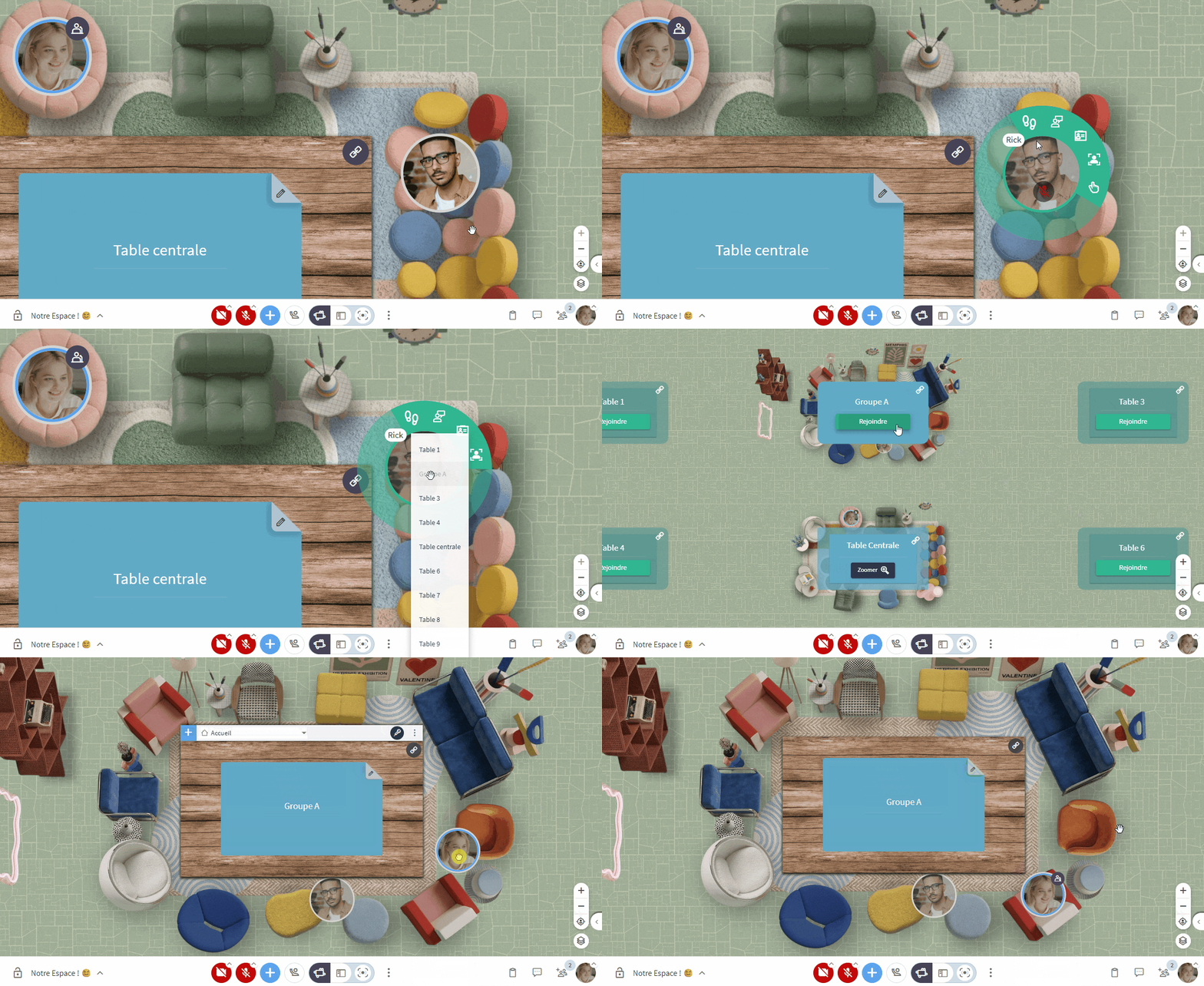
👣 Moving a participant to another table
If you want to help a participant who is having trouble moving, or speak with them privately without disrupting the rest of the group, you can now automatically send them to the table of your choice!

IMPROVEMENTS
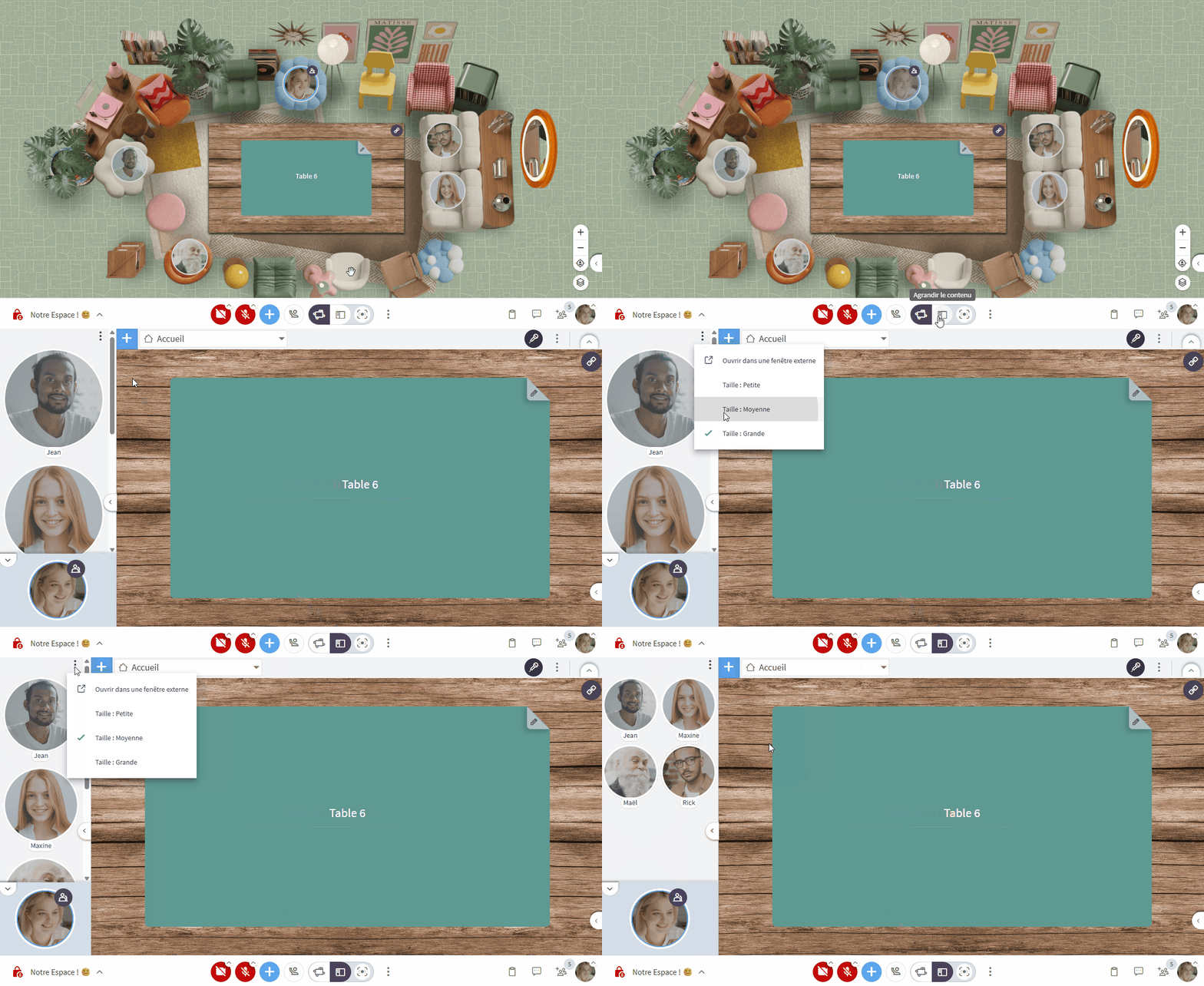
🫧 Enlarge Content : viewing more participants
In Enlarge Content display mode, you have three bubble sizes. We have improved the "Small" display to show participants side-by-side rather than one below the other. This new layout allows you to see 8 to 10 participants at a glance.
⚙️ Access: Enlarge Content mode > three dots in the Speaking pane >“Size: Small”.
February 2026 — Release 5.9
Full details available on our blog.
FEATURES
🖍️ Enhanced Annotations: Interact directly with your documents
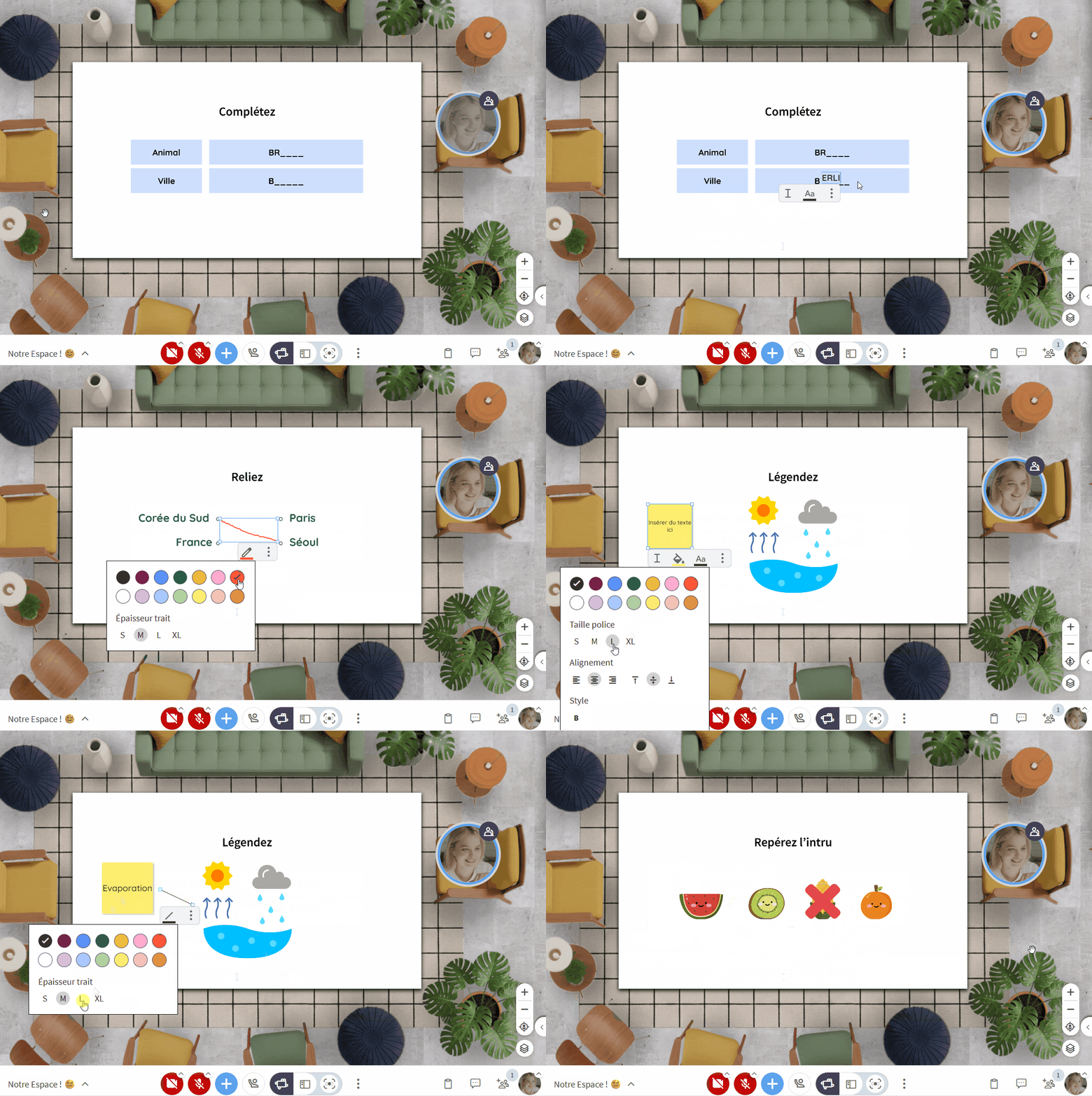
Annotation tools have been redesigned to transform your documents into interactive assets. Import a PDF and add (or let participants add) text, shapes, sticky notes, emojis (Glowmojis 😉), or images, both in plenary sessions and breakout rooms. These annotations empower participants to engage directly with the content: completing documents, annotating images, linking elements, highlighting key information, or visually positioning themselves to share an opinion. The document is no longer a passive slide but a true collaborative activity.
How to use: Click the blue "+" (Project new content) ➜ Document ➜ choose "Import a file". The annotation toolbar appears when hovering over the document on the table.
⬜ The Blank Page: A simple, exportable whiteboard
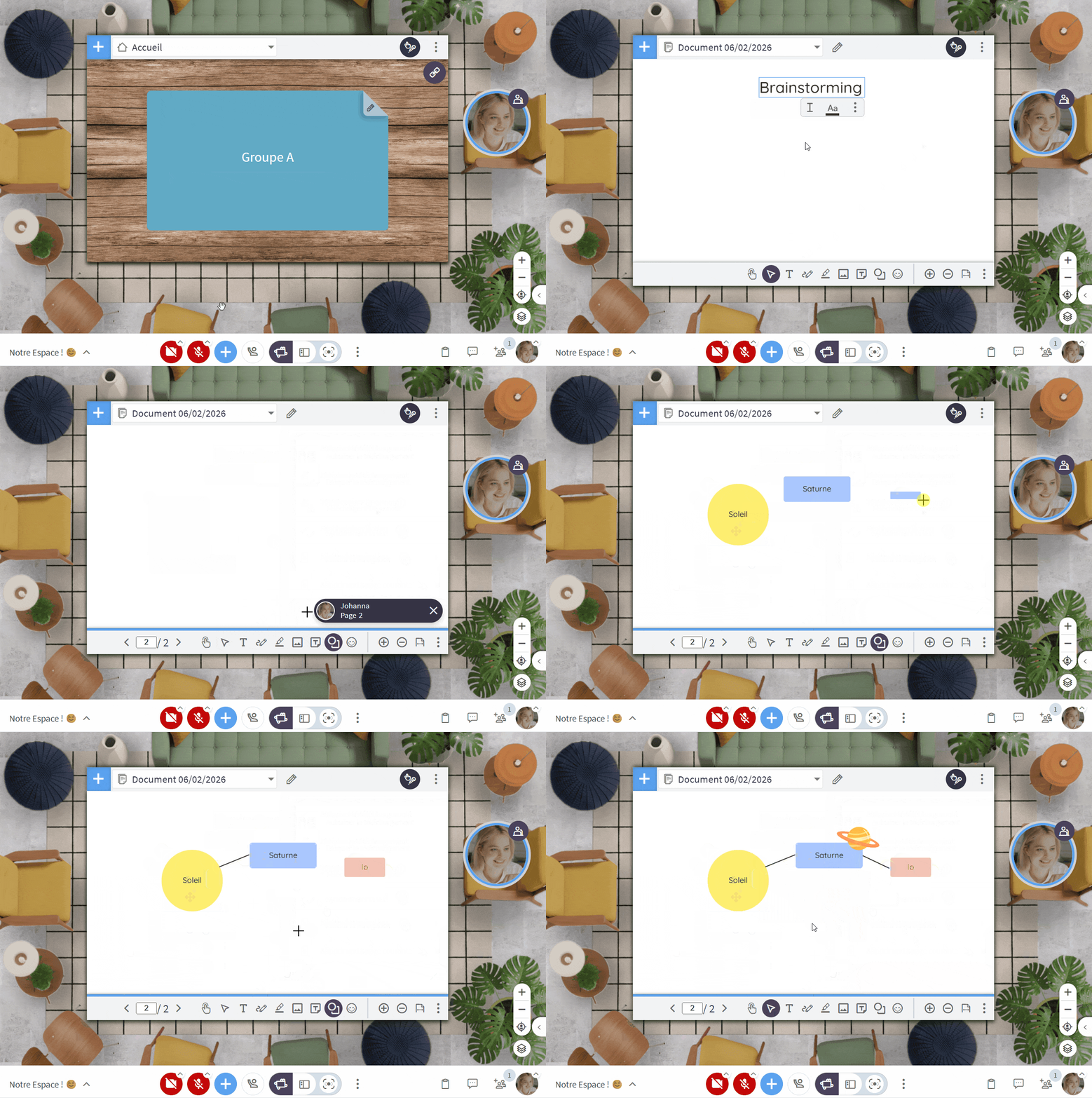
A new "Blank Page" option is now available in the Document menu. Whether used on its own, duplicated, or integrated into an existing document, it allows you to build ideas live without switching to an external tool. Designed in 16:9 format, the blank page makes it easy to produce clear, shareable deliverables: diagrams, mind maps, collective drawings, brainstorming sessions, or visual summaries can all be easily exported at the end of the session.
How to use: Click the blue "+" (Project new content) ➜ Document ➜ choose "Start from a blank page"
🫨 Activity Templates: Replay your interactive content
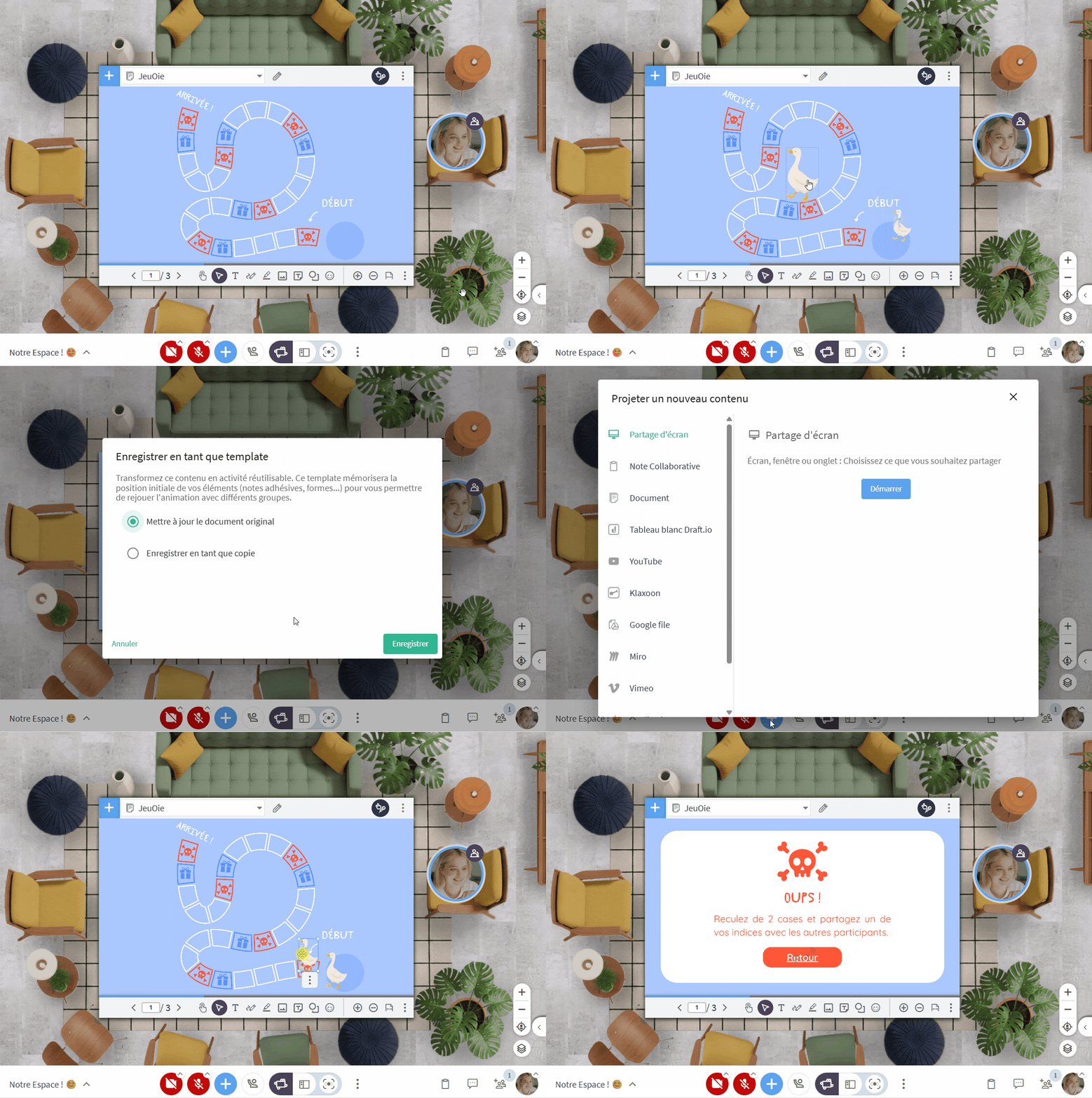
This is the big one! ✨ You can now transform any document into a replayable activity template. Import a PDF or start from a blank page, add images and shapes, then save the set as a Template by clicking the three dots in the annotation toolbar. The platform remembers the initial position of the elements, which participants can then manipulate freely. These templates are saved in your library and can be replayed with different groups or integrated directly into your session flows. They pave the way for drag-and-drop activities—ordering, matching, sorting, prioritising—as well as more playful educational games where learning happens through exploration and action.
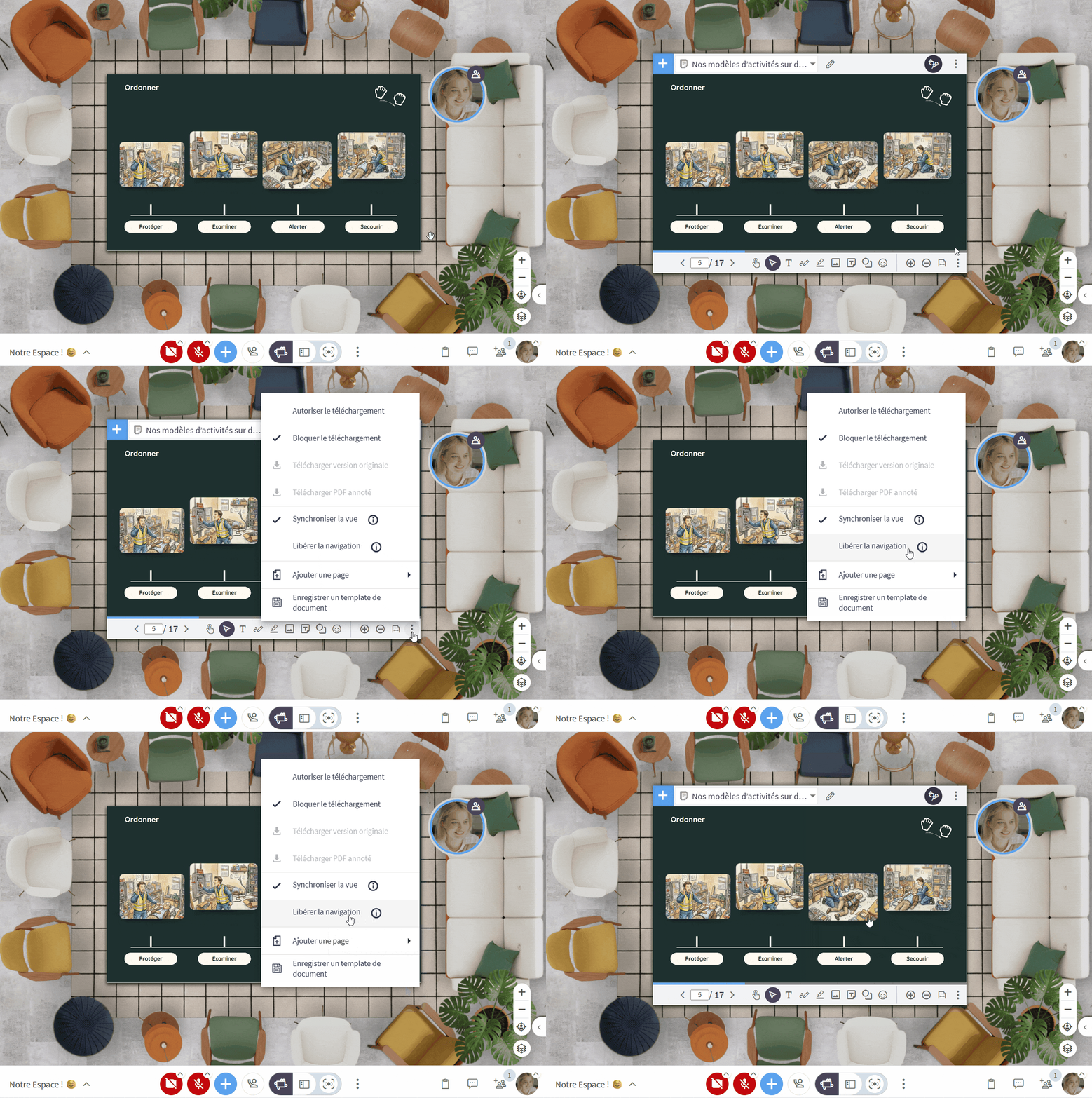
🗽 Free Navigation: Explore documents independently
While slide synchronisation remains a core strength of Glowbl, you can now desynchronise navigation to allow each participant to browse a document at their own pace. This freedom supports more autonomous learning: consulting resources, self-positioning within a course, or differentiating learning paths within the same group.
How to use: Hover over the projected document ➜ click the three dots on the bottom-right annotation toolbar ➜ click "Unlock navigation"
❌ Pool activities via the Organisation Library
(Reserved for Organisation Managers and Super Admins)
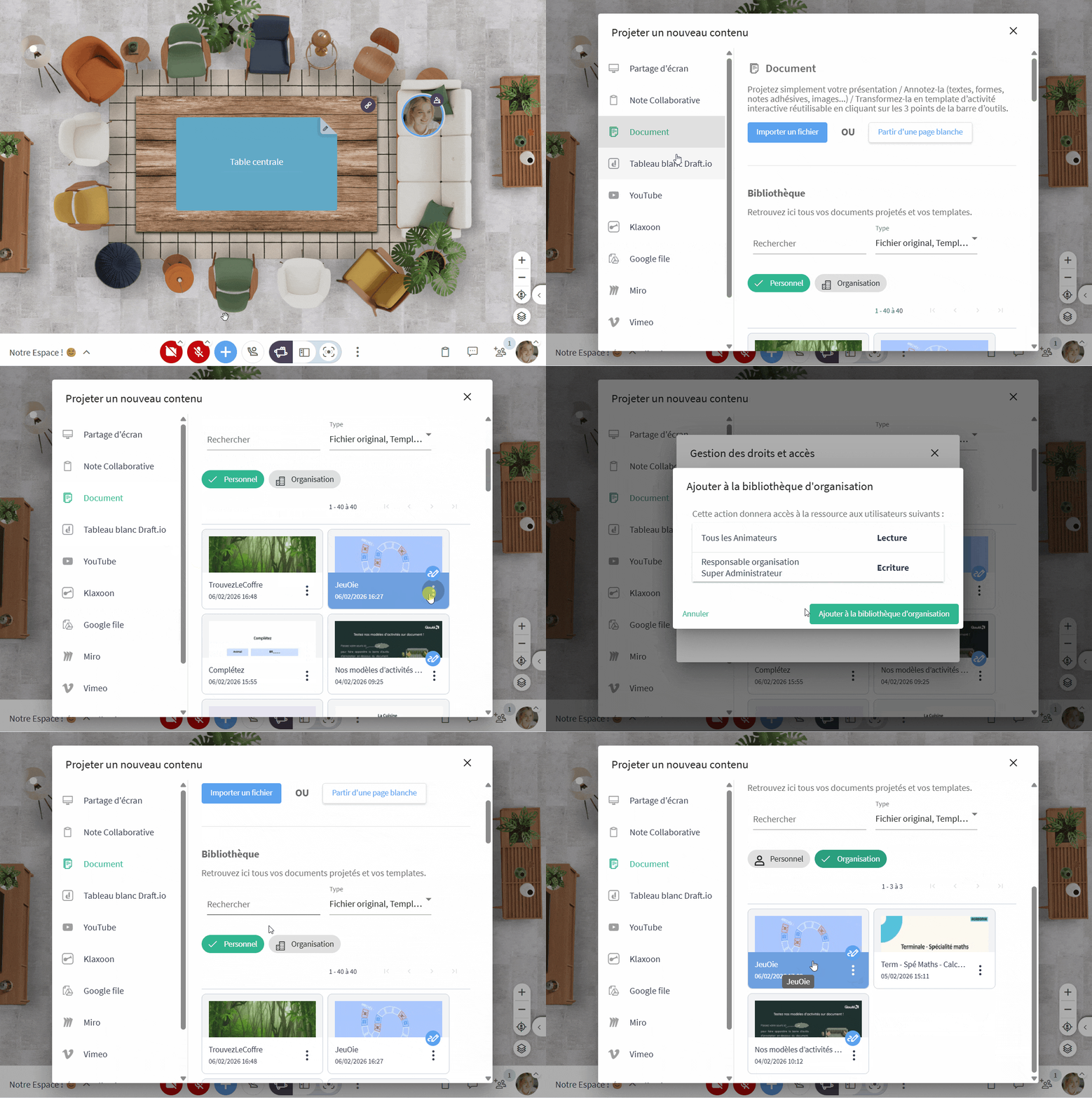
You can now share activity templates across your entire organisation. Facilitators can find them directly in the Document Library under the "Organisation" tab and launch them in any space. These shared activities form a collective pedagogical heritage, ensuring consistent practices, saving time, and improving session quality.
How to use: Open your Document Library ➜ click the three dots to the right of your template ➜ "Access & Permissions" ➜ check "Make visible to the entire organisation"
IMPROVEMENTS
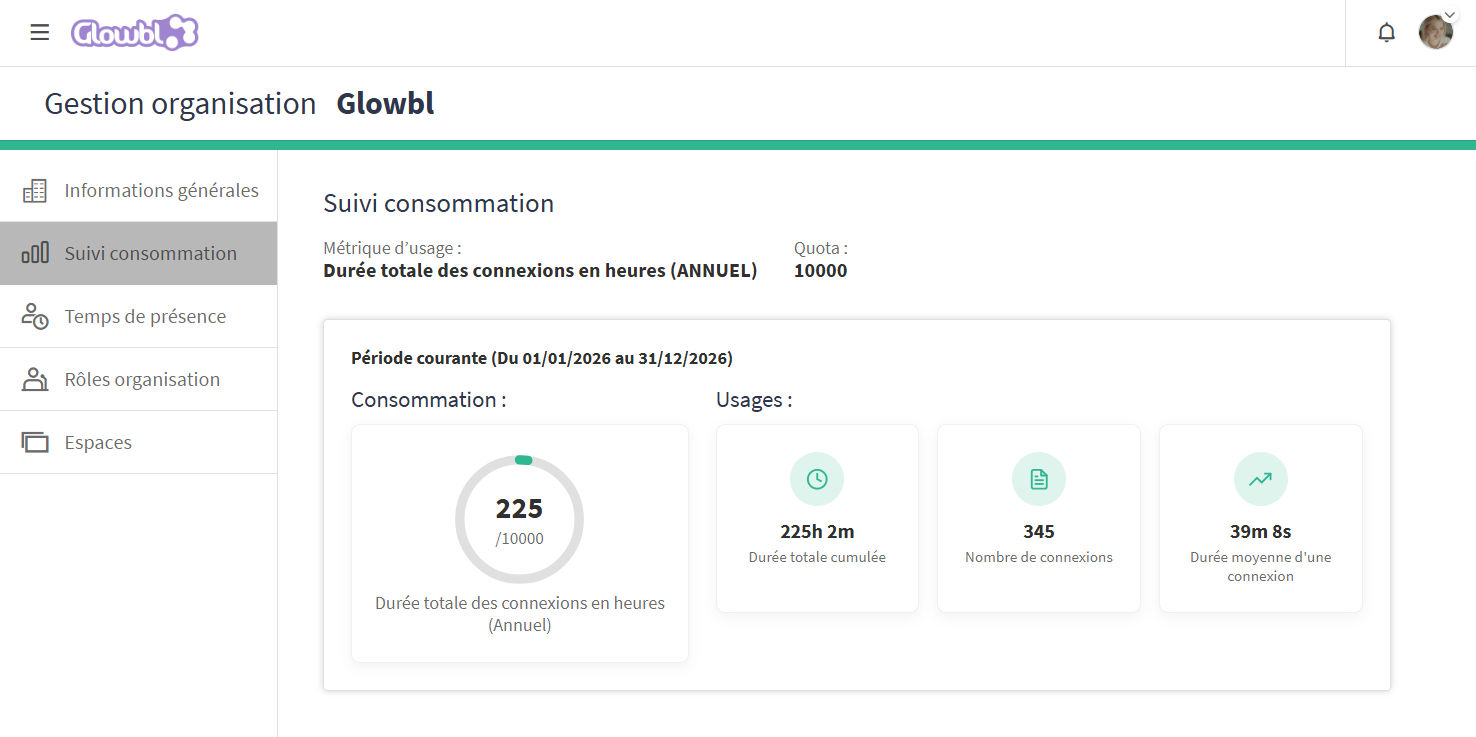
📊Better tracking of licence usage
(Reserved for Organisation Managers and Super Admins) A new metric has arrived on the Organisation Management Dashboard: total connection time in hours. We have also improved the display of various usage data points. How to use: From the main dashboard, click the "burger" menu (top left) ➜ "Organisation Management" ➜ "Usage Tracking"
⚪ Greyed-out bubbles in "Enlarge Content" mode
When a participant's bubble turns grey, it indicates they are inactive; they haven’t clicked within the Glowbl space for a while and are likely checking emails in another tab. This subtle alert for a drop in attention is now visible even when you are using the "Enlarge Content" display mode.
November 2025 -Release 5.8
Read all about it on our blog.
FEATURES
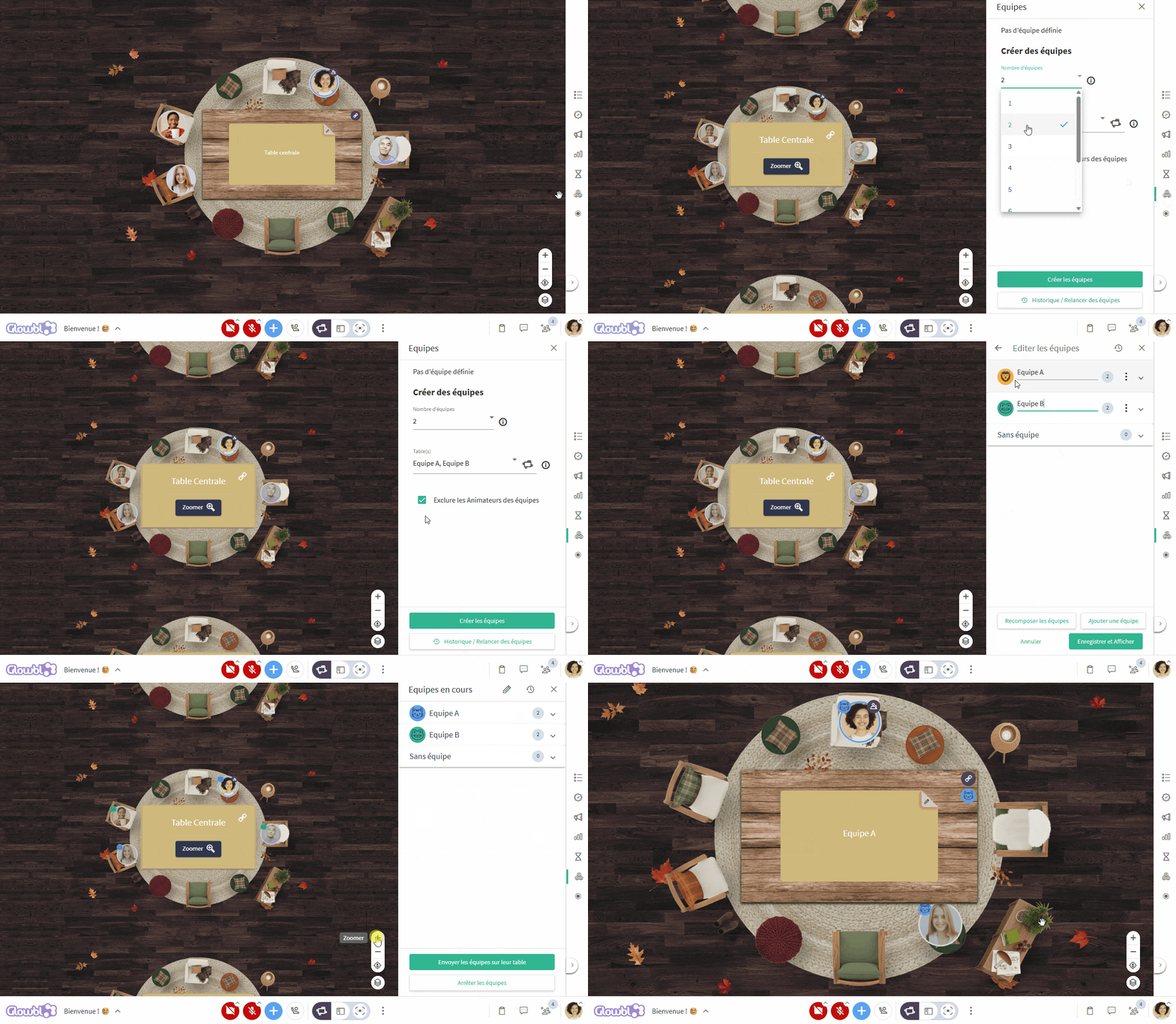
🏉 Create teams and automatically move all to tables
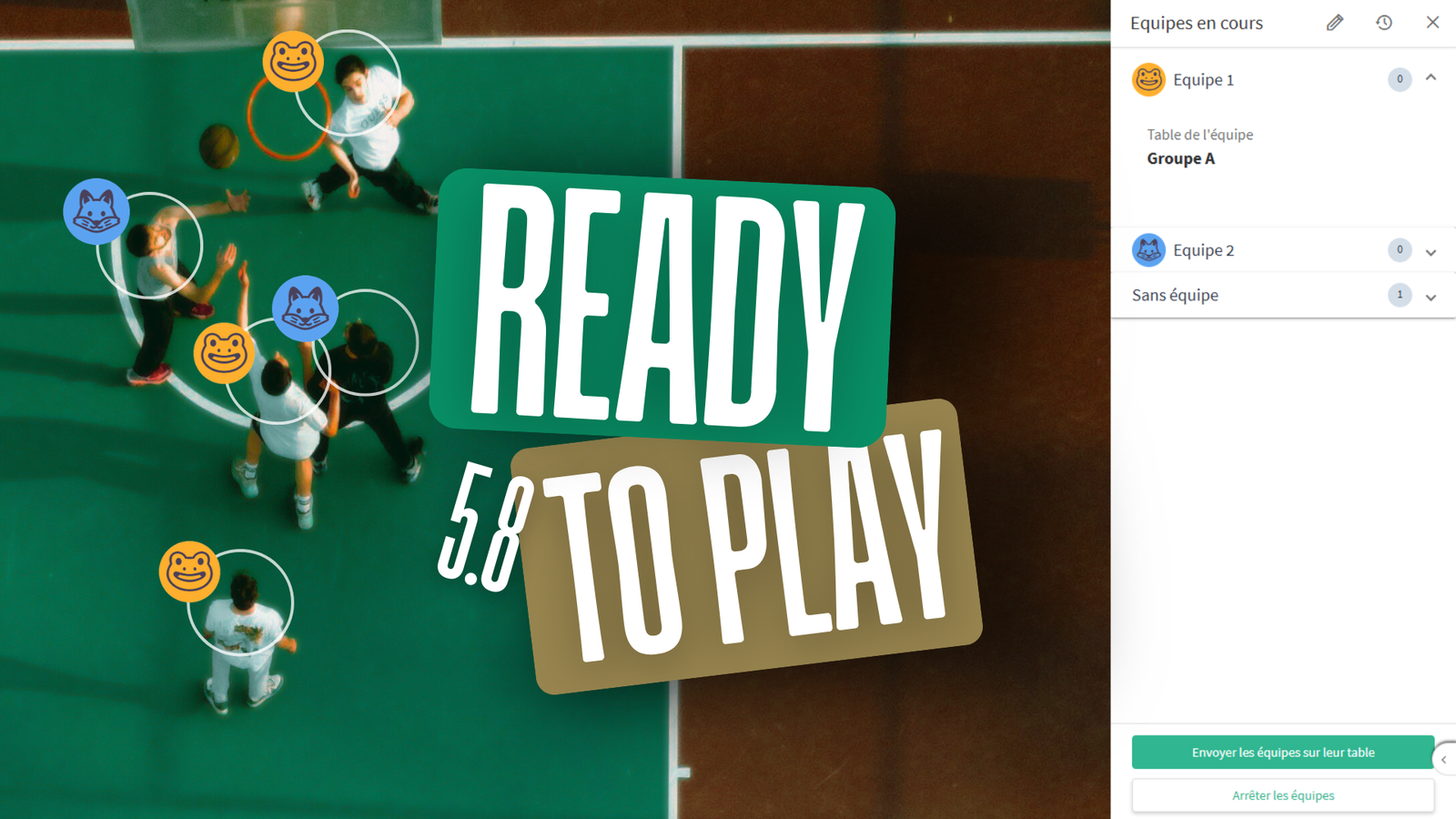
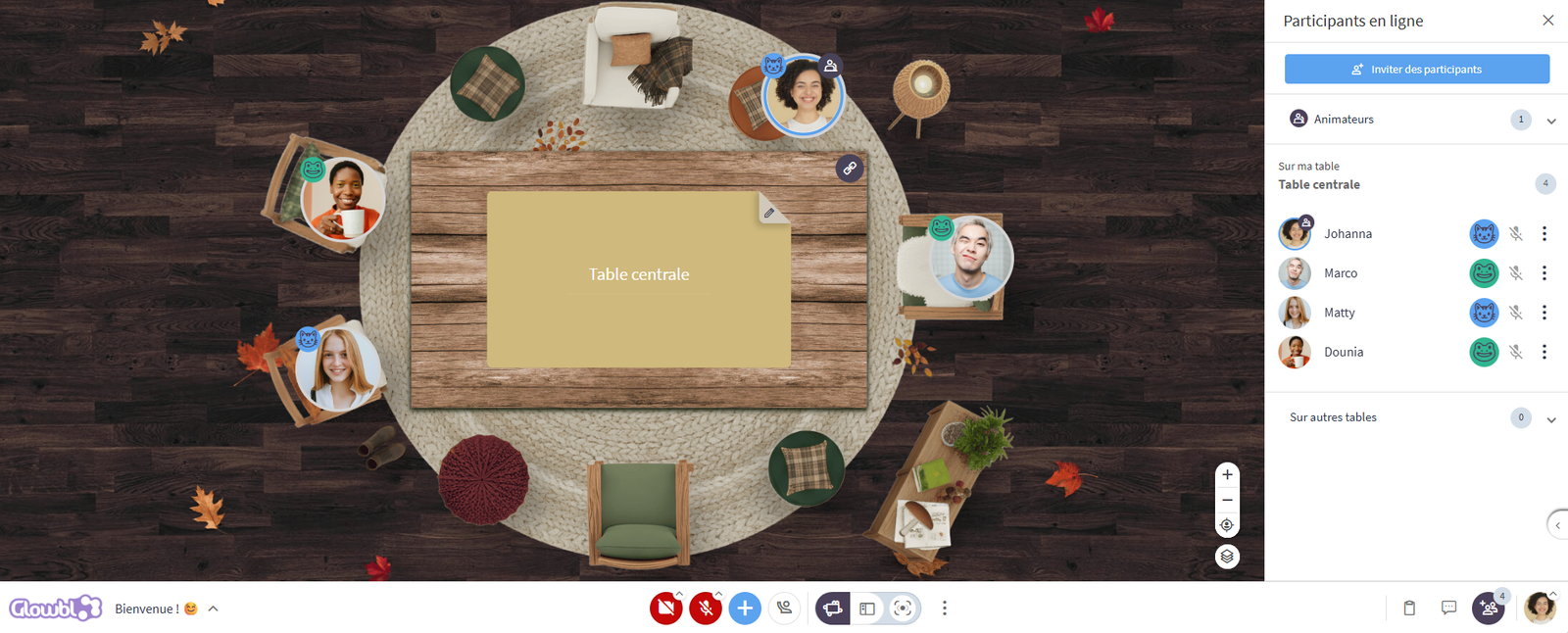
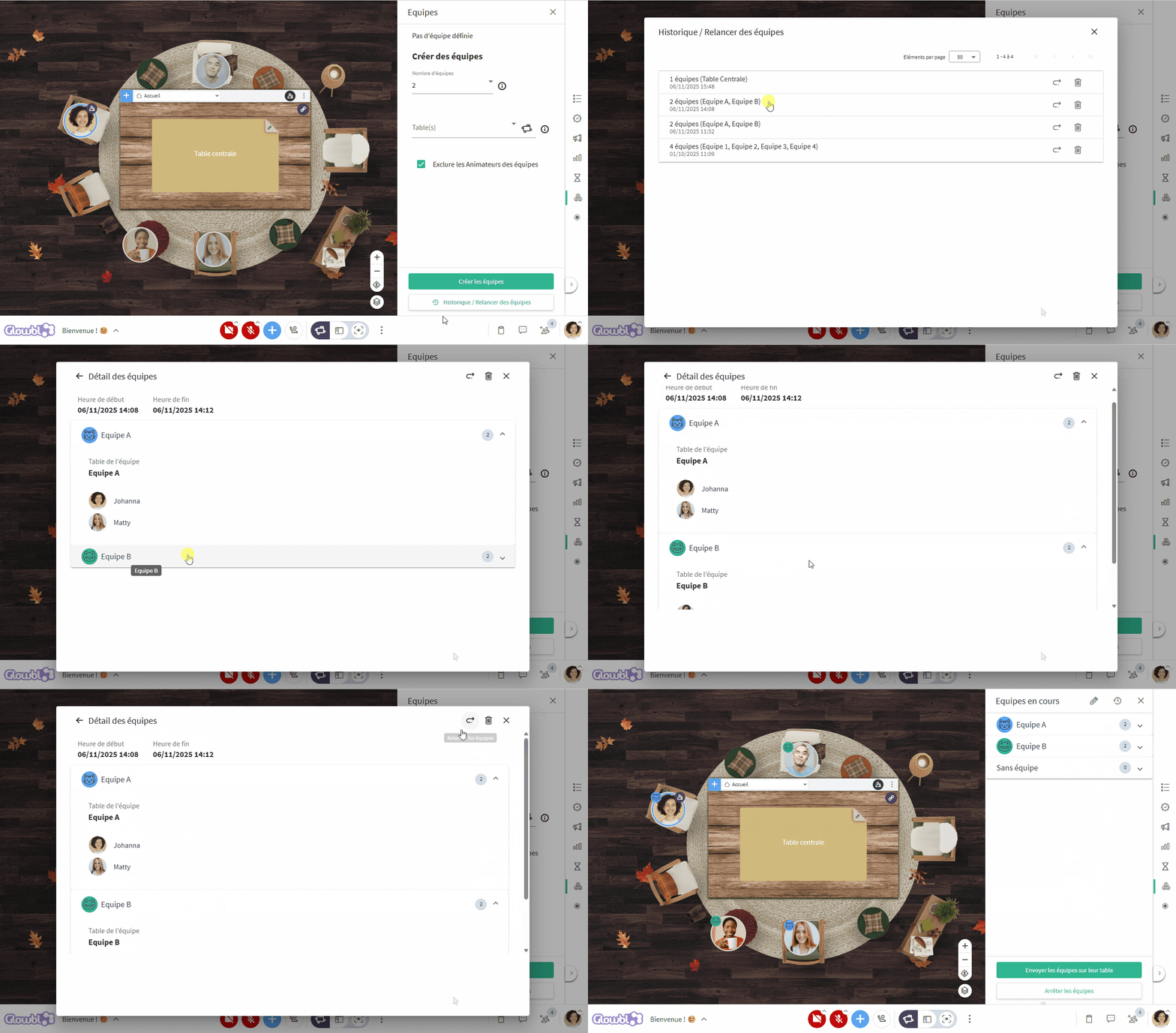
Create up to 9 random teams , adjust them, choose whether or not to include moderators, assign their tables... then automatically distribute the participants ! Each team is identified by an icon (animal + color) visible both on the bubbles and in the Participants tab. The associated table uses the same visual identity. A history also enables you to easily find and reuse your previous teams.
This random and automatic distribution can be found in the animation tools in the white bar on the right, below the Timer.
🫧 Put participants' bubbles in Picture in Picture
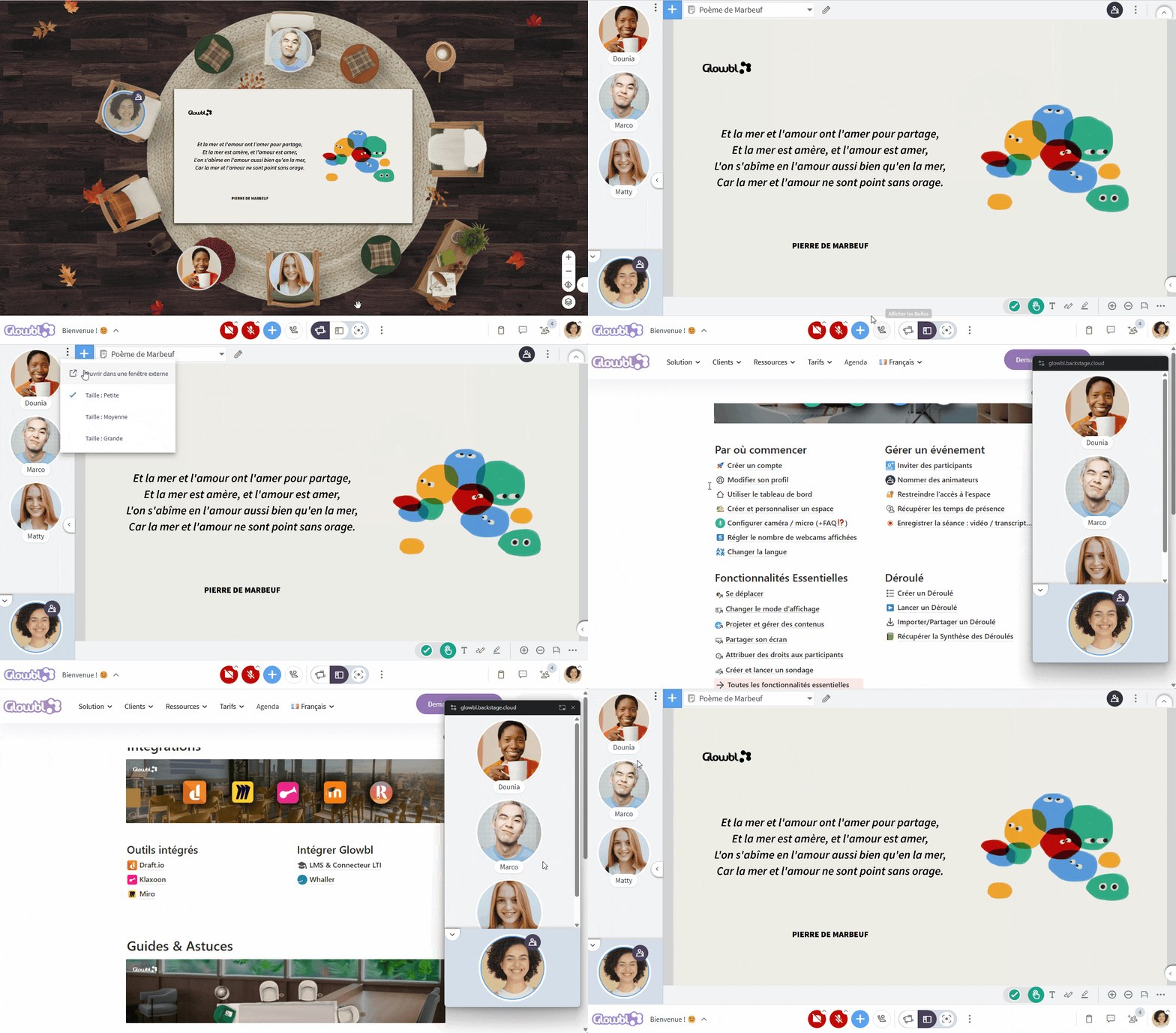
In Enlarge Content display mode, you can now detach video bubbles and place them, for example, on another screen. Handy for maintaining eye contact without sharing your screen blindly! Same thing when you're in Synchronized Tables animation mode. Switch to Enlarge Content display mode ➜ click on the 3 dots at the top of the bubble pane (Manage bubble display) ➜ Open in a new window
📄 Export session summary
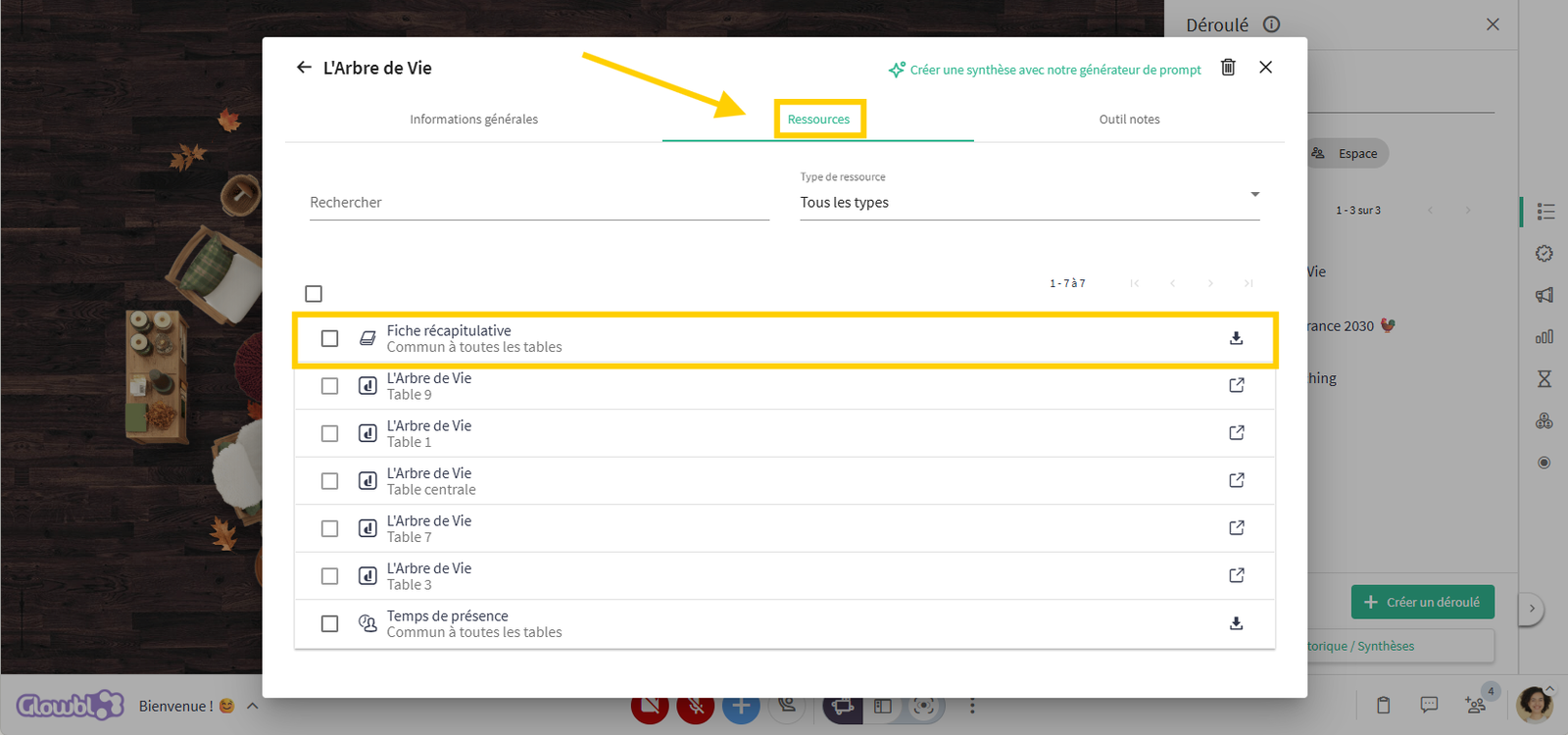
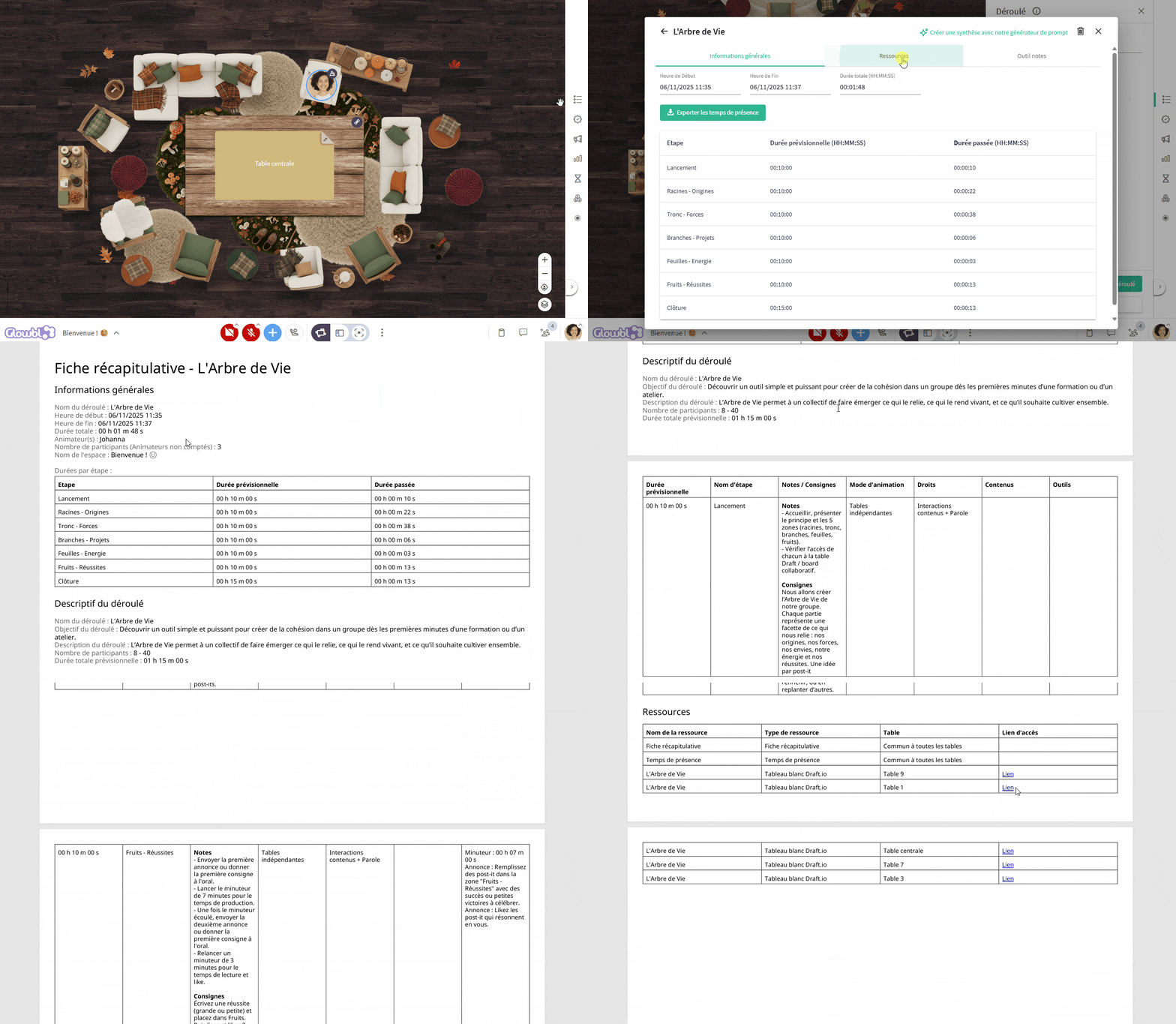
Each time a sequence is started and stopped, a PDF summary sheet is automatically generated. It brings together all the key information from your session : General information / Course description / Resources. In the animation tools, click on Sequence ➜ History / Reports ➜ select a report ➜ Resources tab ➜ Download "Summary sheet".
🎤 Mute all microphones at once
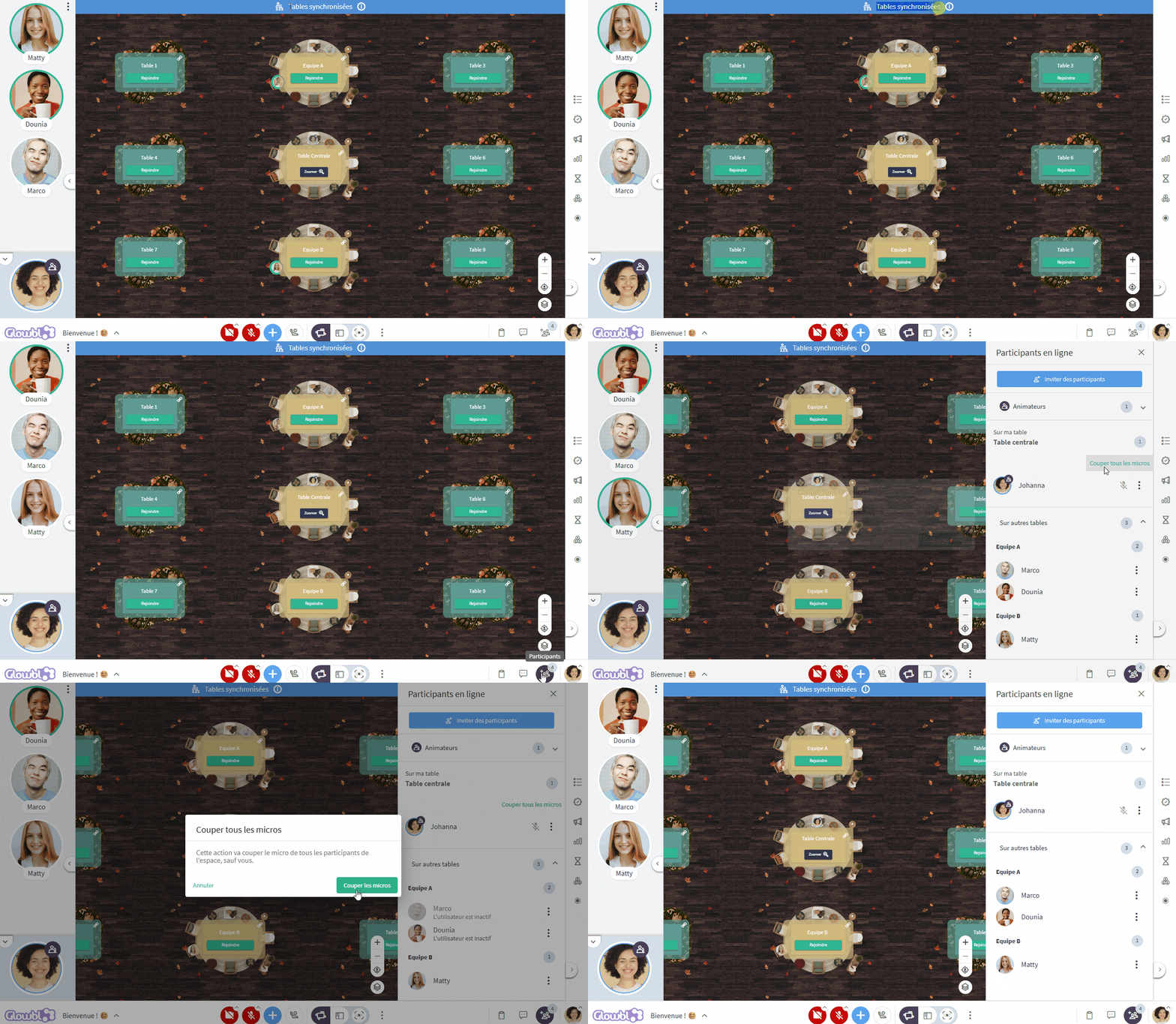
You can now mute all microphones at once (except your own) to avoid background noise. The feature works in all facilitation modes: Independent Tables and Synchronised Tables.
Open the Participants tab at the bottom right of your screen, then click on "Mute all".
❌ Exclude a participant from the space
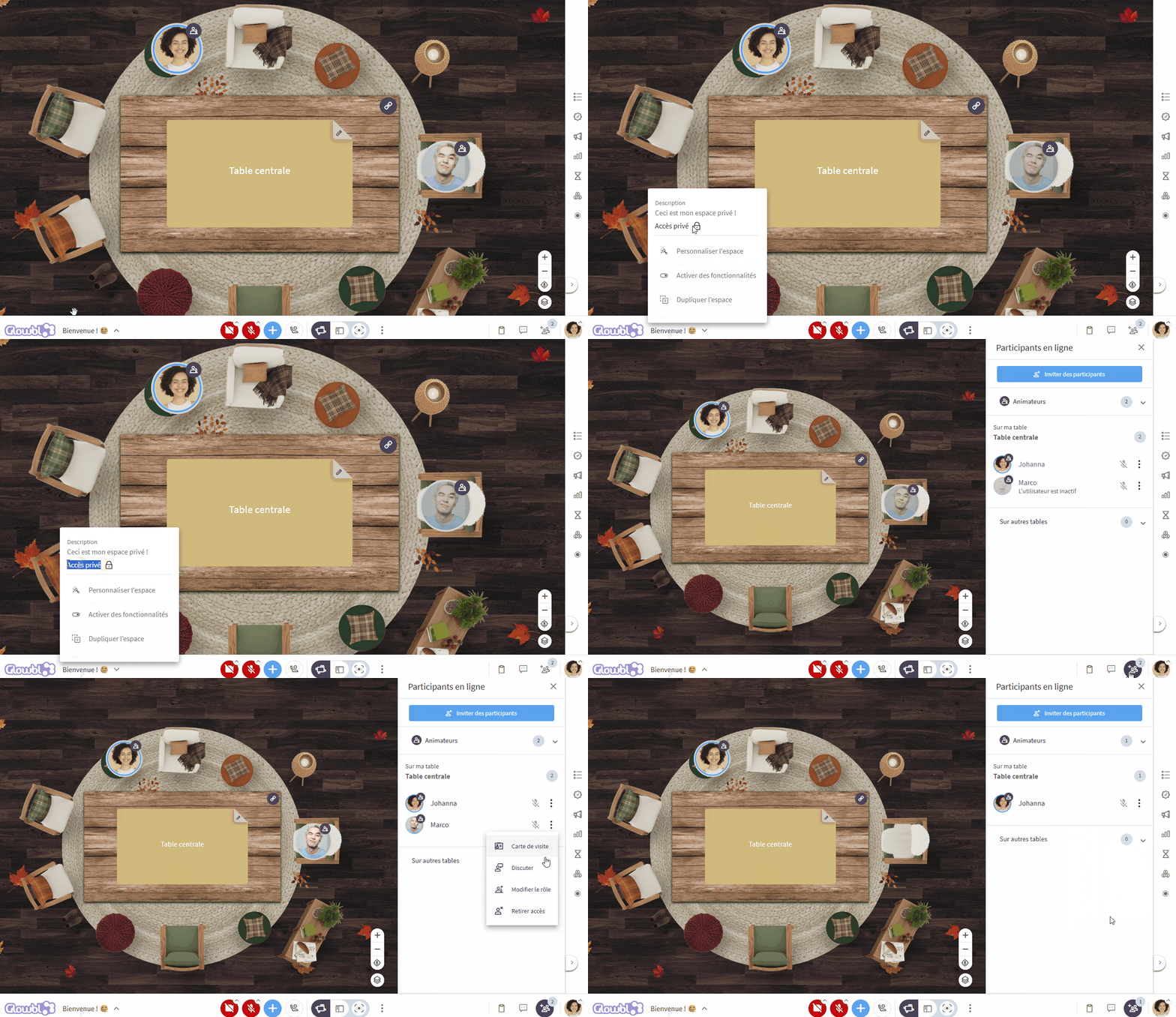
When access to your space is private, it is now permissible to withdraw access from an inadvertently accepted or disruptive participant.
Open the Participants tab ➜ click on the three dots of the person to be ejected ➜ click on Remove access.
IMPROVEMENTS
🖼️ Better identify the features of the Profile menu.
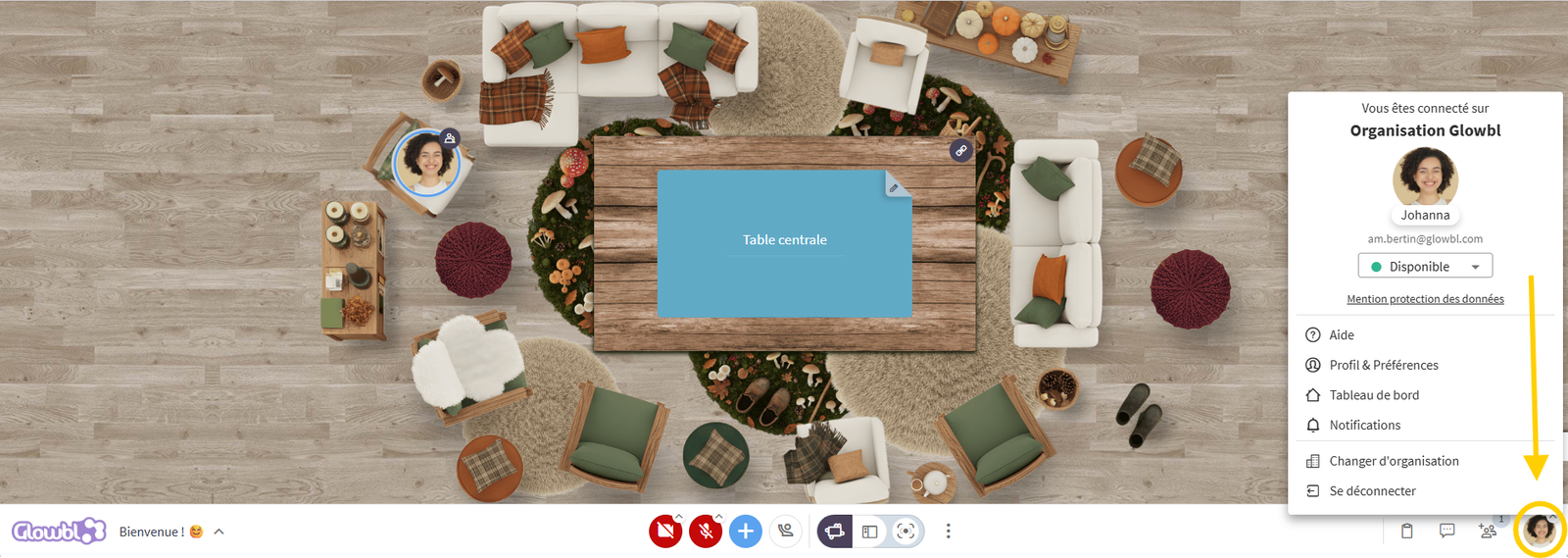
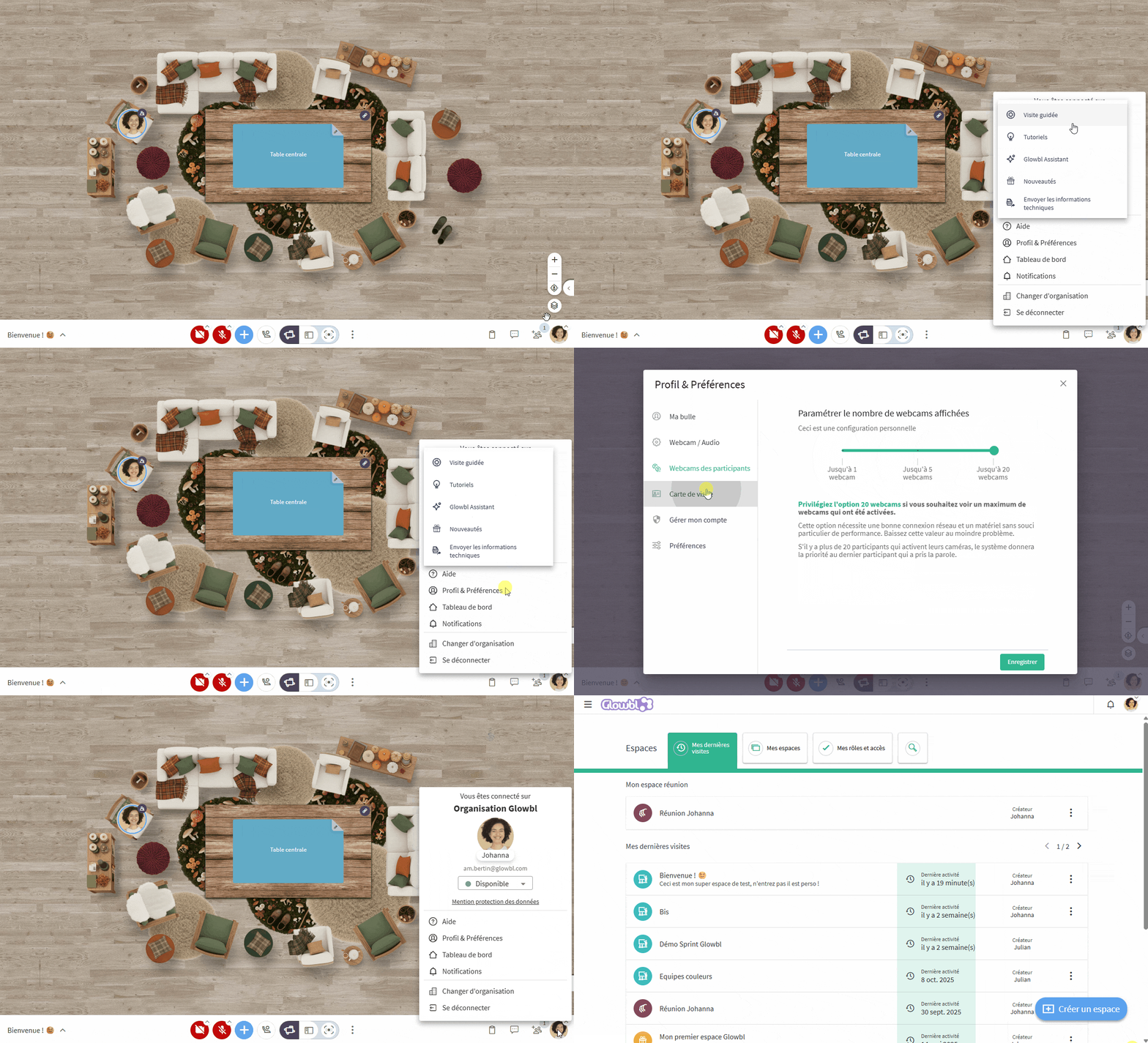
Your photo, located at the bottom right of the space, gives access to several functionalities: profile and preferences modification, access to the dashboard, tutorials, Glowbl Assistant and features updates... To better signal that this photo is clickable, a small chevron (identical to those on the camera and microphone buttons) has been added. The entire tab has also been streamlined to make it easier to read.
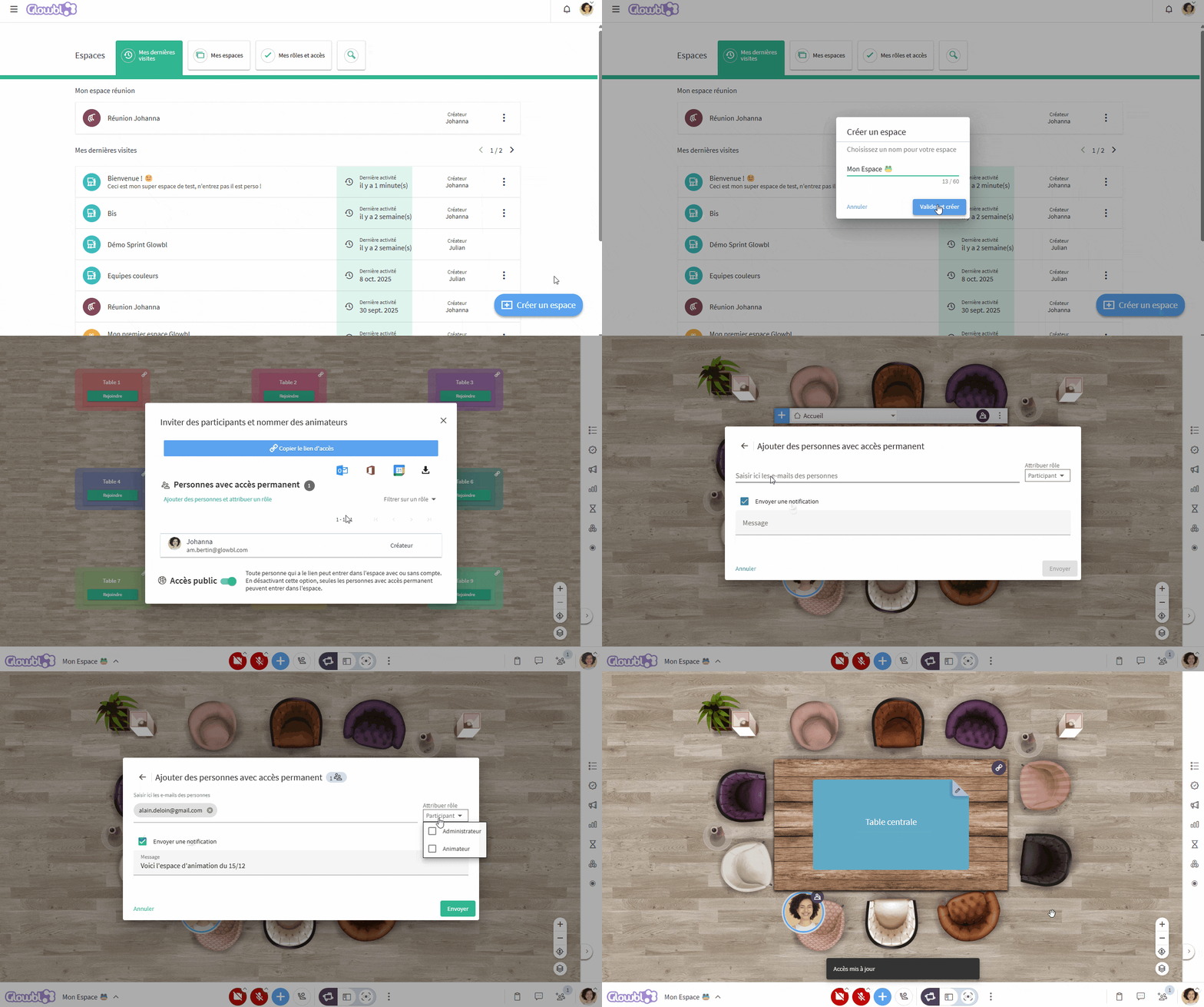
 Appoint facilitators as soon as a space is created
The Create Space button in the bottom right-hand corner of the Dashboard is now easy to spot thanks to its new blue color. We've also simplified the process of creating a space by reducing the number of steps involved. And best of all: when you make your first entry, the "Invite participants and appoint facilitators" window opens automatically. You'll remember to add your moderators at the right time... and you'll save time!
👀 Make content bars more discreet
We've reduced the size of the toolbars that appear when hovering over a table or document, to prevent them from obscuring nearby bubbles. Their display time has also been shortened to limit distractions.
🔽 Sort organization spaces
(Reserved for Organization Managers and Super Administrators)
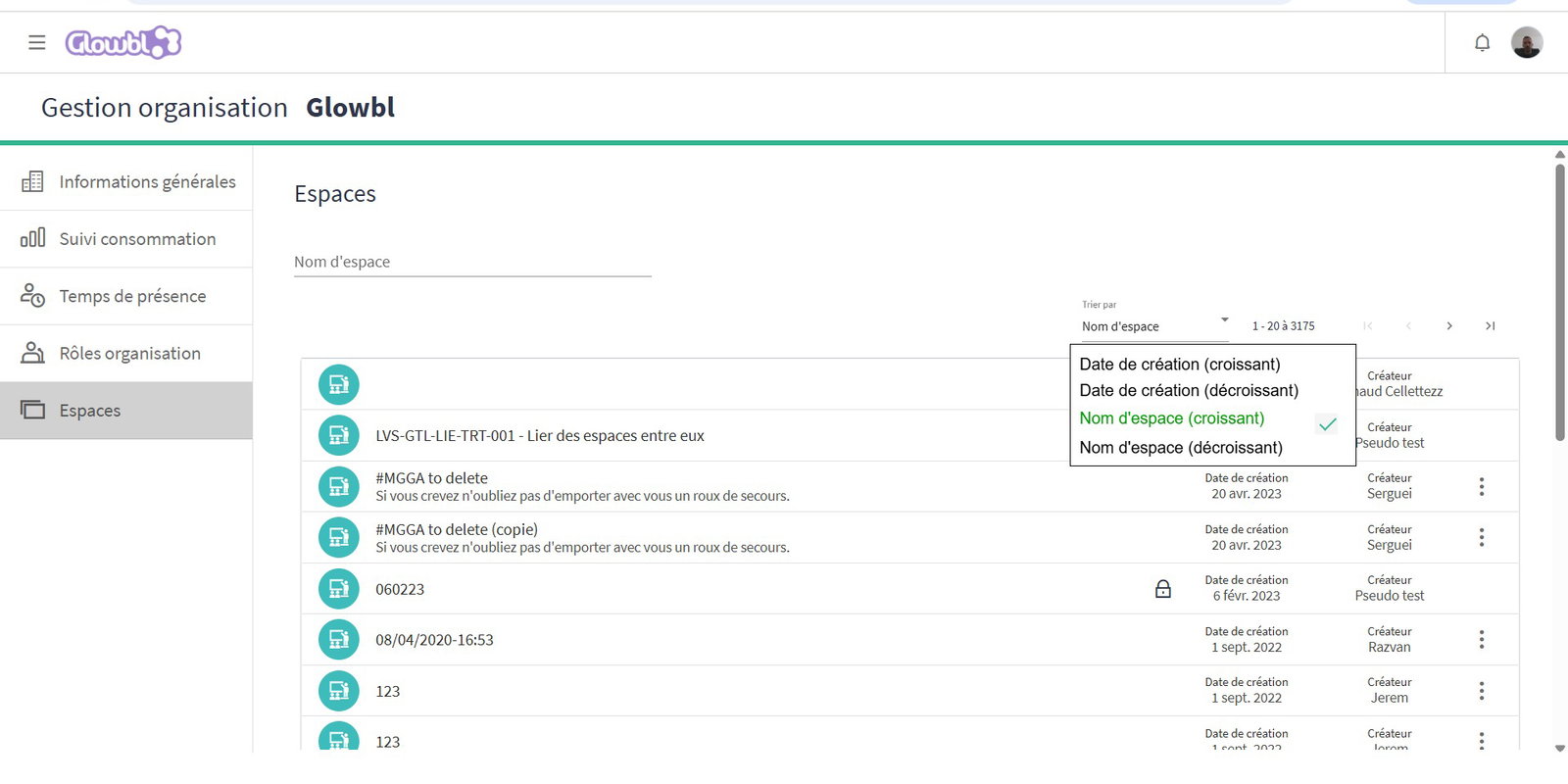
Since version 5.7, the Manage Organization dashboard gives access to several datas of your Glowbl organization, including the complete list of your spaces. It's now possible to sort these spaces by name (A→Z / Z→A) or by creation date (newest to oldest / reverse), to find what you're looking for more easily.
August 2025 -Release 5.7
Read all about it on our blog.
FEATURES
👩🍳Manage and administer all spaces in an organization
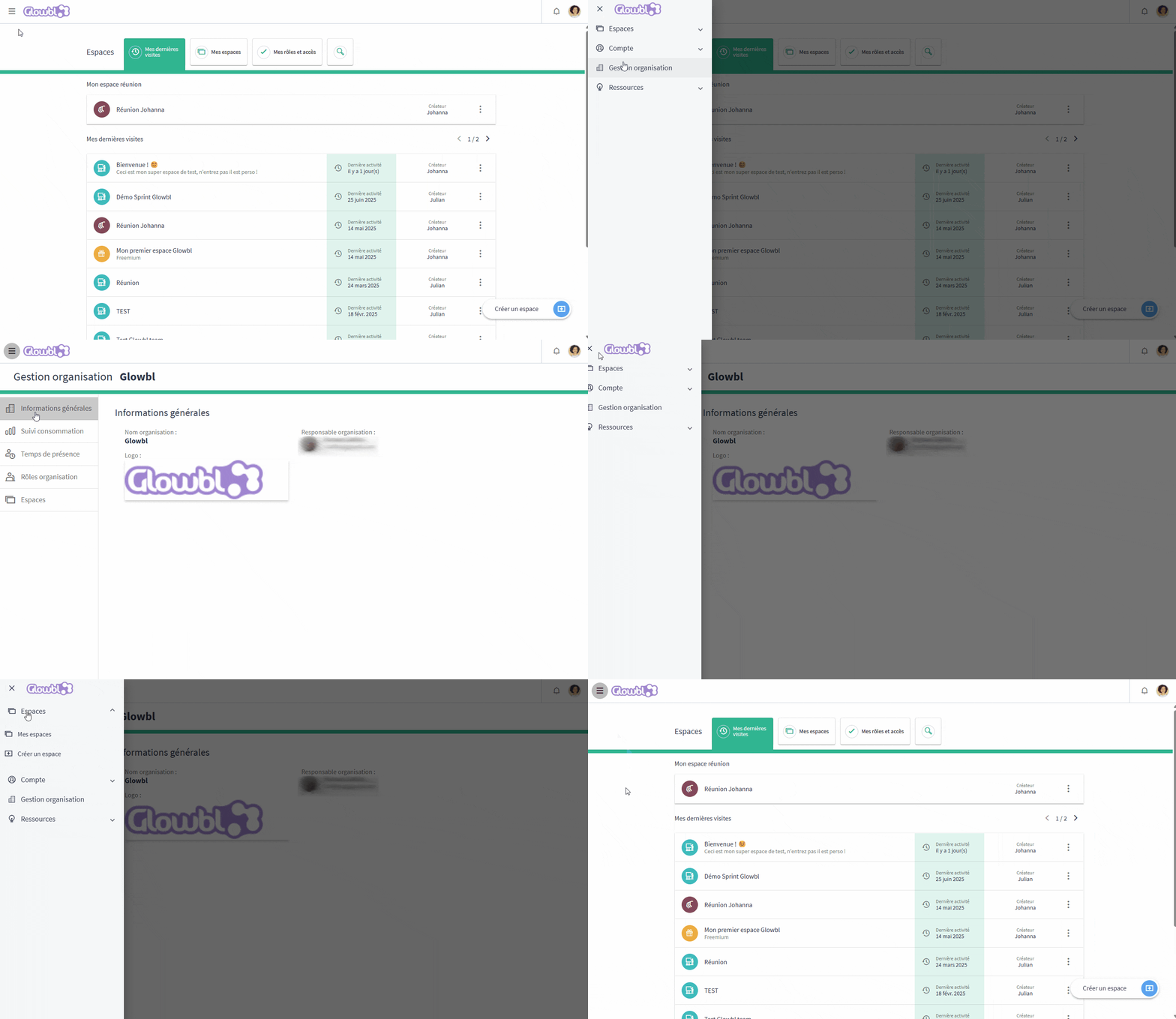
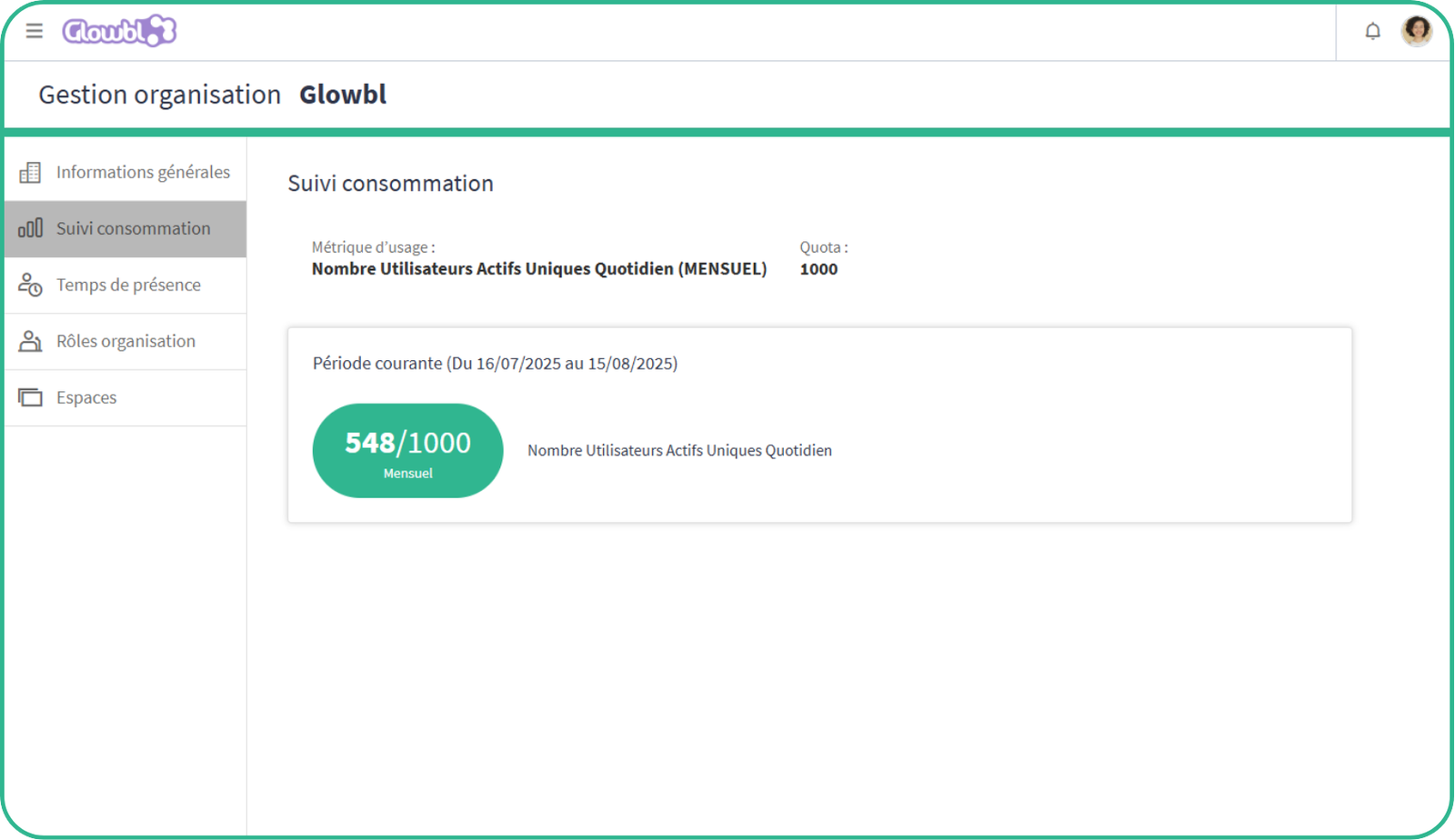
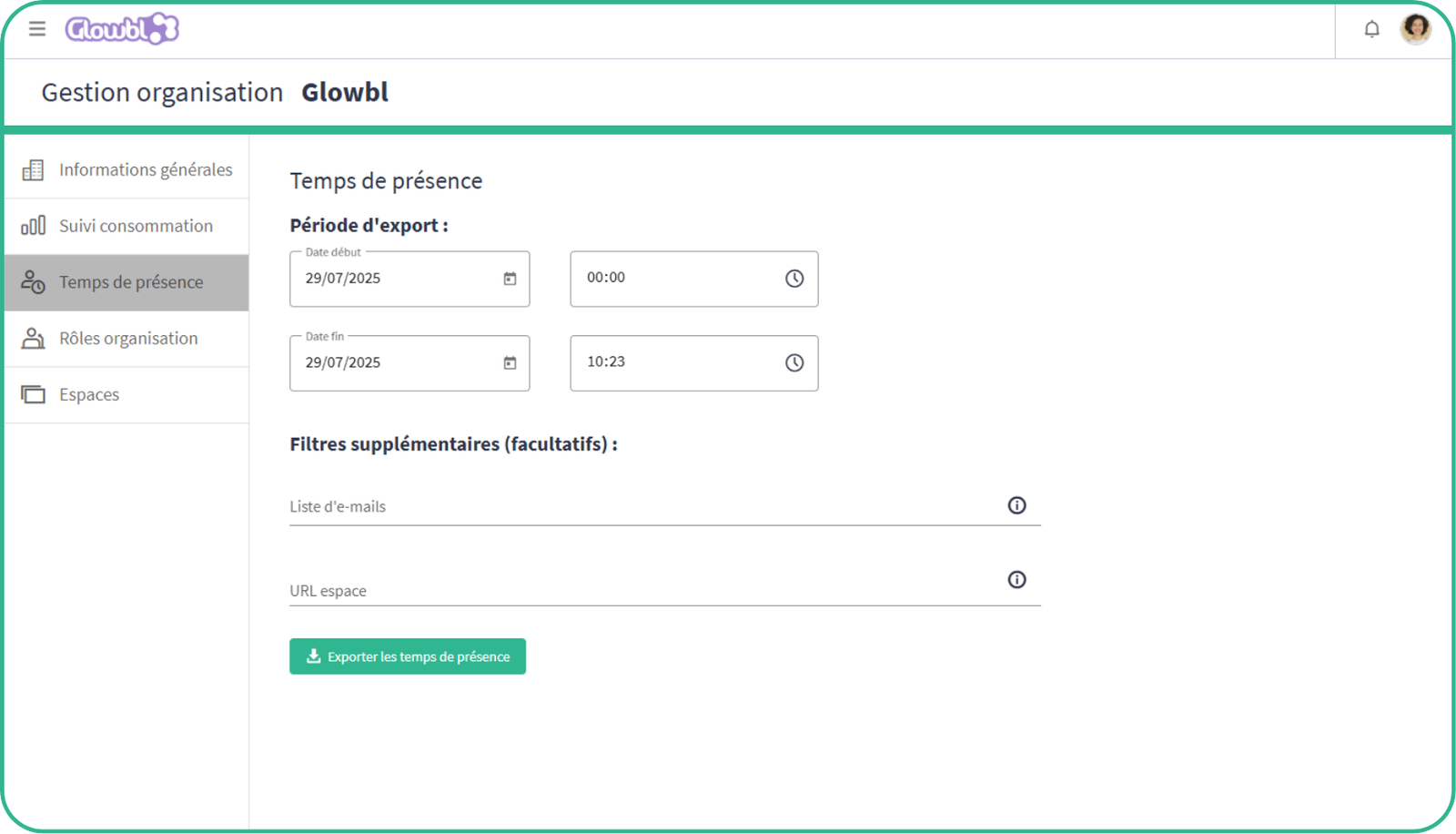
A new "Super Administrator" role lets you supervise all your organization's spaces: license consumption, time and attendance, exports, role management and access to registrations. All this from a new Organization Management dashboard, accessible from the burger menu at the top left of the original dashboard.
⚡ Import steps from one sequence to another
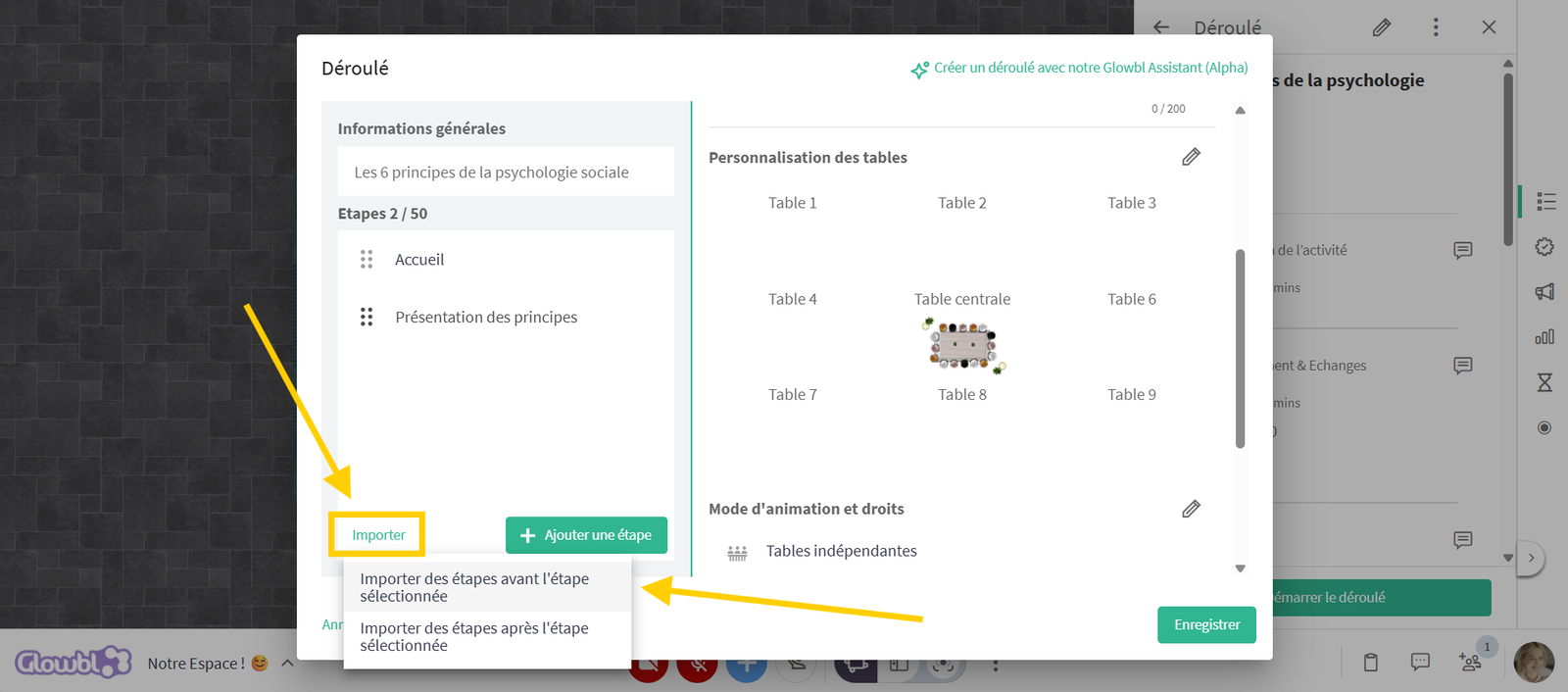
You can take one or more steps from another sequence (template or personal) and integrate them into your current framework. No need to recreate everything: add a moving debate or an icebreaker in one click, exactly where you want it.

⏯️ Share a replay in an online player
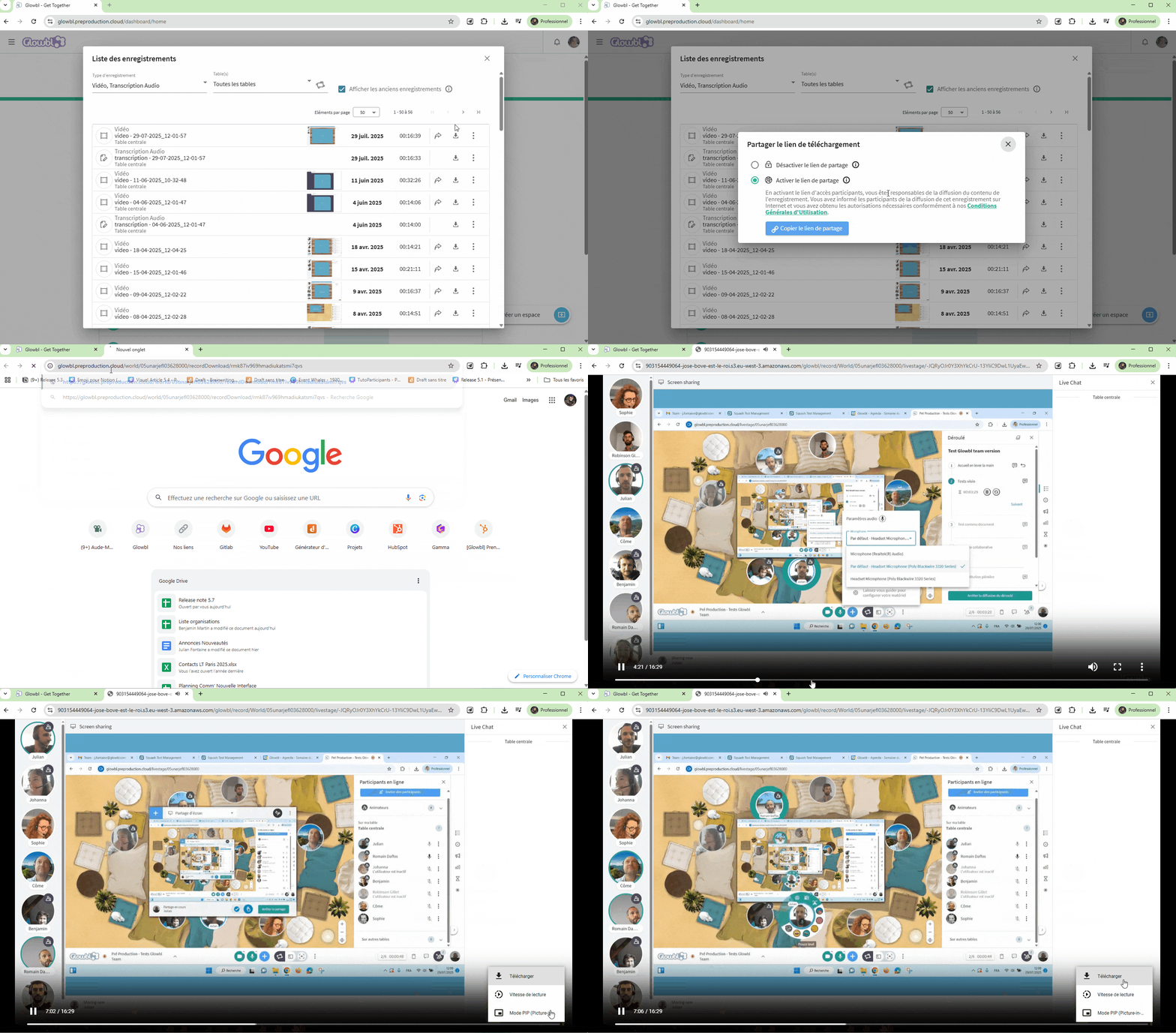
Video recordings now open in a browser-integrated player, simply by clicking on the share link. There's no need to download to review or transmit a session. Downloading remains possible from this same player if required. We've also changed the resolution of the videos to ensure better viewing quality.
IMPROVEMENTS
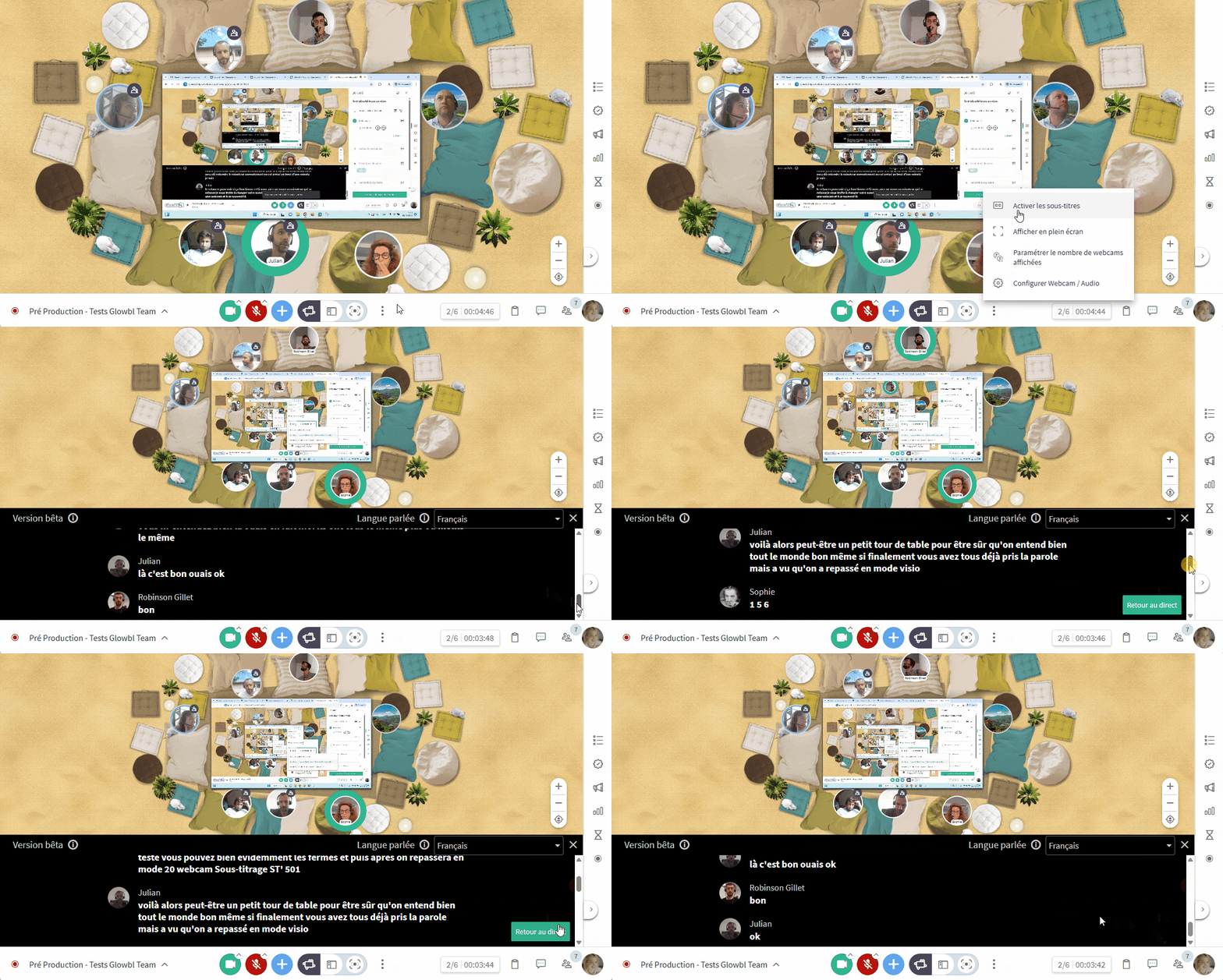
⏪ Scroll subtitles to catch up on conversation
Glowbl's automatic subtitles evolve with a vertical scroll function, a back to live button, and a more legible font. To follow the conversation at your own pace, especially for the deaf or hard-of-hearing.
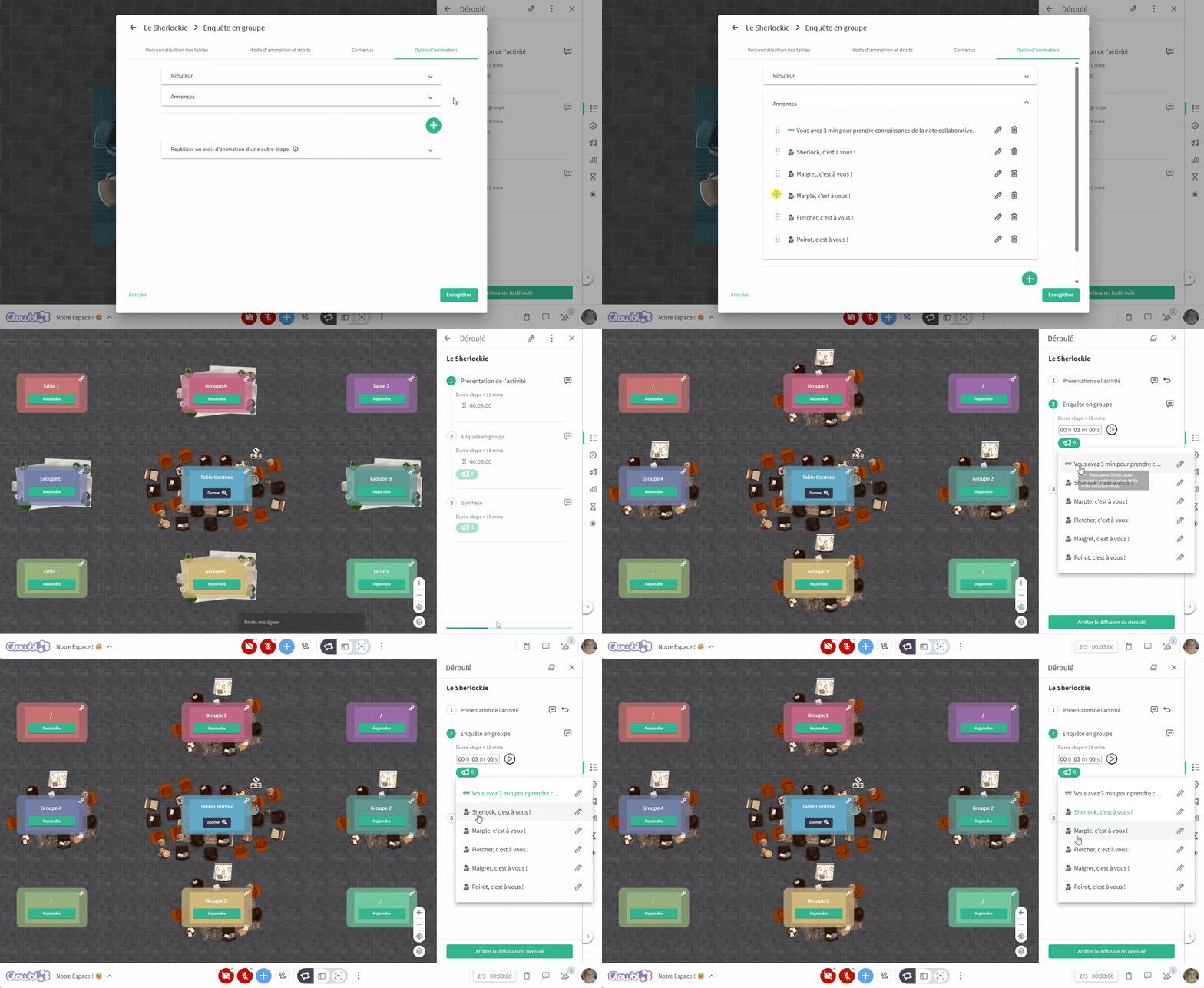
🧩Reorganize facilitation tools
It's now the time for facilitation tools to be reorganized by dragging and dropping them into your sequence to launch them more easily in order during your animation.
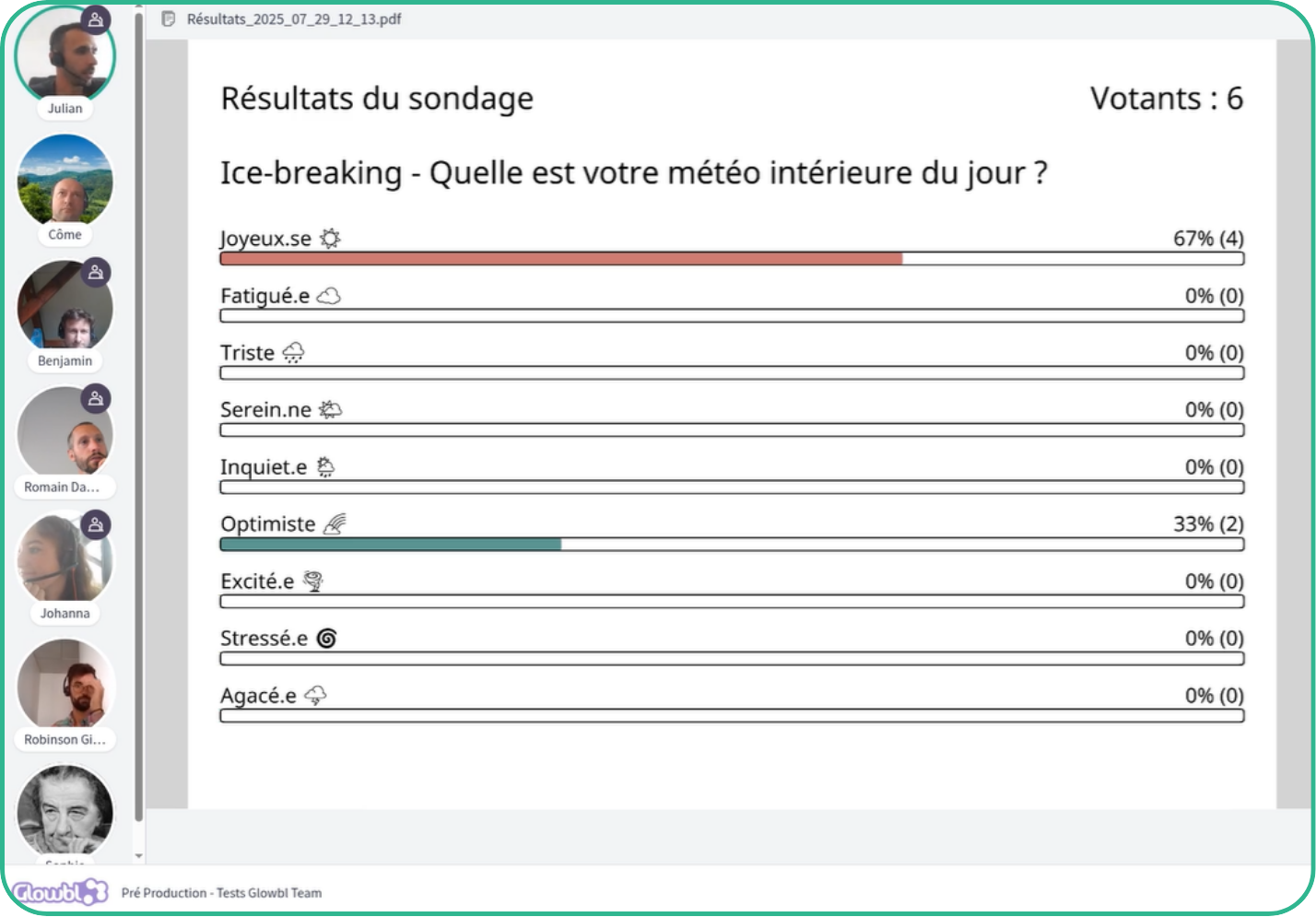
⛅ Show emojis in results
For an extra touch of fun, emojis embedded in polls are now also displayed in results PDFs.
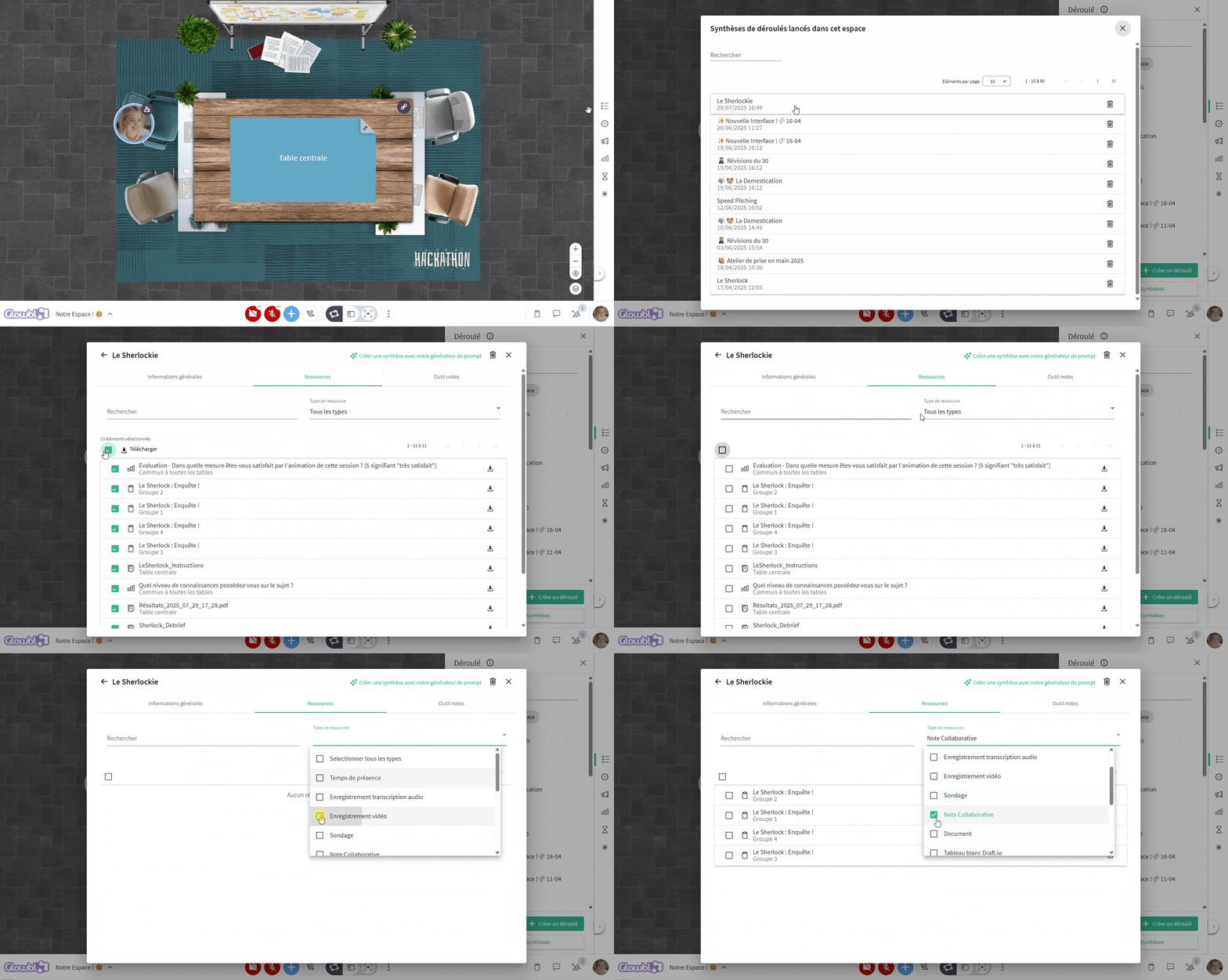
Quickly download & share content at the end of a session
A new "Resources" section in the course summary lets you find and share everything you need in just a few clicks: projected content, polls, replays and attendance times.
Muting other tables in Synchronized Tables mode
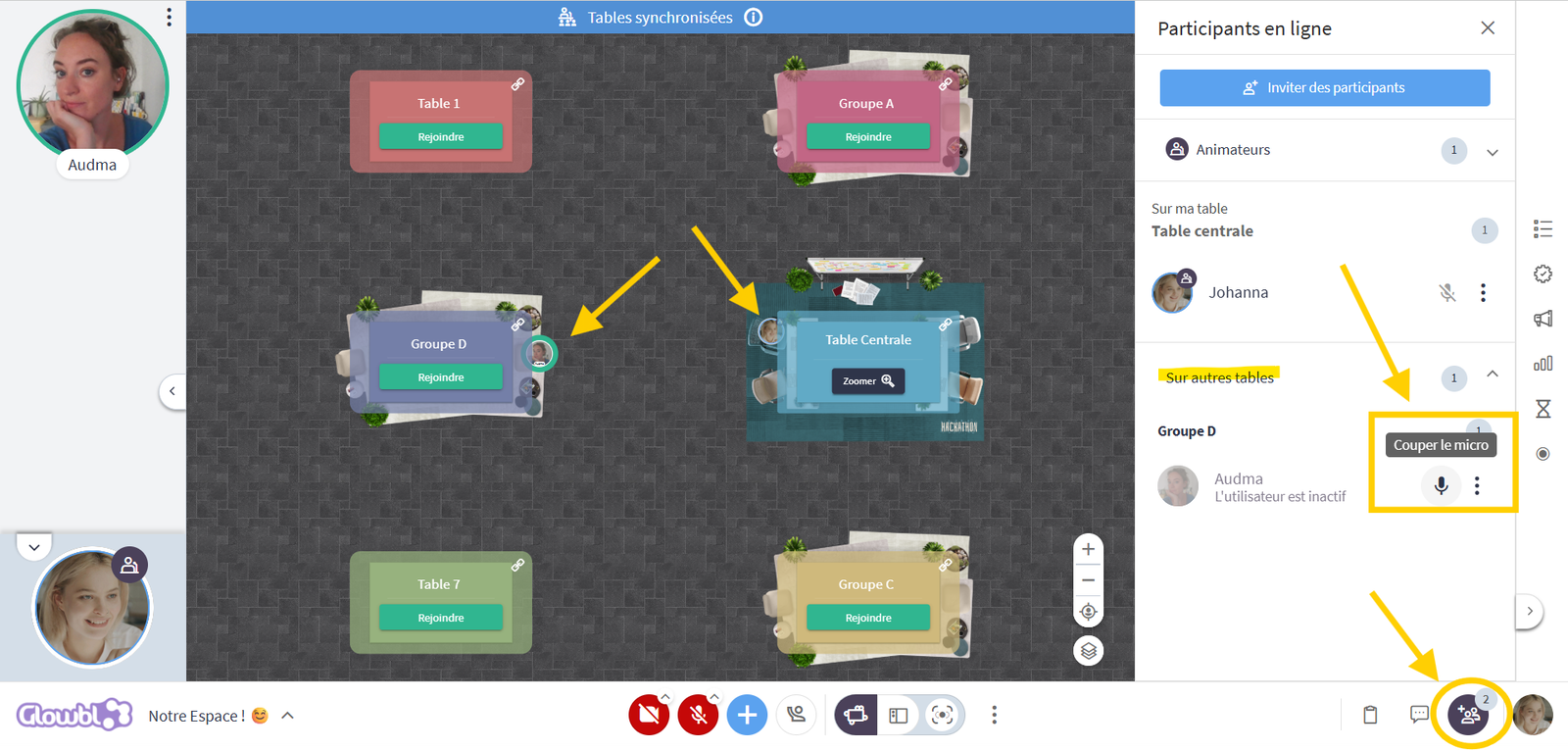
From the participants tab, mute the microphones of participants who may be creating interference even when they are at other tables.
ROBUST
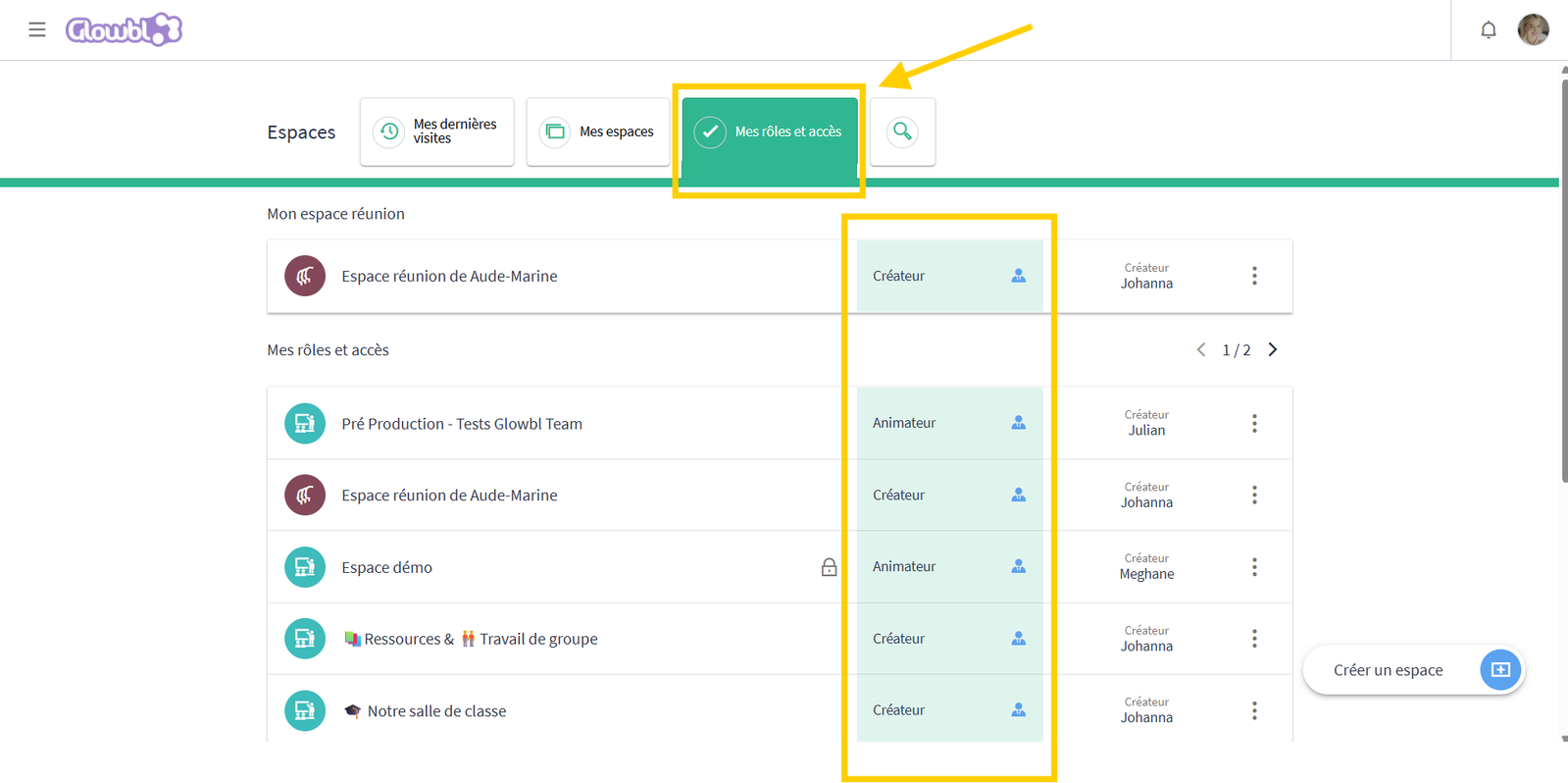
Check your roles and accesses at a glance
The My Roles & Accesses tab on the dashboard now reflects your assigned roles in real time. If you've been appointed as a space facilitator or administrator, this is where you'll see it.
🥸 Edit your profile on the fly
Change your name or photo on the fly? Now you can! Your changes apply instantly in chat, ads and everywhere else in the space. No need to reload anything: your profile stays up to date in real time.
June 2025 -Release 5.6
Read all about it on our blog.
FEATURES
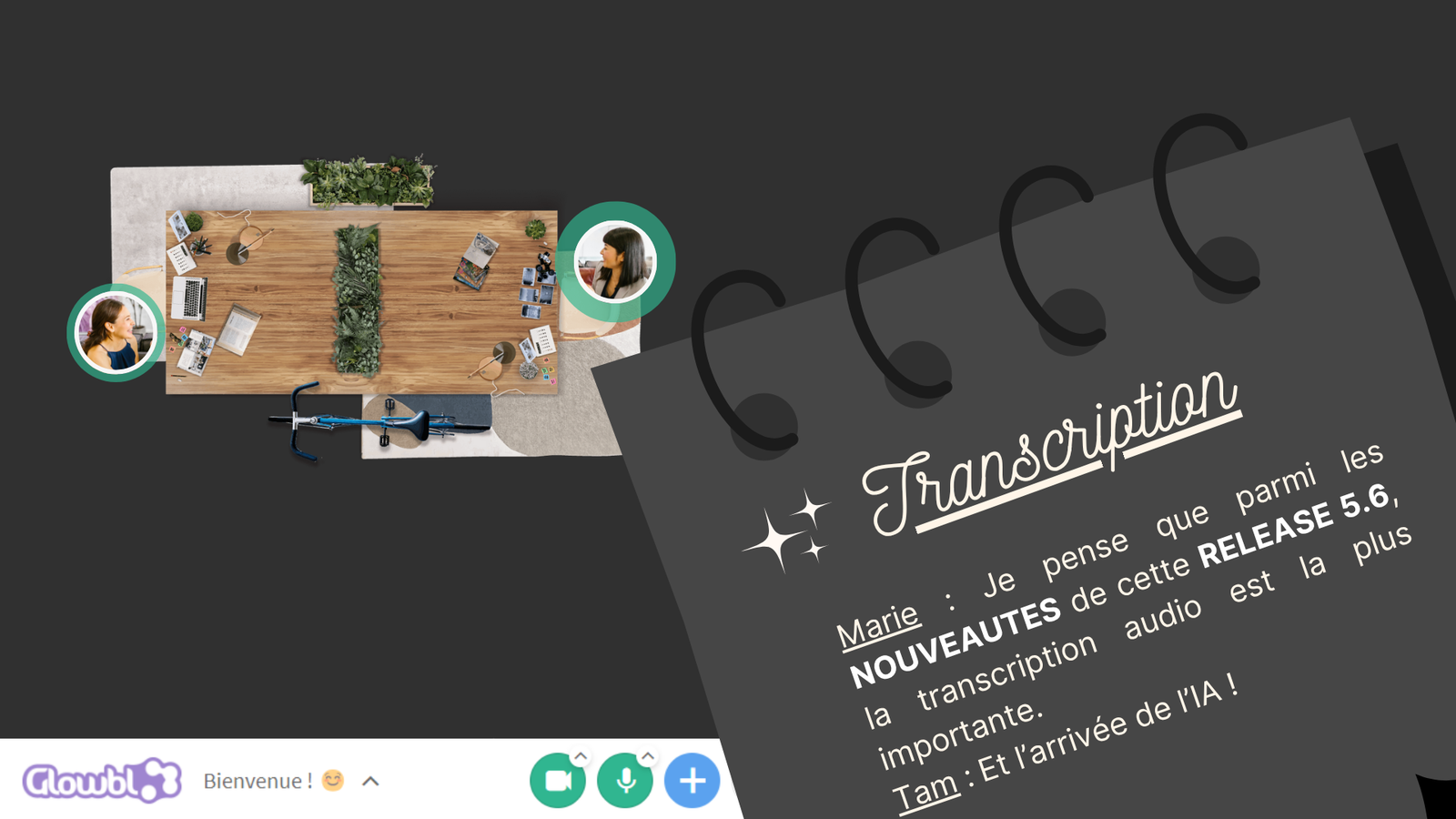
📝 Transcribe your sessions automatically (beta)
The table video recording has moved to the white sidebar, just below the timer. And don't forget to try out the automatic audio transcription (beta version), so you can find out in writing everything that's been said! It's a huge time-saver when it comes to producing reports or action plans with your favorite AI.

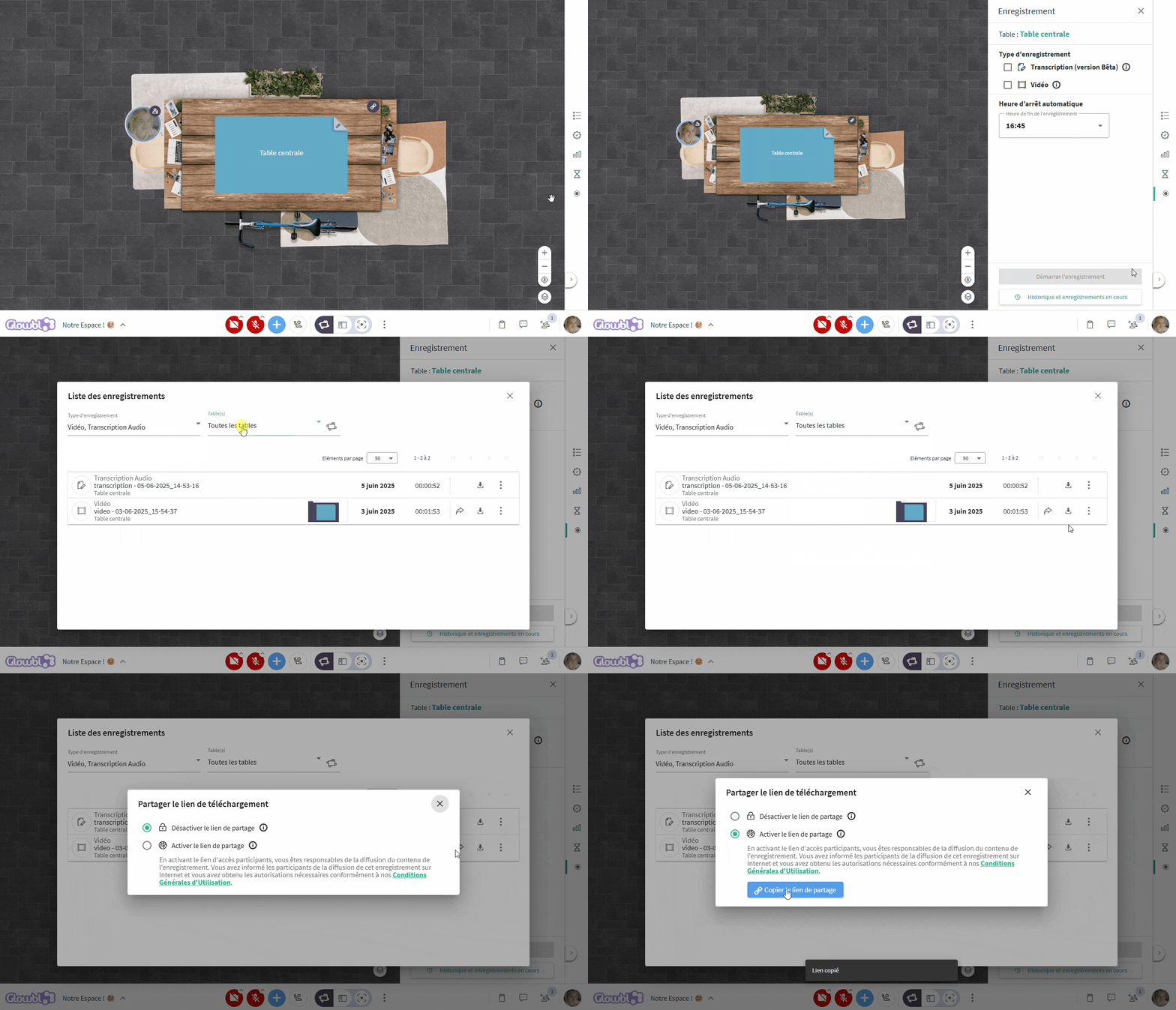
📁 Access your recordings and transcriptions from a single window
From the same interface, find the history of your video recordings and audio transcripts, filter them, and easily share a download link. From now on, only the presenter can view the recordings, for greater confidentiality.
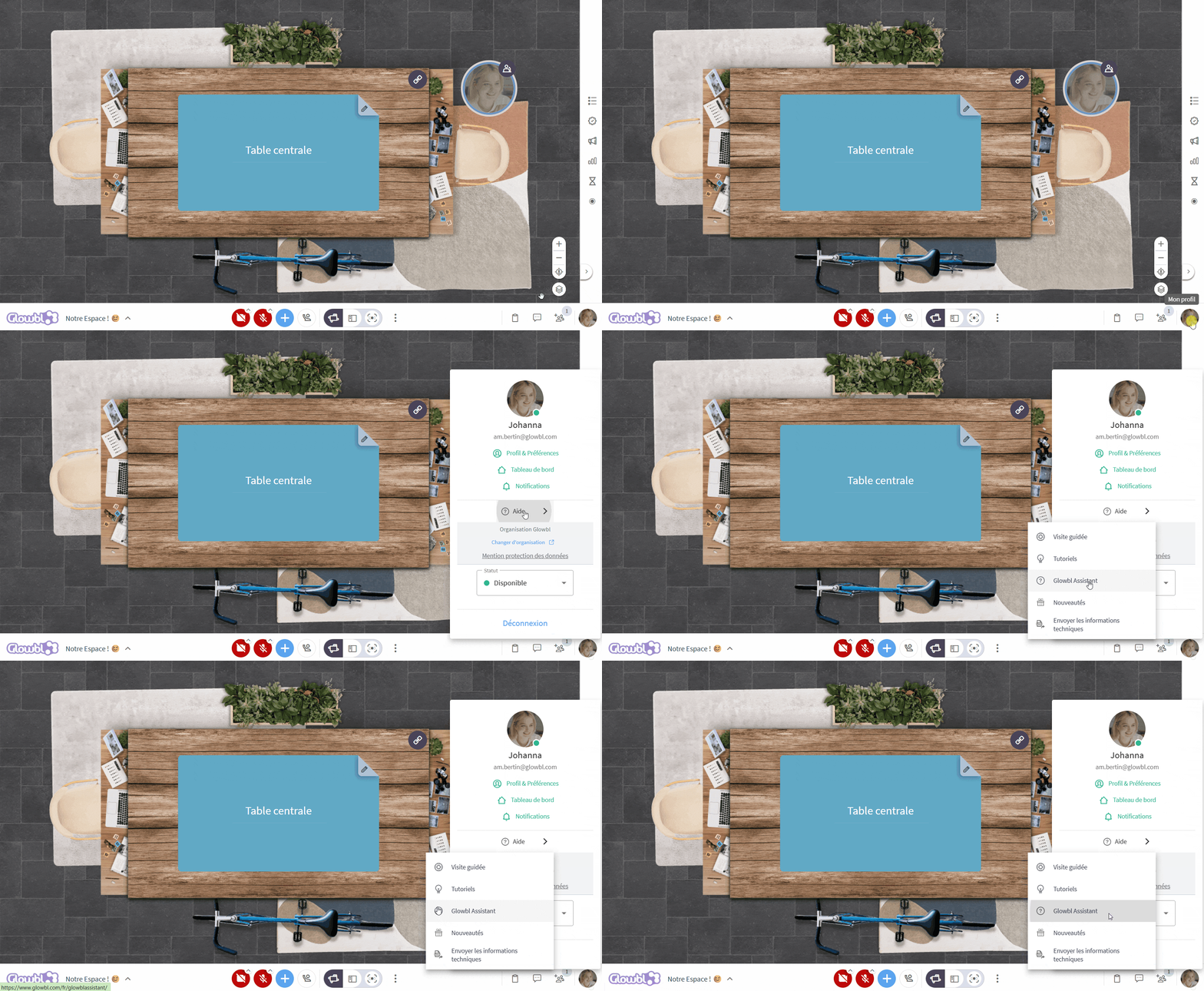
🤖 Be guided by Glowbl Assistant
The Glowbl Assistant available in your profile pictur answers all your questions! This intelligent chatbot knows all the features of Glowbl, and will soon be helping you design your sessions and generate sequence to import.
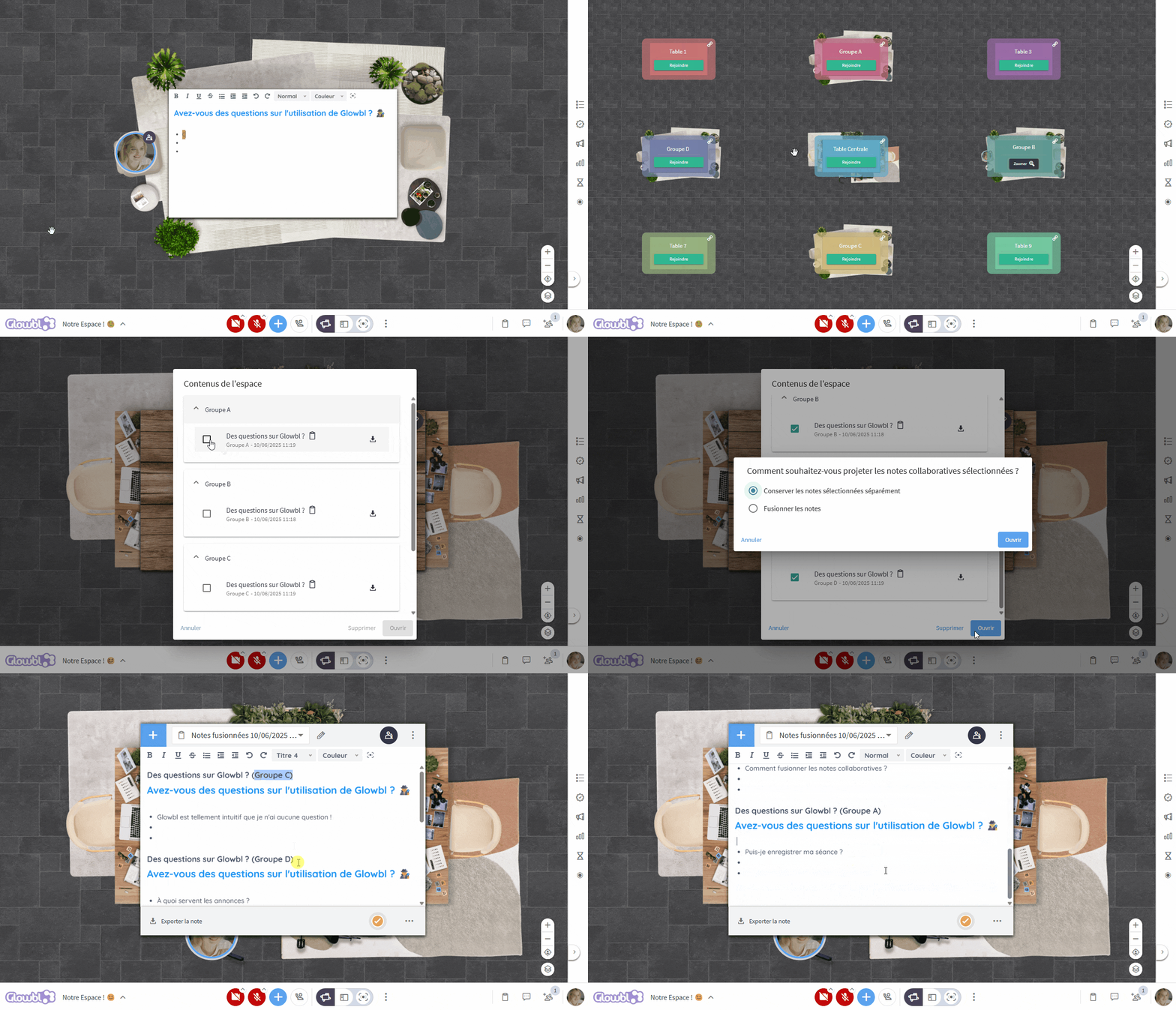
🗒️ Merge collaborative notes from your sub-groups
To debrief, open the notes produced by each group from the "Space content" folder in the table's library: Glowbl automatically detects them and suggests that you merge them into a single note. Each contribution remains identified by its original table.
IMPROVEMENTS
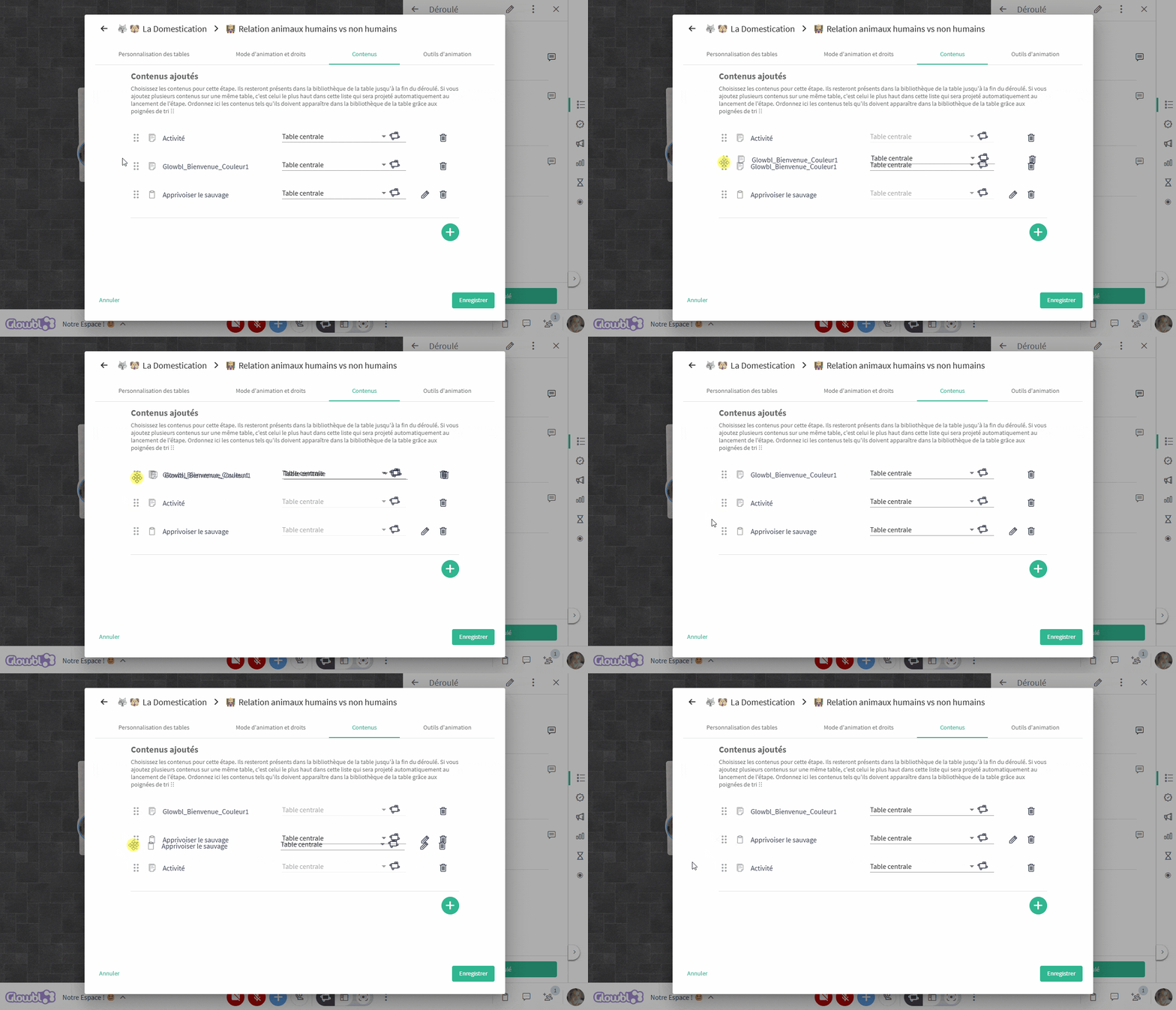
🧩 Manually rearrange sequence content
Want to manually change the order in which your documents appear during a step? You can now do so by simply dragging and dropping from the sequence construction interface. The content at the top of the list is automatically projected when the step is opened.
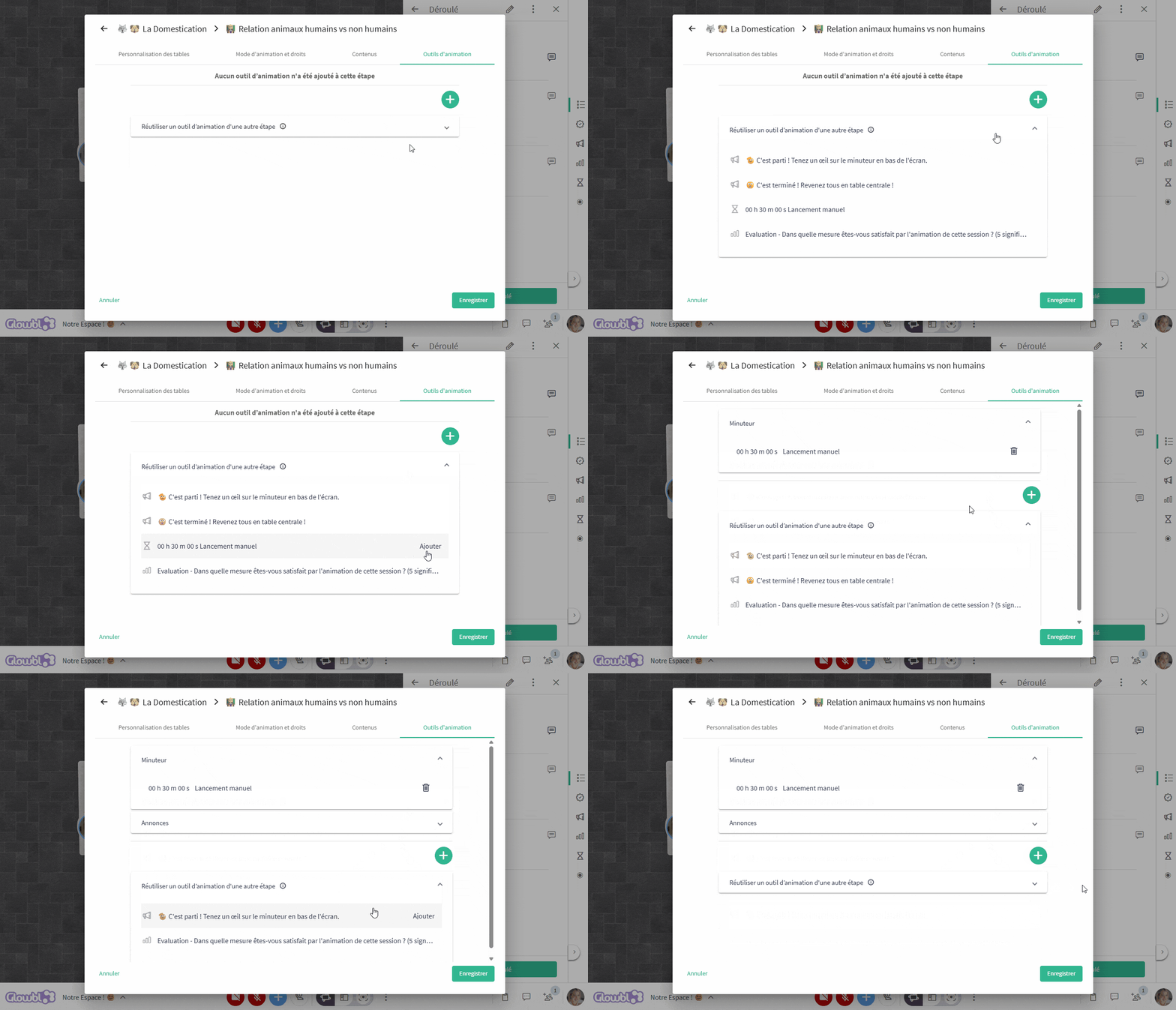
🔁 Reuse facilitation tools in multiple sequence steps
Do you often use the same facilitation tools? It's now possible to reuse an announcement (such as "Back to the main table") or a timer from one step to the next, without having to recreate it manually.
📚 Navigate faster thanks to last projected content display
The last content projected on the table is now automatically placed at the top of the library, to make it easier for you to go back and forth between the content used during the session.
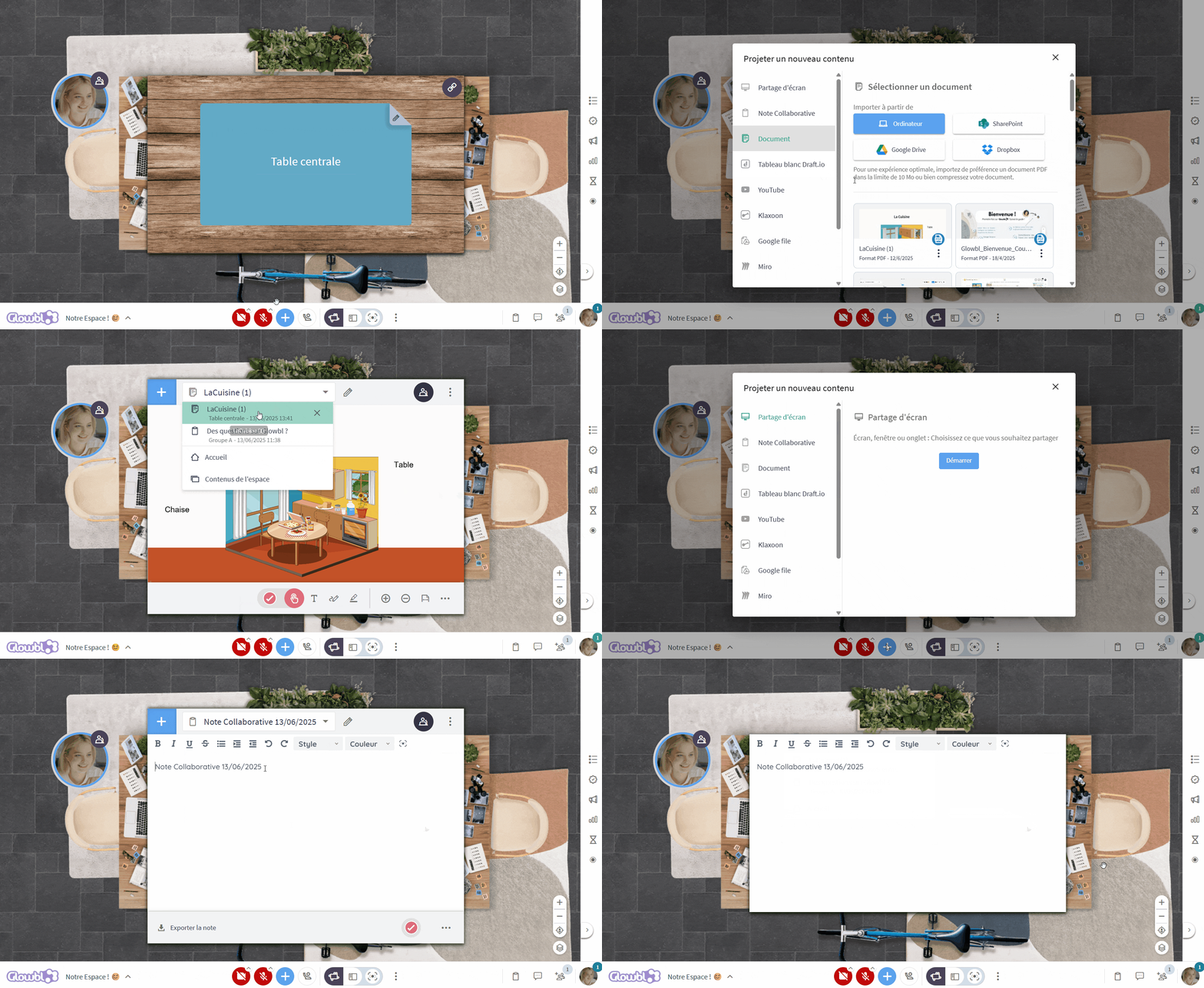
🔗 Network with an enhanced business card
Your business card is accessible from your bubble and from the Participants tab. It lets you fill in your position, website, description, LinkedIn, and now, a free field to add a phone number and/or another link or your nickname on your favorite social networks.
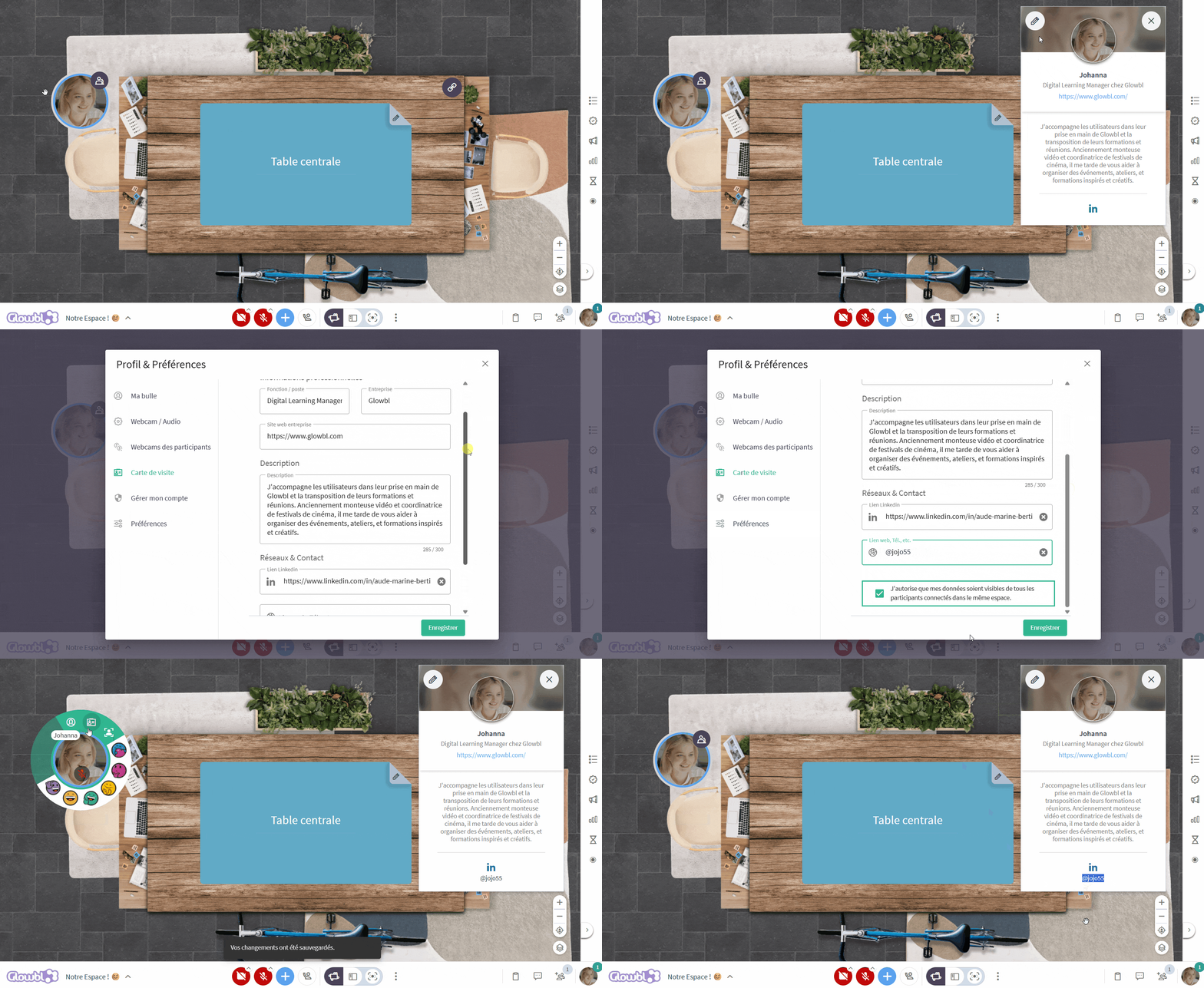
🙋♀️ Change the facilitation mode without changing participants' rights
So as not to surprise your participants, we no longer automatically change their rights to Raise Your Hand when switching to Synchronized Tables mode. Remember, however, to manually reduce rights if the space becomes too noisy.
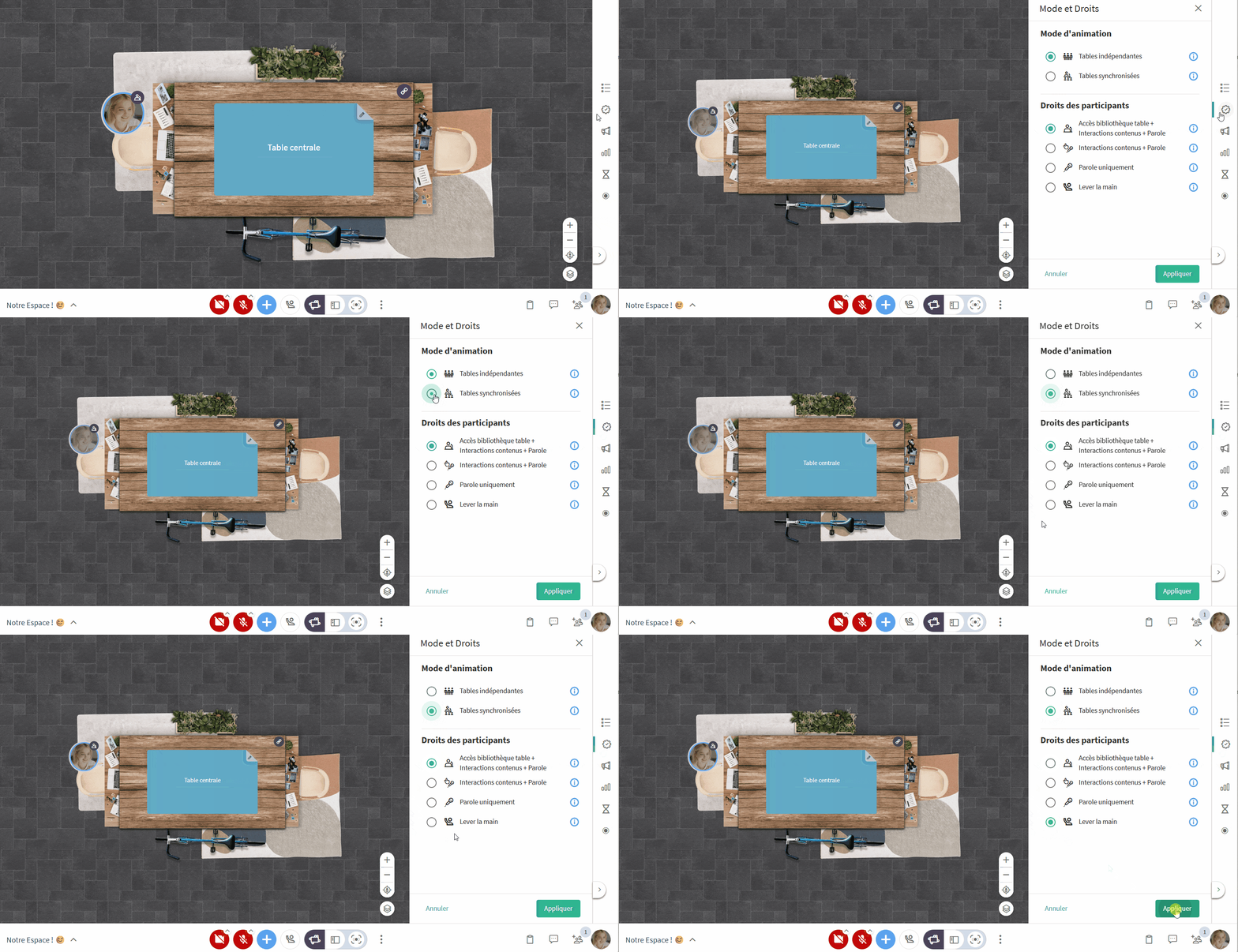
ROBUSTESSE
⚪ Locate session stalls more precisely
When you switch to another tab, your bubble turns gray to signal to the facilitator that you're no longer active. We've improved detection of your return: the bubble now reactivates more quickly as soon as you return to Glowbl.
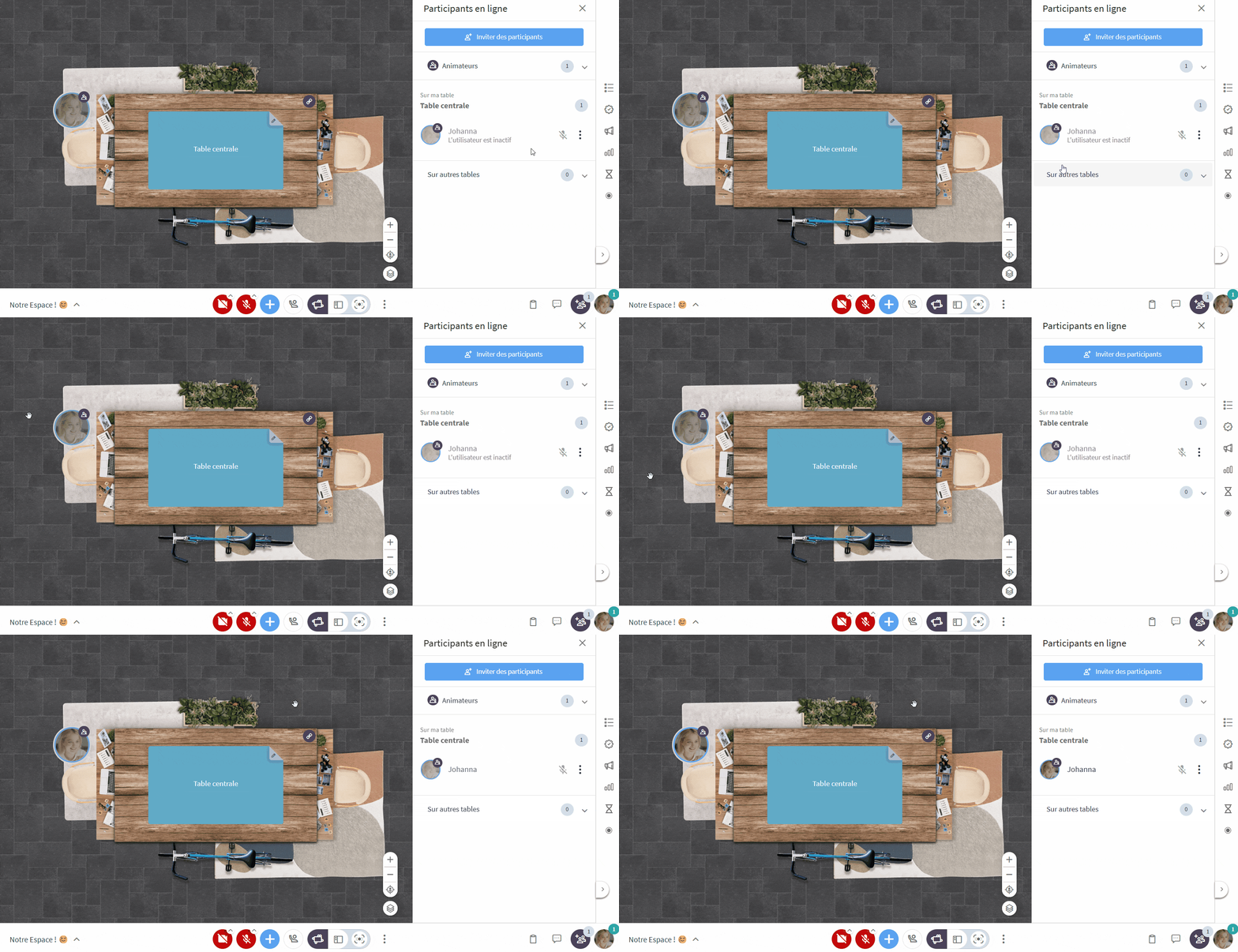
April 2025 -Release 5.5 - Interface redesign
Read all about it on our blog.
IMPROVEMENTS
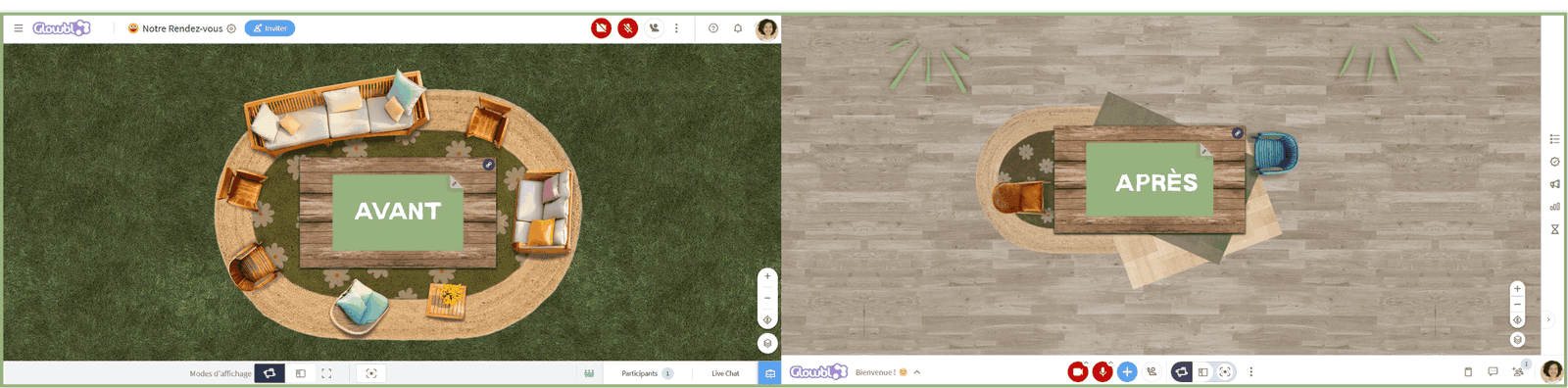
🎨 Enjoy a cleaner, more readable interface
Glowbl adopts a streamlined design by removing the top horizontal bar, offering more space for content and interaction.
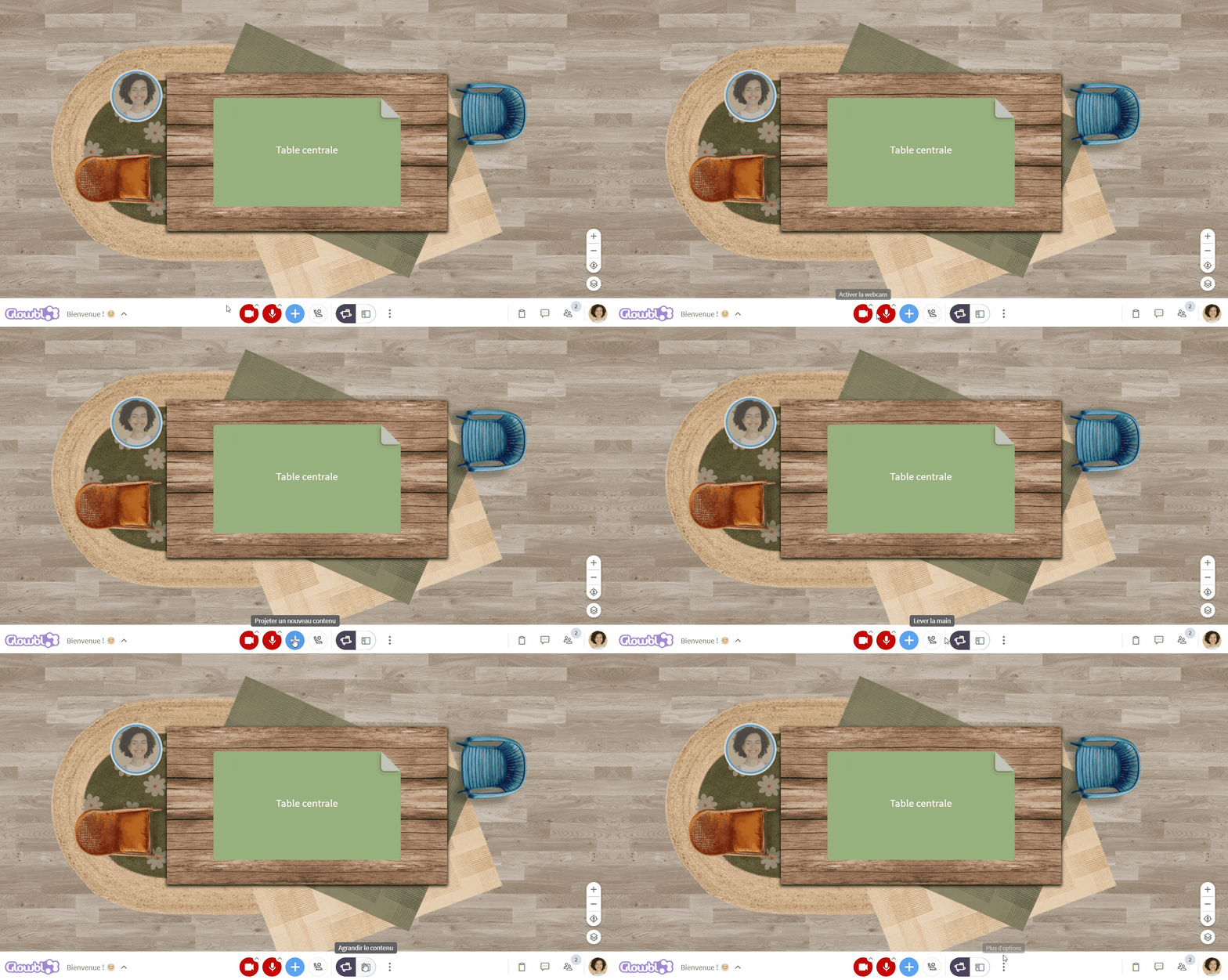
Microphone and camera control at the bottom of the screen
The microphone, camera and hand-raise buttons are now positioned in a lower bar, a standard feature of videoconferencing tools for ease of use.
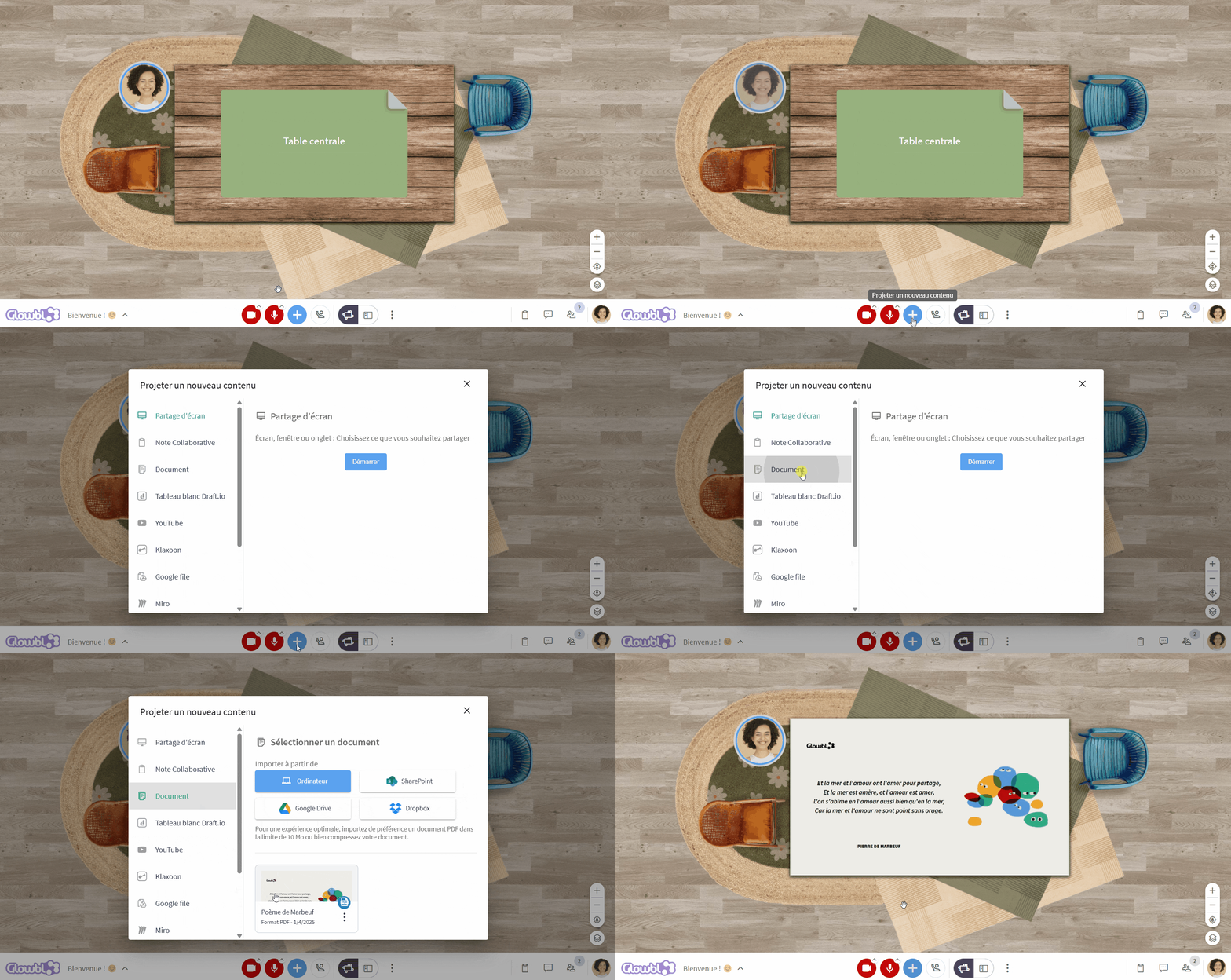
One-click content sharing
A new content-sharing button between the microphone and the raise hand button allows a document to be projected directly onto the active table. A second, blue + button remains available when hovering over the table.
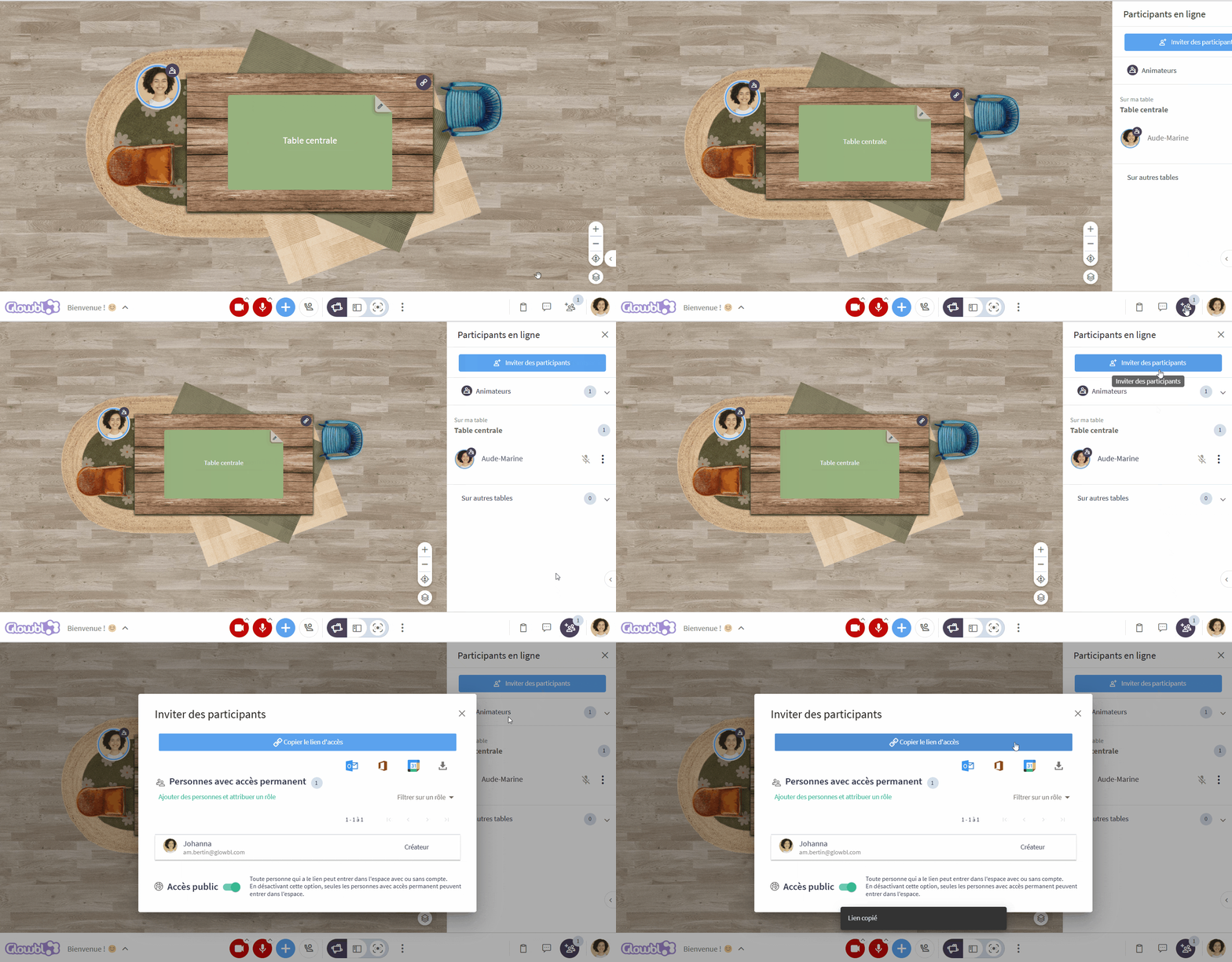
👥 Invite participants from the Participants tab
The Invite button is now located in the Participants tab, making it more logical to manage access and appoint facilitators to a space.
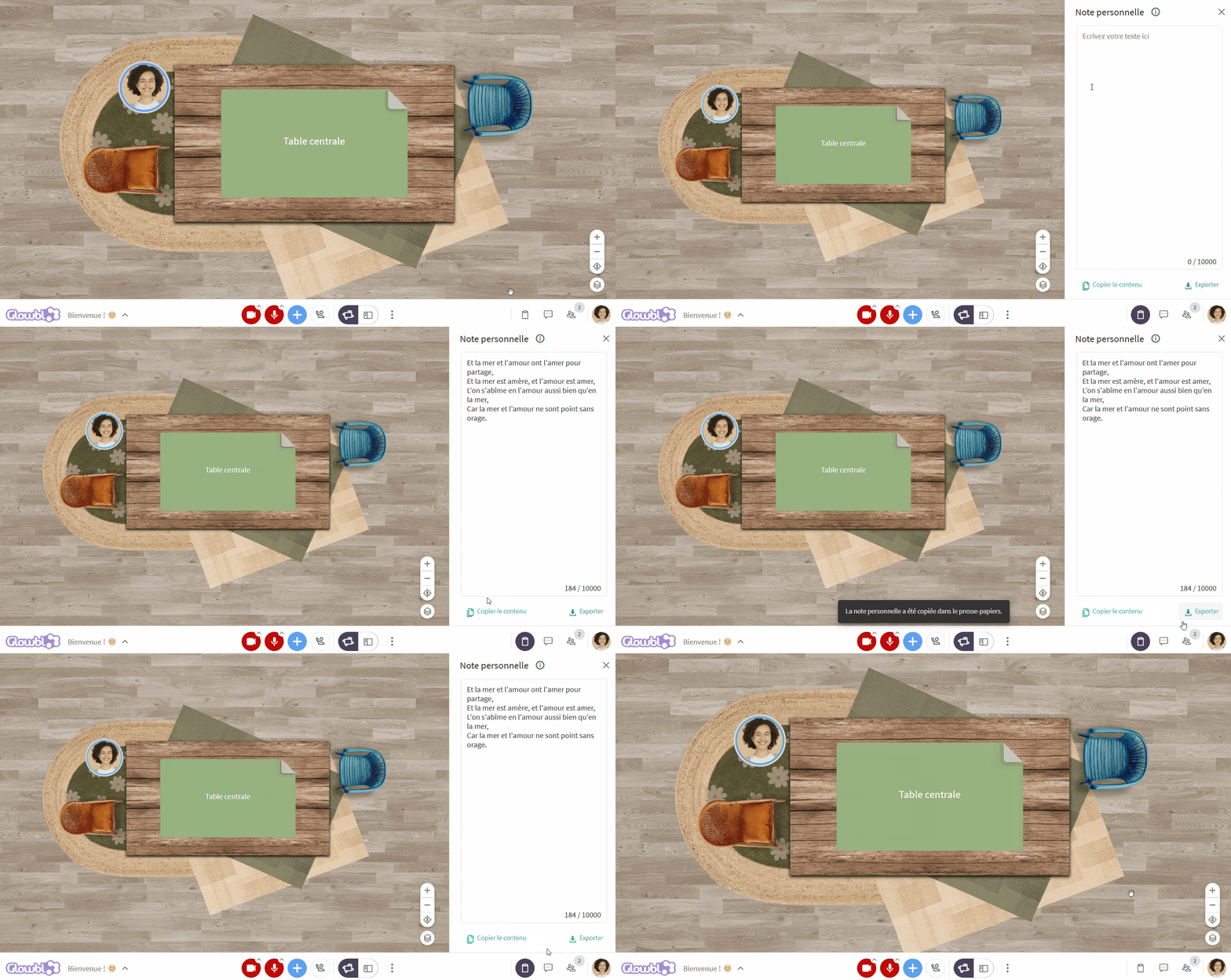
📝 Quickly access the Personal Note
The Personal Note moves from the Blue Briefcase to the bottom bar, next to Live Chat. It's ideal for individual note-taking or acting as a secretary during a session.
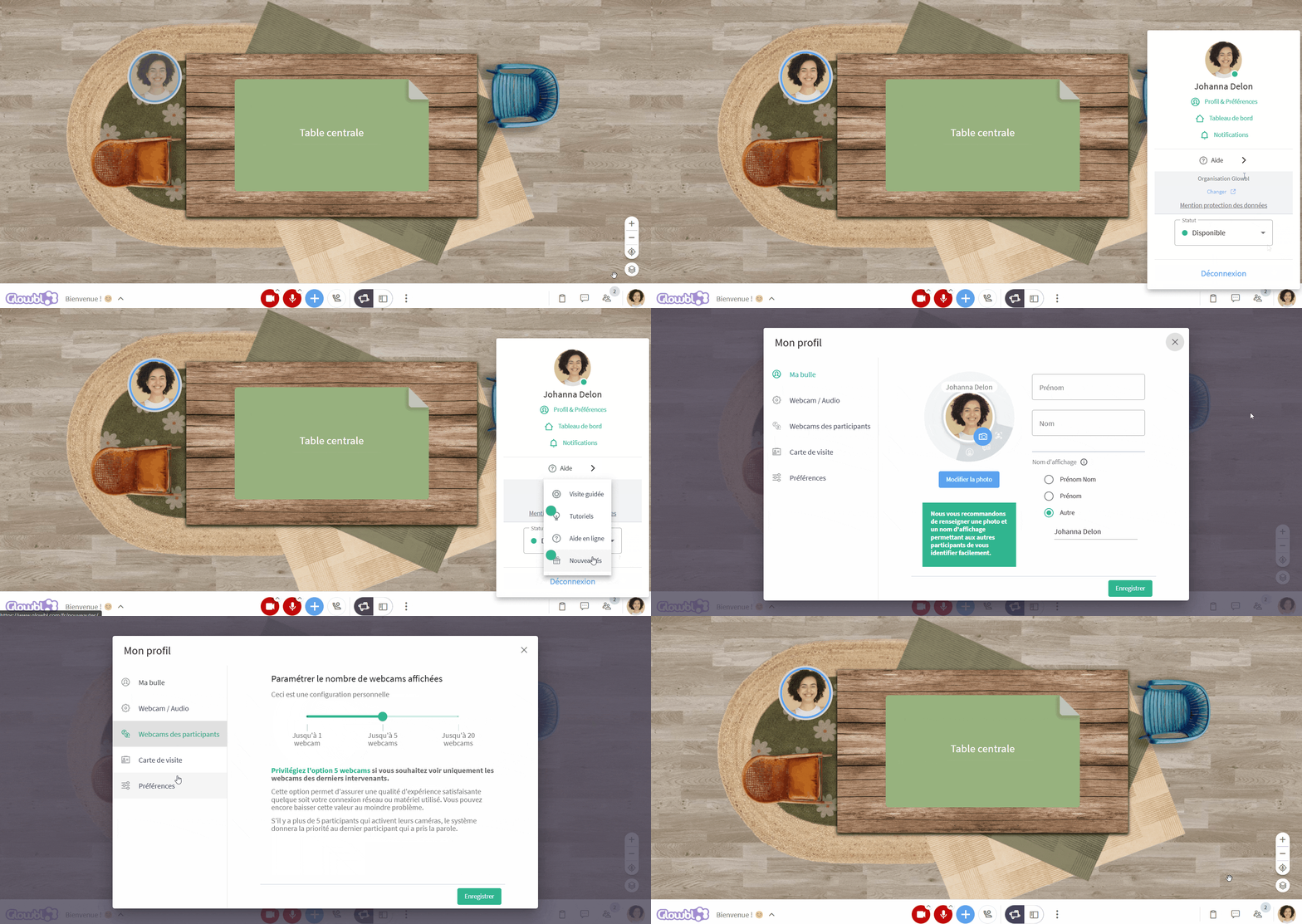
⚙️ Manage all your settings from your profile
The profile photo on the bottom right becomes a true management center: access to the dashboard, user preferences, notifications, help center and logout.
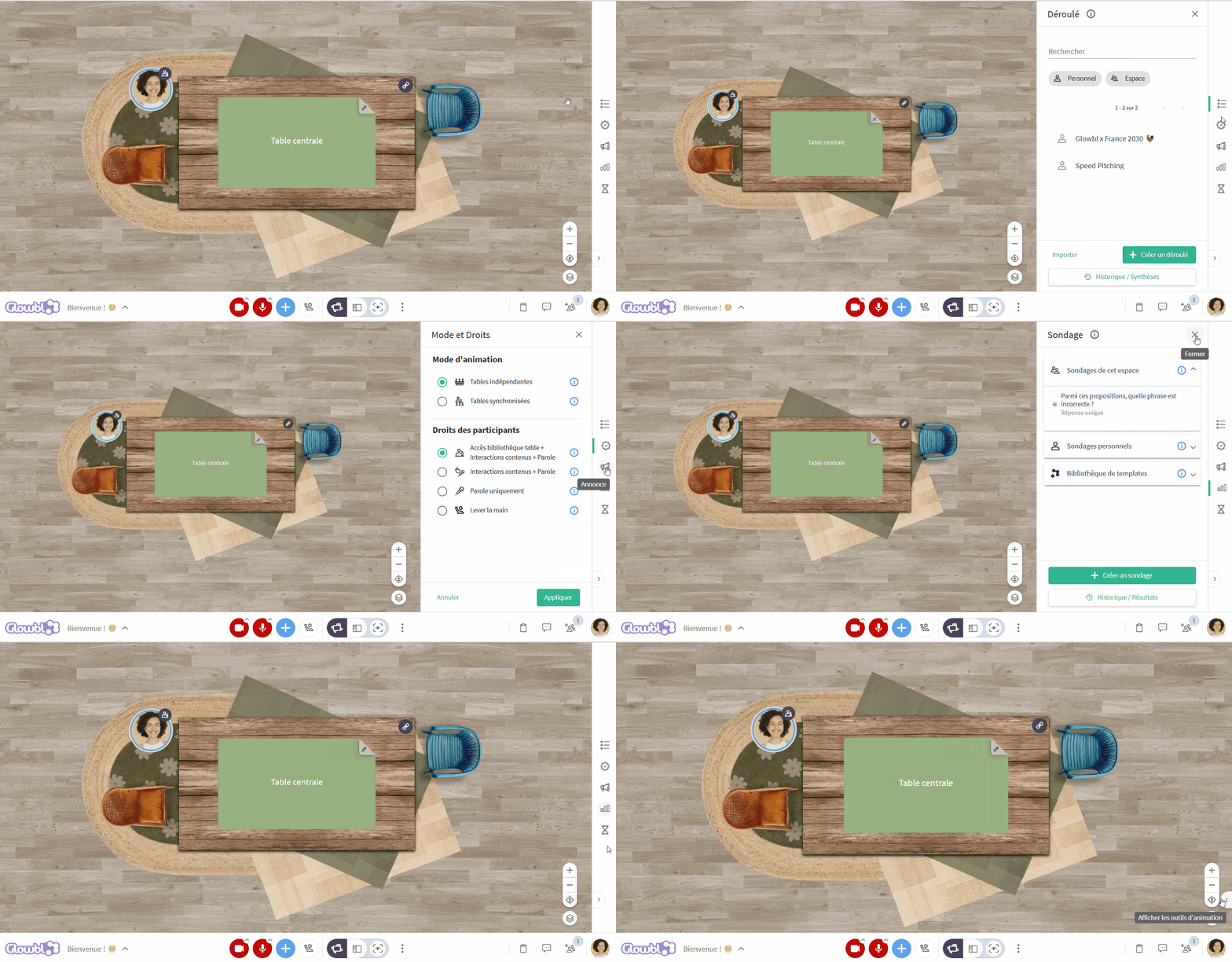
🛠️ Access facilitation tools without the blue Briefcase
Say goodbye to the blue briefcase. Facilitation tools are now accessible from a right-hand sidebar. This vertical layout ensures smoother navigation between the harmonized tools.
FEATURES
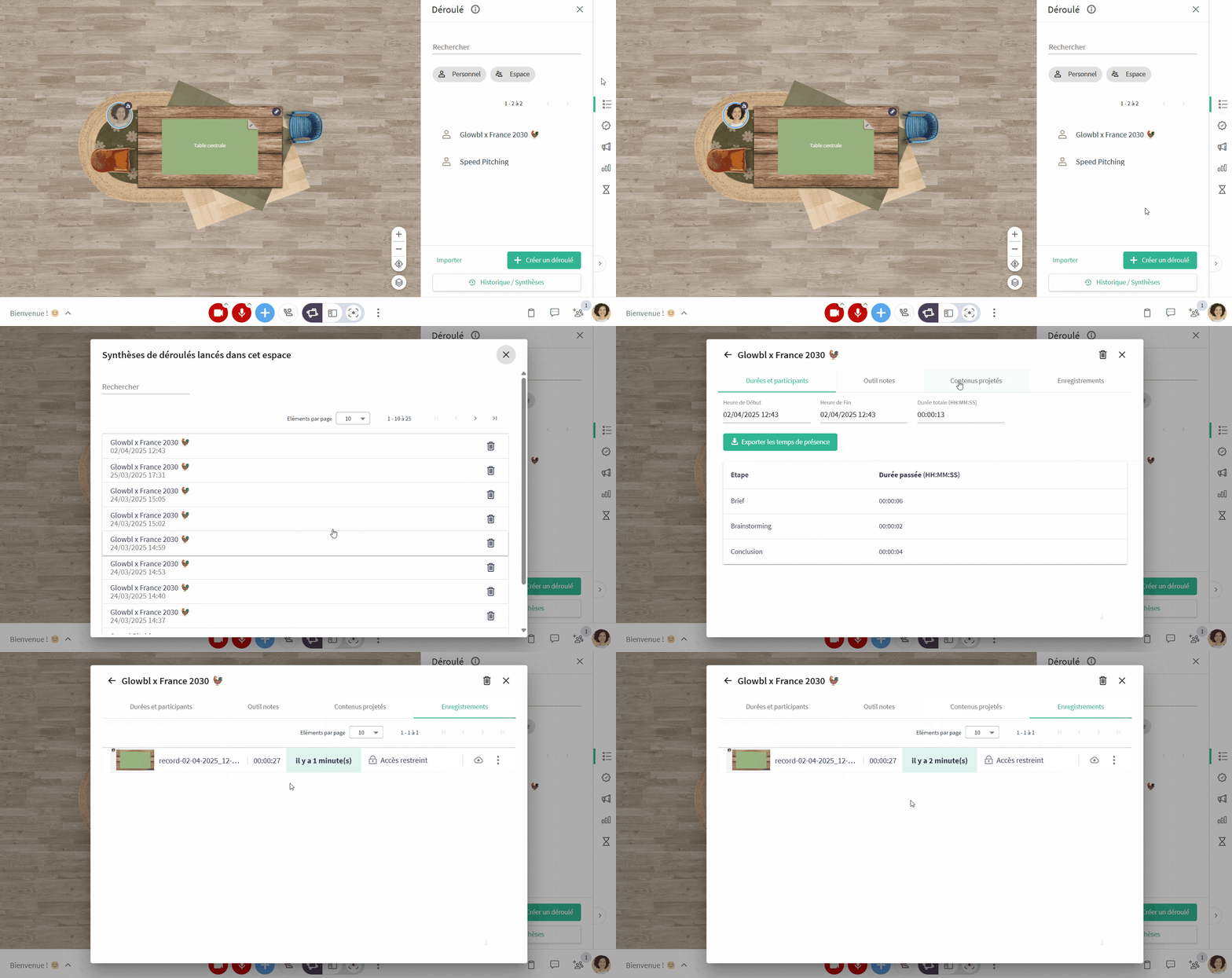
📽️ Download video recordings from the sequence summary
If you record a table while animating with a sequence, the recordings also appear in the summary and can be downloaded in a zip file with the other content of your session. Ideal for getting everything to your participants quickly!
February 2025 -Release 5.4
Read all about it on our blog.
FEATURES
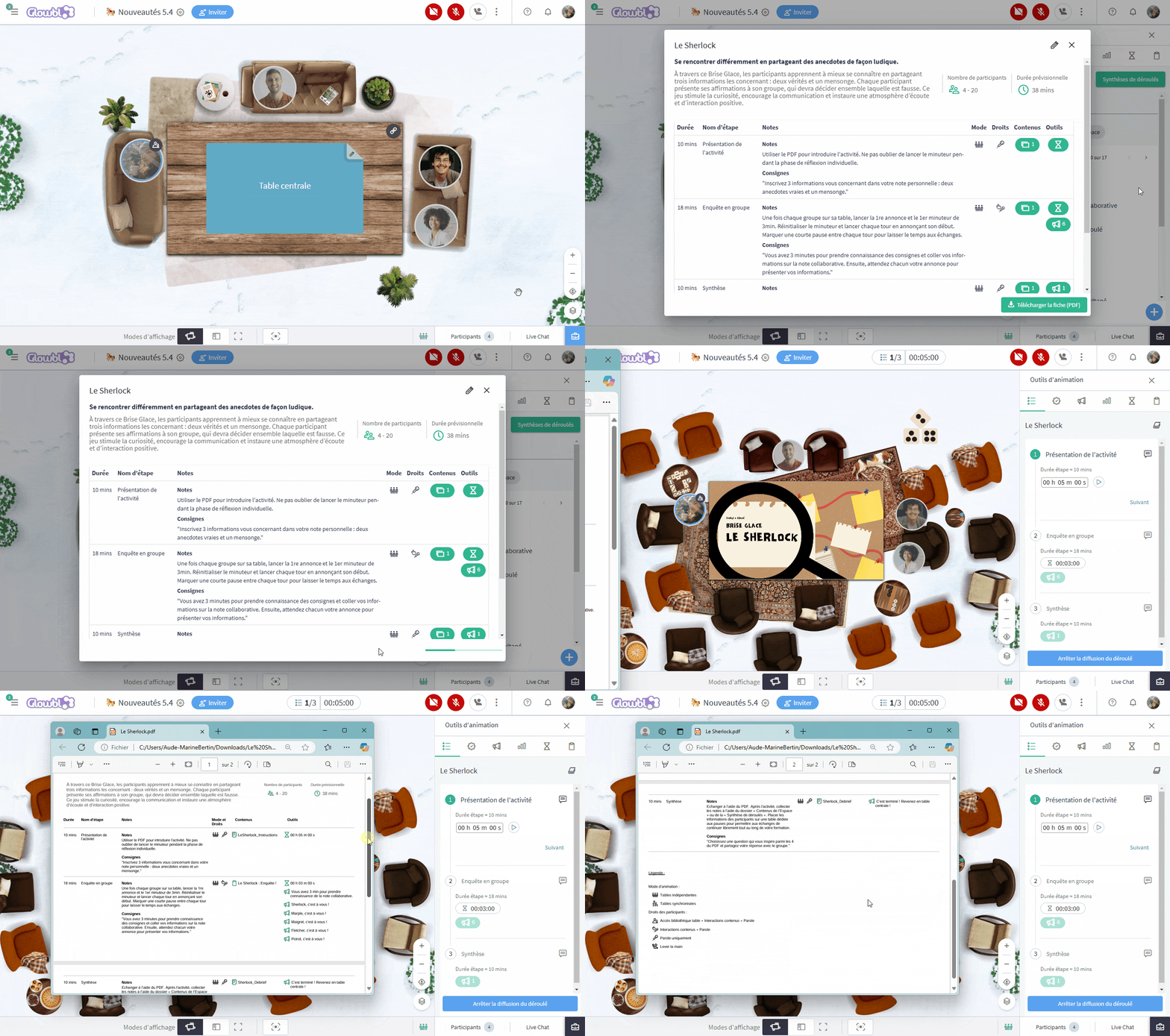
📤 Download sequence details
Download the sequence description file to display it in parallel and use it as a prompter. This document includes a legend to help you understand the symbols for rights and facilitation modes.
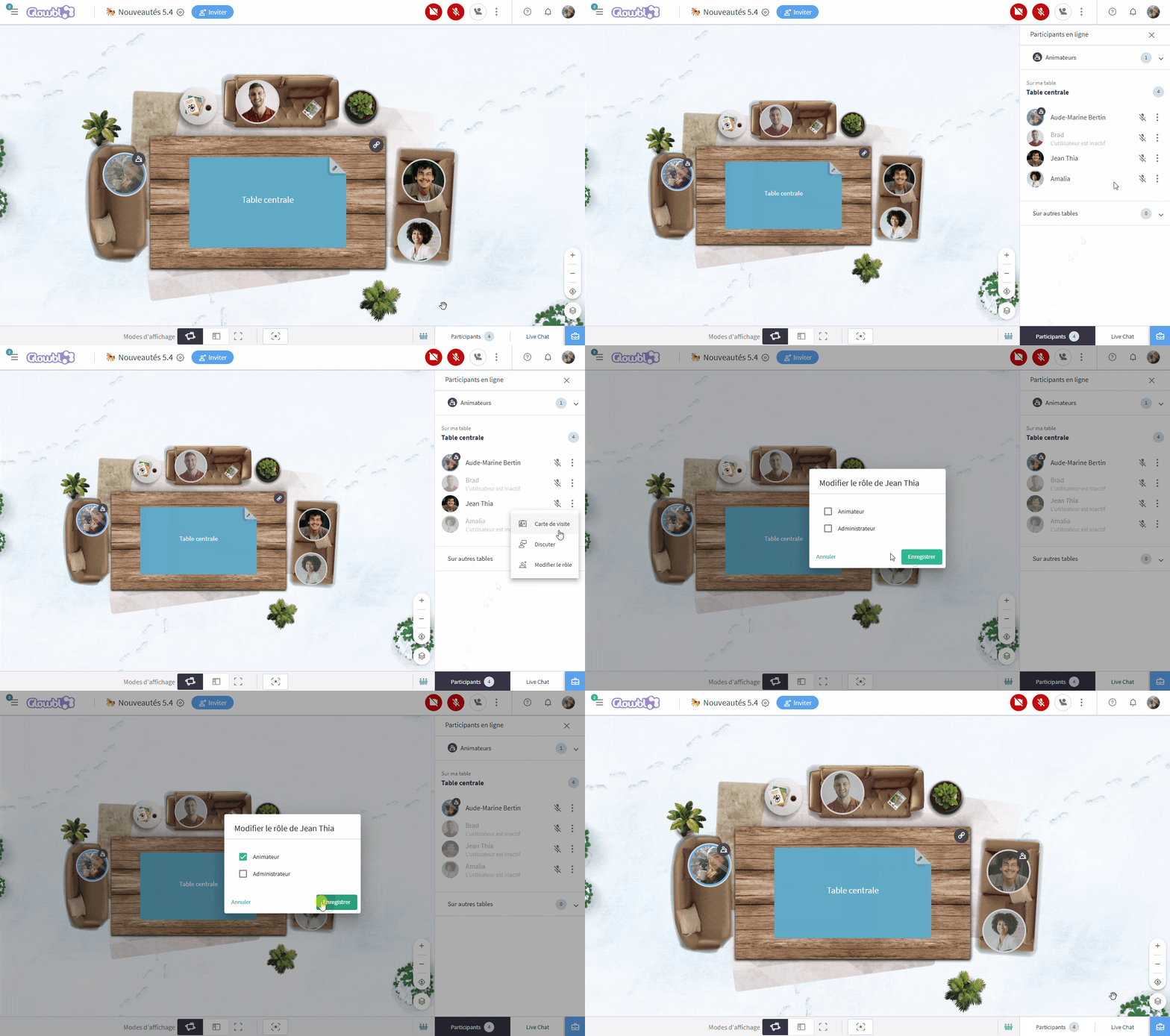
💣 Change a participant's role with a single click
Quickly change the role of a participant present in the space (e.g. Facilitator) directly from the "Participants" tab, without going through the now-deleted Administration pane.
IMPROVEMENTS
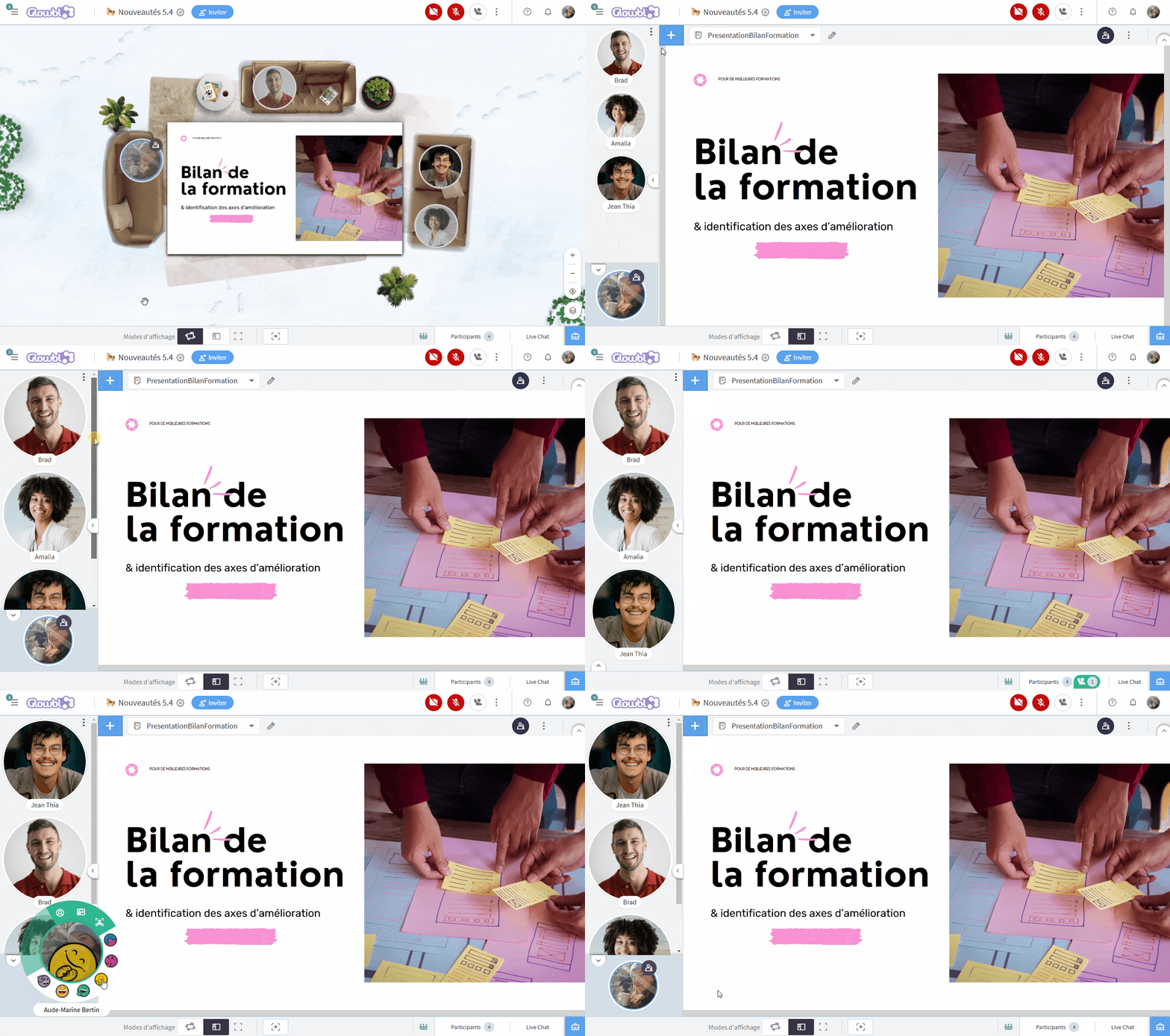
🫧 Enhance participant visibility
In "Enlarge content" and "Synchronized tables" modes, a new sidebar displays all participants, while highlighting those who speak or raise their hand. You can adjust the size of the bubbles and easily interact with participants.
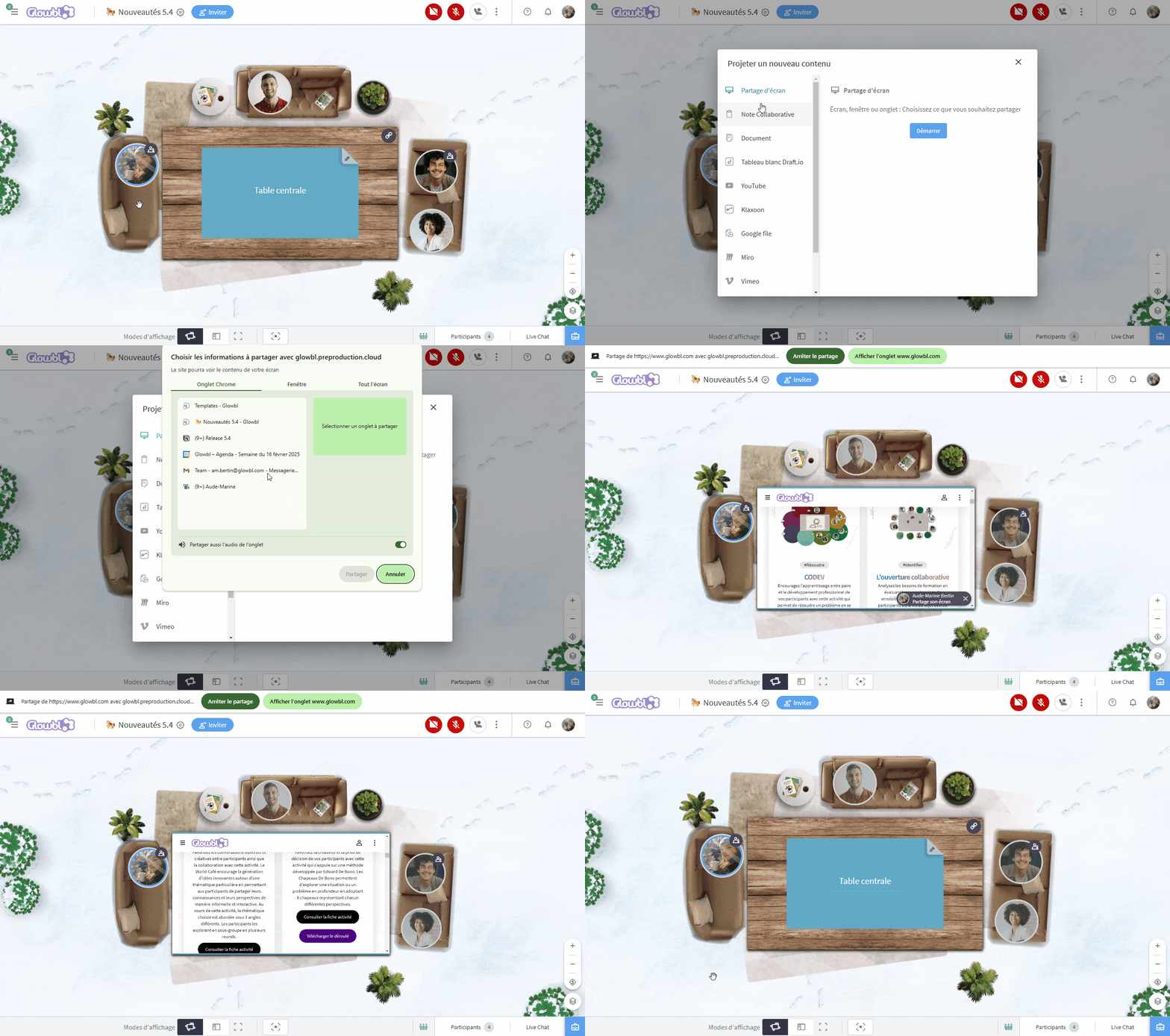
🖥️ Simplify access to screen sharing
Screen sharing is now at the top of the list of content to be projected, reducing the number of clicks required to activate it. This makes access quicker and more intuitive for all participants.
January 2025 -Release 5.3
Full details on our blog.

FEATURES
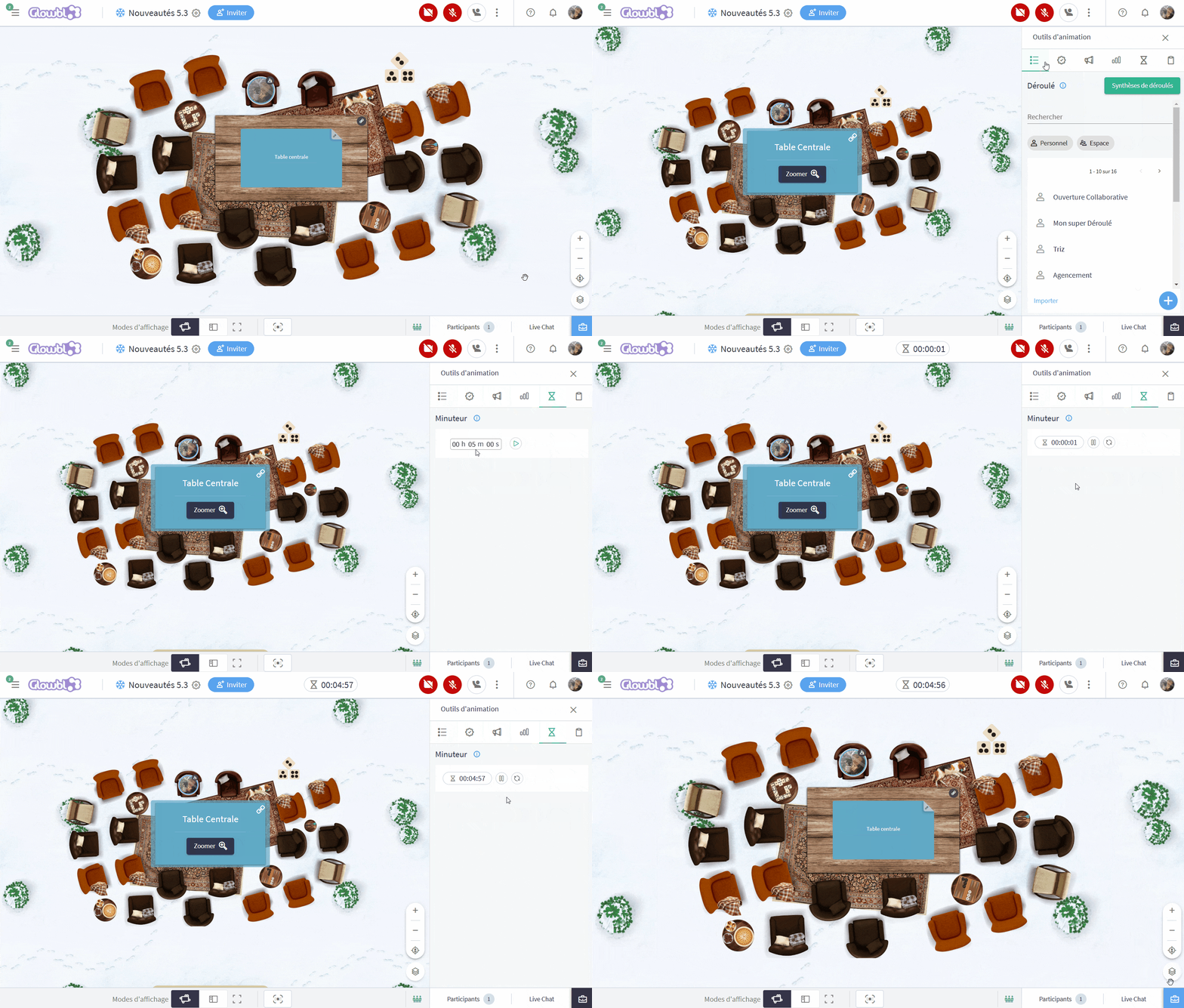
⏱️ Launch timer
The timer can now be used independently of the sequence. You can easily set a duration, start, pause, reset or restart the timer to structure your activities with precision and add a playful dimension.
IMPROVEMENTS
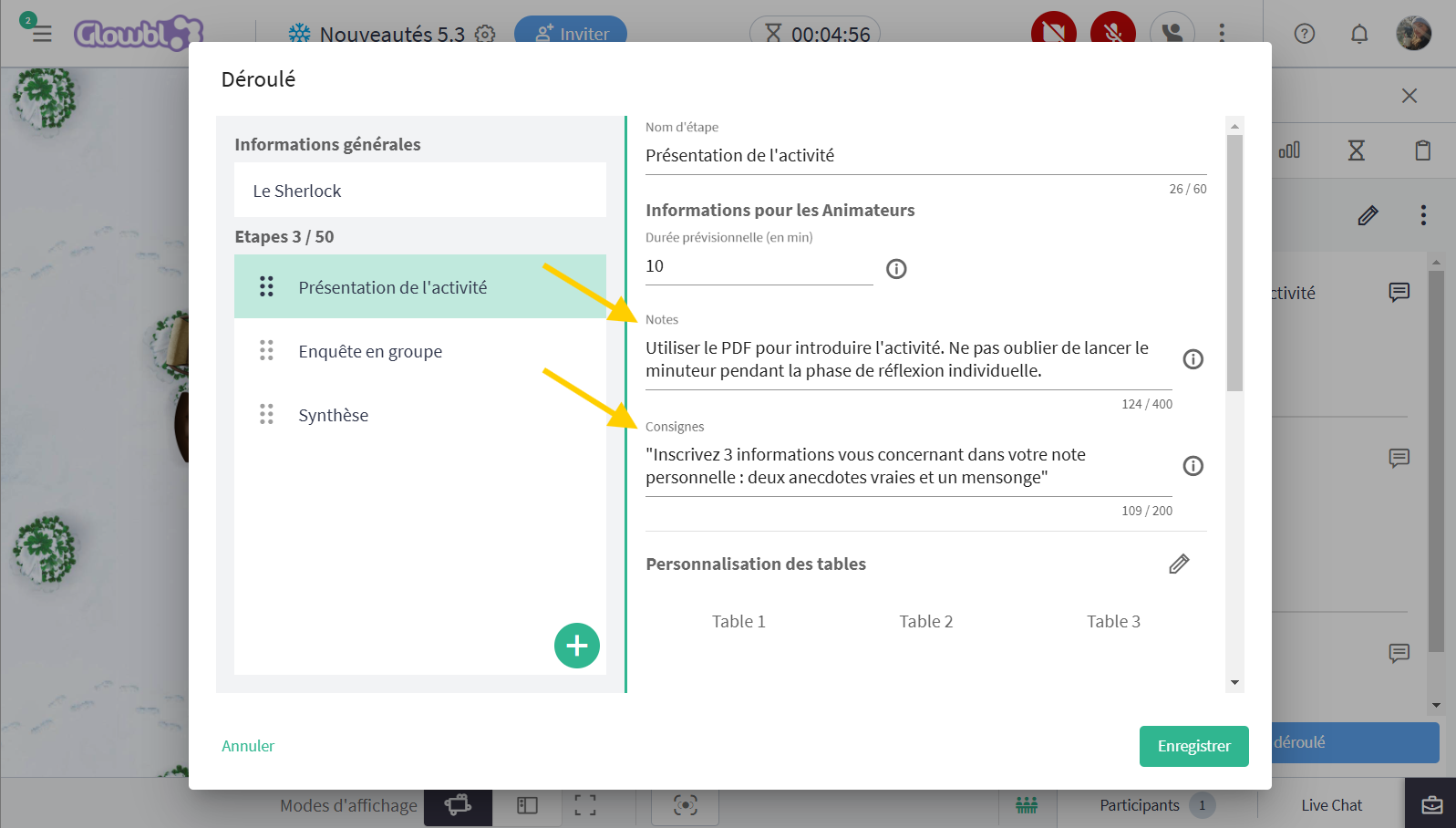
🧠 Organize your intentions with enhanced presenter notes
The Notes and Instructions fields are now separated for greater clarity. Notes serve as personal reminders, while Instructions are instructions to be shared orally with participants.
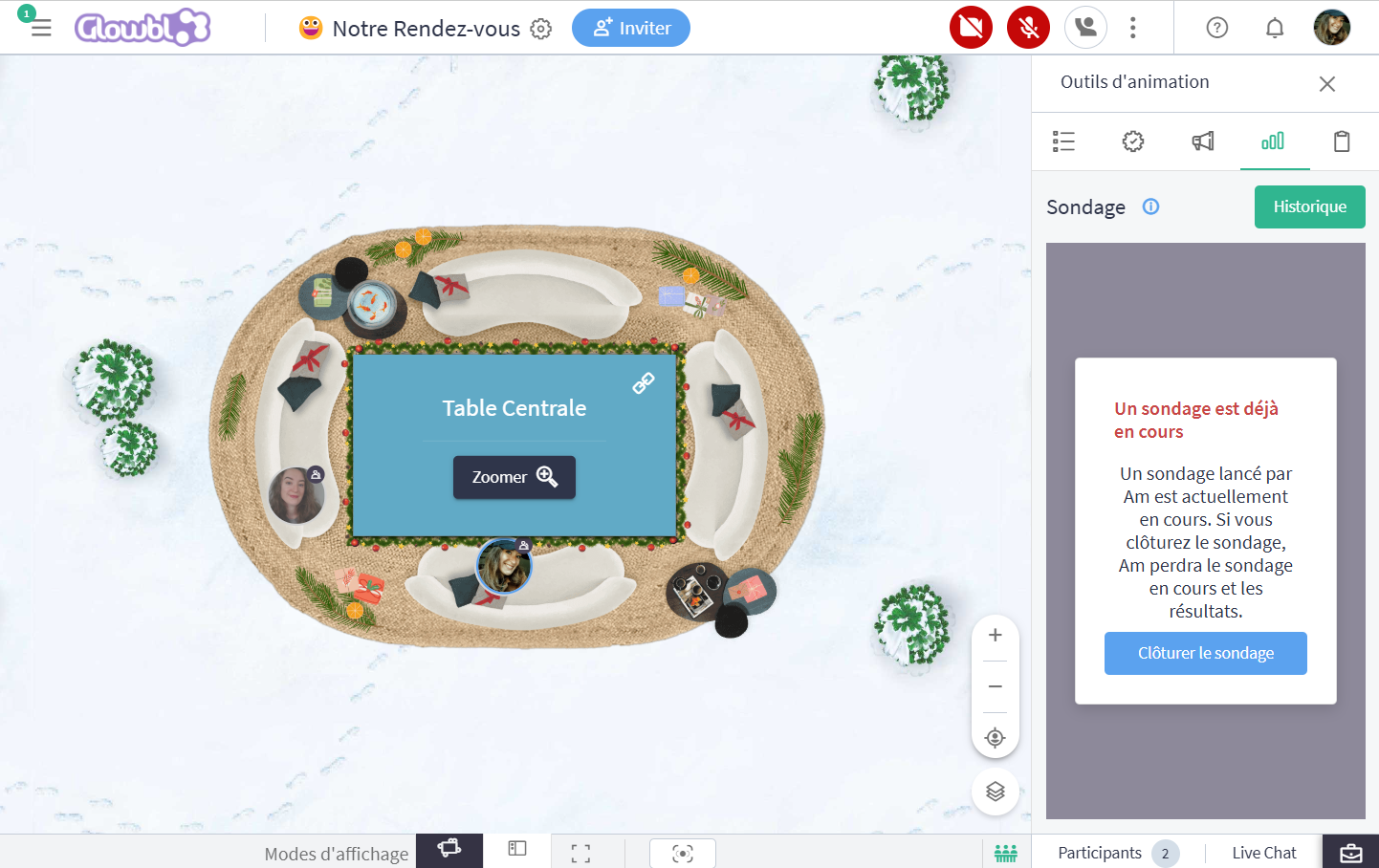
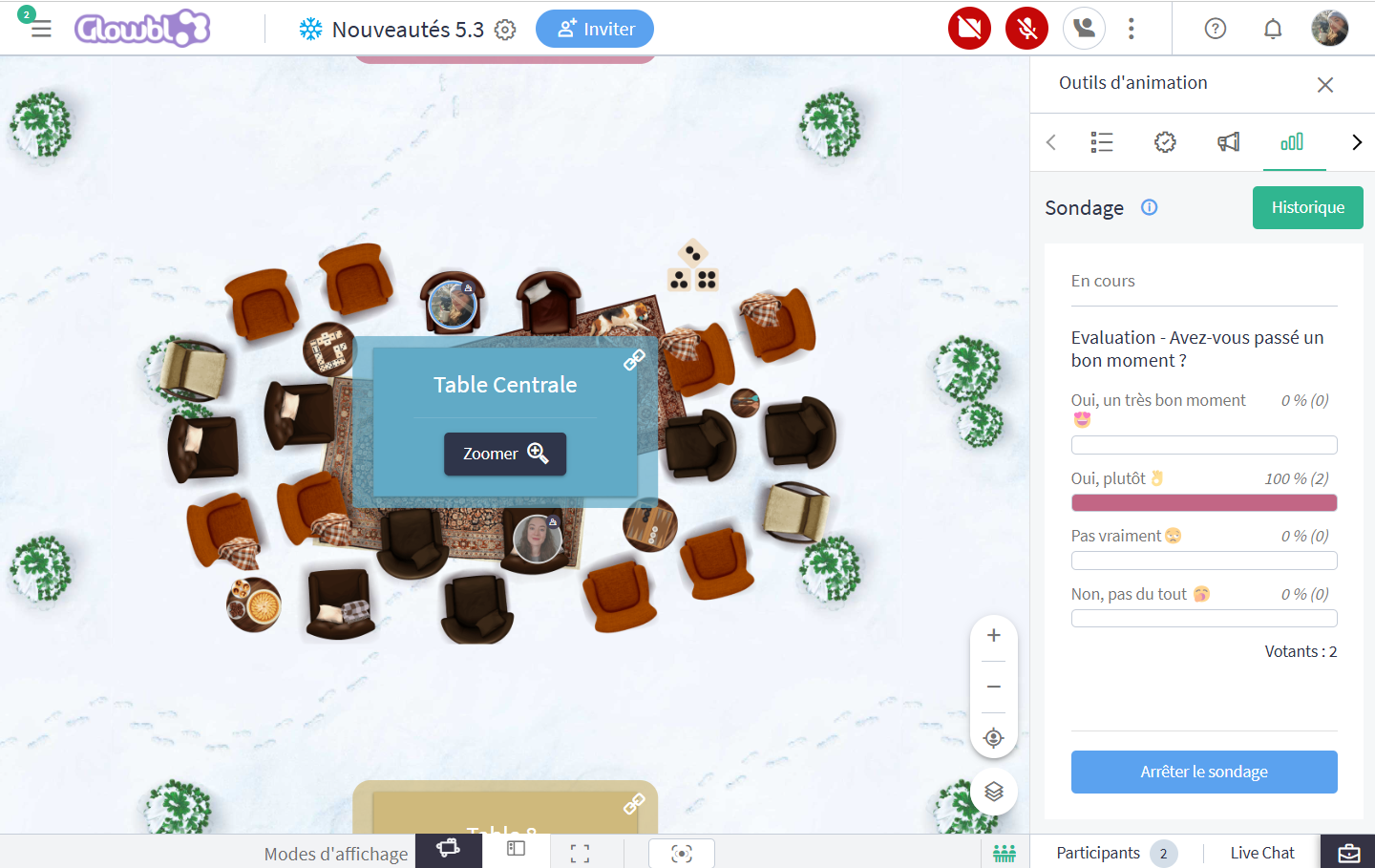
🤝 Collaborate effectively with polls
All facilitators can now see the results of polls in progress and intervene if necessary. Results can be broadcasted to participants and consulted at any time after the poll has closed.
December 2024 -Release 5.2
FEATURES
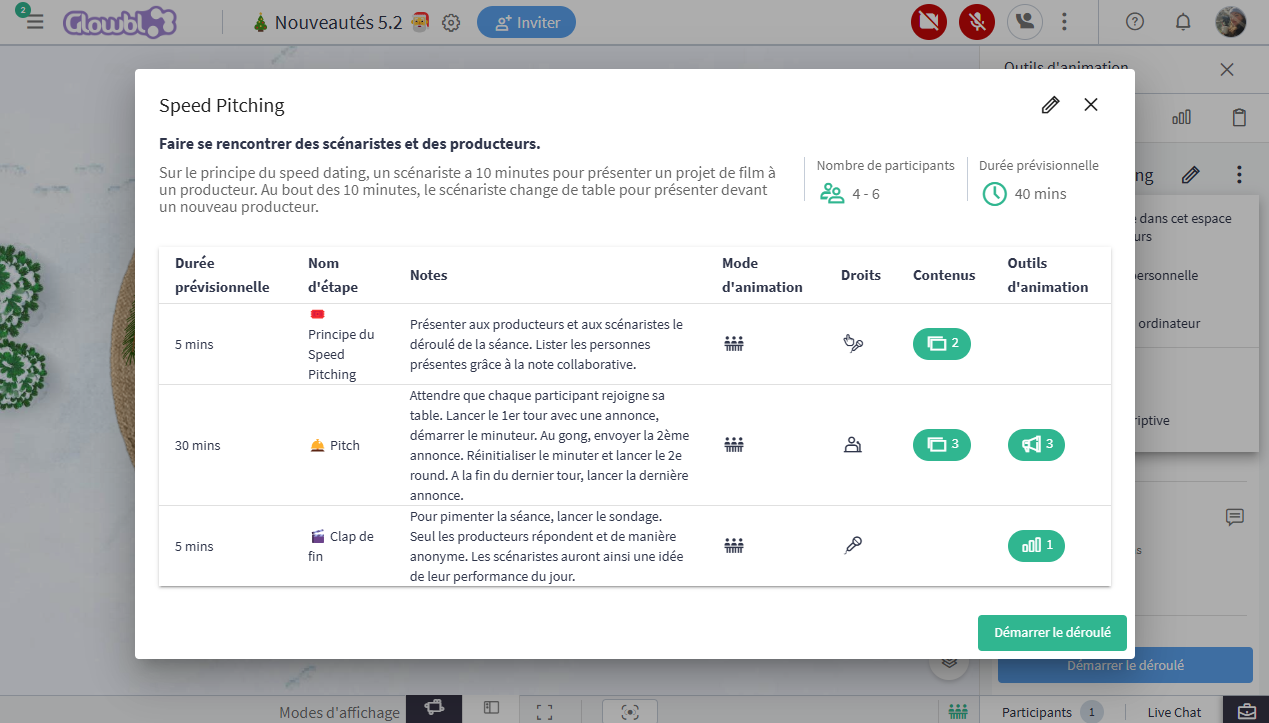
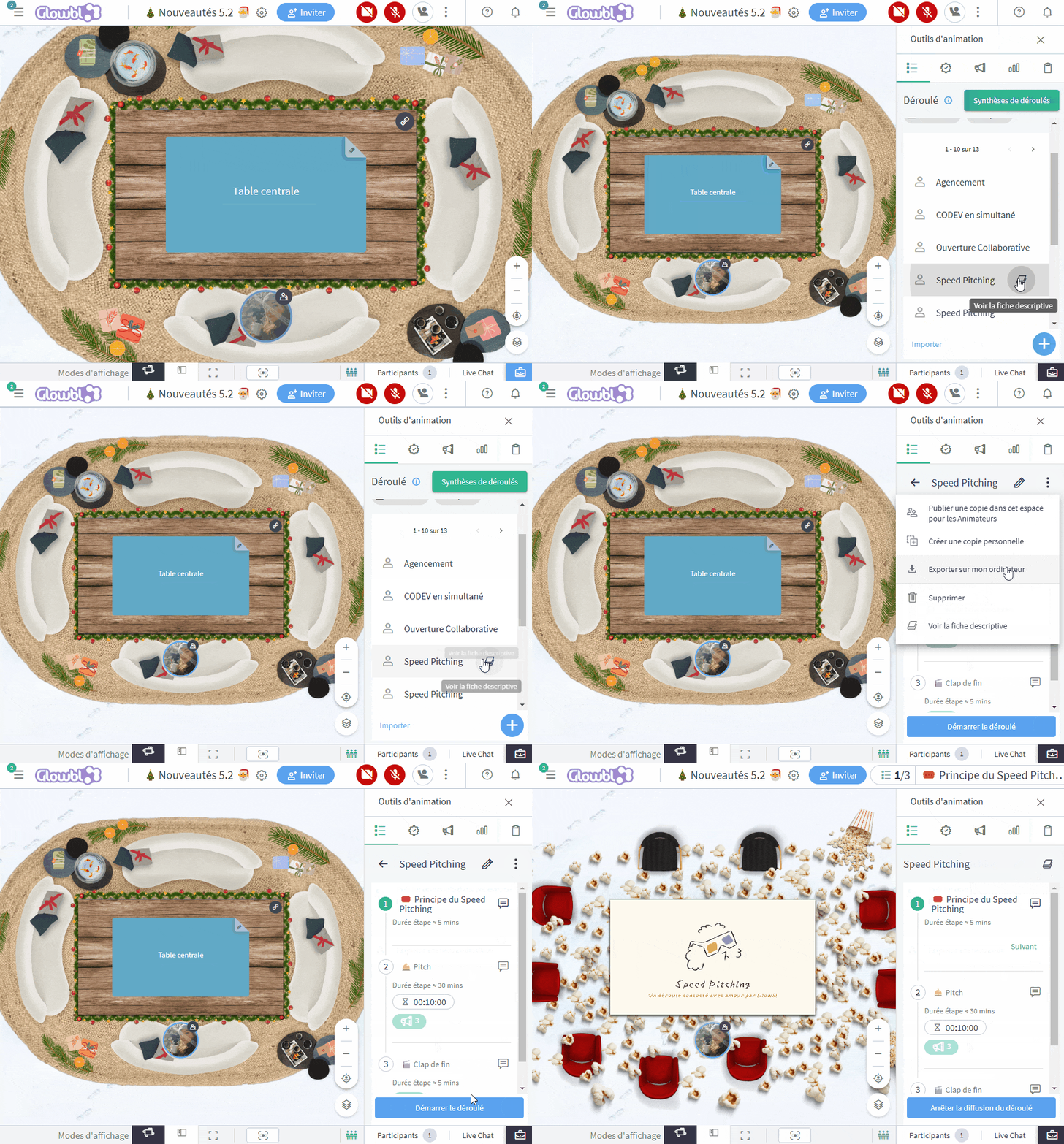
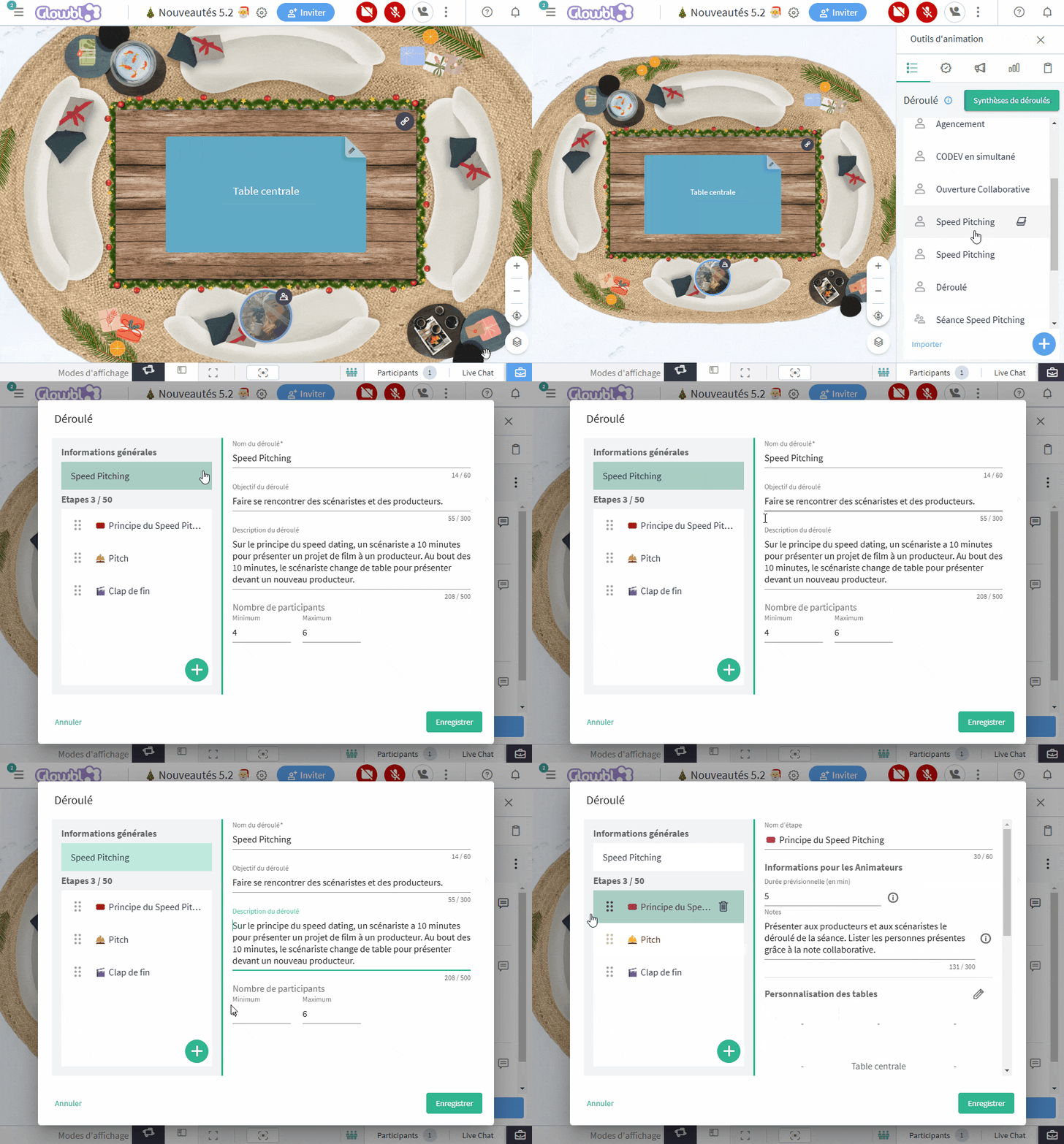
📇Access to a descriptive sheet of a sequence
This sheet, which can be consulted before and during the animation, helps to understand/explain an imported/shared sequence. It is filled in when a program is created, by manually indicating the purpose of the program, a short description and the number of participants. The estimated duration and step descriptions are generated automatically.
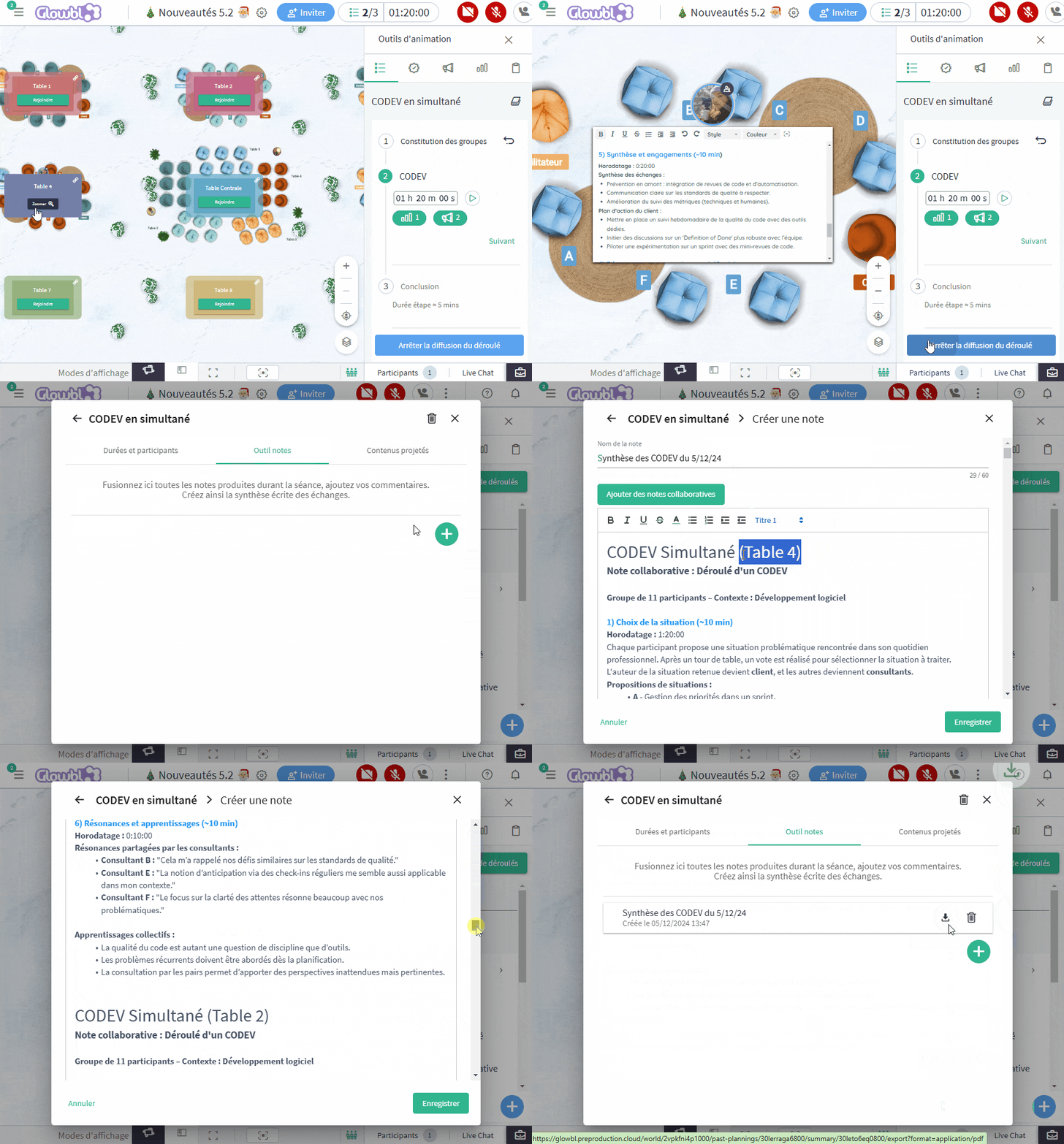
📰+📄Merge collaborative notes from the sequence summary
Prepare summaries of your sessions by merging and modifying collaborative notes produced directly from the sequence synthesis. Several summaries can be produced, depending on the recipient (participants, collaborators, yourself).
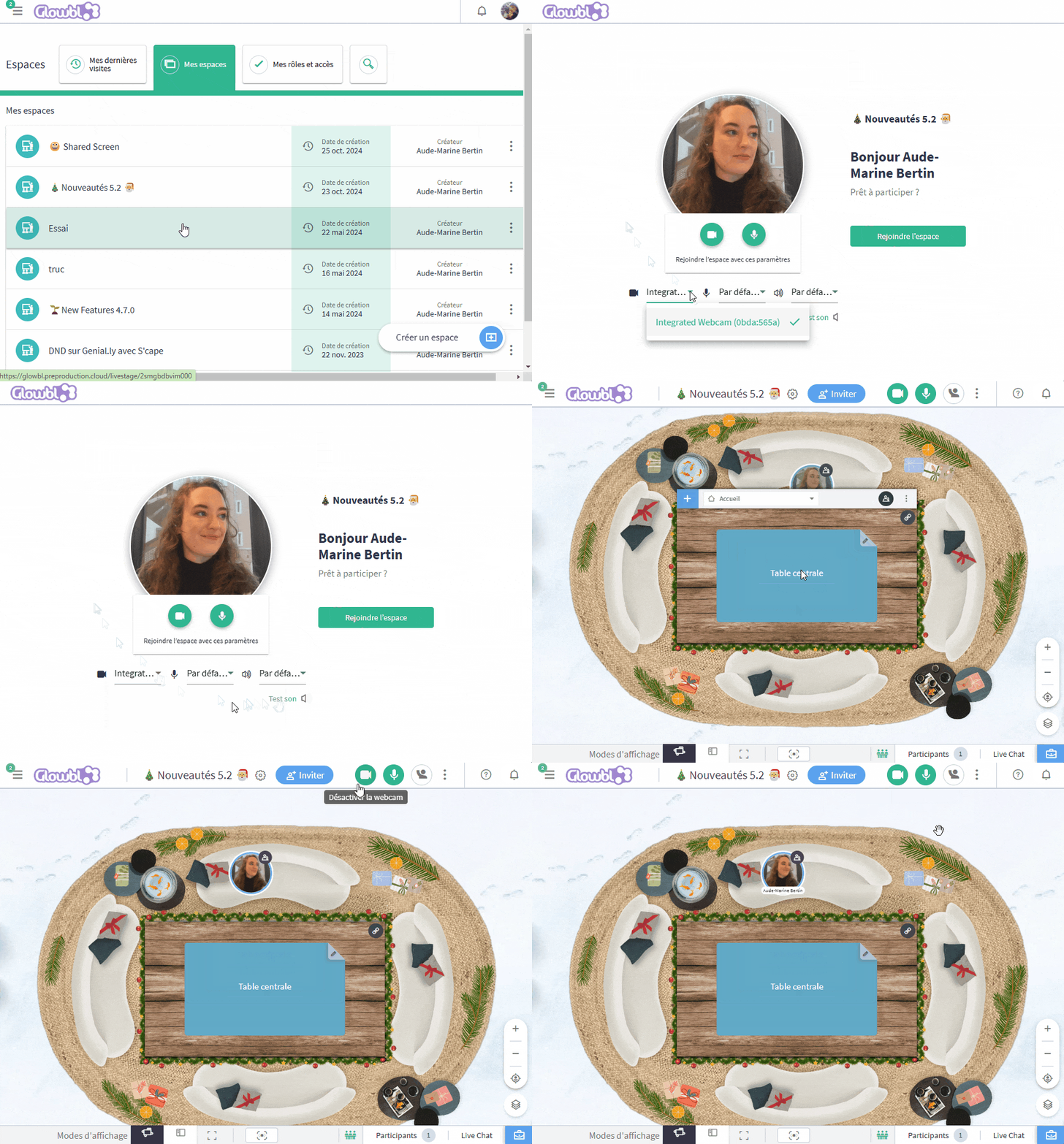
📺 Check your equipment (camera + microphone) before entering a space
By clicking on a space link you are now invited to test your camera and microphone. Upon entering the space these will be opened.
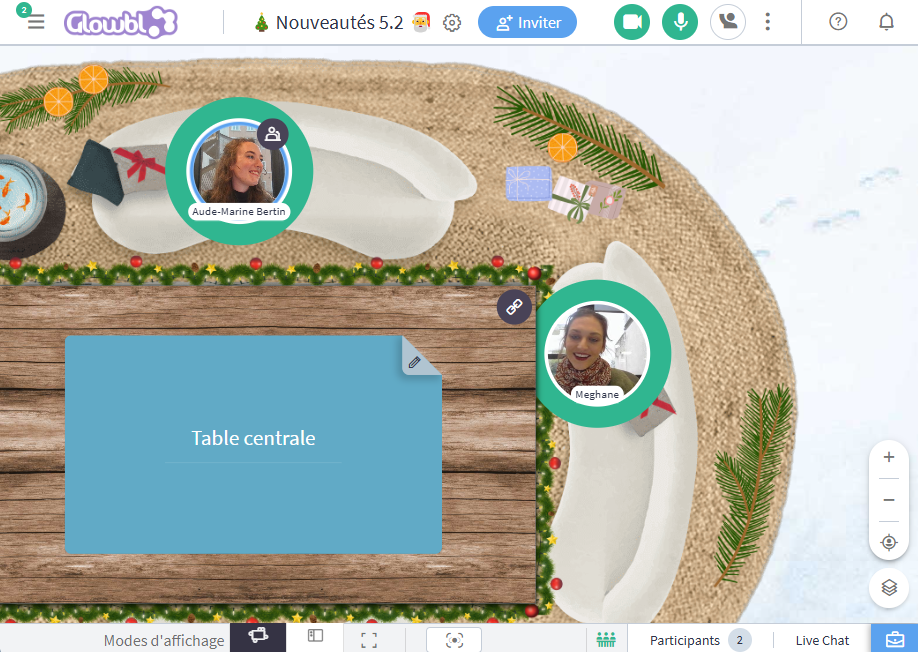
👧 Display participants' names on their bubble when speaking
In addition to being displayed when hovering over a bubble and in the Participants tab, participants' names are now revealed when they speak.
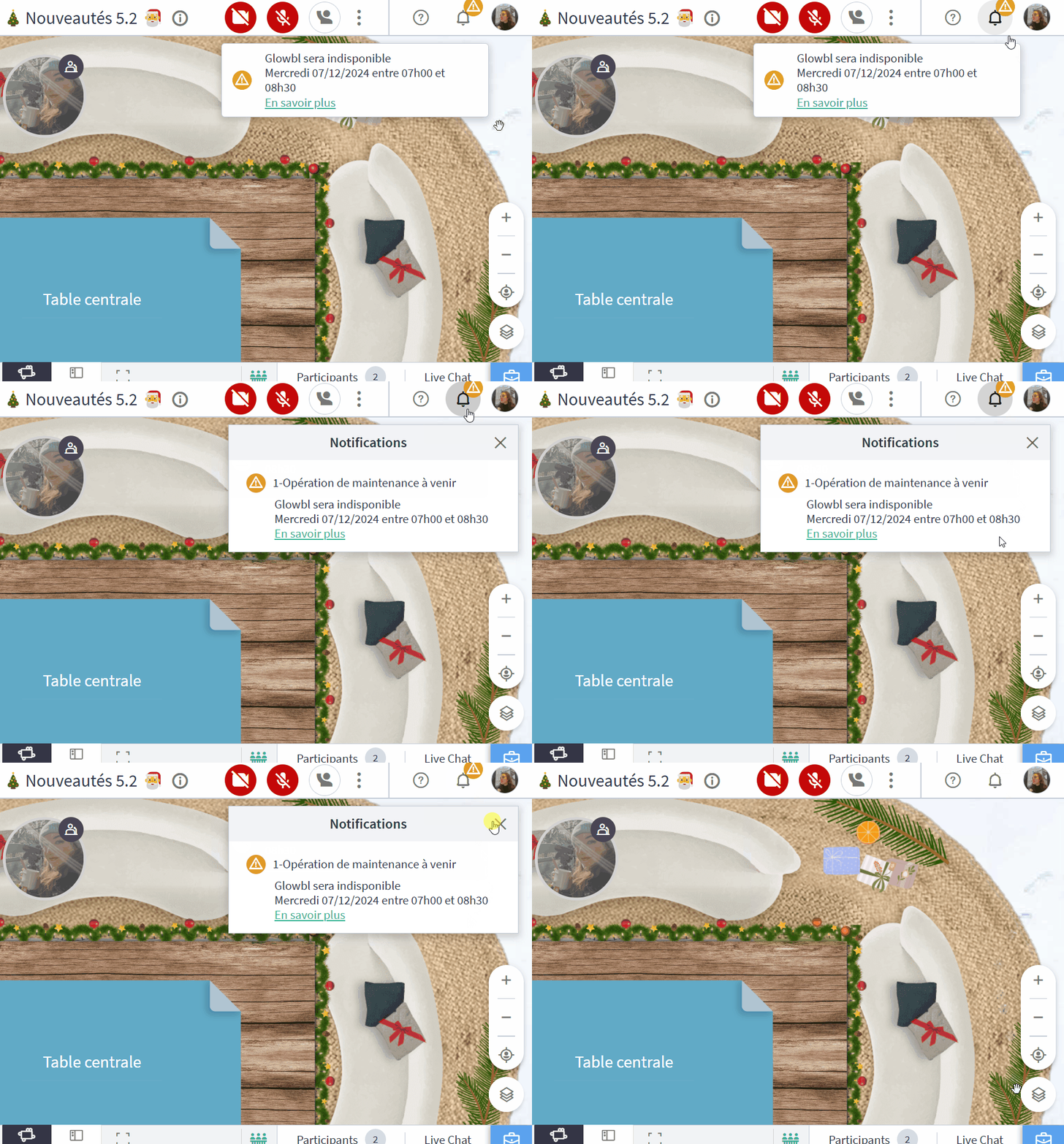
⚠️ Be warned of maintenance periods that may cause our services to be temporarily unavailable
This alert, visible on the bell icon in the top right-hand corner, will help you reorganize your sessions if necessary.
IMPROVEMENTS
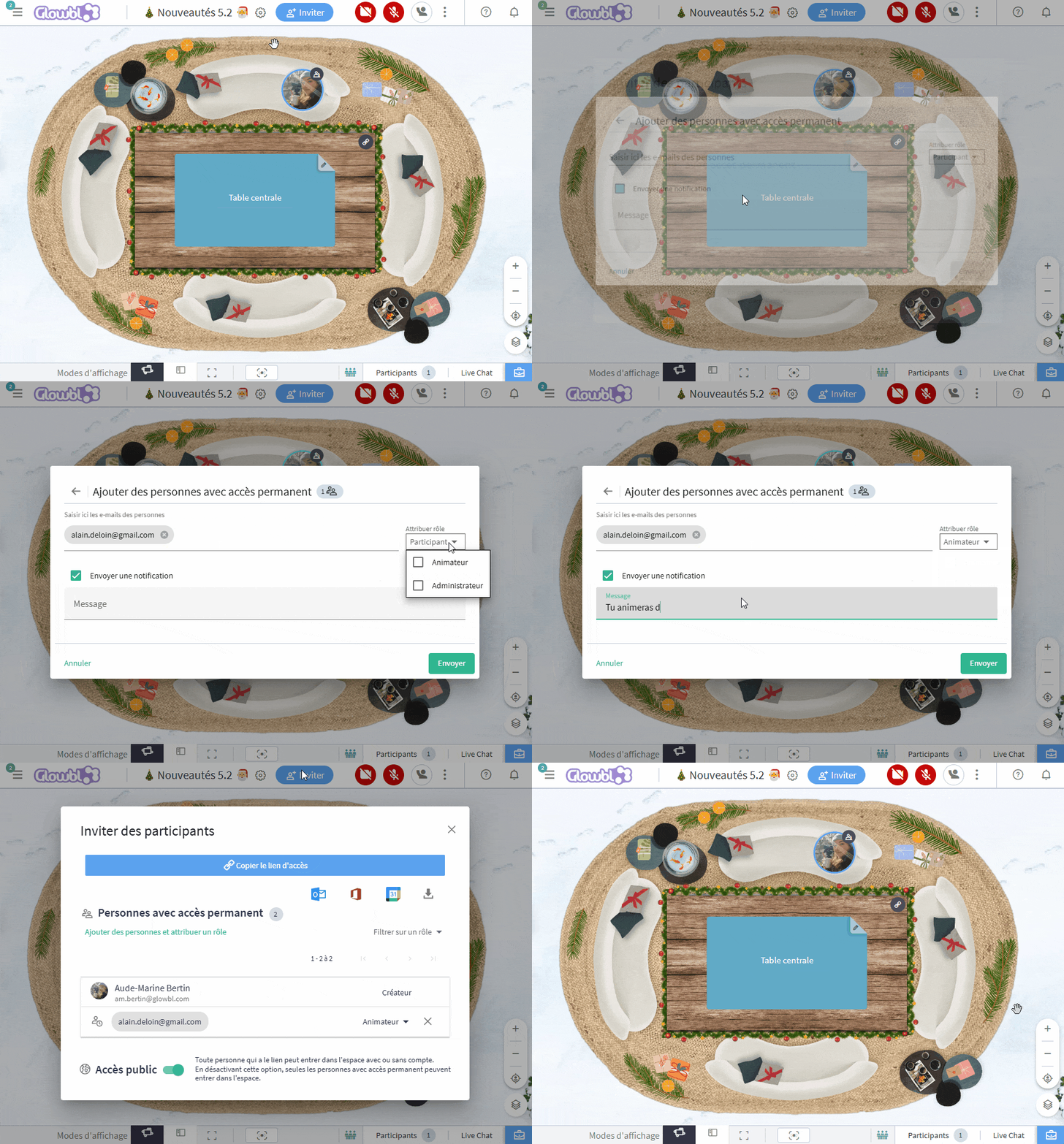
🪄 Appoint facilitators from the Invite button
Assign, change, participant roles directly from the blue Invite button, and notify them by email. This feature is always available from the Participants tab.
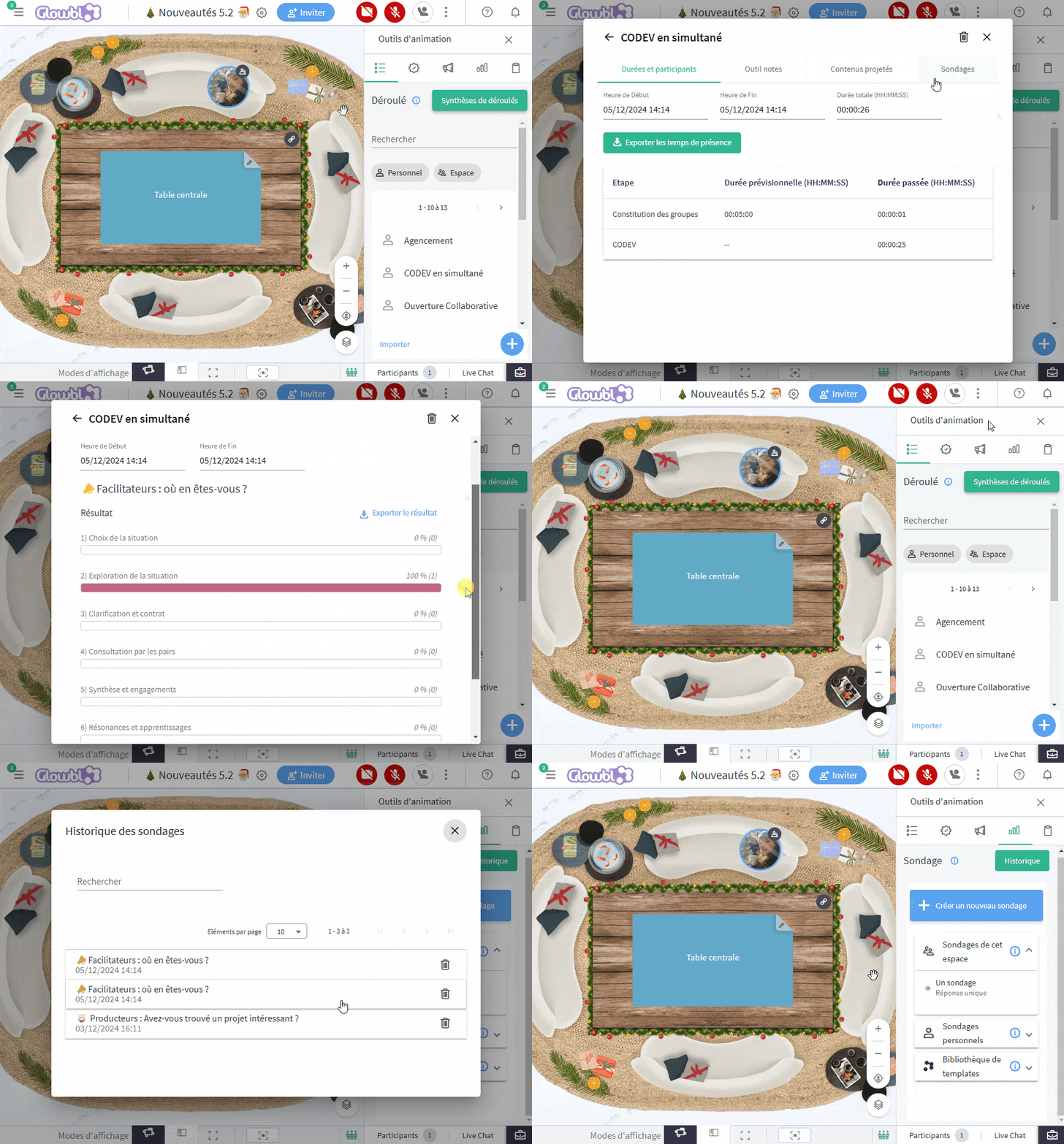
❓Recover poll history
This feature is available from the Sequence summary as well as from the Poll tool.
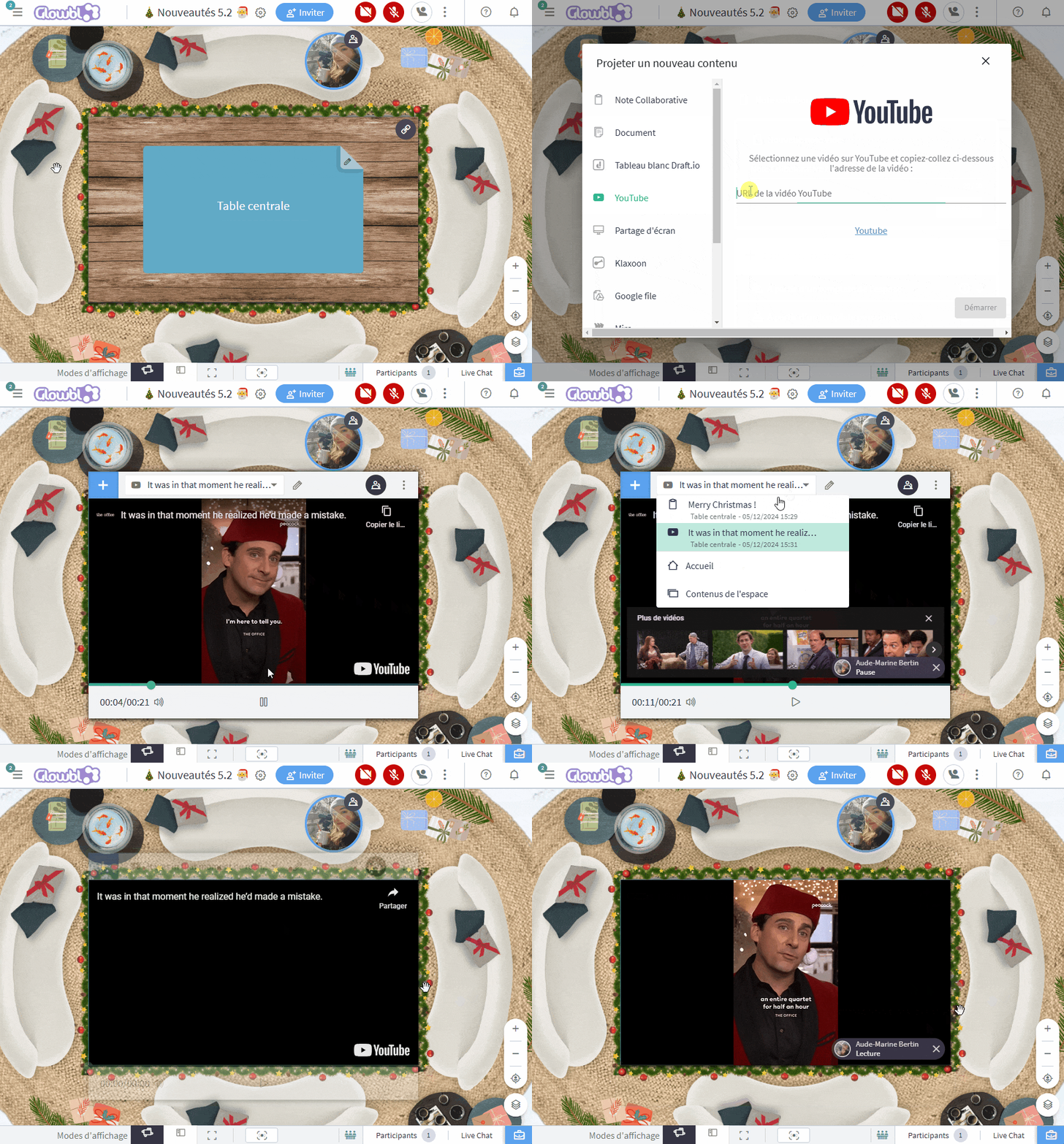
▶️ Share Youtube short formats
Our tables now accept this popular Youtube short format. As with the original format, playback of the shorts is synchronized with the participants and ad-free.
📣⌛Display an announcement and a 5 sec delay when switching from Independent Table to Synchronized Tables facilitation mode during a sequence
This feature was already available outside a running sequence.
ROBUSTESSE
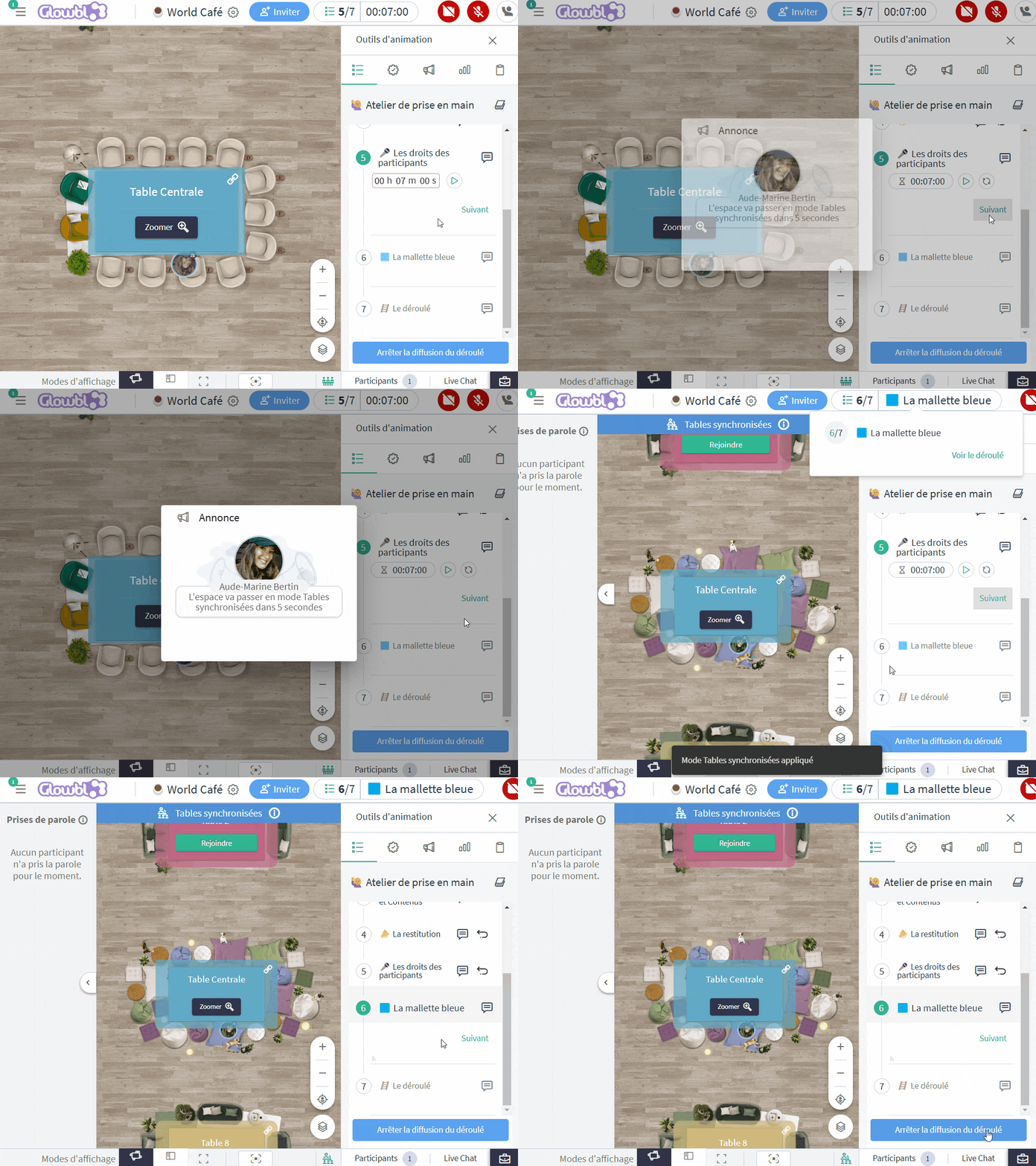
🎥 Manage the case of temporary record disconnection
November 2024 -Release 5.1
Full details on our blog.
FEATURES
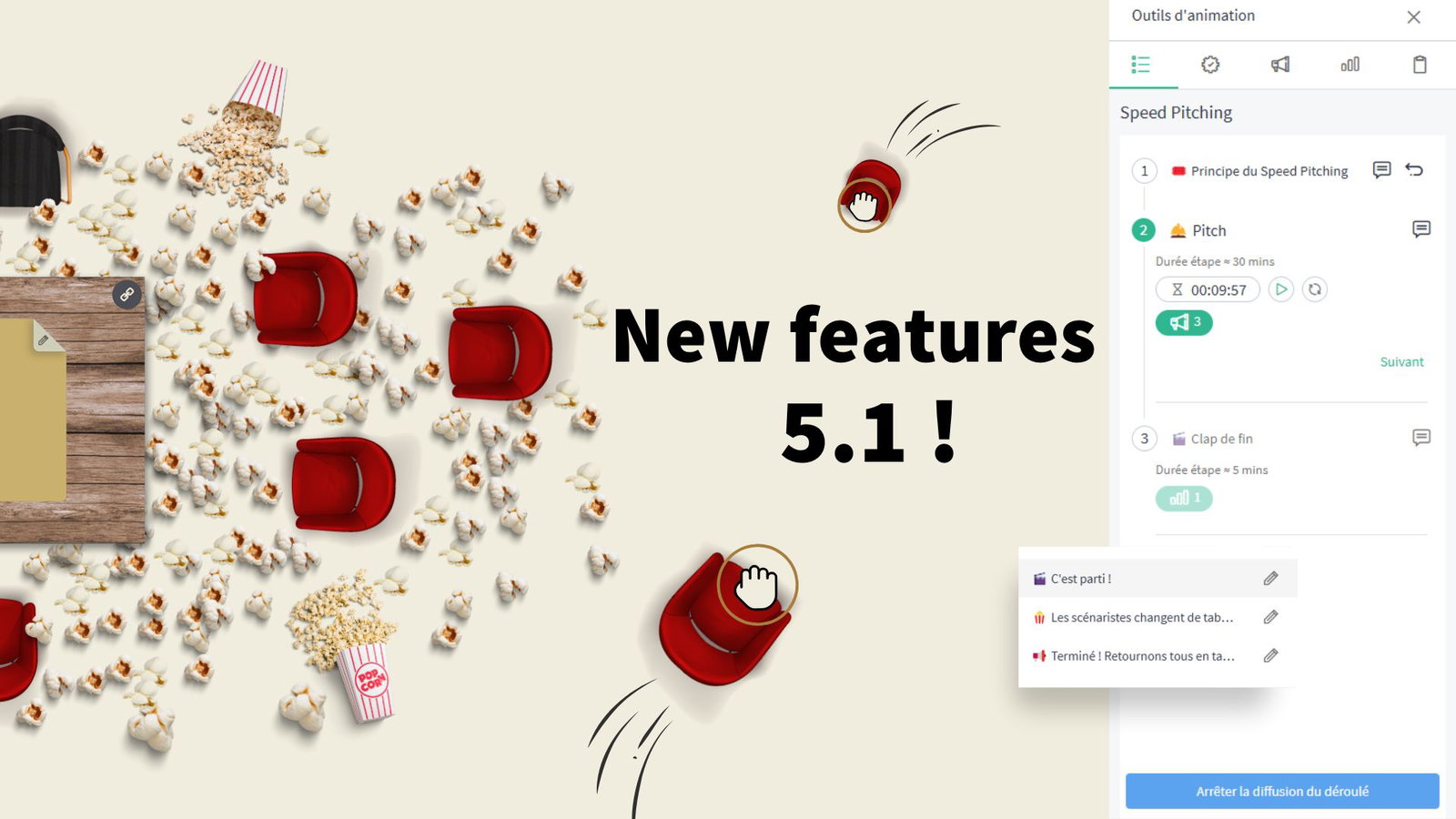
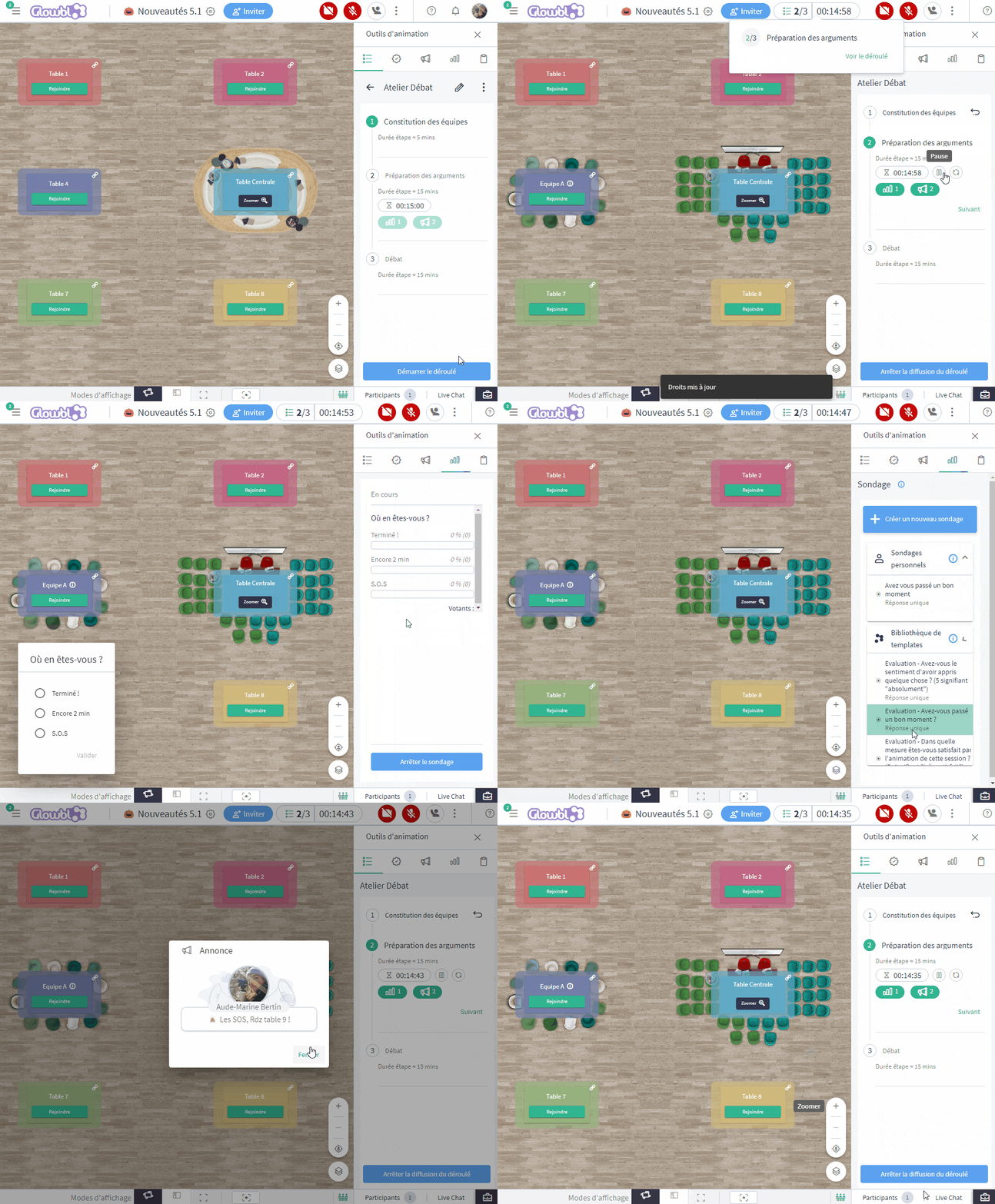
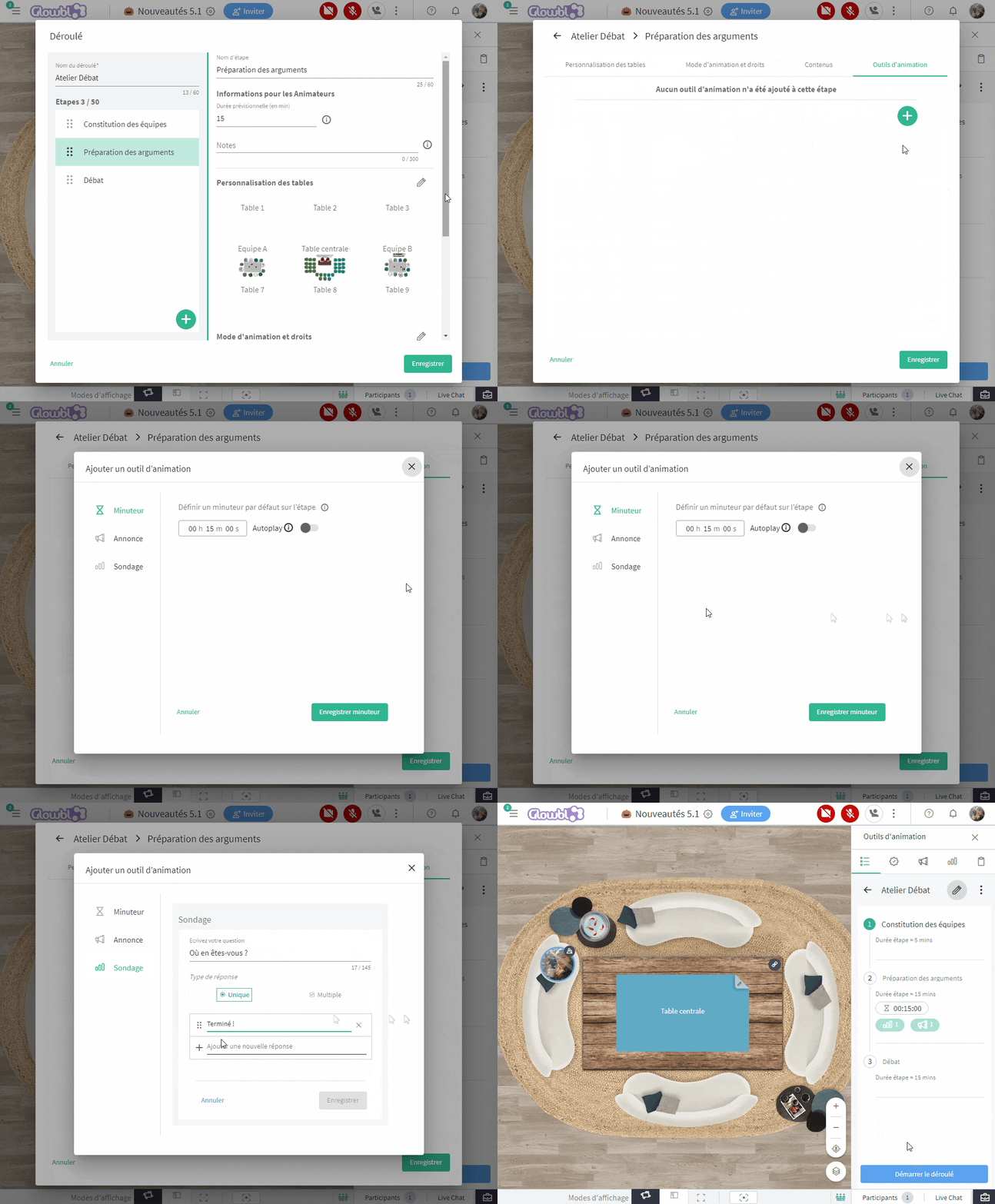
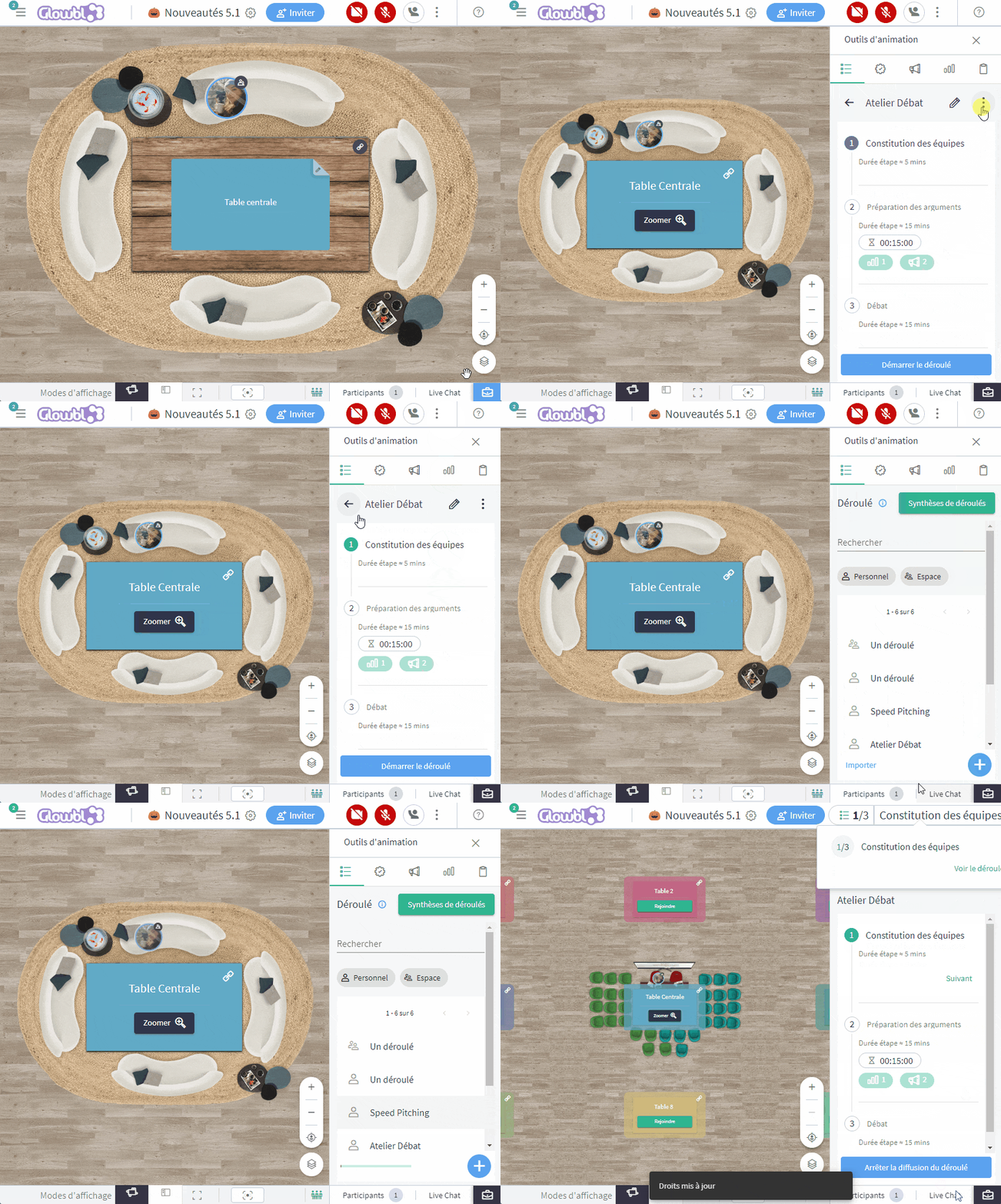
📣❓Associate polls and announcements with the steps of a sequence
Set up one or more announcements or polls for each step. A new "Facilitation tools" category has been added to the sequence creation window, including the timer.
📤 Import / Export sequences
Get inspired by the experts, download sequences from our Gallery.
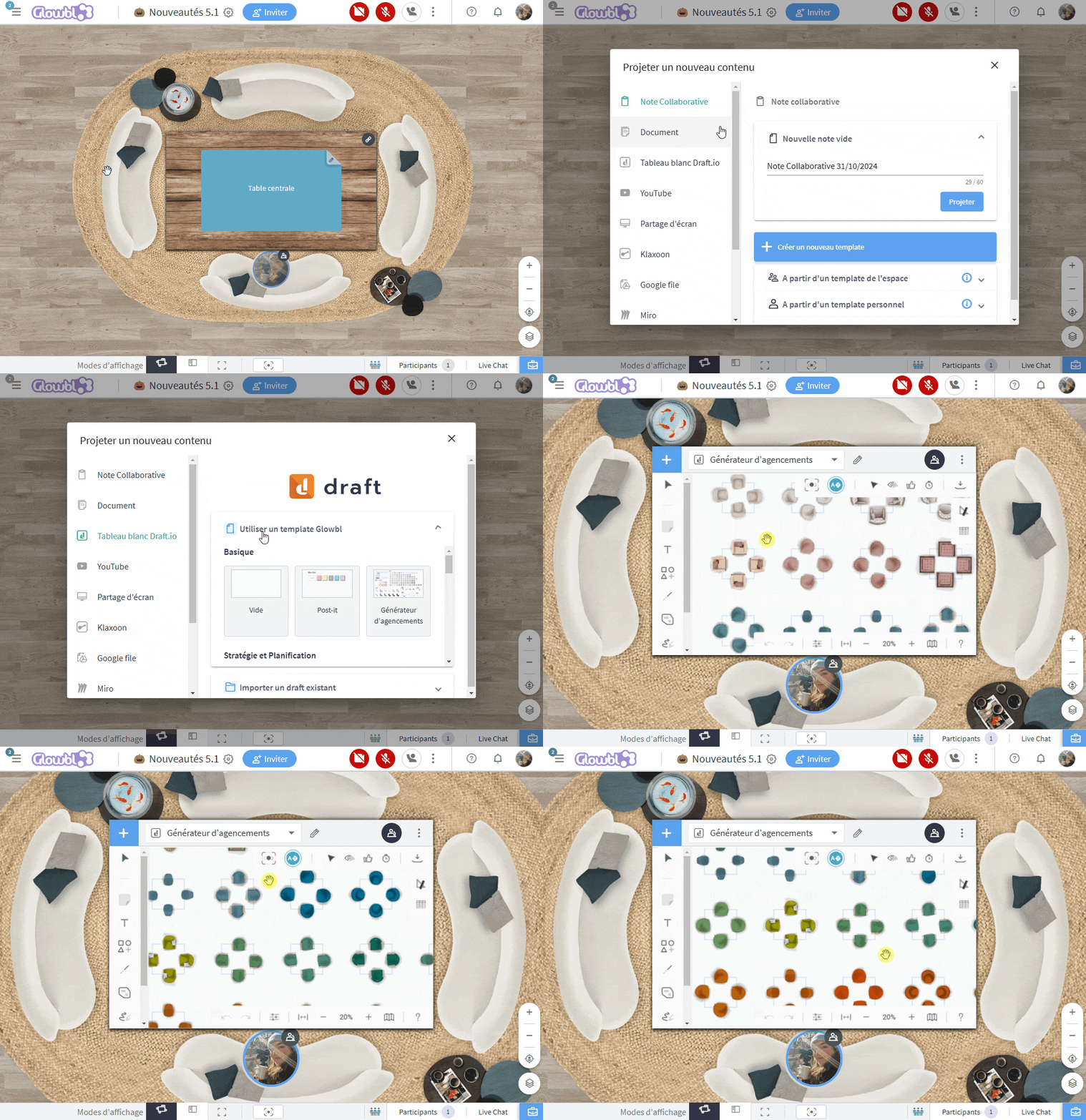
🛋️ Create your own layouts
Working like a "drag & drop" of elements around a table, the generator lets you compose your own layouts, allowing you to choose the mood of your session, apply your branding, assign roles, or even create teams.
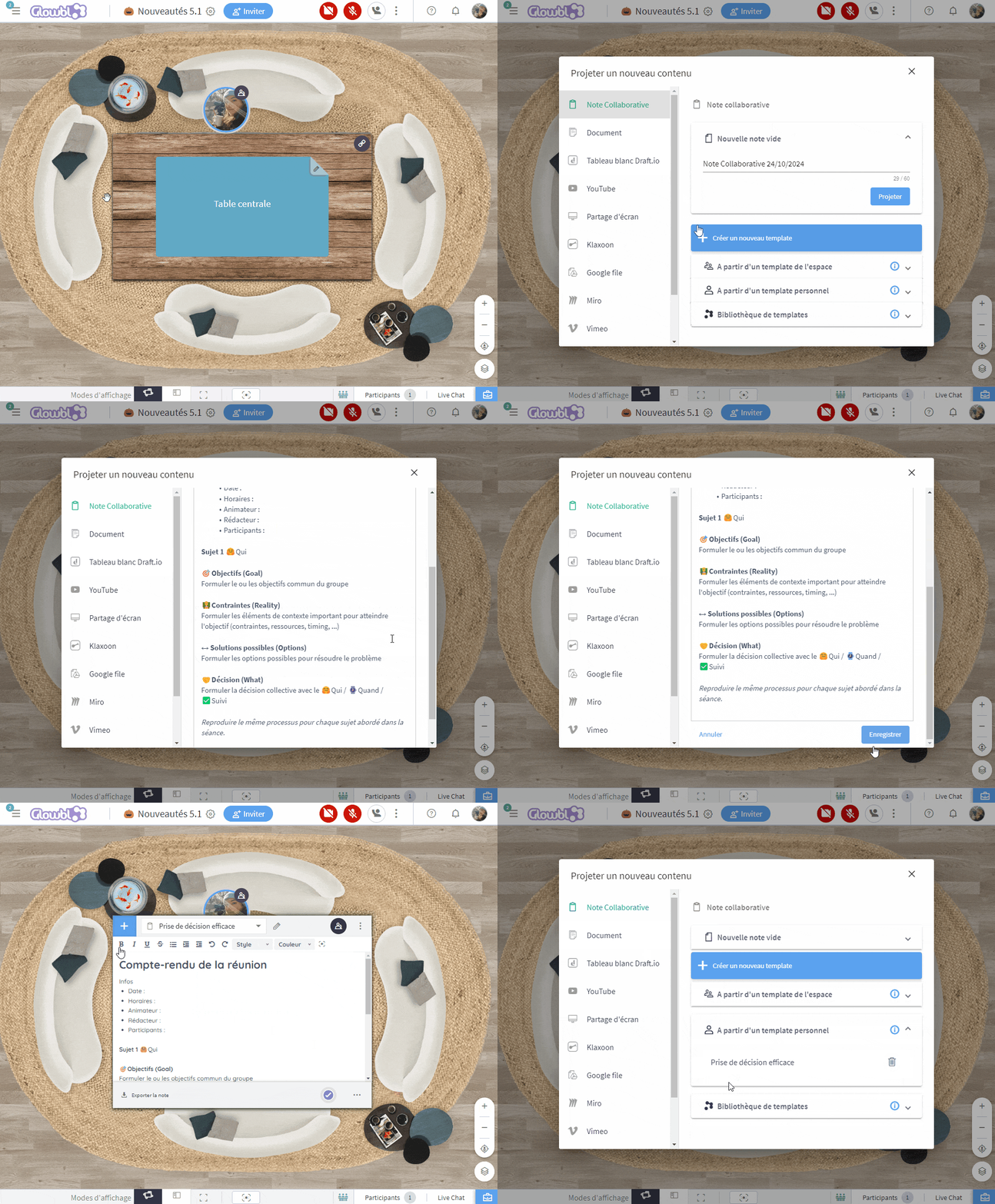
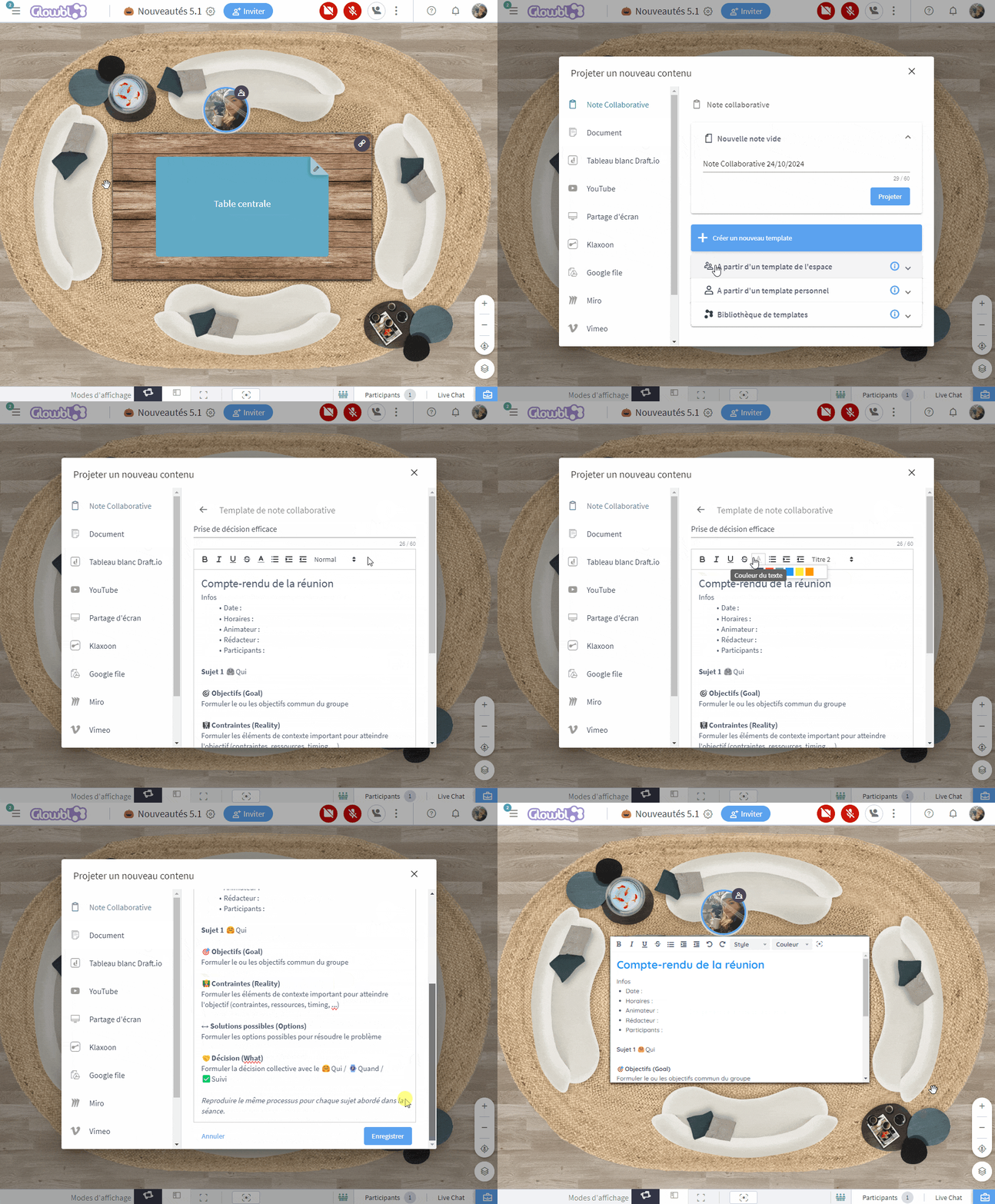
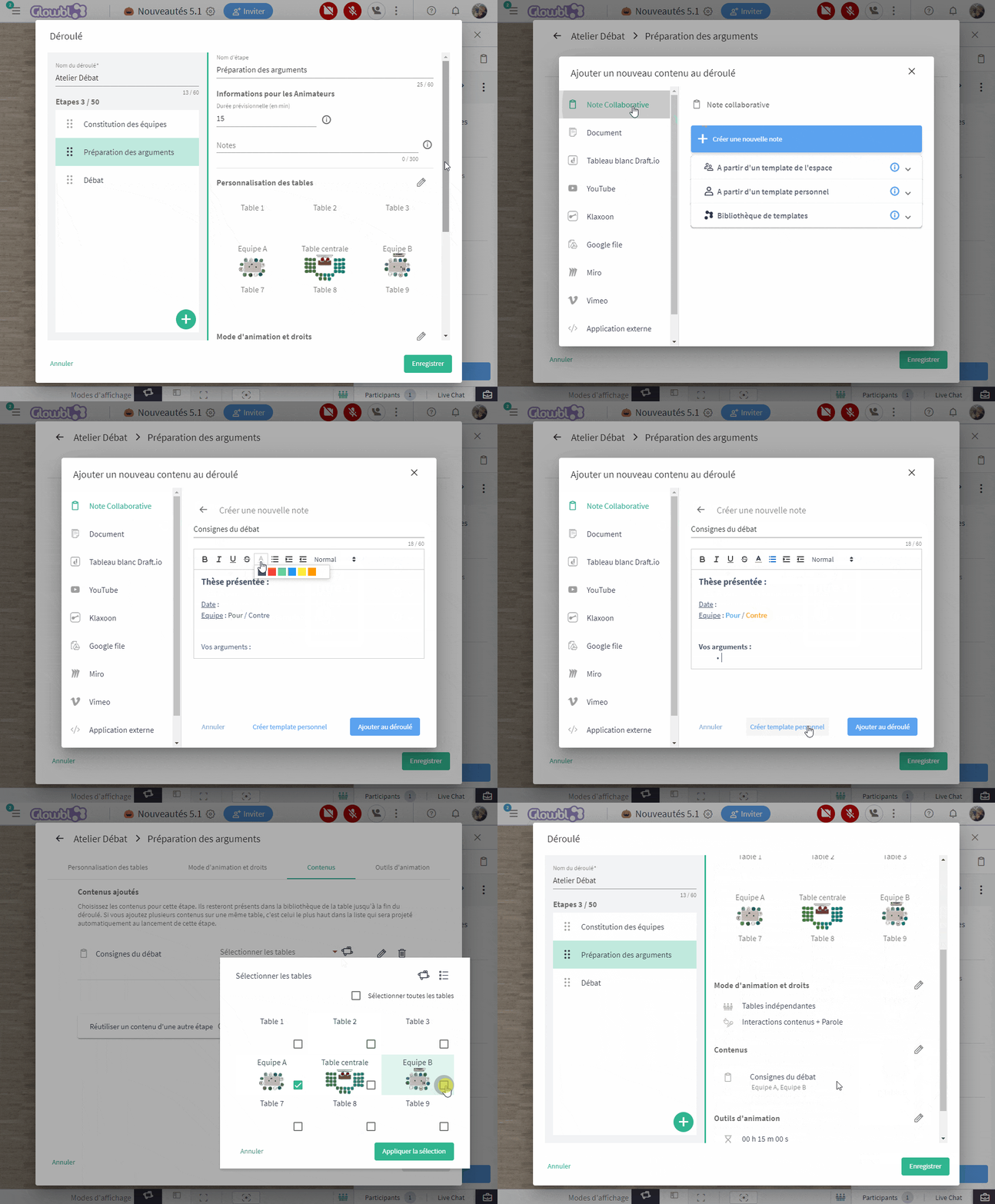
📝Shape a collaborative note from the sequence window
Add a collaborative note, a collaborative note template or format/edit a note directly from the preparation window of your sequence to one of its step.
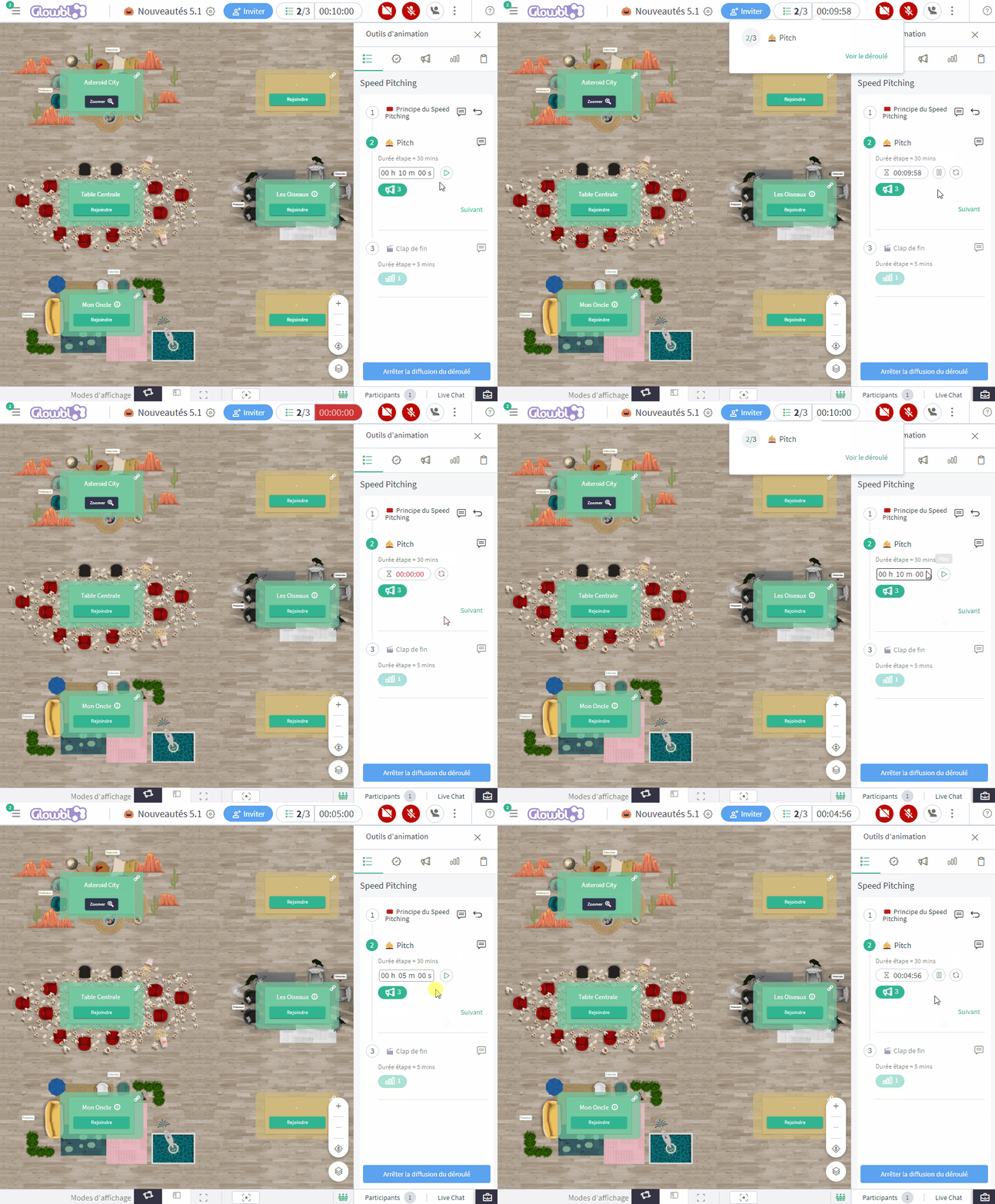
⏱️Reinitiate and restart a timer
When facilitating a sequence, you can pause it, but also reset it. Change the duration and restart the timer as many times as you like.
IMPROVEMENTS
📒Create and edit collaborative note templates more easily
A new "Create new template" button and a new collaborative note editing interface.